
Issue description
Your xTool M2 is already connected to WiFi, but it does not appear in the device list. The software displays “Can't find device connected through Wi-Fi”.
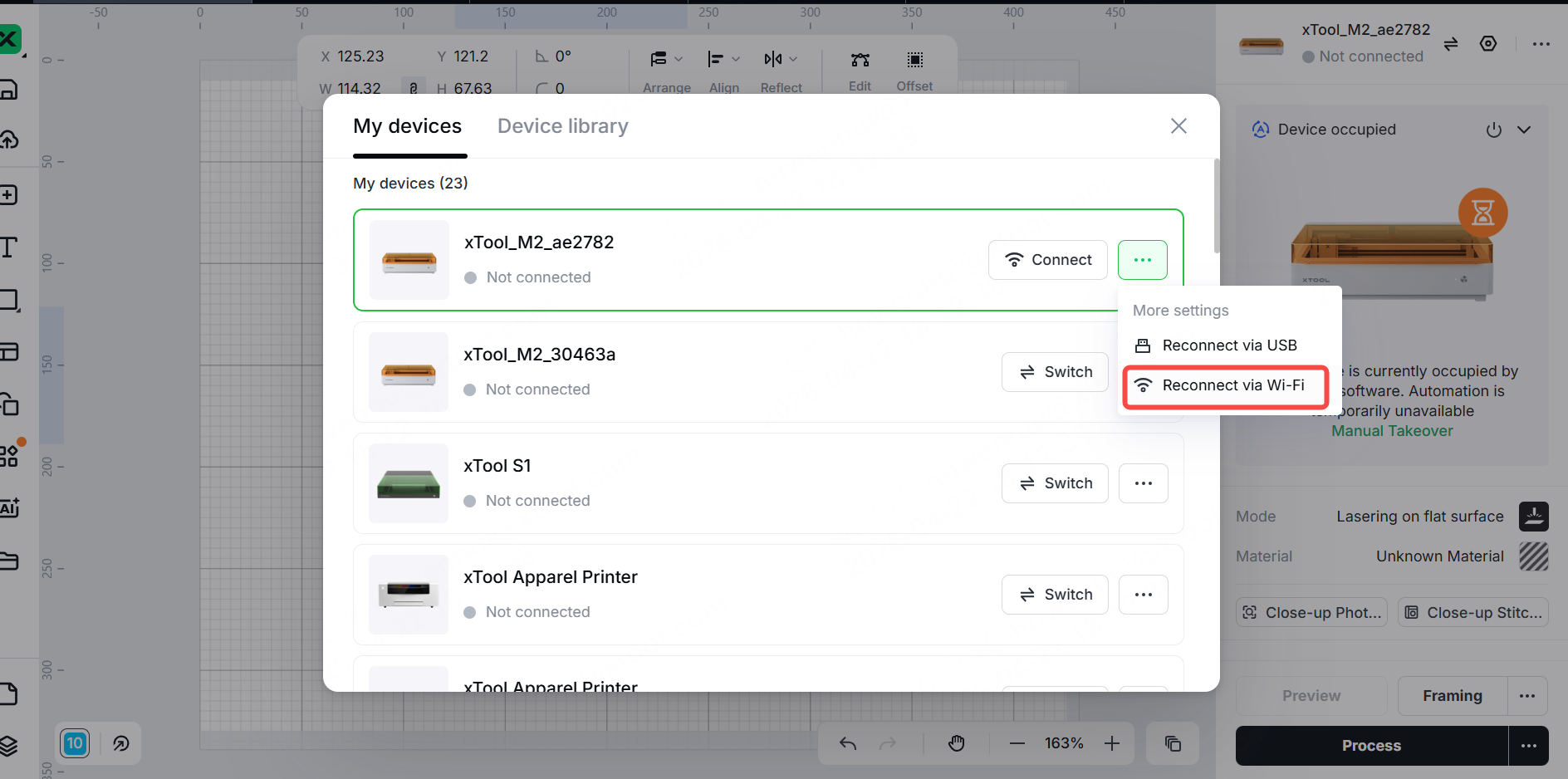
Possible causes
- The computer and device are not connected to the same Wi-Fi network
- The Wi-Fi name or password contains special characters, is longer than 32 characters, or the password has been changed
- Weak Wi-Fi signal
- The computer has a proxy server, VPN, or firewall/antivirus software enabled that is blocking the connection.
- macOS 15.0 and later versions do not grant xTool Studio access to the local network
- The router's security encryption method is incompatible (e.g., the router uses WPA3, but the device requires WPA2/WPA)
- The Wi-Fi that your device was previously connected to is different from the one you are currently using
- The xTool Studio software version is too low
Troubleshooting procedures
1. Check the software version
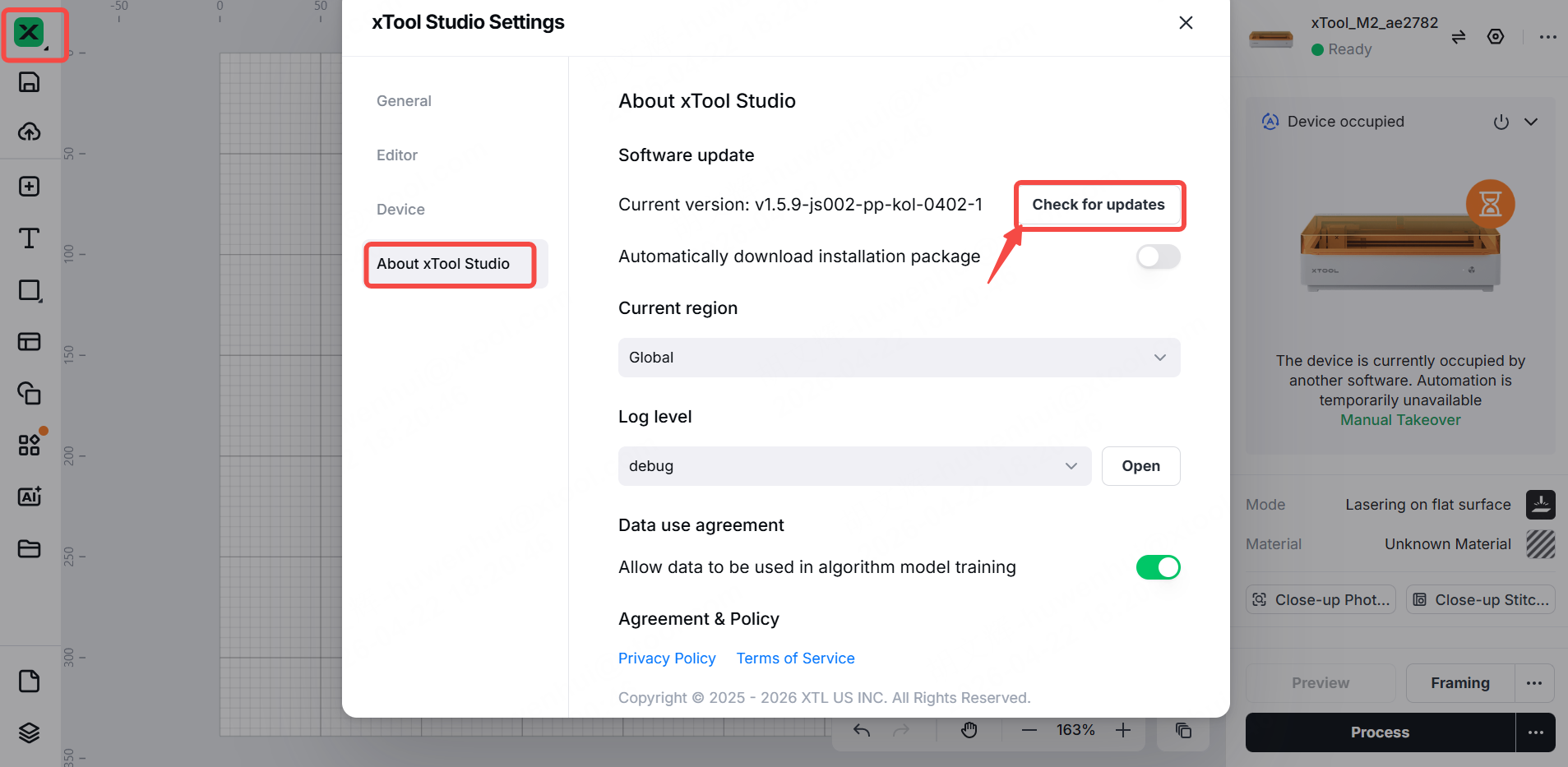
- Click the settings icon > About xTool Studio to check whether the software version is higher than or equal to V1.7.24.
2. If your current version is lower than V1.7.24, visit the xTool official website to download and install the latest version.
3. Once the update is complete, restart the software and connect it to the device again.
2. Perform the Wi-Fi connection self-check test
Since there are many possible causes for Wi-Fi connection failures with xTool M2, before troubleshooting, you can perform the Wi-Fi connection self-test in the software. Based on the results of the self-test, you can then troubleshoot the issue specifically.
3. Check the software version
Go to About xTool Studio > Software update > Check for updates to check whether the software version is the latest.
4. Verify Wi-Fi consistency
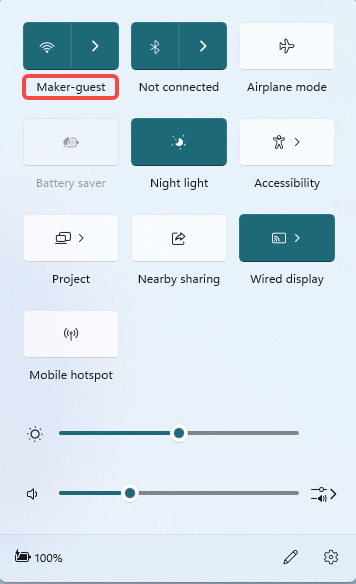
Check to see if your computer is connected to the same Wi-Fi as the xTool device.
- If not, please connect both your computer and device to the same Wi-Fi.
- If they are on the same Wi-Fi, proceed to Step 2.
|
|
5. Check the Wi-Fi name and password
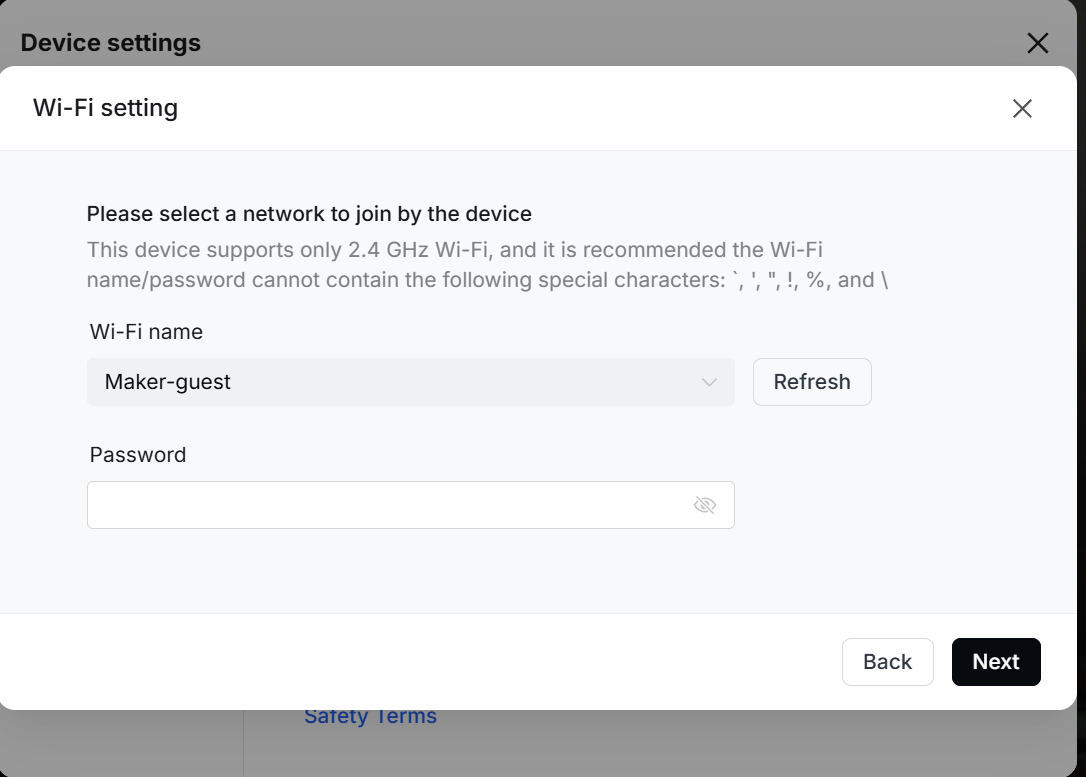
- Make sure that your Wi-Fi name and password consist only of letters and numbers, and do not contain special characters such as ', ", !, or \.
- Check whether the Wi-Fi password for the configured network has been changed. If it has been changed, reconnect the device using a USB cable to reconfigure the Wi-Fi.
- Make sure your Wi-Fi password is no longer than 32 characters. If it exceeds this limit, please shorten it.
6. Check your network connection
Check if the Wi-Fi signal strength is weak.
- If your network signal is weak, please switch to a network with a stronger signal.
- If the connection is stable, proceed to the next step.
How to evaluate the network status:
- For Windows users:
- Connect the device via the USB cable.
- Go to Device settings > Basic info > Wi-Fi setting to check the IP address.
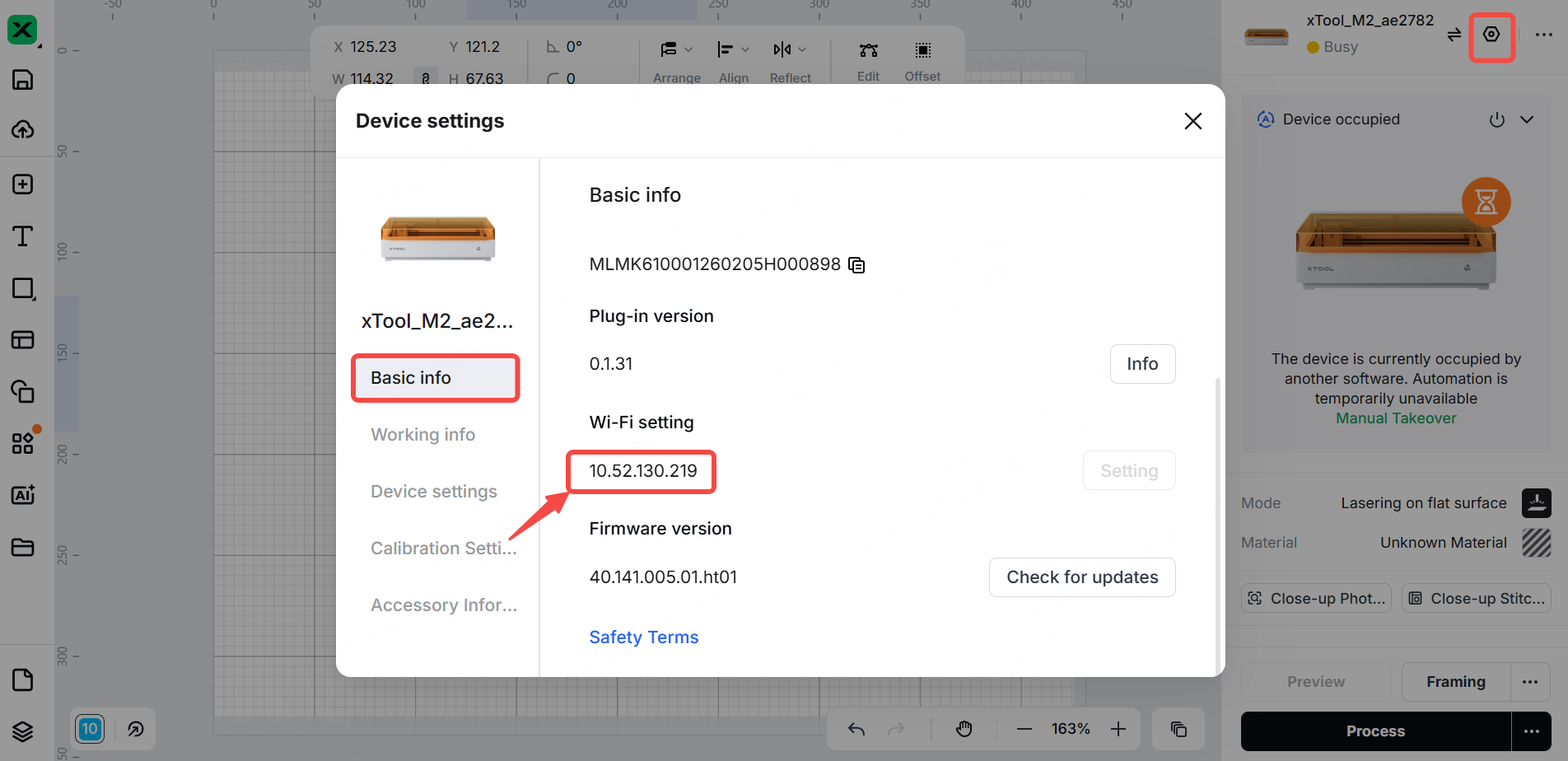
c. Follow the steps to check the command prompt.
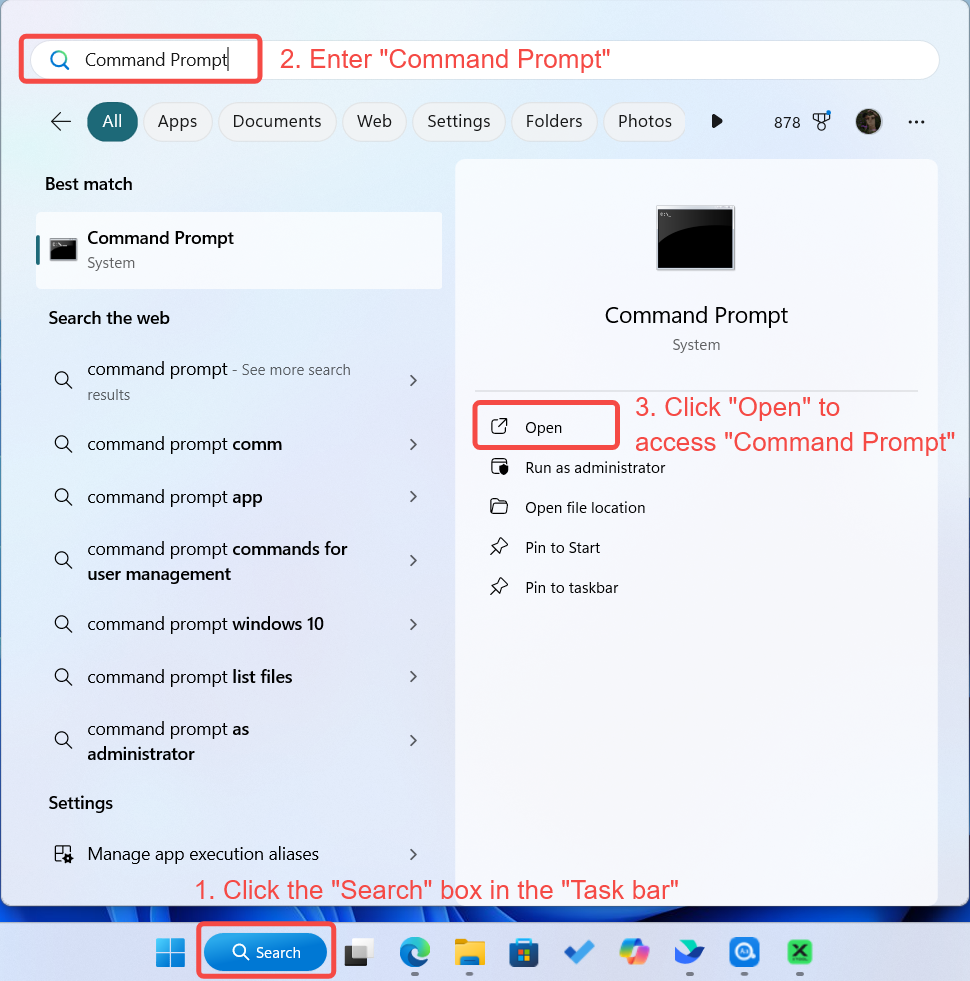
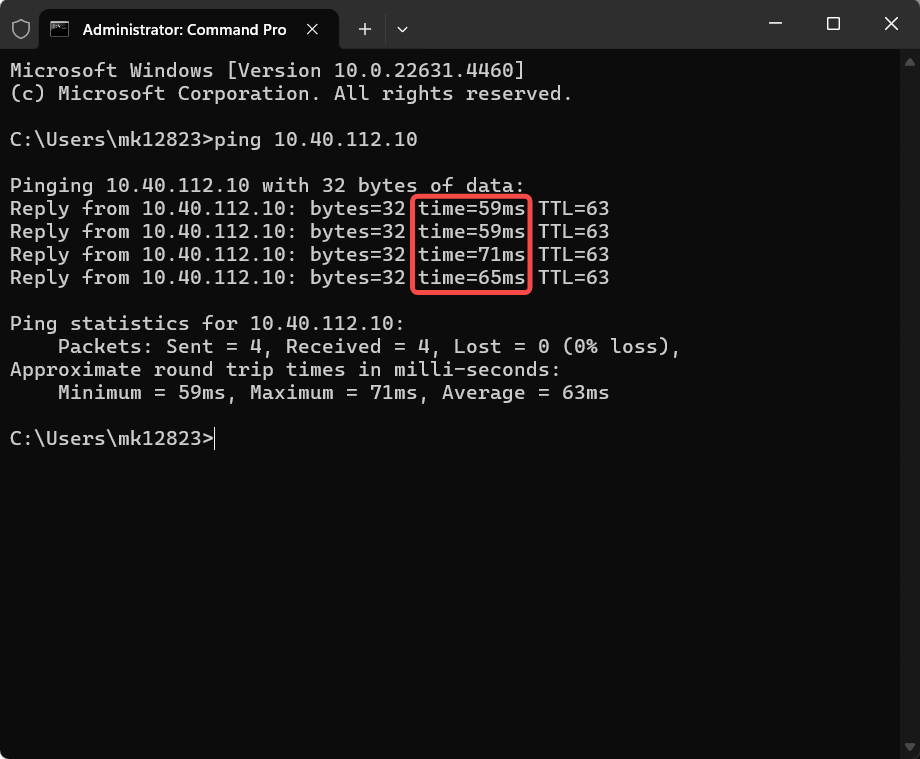
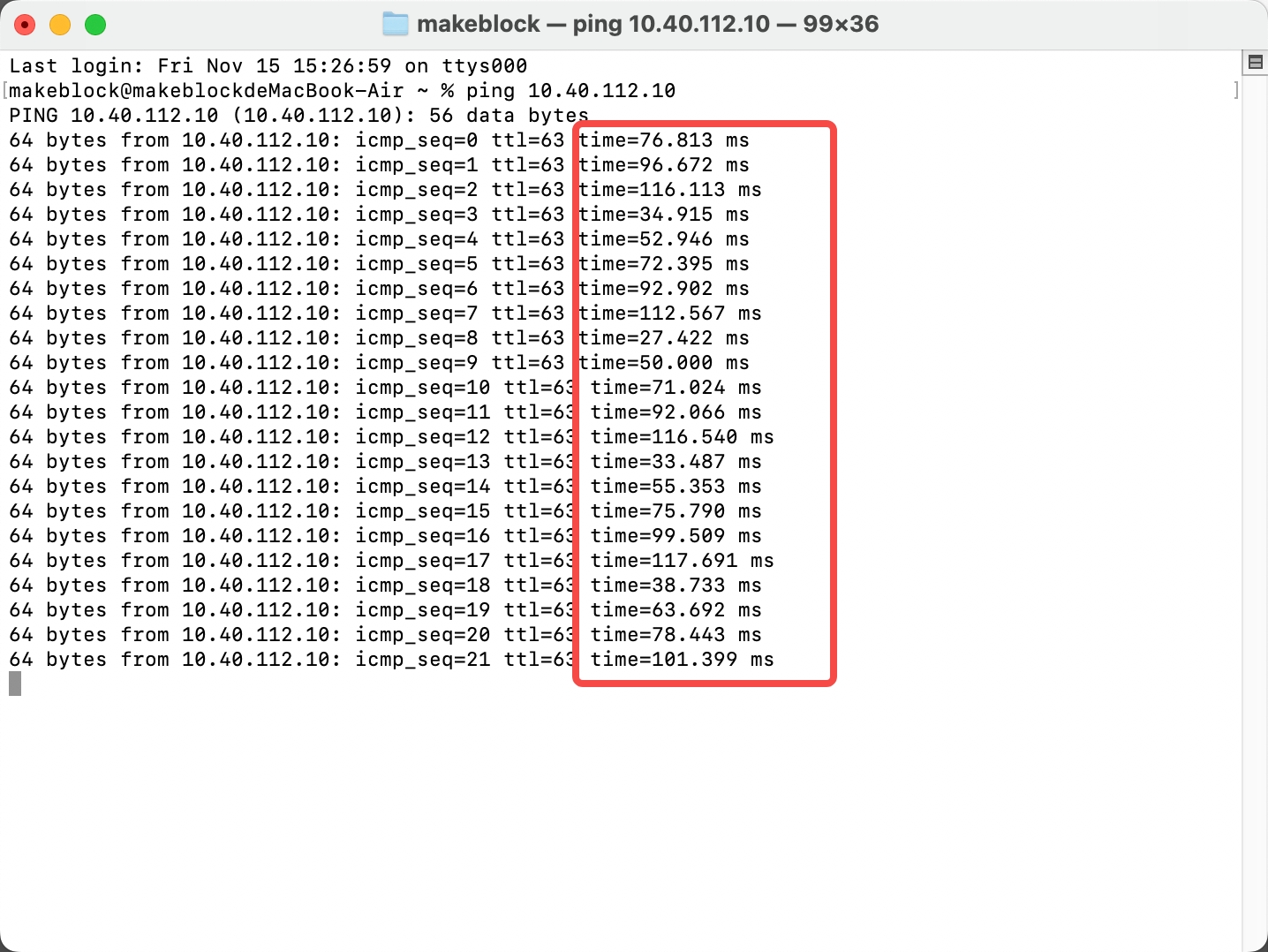
d. Enter ping [IP address] to check the network connection.
If the response time exceeds 150 milliseconds, it indicates a weak network connection.
- For macOS users:
- Connect the device via the USB cable.
- Go to Device settings > Basic info > Wi-Fi setting to check the IP address.
- Follow the steps to visit the terminal.
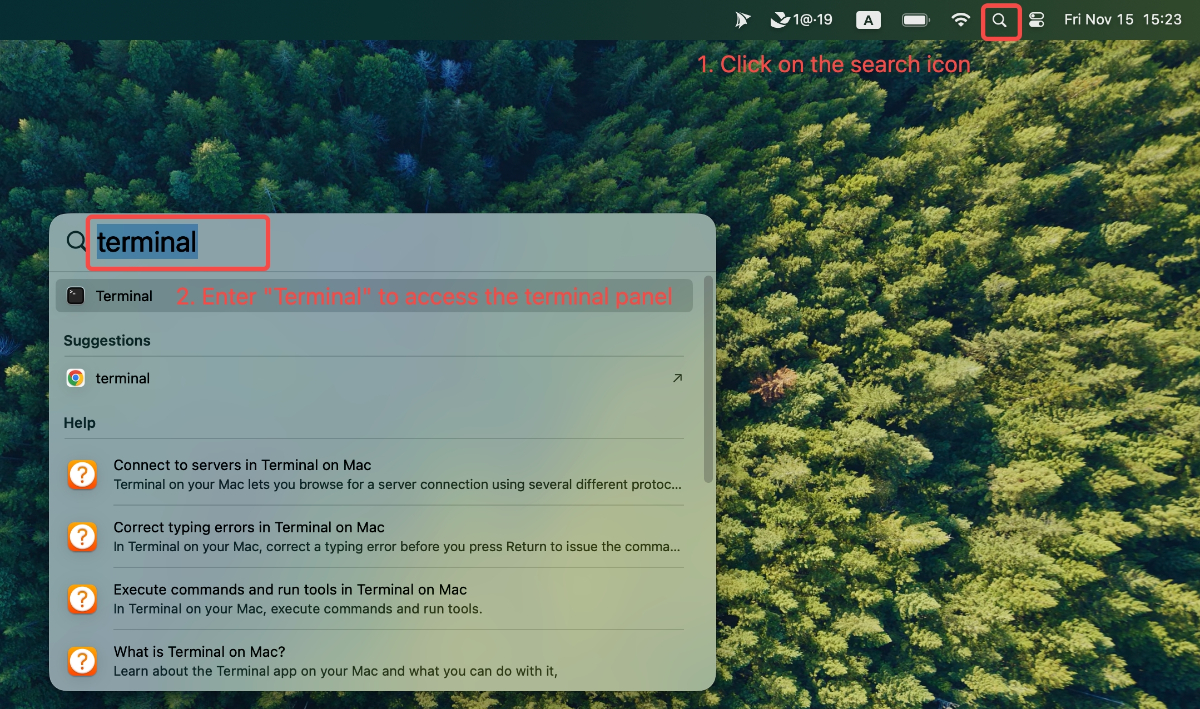
- d. Enter ping [IP address] to check the network connection.
If the response time exceeds 150 milliseconds, it indicates a weak network connection.
7. Check the proxy settings
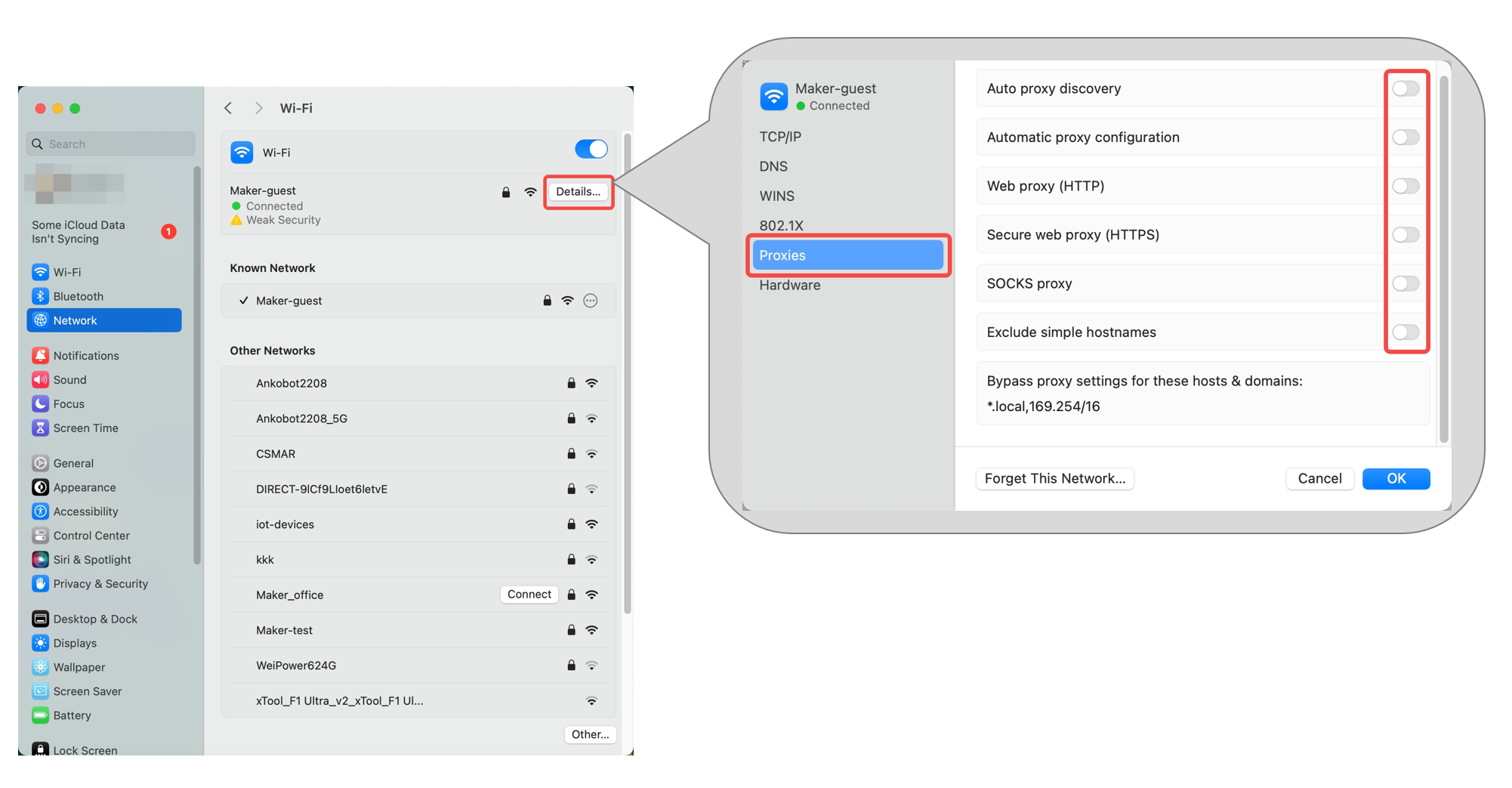
Make sure your computer isn't using a proxy, as this may interfere with device detection.
- If a proxy is enabled, please disable it and connect to the Wi-Fi again.
- In Windows, go to Settings > Network & Internet > Proxy, and check and adjust the settings if necessary.
- On macOS, go to Settings > Network > Details > Proxies, and check and adjust the settings if necessary.
- If the proxy is not enabled, keep proceeding to the next step.
8. Disable VPNs and firewalls
VPNs, firewalls, and antivirus software on your computer may interfere with xTool Studio's ability to connect to the device via Wi-Fi. Please disable these features on your computer, then restart xTool Studio and the device.
9. Check App permissions (for macOS 15.0 and later)
The first time you run xTool Studio, you will be prompted to allow xTool Studio to access your local network.
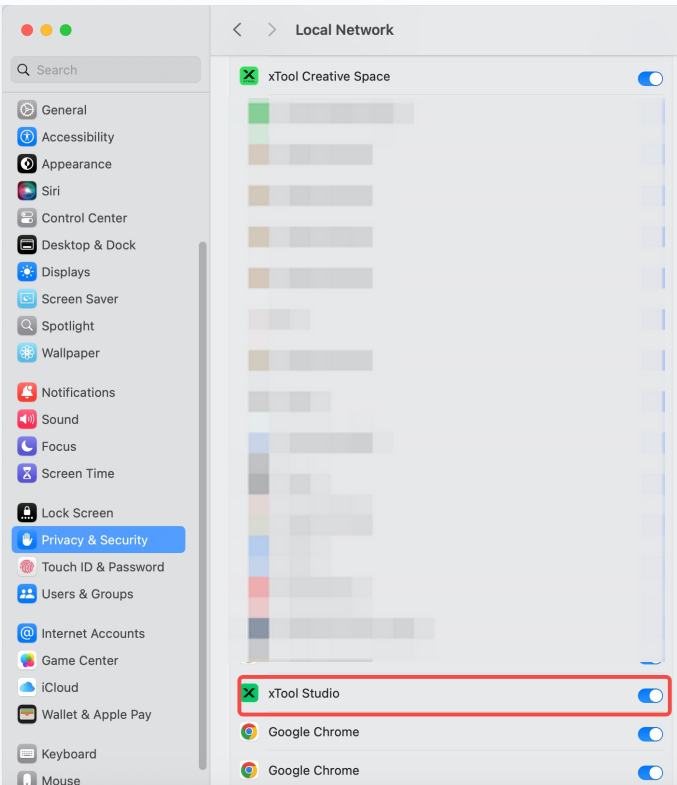
- If you select "Do not allow," xTool Studio will be denied access to the device. Please check whether your macOS has settings that restrict xTool Studio from discovering devices on the local network.
- If such restrictions exist, please change the settings to allow xTool Studio to detect local devices.
To check your local network device settings:
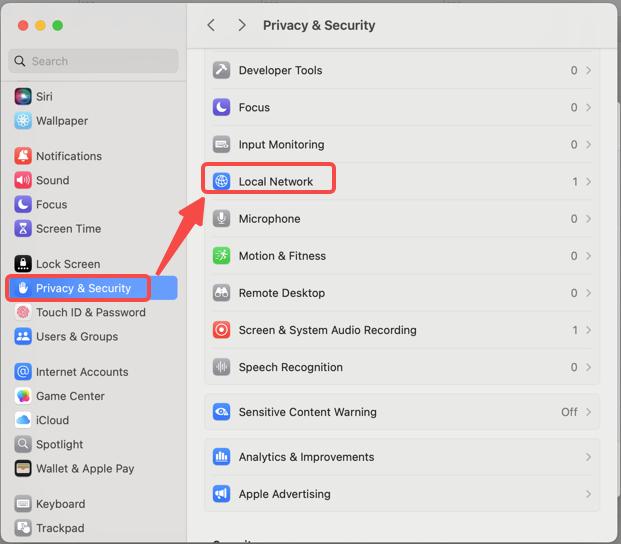
- Go to Settings > Privacy & Security > Local Network.
- If local network access is disabled, toggle the switch to enable it.
- If no restriction exists, proceed to the next step.
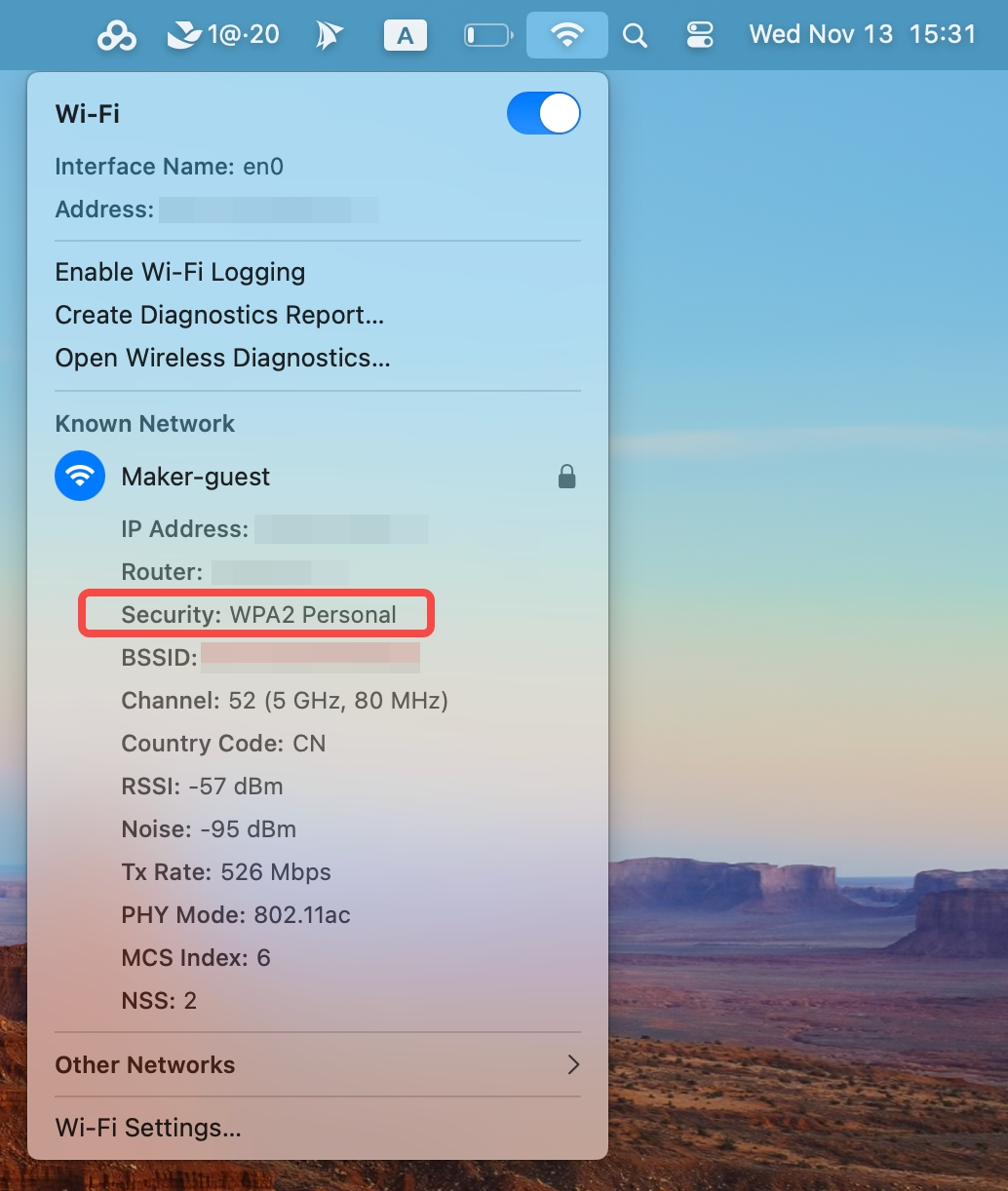
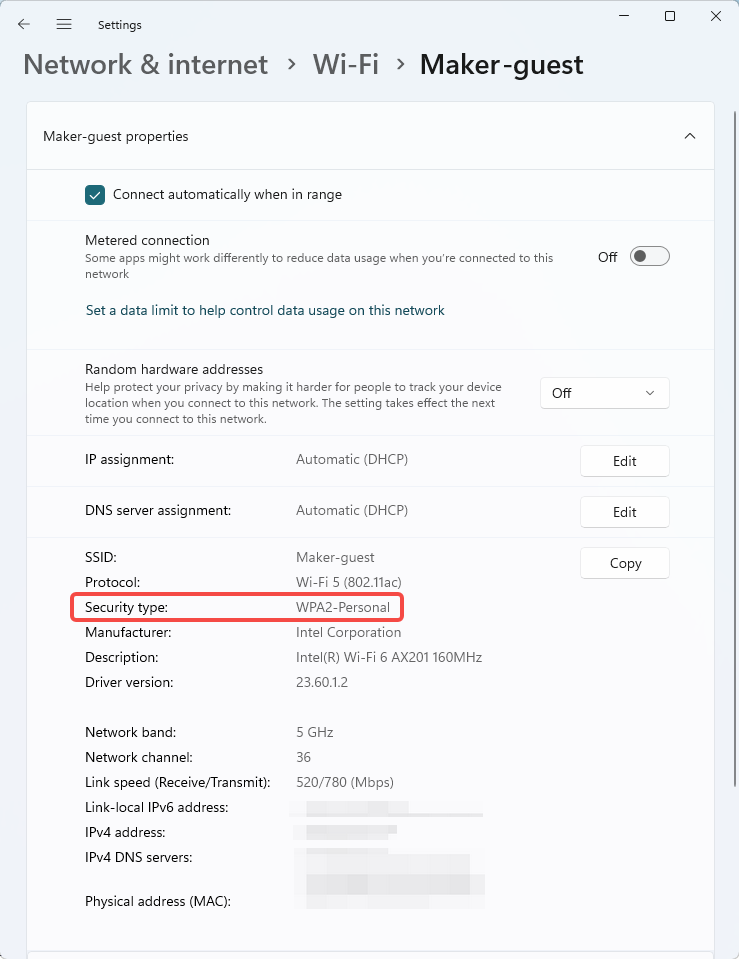
10. Check your router's security settings
Make sure your router is set to WPA2 or WPA encryption (not WPA3)
- If WPA3 is enabled, please change it to WPA2 or WPA. For instructions on how to adjust your router's security settings, please refer to the router's user manual.
- For information on how to verify your router's security settings, see Step 5.
|
|
Still experiencing issues?
Should the issue persist after completing the preceding steps, submit a ticket via the "Submit a Ticket" button in the "Help Ticket" section below. The standard response time for xTool Customer Service is one business day.
For a prompt resolution, please include the following details:
- Software and firmware version: The software version of xTool Studio and the firmware of xTool M2 that you use.
- Device information: Find the SN number on the back of xTool M2. Follow the steps to export the work log.
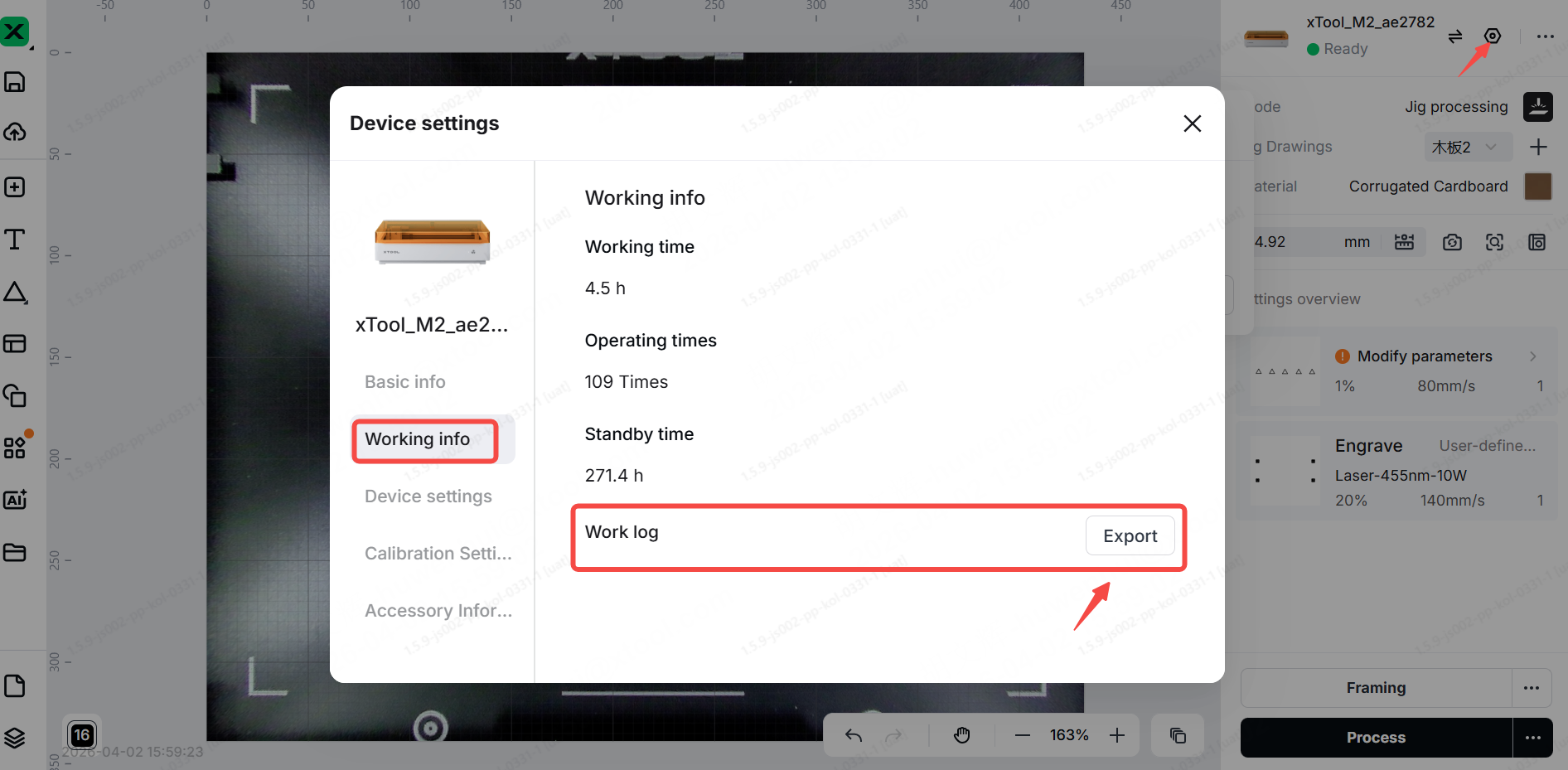
This information is crucial for xTool technical support engineers to provide timely assistance.

Services & Help
Learn & Education

Copyright © 2025 xTool All Rights Reserved.