
Offset shapes
Updated May 20,2026
Updated May 20,2026
Create an outer or inner outline around selected vector or bitmap artwork. Use it for kerf compensation, stickers, or nested cut lines.
- Select one or more objects on the canvas.
- On the top design toolbar, click Offset (outline icon).
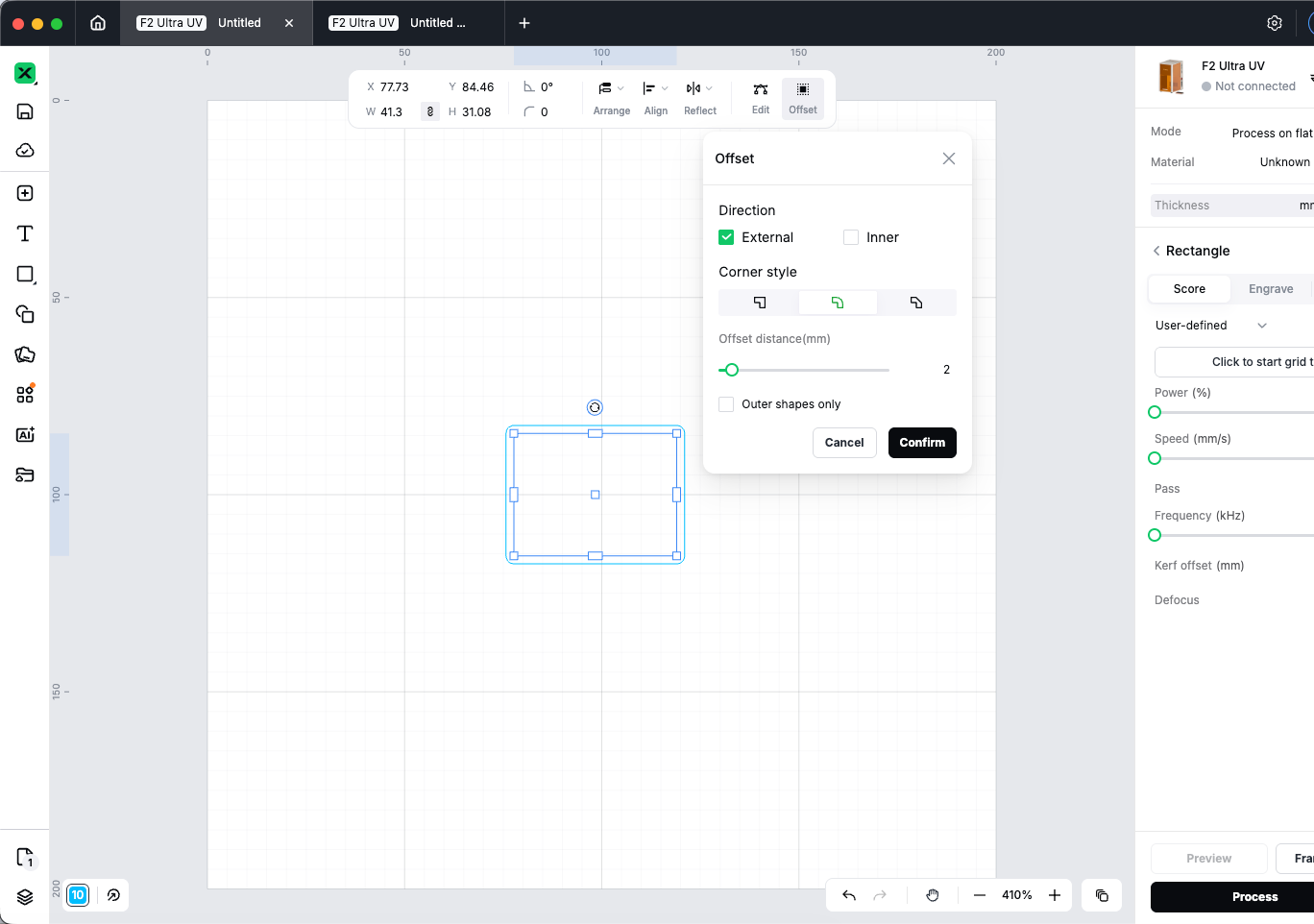
- In the Offset panel, choose External and/or Inner to generate outlines outside and/or inside the shape.
- Set Corner style (miter, round, or bevel).
- Adjust Offset distance (in your canvas unit, for example mm).
- Optional: turn on Outer shapes only to drop inner fill areas from the result.
- Wait for the preview to finish, then click Confirm. Click Cancel to discard.
Offset works on vectors and bitmaps. Very large or complex selections may take longer to generate.
Preview
Was this page helpful?
0 out of 1 found this helpful
Help Ticket
Use this help ticket to submit your issue. We will respond within 1 business day
Submit a Ticket 
