
xTool Store
Import a PDF, 3D model
Updated May 20,2026
Updated May 20,2026
Import a PDF
- Open a project in the editor.
- On the left rail, click Upload (same entry as importing images). You can also open the Studio logo menu → File → Import image...
- In the file window, select a PDF and confirm.
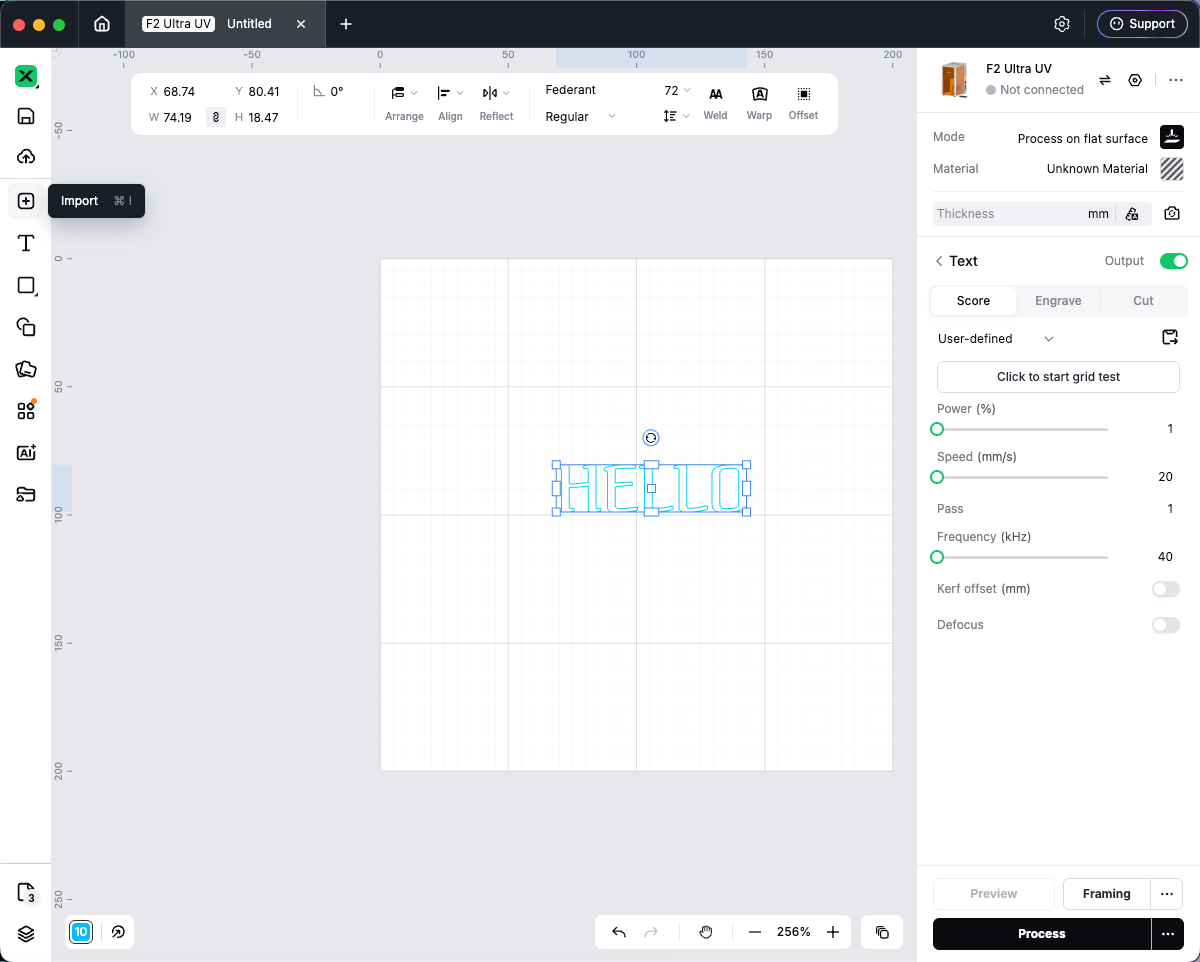
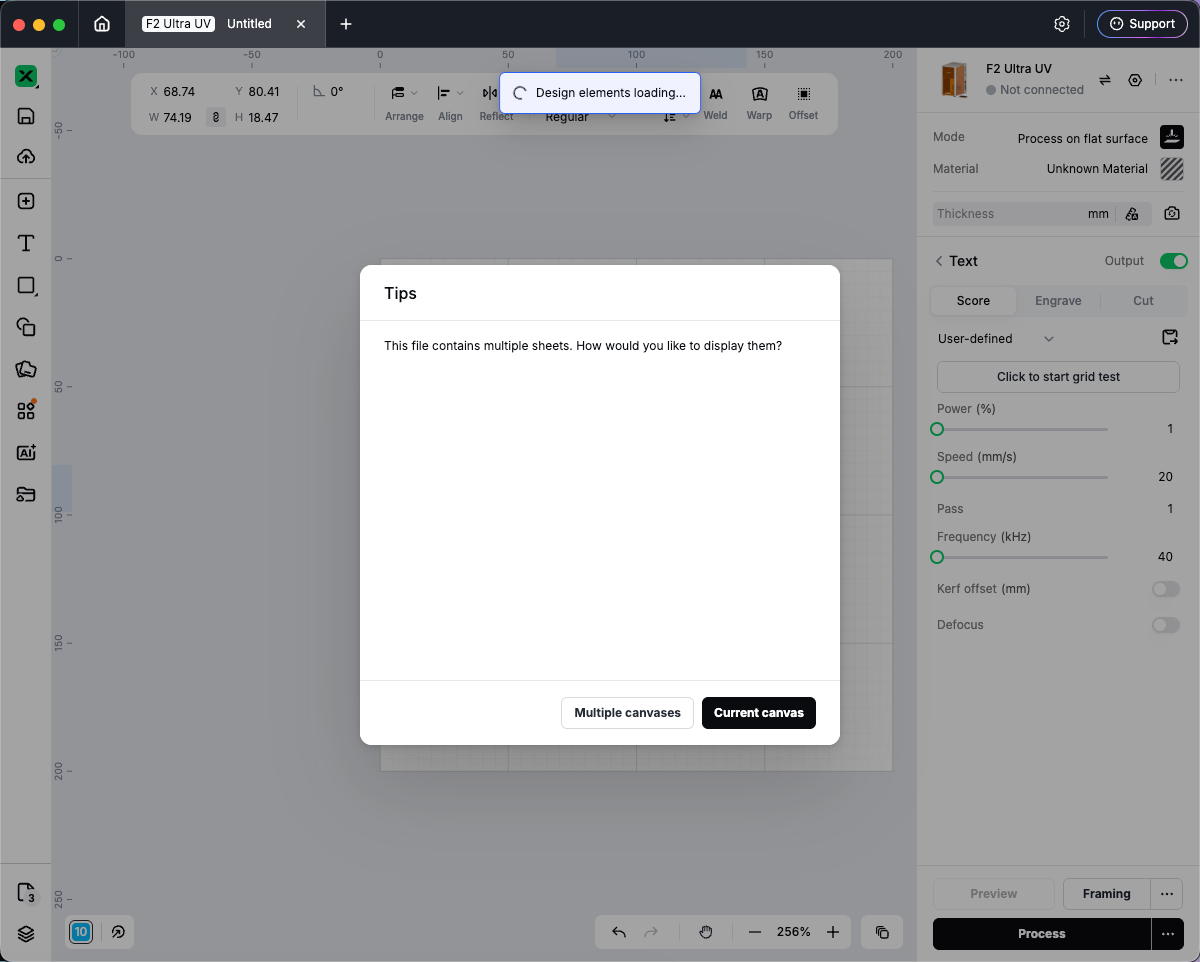
- If the PDF has more than one page, choose how to import: Import to separate canvases (each page gets its own canvas), or Import to current canvas (all pages on the current canvas).
- If the imported content is larger than the canvas, you may be asked to scale to fit or keep the original size (same as importing a large image).
- You can also drag and drop a PDF onto the canvas.
PDFs with more than 30 pages cannot be imported. Split the file or use a shorter PDF if you see an error.
Import a 3D model
When your project uses a 3D canvas, or your device/setup allows 3D import, Upload can list 3D model files. On a 2D-only project, formats such as STL and OBJ may not appear in the picker.
Example: On xTool F2 Ultra (F2U), choose Inner Engraving. Studio switches to a 3D canvas for this mode, so Upload can include 3D models even when a plain 2D project cannot.
- Open or create a project that uses a 3D canvas, or connect your machine and select a 3D / Inner Engraving mode.
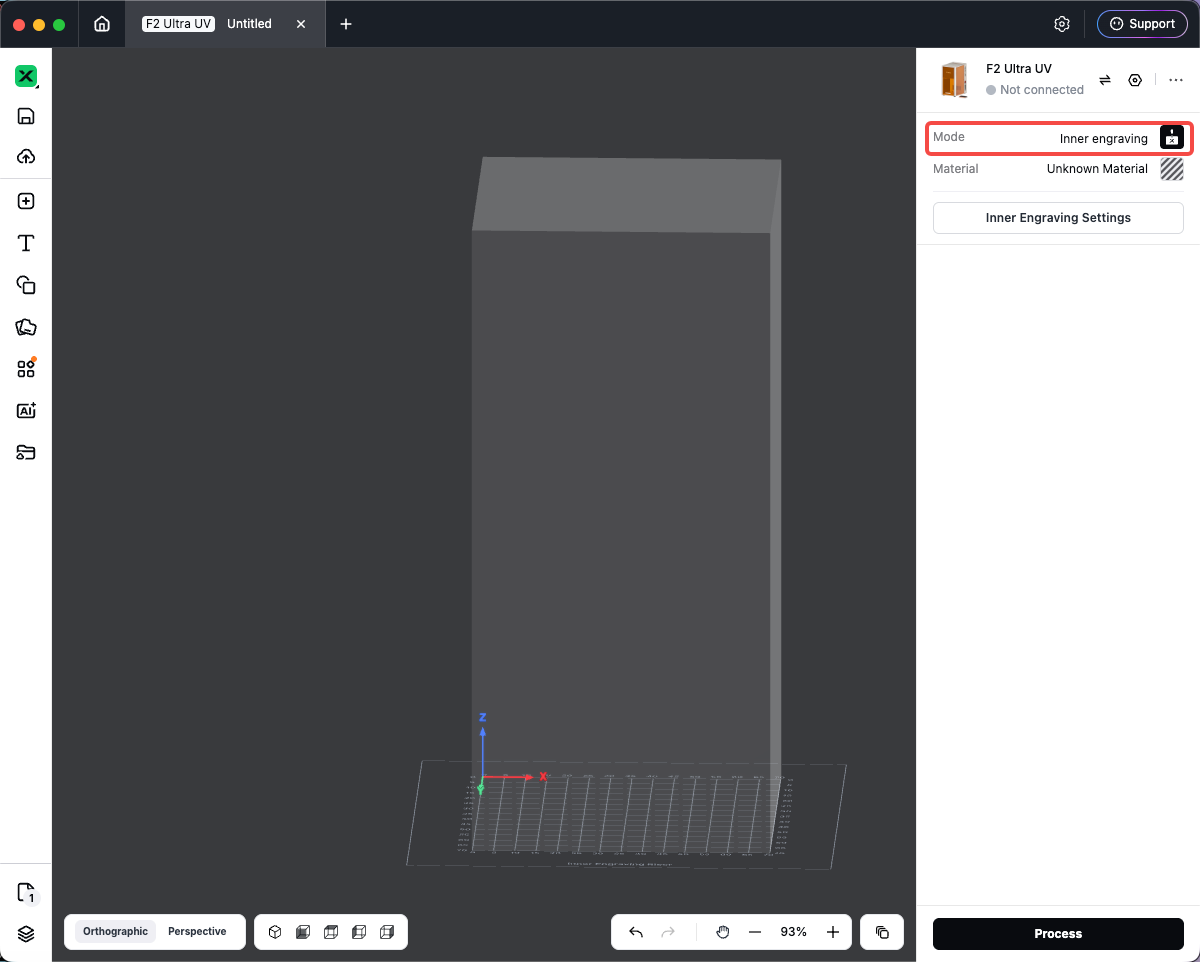
- On the left rail, click Upload, or use File → Import image...
- Select a supported model file, for example 3MF, AMF, GLB, OBJ, STL, or PLY.
- If asked, choose scale to fit or keep size.
- Position the model with move, rotate, and scale on the canvas.
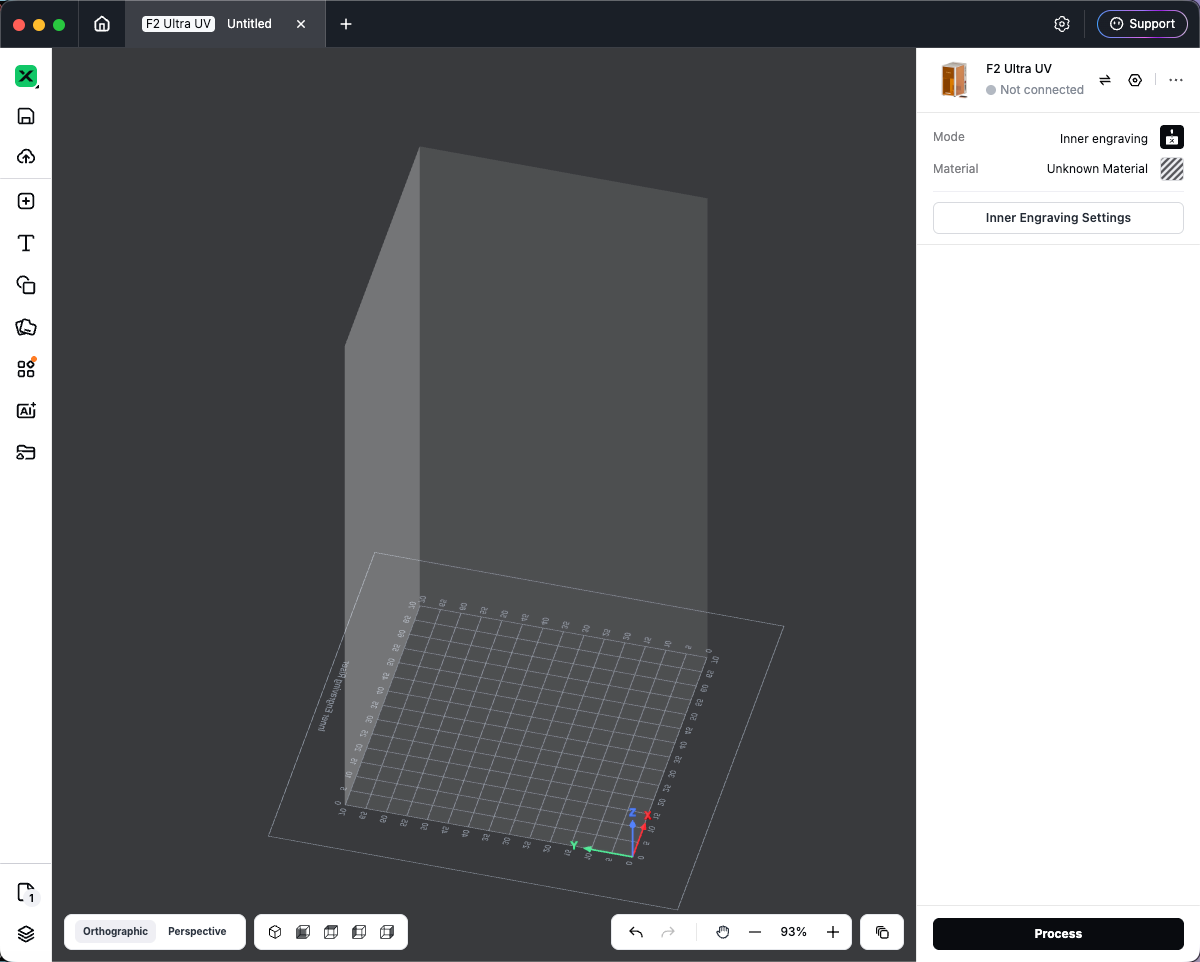
- You can drag and drop supported 3D files onto the canvas when 3D import is available.
Preview
Was this page helpful?
0 out of 0 found this helpful
Help Ticket
Use this help ticket to submit your issue. We will respond within 1 business day
Submit a Ticket Tags
Help Ticket
Use this help ticket to submit your issue. We will respond within 1 business day
Submit a Ticket 
Services & Help
Learn & Education

Copyright © 2025 xTool All Rights Reserved.