
xTool Store
Create a Project and Manage Canvases
Updated May 20,2026
Updated May 20,2026
A project in xTool Studio can contain one or more canvases (artboards). Use this guide to create a project, add canvases, and switch, rename, reorder, or duplicate them.
Create a new project
- Open xTool Studio on your computer.
- On the homepage, click + New Project in the upper-right corner.
You can also use + New Project in the Recently section. - Choose a device (or continue without a device if prompted), then enter the editor.
Open the Canvas panel
All canvas actions below use the Canvas panel on the left:
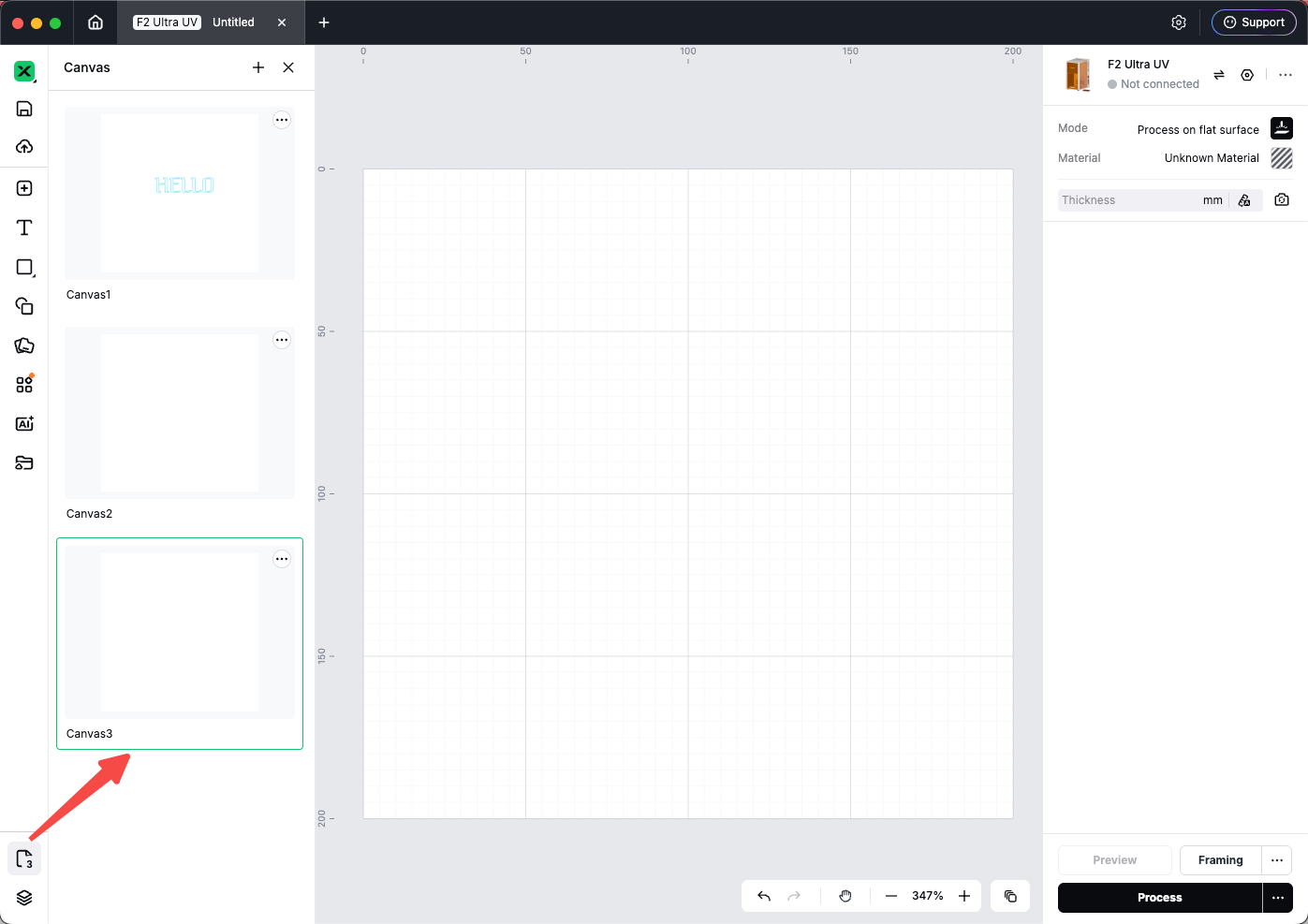
- In the editor, look at the bottom of the left rail.
- Click the Canvas button. It shows the current canvas name and how many canvases you have (for example, Canvas / … (2 canvases total)).
- The Canvas panel opens on the left. The panel title is Canvas.
Create a new canvas
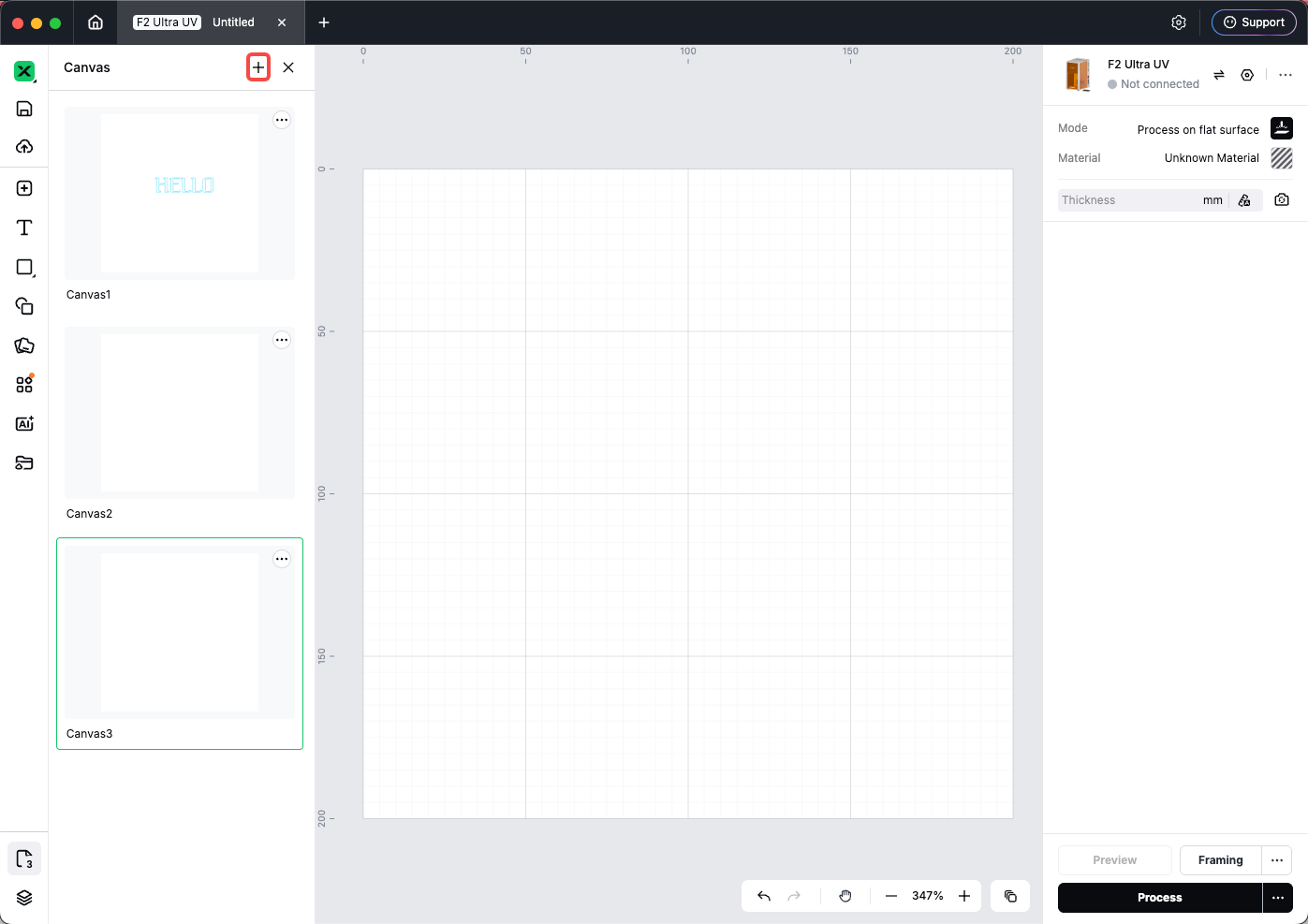
- Open the Canvas panel.
- Click the + button in the panel header.
- A new canvas is added to your project. The editor switches to that canvas.
- You can have up to 100 canvases in one project. If you reach the limit, remove or duplicate fewer canvases before adding another.
Tip: A new canvas copies the type of the current canvas (for example 2D vs 3D) and related device settings where applicable.
Switch between canvases
- Open the Canvas panel.
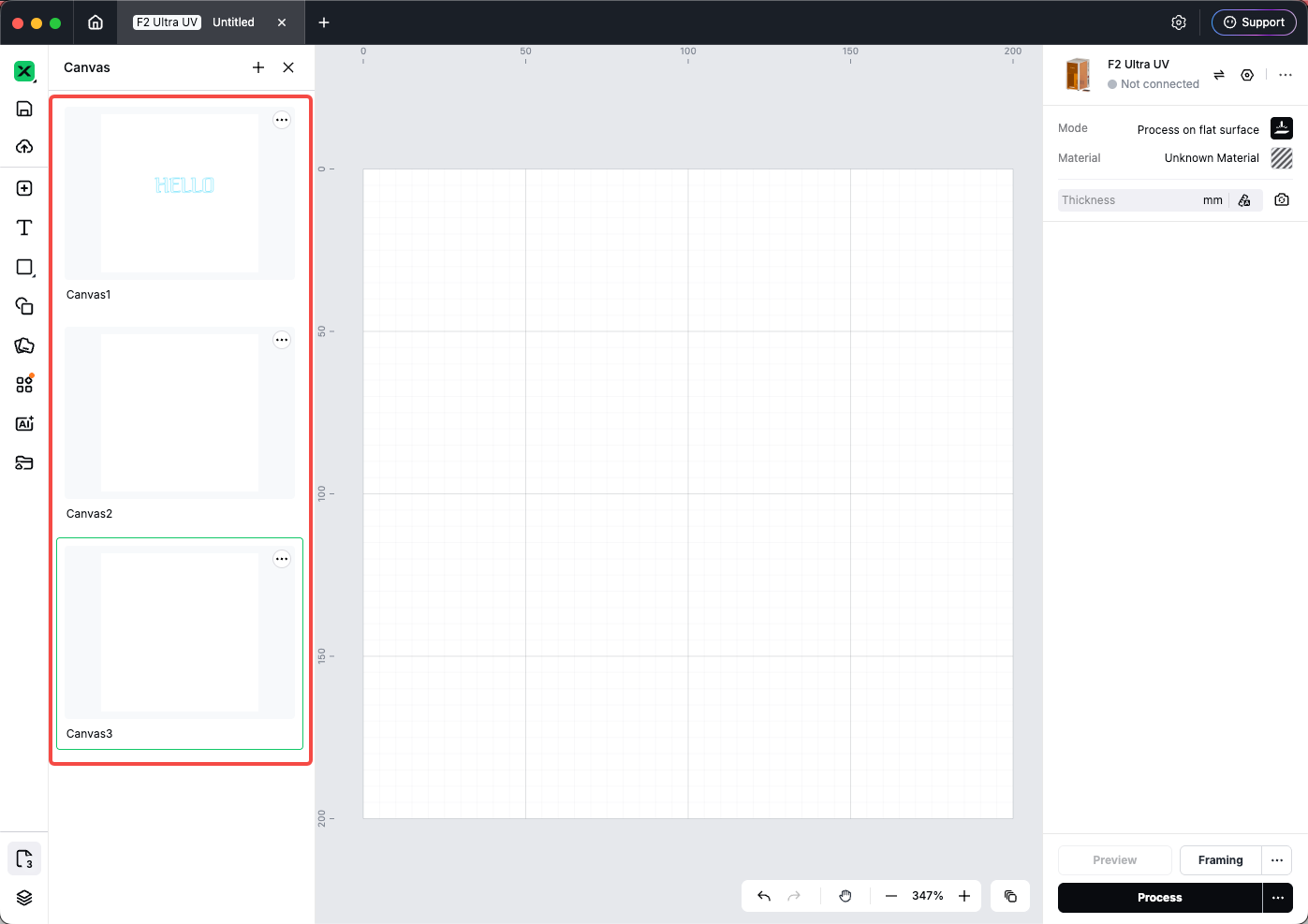
- Click the thumbnail of the canvas you want to edit.
- The main workspace updates to that canvas. The selected thumbnail is highlighted.
Rename a canvas
Method A — double-click
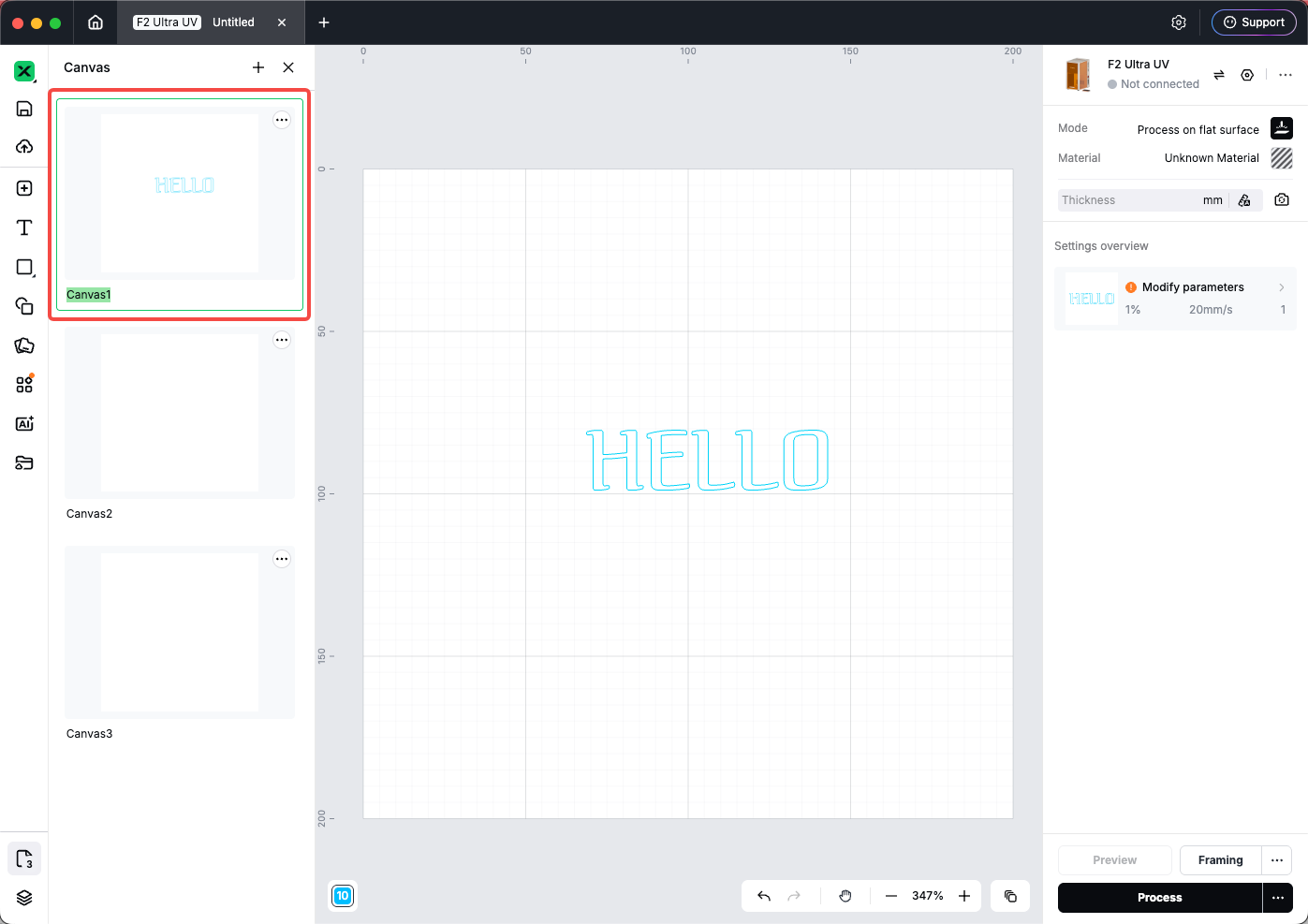
- In the Canvas panel, double-click the canvas name under the thumbnail.
- Type a new name and confirm.
Method B — menu
- Hover the canvas thumbnail and click the ⋯ (more) button.
- Choose Rename.
- Enter the new name.
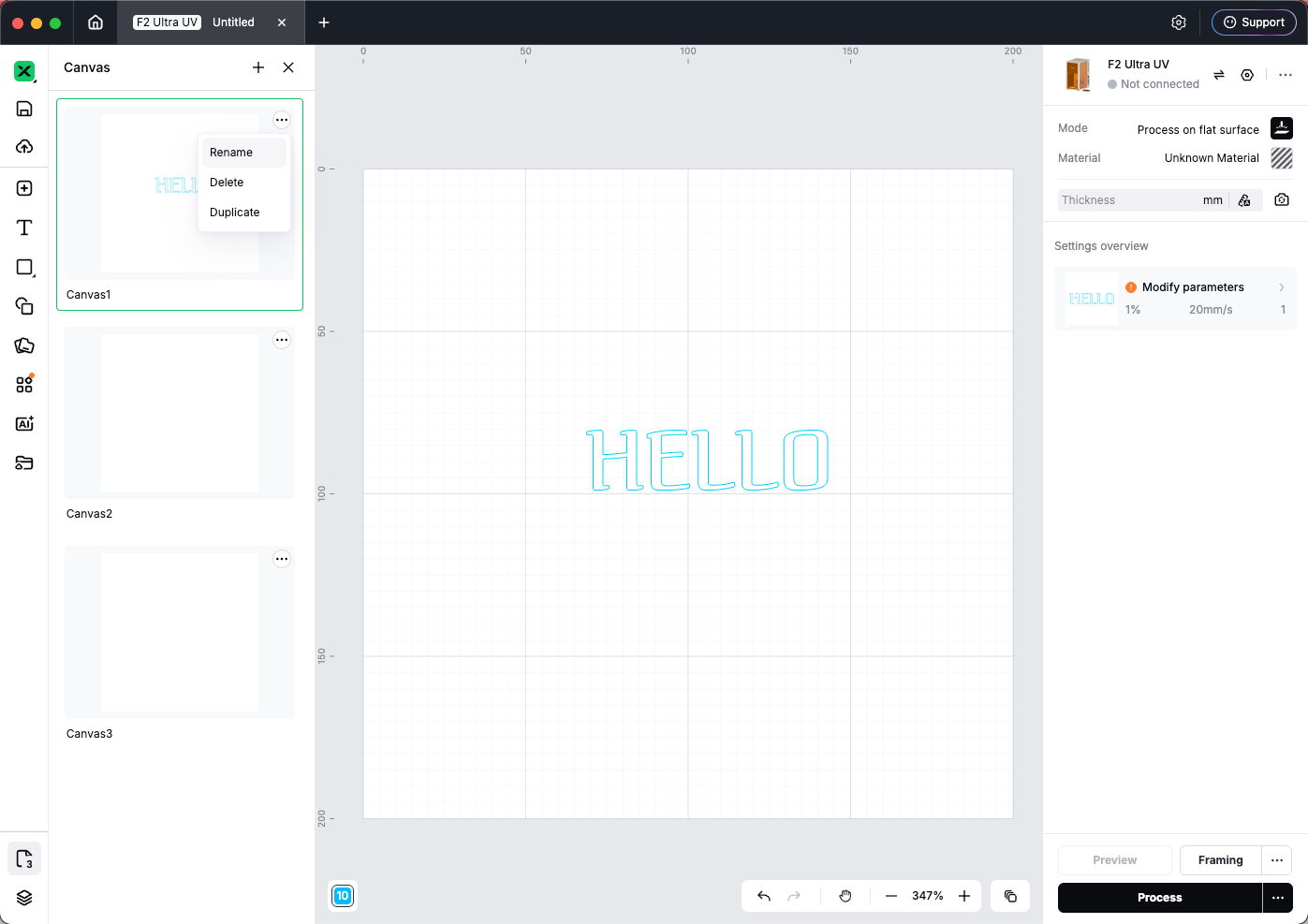
Reorder canvases
- Open the Canvas panel.
- Drag a canvas thumbnail up or down in the list.
- Release to set the new order. This only changes the list order, not the design on each canvas.
Duplicate a canvas
- Open the Canvas panel.
- Hover the canvas thumbnail and click ⋯ (more).
- Choose Duplicate.
- A copy of that canvas is added to the project, including its objects.
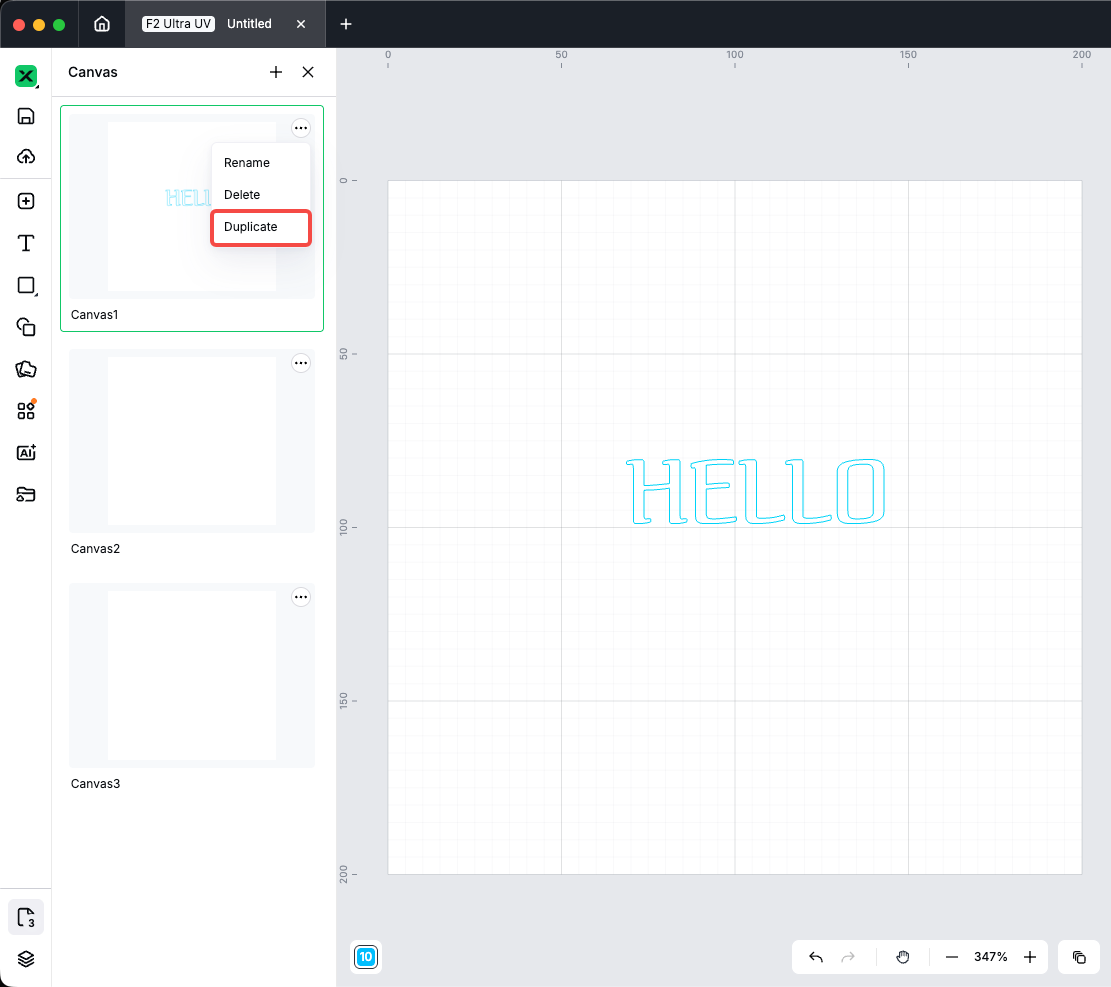
You cannot delete the last canvas in a project. Delete is disabled when only one canvas remains.
Quick reference
Task | Steps |
New project | Homepage → + New Project |
Add canvas | Left rail Canvas → + |
Switch canvas | Click thumbnail in Canvas panel |
Rename | Double-click name, or ⋯ → Rename |
Reorder | Drag thumbnails in Canvas panel |
Duplicate | ⋯ → Duplicate |
Max canvases | 100 per project |
Preview
Was this page helpful?
0 out of 0 found this helpful
Help Ticket
Use this help ticket to submit your issue. We will respond within 1 business day
Submit a Ticket Tags
Help Ticket
Use this help ticket to submit your issue. We will respond within 1 business day
Submit a Ticket 
Services & Help
Learn & Education

Copyright © 2025 xTool All Rights Reserved.