
Set fill and stroke
Updated May 20,2026
Updated May 20,2026
Fill and Stroke control the inside color and the outline of vector shapes, paths, and similar objects. Adjust them from the top design panel after selecting eligible objects.
Open fill or stroke settings
- Select a vector shape, path, or mixed selection that supports styling (not a bare bitmap-only selection).
- Below the device bar, find the design panel (position, size, align, etc.).
- Click Fill or Stroke.
- A panel opens on the left with color, width, and related options.
- Click Fill or Stroke again, or press Esc, to close the panel.
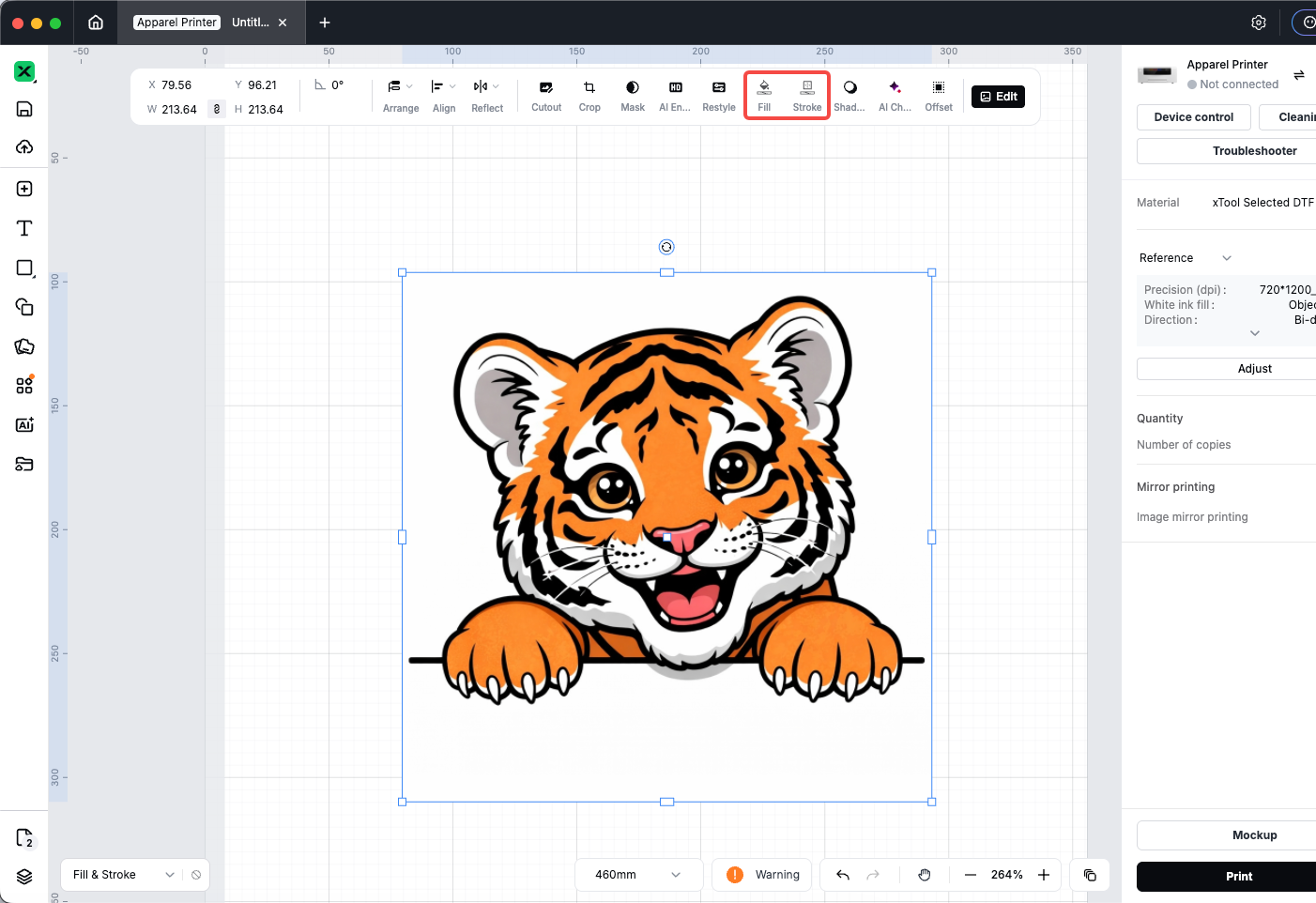
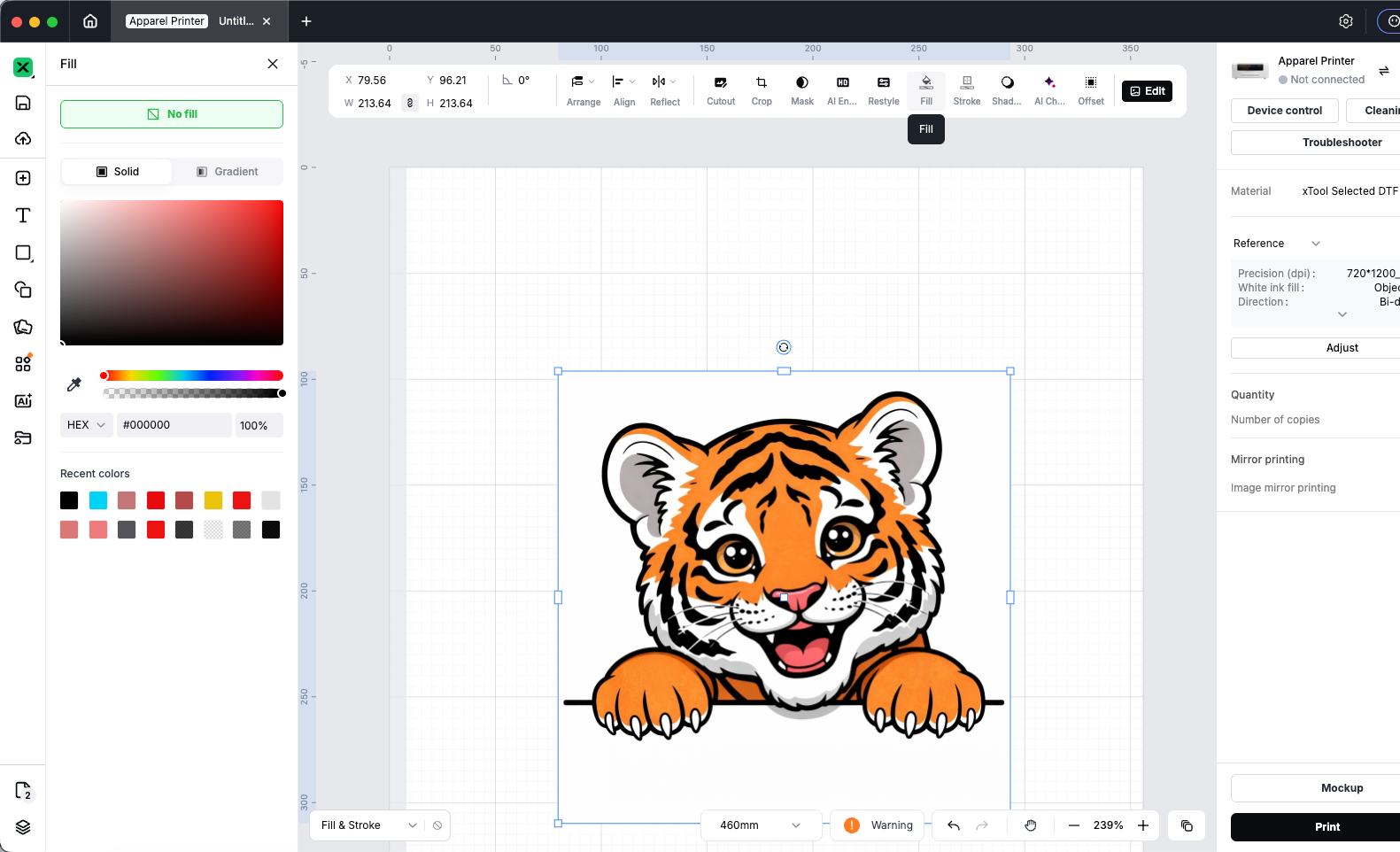
Fill
- Pick a solid or gradient fill (options shown in the panel).
- Use Recent colors for quick reuse.
- Click No fill to make the inside transparent.
If several objects with different fills are selected, an info message may note that styles can be adjusted uniformly.
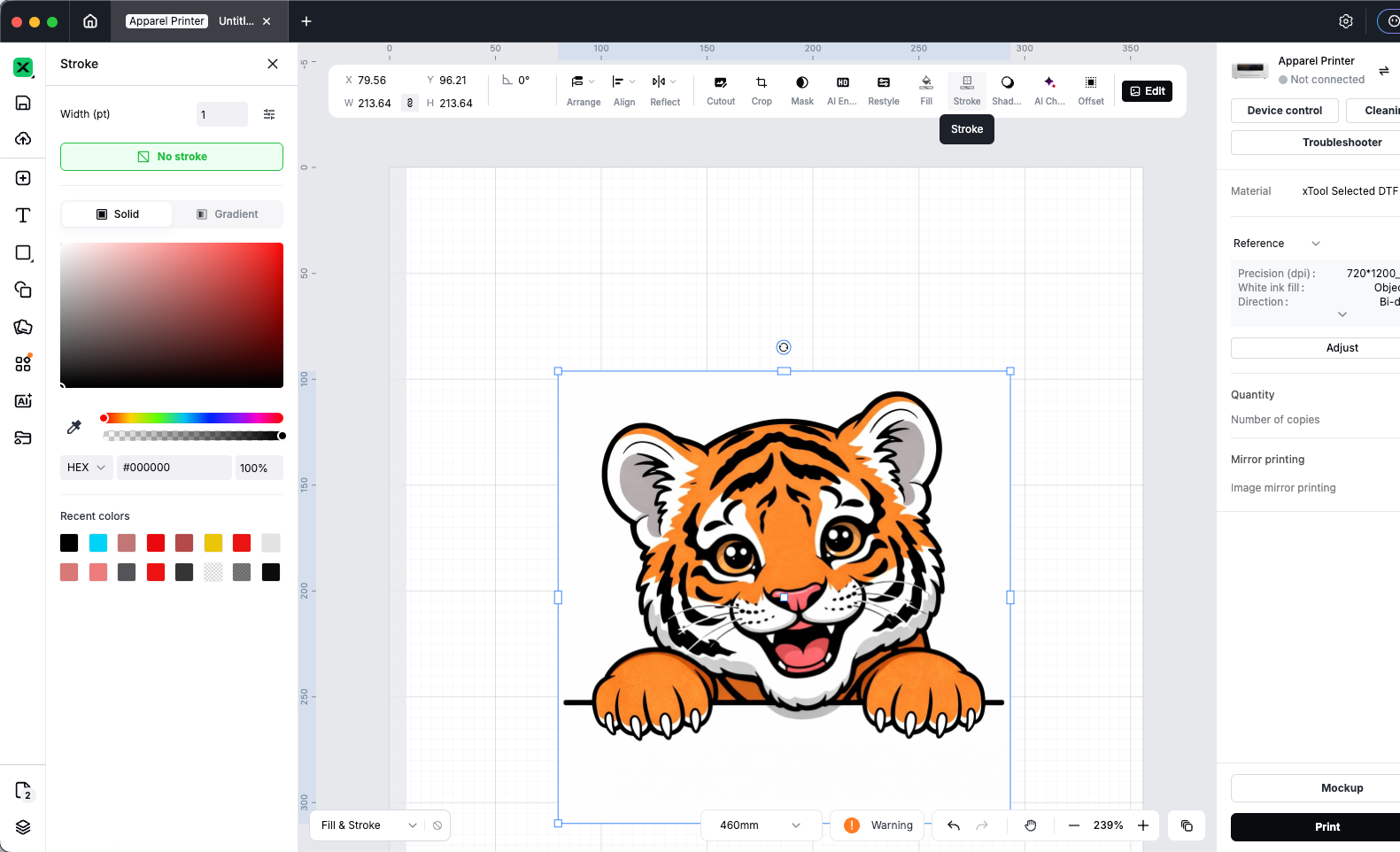
Stroke
- Set stroke color and width.
- Use No stroke to remove the outline.
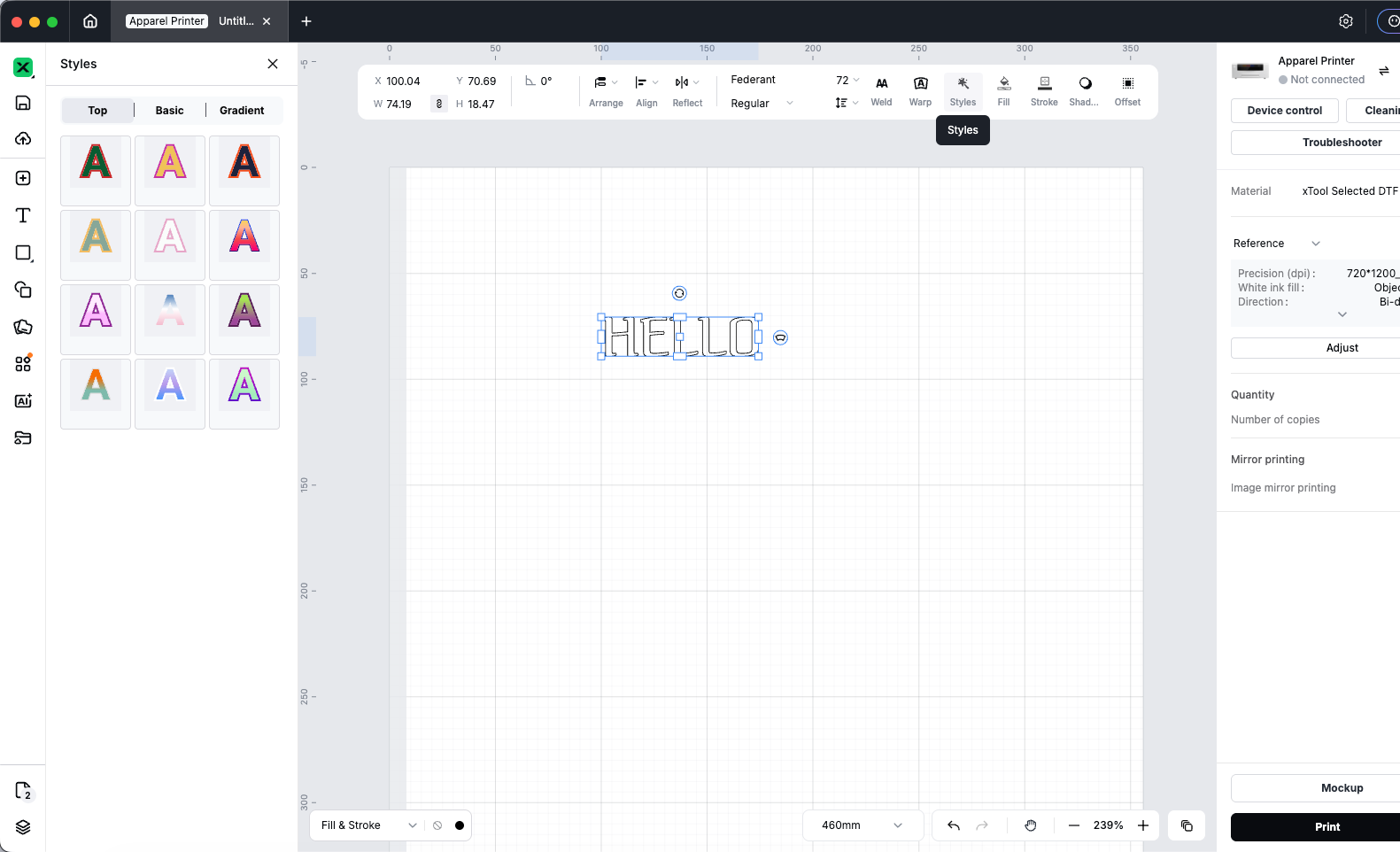
Text-only note
- When only text is selected, you may see Styles instead of or in addition to fill/stroke, for text presets.
Quick reference
Control | Location | Result |
Fill | Top design panel | Inside color / gradient |
Stroke | Top design panel | Outline color and width |
No fill / No stroke | Left fill/stroke panel | Remove fill or outline |
Preview
Was this page helpful?
1 out of 4 found this helpful
Help Ticket
Use this help ticket to submit your issue. We will respond within 1 business day
Submit a Ticket 
