
Issue description
When cutting materials with a blue-light laser module, the material is not cut through, and multiple connection points remain. Or the cutting depth is insufficient, leaving only shallow marks on the surface of the material. Even after multiple passes, the material still cannot be cut through.
Possible causes
- Material incompatibility
- Incorrect processing parameters
- Incorrect material thickness
- Lens Issues
- Adapter malfunction
Troubleshooting procedures
1. Check the compatibility of the material
Blue-light laser modules are not suitable for all materials. Please first confirm that the material you are processing can be processed by a blue-light laser module.
- Materials that can be processed: basswood plywood, corrugated cardboard, dark acrylic, leather, dark fabrics, etc.
- Materials that can't be processed: clear acrylic, clear glass, mirrored acrylic, objects with blue surfaces, extruded acrylic, etc.
To check whether a specific material is compatible, please visit the official xTool material website: https://www.atomm.com/easyset
You can also click the Support bot in the software, and the bot will tell you whether the material is compatible.
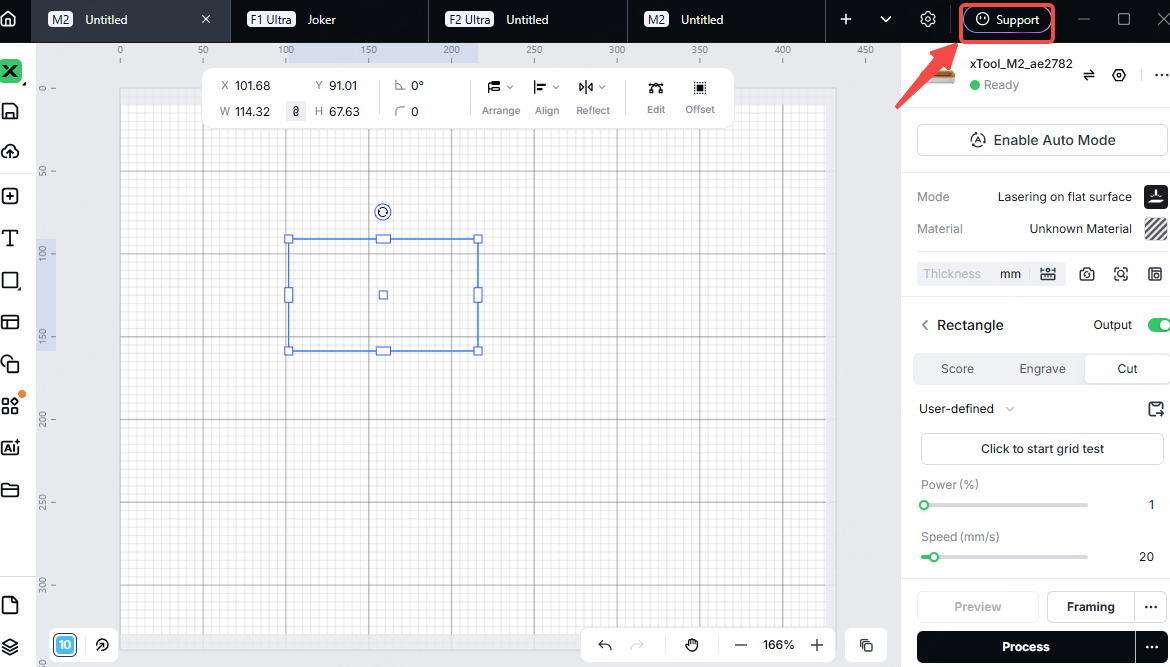
If the material you are using is incompatible, please replace it with a compatible material and retest.
If the material is compatible but the problem persists, please proceed to the next steps.
2. Adjust the processing parameters
Processing parameters include power, speed, pass, and focus descent.
- Recommended settings: If your material has corresponding processing parameters in the software, please select the recommended parameters for cutting.
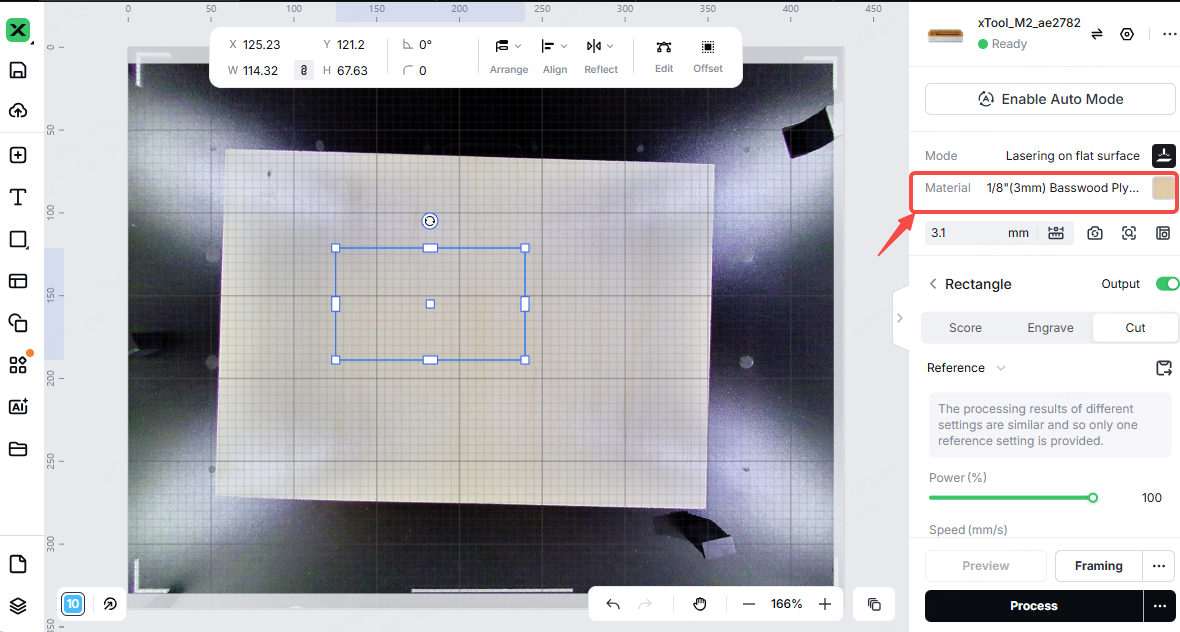
- Manual settings: If your material does not have corresponding processing parameters in the software, use the material test array to get the most suitable parameters. Refer to the article.
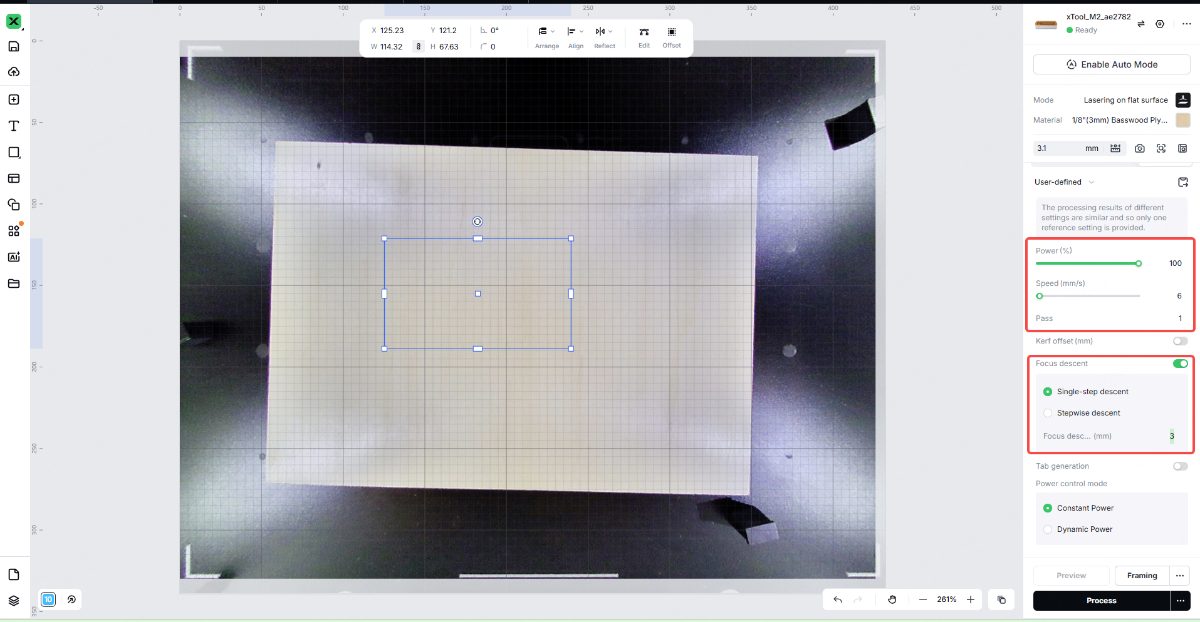
In addition, if the cutting result is not good enough, follow as below:
- Increase the processing power slightly.
- Reduce the processing speed slightly.
- Increase the number of passes slightly.
- In cutting mode, there is a "Focus descent" option. Select it and enter 3 mm. For more information on focus descent, please refer to https://support.xtool.com/article/1070
3. Replace the material: Use a new material (such as basswood plywood, corrugated cardboard, etc.) and observe the cutting results using the same processing parameters. This will help determine whether the issue lies with the material or the device.
3. Check the thickness of the material
- The "Thickness" parameter in the software supports manual input. If an incorrect value is entered in the "Thickness" field, the laser module may not focus correctly on the material surface, resulting in a lack of laser beam output.
- Click the "Aimed-measure" button in the software again to allow the laser module to automatically measure and obtain the correct distance.
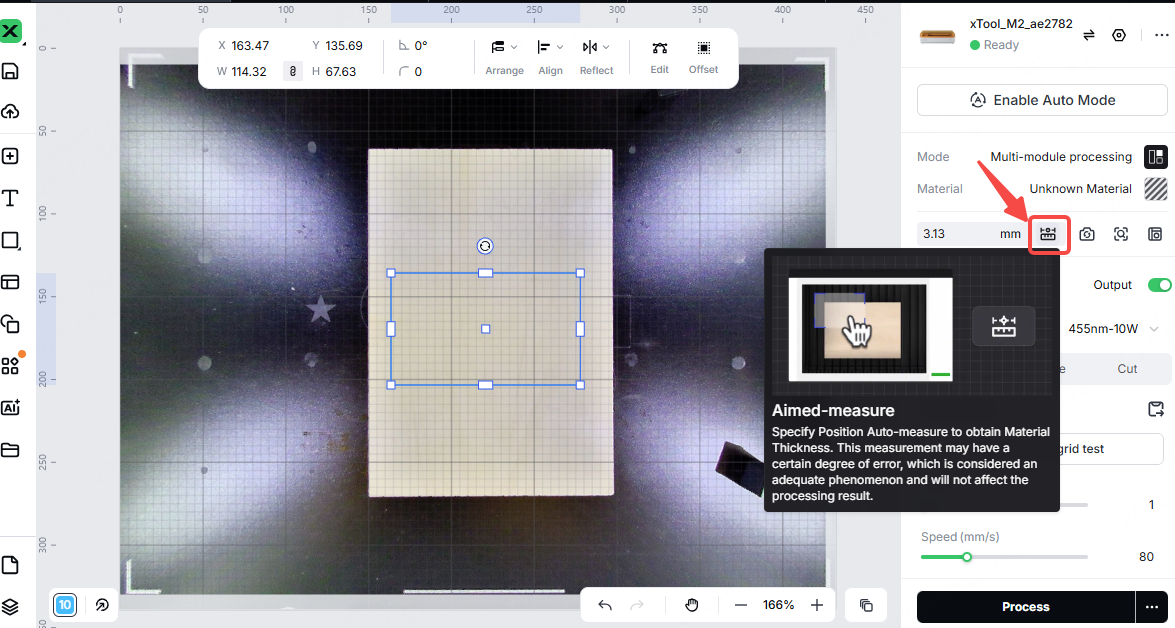
- When the auto-measure is completed, try processing again.
4. Check the lens of the laser module
Check the laser module protective lens and inner lens. Refer to the video tutorial.
- If the lens is dirty, clean it immediately with alcohol and a non-woven cloth.
- If the protective lens gets burned or cracks, please replace it with a new one.
- If the inner lens gets burned or cracks, take a photo and contact the xTool customer service team.
5. Check the power adapter
- Check the indicator light on the power adapter. A solid green light indicates normal operation. If the indicator light does not turn on, flash, or display a different color, it indicates that the adapter may be faulty and needs to be replaced.
- To further diagnose the issue, please use a multimeter to check whether the adapter's output voltage is within the rated range. The voltage of a normal adapter is typically around 25V (minor deviations are normal).
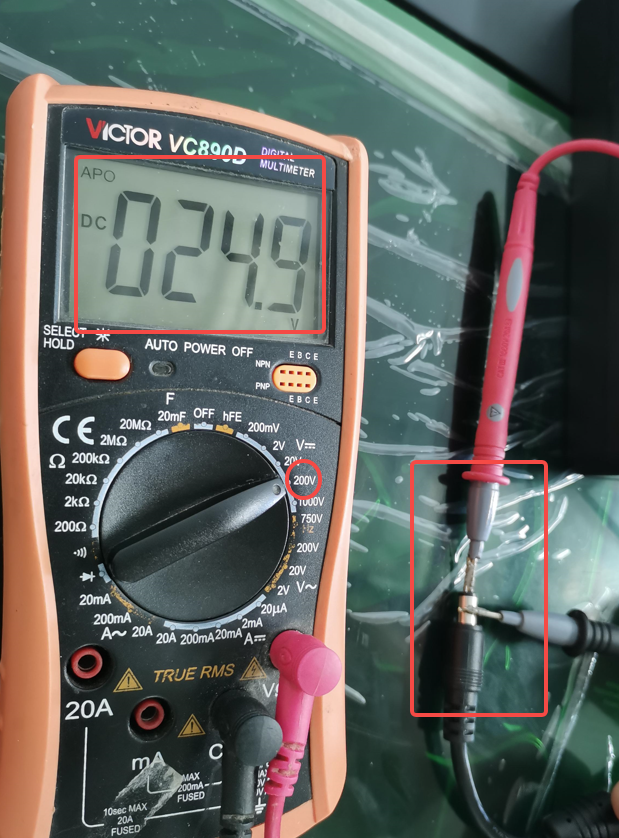
6. Contact xTool after-sales team
If the issue persists after completing all of the above checks, please contact the xTool after-sales team and provide the device's serial number, a video of the problem, the processing file, and the processing material to them.

