
Issue description
When using xTool M2, the laser module may fail to emit a laser beam, show no power output, or move normally without emitting light. As follows:
- The laser module moves along the processing path, but there are no engraving or cutting marks on the material.
- The software indicates that processing is normal, but there is actually no laser output.
Possible causes
- The power setting is too low
- Abnormal connection of the laser module cable or the laser module
- The processing file contains blank areas
- Incorrect material thickness setting
- The laser module protective lens or inner lens is dirty or damaged
- Power adapter malfunction
Troubleshooting procedures
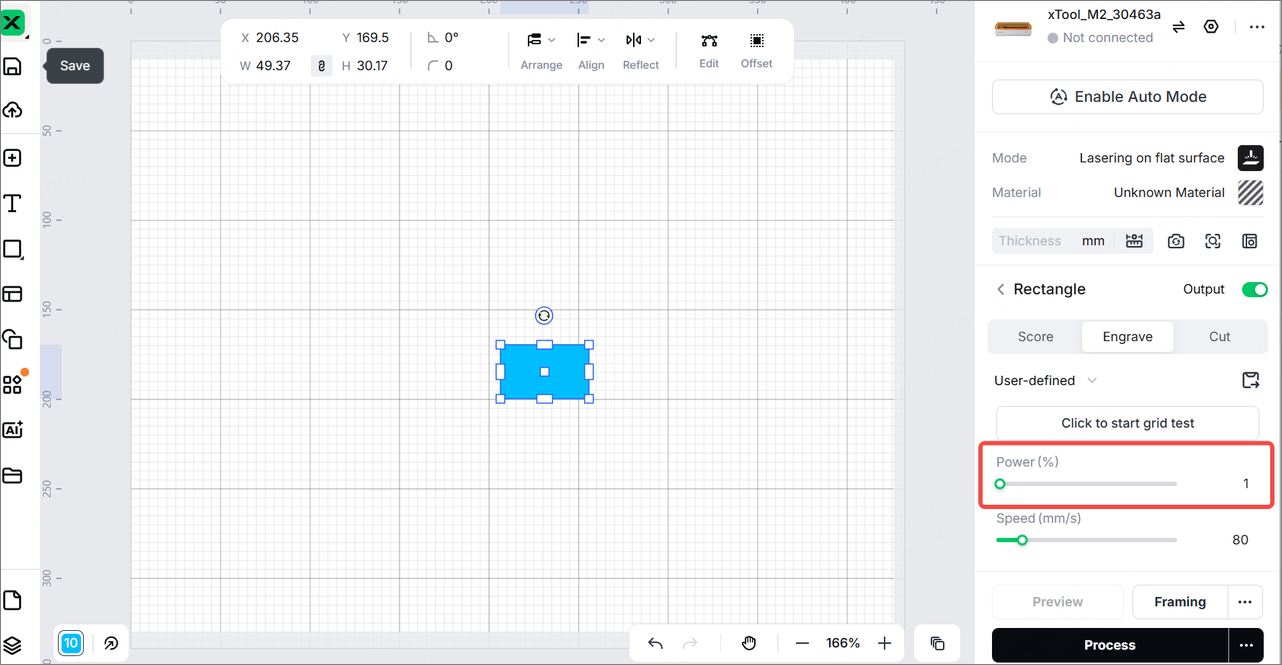
1. Check the processing power
- Check the processing parameters in the software. If the power setting is too low (e.g., 1% or 2%), increase it appropriately (e.g., to 10% or higher) and run a test.
- If the power is normal but the laser beam still does not emit, please proceed to the next steps.
2. Check the files
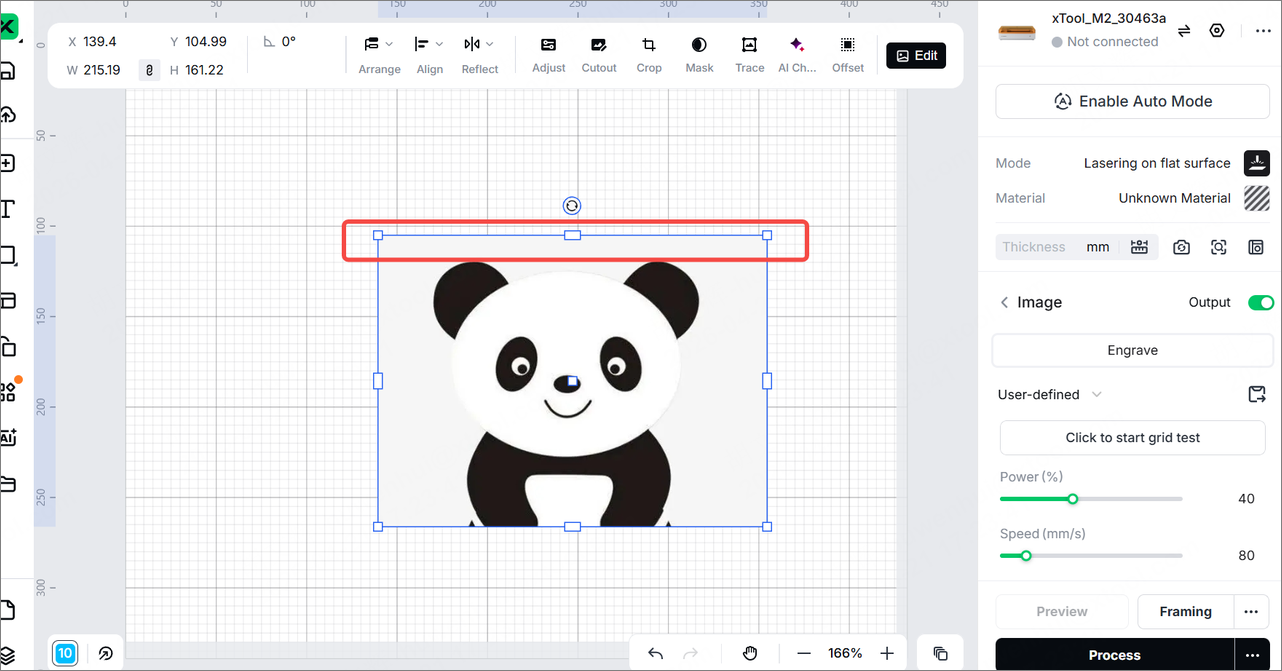
- For some bitmap files, if there is a blank area at the beginning of the file (such as a large blank space at the top of the image), the laser module will move and process the image line by line. When it reaches the blank area at the start of the bitmap, it will not emit a laser beam.
As shown in the figure below, the red areas of the file will also be processed, but because the background is white, it will appear as if the laser module is not emitting light.
- You can design a pattern in the software to process. Check whether the laser module is not emitting a laser beam due to file issues.
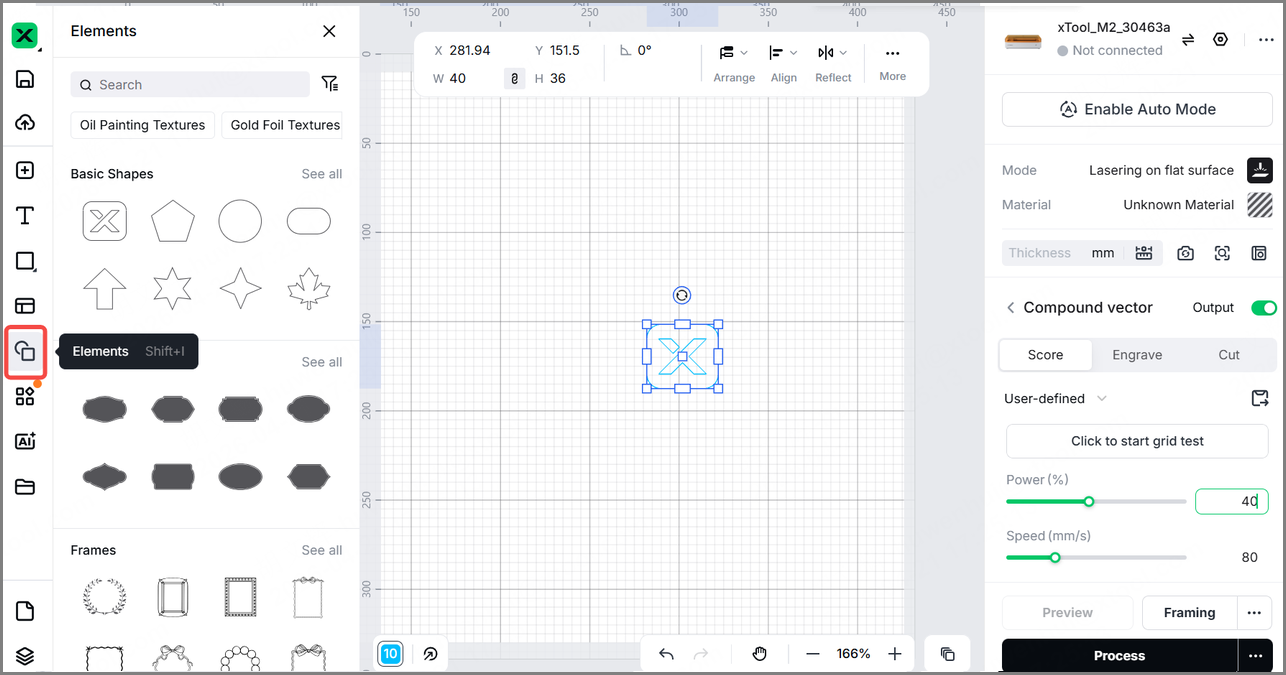
- If the laser module works normally when processing the design in the software, check your original file, crop or remove any blank areas, and then process again.
3. Check the thickness of the material
The "Thickness" parameter in the software supports manual input. If an incorrect value is entered in the "Thickness" field, the laser module may not focus correctly on the material surface, resulting in a lack of laser beam output.
- Click the "Aimed-measure" button in the software again to allow the laser module to automatically measure and obtain the correct distance.
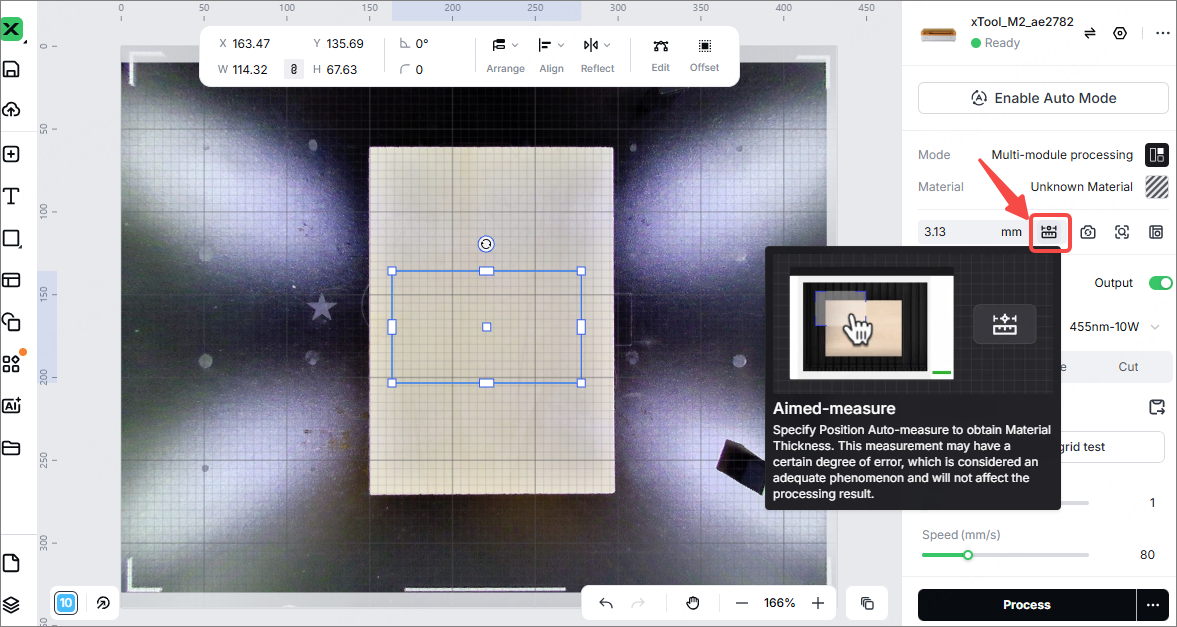
- When the auto-measure is completed, try processing again.
4. Check the module connection cable
- Power off the device. Unplug and plug the module connection cable. Make sure it is inserted securely into the ports.
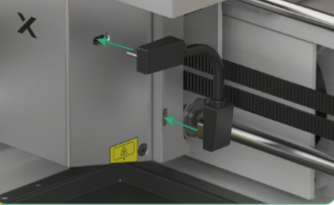
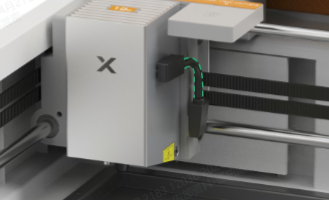
- Check whether the connectors of the module connection cable are bent, the pins are deformed, and the cable is damaged.
5. Check the lens of the laser module
Check and clean the laser module protective lens and inner lens. Refer to the video tutorial.
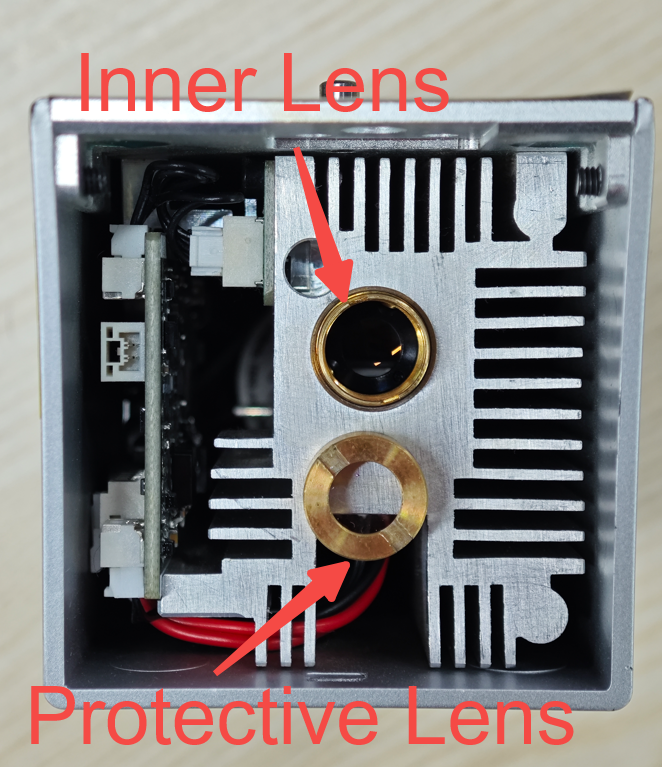
- If the protective cover or the inner lens is dirty, clean it immediately with alcohol and a non-woven cloth.
- If the protective lens cracks, please replace it with a new one. You can purchase replacement lenses on our official website.
- If the inner lens is damaged, please contact the xTool customer service team.
6. Check the power adapter
- Check the indicator light on the power adapter. A solid green light indicates normal operation.
- If the indicator light does not turn on, flash, or display a different color, it indicates that the adapter may be faulty and needs to be replaced.
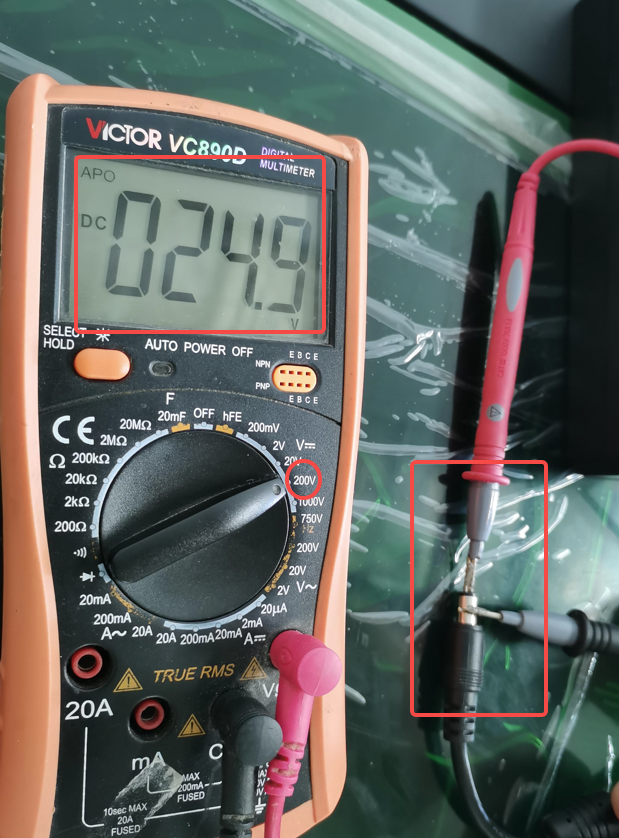
- To further diagnose the issue, please use a multimeter to check whether the adapter's output voltage is within the rated range. The voltage of a normal adapter is typically around 25V (minor deviations are normal).
7. Contact xTool after-sales team
If the issue persists after completing all of the above checks, please contact the xTool after-sales team and provide the device's serial number and a video of the problem. After reviewing the information, we may offer a solution to you.

Services & Help
Learn & Education

Copyright © 2025 xTool All Rights Reserved.