Issue description
When using the xTool M2 laser module for processing, an alarm appears in the software. Based on the alarm type and error code, there are two possible scenarios:
Scenario 1: Laser Head Overheat (Error Code 5002 or 5047)

Error Code 5002

Error Code 5047
The laser module temperature is too high. The device has paused processing while the laser module cools down. Processing can resume once the temperature drops.
Scenario 2: Laser head overheat alarm (Error Code 5048)

Error Code 5048
- This indicates that after a pause was triggered, the laser module temperature continued to rise and reached a dangerous level. The processing task will be canceled immediately.
- This may indicate a fire inside the device. Check the processing area immediately, and if you find a fire, extinguish it promptly.
When any of the above errors occur, the device may automatically stop processing to protect the laser module. Error Code 5048 indicates a high-risk situation, so check for safety hazards first.
Possible causes
Normal alarm: The laser module has been in use for too long and has overheated.
Error alarm: The laser module fan malfunctions.
Troubleshooting procedures
1. Determine the type of alarm
- If the error code is Laser head overheat (Error Code 5002 or 5047), this is a normal alarm. Please proceed to Step 2.
- If the error code is Laser head overheat alarm (Error Code 5048), this is a critical alert (high risk). Please proceed to Step 3 immediately.
2. Handle the normal alarm (Error Code 5002 or 5047)
2.1 Turn off the device and allow the laser module to cool down
- It is recommended to wait at least 15–30 minutes after turning off the device to allow the laser module temperature to return to normal. The cooling time may be extended as appropriate, depending on the ambient temperature and the intensity of the processing.
- The optical and electronic components inside the laser module are sensitive to high temperatures. Prolonged operation at high temperatures can accelerate material degradation, reduce laser output efficiency, and even cause permanent damage. Allowing the laser module to cool completely after each alarm can effectively extend its overall service life and ensure processing accuracy and stability.
2.2 Clean the nozzle of the laser module
Dirty air nozzles and protective lenses are common causes of elevated laser module temperatures. A dirty protective lens or an excessively thick oil film, as well as a clogged air nozzle, can cause part of the laser beam to be reflected into the laser cavity during processing, resulting in heat buildup and abnormal temperatures.

Please follow the steps below or the video tutorial to clean them.
- Protective lens: Clean the Lens Protector of Laser Module for xTool M2
- Air nozzle: Clean the Air Nozzle and Touch Sensor of Laser Module for xTool M2
- Turn off xTool M2, disconnect the power cable, and remove the laser module.
- Remove the air nozzle from the laser module.
- Use a lint-free cloth or cotton swab lightly moistened with anhydrous alcohol (isopropyl alcohol) to clean the surface of the protective lens and the inside and outside of the air nozzle in sequence.
- When cleaning the protective lens, wipe gently in a single direction to avoid scratches caused by back-and-forth wiping.
- When cleaning the air nozzle, ensure that any smoke residue and debris attached inside are removed.
4. After cleaning, wait for the alcohol to evaporate completely, then reinstall the air nozzle in the correct orientation.
5. Reinstall the laser module, connect the power supply, and turn on the device for testing.
2.3 Clean the cooling fan of the laser module
If the issue persists after cleaning the air nozzle and protective lens, please clean the laser module cooling fan. For a video tutorial, refer to: Cleaning and Maintenance of Laser Module for xTool M2.
- Turn off the device and disconnect the power cable.
- Remove the laser module and locate the cooling fan.
- Use a brush or compressed air to remove dust and debris from the fan blades and fan cover.
- If necessary, use a degreasing cleaner to clean the fan blades, taking care to avoid contact between the cleaner and the electrical terminals.
- After cleaning, ensure that the fan is completely dry before reinstalling it.
- Reinstall the laser module, connect the power supply, and turn on the device for testing.
3. Handle the error alarm (including Error Code 5048)
3.1 Emergency handling for a "Laser head overheat alarm (Error Code 5048)"
- Immediately check the condition inside the device: Turn off the device's power, open the top cover, and check the processing area for open flames, smoke, or signs of burning.
- If you discover a fire, please extinguish it immediately:
- Small fire: Extinguish it by covering it with a damp cloth, a fire blanket, or sand.
- Moderate fire: Use a dry-chemical or carbon dioxide fire extinguisher. Never use water to extinguish an electrical fire.
- If the fire cannot be controlled, evacuate immediately and call the fire department.
- Once the fire has been extinguished and the device has cooled completely, inspect the cooling system as described in Section 3.2 and contact after-sales service.
3.2 Clean the protective lenses and nozzle of the laser module
Dirty air nozzles and protective lenses are common causes of elevated laser module temperatures. A dirty protective lens or an excessively thick oil film, as well as a clogged air nozzle, can cause part of the laser beam to be reflected into the laser cavity during processing, resulting in heat buildup and abnormal temperatures.

Please follow the steps below or the video tutorial to clean them.
- Protective lens: Clean the Lens Protector of Laser Module for xTool M2
- Air nozzle: Clean the Air Nozzle and Touch Sensor of Laser Module for xTool M2
- Turn off xTool M2, unplug the power cable, and remove the laser module.
- Remove the air nozzle from the laser module.
- Using a lint-free cloth or cotton swab dampened with a small amount of anhydrous alcohol (isopropyl alcohol), clean the surface of the protective lens, followed by the inside and outside of the air nozzle.
- When cleaning the protective lens, wipe gently in one direction. Avoid wiping back and forth, as this may cause scratches.
- When cleaning the air nozzle, be sure to remove any soot and debris stuck inside.
- After cleaning, wait for the alcohol to evaporate completely, then reinstall the air nozzle in the correct orientation.
- Reinstall the laser module, connect the power supply, and turn on the machine to test it.
3.3 Check the exhaust fan of the laser module
If the alarm continues to occur frequently shortly after the device turns on or after it has cooled down, the laser module fan may be malfunctioning. Please perform the following checks:
Check whether the laser module fan is spinning and whether you can hear it running while the laser module is in operation.
- If the fan is not spinning or if it emits noticeable grinding, clacking, or humming noises while running, this indicates a fan malfunction. Refer to the video on replacing the laser module fan, and check whether the laser module fan’s connection cable is loose or broken.
- If you confirm that the fan is faulty, please contact the xTool after-sales service team, and we will send you a replacement fan.
3.4 Contact after-sales service for replacement or repair
- If you confirm that the laser module fan is faulty, please contact the xTool after-sales service team. We will send you a replacement fan or, depending on the situation, replace the entire laser module.
- Until you receive the replacement part, it is recommended that you stop using the device to prevent permanent damage to the laser module due to inadequate heat dissipation.
Still experiencing issues?
Should the issue persist after completing the preceding steps, submit a ticket via the "Submit a Ticket" button in the "Help Ticket" section below. The standard response time for xTool Customer Service is one business day.
For a prompt resolution, please include the following details:
- Laser module fan inspection results
- Alarm type and error code
- Device information: Find the SN number on the back of xTool M2. Follow the steps to export the work log.
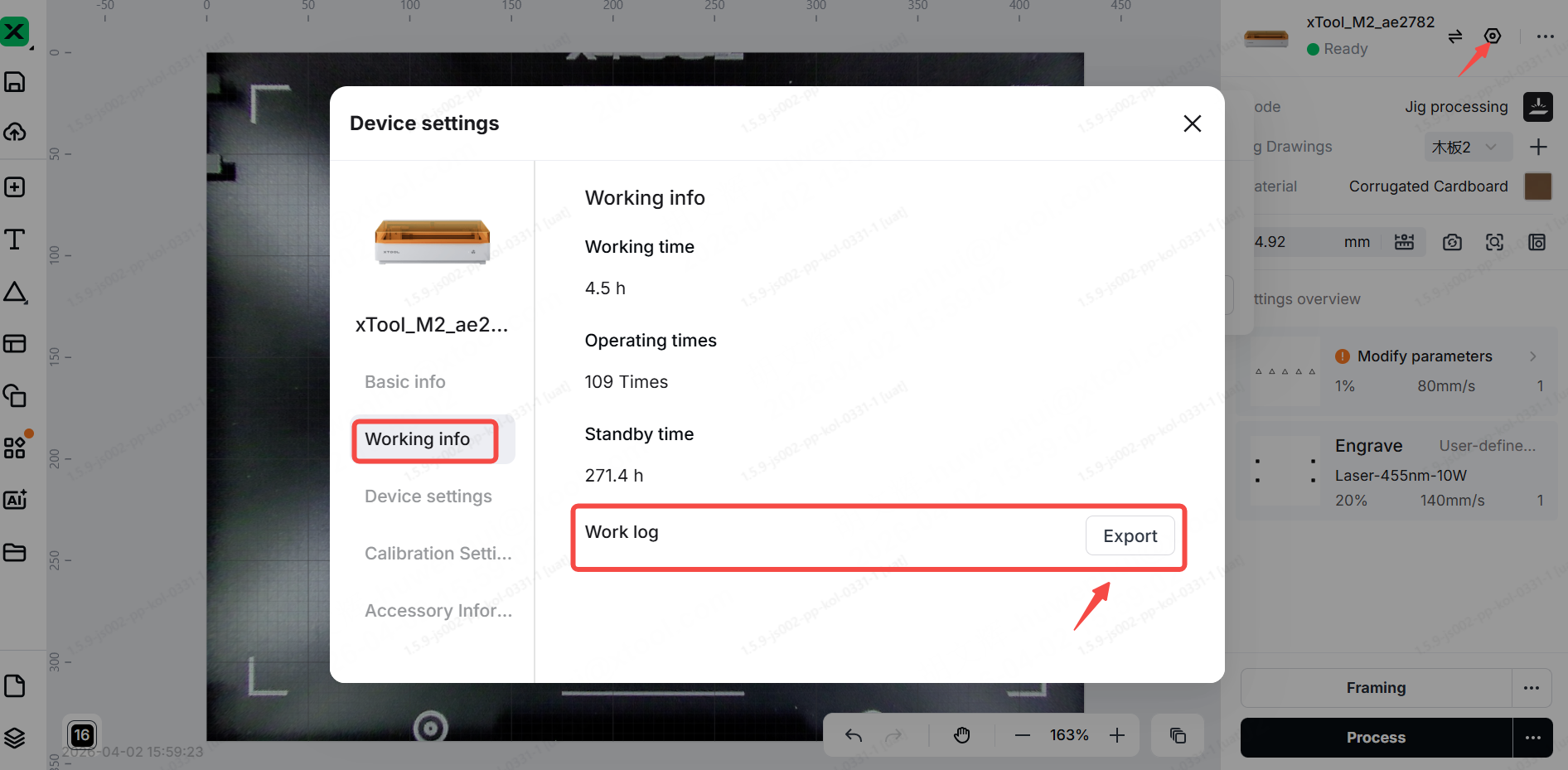
This information is crucial for xTool technical support engineers to provide timely assistance.