
Issue description
During processing, the inkjet module cover cannot be automatically removed, and xTool software pops up an error message entitled "Inkjet Print Head Automatic Uncap Exception" (Error Code 5027).
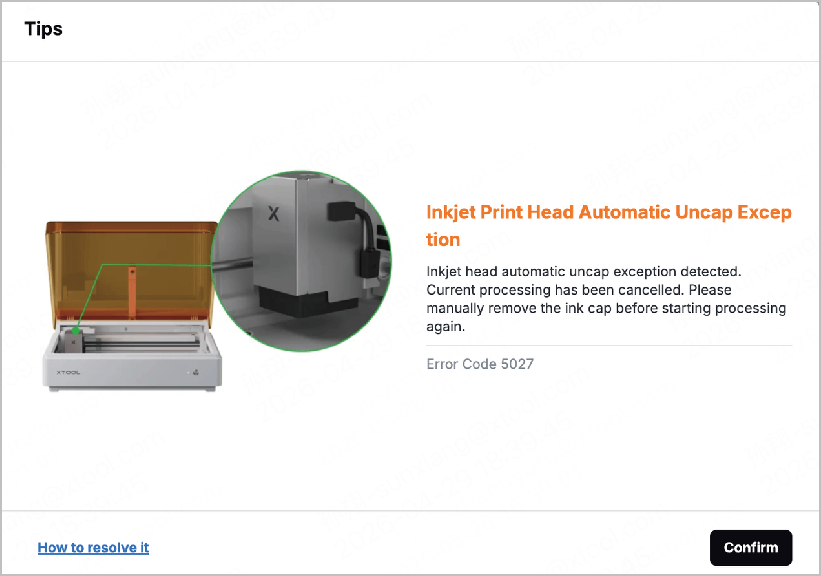
About the cover
The inkjet module cover works in the following way:
- Before processing: The cover should be installed on the inkjet cover.
- During processing: The cover is automatically removed for the printing task.
- After processing: The cover is automatically reinstalled for nozzle protection.
Possible causes
- Improper installation: The cover is not properly installed on the inkjet module
- Deformation: The cover is deformed.
Troubleshooting procedure
Step 1: Check if the bottom cap retainer plate is installed
- Turn off xTool M2.
- Take out the inkjet module from xTool M2.
- Check if the bottom cap retainer plate is installed.
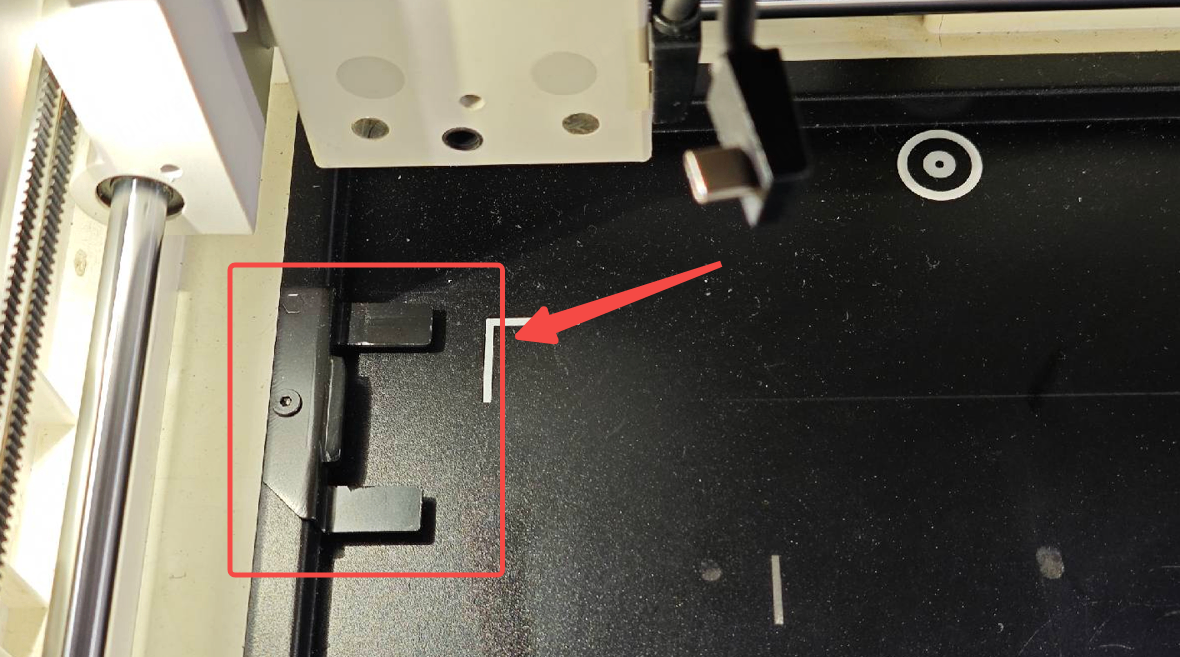
- If not, install it as instructed.
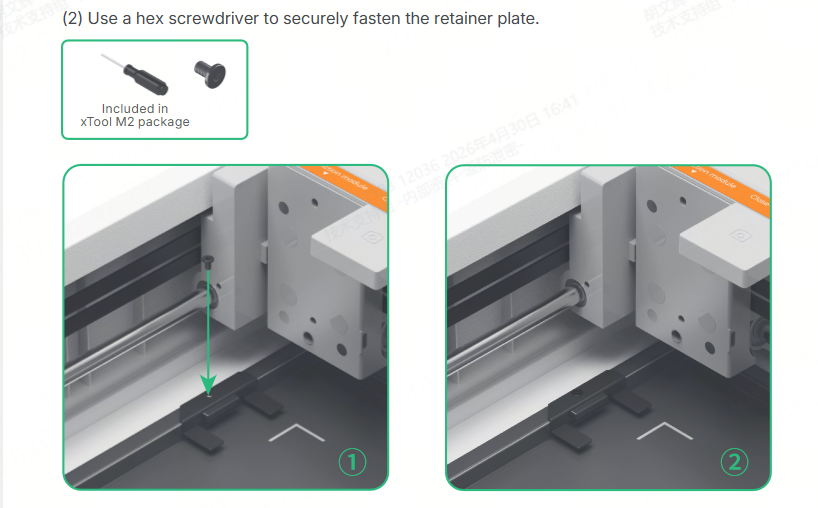
b. If yes but the issue still persists, proceed to the next step.
Step 2: Check the cover status
- Turn off xTool M2.
- Manually take out the cover.
As the cover is magnetically secured, you can easily take it away from the inkjet module. If the cover is hard to take off, check if there's any interference. - If yes, check if the cover is deformed, damaged, or stuck with foreign items.
- If not, reinstall the cover magnetically.
Step 3: Restart the device and test again
- Turn off xTool M2 and wait about 10 seconds.
- Restart the device and wait for it to finish the self-check.
- Start a printing task and check whether the cap can be automatically removed and whether the error message still pops up.
- Proceed to step 4 if the issue persists.
Step 4: Continue the processing by manually removing the cover
If the automatic uncap function cannot be restored temporarily and you need to continue the processing immediately, you may:
- Manually remove the cover after the error message pops up.
- Click Confirm in the xTool software.
- Allow the printing task to continue.
Note: Manual removal of the inkjet module cover is for temporary use. Please contact xTool Support Team to address the issue.
Step 5: Contact xTool Support Team
If the error message still exists after you finished the previous steps, the inkjet module cover or the built-in sensor may malfunction. In this case, please contact xTool Support Team with the following information:
- xTool M2 SN (at the back of the device)
- Video of the whole troubleshooting process and results
- Work log from xTool software
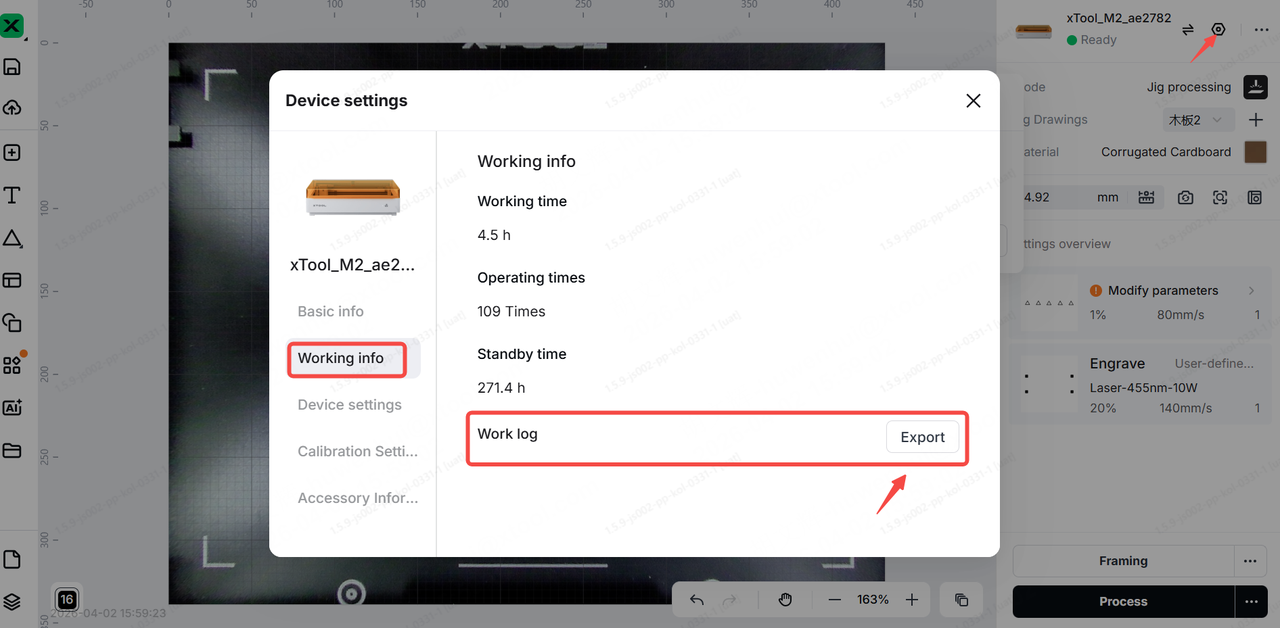
Still experiencing issues?
Should the issue persist after completing the preceding steps, submit a ticket via the "Submit a Ticket" button in the "Help Ticket" section below. The standard response time for xTool Customer Service is one business day.
For a prompt resolution, please include the following details:
- Issue description: A detailed explanation of the observed problem.
- Video evidence: Attach a video demonstrating the issue, where applicable.
- Troubleshooting performed: Any troubleshooting steps you have already attempted, along with their results.
This information is crucial for xTool technical support engineers to provide timely assistance.
Documentation feedback
Help improve this content by providing feedback. If this content did not meet your requirements, select "No" in the "Was this page helpful?" section below. Include specific details about what was unclear or missing in the pop-up suggestion box. Feedback submissions are reviewed by xTool technical writers to enhance future documentation.

