
Issue description
When using xTool M2 CMYK Inkjet Module, xTool software pops up an error message entitled "Inkjet cartridge error" (Error Code 5022-ERROR).
Under this circumstance, the inkjet module cannot work properly.

Possible causes
- No ink cartridge is installed.
- The ink cartridge is not installed properly.
Troubleshooting procedure
Step 1: Check if the ink cartridge is installed
- Turn off xTool M2.
- Take out the inkjet module from xTool M2.
- Open the front cover of the inkjet module
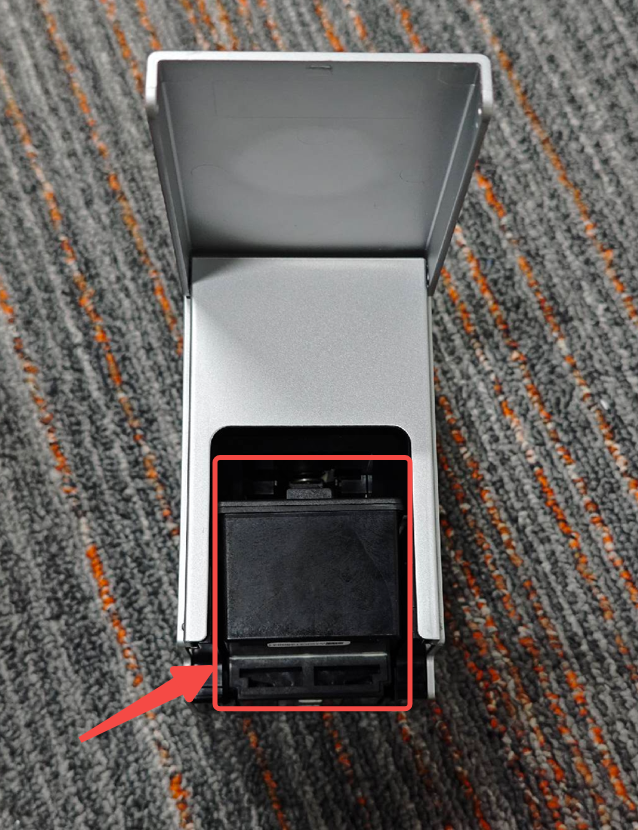
- Check if the ink cartridge is installed.
- If not, install the ink cartridge as instructed.
- If yes but the error message still exists, proceed to step 2.
Step 2: Reinstall the ink cartridge
- Turn off xTool M2.
- Take out the inkjet module from xTool M2.
- Open the front cover of the inkjet module and take out the ink cartridge.
- Check the metal contacts of the module and the cartridge for dirt, oxidation, or tape residue. If there is any, gently wipe them with a cotton swab or a clean and lint-free cloth slightly dampened with anhydrous alcohol, then wait until they are completely dry.
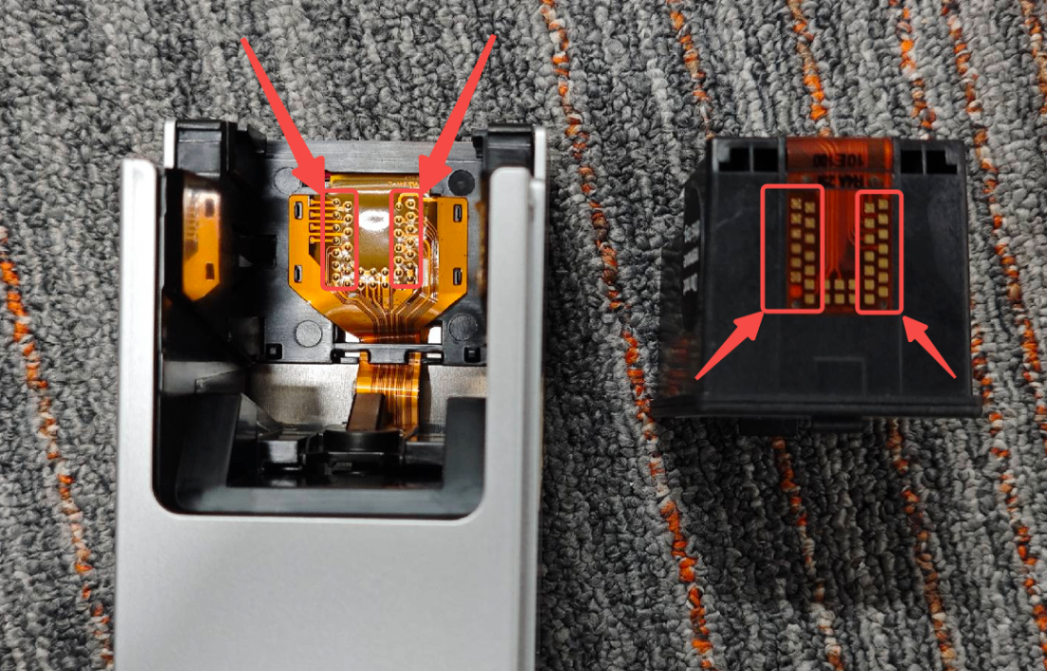
- Reinstall the ink cartridge properly.
- Close the front cover and reinstall the inkjet module on xTool M2.
Step 3: Contact xTool Support Team
If the error message still exists after you finished the previous steps, the ink cartridge may malfunction. In this case, please contact xTool Support Team with the following information:
- xTool Software version and firmware version of xTool M2
- xTool M2 SN (at the back of the device)
- Screen-shot video of the whole troubleshooting process and results
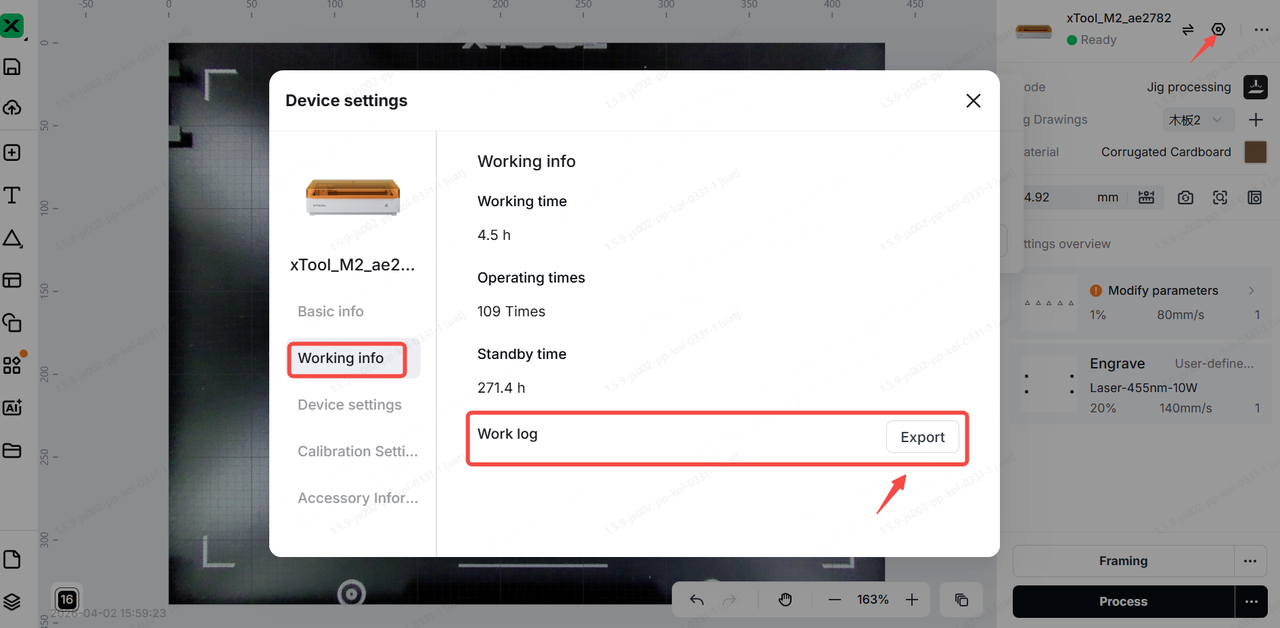
- Work log from xTool software
Still experiencing issues?
Should the issue persist after completing the preceding steps, submit a ticket via the "Submit a Ticket" button in the "Help Ticket" section below. The standard response time for xTool Customer Service is one business day.
For a prompt resolution, please include the following details:
- Issue description: A detailed explanation of the observed problem.
- Video evidence: Attach a video demonstrating the issue, where applicable.
- Troubleshooting performed: Any troubleshooting steps you have already attempted, along with their results.
This information is crucial for xTool technical support engineers to provide timely assistance.
Documentation feedback
Help improve this content by providing feedback. If this content did not meet your requirements, select "No" in the "Was this page helpful?" section below. Include specific details about what was unclear or missing in the pop-up suggestion box. Feedback submissions are reviewed by xTool technical writers to enhance future documentation.

