
This guide provides step-by-step instructions for upgrading the firmware for xTool Retail Marker. If you want to know how to do the upgrade or have trouble during the upgrade, please refer to this guide.
Important things to know beforehand
- It's recommended to connect your device with the USB cable for the upgrade.
- Ensure that the power supply, the internet, and the USB connection are secured during the upgrade.
- Keep your computer in an active state during the upgrade. Do not let your computer go into sleep, hibernate, or shut down state.
- Do not turn off xTool Retail Marker or disconnect its touchscreen controller or other accessories during the upgrade.
Upgrade the firmware
(1) Ensure that your computer is connected to the internet. Open xTool Studio on your computer, and then connect xTool Retail Marker to xTool Studio via USB cable.
(2) In the top-right corner of xTool Studio, click.
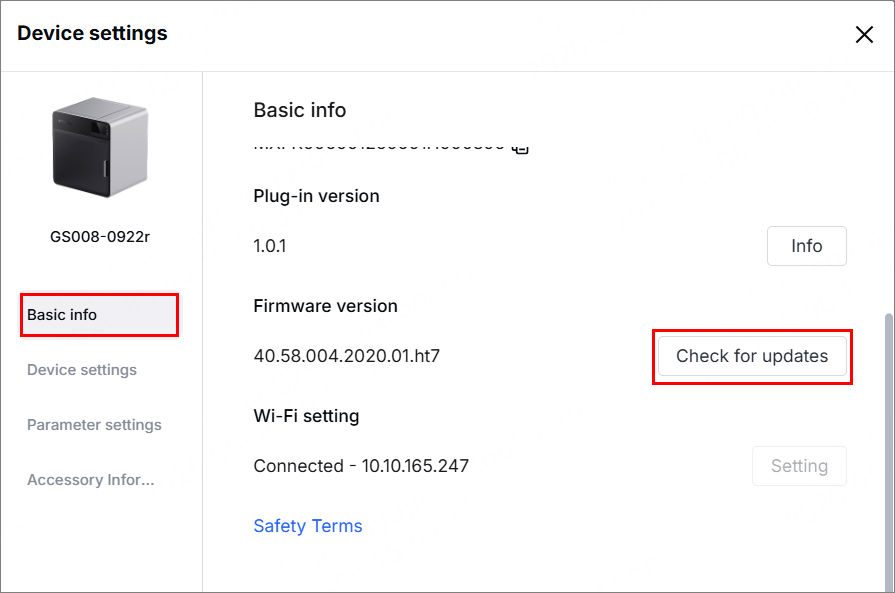
(3) In the Basic info tab page, click the Check for updates button under Firmware version. If a new firmware version is found, update the firmware.
Note:
- xTool Studio downloads the firmware installation package first, and then automatically installs it on xTool Retail Marker.
- During firmware installation, xTool Retail Marker will be disconnected for a while and reconnected when the installation is complete.
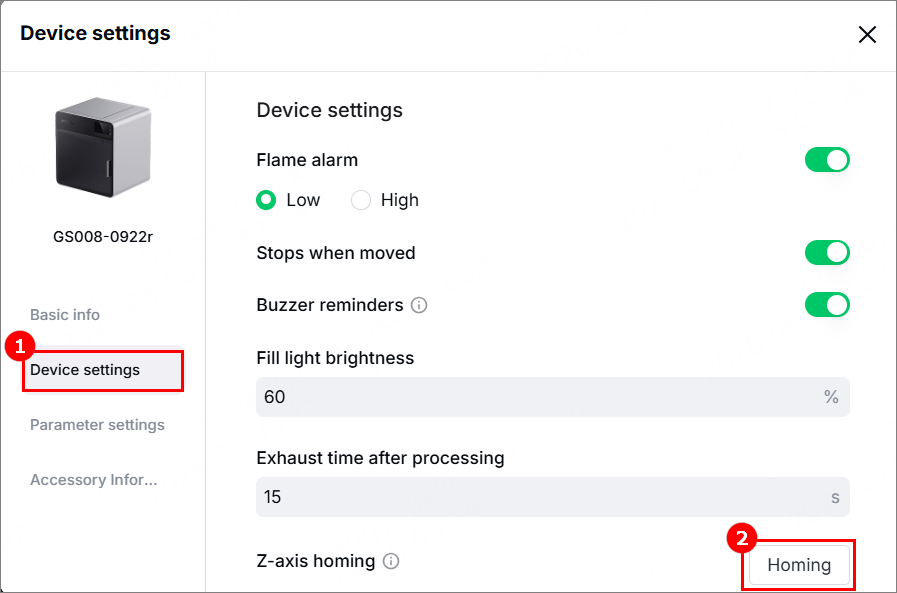
(4) After the firmware is updated, click Device settings, and then click Homing to perform Z-axis homing.
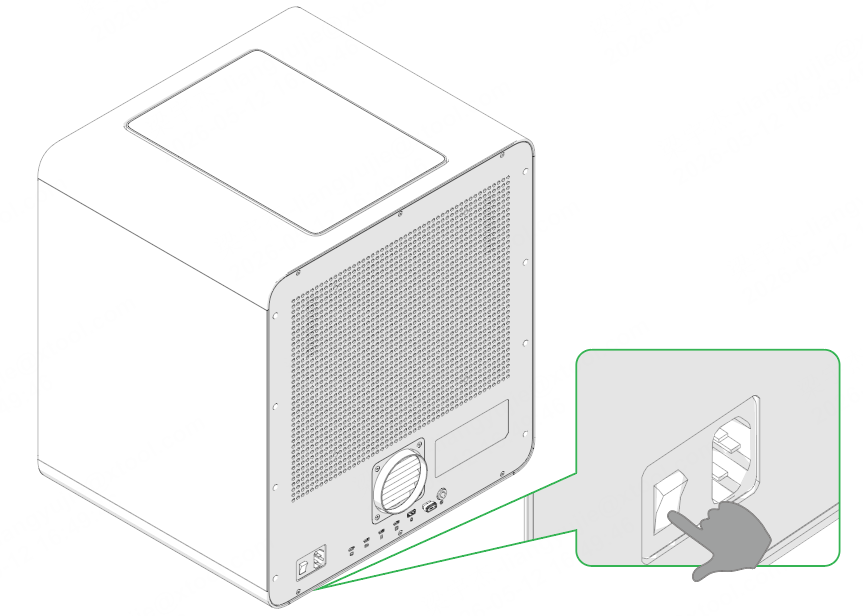
(5) When Z-axis homing is complete, press the power switch on xTool Retail Marker to turn off the device. Then, press the power switch again to restart xTool Retail Marker.
How to deal with firmware upgrade failure
- Check the firmware version
The software may have bugs and prompt you that the firmware update fails, even though the update actually succeeds. To check if an update succeeds, view the firmware version on the touchscreen to know if it is the latest version.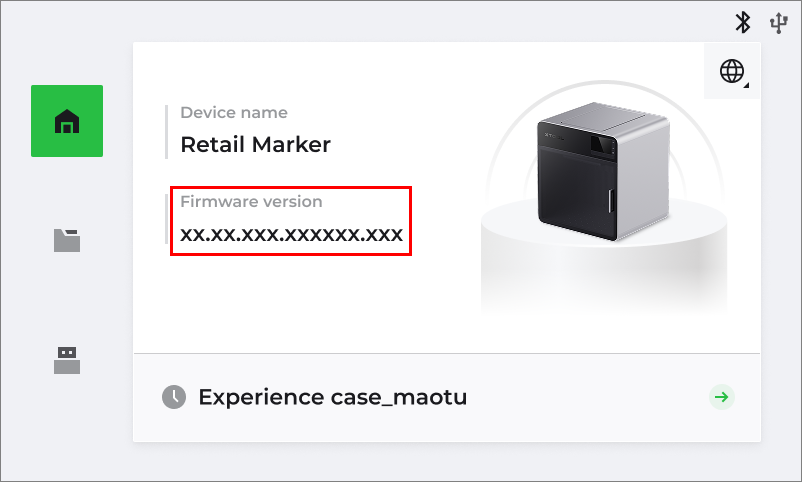
Note: You can also restart xTool Studio and view the firmware version in Device settings > Basic info > Firmware version. - Check the network
If there is a network exception, repair the network and try updating the firmware again. - Check the device connection
Ensure that the device is stably connected to xTool Studio by using the USB cable. If the device is disconnected from xTool Studio, reconnect the device by using the USB connection and try updating the firmware again.
Note: Using the USB cable to connect the device to xTool Studio provides a more stable connection. If you are using the Wi-Fi connection, the firmware update may be interrupted due to an unstable network. - Check the computer status and the power supply for xTool Retail Marker
If the computer goes into sleep or hibernation mode or is turned off during firmware update, or if xTool Retail Marker is cut off from the power supply, the firmware update may fail. Check your computer settings and the power supply. Ensure that the computer stays active and the power supply is stable. Then, try updating the firmware again.

Services & Help
Learn & Education

Copyright © 2025 xTool All Rights Reserved.