
Issue description
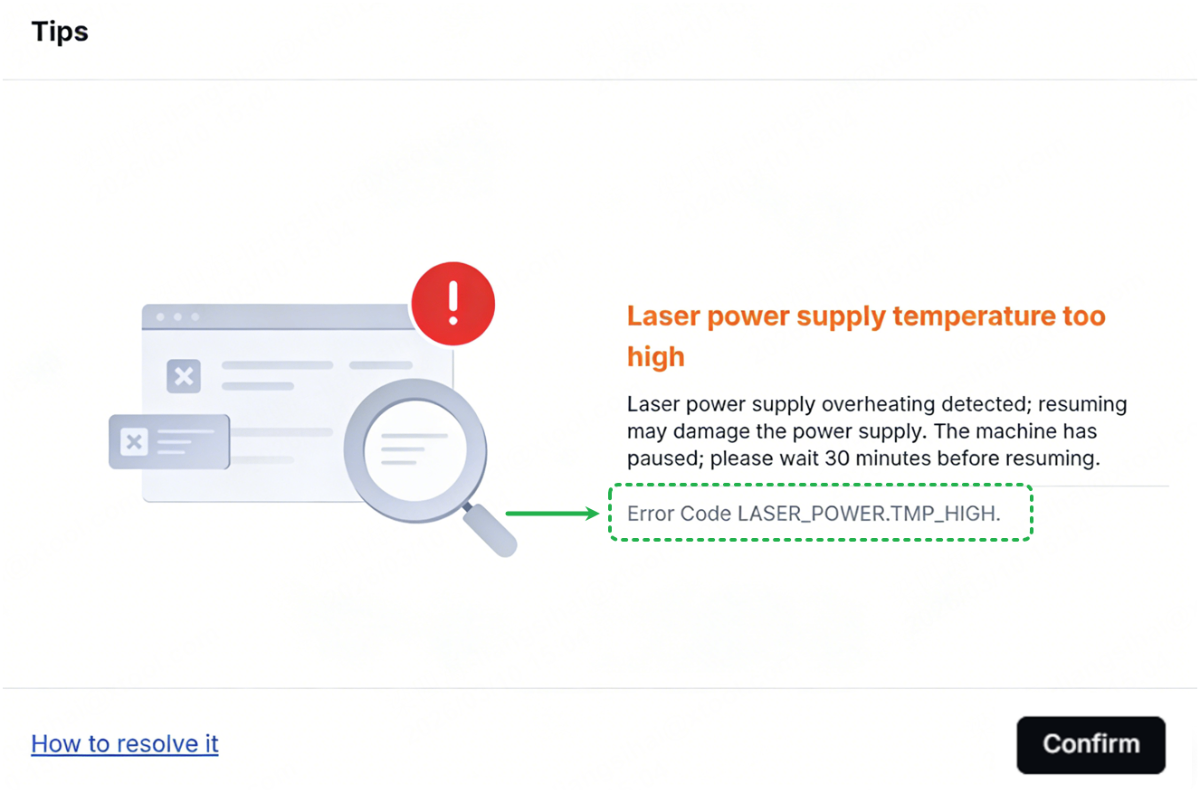
After connecting the software, a pop-up window appears indicating that the laser power supply temperature is too high. If the device is processing, it will automatically pause processing.
The error code is Error Code LASER_POWER.TMP_HIGH.
Possible causes
- The processing time is too long.
- The ambient temperature is on the high side.
- Temperature sensor malfunctions.
Troubleshooting procedures
1. Wait for the device to cool down
Pause processing and wait for the device to cool down before resuming.
The laser power supply is equipped with a temperature protection mechanism. It will be activated when the power supply temperature exceeds 55°C or after 3 hours of high-power processing. You only need to wait for the power supply to cool down for half an hour before processing again.
2. Check the actual temperature
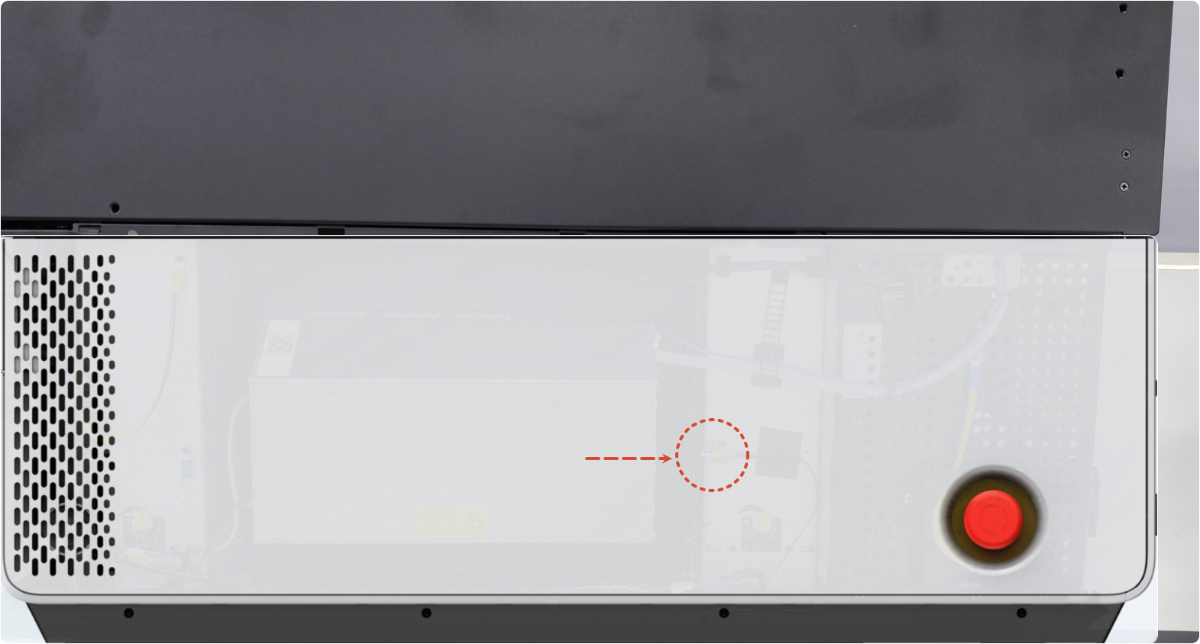
When the laser power supply triggers an overheating alarm due to excessive temperature, the temperature of the casing around the ventilation openings is typically 3 – 6°C lower than the actual temperature of the power supply. You can use this to determine whether the temperature sensor functions properly.
If the error code occurs in less than 3 hours of processing, use a thermodetector to check the actual temperature in the area of the device's right casing (as shown below):
- If the temperature is significantly below 45°C, replace the UI module (which contains the temperature sensor).
- If the temperature is above 45°C, check for other issues.
Still experiencing issues?
Should the issue persist after completing the preceding steps, submit a ticket via the "Submit a Ticket" button in the "Help Ticket" section below. The standard response time for xTool Customer Service is one business day.
For a prompt resolution, please include the following details:
- Issue description: A detailed explanation of the observed problem.
- Video evidence: Attach a video demonstrating the issue, where applicable.
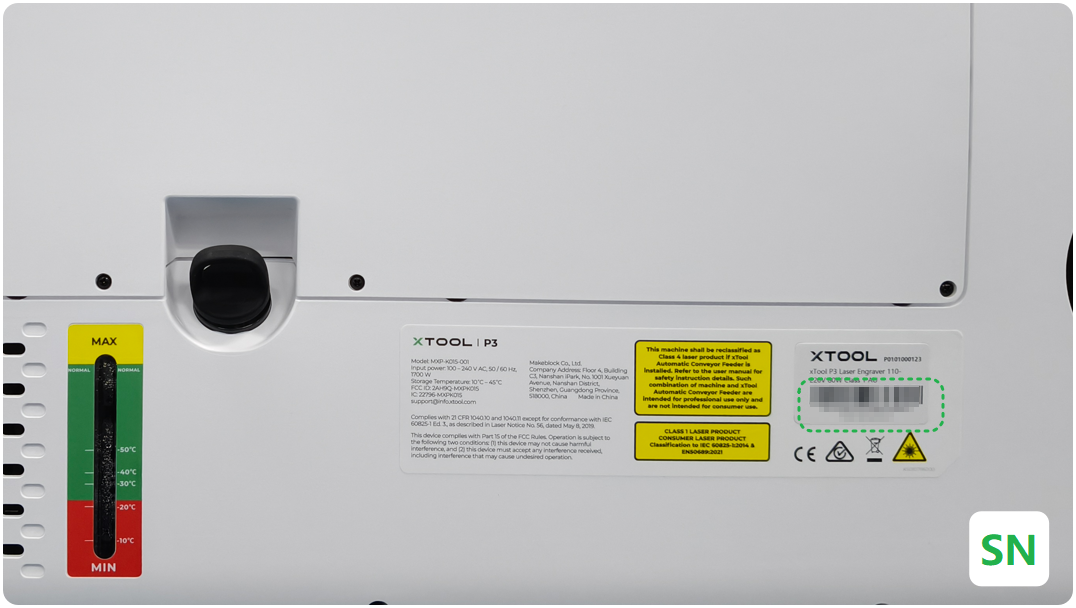
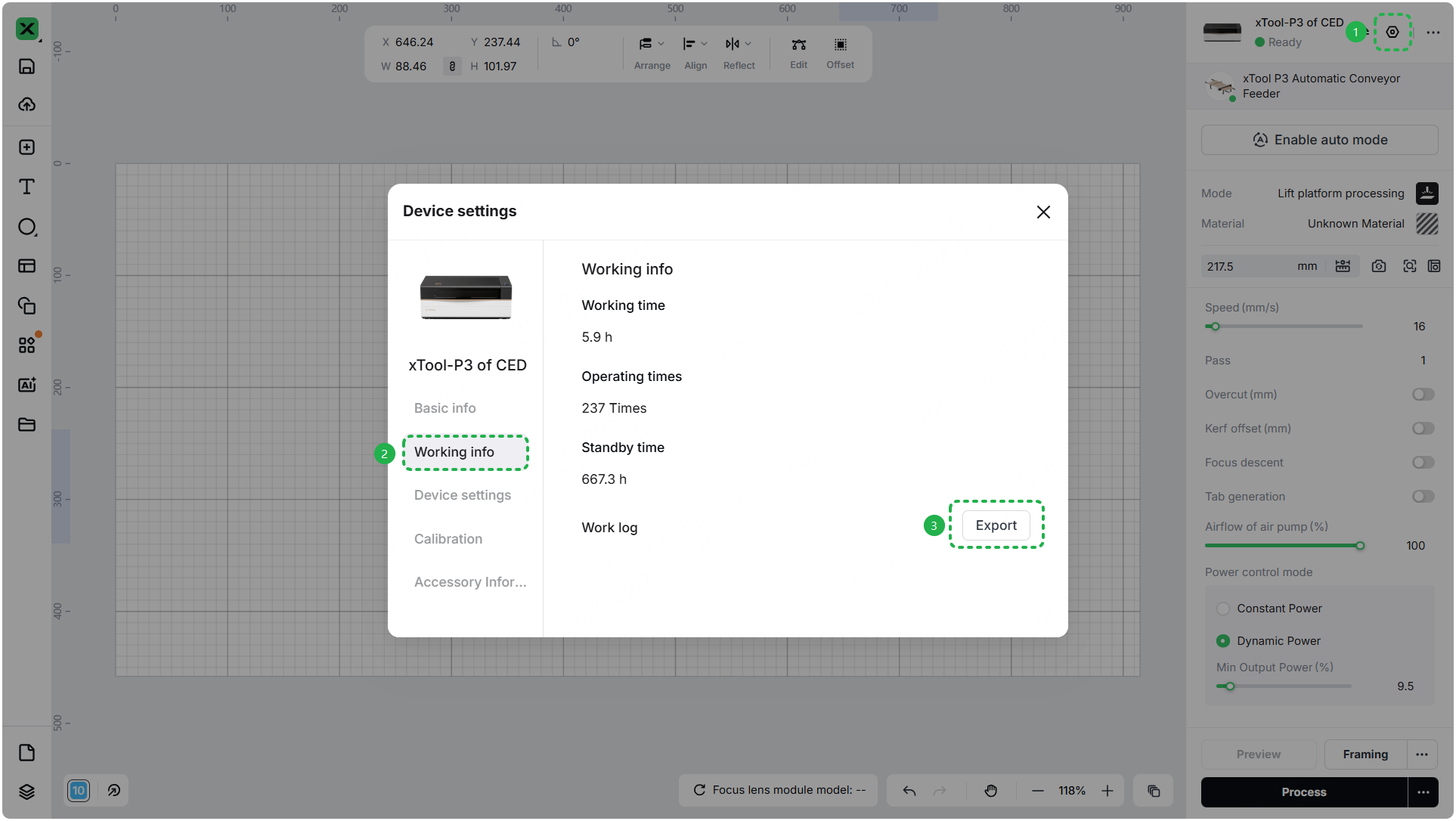
- Device information: Follow the steps to find the SN and export the work log.
- Troubleshooting performed: Any troubleshooting steps you have already attempted, along with their results.
This information is crucial for xTool technical support engineers to provide timely assistance.
Documentation feedback
Help improve this content by providing feedback. If this content did not meet your requirements, select "No" in the "Was this page helpful?" section below. Include specific details about what was unclear or missing in the pop-up suggestion box. Feedback submissions are reviewed by xTool technical writers to enhance future documentation.

