
xTool Store
About Auto Mode
Updated May 23,2026
Updated May 23,2026
What is Auto Mode?
Auto Mode helps you prepare your device for processing with fewer manual steps.
Once enabled, the machine can automatically complete:
- Auto focus
- Background photo capture
- Material recognition(QR code recognition)
- Automatically centers existing canvas elements within the material outline
This helps improve setup efficiency and processing accuracy.
Note: This feature requires a compatible firmware version to function properly.
How to enable Auto Mode
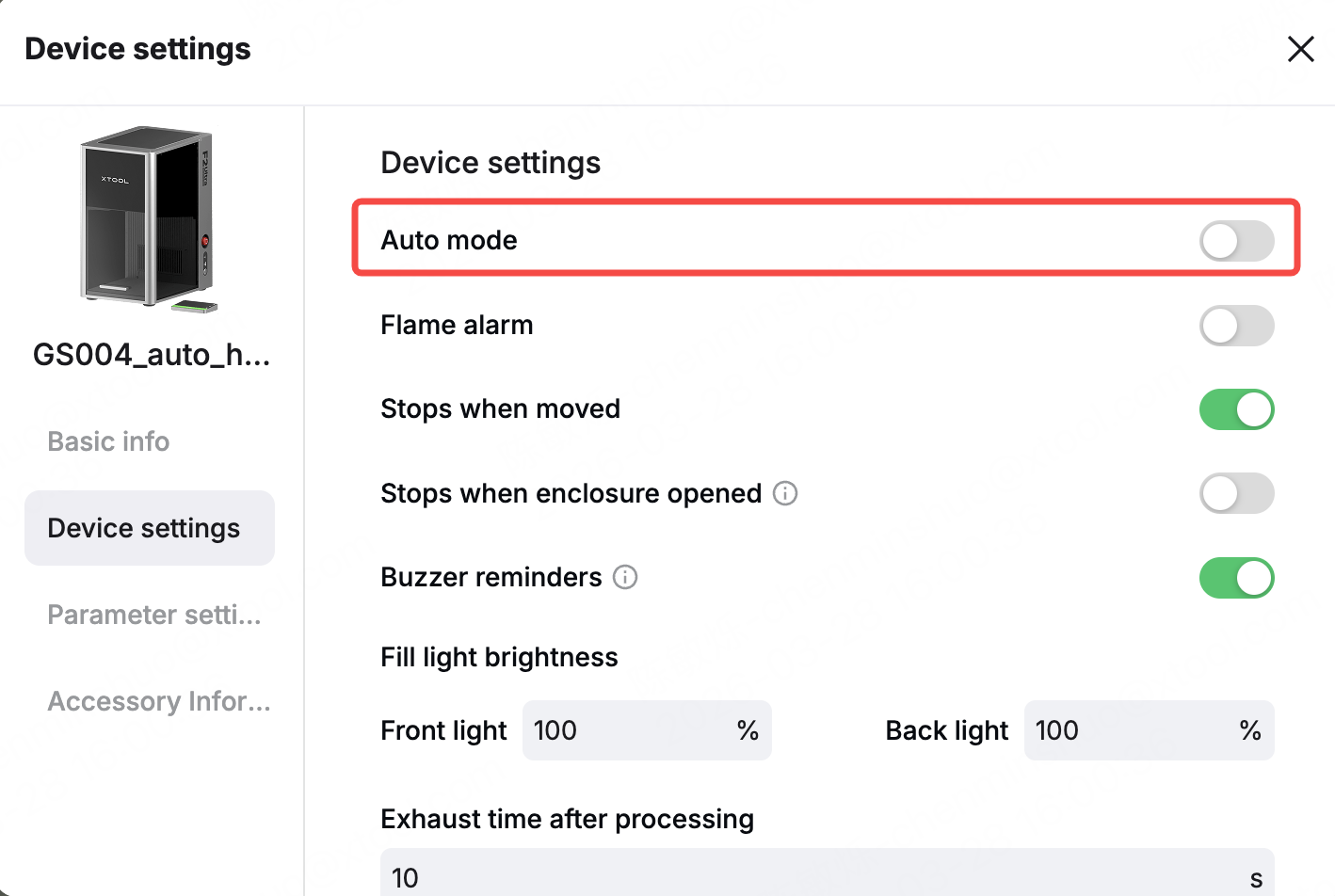
- Power on the device and connect it to xTool Studio ( Please update to the latest Studio version)
- Open Device Settings
- Turn on Auto Mode
After it is enabled, the Auto Mode panel will appear in supported processing modes.
Auto Mode is off by default when the device is first used.
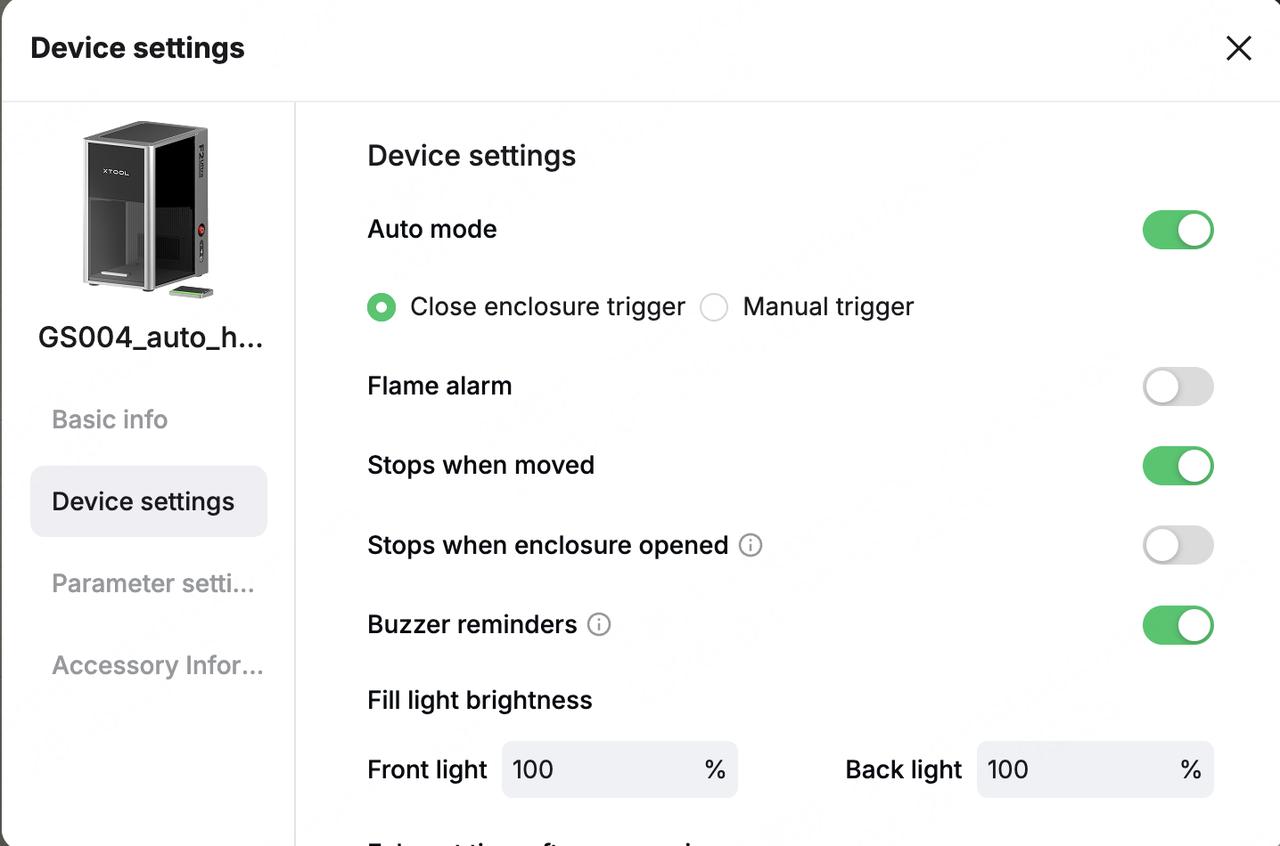
How to start Auto Mode
There are two trigger methods:
Close-lid trigger
- Default option
- Closing the protective cover starts the automated workflow automatically
- The Start button is hidden
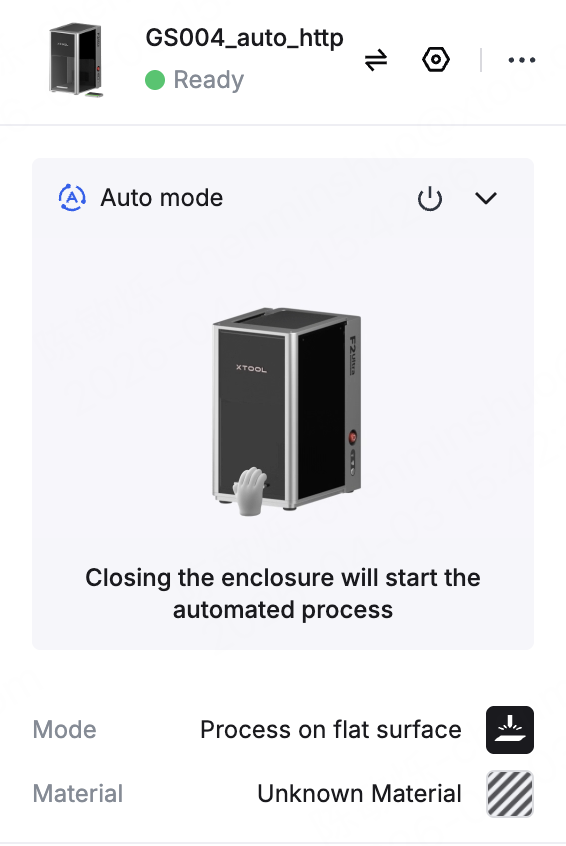
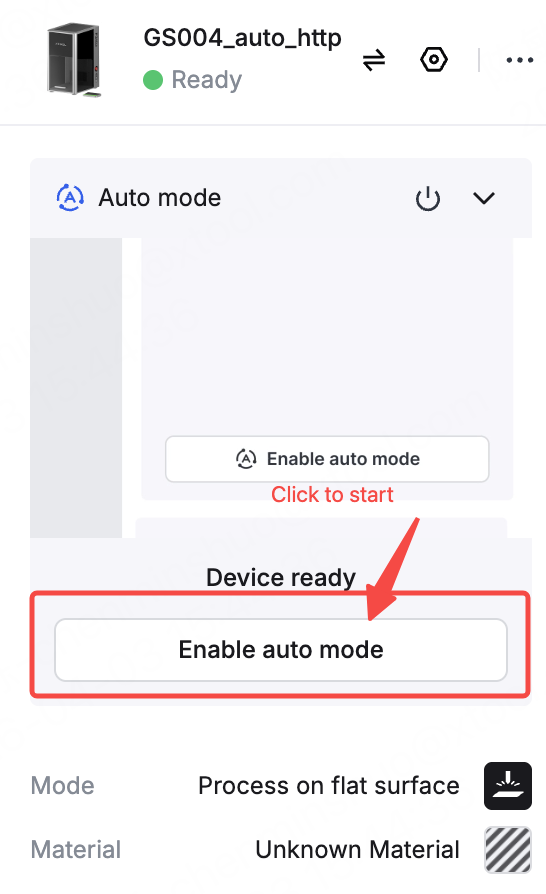
Manual trigger
- Closing the cover will not start automation
- You must click Enable Auto mode on the panel
- The Enable Auto mode button is visible
Trigger mode can only be changed when automation is not running.
What happens during Auto Mode
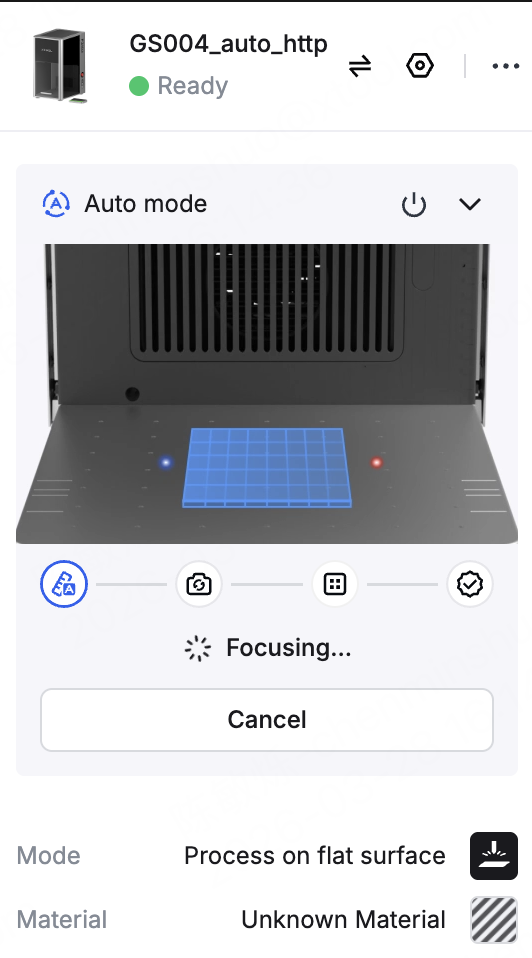
After the workflow starts, the device automatically runs these steps:
- Auto focus
- Refresh background
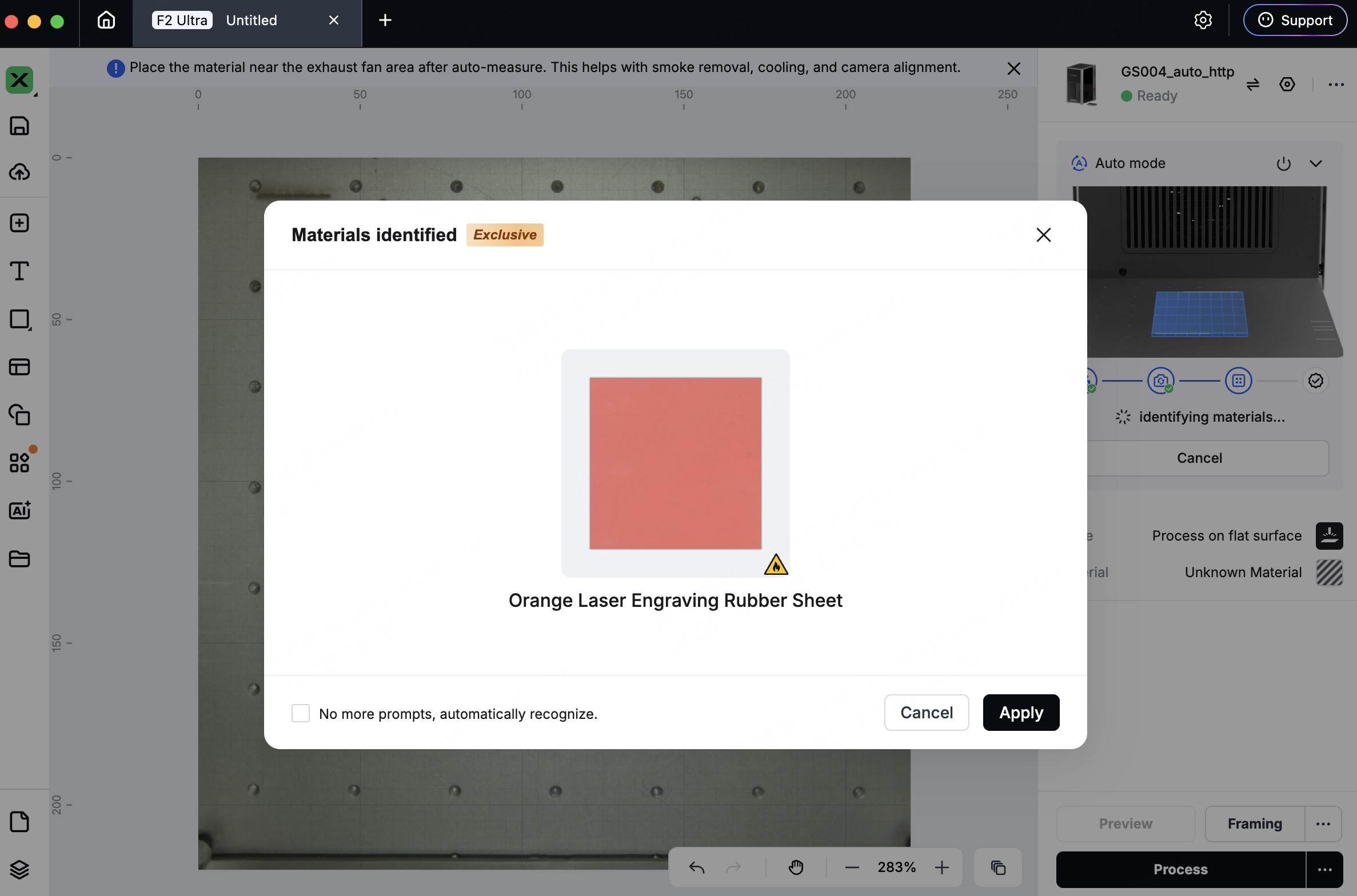
- Recognize material
- Complete setup
Material recognition is based on QR code scanning only.
If only one design element is on the canvas, the system may also auto-align it to the material center.
Supported Processing modes
Auto Mode is available in:
- Process on flat surface
- Embossment
If you switch to an unsupported mode , Auto Mode will automatically turn off.
Important notes
- Place the material directly under the red/blue focus point.
- A compatible firmware version is required.
- Material recognition requires a network connection.
- Material recognition only supports QR code detection.
- While automation is running, you cannot start normal processing manually.
- If the device is busy, Auto Mode cannot start.
- In Close-lid trigger mode, opening the cover during automation will stop the current process.
- In Manual trigger mode, opening the cover during automation is allowed.
Preview
Was this page helpful?
0 out of 0 found this helpful
Help Ticket
Use this help ticket to submit your issue. We will respond within 1 business day
Submit a Ticket Tags
Help Ticket
Use this help ticket to submit your issue. We will respond within 1 business day
Submit a Ticket 
Services & Help
Learn & Education

Copyright © 2025 xTool All Rights Reserved.