
Issue description
During image capturing and processing, the automatic conveyor feeder keeps transferring the material and cannot stop even the material falls off the pinch rollers. Normally, the conveyor stops once the sensors detect that there is no material. This issue may occur at the front end or rear end.
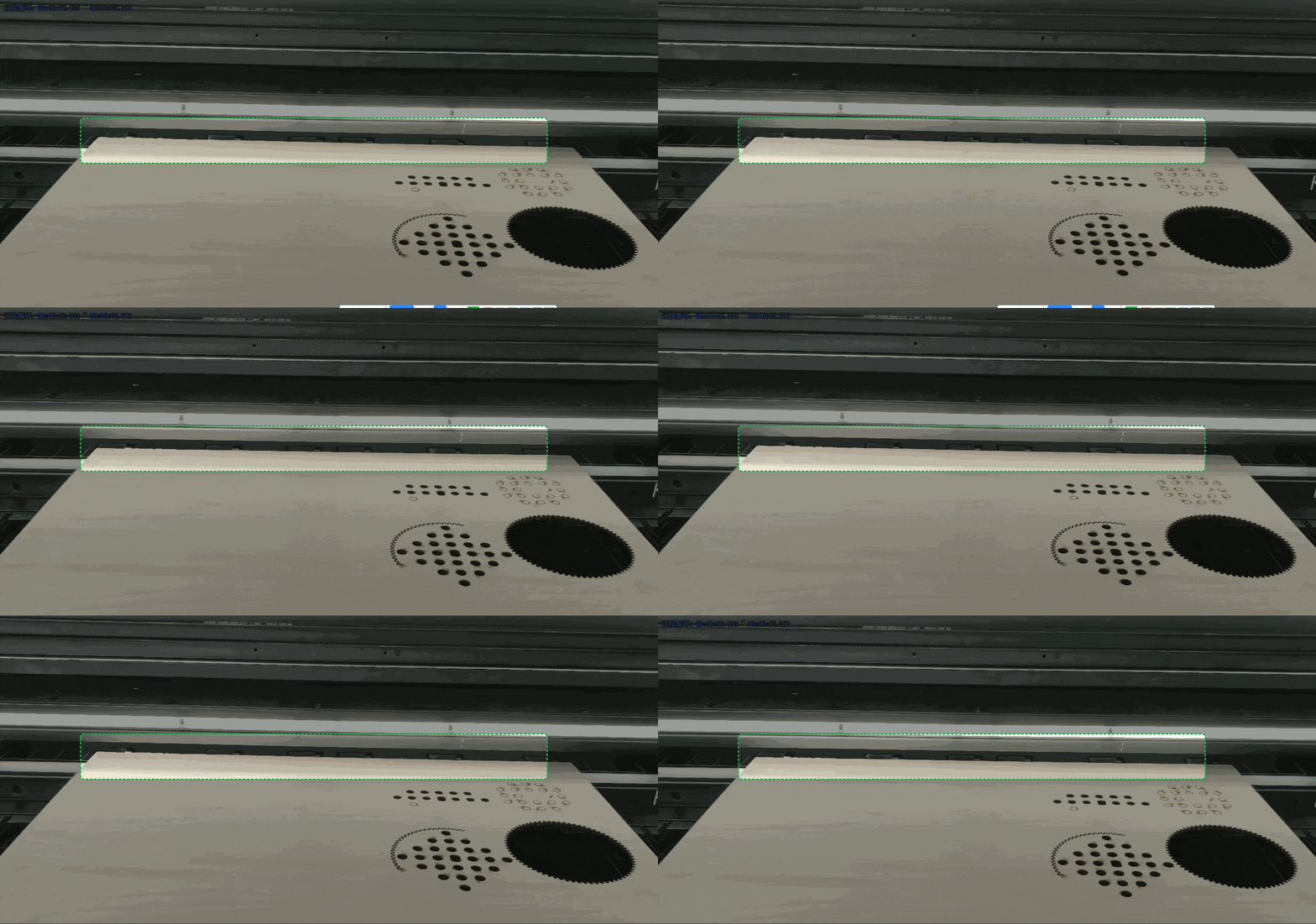
- At the front end: The conveyor feeder continues transferring the material backward and not stops even the material falls off the pinch rollers.
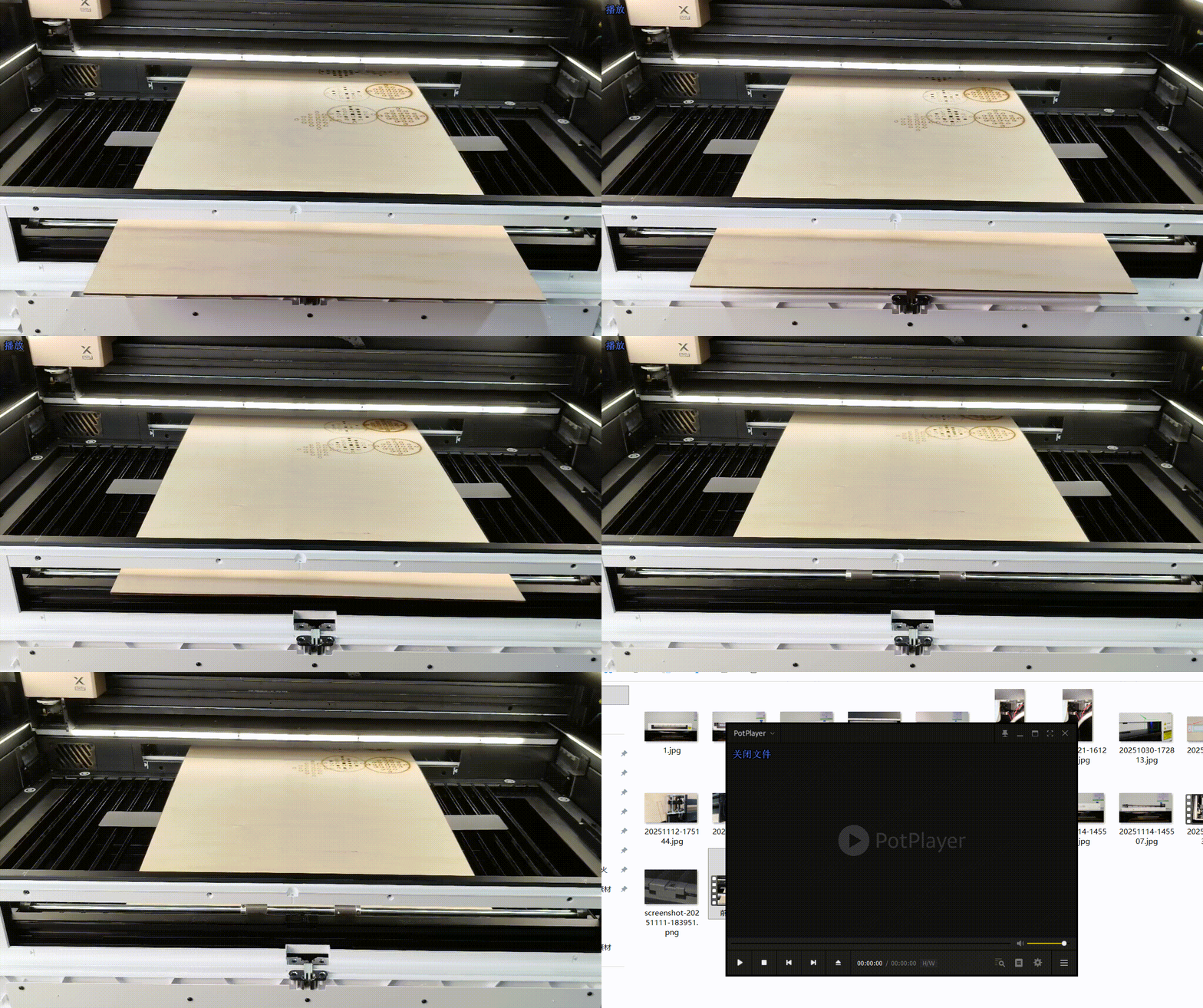
- At the rear end: The conveyor feeder continues transferring the material forward until the material falls off the pinch rollers. However, the pinch rollers still work.
Possible causes
- The sensor of the conveyor feeder and that in the front of xTool P3 are dirty.
- The conver of the sensor in the front of xTool P3 is closed.
- The external light is strong.
- The connection cable of the sensor is loose.
- The sensors mulfunction.
Troubleshooting
Trobleshooting procesures vary from the issue at the front end and rear end, please choose the appropriate procesdures based on the actual situations. Please follow these steps in order.
Trobleshooting procedures for issue at the front end
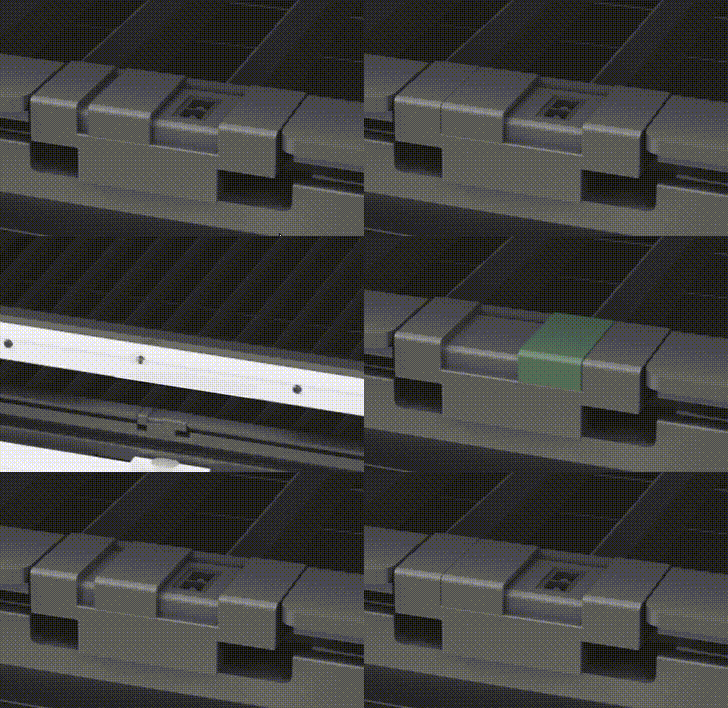
1. Check whether the sensor cover is open.
When using the conveyor feeder, the cover of the sensor in the front of xTool P3 must be open; otherwise, the material position cannot be detected.
2. Check whether the sensor is dirty and clean it if necessary.
Dirty sensor will affect the detection function. If the sensor is dirty, clean it with a damp tissue.
3. Check for external light.
Check for any strong external light sources shining on the sensor, such as lights or sunlight.
- If yes, avoid strong light.
- If no, proceed to the next step.
4. Check the connection connector for the sensor.
(1) Power off xTool P3.
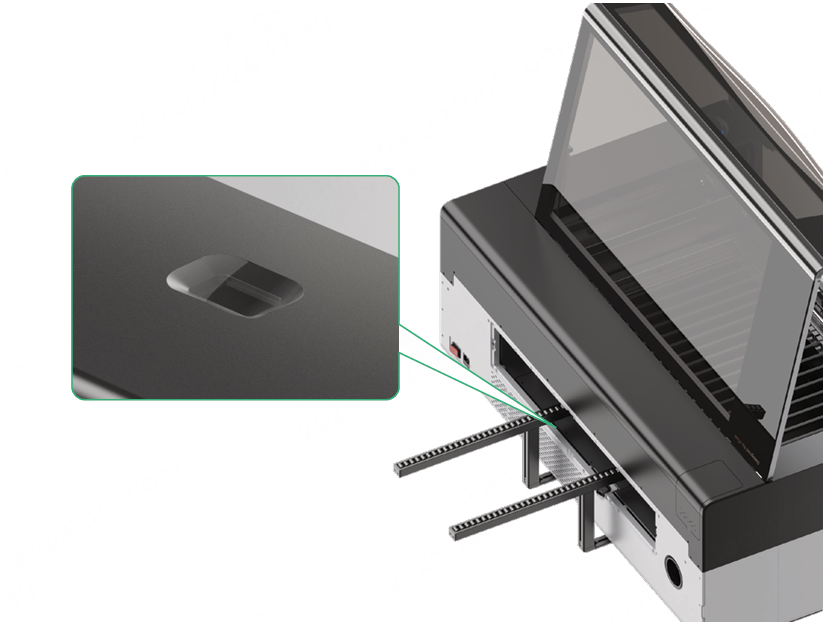
(2) Remove the sensor as shown in the diagram below.
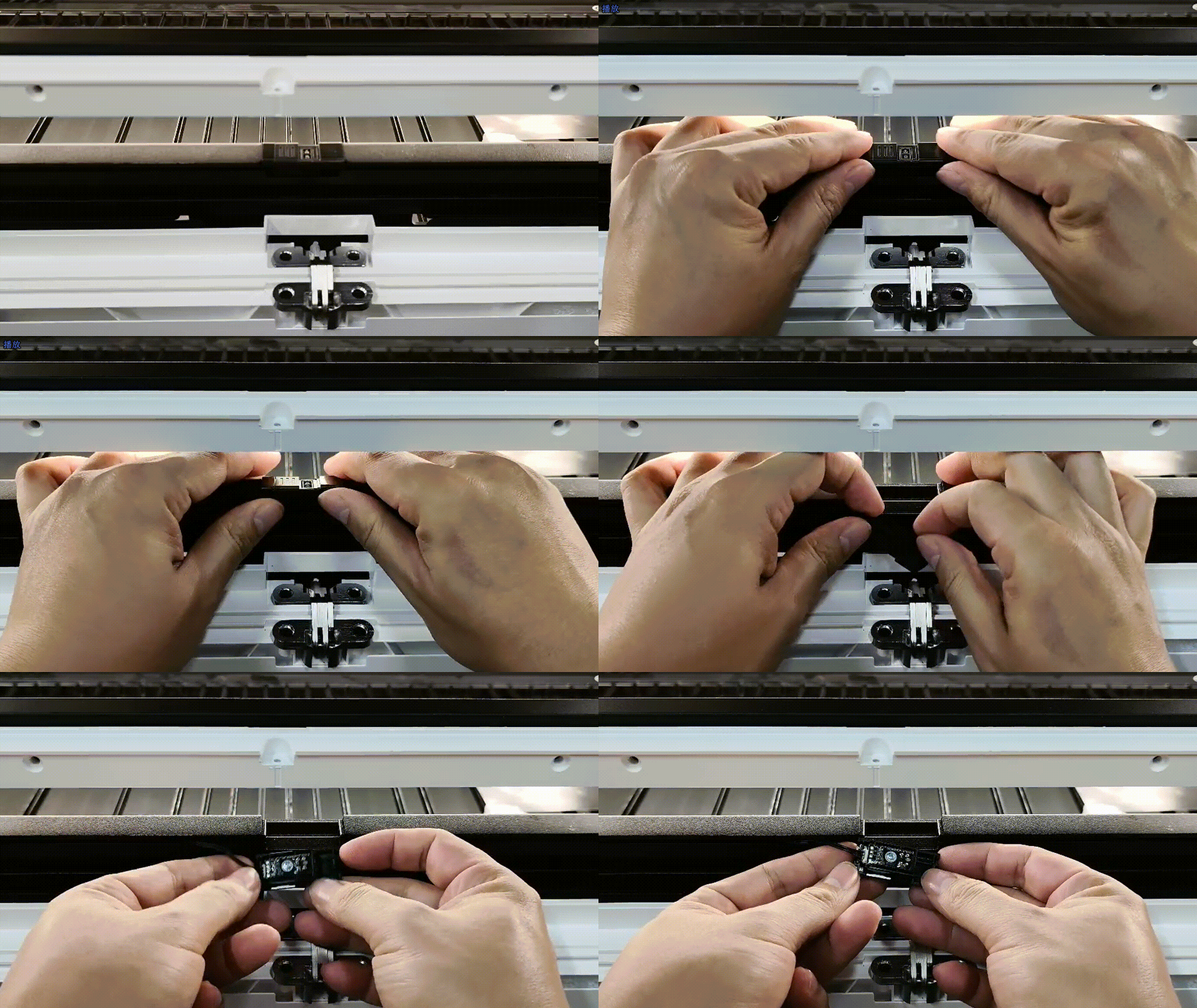
(3) Unplug and reinsert the connector and power on xTool P3.
5. Check the connection connector for the main board.
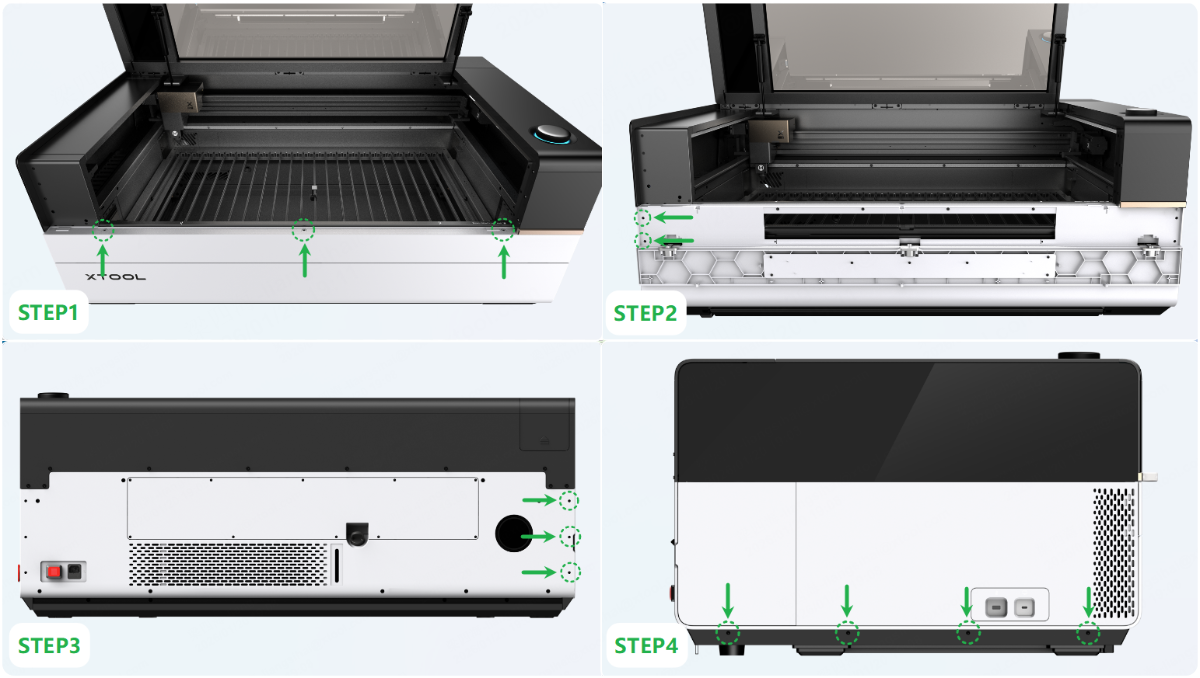
(1) Power off xTool P3 and remove the white casing on the left. For details about how to remove the casing, see Assemble & Disassemble the Casing of xTool P3.
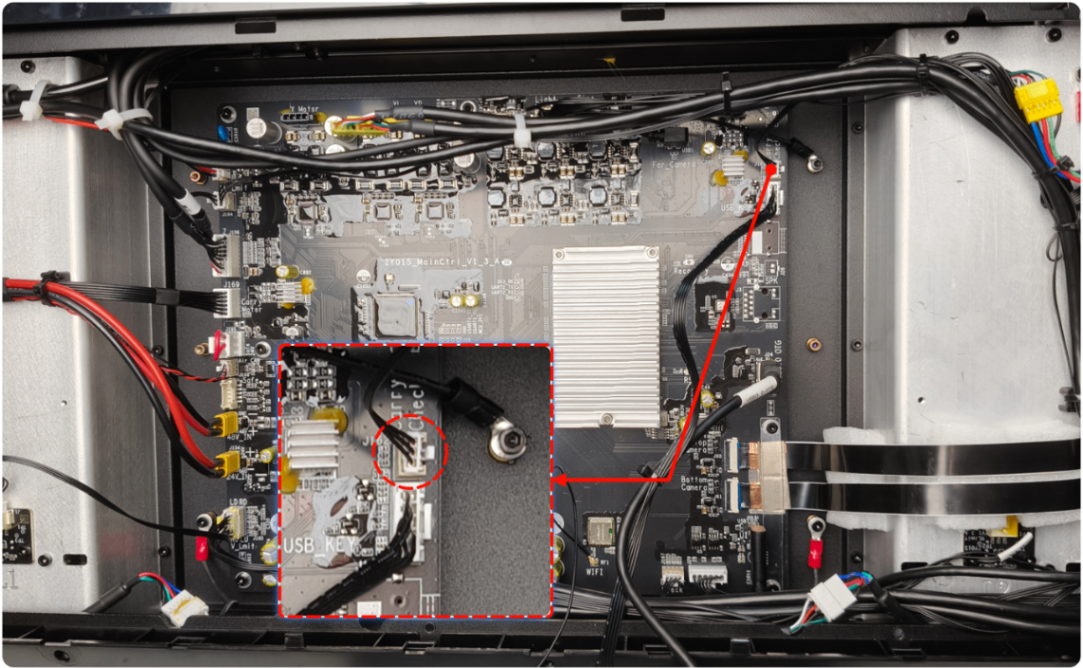
(2) Unplug and reinsert the connection connector for the main board (shown in the image below) and power on xTool P3.
Trobleshooting procedures for issue at the rear end
1. Check whether the sensor is dirty and clean it if necessary.
Dirty sensor will affect the detection function. If the sensor is dirty, clean it with a damp tissue.
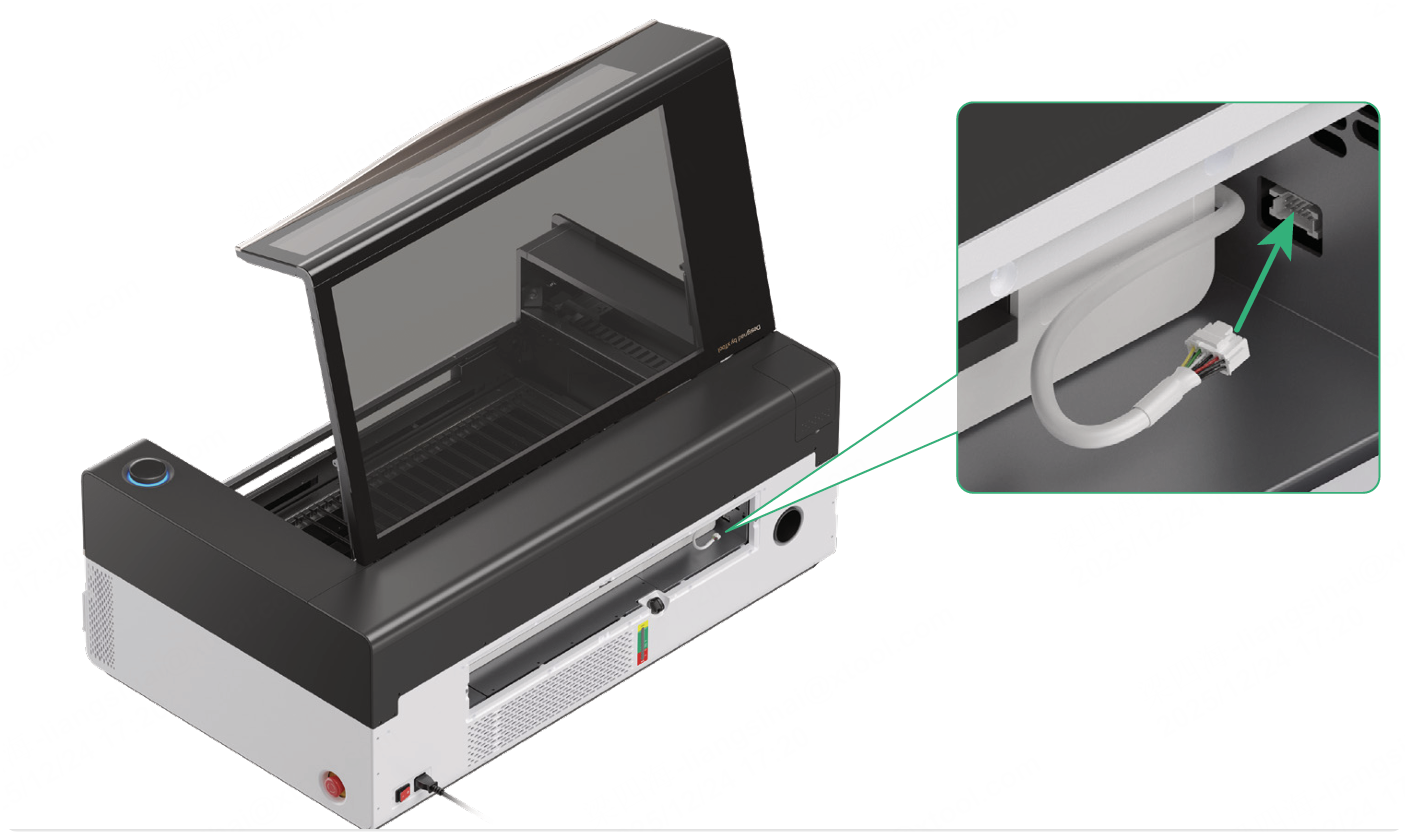
2. Check the connection cable of the automatic conveyor feeder.
Power off xTool P3 and check whether the connection cable is damaged.
- If yes, replace it with a new one.
- If no, unplug and reinsert the cable, then power on xTool P3.
3. Check the sensor of the automatic conveyor feeder.
(1) Power off xTool P3 and remove the conveyor feeder from it.
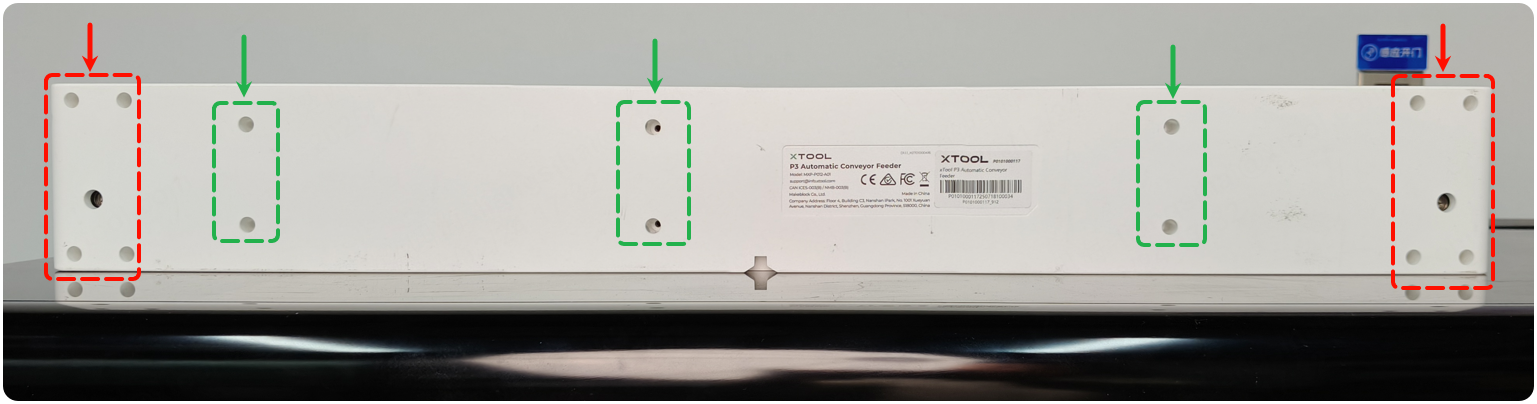
(2) Use screwdrivers to disassemble and remove the casing of the automatic conveyor feeder. The screws in the red boxes are phillips screws, and those in the green boxes are M2.5 hex screws.
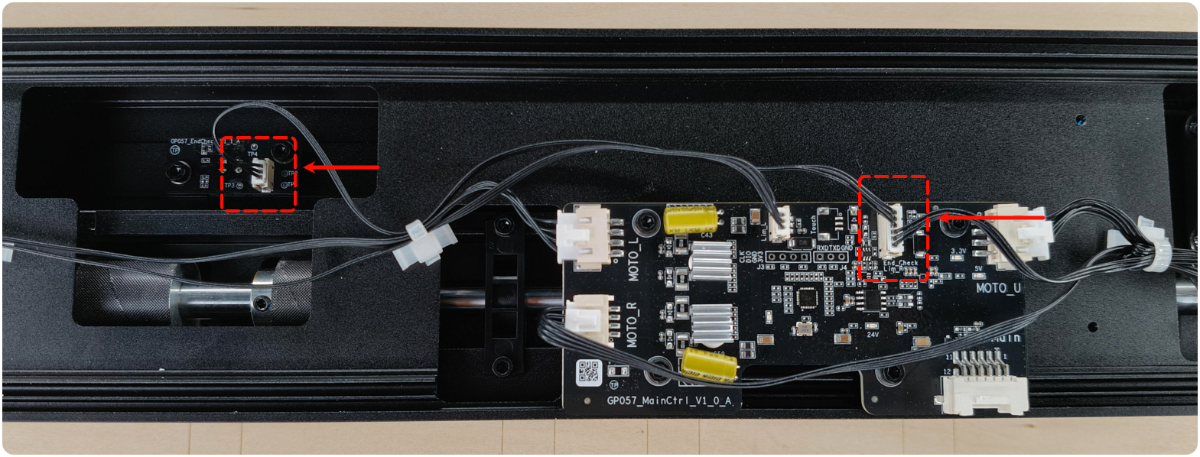
(3) Unplug and reinsert the two connectors shown in the image below.
(4) Reinstall the casing of the automatic conveyor feeder, then install the conveyor feeder to xTool P3.
Still experiencing issues?
Should the issue persist after completing the preceding steps, submit a ticket via the "Submit a Ticket" button in the "Help Ticket" section below. The standard response time for xTool Customer Service is one business day.
For a prompt resolution, please include the following details:
- Issue description: A detailed explanation of the observed problem.
- Video evidence: Attach a video demonstrating the issue, where applicable.
- Troubleshooting performed: Any troubleshooting steps you have already attempted, along with their results.
This information is crucial for xTool technical support engineers to provide timely assistance.
Documentation feedback
Help improve this content by providing feedback. If this content did not meet your requirements, select "No" in the "Was this page helpful?" section below. Include specific details about what was unclear or missing in the pop-up suggestion box. Feedback submissions are reviewed by xTool technical writers to enhance future documentation.

Services & Help
Learn & Education

Copyright © 2025 xTool All Rights Reserved.