
Issue description
When the device performs distant-view camera calibration or operates in an Auto mode (such as automatic material recognition or autofocus), the software displays the message "Concentric Circle Detection Failed".
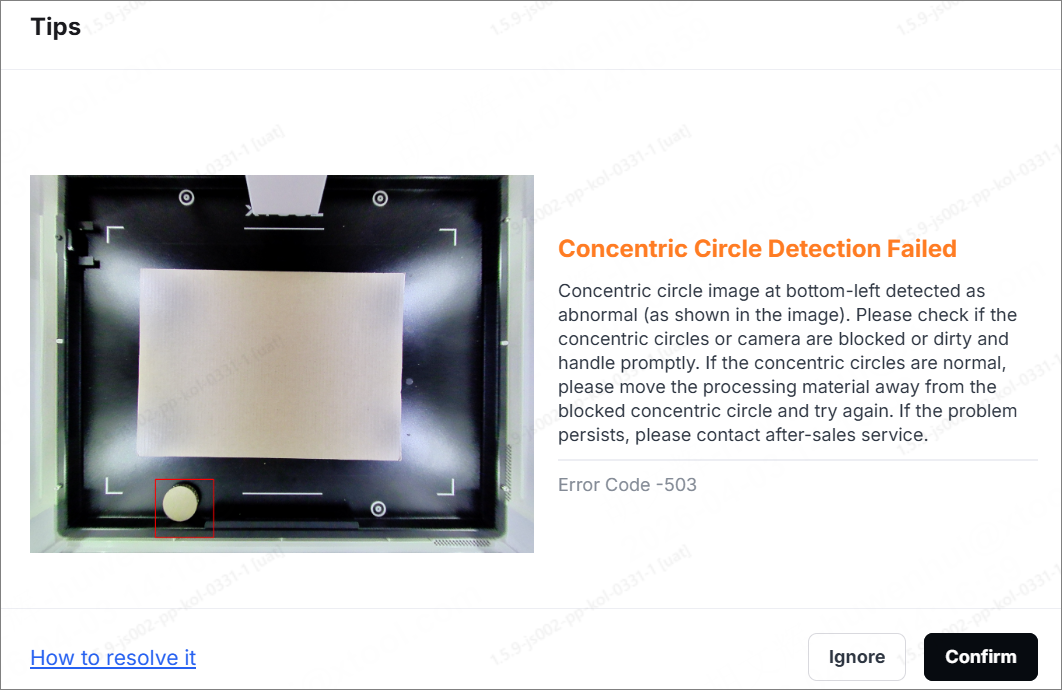
When the error occurs, the software clearly indicates which specific concentric circle (e.g., top-left, top-right, bottom-left, or bottom-right) failed the detection. Please follow the software’s prompts to troubleshoot the issue.
Possible causes
- Excessive ambient light: Sunlight or other strong light causes glare and overexposure on the concentric circles, making detection failure.
- Dirty concentric circles: Stains such as dust, smoky stains, and glue cover or blur the concentric circles.
- Damage to the concentric circles: Physical damage such as scratches, wear, and peeling causes the concentric circles to be incomplete.
- Material to be covered: Due to the camera’s limited field of view (FOV), the processed material covers the two concentric circles on the baseplate (typically located in the upper left and upper right), preventing the camera from capturing them.
Troubleshooting procedures
1. Check and improve ambient lights
Observe the ambient lights around the device.
- If there are strong light sources (such as direct sunlight, bright indoor lighting, or a desk lamp lighting directly on the baseplate), try to block or turn them off.
- If the ambient lights cannot be adjusted, try adding a light shield above or around the device to reduce reflections on the baseplate. After adjustment, calibrate the distant-view camera or perform auto mode again. Check whether the error code disappears or not.
2. Check the material
If the software indicates that the two concentric circles (top left and top right) failed detection, or if you notice that two concentric circles are not visible on the software canvas, the material is likely obstructing the camera's field of view.
- Check whether the materials on the processing area cover the concentric circles on the baseplate. If the materials obstruct the view, move them aside to ensure that all concentric circles (especially the top two) are fully visible to the camera.
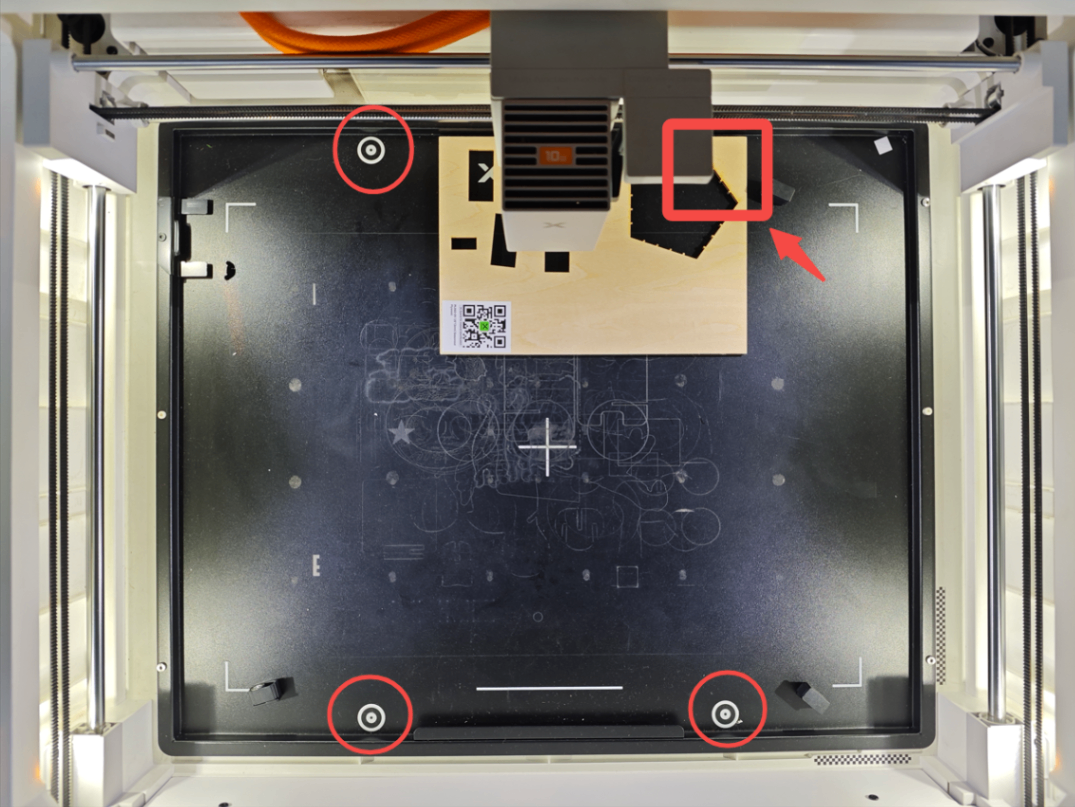
- If the material is too high and the camera cannot capture the concentric circles, move the material toward the center of the processing area or downward, away from the concentric circles.
The material is too high and too close to the concentric circle.
Error code appears.
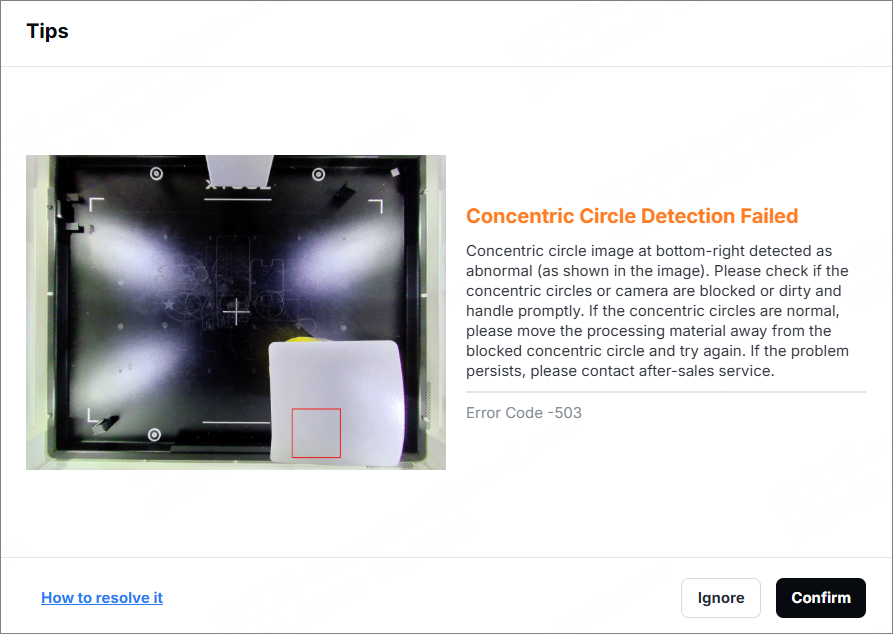
- After adjustment of the material, recalibrate or restart the automation mode.
Note: If your material is too thick and the processing position is close to the concentric circle, making it impossible to take a photo with the distant-view camera, you can use the close-view camera to measure. However, please ensure that the distance from the surface of your material to the baseplate is less than 16 mm.
3. Check the concentric circles
Observe the concentric circles and check whether they are clear and complete.
- If you find dirt in the concentric circles, clean them.
- Use a clean, soft cloth to gently wipe their surfaces to remove any dust, smoke, or stains. If there are stains difficult to remove, you can wipe them with a small amount of absolute alcohol or a special detergent.
- After cleaning, wait for the baseplate to dry completely, restart the device, and perform calibration or automation mode to check if the error disappears.
- If the concentric circles are found damaged (e.g., incomplete pattern, color loss), the baseplate needs to be replaced.
4. Perform the calibration or auto mode again
- After completing the above steps, restart the software and reconnect the device.
- Calibrate the distant-view camera or auto mode again to see whether the error message disappears.
- If the problem persists and the software continues to report an error code "Concentric Circle Detection Failed", please verify that the circle has been cleaned and is not obstructed. If this does not resolve the issue, the baseplate may need to be replaced.
Still experiencing issues?
Should the issue persist after completing the preceding steps, submit a ticket via the "Submit a Ticket" button in the "Help Ticket" section below. The standard response time for xTool Customer Service is one business day.
For a prompt resolution, please include the following details:
- Software version: The software version of xTool Studio that you use.
- SN number of the device
- The image of the concentric circles
This information is crucial for xTool technical support engineers to provide timely assistance.

Services & Help
Learn & Education

Copyright © 2025 xTool All Rights Reserved.