
Issue description
A pop-up window appears on the software displaying the error message "Camera Positioning Accuracy Not Completed", with Error Code -204.
This message may appear in the following situations:
- After users first use xTool M2 and connect to xTool Studio software, the initialization calibration process has not been completed.
- The user has installed the laser module but has not performed the camera positioning accuracy calibration.
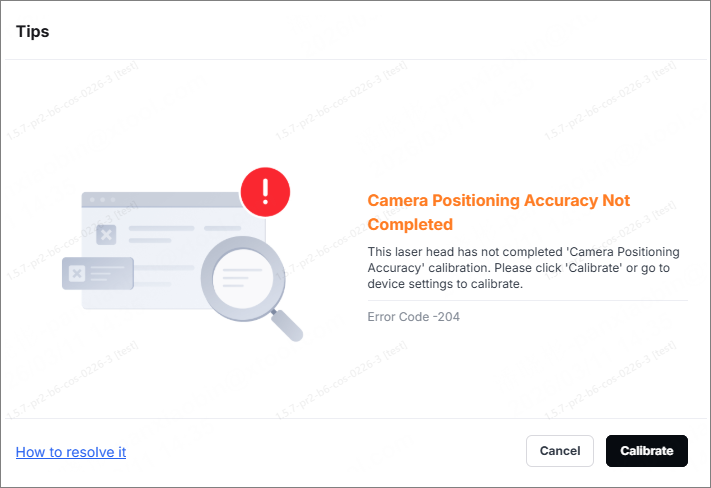
Possible causes
The camera positioning accuracy calibration is not completed.
Prerequisite
When you use xTool M2 for the first time and connect it to xTool Studio software, you must complete the following three steps before processing:
- Update the device firmware to the latest version compatible with the software.
- Perform vibration suppression calibration + camera positioning accuracy calibration to ensure device motion accuracy and processing accuracy.
- Start a tutorial: Helps users become familiar with the basic workflow.
This message appears if the user does not perform the camera positioning accuracy calibration after installing the laser module (Step 2, "Processing Position Accuracy Calibration").
Troubleshooting procedures
1. Make sure the laser module is installed properly
- Turn off the device and make sure the laser module is installed on the xTool M2.
- Make sure the laser module is securely mounted and that the magnetic pins are firmly attached or mounting screws are tightened.
2. Perform the camera positioning accuracy calibration
Refer to the video tutorial to perform the camera positioning accuracy calibration.
- Open xTool Studio, and make sure it is connected to the device normally.
- Click the upper-right "Settings" icon in the software.
- Select Calibration settings.
- Click Start next to the Camera positioning accuracy calibration.
- Follow the instructions in the tutorial to complete the calibration process (which typically includes capturing the calibration plate and identifying the calibration points).
3. The error code persists even after calibration is performed
- Restart xTool M2 and the xTool Studio software.
- Perform the camera positioning accuracy calibration again.
- Make sure that both the firmware and software are the latest version.
Still experiencing issues?
Should the issue persist after completing the preceding steps, submit a ticket via the "Submit a Ticket" button in the "Help Ticket" section below. The standard response time for xTool Customer Service is one business day.
For a prompt resolution, please include the following details:
- Software version: The software version of xTool Studio that you use.
- SN number: The SN number is located on the back of the device.
- Device information: Follow the steps to export the work log.
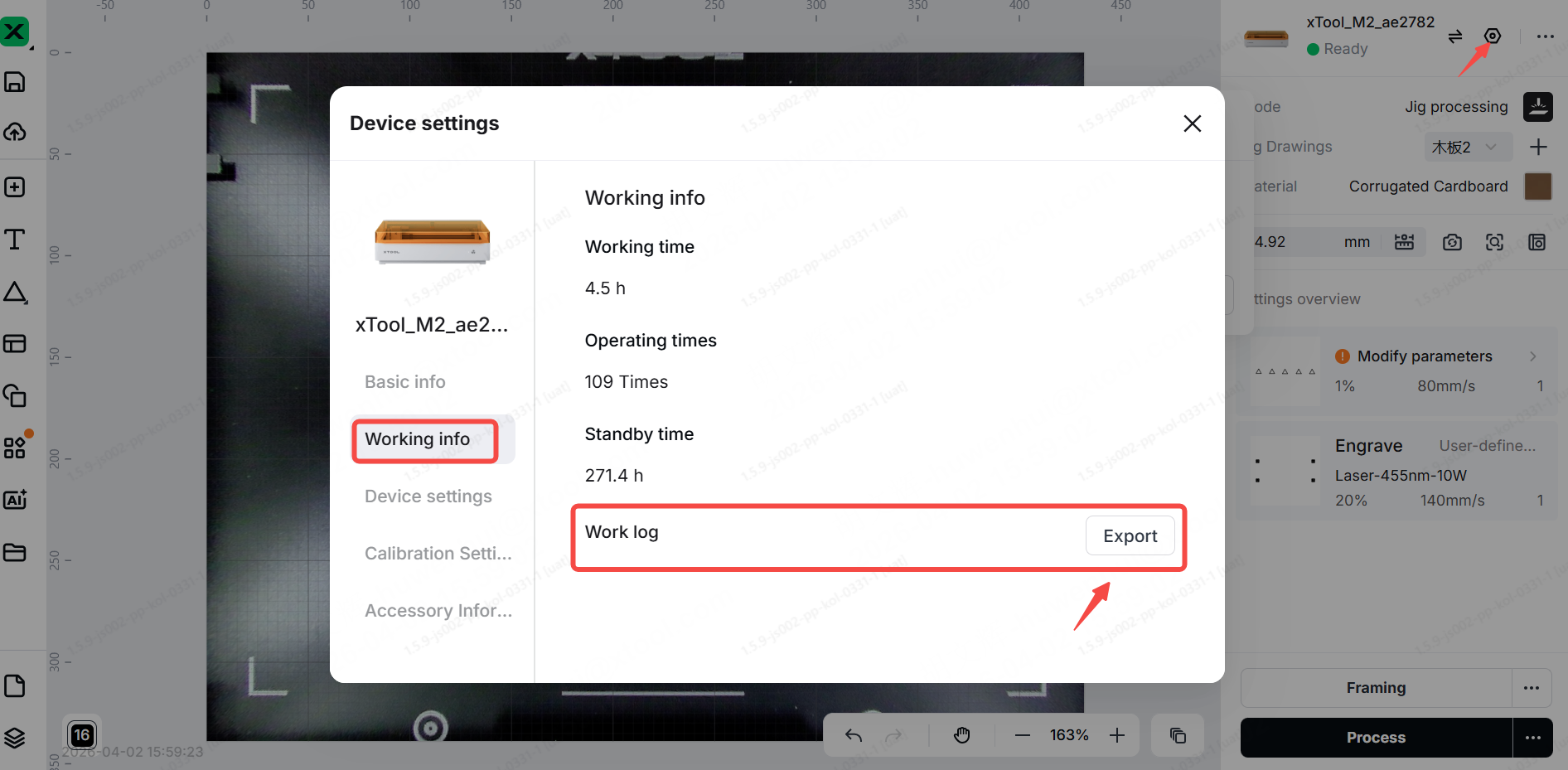
This information is crucial for xTool technical support engineers to provide timely assistance.

Services & Help
Learn & Education

Copyright © 2025 xTool All Rights Reserved.