
Issue description
When performing Refresh Background in the software, or while the device is processing a task, the software displays a pop-up window with the error message "Capture Failed" (Error Code -101). It causes the relevant functions to work improperly.
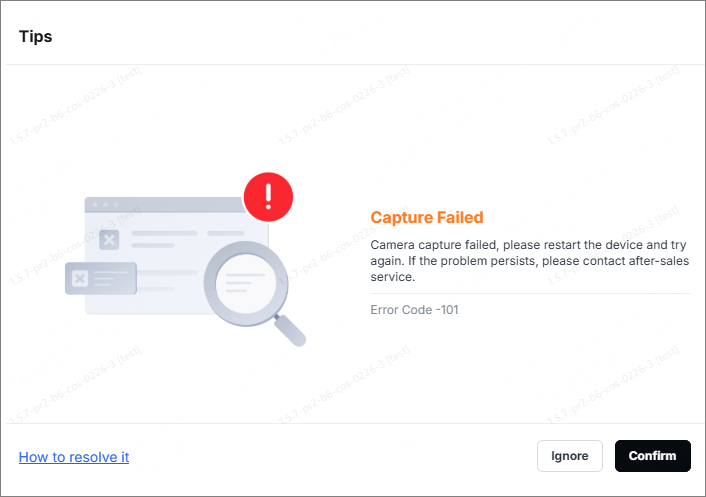
This issue causes the camera positioning function to fail, preventing accurate verification of the processing position. Please refer to this article for troubleshooting.
Possible causes
- Poor connection in the camera cable
- Camera hardware malfunction. (It primarily affects the distant-view and side-view cameras. Such issues have not been found with the close-view camera yet.)
Troubleshooting procedures
1. Determine the faulty types of the camera
xTool M2 is equipped with three cameras: a distant-view, a close-view, and a side-view. Determine which camera malfunctions before taking appropriate action.
(1) Open the software and make sure the device is properly connected.
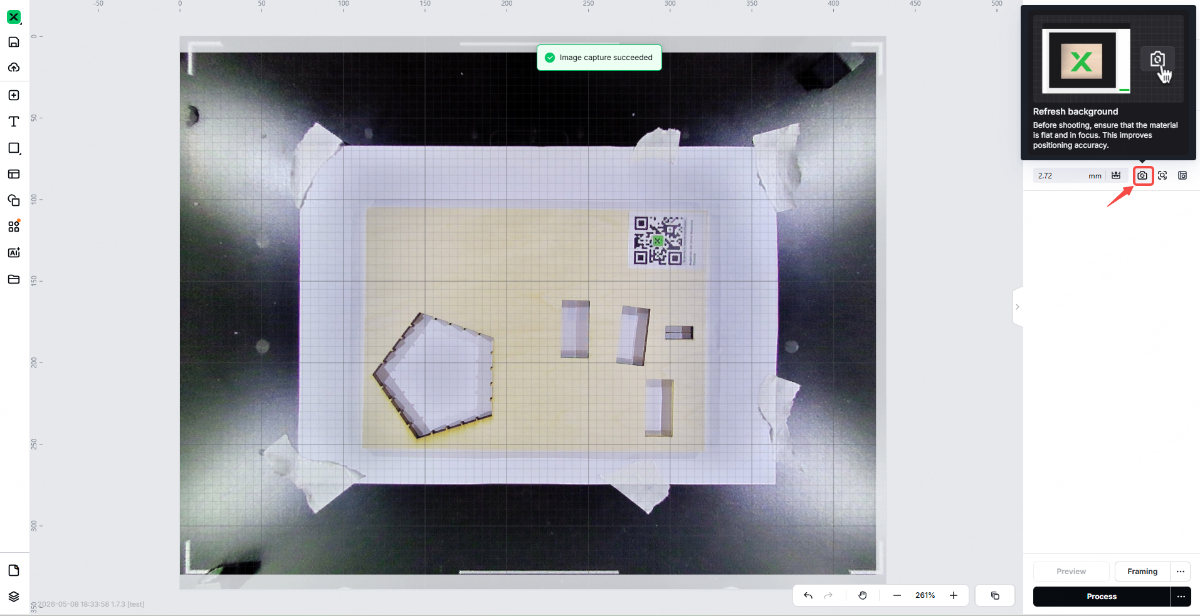
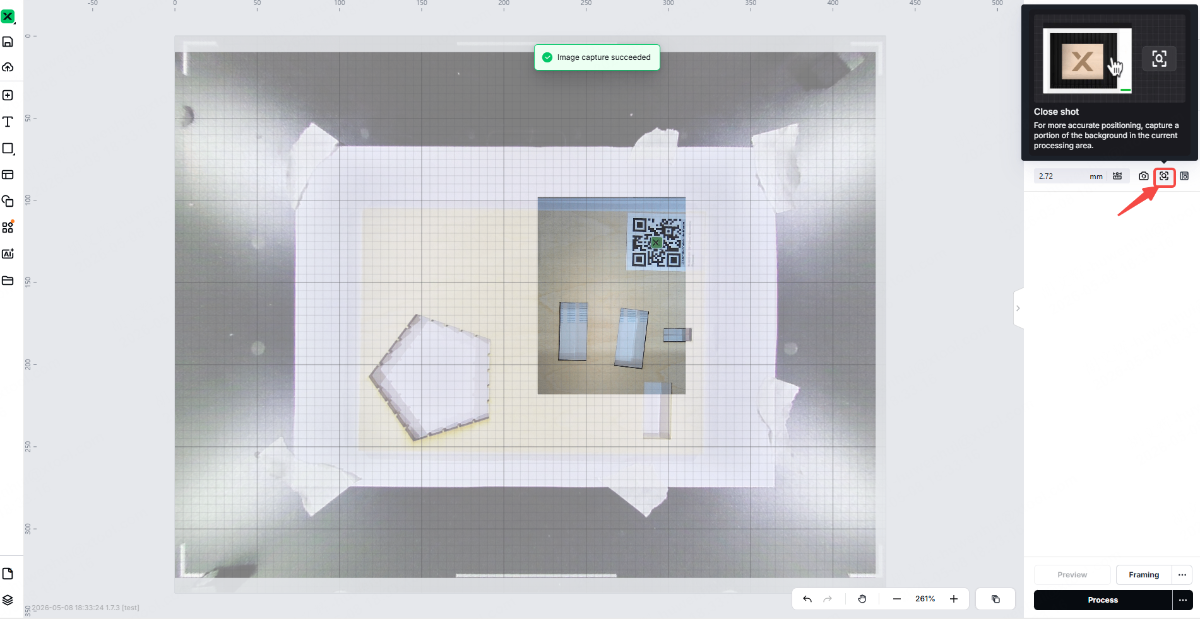
(2) Find the distant-view and close-view cameras in the software. Perform a test shot with each camera in turn.
- Distant-view camera: Click the icon below to verify whether the image was captured successfully. If the message "Capture Failed" appears, the distant-view camera malfunctions.
- Close-view camera: Click the icon below to verify whether the image was captured successfully. If the message "Capture Failed" appears, the close-view camera malfunctions.
- Side-view camera: The side camera is primarily used for flame detection, and there is no entrance in the software.
If both the distant-view and close-view cameras capture images normally, and a "Capture Failed" error occurs during processing, the side camera is likely malfunctioning.
(3) Record the specific type or types of camera failures for subsequent targeted handling.
2. Restart the device
(1) Turn off the device and wait for 10 seconds.
(2) Turn the device on and wait for it to complete initialization.
(3) Reopen the software and wait for the software to connect to the device.
(4) Check whether the problem persists after restarting.
- If the problem is solved, you can continue using it as usual.
- If the problem persists, please proceed to the next steps.
3. Check the connection cables of the camera
(1) Turn off the device and disconnect the power cable.
(2) Inspect the camera connection cables on both the main control board and the camera ends. Ensure that the cable connectors are fully inserted into the ports and are neither misaligned nor loose. If any cables are noticeably loose, reinsert them firmly to ensure a secure connection.
Since xTool M2 is equipped with three cameras, including a distant-view, a close-view, and a side-view. Ensure that you have located the faulty camera according to Step 1.
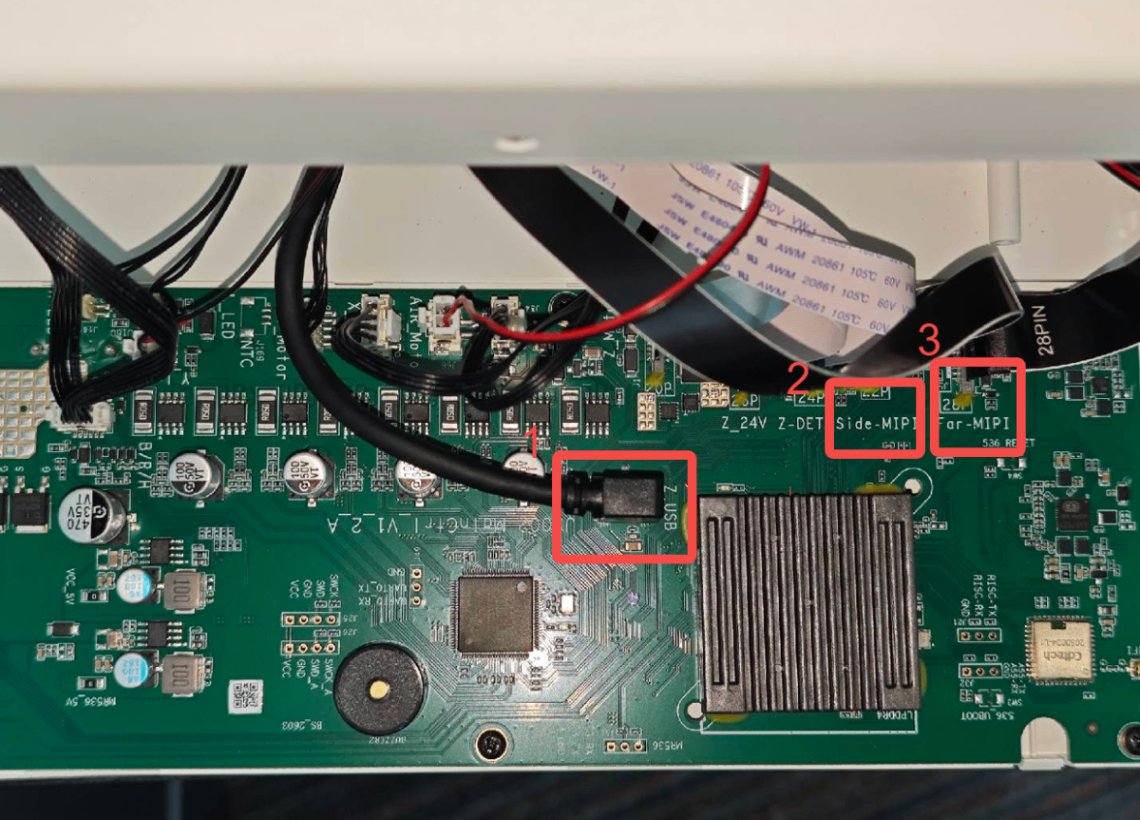
- Camera connection cables on the main control board:
Refer to the video from 0:00 to 0:50 to locate the connection cable on the back of the main control board.
- Close-view camera: Locate position 1 to find the connection cable of the close-view camera. Check whether the cable is loose.
- Side-view camera: Locate position 2 to find the connection cable of the side-view camera. Check whether the cable is loose.
- Distant-view camera: Locate position 3 to find the connection cable of the distant-view camera. Check whether the cable is loose.
- Camera connection cables on the camera:
- Close-view camera: Refer to the video from 0:00 to 0:50 to locate the connector of the close-view camera. Check whether the cable is loose.
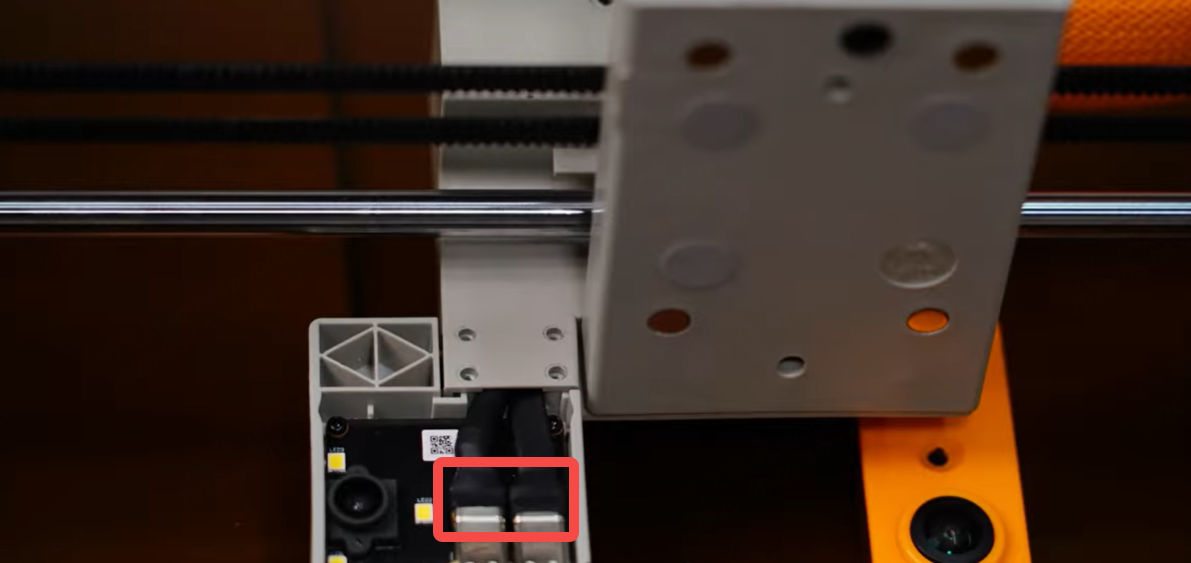
- Side-view camera: Refer to the video from 0:00 to 3:00 to locate the connection cable of the side-view camera. Check whether the cable is loose.
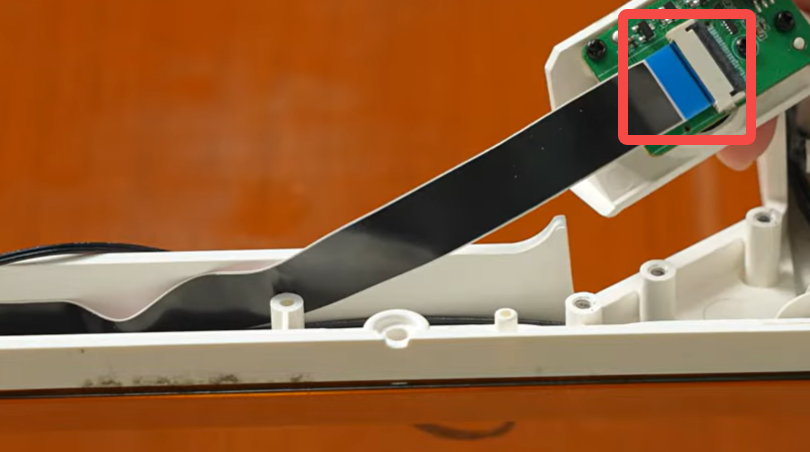
- Distant-view camera: Refer to the video from 0:00 to 0:30 to locate the connection cable of the distant-view camera. Check whether the cable is loose.
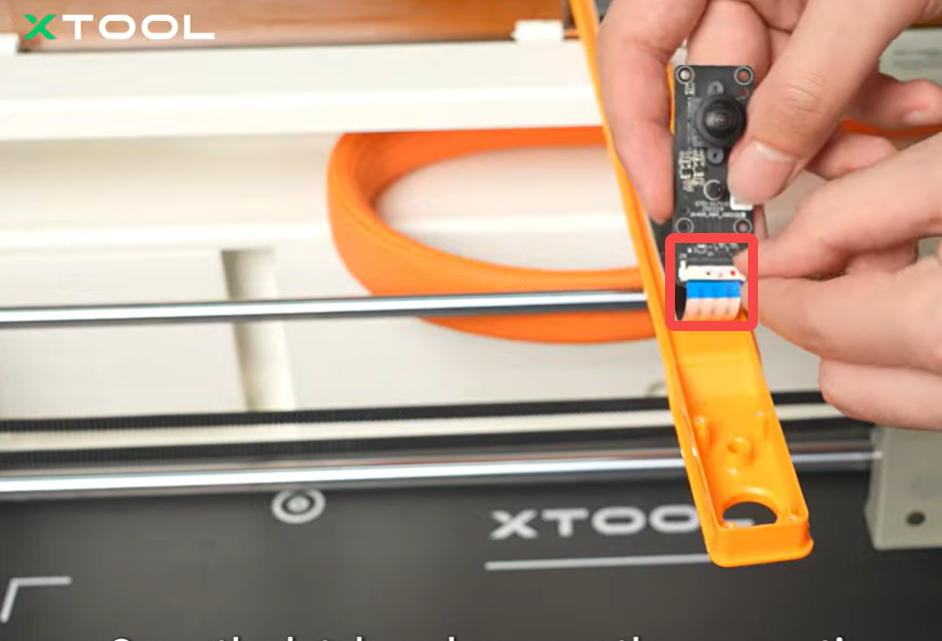
After ensuring that all cables for the faulty camera are securely connected, reconnect the power supply and start the device. Perform Refresh background or start processing again to see whether the error message disappears.
4. Contact xTool after-sales team
- If Capture Failed issue persists after completing steps 1 to 3 above, it indicates a hardware malfunction with the camera.
- Please contact the xTool after-sales team, and we will send you a replacement camera of the corresponding model (based on your test results, we will send you a distant-view camera, close-view camera, or side-view camera).
- Please provide the following information so we can process your request quickly.
- Software and firmware version: The software and firmware version of xTool Studio that you use.
- Video evidence: Attach a video demonstrating the issue, where applicable.
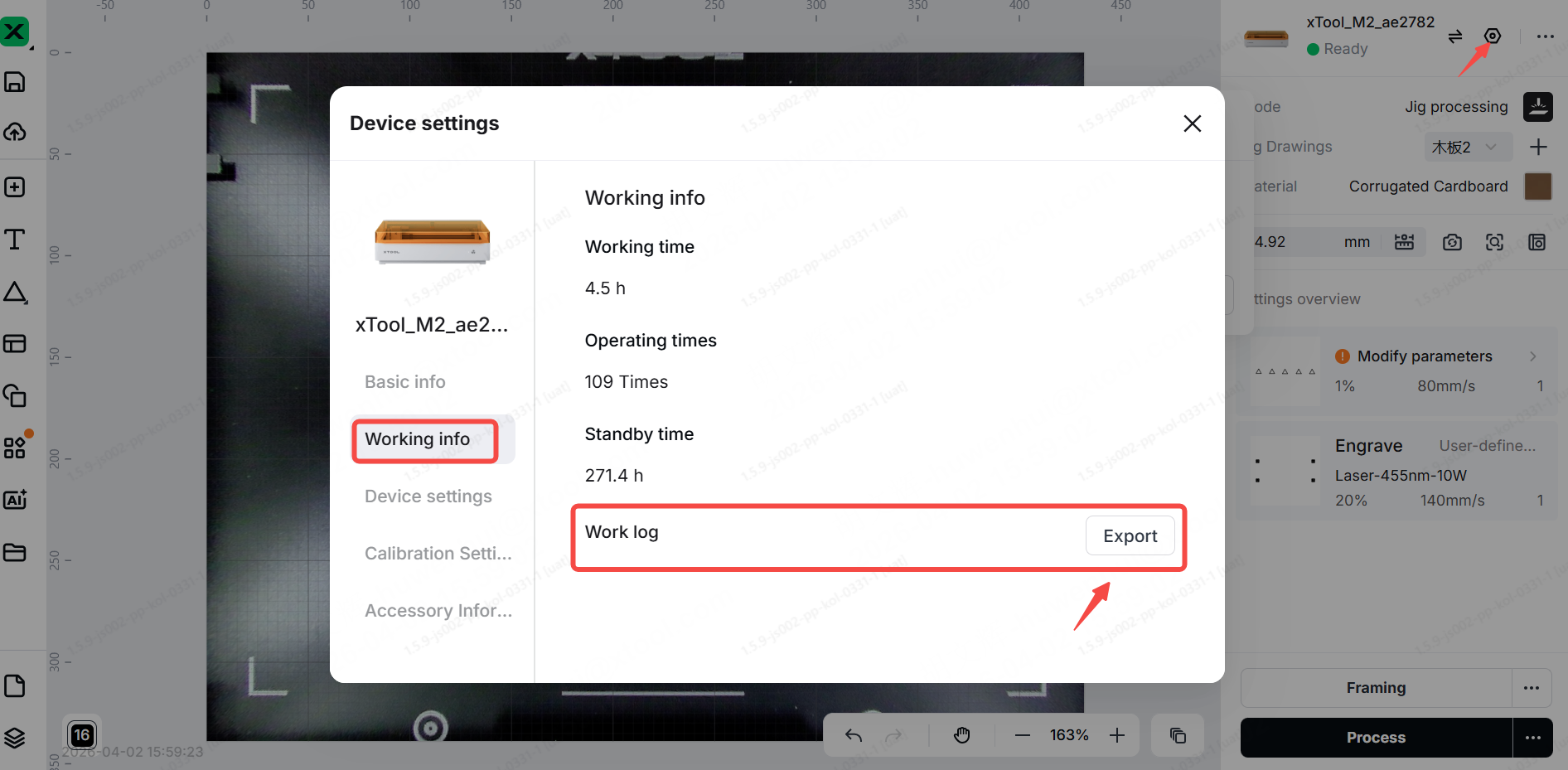
- Device information: Follow the steps to export the work log.

Services & Help
Learn & Education

Copyright © 2025 xTool All Rights Reserved.