
For a step-by-step and interactive troubleshooting guide, please click Start to troubleshoot.
Issue description
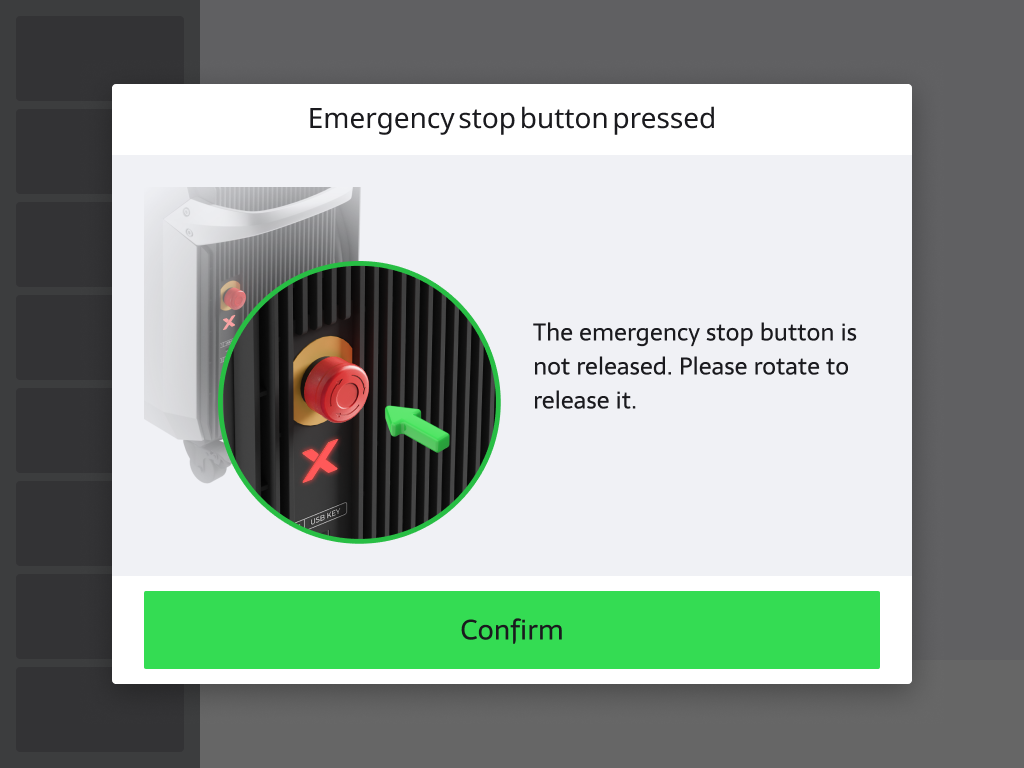
When the laser welder is powering on or during operation, the screen displays the message "Emergency stop button pressed", and the device cannot operate normally. Consult the following content for troubleshooting advice.
Possible causes
- The emergency stop button is triggered.
- The cable connected to the emergency stop button is malfunctioning.
- The intermediate relay on the motherboard is malfunctioning.
- The safety relay or its wiring is malfunctioning.
- The contactor or its wiring is malfunctioning.
Troubleshooting procedure
Please follow these steps in order.
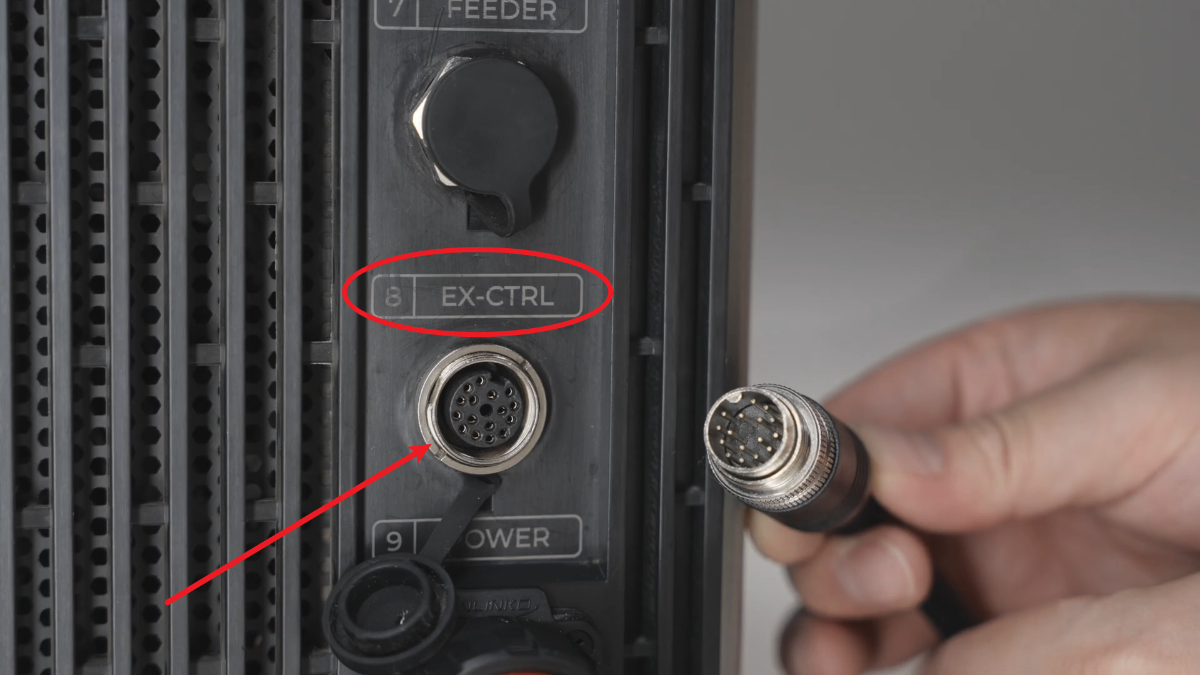
Before you start: Disconnect the CNC Cutter
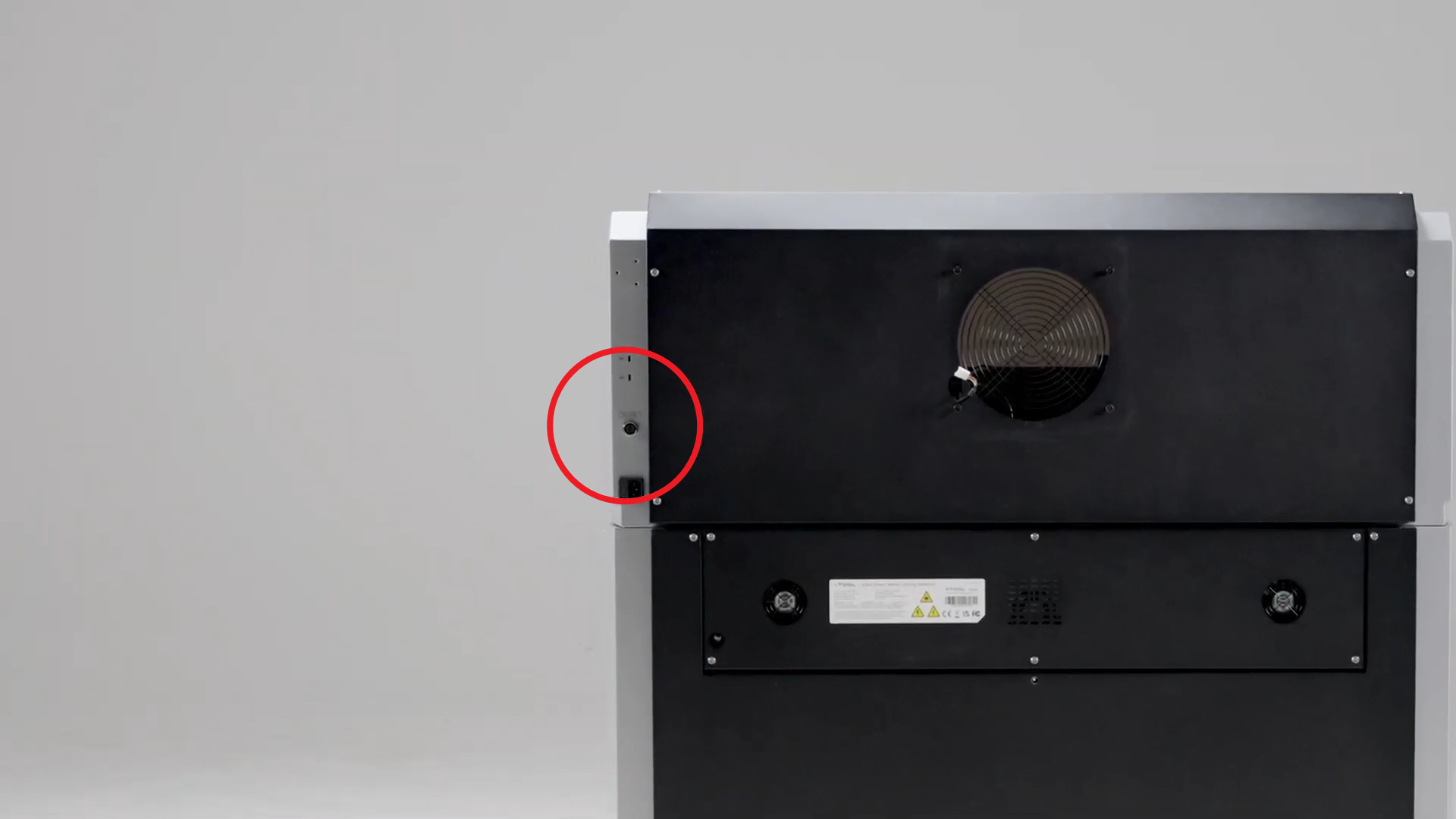
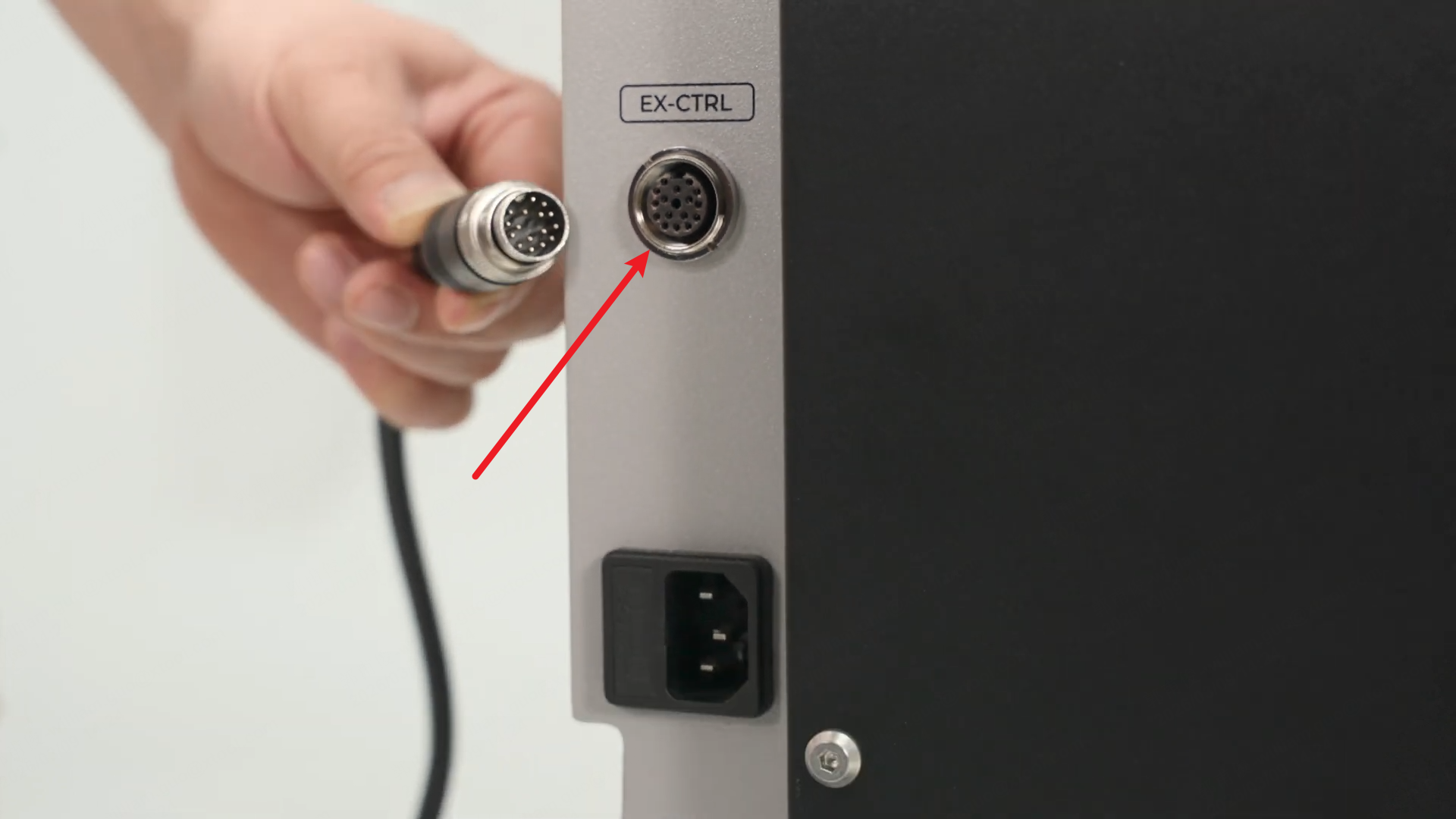
If the laser welder is connected to xTool MetalFab CNC Cutter, please disconnect them first.
STEP1: Check the emergency stop button
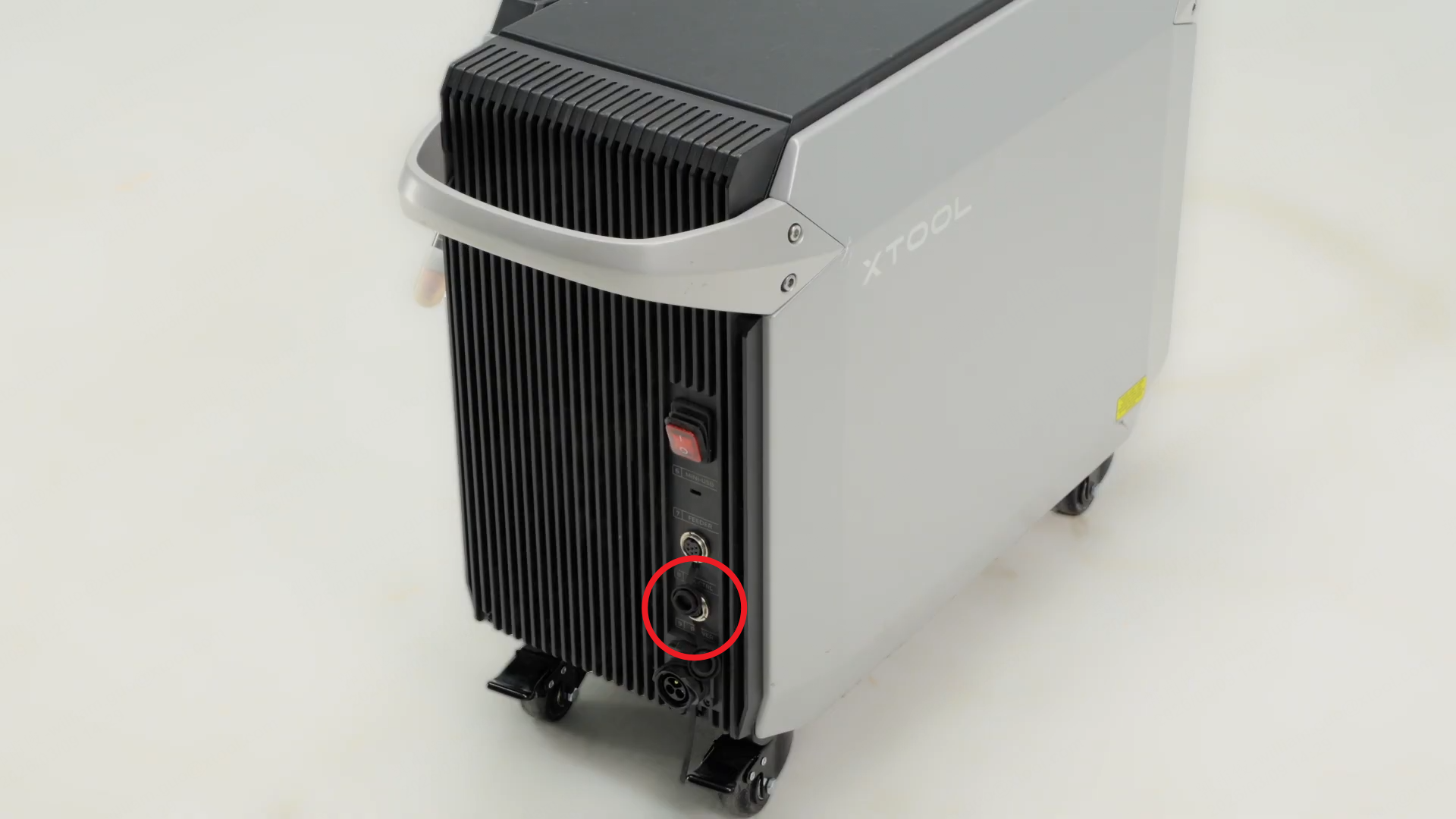
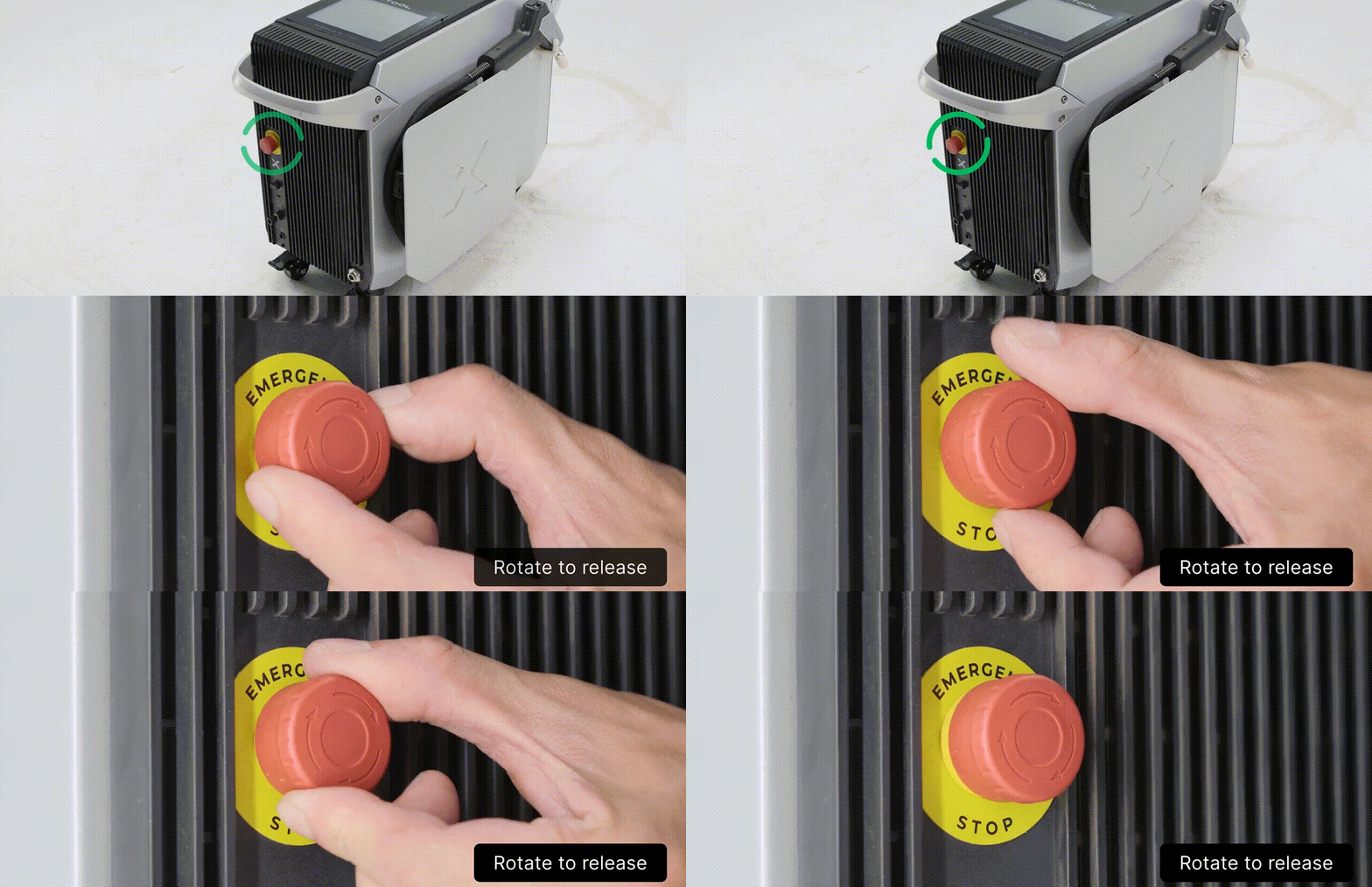
- Rotate the emergency stop button clockwise to reset it.
- Wait 15–20 seconds, then restart the device.
STEP2: Inspect internal wiring
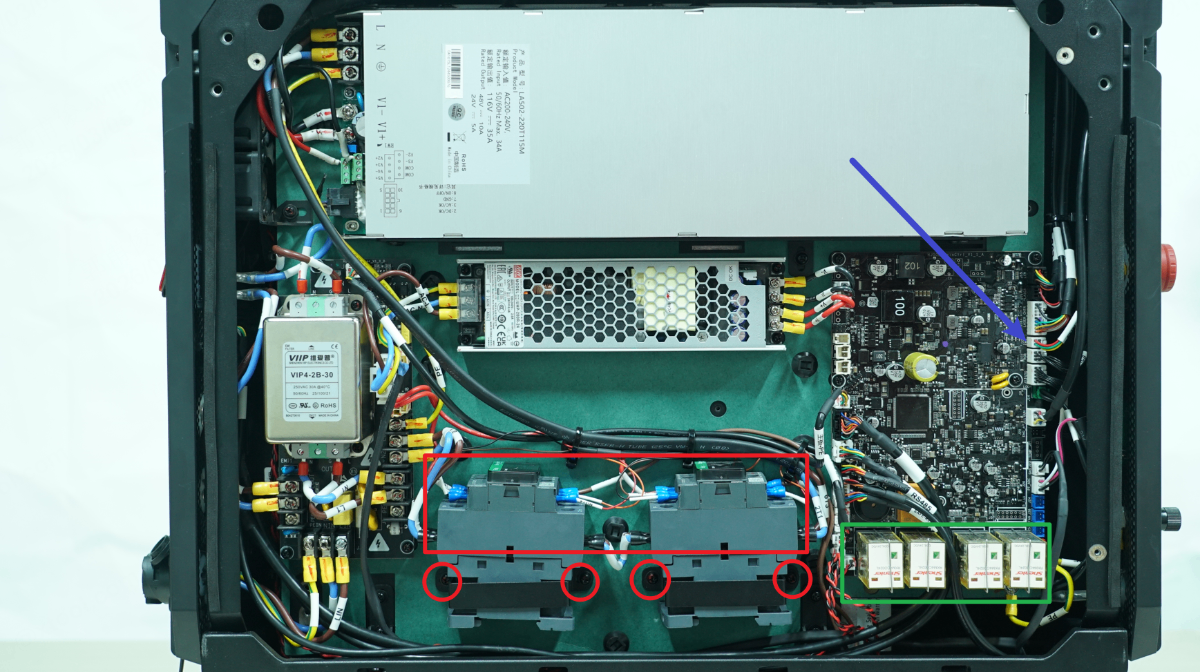
- Refer to the video "Replace the Motherboard for the xTool MetalFab Laser Welder" and remove the left cover of the machine.
- Check the cables within the red boxed area for any loose connections, detachment, or physical damage.
- Slightly loosen the four screws marked by red circles (but do not fully remove them).
- Check whether the four components marked by the green box show any visible damage or detachment.
- Inspect the cable connections indicated by the blue arrows to ensure they are properly connected.
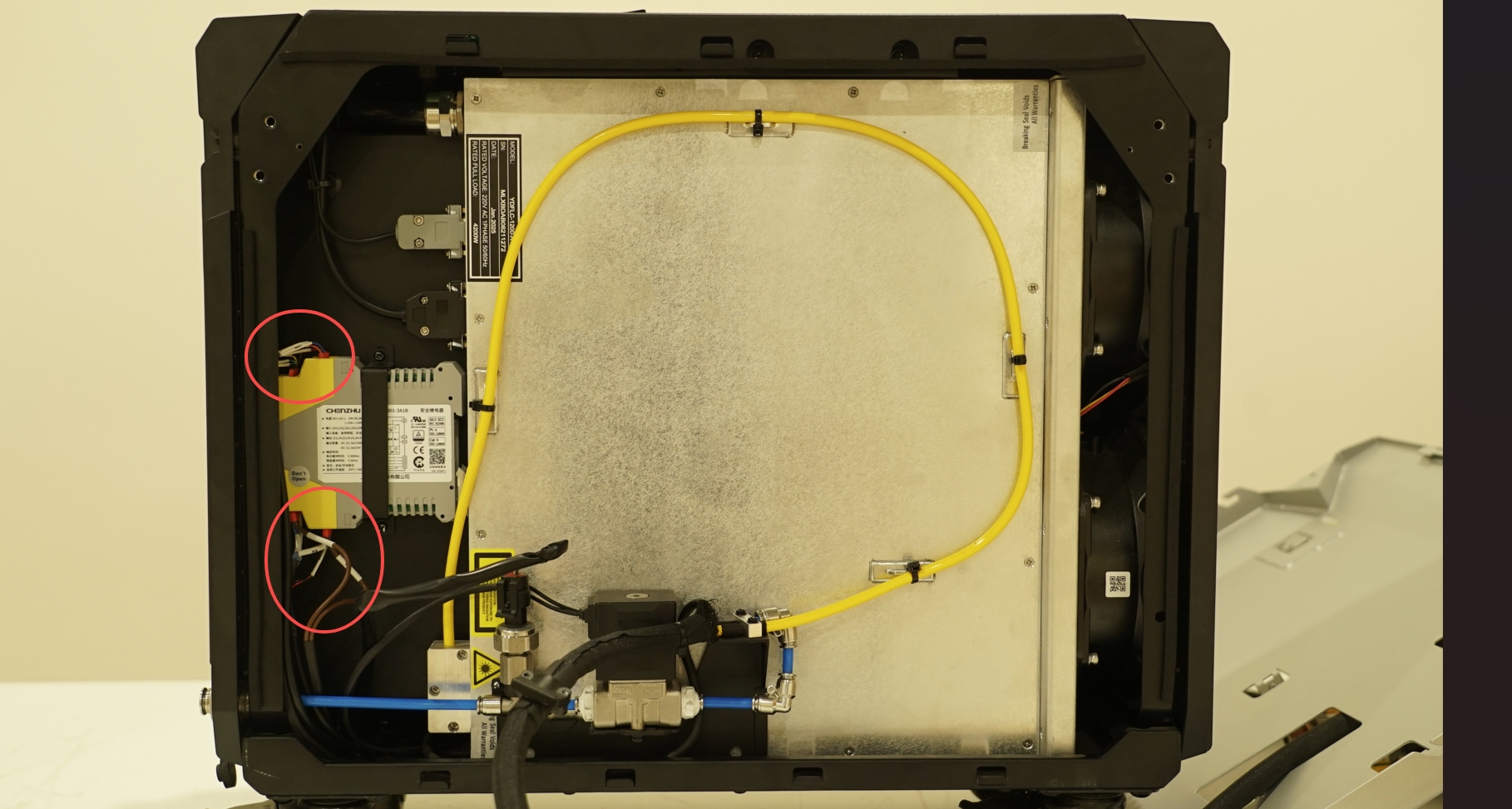
- Refer to the video "Replace the Pneumatic Assembly for xTool MetalFab Laser Welder" and remove the right cover of the machine. Then, check all cables within the two red circled areas to ensure that there are no loose connections or broken wires. You may gently pull the cables to verify that the connections are secure.
STEP3: Reinstall the AC contactors and relays
Before performing the following steps, power off the machine and unplug the power cable. After unplugging, wait approximately 10 minutes to ensure that the internal capacitors are fully discharged.
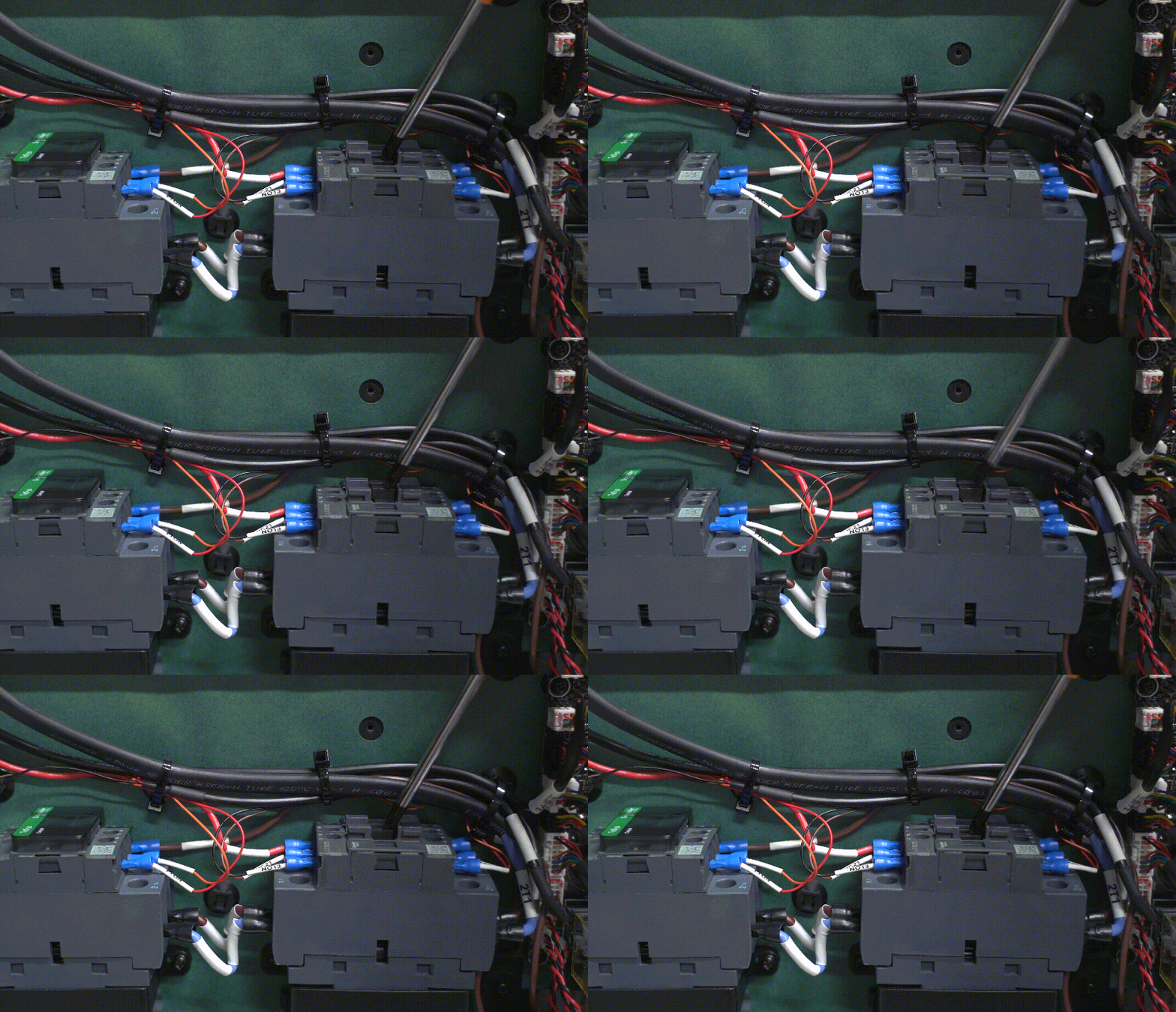
- Remove the AC contactor covers and use a screwdriver to test the internal mechanical structure and confirm that the springback movement is normal.
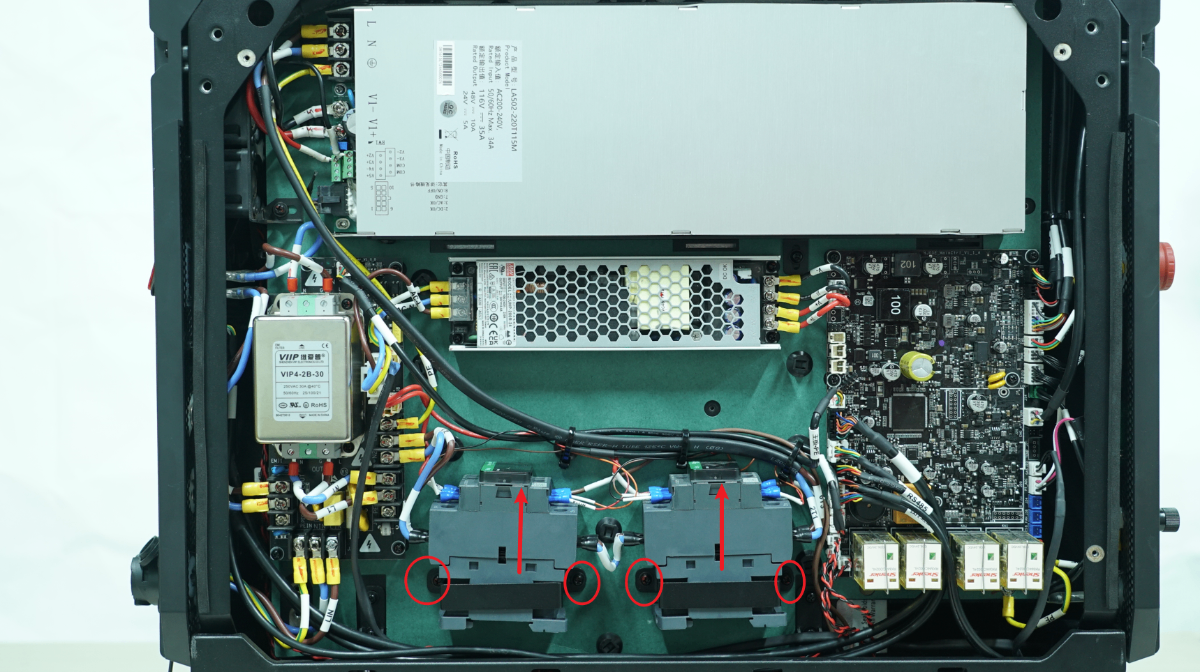
- Loosen the four mounting screws of the contactors, slightly move the contactors upward, and then retighten all the screws.
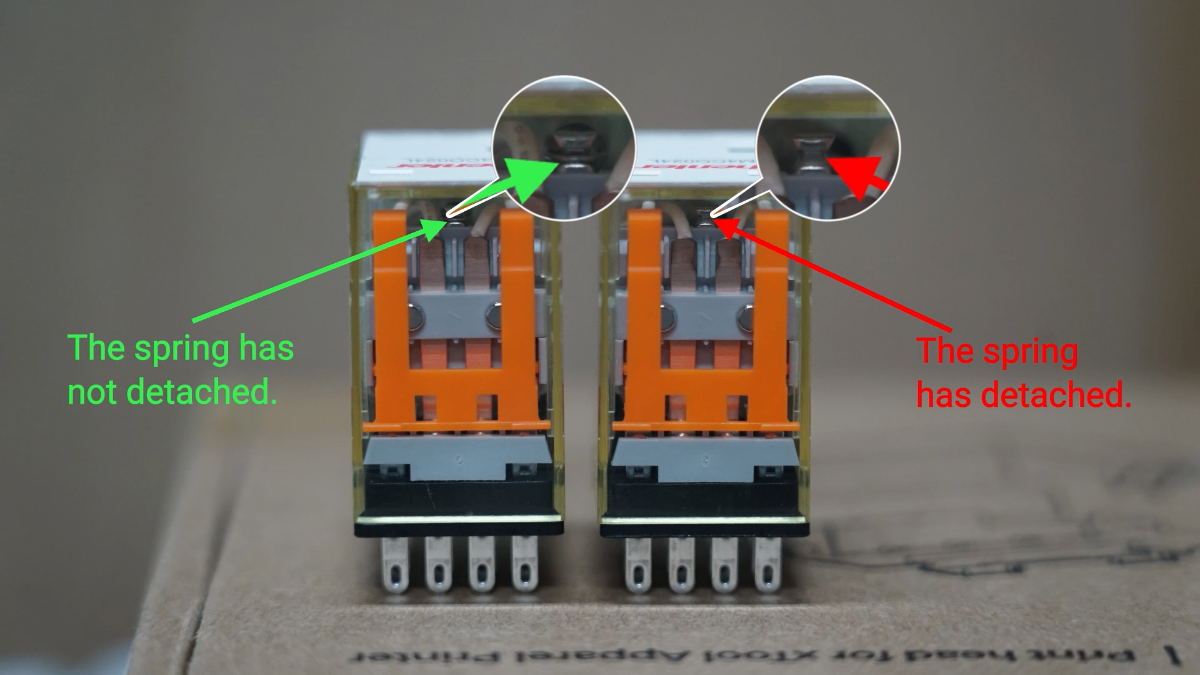
- Remove the four relays on the motherboard one by one. Check whether the internal springs have detached from the mounting posts. If no abnormalities are found, reinstall the relays onto the motherboard.
For detailed operation procedures, please refer to the following video: How to Check Internal Components When an Emergency Stop Error Occurs.
Still experiencing issues?
Should the issue persist after completing the preceding steps, submit a ticket via the "Submit a Ticket" button in the "Help Ticket" section below. The standard response time for xTool Customer Service is one business day.
For a prompt resolution, please include the following details:
- Issue description: A detailed explanation of the observed problem.
- Video evidence: Record the entire troubleshooting process and results, and send the video file together with an image showing the indicator status marked by the red circle after the machine is powered on.
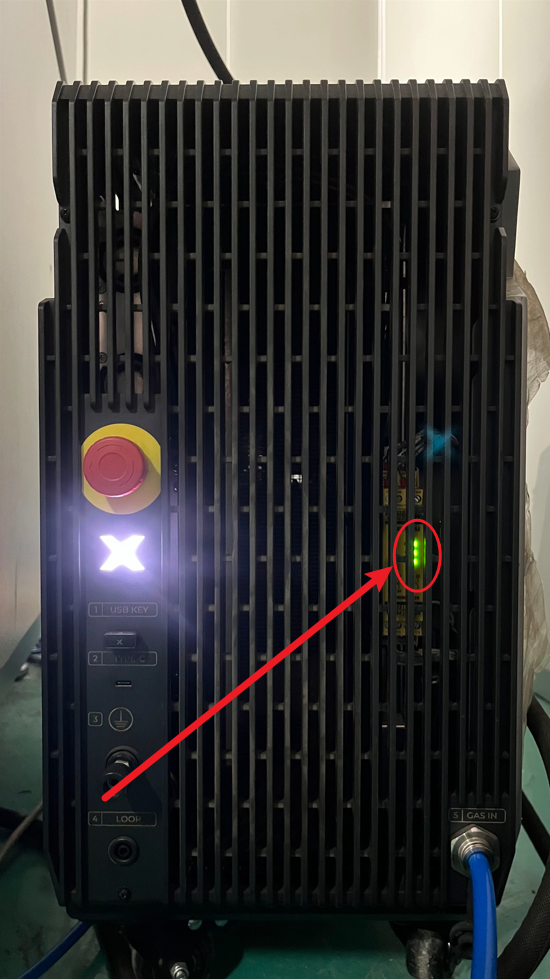
This information is crucial for xTool technical support engineers to provide timely assistance.
Documentation feedback
Help improve this content by providing feedback. If this content did not meet your requirements, select "No" in the "Was this page helpful?" section below. Include specific details about what was unclear or missing in the pop-up suggestion box. Feedback submissions are reviewed by xTool technical writers to enhance future documentation.

