
xTool Store
How to Get Your Logs
Updated Mar 11,2026
Updated Mar 11,2026
Software and device logs help Studio troubleshoot issues, allowing our engineers to quickly locate problems and provide timely solutions.
1.Click “Upload File”.

2. Software issue, please export the general log.
- Open Settings in the software.
- Scroll down to Log Level and click Open.
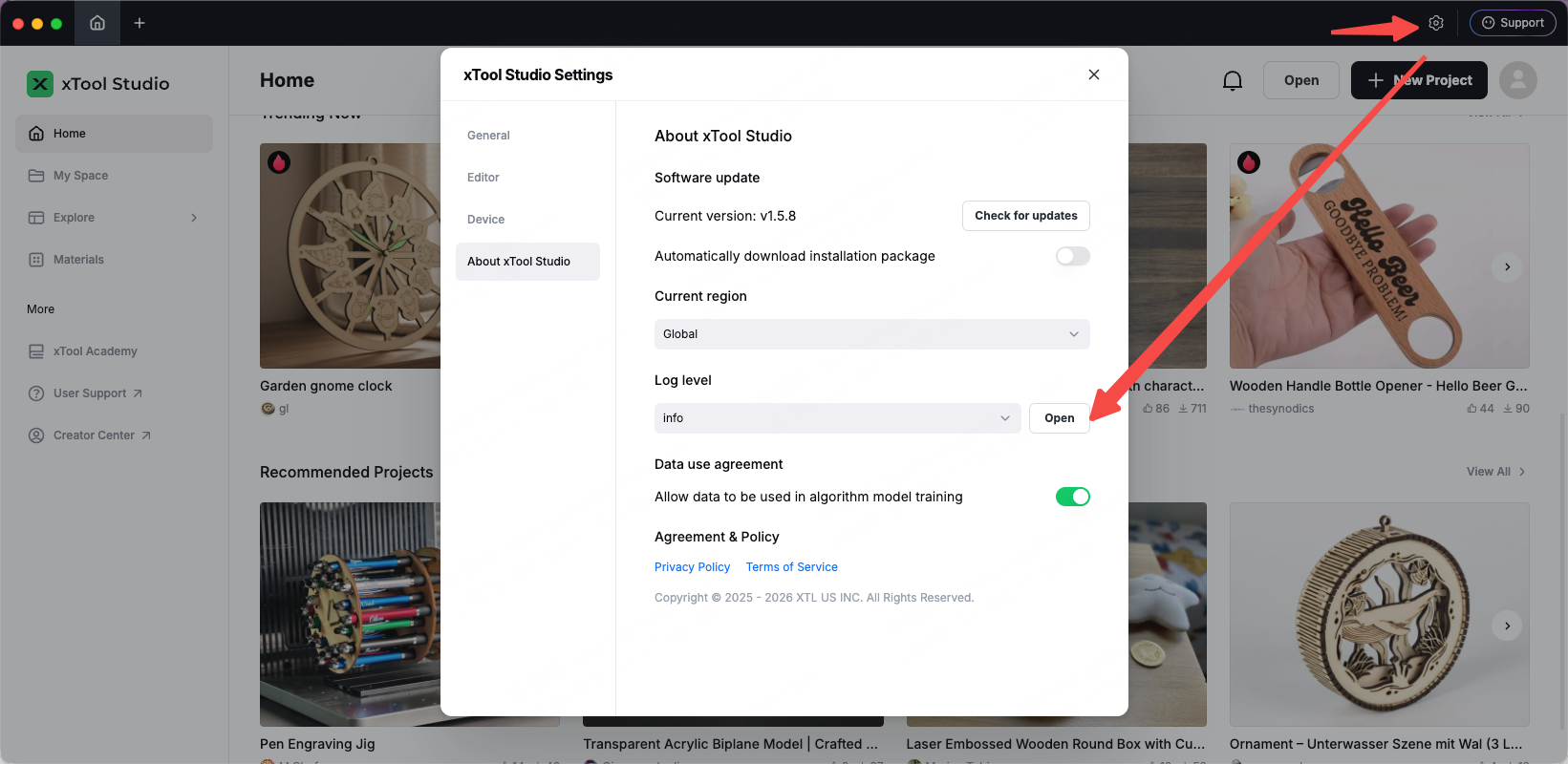
- Upload all files in the opened folder.
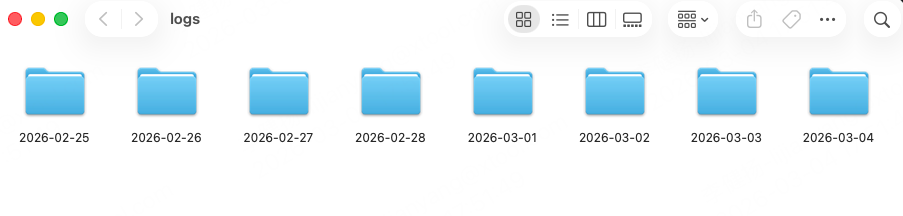
3. Device issue. Please connect the device first, then export from “Device Settings” in the project.
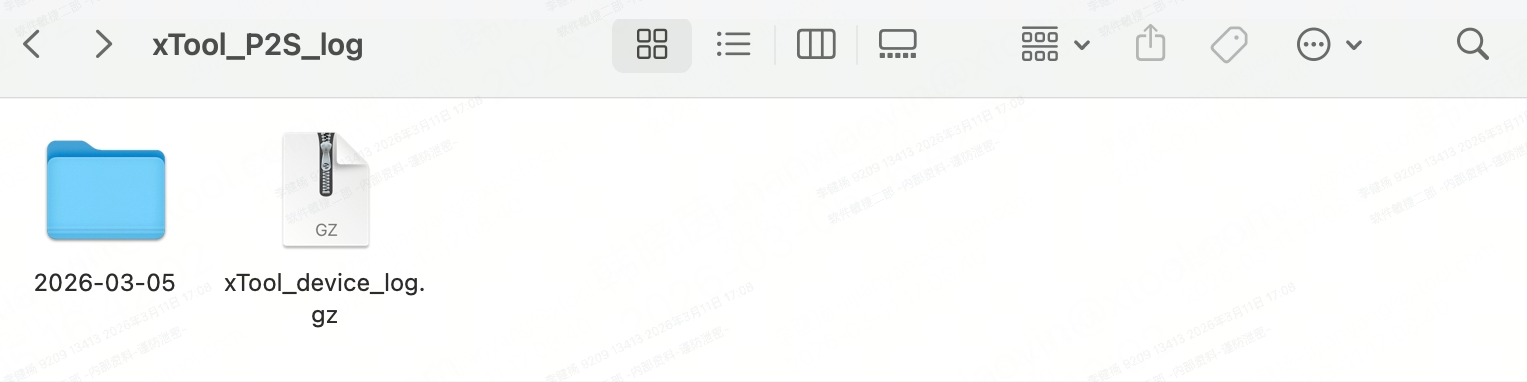
- Open the device settings for the device you want to upload logs from.
- Upload all the log files.
Preview
Was this page helpful?
0 out of 1 found this helpful
Help Ticket
Use this help ticket to submit your issue. We will respond within 1 business day
Submit a Ticket Tags
Help Ticket
Use this help ticket to submit your issue. We will respond within 1 business day
Submit a Ticket 
Services & Help
Learn & Education

Copyright © 2025 xTool All Rights Reserved.