
Issue description
When operating the xTool Apparel Printer (especially when paired with xTool OS1 Oven), you are experiencing issues with the film feeding mechanism.
Normal Operation:
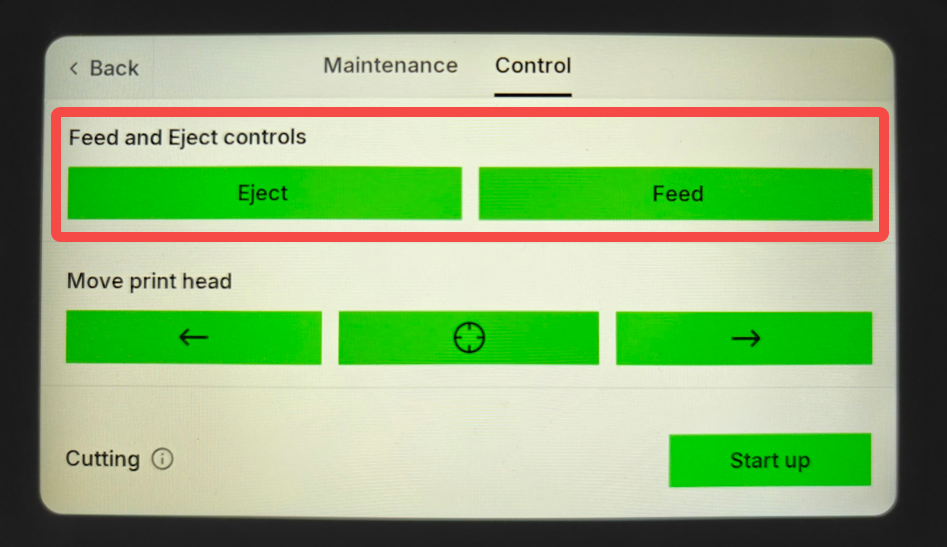
- Tapping "Feed" on the LCD screen moves the film forward (towards the oven).
- Tapping "Eject" moves the film backward (towards the back of the printer).
Abnormal Operation (The Issue):
- Tapping "Feed" or "Eject" results in the film not moving at all.
- The film stutters, jams, or exhibits jerky movements.
- The film moves in the opposite/wrong direction.
Potential causes
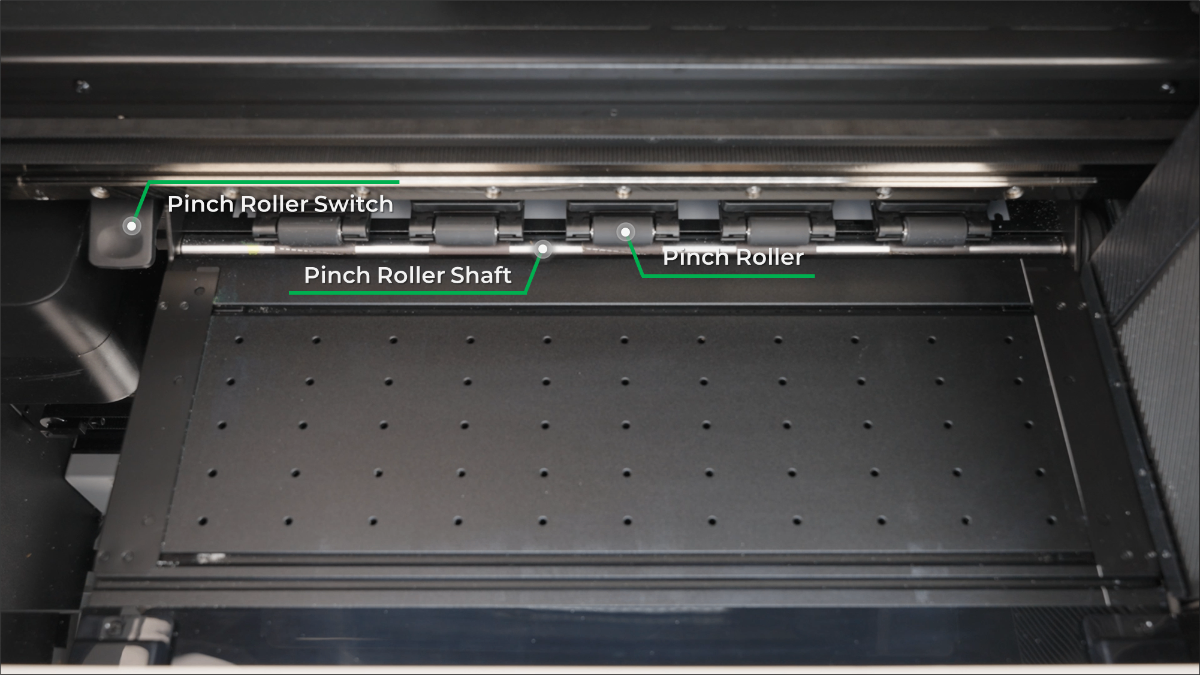
- Pinch Roller Switch: The switch is not fully engaged or pressed down tightly.
- Pinch Roller Shaft: The shaft has come loose, or its bearings have detached.
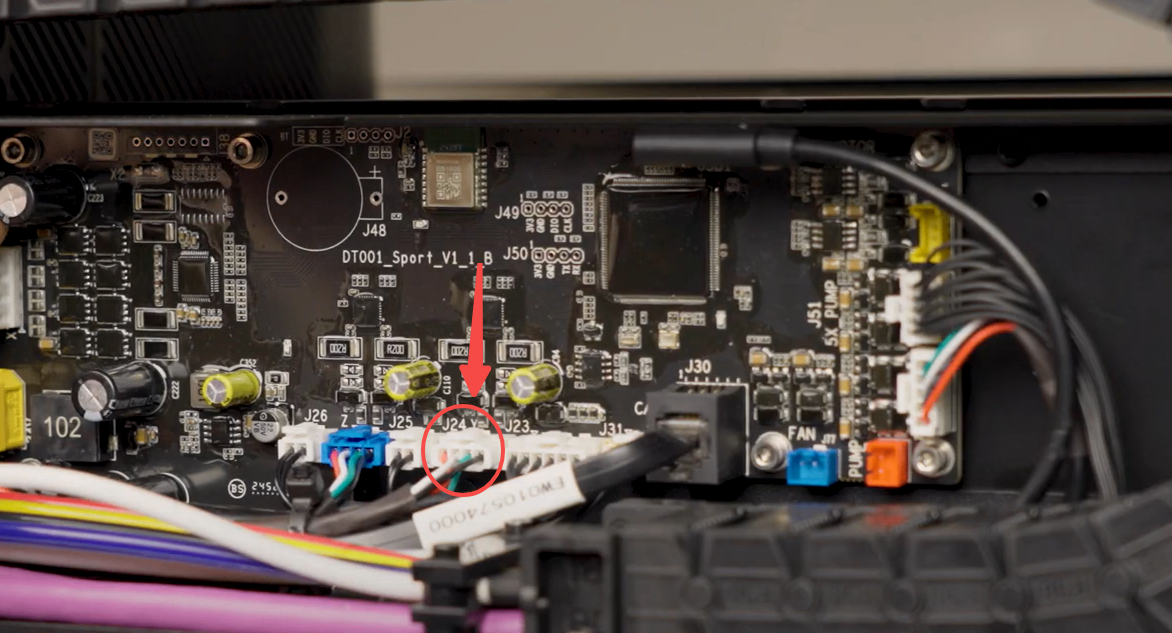
- Film Feed Motor: The motor is malfunctioning, or its connection cable is loose.
Troubleshooting workflow
Start with the simplest checks and proceed step by step:
- Check the pinch roller switch.
- Inspect the pinch roller shaft.
- Check the film feed motor and its cable connections.
Troubleshooting
Step 1: Verify the pinch roller switch
The most common and simplest cause is that the pinch rollers are not properly clamping the film.
- Open the printer's lid.
- Check the Pinch Roller Switch (located on the right side of the roller assembly). Ensure it is pressed all the way down to the locked position.
- The Pull Test: With the lever pressed down, gently try to push or pull the film by hand.
- If the film moves freely: The lever is not engaged properly, or the tension is lost. The rollers are not gripping the film.
- If the film is held tightly: The lever is functioning. Proceed to Step 2.
Step 2: Inspect the pinch roller shaft & bearings
If the rollers are clamped but the film won't feed, the driving shaft underneath may be compromised.
- Lift the film slightly to inspect the pinch roller shaft located directly underneath the film path.
- Visually check if the shaft has dropped or come loose. Specifically, look at the ends of the shaft to see if the bearings have separated from the shaft.
- If a bearing has detached: Please contact xTool Customer Service to request a replacement bearing. Refer to this video for reinstallation instructions once the part arrives: How to Reinstall the Pinch Roller Shaft Bearing
- If a bearing has detached: Please contact xTool Customer Service to request a replacement bearing. Refer to this video for reinstallation instructions once the part arrives: How to Reinstall the Pinch Roller Shaft Bearing
- If you are unsure if it is broken:
- Load the film normally.
- On the printer's LCD control panel, tap: Maintenance > Control.
- Press and hold the "Feed" or "Eject" button.
- Record a video focusing on the movement of the pinch roller shaft underneath the film, and save it for Customer Service to analyze. Proceed to Step 3.
Step 3: Check the film feed motor connection
If the mechanical parts appear intact, the issue may be electrical.
⚠️ SAFETY WARNING
Always power off and unplug the printer's power cord from the wall outlet before performing any disassembly to prevent electrical shock or damage to the boards.
- Access the Board: Remove the printer's rear panel. For visual instructions, refer to the video guide: Replace the Motion Controller Board for xTool Apparel Printer
- Inspect the Connection: Locate the Film Feed Motor cable connector on the Motion Controller Board.
- Reseat the Cable: Check if the connection is loose. Even if it looks secure, carefully unplug the connector and plug it back in firmly to ensure a solid contact.
- Test: Reconnect the power and test the Feed/Eject functions.
If the problem persists
Should the issue persist after completing the preceding steps, please submit a ticket via the "Submit a Ticket" button. The standard response time is one business day.
Please include the following details to facilitate a quick diagnosis:
1. Video evidence (Crucial)
Please record and attach the following two short videos:
- Video A: A video showing the status of the film (or lack of movement) when you tap the "Feed" and "Eject" buttons on the screen.
- Video B: A close-up video showing the behavior of the pinch roller shaft (underneath the film) while you are pressing the "Feed" and "Eject" buttons.
2. Work log files
- Method A: Via xTool Creative Space (XCS)
Settings (gear icon) > Basic info > Export log.- Compress the folder into a .zip file.
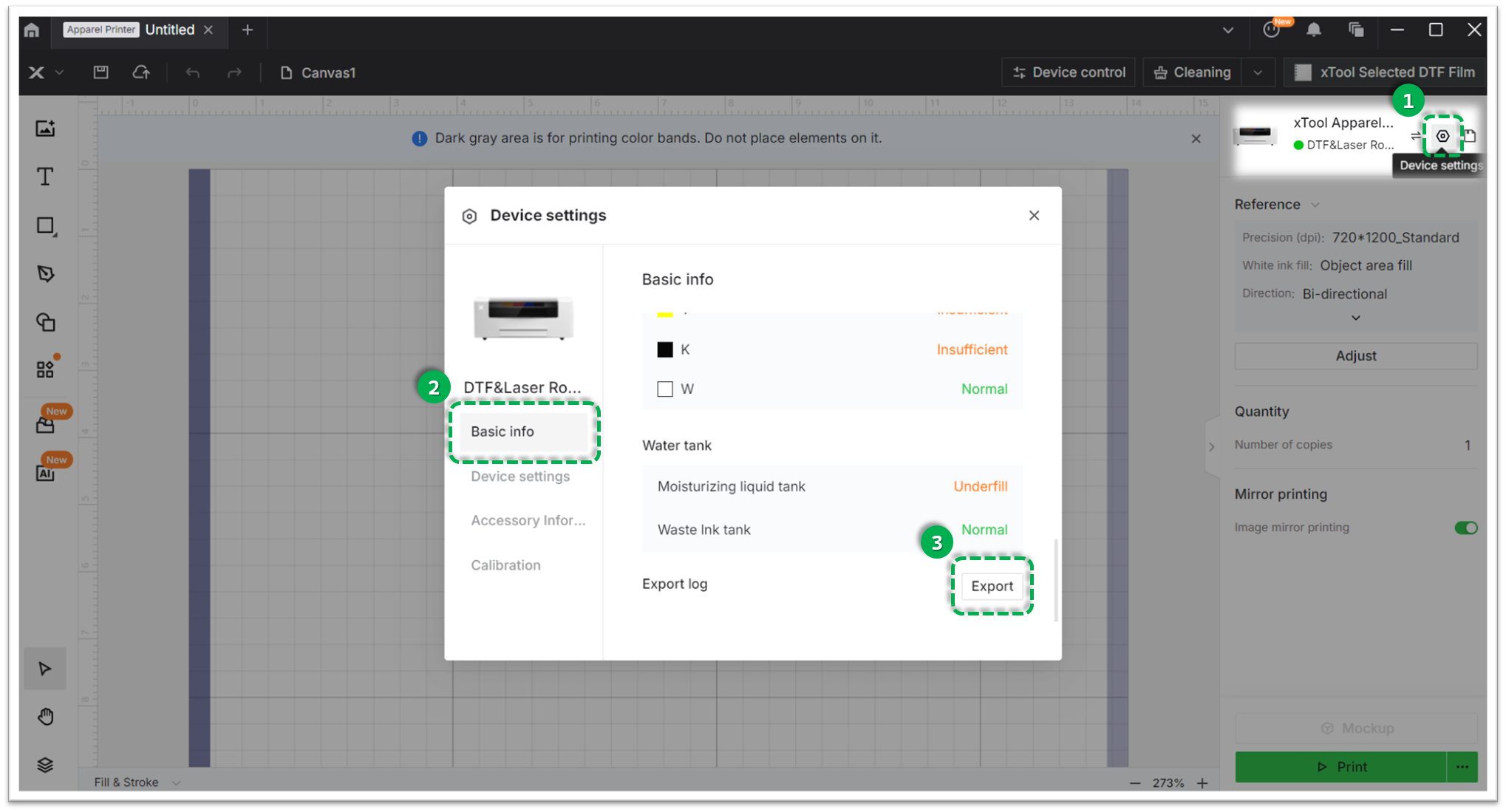
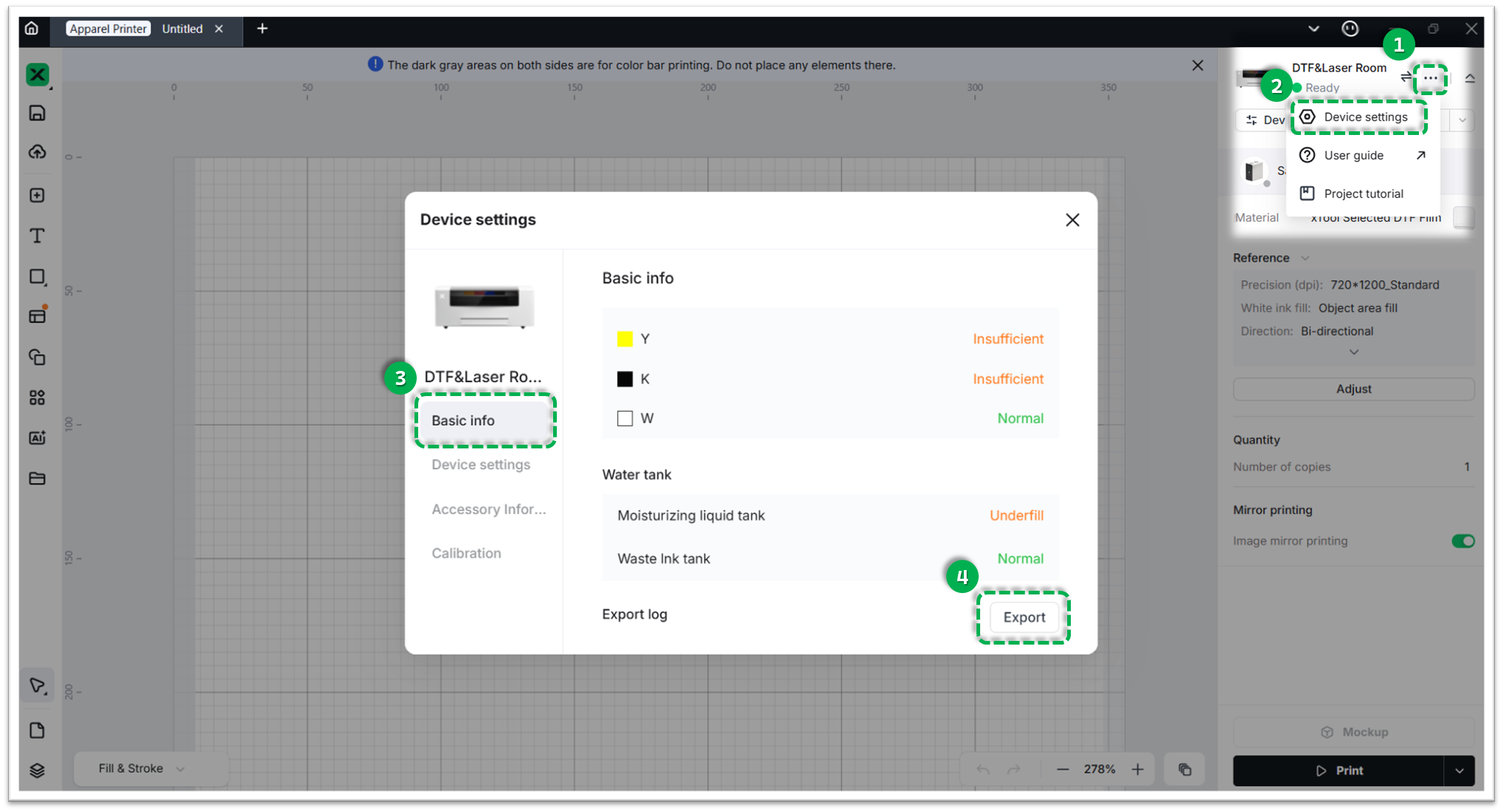
- Method B: Via xTool Studio
Three dots icon > Device Settings > Basic info > Export log.- Compress the folder into a .zip file
3. Device information
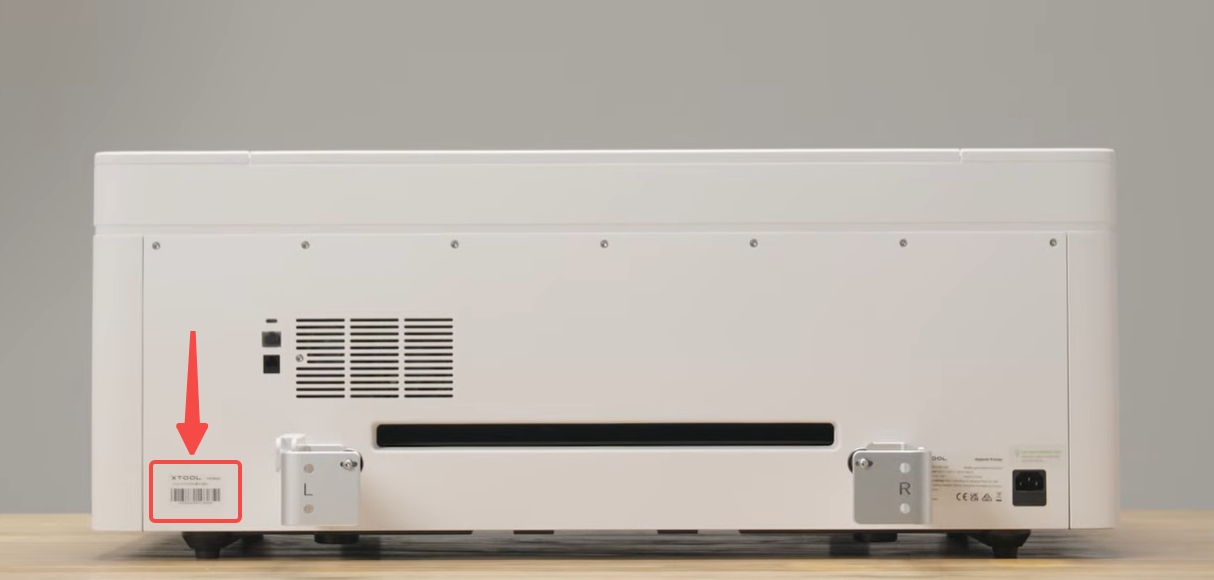
- Serial Number (SN): Located on the rear panel label.
Documentation feedback
Help improve this content by providing feedback. If this content did not meet your requirements, select "No" in the "Was this page helpful?" section below. Include specific details about what was unclear or missing in the pop-up suggestion box. Feedback submissions are reviewed by xTool technical writers to enhance future documentation.

