
Use xTool P3 to Engrave a Screen
Updated Apr 13,2026
Updated Apr 13,2026
This guide shows how to use xTool P3 to engrave a screen with xTool software. Please carefully read the precautions before operation.
Note
- The framing fixing piece for xTool P3 is sold separately.
- So far, xTool P3 supports only steel-mesh screens (blue) and not Fast-engrave Sceen (black).
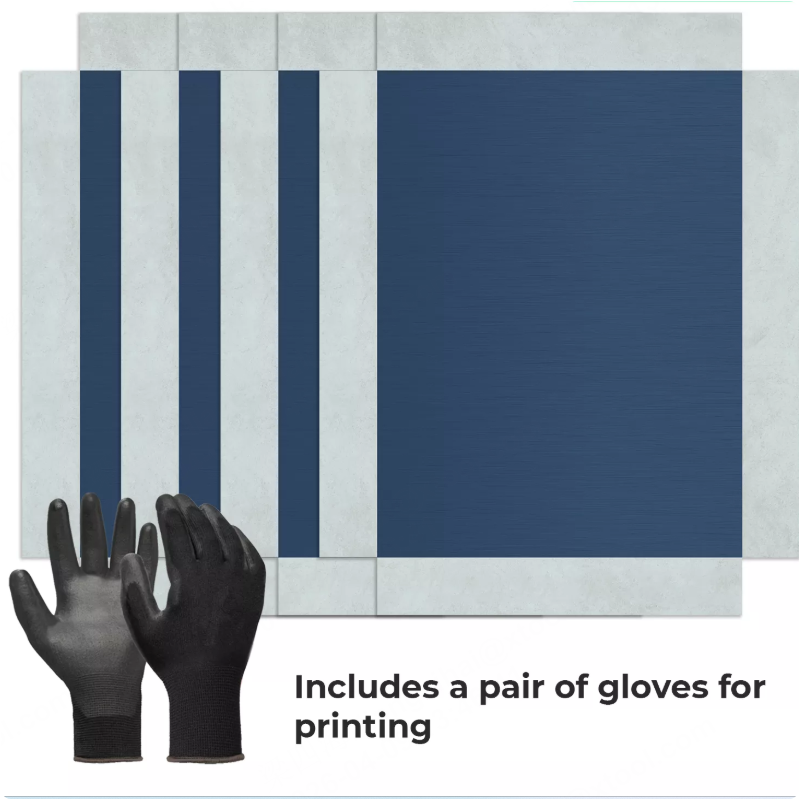
- This guide works for screens of both normal and small sizes.
- Use the framing fixing piece for xTool P3 with slats rather than honeycomb panel, as the latter sits higher than the surrounding working surface.
- To learn more about screen printing, visit support.xtool.com/product/29.
Steps
Step 1: Install the frame fixing piece
- Align the frame fixing piece holes with the two pins of the xTool RA3 fixing piece.
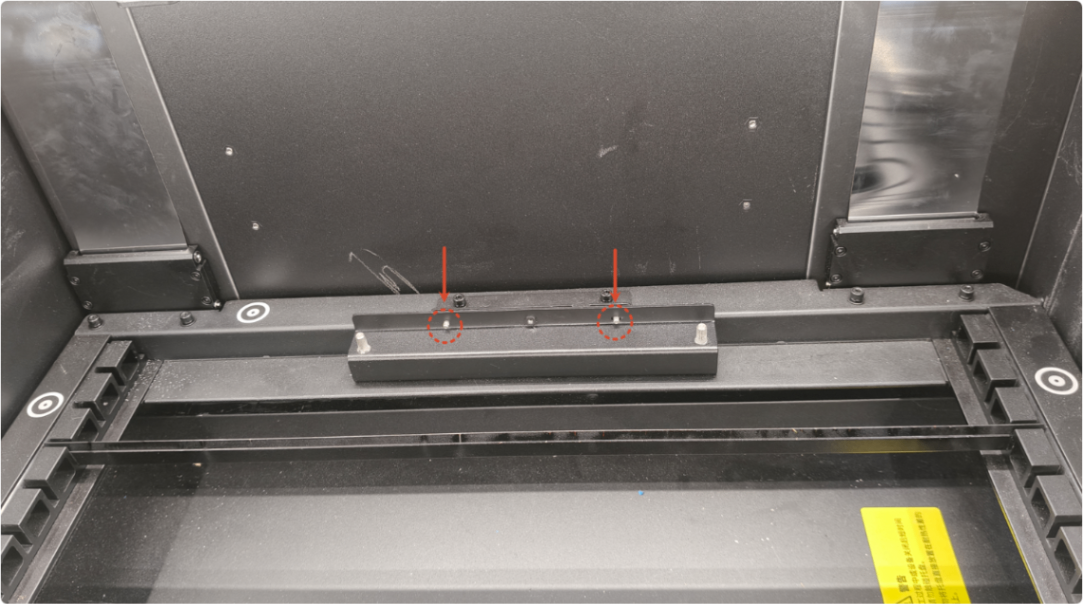
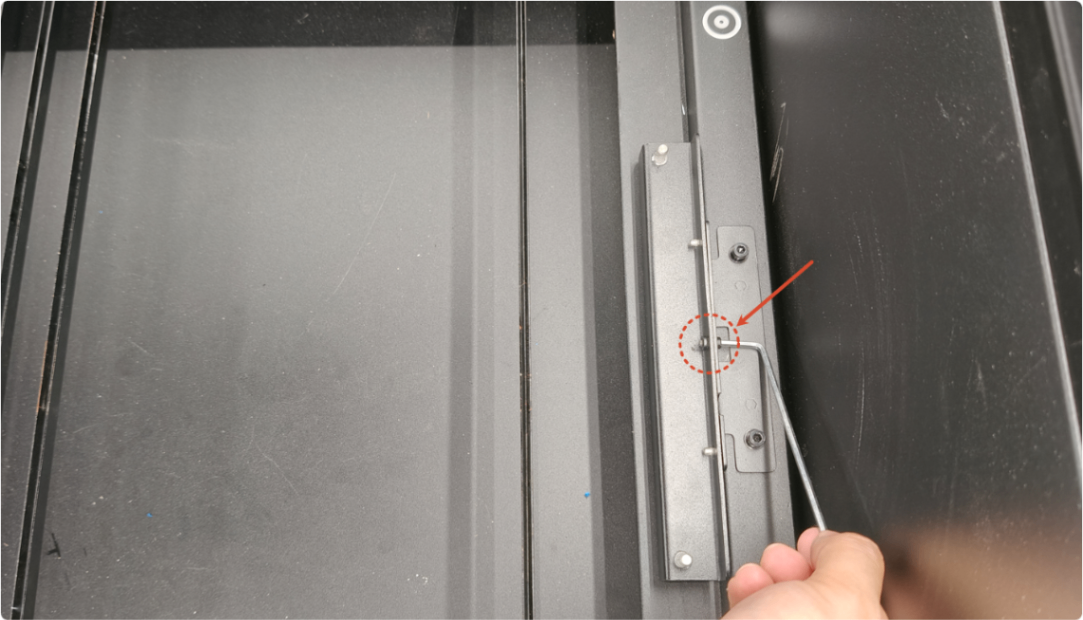
- Connect the two fixing pieces with a screw and a M2.5 mm hex key. The screw is included in the package of the frame fixing piece.
Note: You can also remove the RA3 fixing piece from xTool P3, connect it with the frame fixing piece, then install the assembled fixing pieces on xTool P3.
Step 2: Mount the screen on the frame
Click here to learn how to mount the screen on the frame.
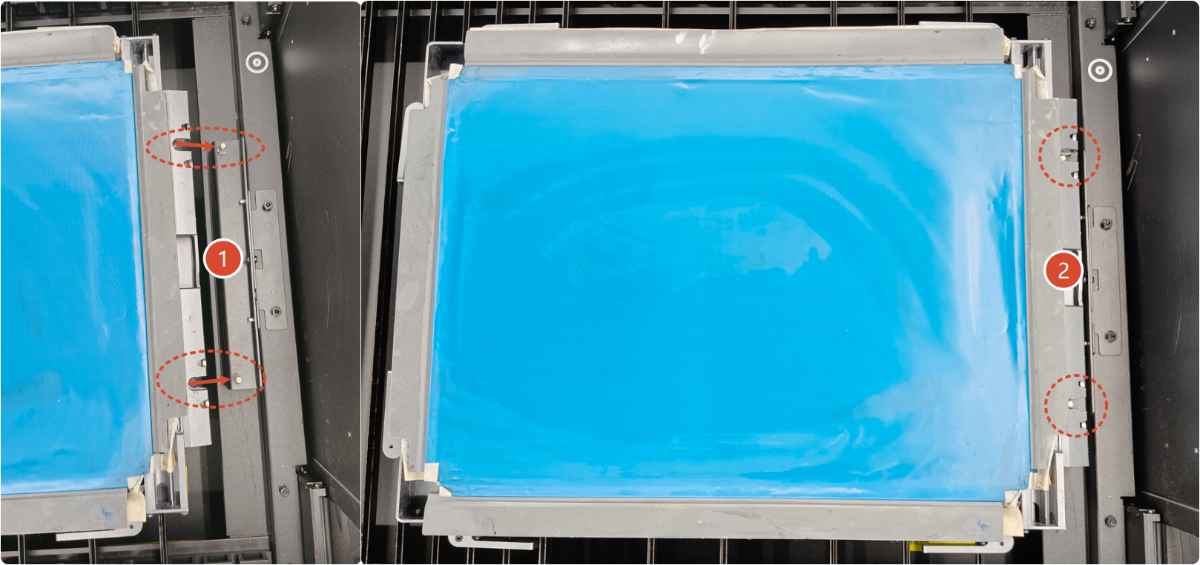
Step 3: Snap the frame to the two pins of the frame fixing piece
Step 4: Operate in the xTool software
- Ensure that xTool P3 has been connected in xTool software.
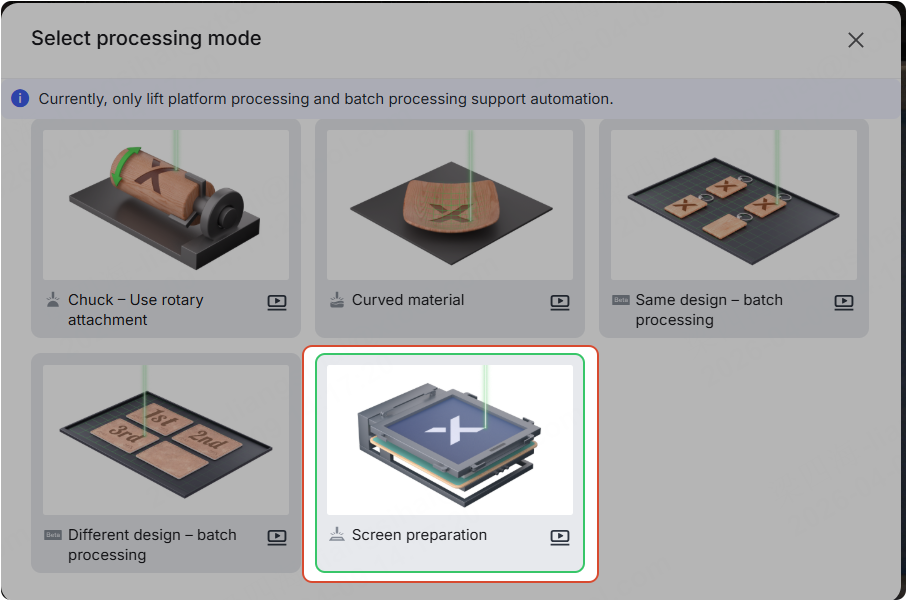
- Select Screen preparation as the processing mode.
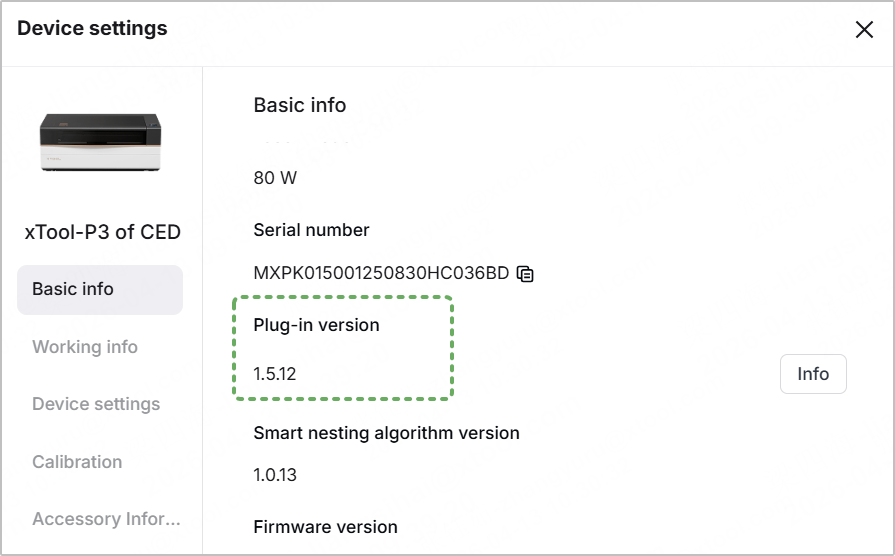
Note: Ensure that you've upgraded the plug-in version to 1.5.12 and restart the software.
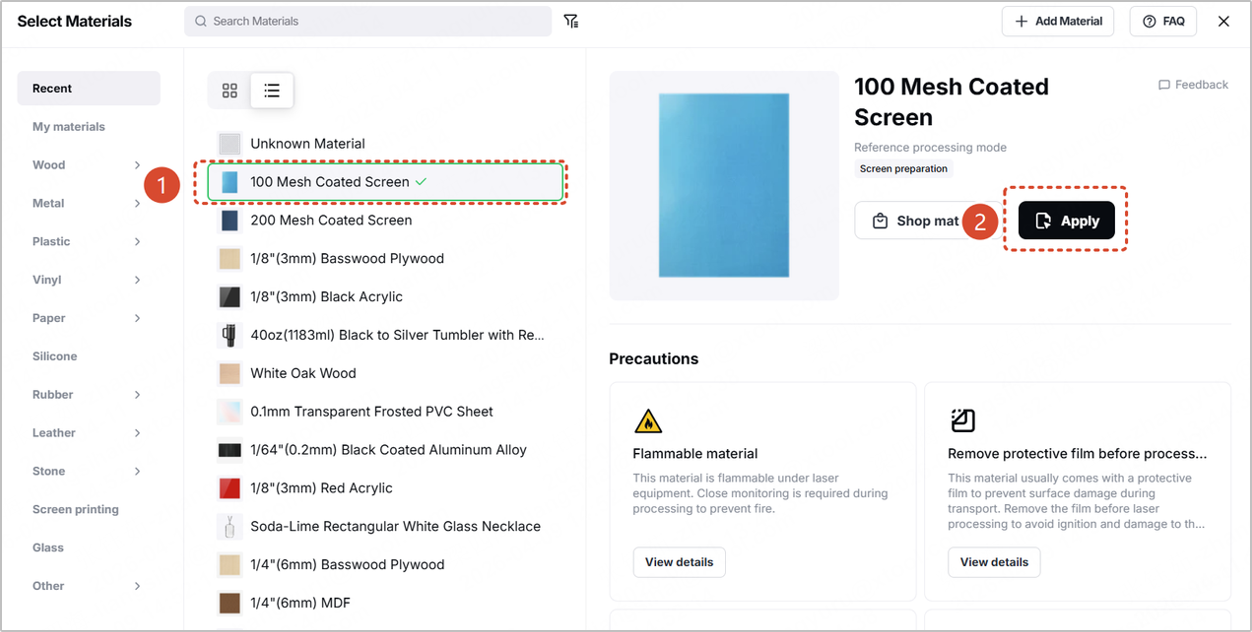
- Select 100 Mesh Coated Screen as the processing material and click Apply.
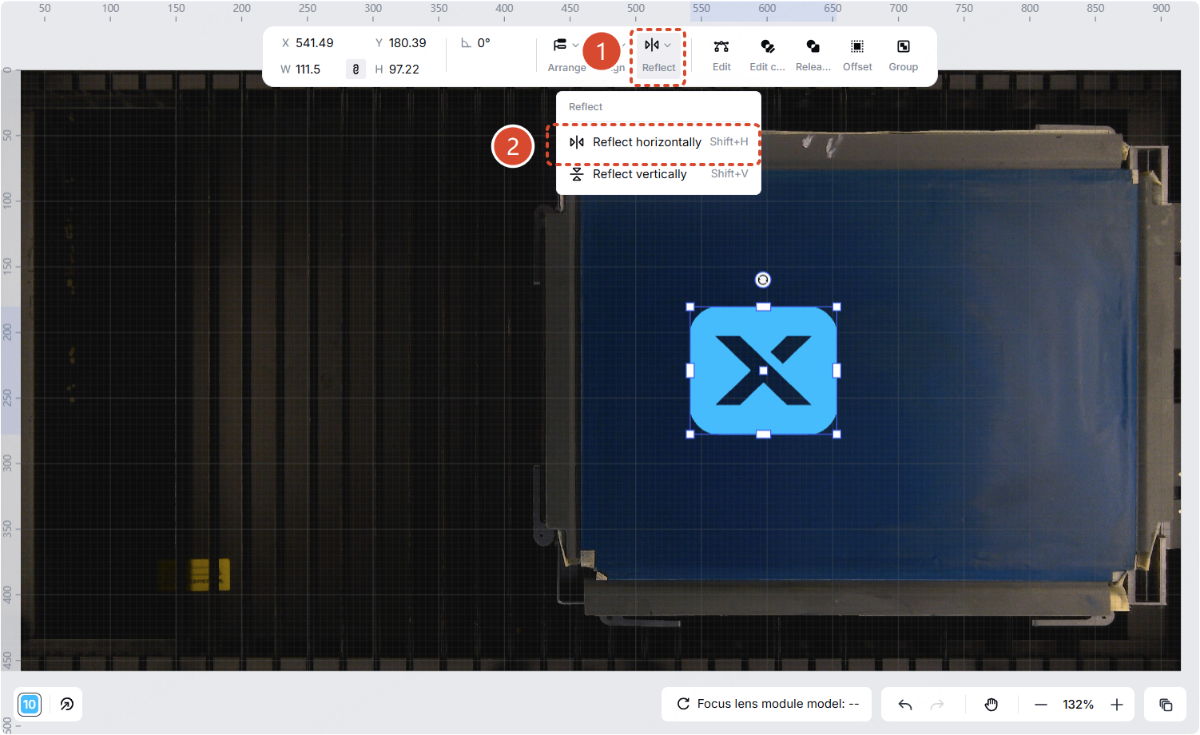
- Click the pattern, click Reflect on the top panel, and select Reflect horizontally.
- Click the distance measuring button, then click the screen area on the canvas to start the measuring.
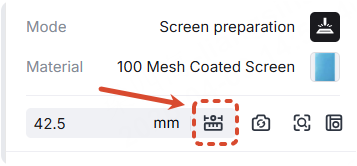
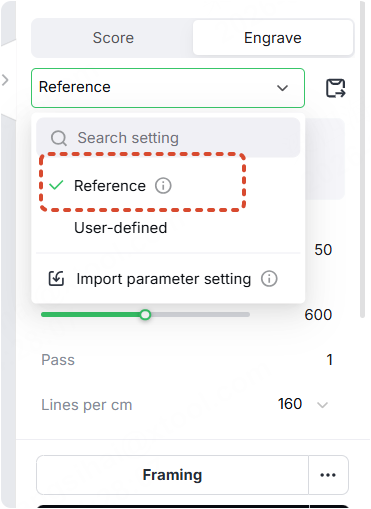
- Select Reference in the Engrave tab.
- Click Process. Then, press the button on xTool P3.

Step 5: Print your design on the screen
After processing the screen, click here to follow the instructions to print your design on the screen.
Documentation feedback
Help improve this content by providing feedback. If this content did not meet your requirements, select "No" in the "Was this page helpful?" section below. Include specific details about what was unclear or missing in the pop-up suggestion box. Feedback submissions are reviewed by xTool technical writers to enhance future documentation.
Preview
Was this page helpful?
4 out of 6 found this helpful
Help Ticket
Use this help ticket to submit your issue. We will respond within 1 business day
Submit a Ticket 
