
💡 Relevant resource:
Issue description
After connecting your xTool Apparel Printer to your computer via USB, the device appears in the "Connect device" list within xTool Creative Space (XCS) or xTool Studio.
However, upon attempting to connect, you receive the following error message even though the status initially showed as "connected": "Connection failed. Please check if the USB connection is stable."
- Consult this content for troubleshooting advice.
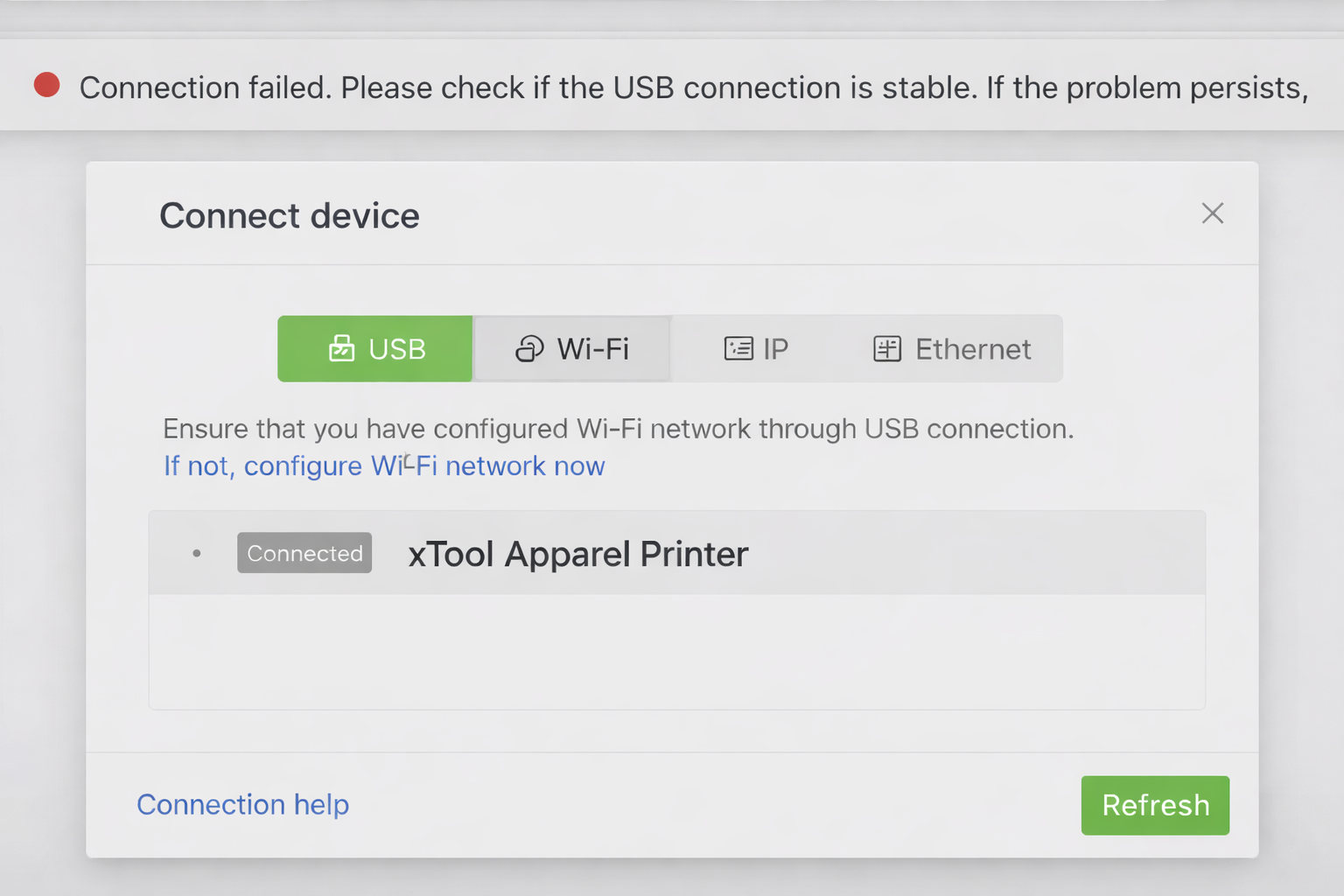
Possible causes
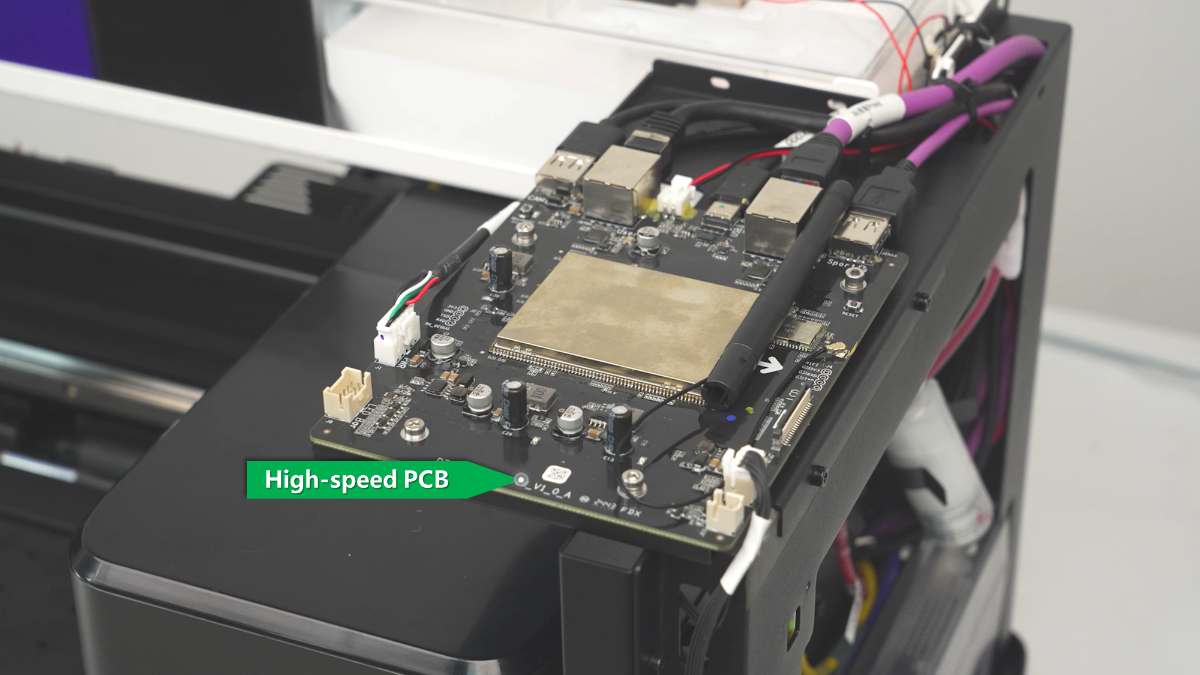
- Hardware Replacement Configuration: If the High-speed PCB has been recently replaced, the device Serial Number (SN) data may not yet be synchronized to the new board.
- Outdated Software: The current version of xTool Creative Space or xTool Studio may be outdated.
Troubleshooting Steps
Step 1: Check high-speed PCB replacement history
The most common cause for this specific error is a recent replacement of the High-speed PCB without subsequent SN data synchronization.
- Verify Replacement: Have you or a technician recently replaced the High-speed PCB on this printer?
- Reference: How to replace the High-speed PCB
- Action Required:
- If YES (PCB was replaced): The new board requires remote configuration to write the SN data.
- Take a clear photo of your printer's Serial Number (SN) label (located on the rear panel).
- Contact xTool Customer Service immediately. State that you have replaced the High-speed PCB and cannot connect via USB for a prompt resolution.
- If NO (PCB was NOT replaced): Proceed to Step 2.
Step 2: Update your software
Ensure you are using the latest version of the software. Outdated versions may have compatibility issues with the device drivers.
- Visit the official software download page: xTool Software Downloads
- Compare your current version with the latest version listed on the website.
- If an update is available, download and install it.
- Restart the software and attempt to connect again.
If the problem persists
Should the issue persist after completing the preceding steps, submit a ticket via the "Submit a Ticket" button in the "Help Ticket" section below. The standard response time for xTool Customer Service is one business day.
Include the following details to help better diagnose the problem:
1 Work log files
Please export the logs based on the software you are using.
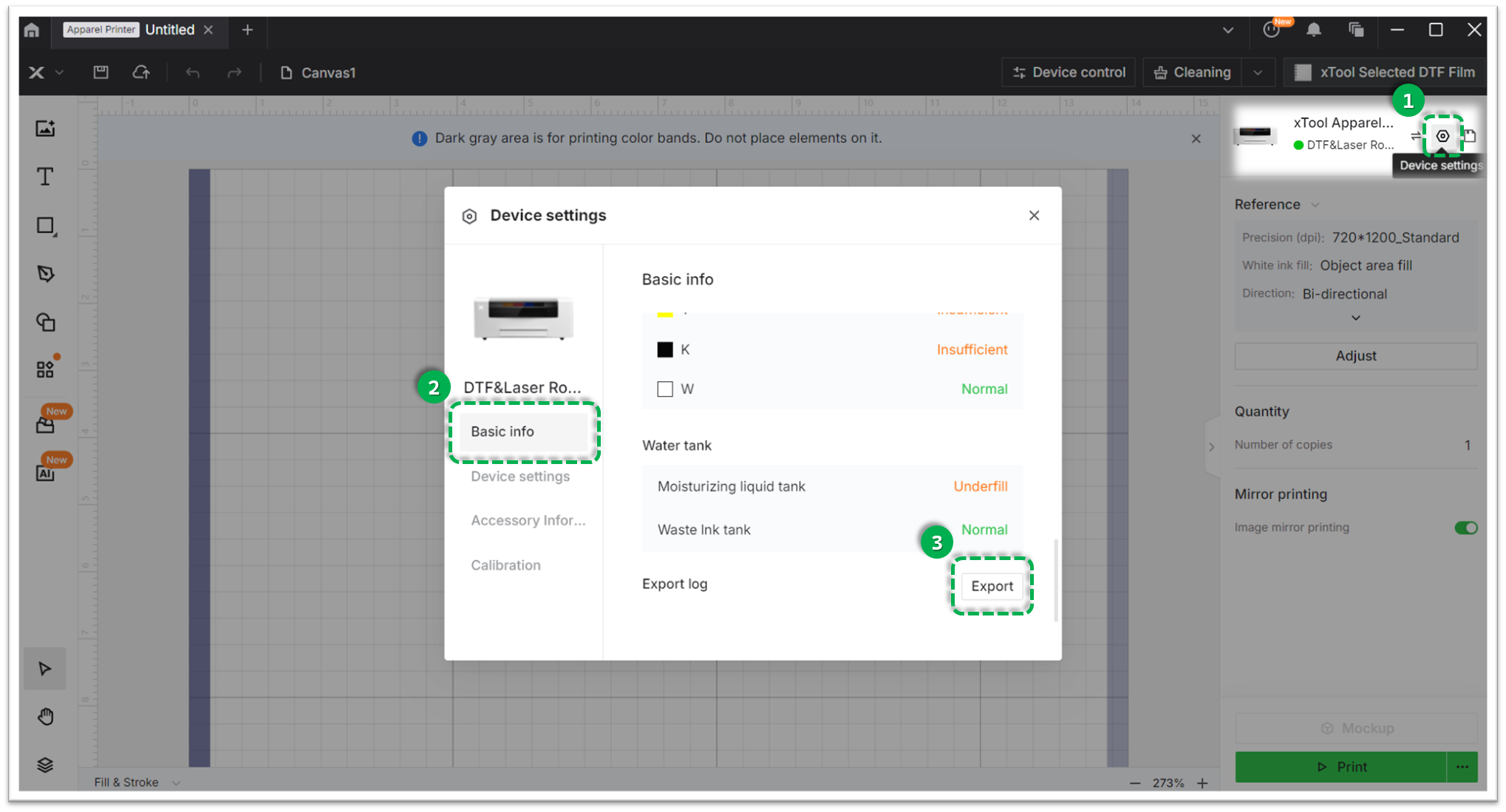
Method A: Via xTool Creative Space (XCS)
- Click the Device Settings icon (gear symbol) in the top-right corner.
- Select the Basic info tab.
- Scroll down to Export log and click Export.
- A folder will be generated. Compress (Zip) this entire folder into a single file and attach it to your ticket.
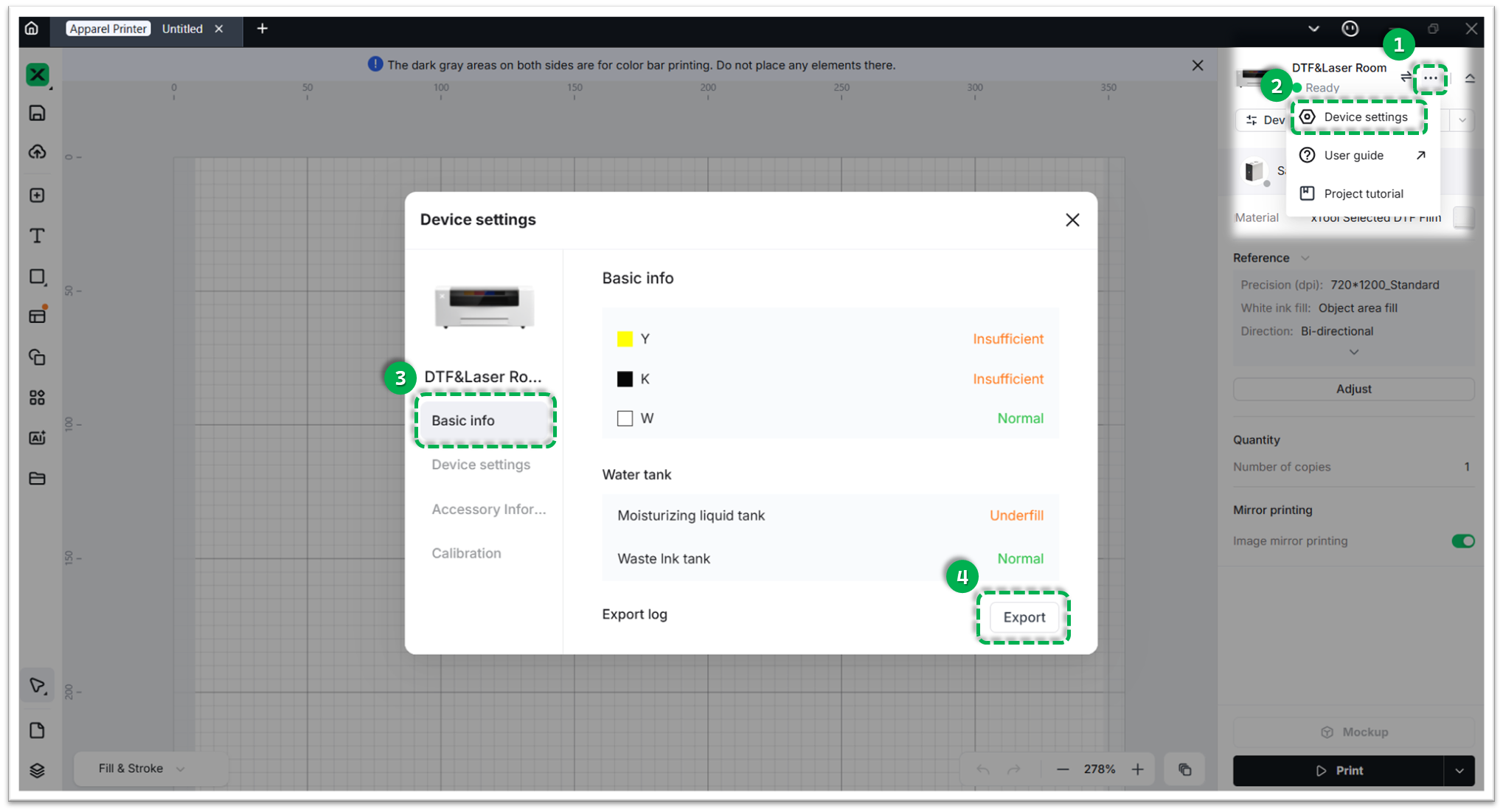
Method B: Via xTool Studio
- Click the three dots icon next to the device image.
- Select Device Settings (gear icon).
- Select the Basic info tab on the left.
- Scroll down to Export log and click Export.
- A folder will be generated. Compress (Zip) this entire folder into a single file and attach it to your ticket.
2 Serial number (SN)
Provide the SN for both your xTool Apparel Printer and xTool OS1 Oven.
3 View firmware version
Provide the firmware version currently installed on both devices.
4 Software Version
State the specific version number of xTool Studio or XCS you are currently running.
Documentation feedback
Help improve this content by providing feedback. If this content did not meet your requirements, select "No" in the "Was this page helpful?" section below. Include specific details about what was unclear or missing in the pop-up suggestion box. Feedback submissions are reviewed by xTool technical writers to enhance future documentation.

