
xTool Store
Failure to Turn On xTool F2 Ultra UV
Updated Jan 29,2026
Updated Jan 29,2026
Issue description
After plugging in the power and pressing the power button, xTool F2 Ultra UV does not respond. The XTOOL logo indicator light fails to turn on, and the red and blue light spots do not appear on the baseplate.
Possible causes
- The power adapter or power cable is malfunctioning.
- For Class 4 laser devices, the emergency stop button is not released. (This is the most common cause of the issue.)
- For Class 4 laser devices, the emergency stop button is malfunctioning.
- For EU and UK Class 4 laser devices, the emergency stop button is pressed to shut off the device.
- For EU and UK Class 4 laser devices, the reset button has not been pressed before the power button is pressed.
Solutions
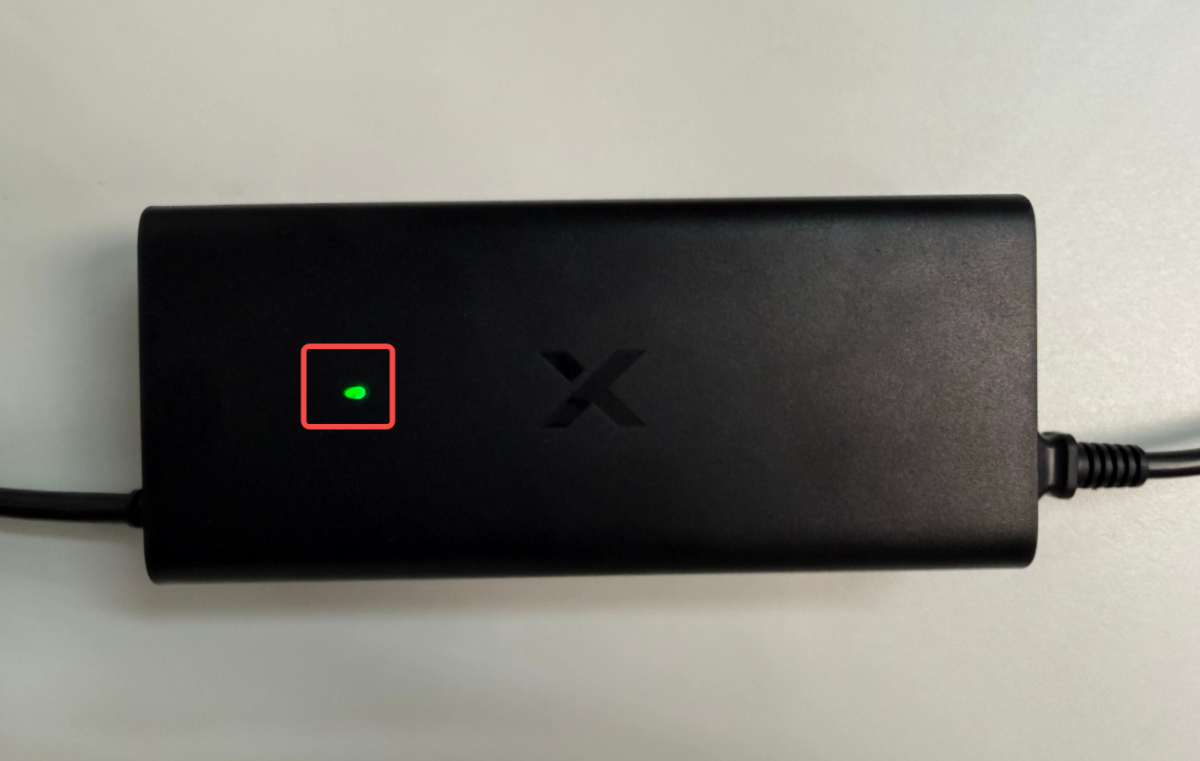
- Securely connect the power cable and power adapter. Ensure that the indicator light on the power adapter remains steadily lit when powered on. If the indicator light on the power adapter does not stay lit, try plugging the power adapter into a different socket or power outlet. If the light still does not turn on, contact our after-sales customer service to request a replacement power adapter.
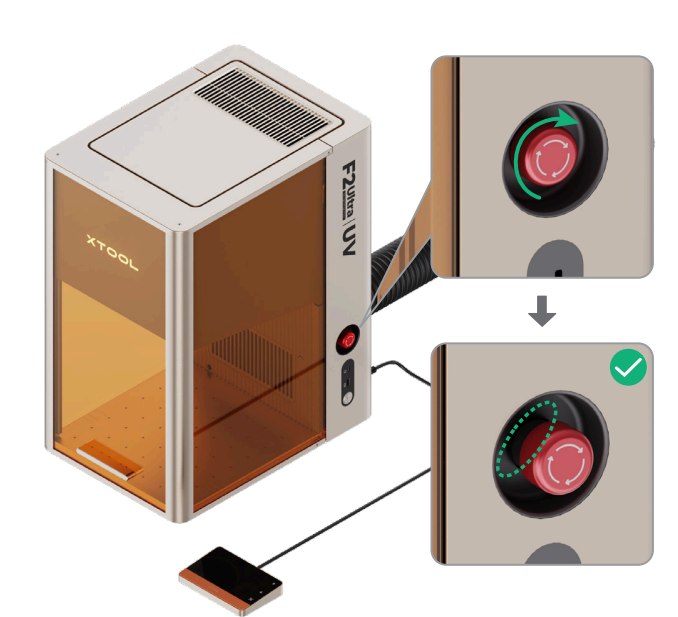
- Rotate to release the emergency stop button.
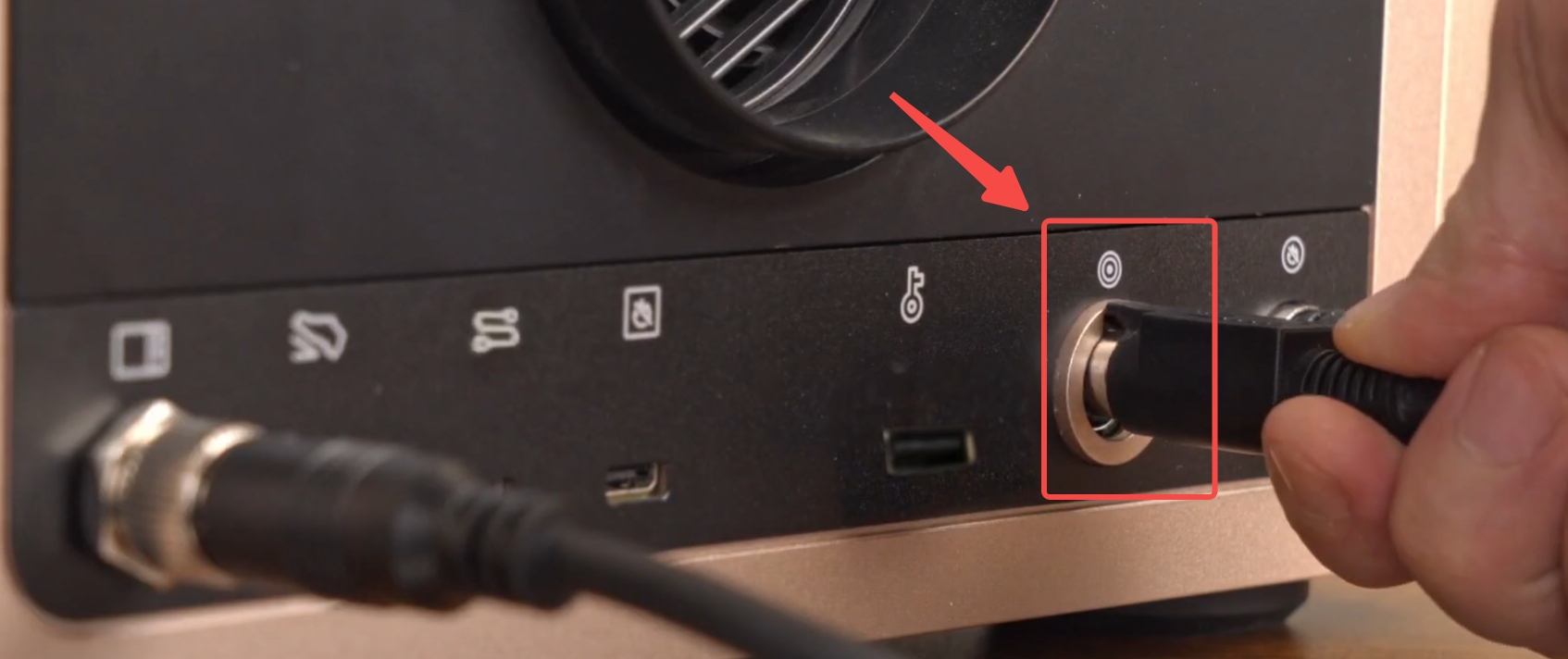
- Disconnect the power cable (as shown in the image) for about 2 minutes, then reconnect it and power on the device again.
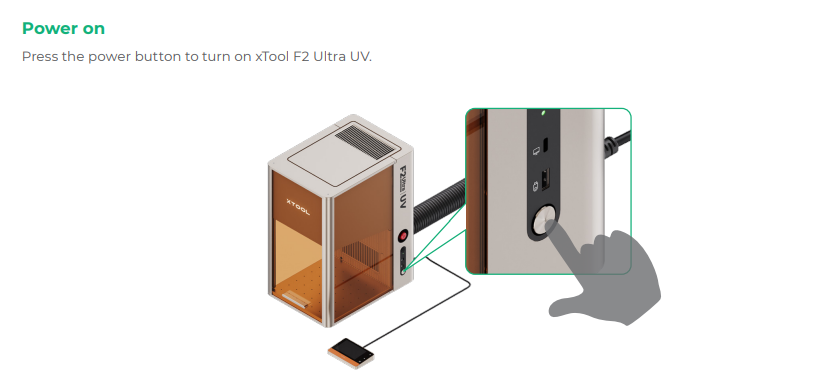
- Press the power button to turn on the device.
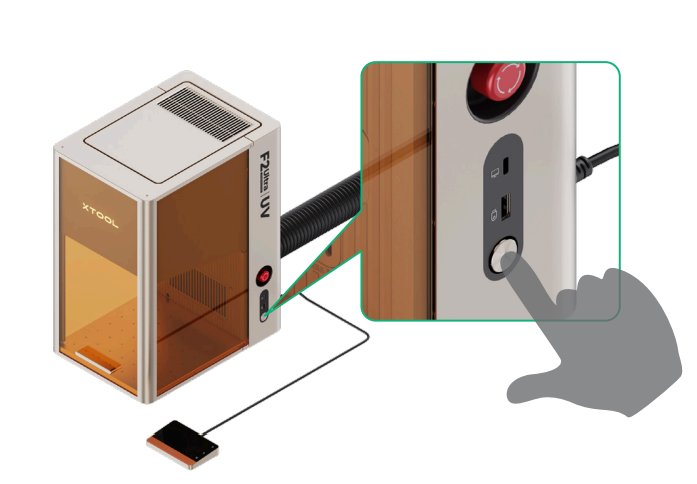
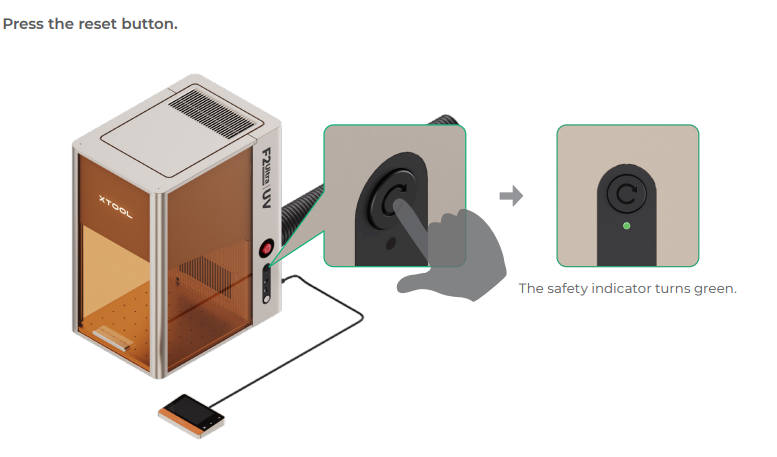
- For EU and UK Class 4 laser devices, press the reset button before pressing the power button.
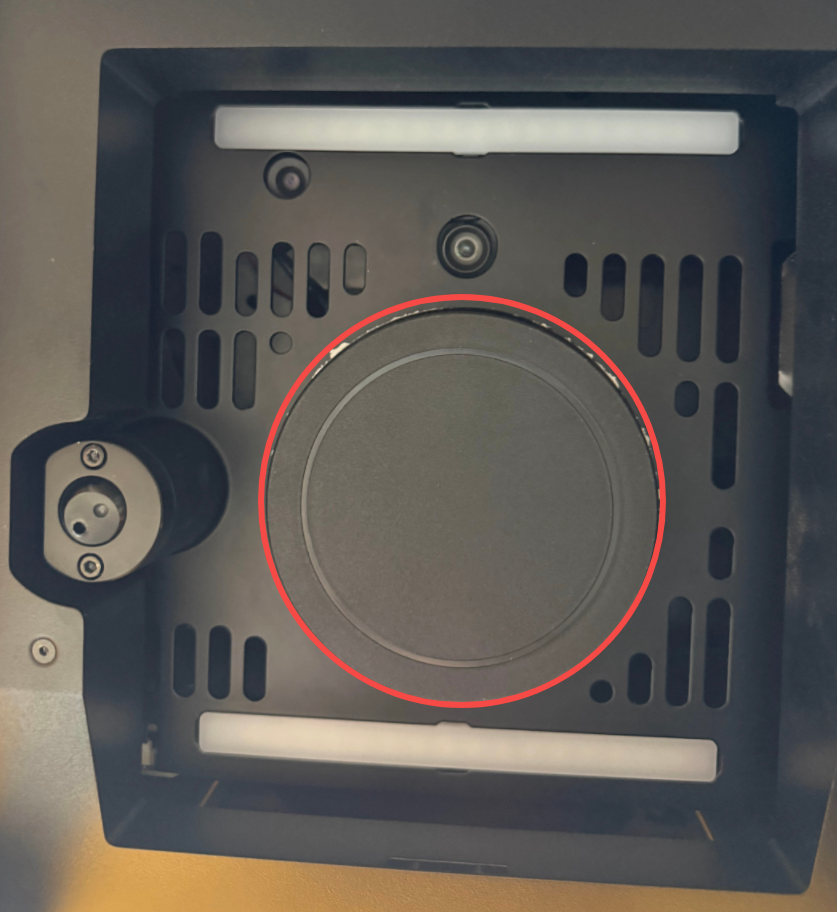
- Remove the bottom protective cover from the field lens (either the surface engraving lens or the inner engraving lens) installed in the device.
Still experiencing issues?
Should the issue persist after completing the preceding steps, submit a ticket via the "Submit a Ticket" button in the "Help Ticket" section below. The standard response time for xTool Customer Service is one business day.
For a prompt resolution, please include the following details:
- Issue description: A detailed explanation of the observed problem.
- Video evidence: Attach a video demonstrating the issue, where applicable.
- Troubleshooting performed: Any troubleshooting steps you have already attempted, along with their results.
This information is crucial for xTool technical support engineers to provide timely assistance.
Documentation feedback
Help improve this content by providing feedback. If this content did not meet your requirements, select "No" in the "Was this page helpful?" section below. Include specific details about what was unclear or missing in the pop-up suggestion box. Feedback submissions are reviewed by xTool technical writers to enhance future documentation.
Preview
Was this page helpful?
0 out of 1 found this helpful
Help Ticket
Use this help ticket to submit your issue. We will respond within 1 business day
Submit a Ticket Tags
Help Ticket
Use this help ticket to submit your issue. We will respond within 1 business day
Submit a Ticket 
Services & Help
Learn & Education

Copyright © 2025 xTool All Rights Reserved.