
xTool Store
Export the Work Log of xTool MetalFab Laser Welder
Updated Jan 20,2026
Updated Jan 20,2026
Tools required:
- Computer with Windows operating system * 1
- Serial port debugging tool: sscom5.13.1_DIY_LaserBox.exe (Click to download)
- USB Type-C cable * 1
Steps:
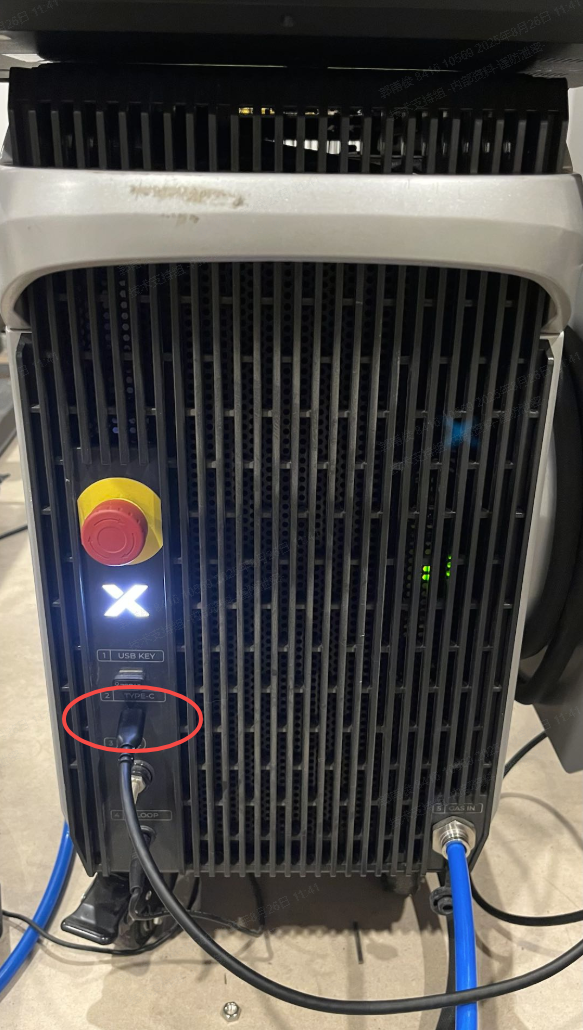
- Turn on xTool MetalFab Laser Welder. Use the USB Type-C cable to connect it to your computer.
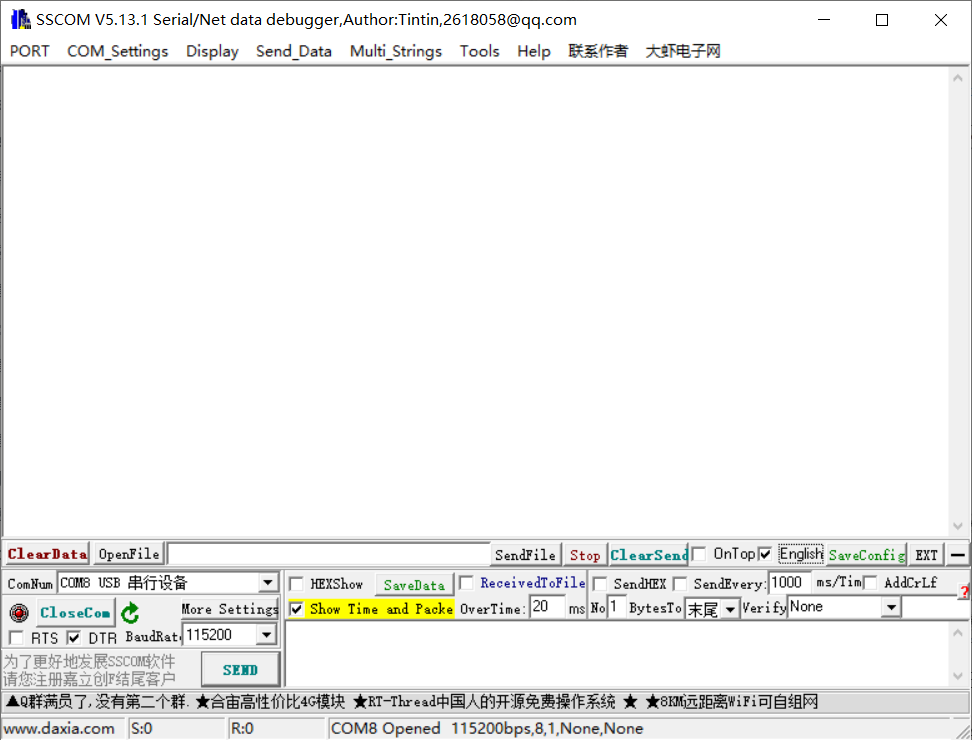
- Open the downloaded debugging tool: sscom5.13.1_DIY_LaserBox.exe
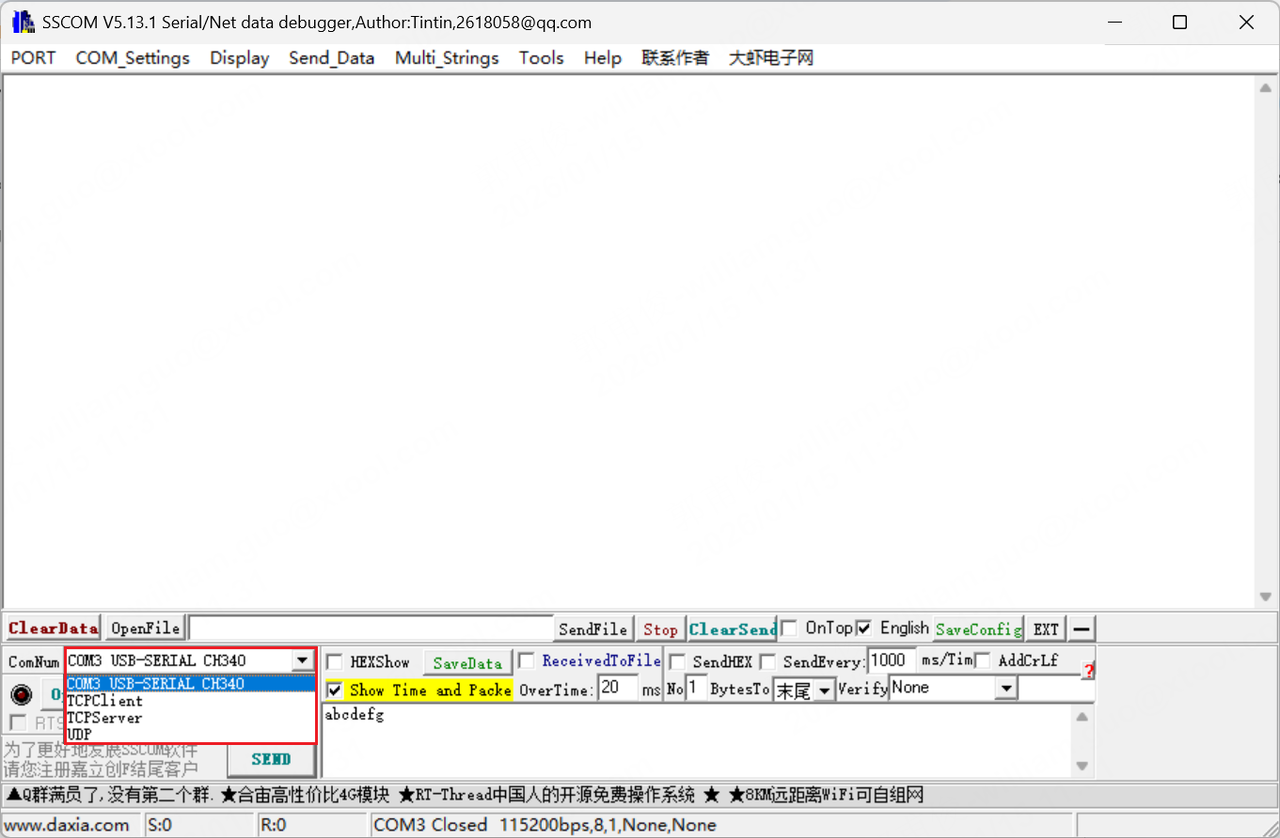
- Select the serial port for xTool MetalFab Laser Welder.
Note: To identify which port is used for xTool MetalFab Laser Welder, unplug the USB Type-C cable and see which port disappears from the screen. The disappearing one is the laser welder's serial port. After you find it, plug the USB Type-C cable back.
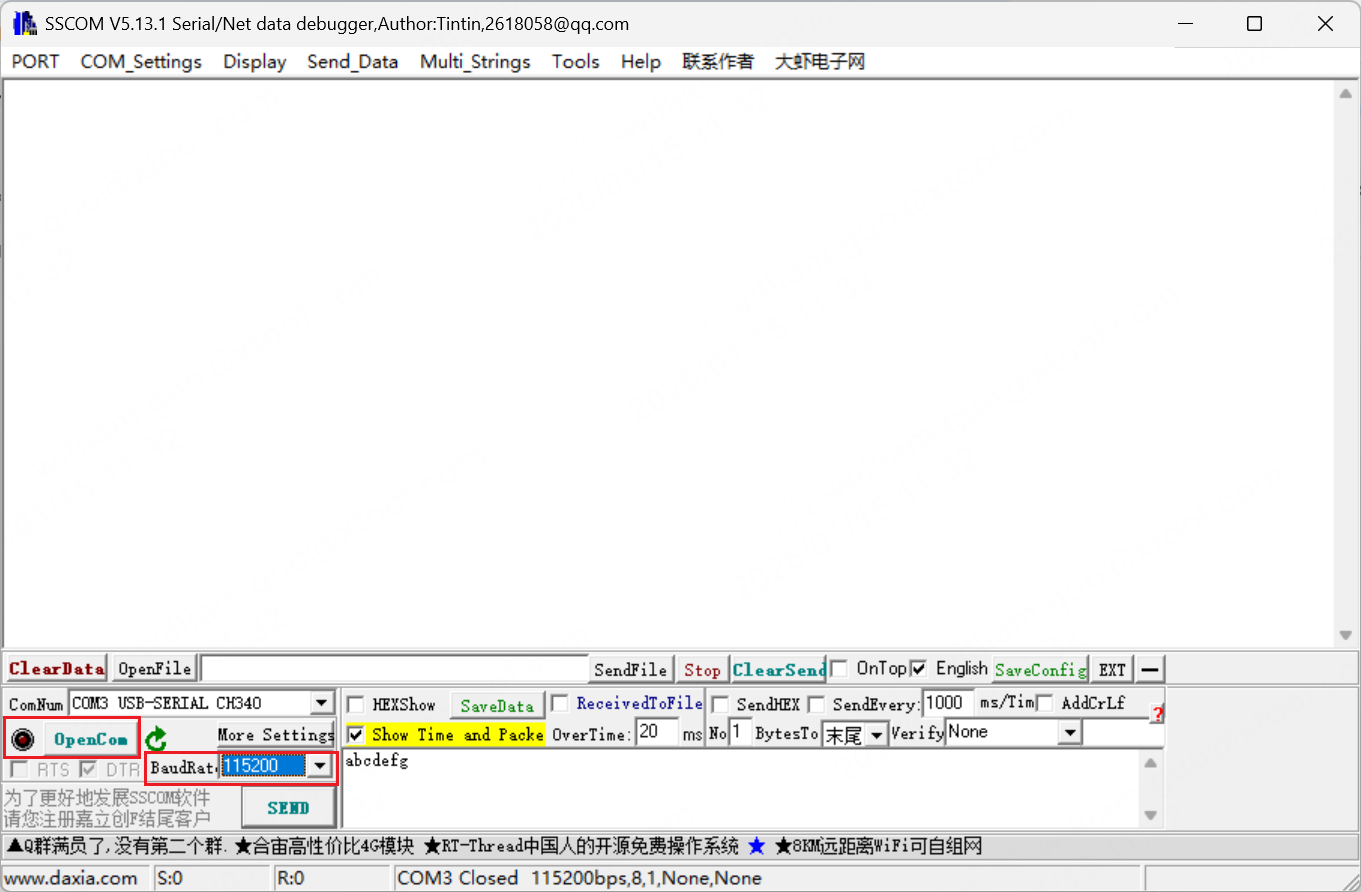
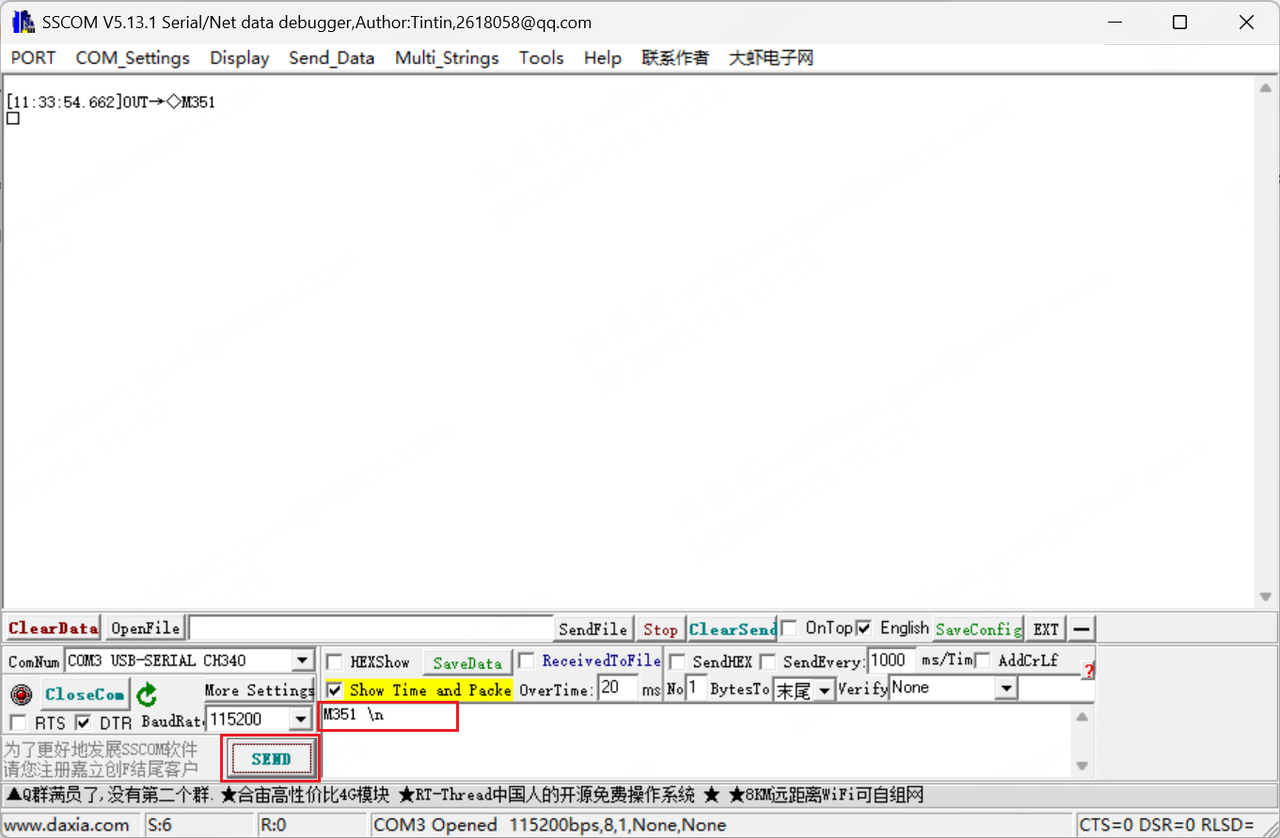
- Set the baud rate to 115200, and turn on OpenCom.
- Enter the command M351 \n and click SEND.
- The laser welder will return the real-time log.
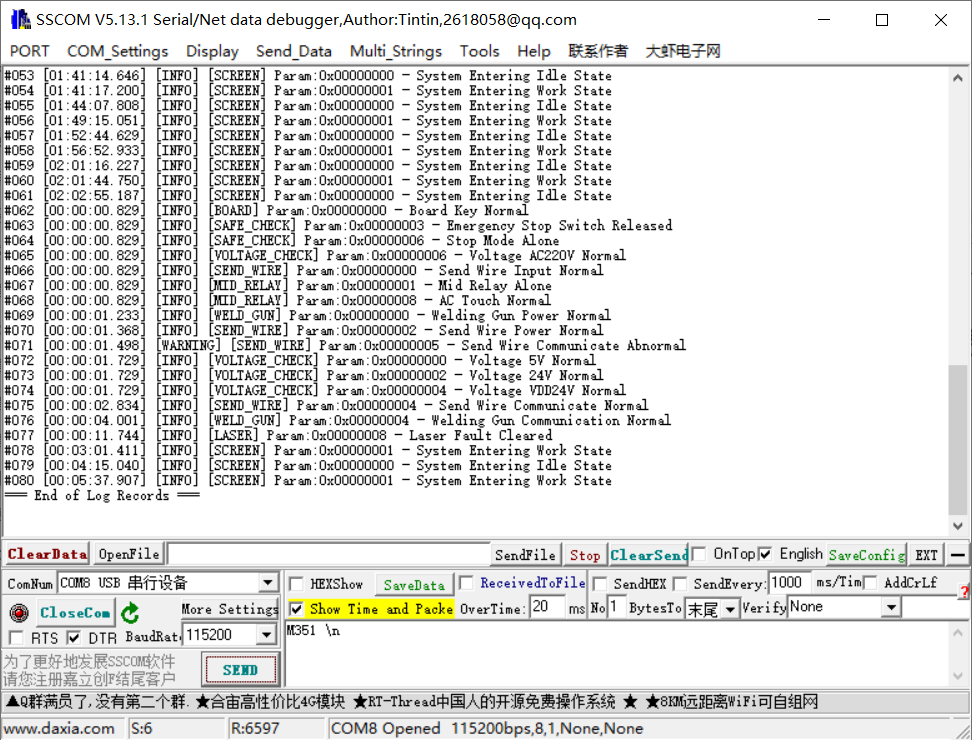
- Save the log by using one of the following methods:
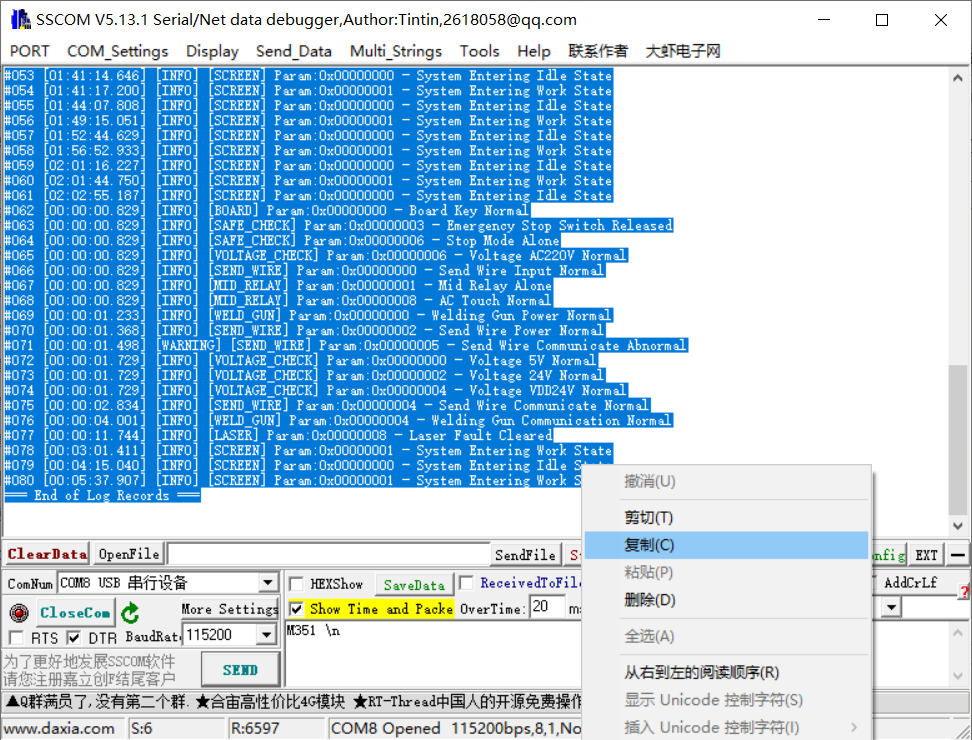
- Method 1: In the log display area, press Ctrl + A to select all the content, then copy the content into a text editor and save it as a file.
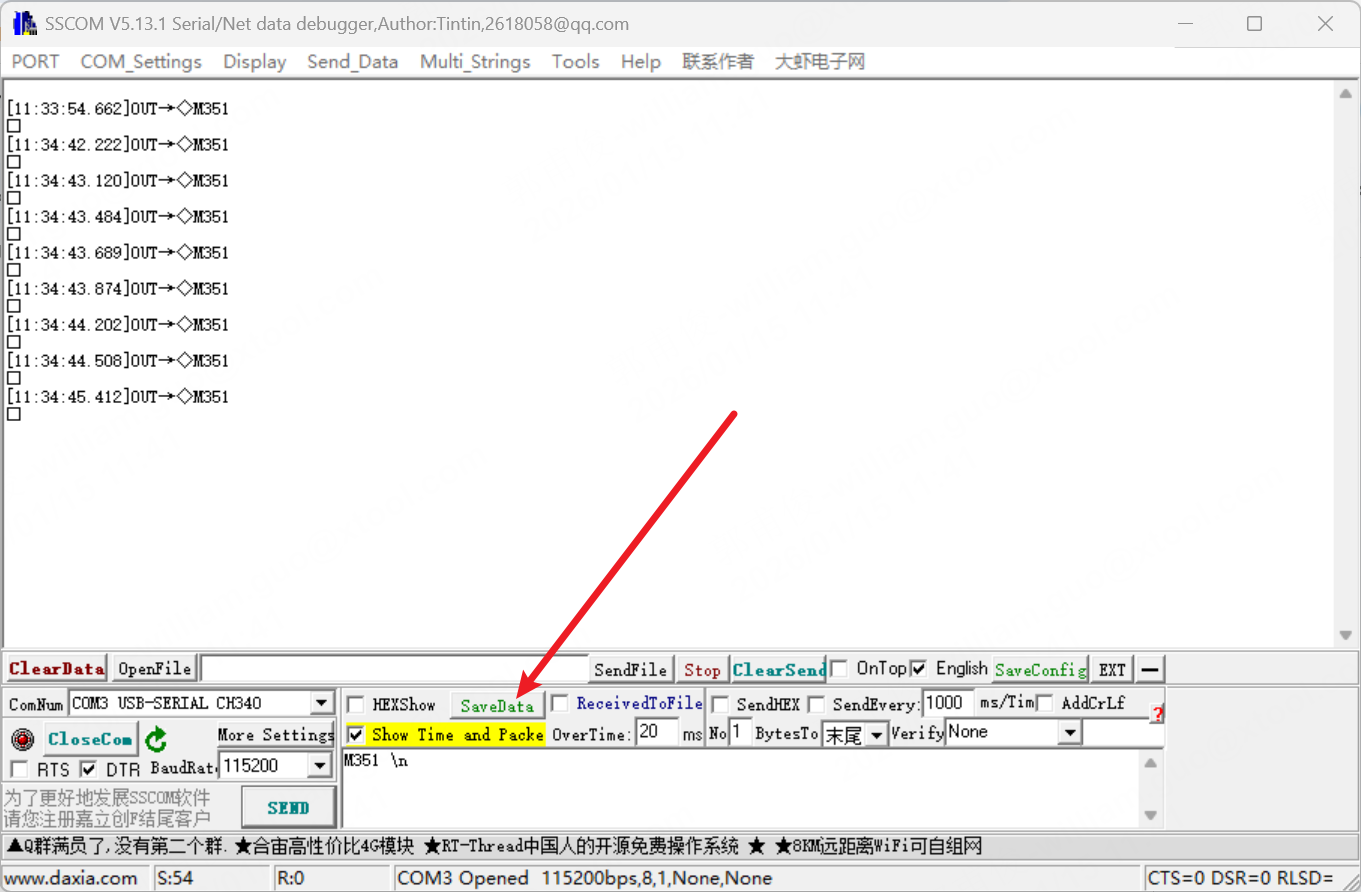
- Method 2: Click SaveData to save the log file. The software will display the storage location. Go to the corresponding location to retrieve the log file.
Preview
Was this page helpful?
0 out of 0 found this helpful
Help Ticket
Use this help ticket to submit your issue. We will respond within 1 business day
Submit a Ticket Tags
Help Ticket
Use this help ticket to submit your issue. We will respond within 1 business day
Submit a Ticket 
Services & Help
Learn & Education

Copyright © 2025 xTool All Rights Reserved.