
Curved surfaces can be found in various applications, from automotive parts to furniture and product design. Accurate measurement of these surfaces is essential to ensure proper fit and function. This is where the xTool P2 series comes in handy, offering a reliable and efficient solution for measuring and processing various curved surfaces. In this article, we will walk you through the measurement procedure.
What is the rotating surface?
A cylinder is formed by rotating a curve 360 degrees around a fixed axis.
Start the measurement
1. Prepare the material to be processed
Prepare the material and the rotary attachment, and put them into the device. Connect the rotary attachment to the device.
2. Select the processing mode
Make sure your device is connected to xTool Studio. Click the name of the current processing mode, then select Curved material - Use rotary attachment.
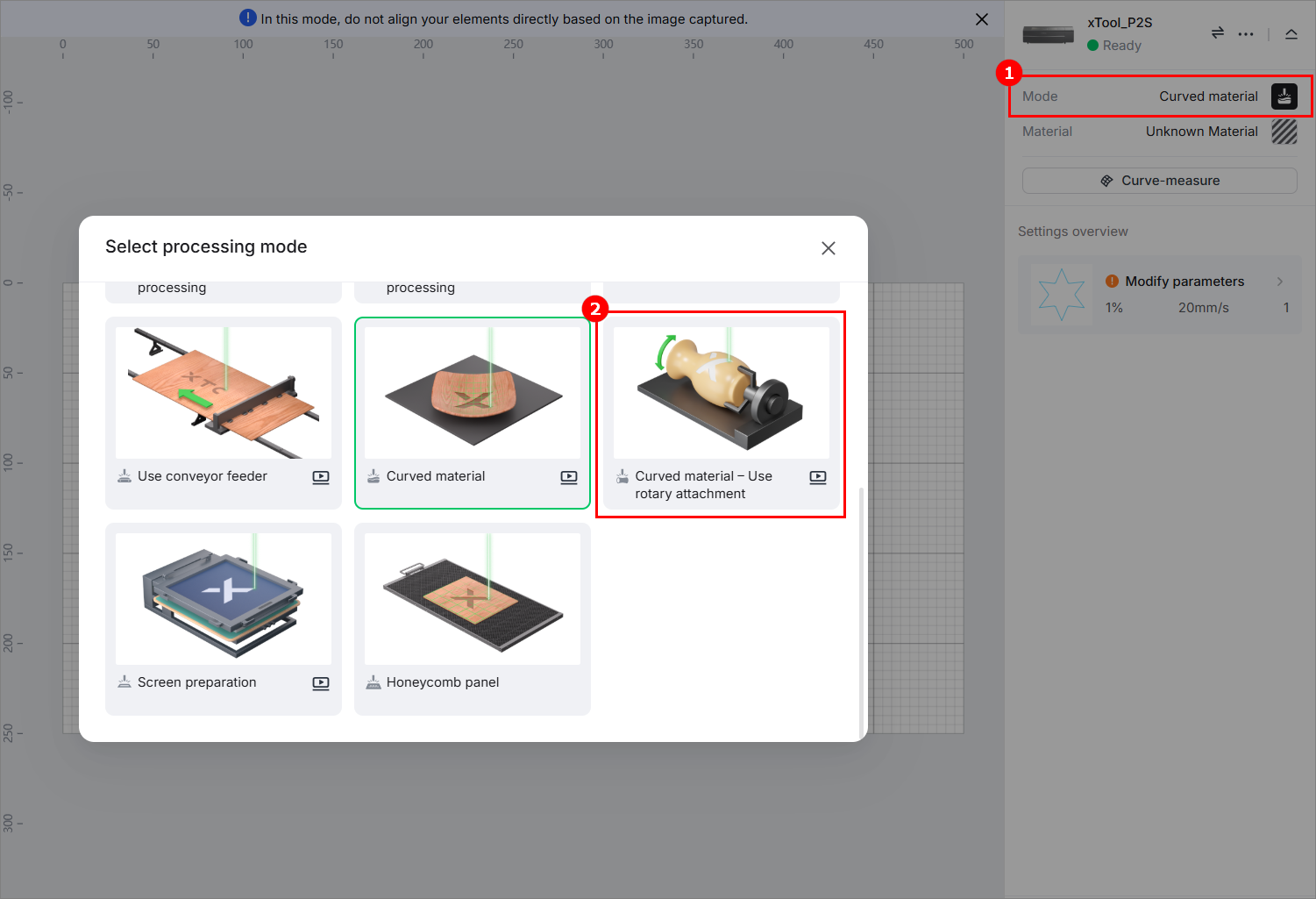
3. Mark the processing area
(1) On the right side of the editing page, click Curve-measure to mark the rotating surface area.
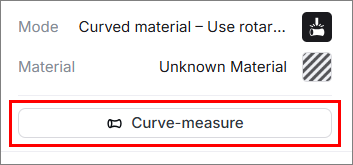
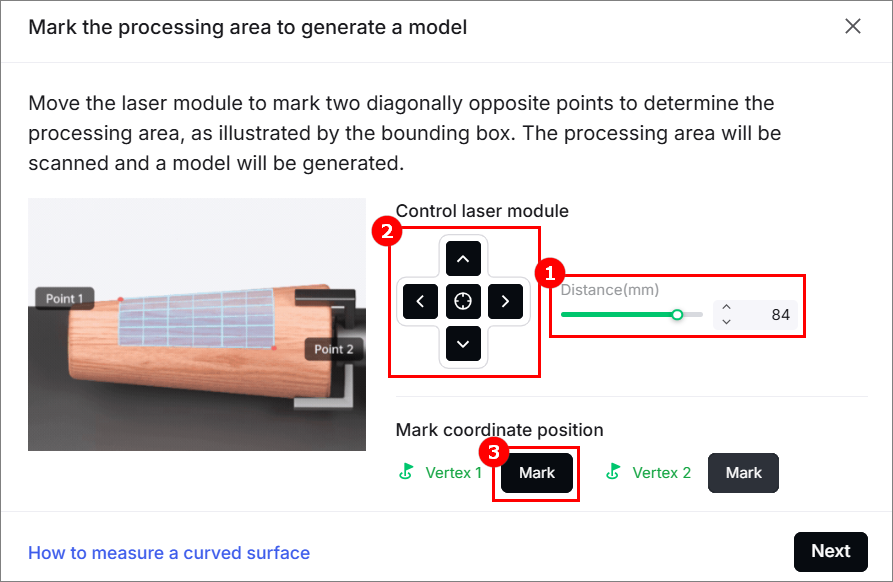
(2) Move the laser module, by clicking the arrow keys, to make the red spot fall at the upper left vertex of the area to be measured, and click Mark.
Tips: You can set the distance the laser module moves each time when you click an arrow key.
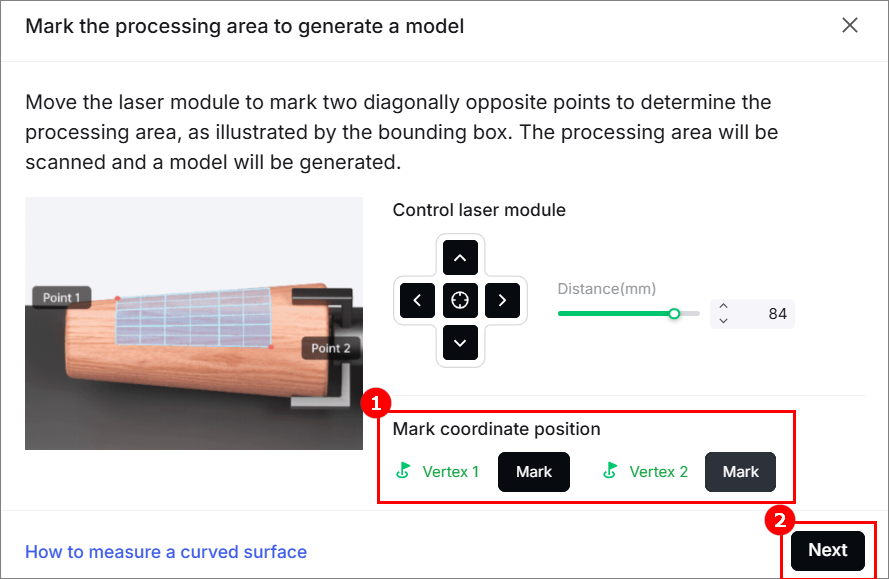
(3) When point 1 is determined, click Mark for Vertex 1. Then move the laser module and make point 2 fall on the diagonally opposite side of the material. Then, click Mark for Vertex 2. When the processing area is marked, click Next.
4. Measure the density
The numbers of rows and columns are generated by default in xTool Studio.
Surfaces with greater curvature require more measurement dots for accurate modeling, as insufficient dots may result in an inaccurate model. You can set the processing density for the material by selecting the number of rows and columns. After setting the measurement density, click Measure.
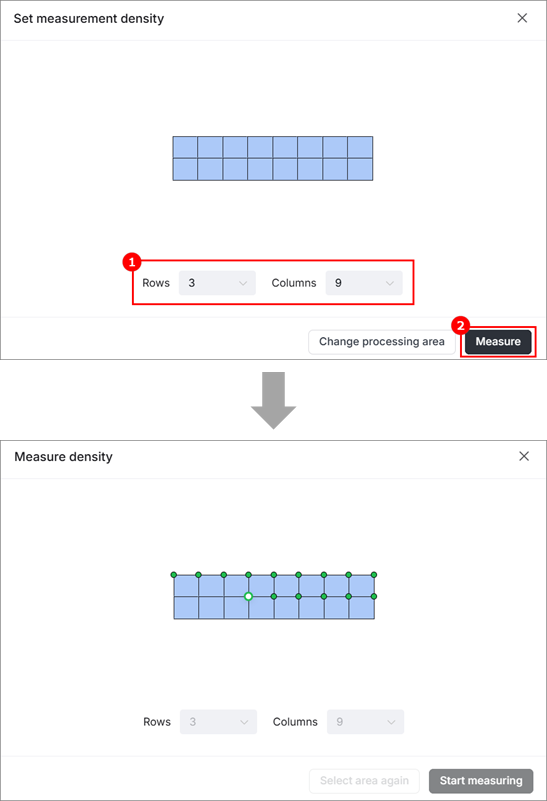
▪️The measurement point can't be measured, move the material and try again.
▪️The measurement point is too far from the laser module, lift the material and try again.
▪️The measurement point is too close to the laser module, lower the material and try again.
5. Check the result and insert the object
(1) When the curved surface is generated, you can left-click to change the preview angle.
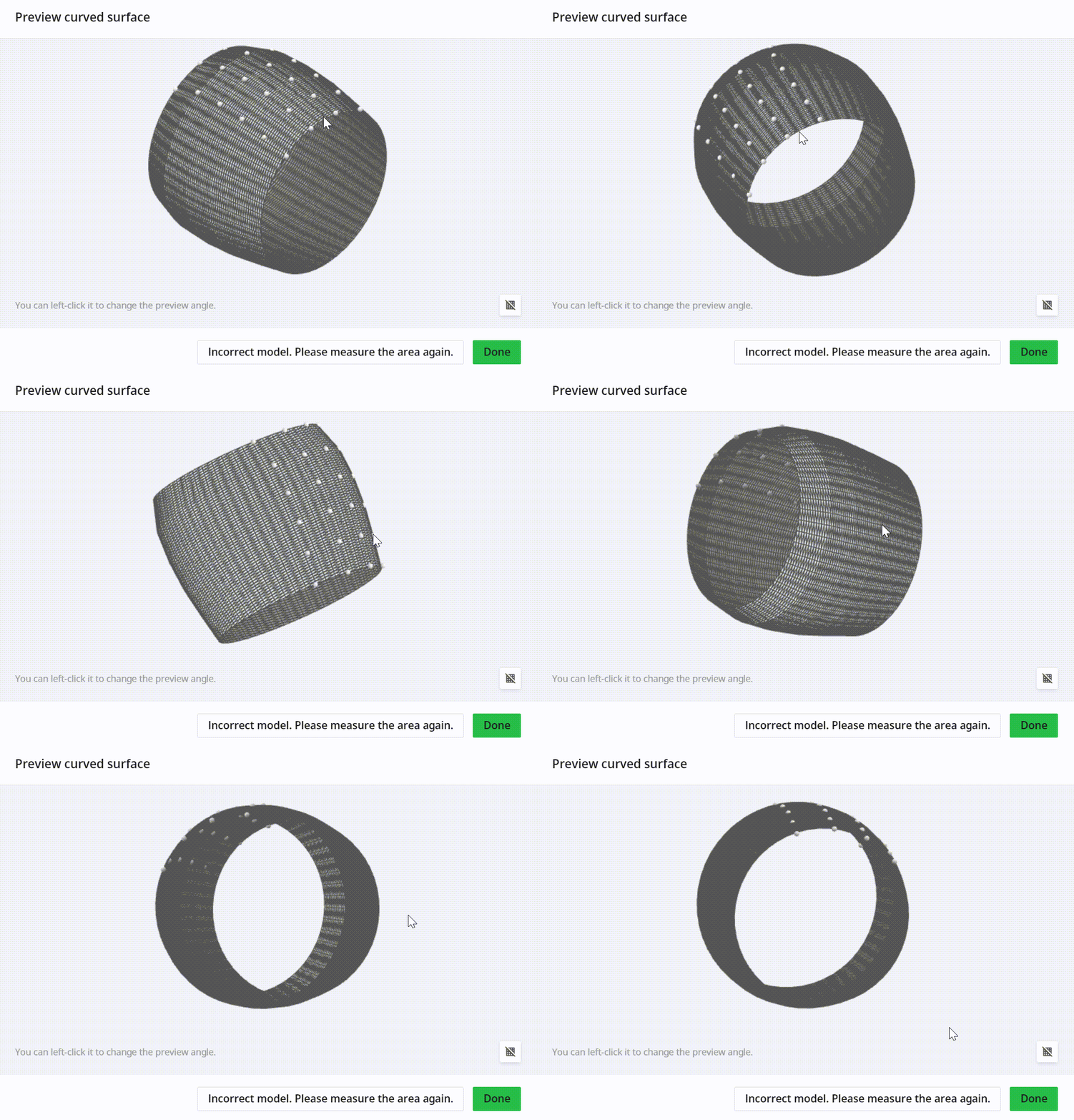
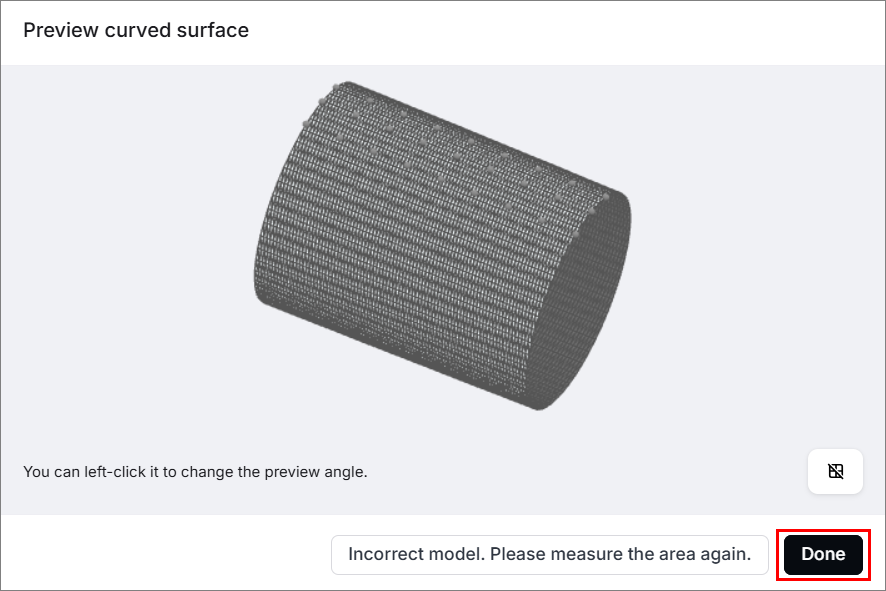
(2) If the result is good, click Done. Or you can click Incorrect model. Please measure the area again. to measure again.
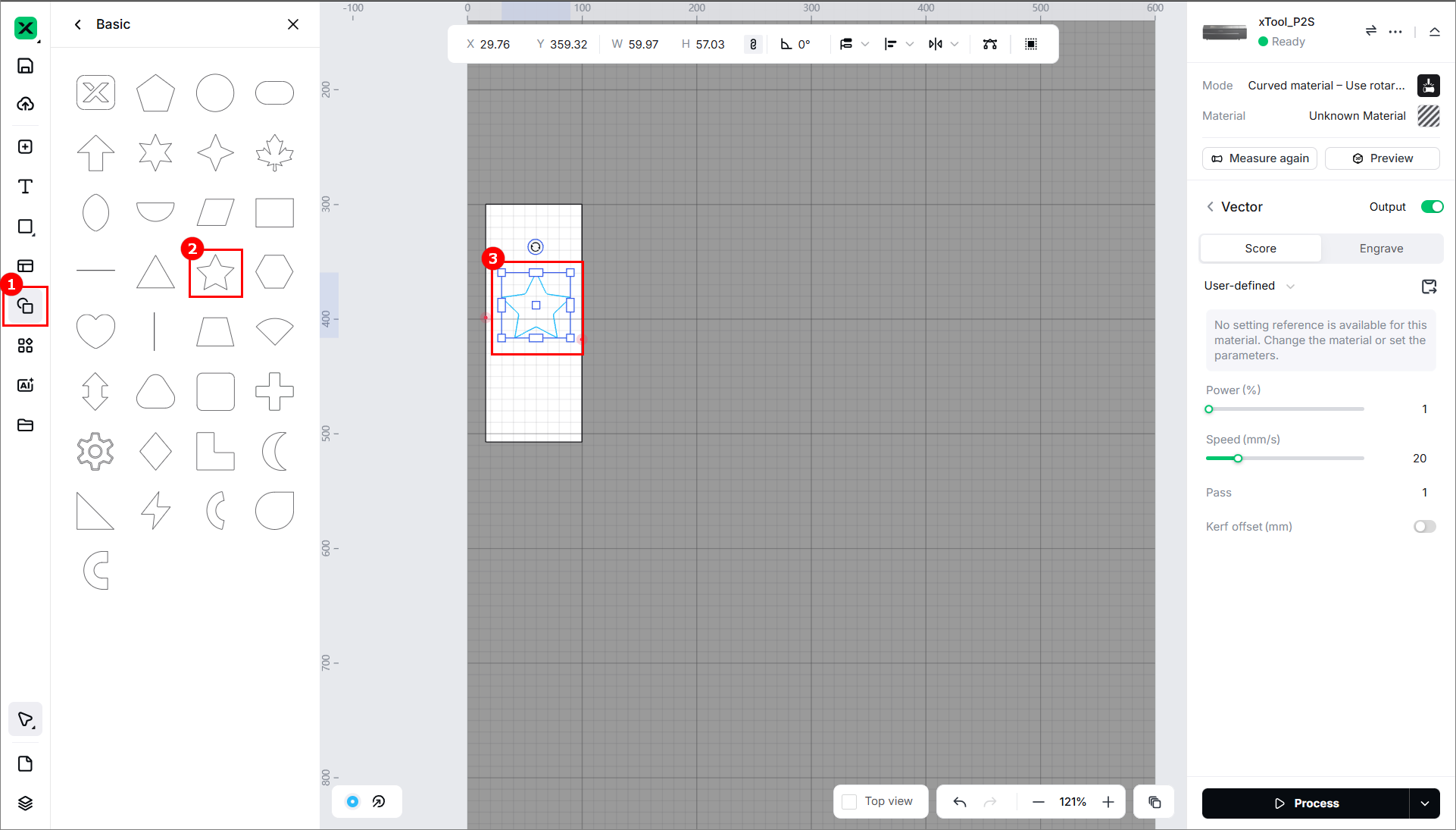
(3) Insert the object on the canvas. The object position must not exceed the white area.
(4) On the right side of the editing page, click Preview to check the object on the model.
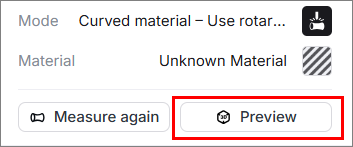
(5) You can select the image processing mode: not deformed or deformed by radian.
If you want a clearer view, you can click to hide the grid.

6. Start processing
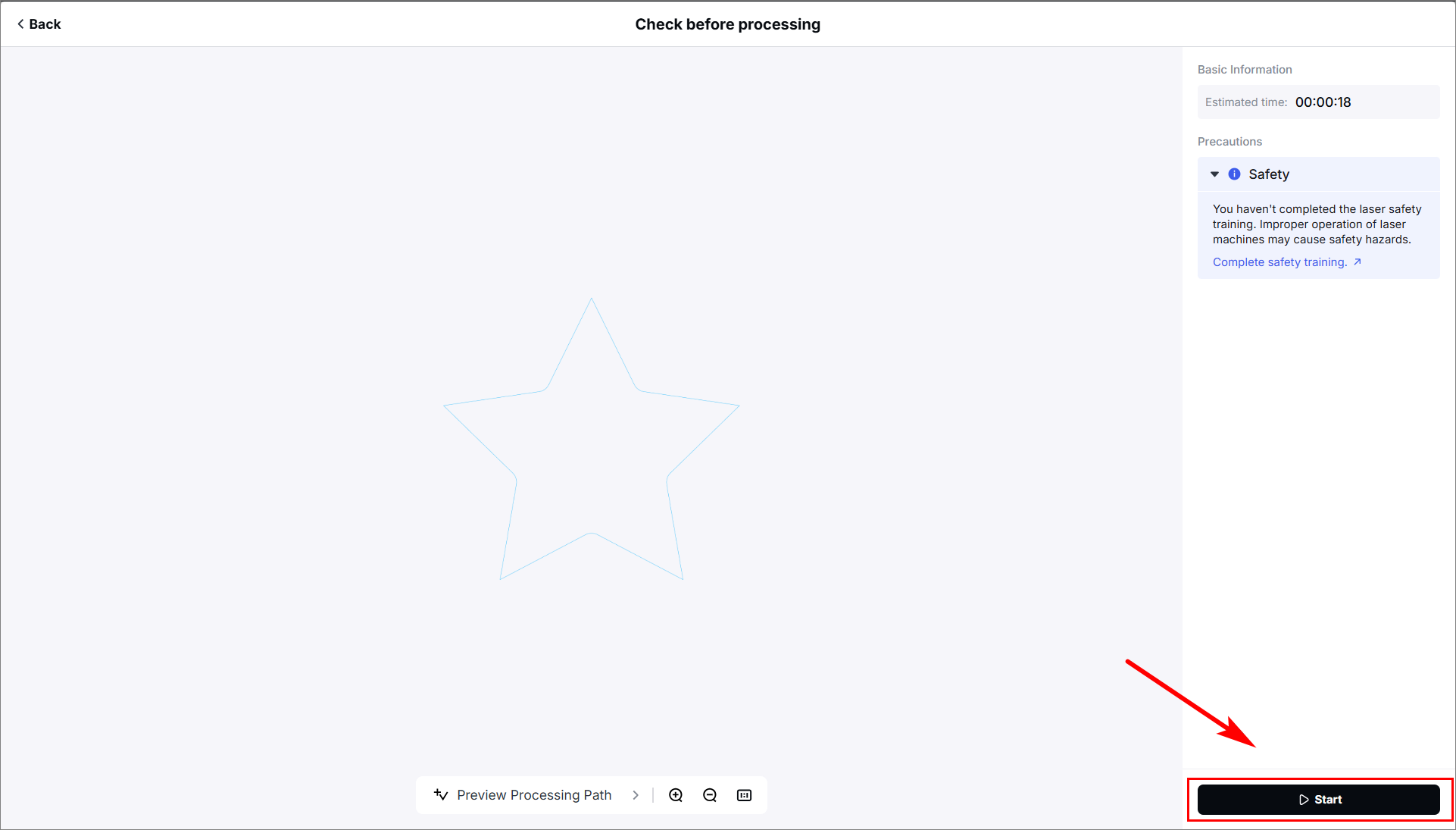
(1) In the bottom-right corner, click Process.

(2) Preview the processing path, then click Start.
Precautions
- To ensure optimal safety during processing, the model generated through measurement will not be saved with the file.
- Pay close attention to the processing, and do not leave it unattended. In case of any exception, press the emergency stop switch promptly.
- When you mark the processing area, move the laser module only by clicking the arrow in xTool Studio, instead of by hand.

Services & Help
Learn & Education

Copyright © 2025 xTool All Rights Reserved.