
The color engraving technology enables multi-color effects on specific materials. To achieve these effects, just like the image shown below, you can work with xTool F2 Ultra, which supports color engraving of vector fill images and bitmap objects.
Note: The processing files and effect examples provided in this tutorial are primarily based on MOPA infrared laser color engraving on 304 stainless steel. However, you can refer to this method to explore color marking applications on other metals such as brass and titanium.
Importance of color engraving settings
Color formation mechanism on stainless steel
- Oxide coloration
Under laser irradiation, stainless steel's metallic elements produce colored oxidation products. - Transparent oxide film (thin-film interference)
A transparent oxide layer forms, creating color through light interference effects.
Key findings & recommendations
Minor variations in power, focus, or energy can significantly alter the engraved color. For consistent results, calibrate personalized color-engraving parameter settings based on your machine’s performance. Once saved, these settings can help to streamline future engraving workflows.
Before color engraving
Color engraving results can be affected by multiple factors, including laser energy, material type, ambient humidity, and temperature fluctuation.
In this case, you're advised to first test your material with a parameter array to identify desired colors, then record and save the corresponding settings for consistent, high-quality output.
1. Test color engraving with an array
|
|
Test array in xTool Studio | Actual processing results on the material |
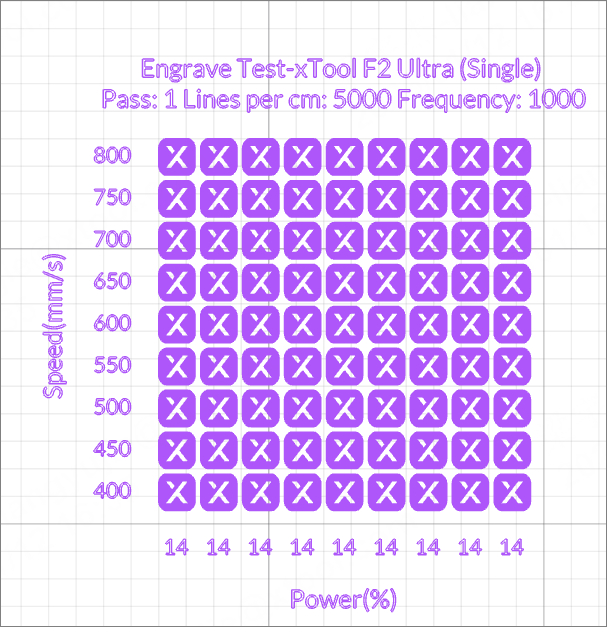
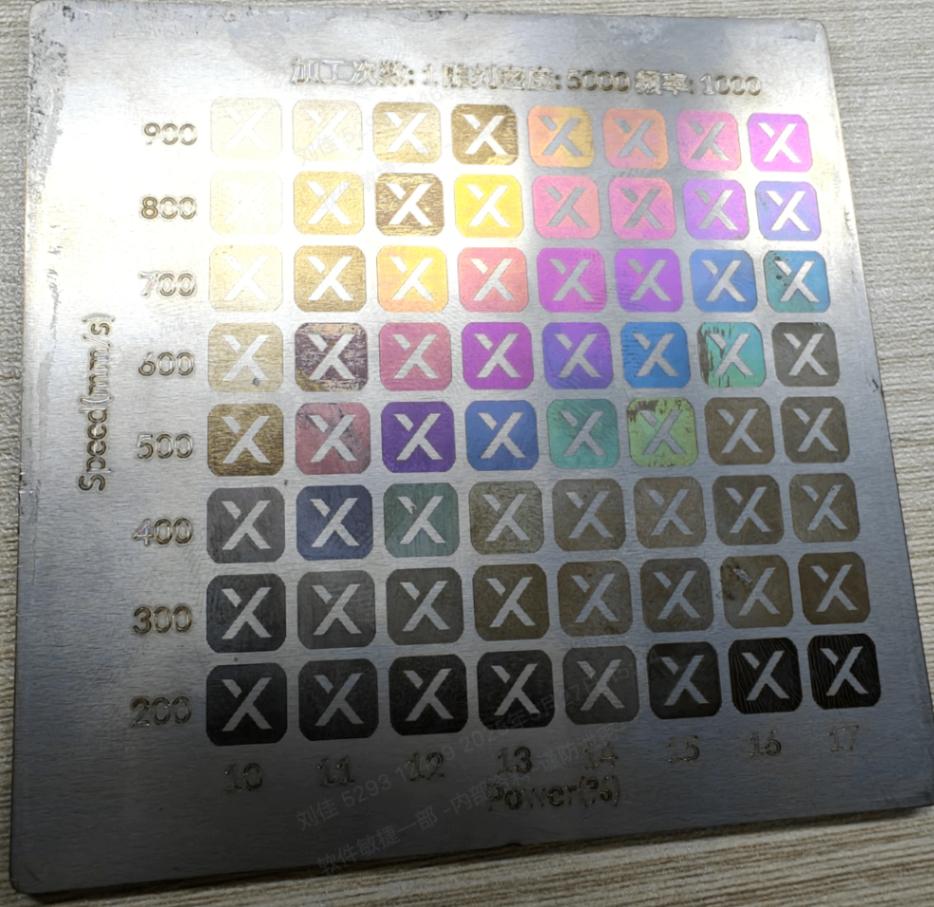
(1) Download the test array file and open it in xTool Studio.
Test array for xTool F2 Ultra (single-laser model)
Test array for xTool F2 Ultra (dual-laser model)
(2) Use 304 stainless steel (SUS304) and process it after focusing and conducting the necessary device settings in xTool Studio.
If you use xTool Studio for the first time, you can see (xTool Studio) Process on Flat Surface with xTool F2 Ultra for reference.
Note: To ensure optimal results, please place the objects to be engraved within 60 x 60 of the center of the baseplate.
(3) After processing, evaluate the results and proceed as follows:
- If satisfied with a color outcome in a specific grid, mark down those parameter settings, including the processing speed and power.
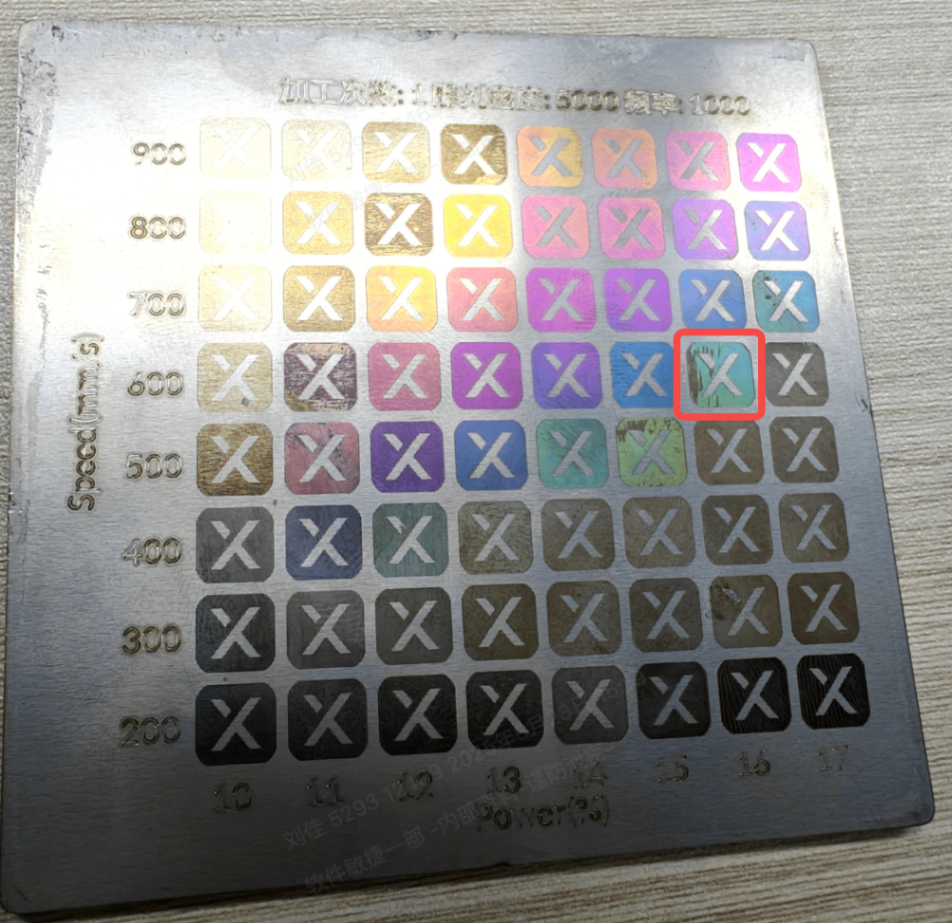
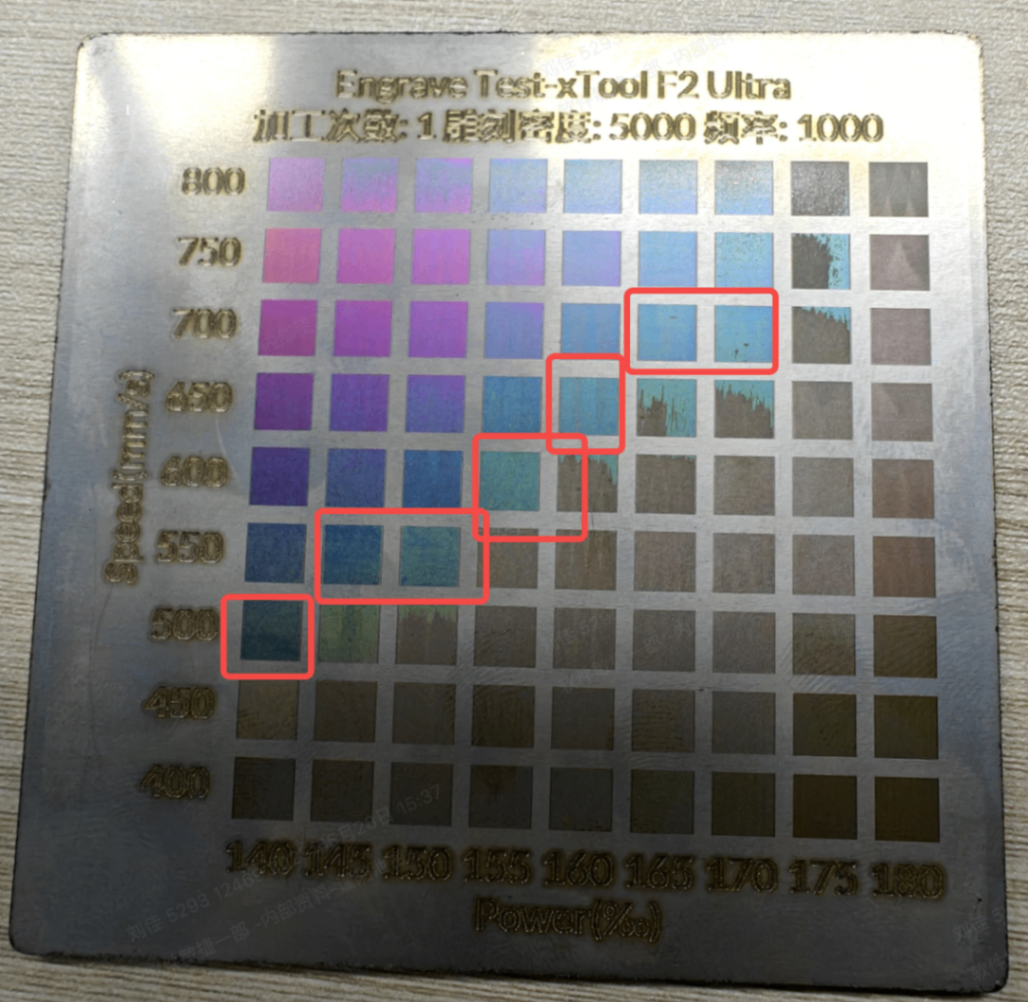
- If seeking improved colors, locate the target color and its corresponding processing speed and power. Then create an additional bidirectional gradient test array by adjusting settings in increments or decrements of 0.5% power and 50 mm/s speed.
For example, to optimize cyan coloration (currently set at 16% power and 600 mm/s speed), generate an additional test array using these parameters as your baseline, then systematically adjust values in: - Power: ± 0.5% increments (e.g., 15.5% or 16.5%)
- Speed: ± 50 mm/s increments (e.g., 550 mm/s or 650 mm/s)
|
|
Original test array | Adjusted test array |
2. Set up a personalized array
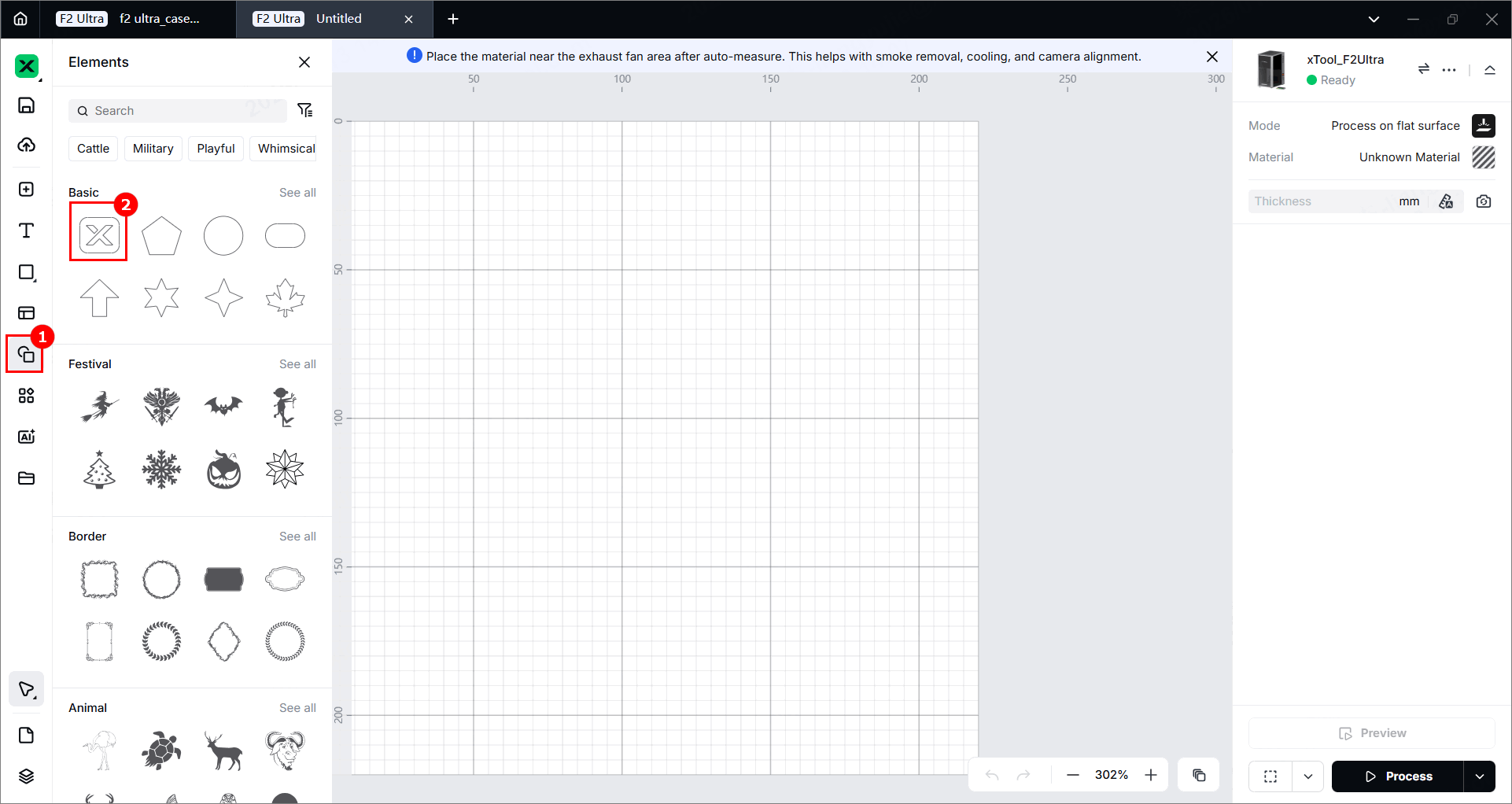
(1) Create a new project and set an element.
(2) Create a material test array.
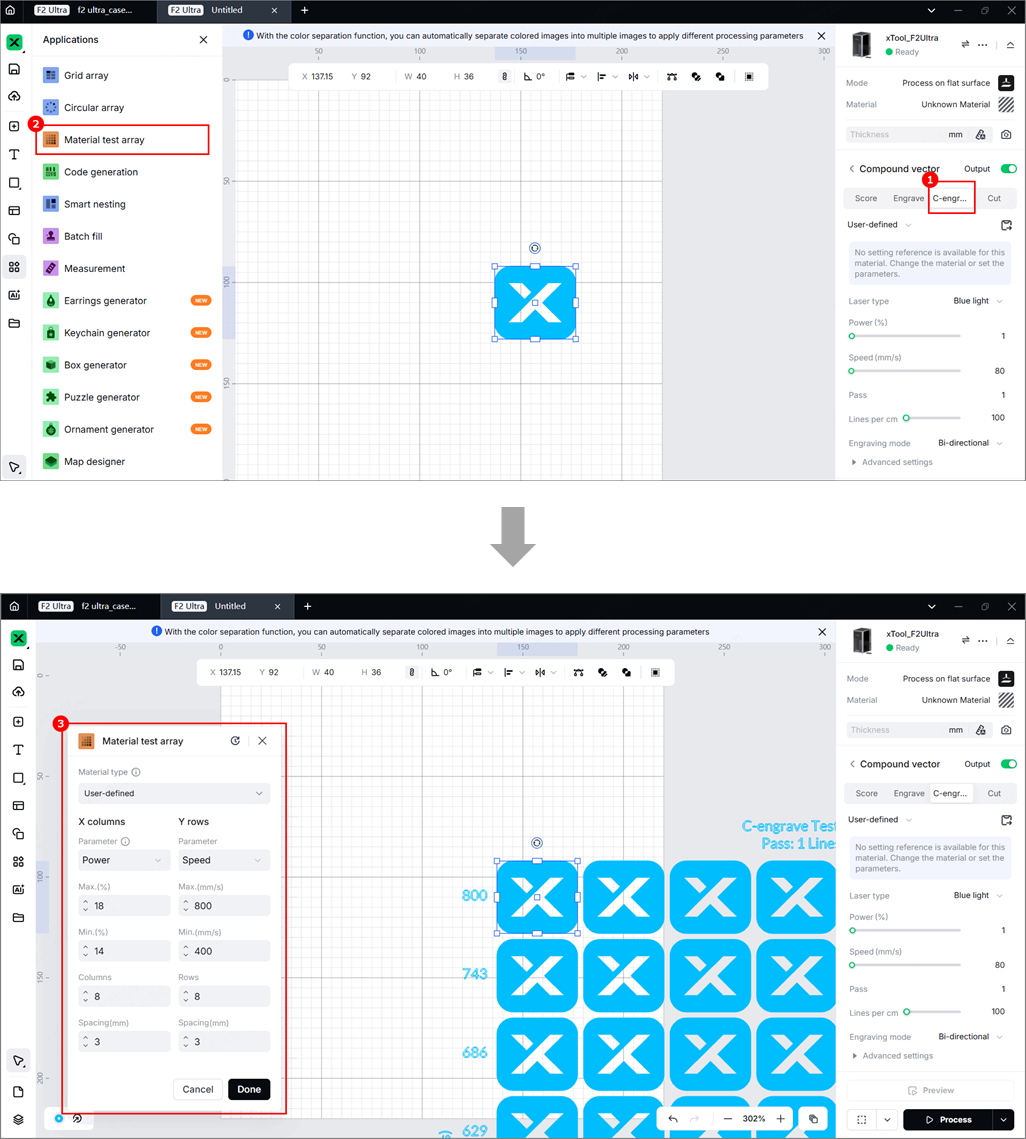
Array specifications:
- Minimum single matrix size: 10 mm × 10 mm
- Recommended maximum rows/columns: ≤ 8
- Row/column spacing: ≥ 1 mm
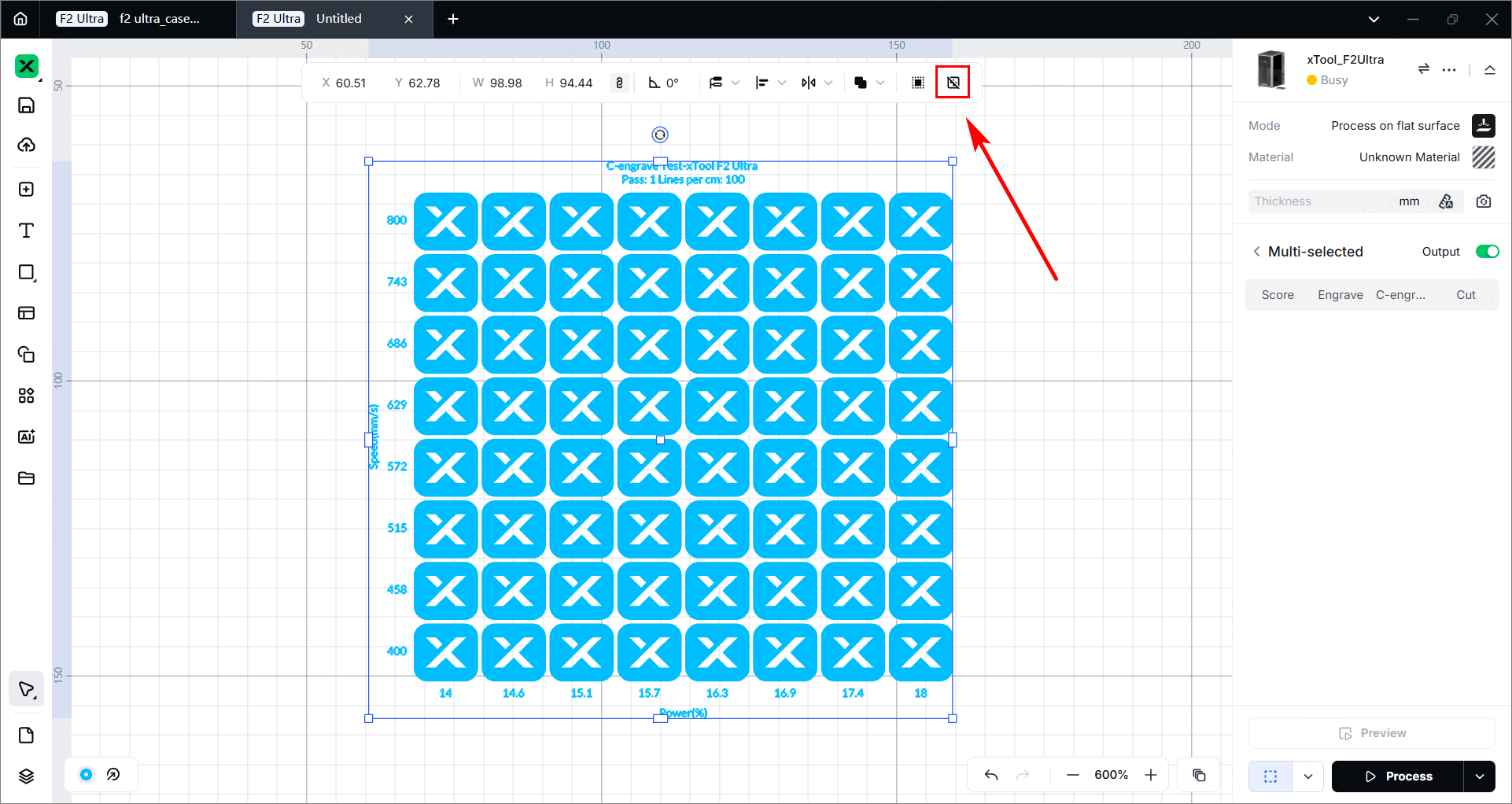
(3) Ungroup the test array.
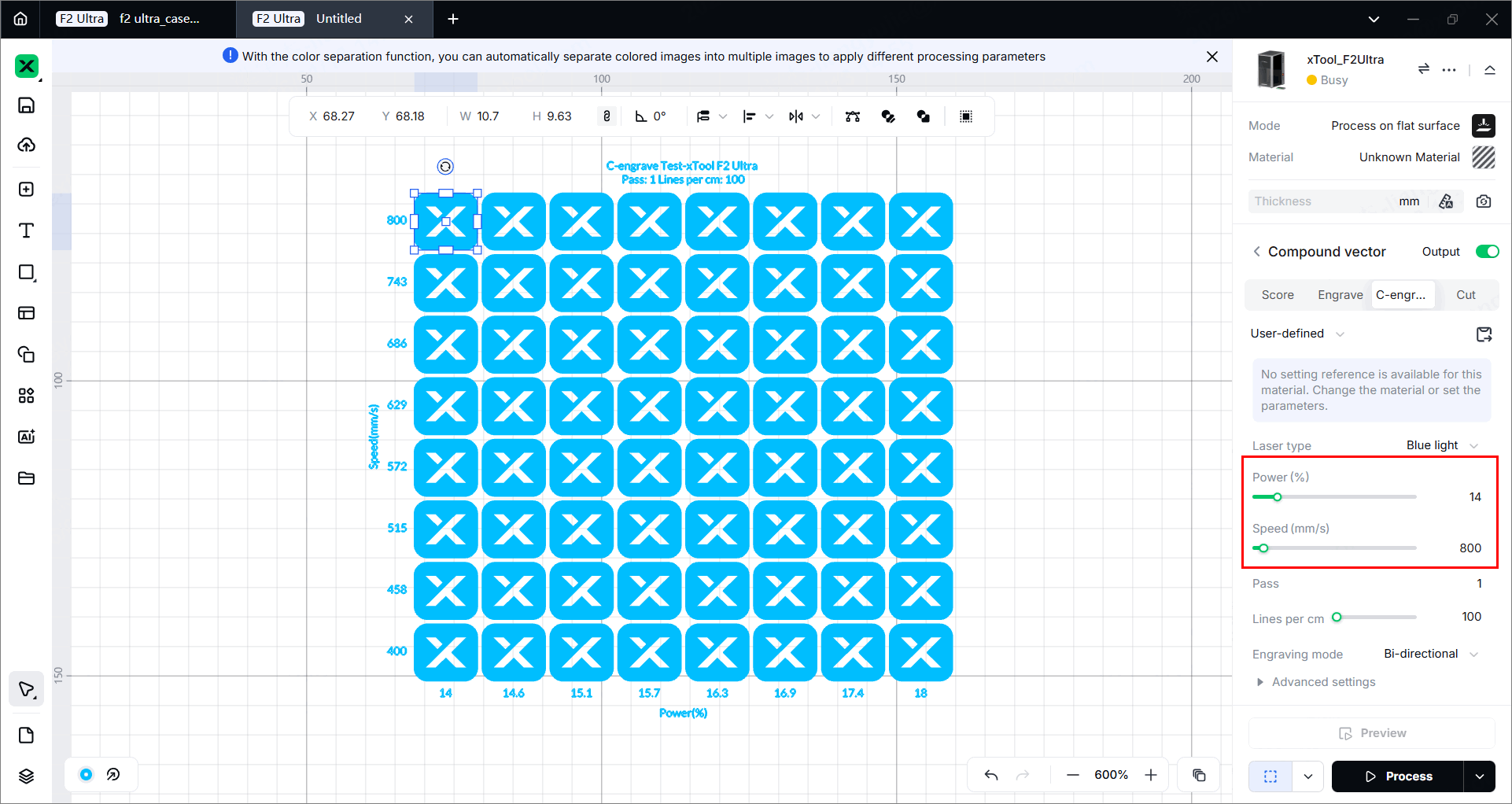
(4) Click the target grids and set parameters for all satisfied colors in the previous step, including power and speed.
(5) Click the  icon, then choose either way to save this file.
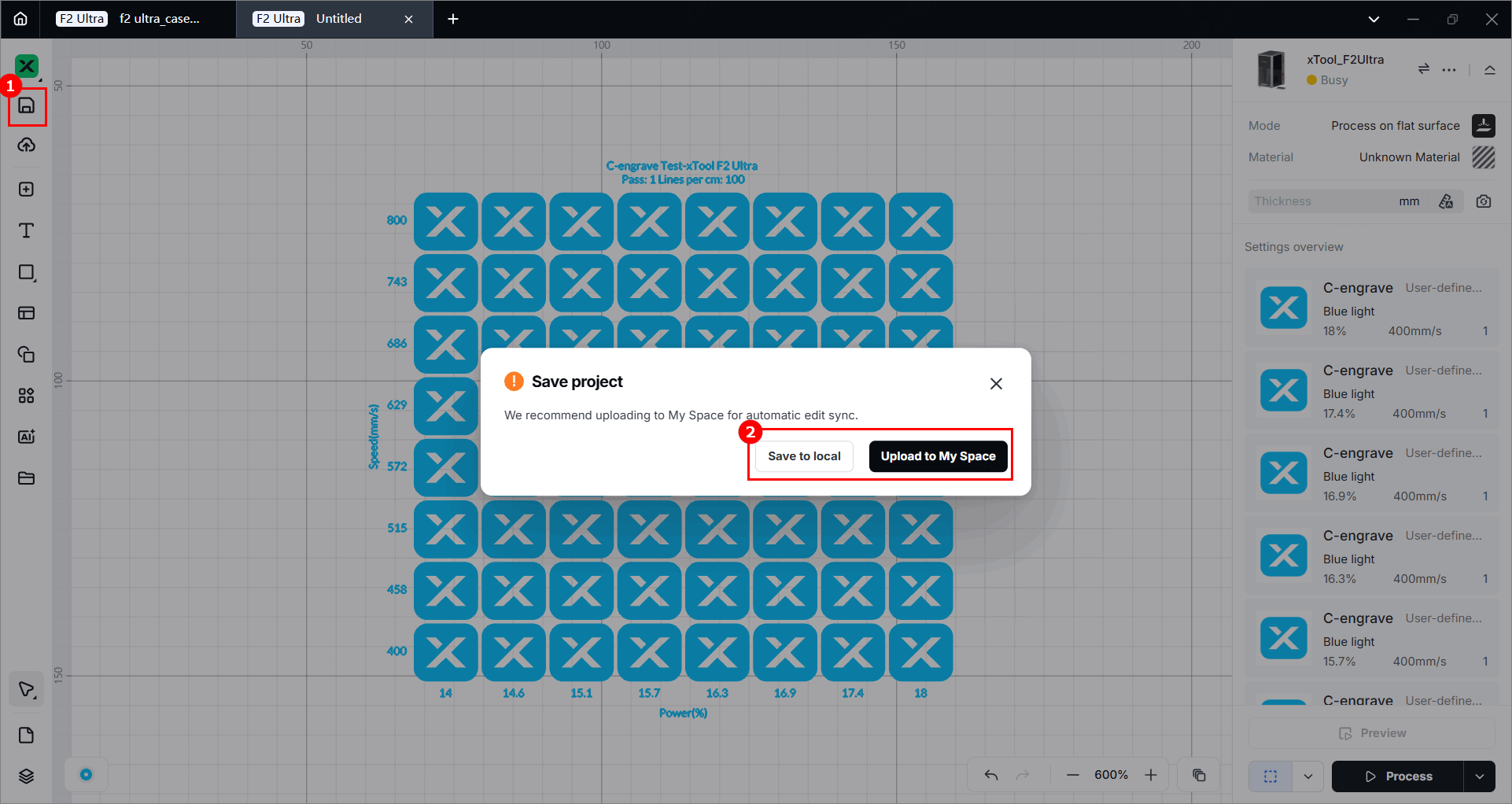
(6) Click Process and take a picture of this array.
3. Add material to xTool Studio
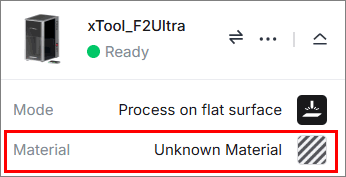
(1) Create a new project, then click Unknown material in the upper right corner.
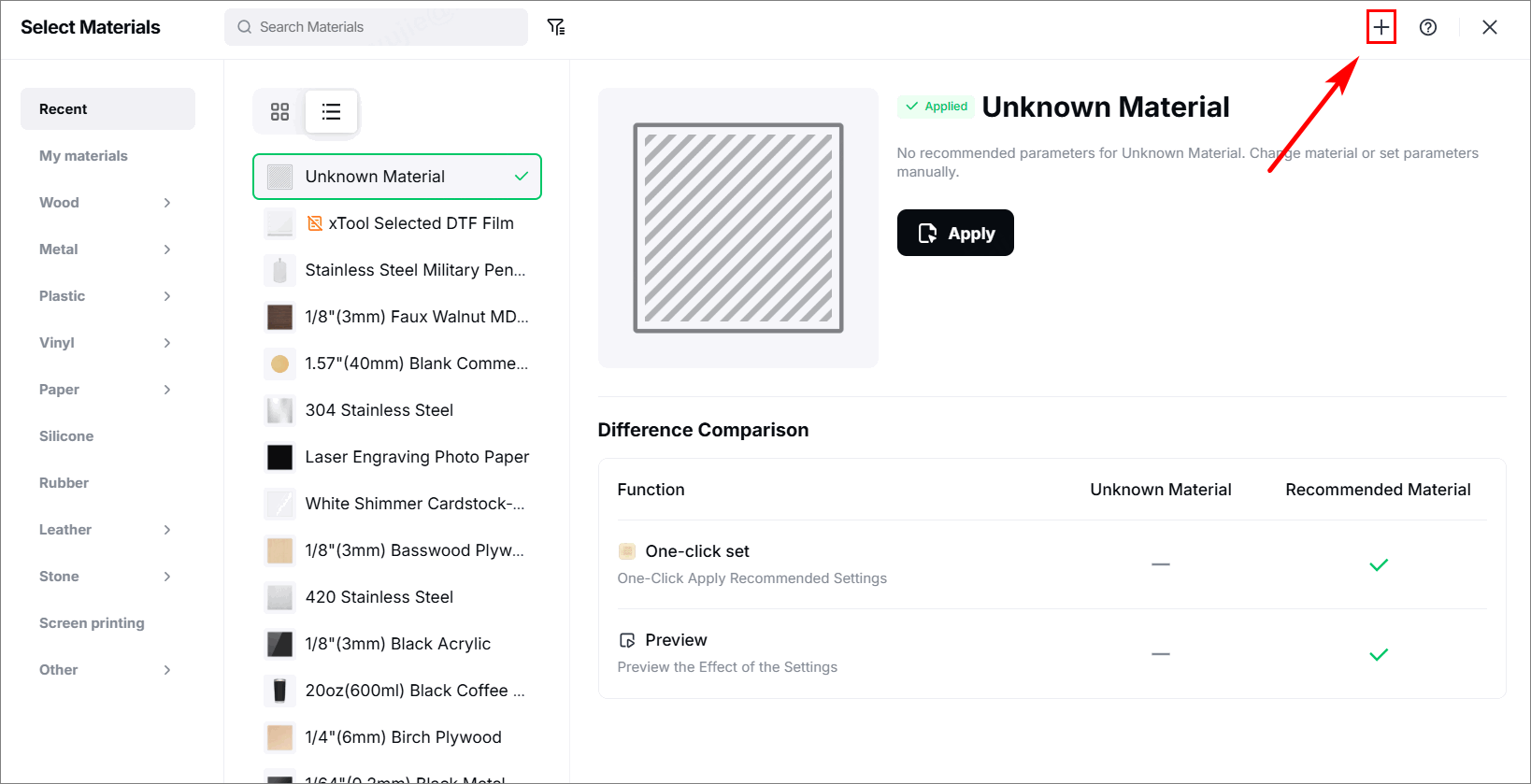
(2) Click the  icon to add material.
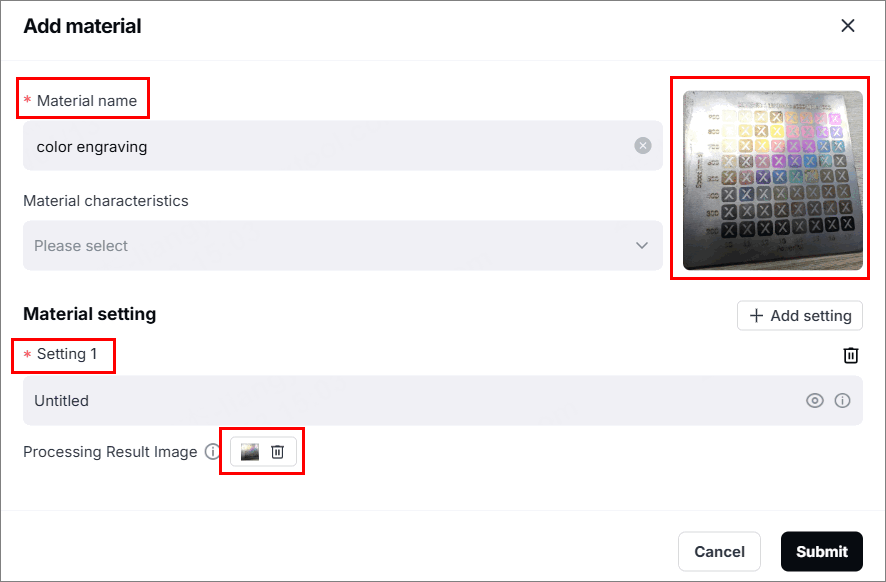
(2) Fill in the mandatory boxes like material name, image, and setting file. Then, click Submit.
Note:
- The image should match the uploaded file, including the settings and the orientation.
- The image should be captured straight-on to ensure full and clear visibility of the entire test array, row and column names, and each color grid.
(3) Click Unknown material in the upper right corner again and check if the setting is properly saved. Then, click Apply.
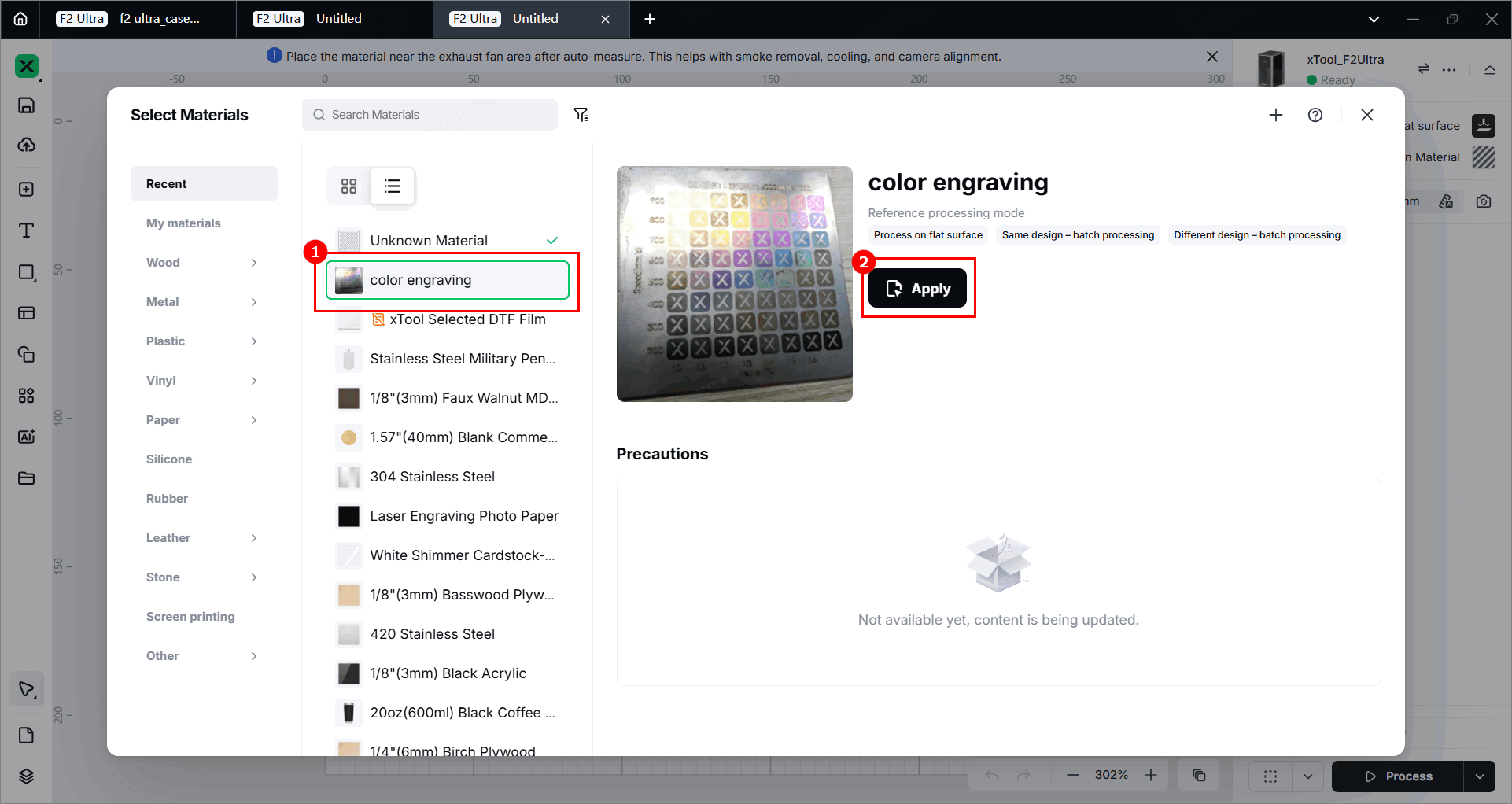
Color engraving steps
1. Place the material and set the laser focus
(1) Place the material on the baseplate, allowing the blue light spot to fall on the surface of the material.
💡 For optimal cutting results, set the focus point at the midpoint of the material’s thickness.
- Example: To cut 6 mm basswood in a single pass, set the focus point 3 mm below the surface.
- Procedure: First, focus on a 3 mm thick material. Without changing the focus setting, replace it with the 6 mm basswood to be cut.
(2) Hold down on the Up/Down button to move the laser module up and down. When the red and blue light spots overlap, the focus is successfully set.
(3) After finishing focusing, the measured material thickness can be seen on the right side of xTool Studio.
2. Design objects for processing
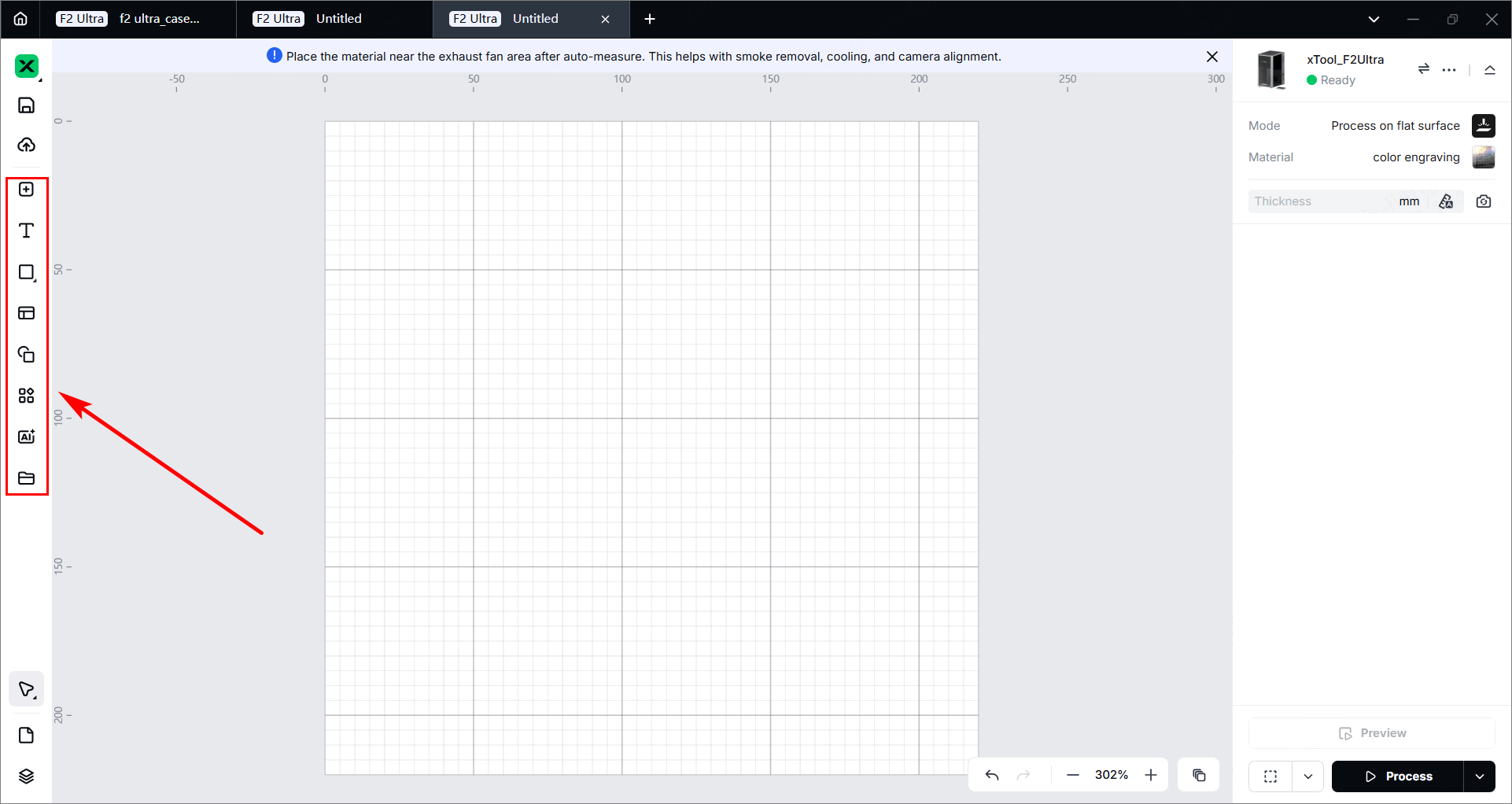
(1) Use the tools on the left side of the canvas to create objects. You can import or create a vector fill image or bitmap.
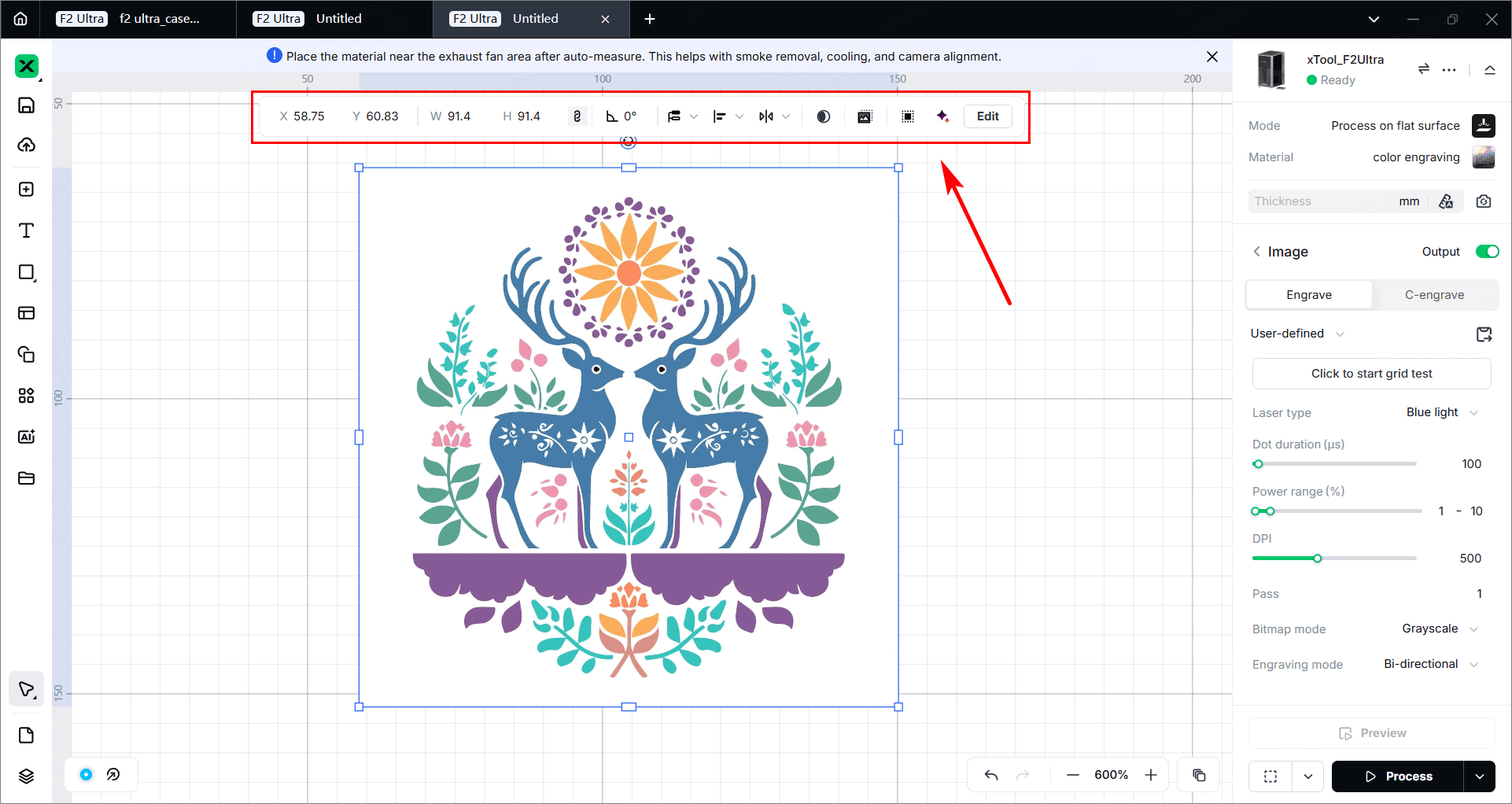
(2) After selecting the objects, use the toolbar above the canvas for further editing.
Note: If the object is a bitmap, please note the following:
1. Select the bitmap and click in the upper bar.
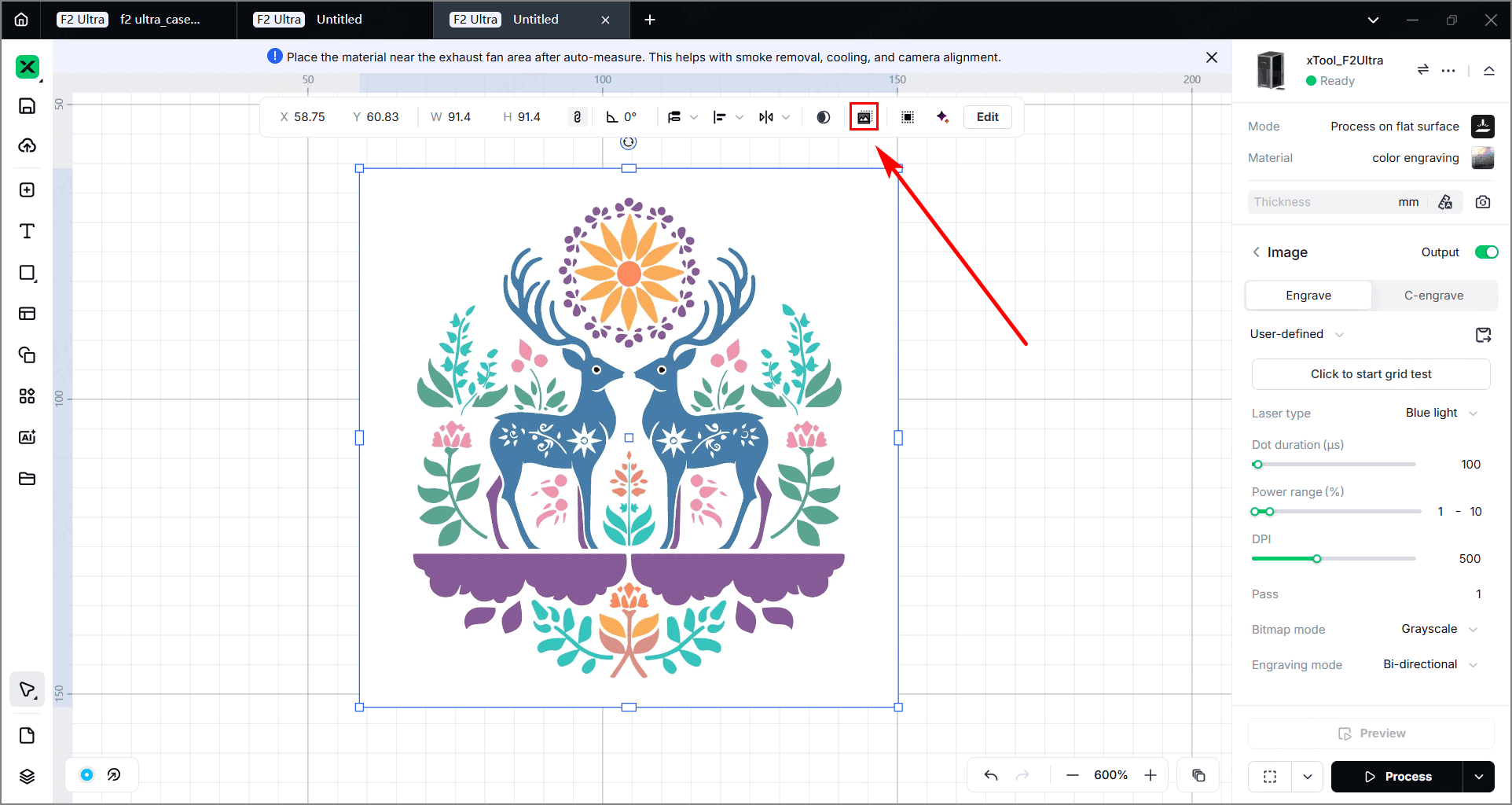
2. Use images with solid color blocks. Avoid gradients, transitional colors, or tiny color pixels.
3. Tiny color blocks with few pixels can be removed, as they won't noticeably affect the final piece.
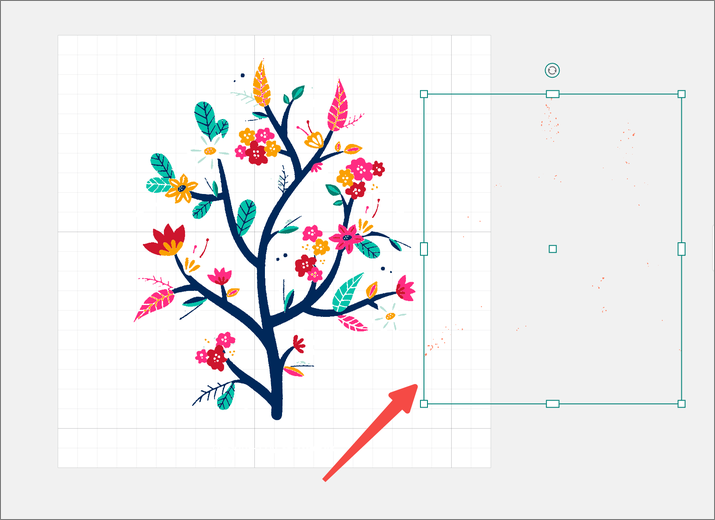
3. Set parameters for processing
(1) Click an object part, then choose C-engrave in the right panel.
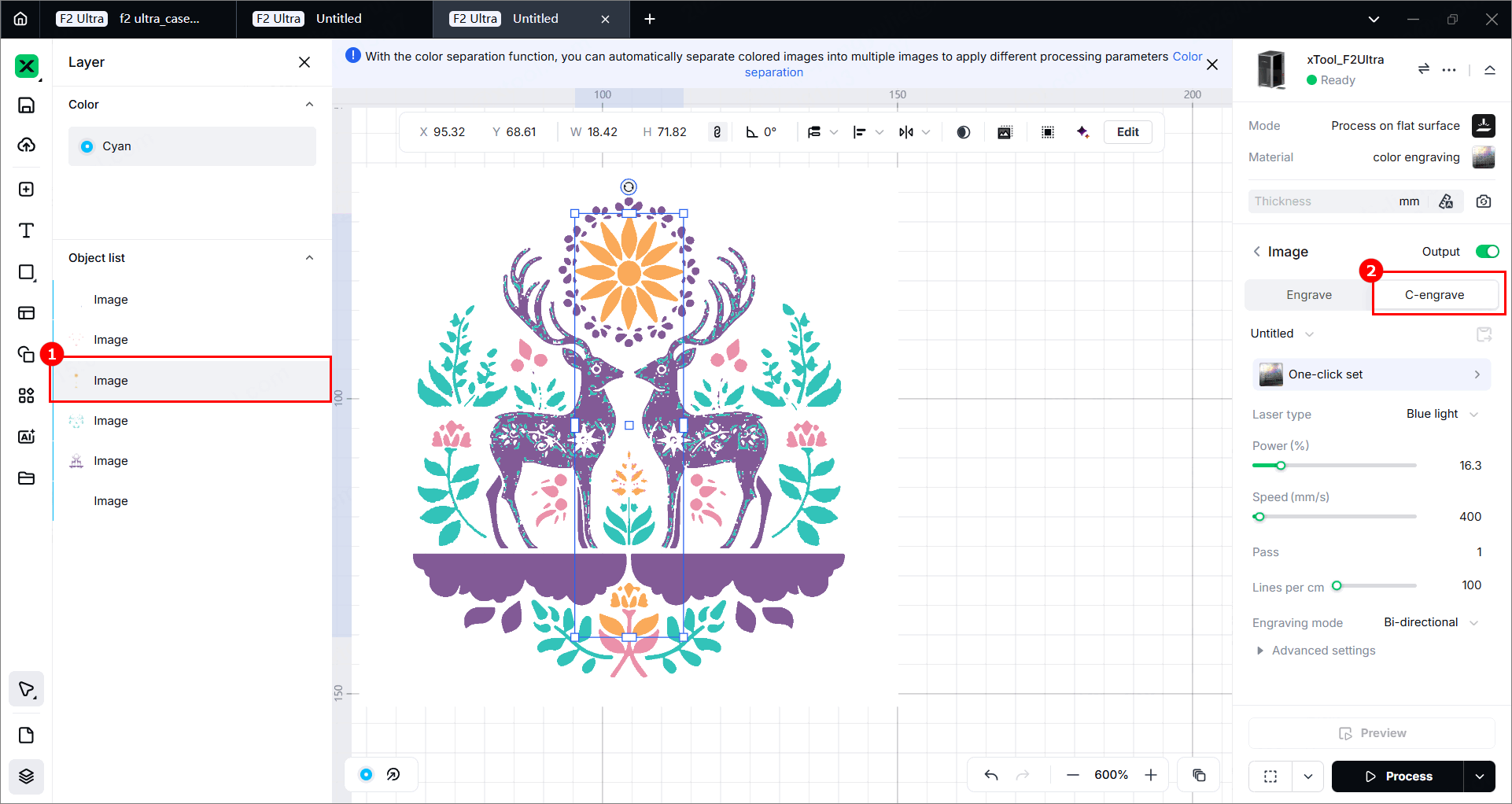
(2) Click One-click set, then choose the desired color.
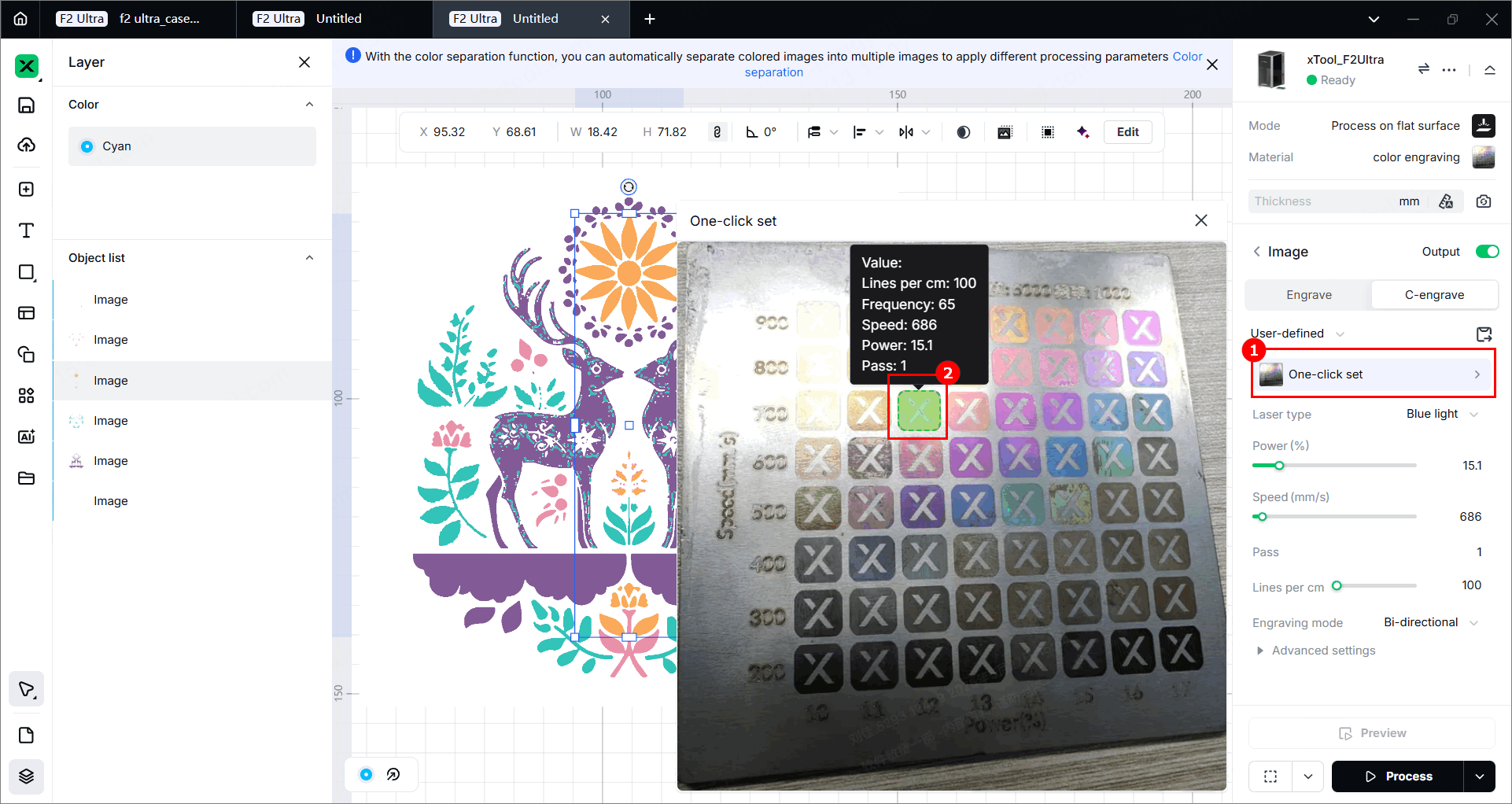
(3) Repeat the previous two steps until all parts of the object have been set properly.
4. Set the processing path
(1) Click in the bottom-right corner and set the processing path for processing.
- Auto planning: xTool Studio automatically plans the processing path based on intelligent algorithms.
- User defining: Manually set the processing paths for some objects.
(2) Turn on or off the Evade smoke mode. When this feature is enabled, the device follows a path less affected by the smoke to process the material.
Note: It is recommended to enable this feature for scoring on materials such as wood and corrugated paper that produce heavy smoke. Otherwise, the heavy smoke may block the laser beams and interfere laser processing.
5. Preview the processing area
You can preview the processing area on the material by framing. Framing refers to laser dots moving along the boundary of the processing objects on the material. Perform the following steps to start framing.
(1) Click the bottom-right corner of the software and set framing parameters.
In the Rect mode, laser dots move along the rectangle border of the processing objects.
In the Outline mode, laser dots move along the outline of the processing objects.
In the Polygon mode, laser dots move along the polygonal path defined by the object's vertices.
(2) Click Framing in the software. The laser dots will move along the boundary of the processing objects on the material, allowing you to preview the processing area.
6. Start processing
(1) In the bottom-right c e software, click Process.
(2) Click Preview Processing Path and to preview the processing path.
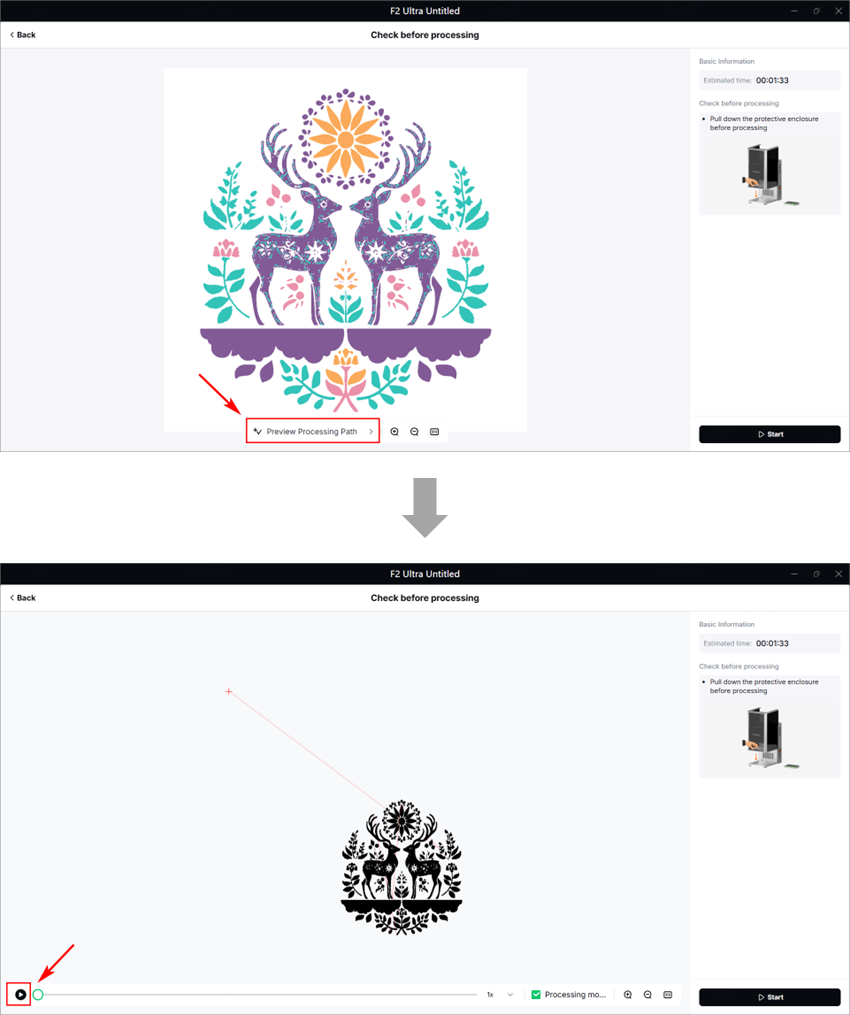
(3) Close the protective enclosure. In the bottom-right corner of the software, click Start.
(4) When the software shows Ready, press the XTOOL Start/Stop button on the touchscreen controller to start processing.
⚠️ Safety reminder: During laser processing, keep the protective enclosure closed or wear a pair of goggles that can shield laser beams of 445 ± 15 nm and 1064 ± 5 nm wavelengths.
Important notes
Processing scope
- This tutorial specifically addresses MOPA infrared laser color engraving on 304 stainless steel.
- The methodology may be adapted for exploring color marking on other metals (e.g., brass, titanium).
Critical processing factors
Color inconsistency may occur even with identical parameter settings due to material inconsistencies, ambient humidity, or temperature fluctuations, which can lead to different oxide layer composition and thickness.
Explore more colors
When it comes to color engraving on 304 stainless steel, the color consistency is sensitive to equipment performance variations, ambient temperature, humidity fluctuations, material surface conditions and consistency, and more.
To help obtain better colors on the material, this section outlines the rules of MOPA laser color engraving on 304 stainless steel, providing useful guidance for parameter adjustment when actual results deviate from target colors.
Color Spectrum Rules
As laser energy increases, colors progress through:
Light yellow → Yellow → Orange → Pink → Purple → Blue-purple → Blue → Cyan → Green → Brown → Black
Parameter Adjustment Rules
|
|
X-axis: Speed Y-axis: Frequency | X-axis: Speed Y-axis: Frequency |
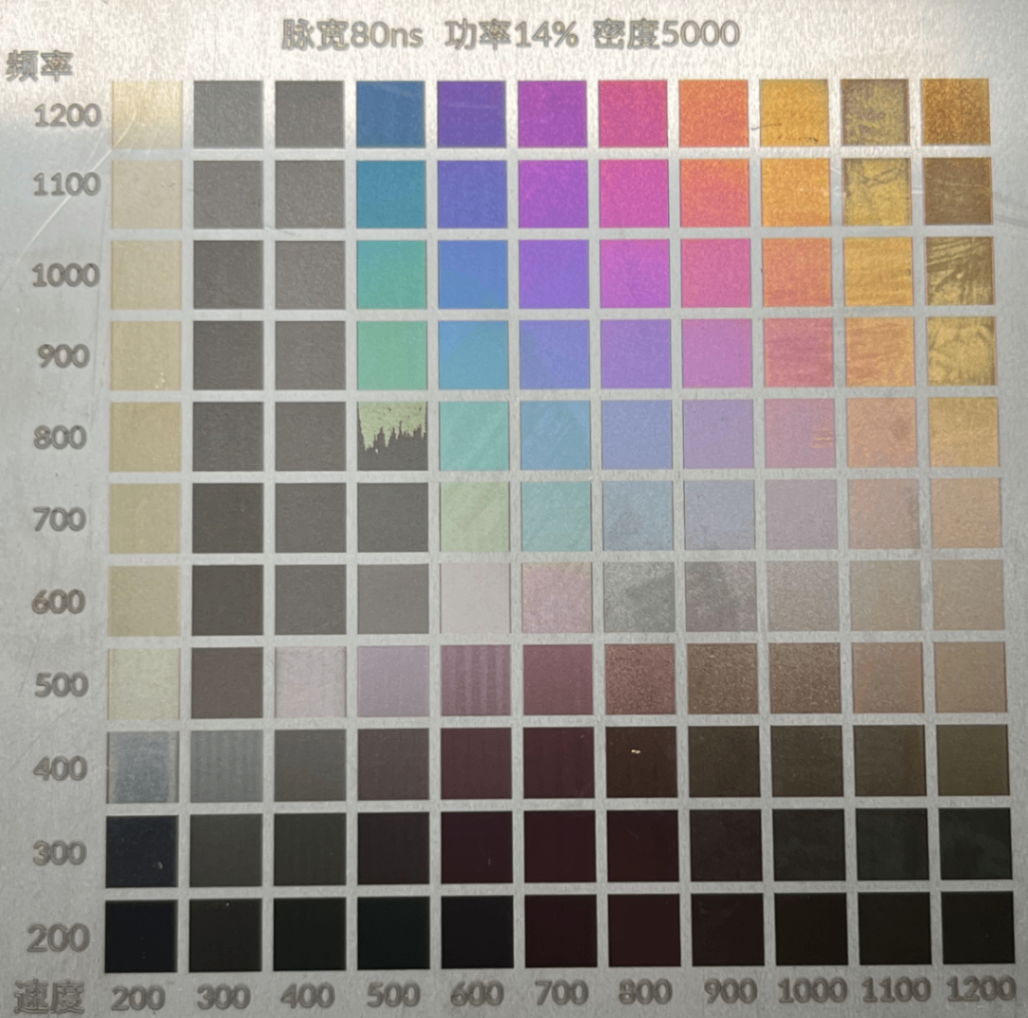
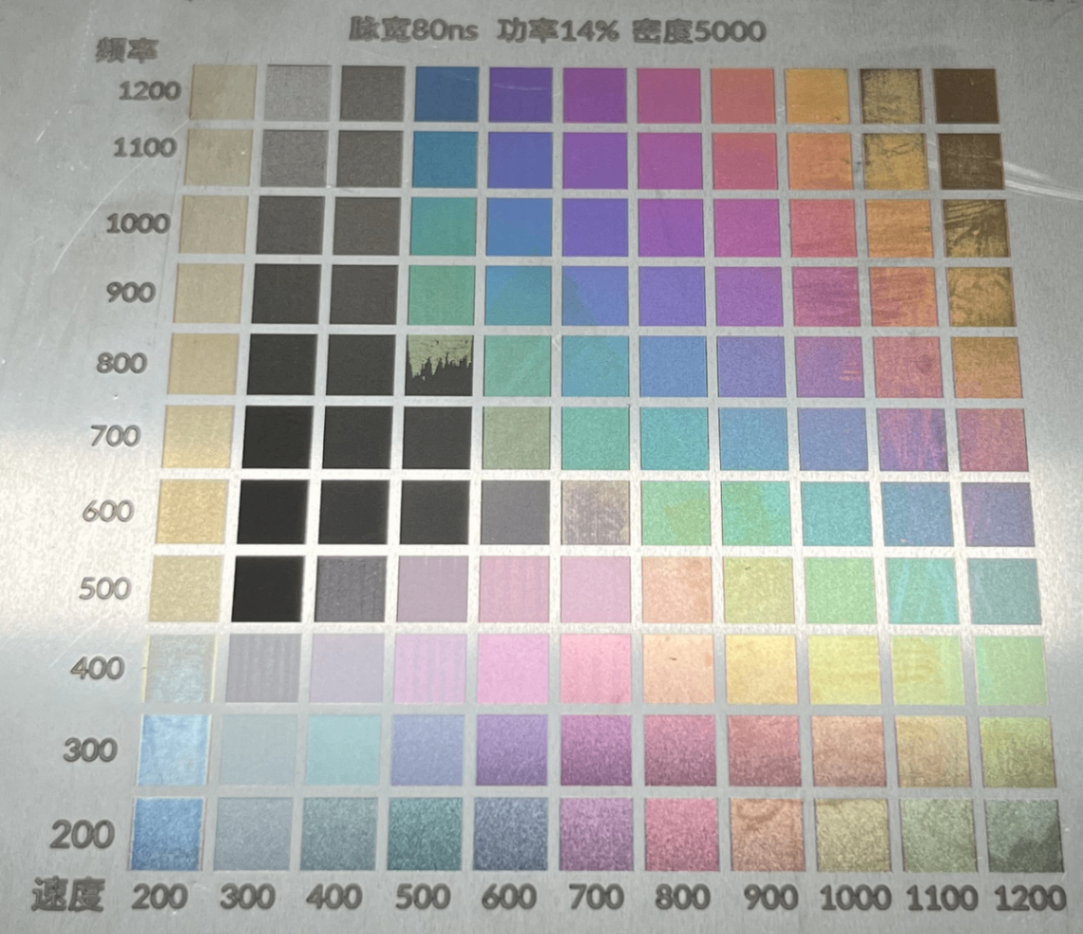
Power:
0.5% increment changes one hue (follow the Spectrum Principle)
Speed:
100mm/s increment changes one hue
Frequency:
- Above 500KHz: 100-200KHz changes one hue
- Below 500KHz: Produces special dark colors (black in shadow, colored in light)
Pulse Width:
Recommended >20 ns for visible colors
<20 ns has minimal color effect
Adjustment Strategy:
4+ hue difference: Adjust power/speed
<4 hue difference: Adjust frequency/pulse width
Finish Effect Rules
Different surface finishes affect light reflection on stainless steel, leading to variations in color engraving results even with identical parameters.
304 stainless steel finish types
Mill finish | Brushed finish | Polished finish | Mirror finish |
Color engraving results on different 304 stainless steel finishes
On mill finish | On brushed finish (horizontal) | On brushed finish (vertical) | On polished finish | On mirror finish |
The specific rules are as follows:
- Mill &. Brushed finishes: Minimal difference in color engraving effects.
- Polished & Mirror finishes: Colors on the left side of the test array are produced as those on mill finish under the same parameters.
On mill finish | On polished/mirror finish |
- Energy Compensation Required:
- Polished finish: Increase power by ~1% or decrease speed by 100 mm/s to match colors on the mill finish.
- Mirror finish: Increase power by ~2% or decrease speed by 200 mm/s to match colors on the mill finish.
Note:
- Mirror finishes can be achieved via mechanical or chemical polishing. The mirror finish shown above employs the former technology.
- If your stainless steel is polished via chemical methods, the metal composition may alter, affecting color engraving outcomes.
More information
xTool F2 Ultra Example Project
(xTool Studio) Process on Flat Surface with xTool F2 Ultra
(xTool Studio) Process a Curved Material with xTool F2 Ultra
(xTool Studio) Start Laser Embossing with xTool F2 Ultra
(xTool Studio)Start Offline Processing with the Touchscreen Controller
(xTool Studio) Use the Conveyor to Process a Large Material with xTool F2 Ultra
(xTool Studio) Use the Conveyor for Same Design Batch Processing with xTool F2 Ultra
(xTool Studio) Use the Conveyor for Different Design Batch Processing with xTool F2 Ultra
(xTool Studio) Use Rotary Attachment 3 (RA3) with xTool F2 Ultra
Use xTool F1 Ultra / F2 Ultra Series to Engrave a Screen in xTool Studio

