
Issue description
A camera disconnection will not interrupt the device's process. Unless there are other special circumstances, you can continue to complete the task as usual.
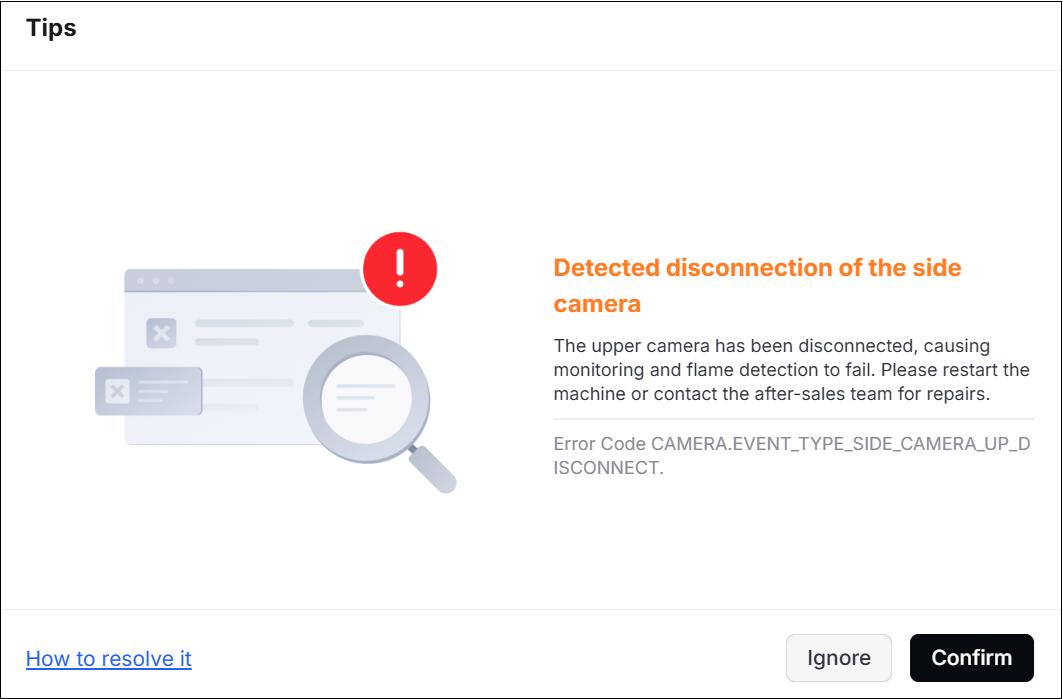
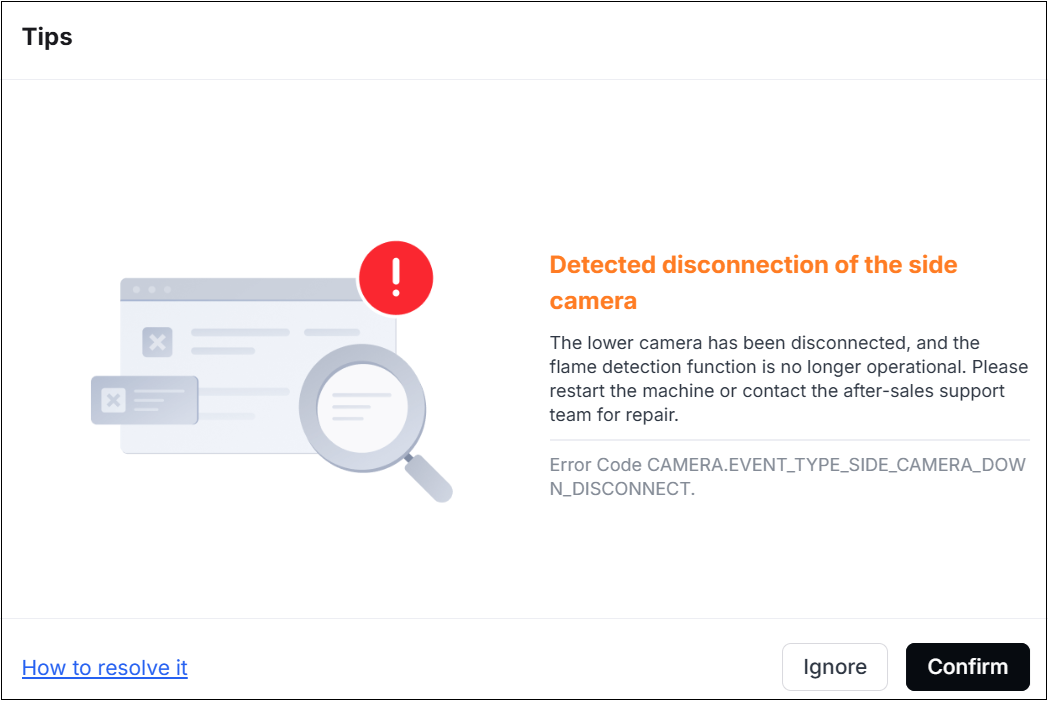
When the device connects to the software, the software displays an error message "Detected disconnection of the side camera". The error message corresponds to two different side cameras. Their error codes and troubleshooting steps differ. Please select the appropriate troubleshooting steps based on the actual situation.
- Upper side camera disconnection: Error Code CAMERA.EVENT_TYPE_SIDE_CAMERA_UP_DISCONNECT
- Lower side camera disconnection: Error Code CAMERA.EVENT_TYPE_SIDE_CAMERA_DOWN_DISCONNECT
Possible causes
- An issue occurs in the connection cable of the camera.
- The camera is faulty.
- Software issue
Troubleshooting procedures for the upper side camera disconnection
1. Check the camera function
Start processing, and select Side view in monitoring to check whether the camera image is stable.
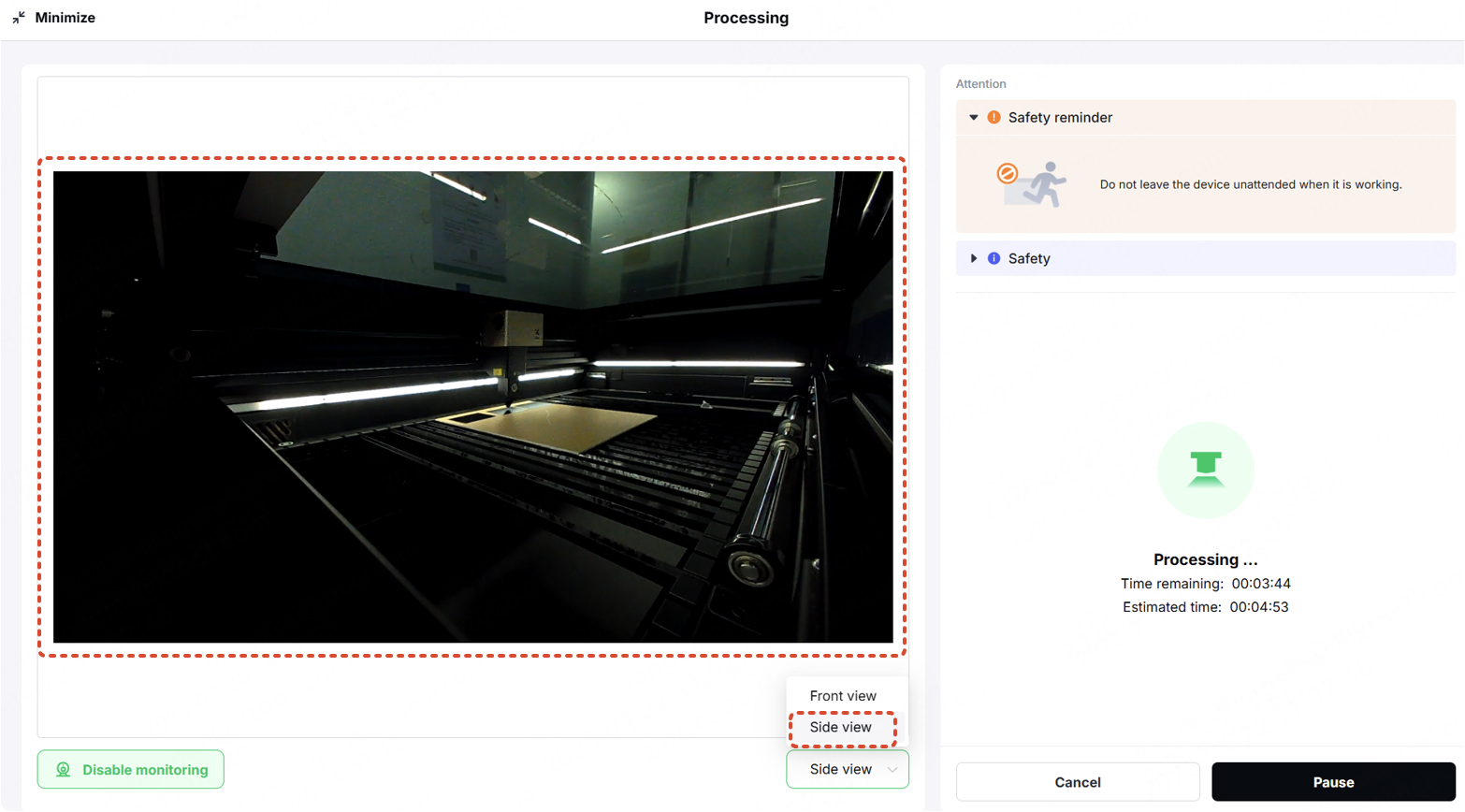
- If the image is clear and stable, this may be a false positive caused by the software. Click the Ignore in the lower-left corner of the error pop-up to dismiss this notification.
- If the image does not appear, follow the steps below to troubleshoot the issue.
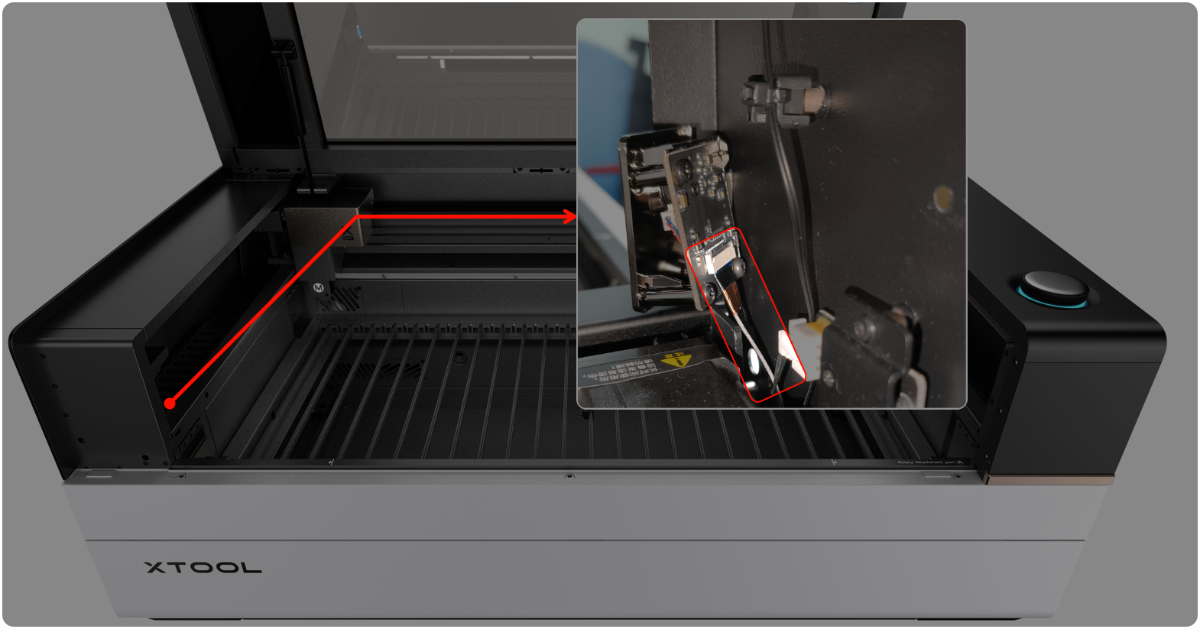
2. Check the connector of the camera
Check whether the connector of the connection cable on the upper side camera is loose.
- If it is loose, secure it.
- If it is not loose, check for other issues.
3. Check the connection cable of the camera
(1) Power off the device and disconnect it from a power supply.
(2) Follow the video tutorial Assemble & Disassemble the Casing of xTool P3 to remove the left plate.
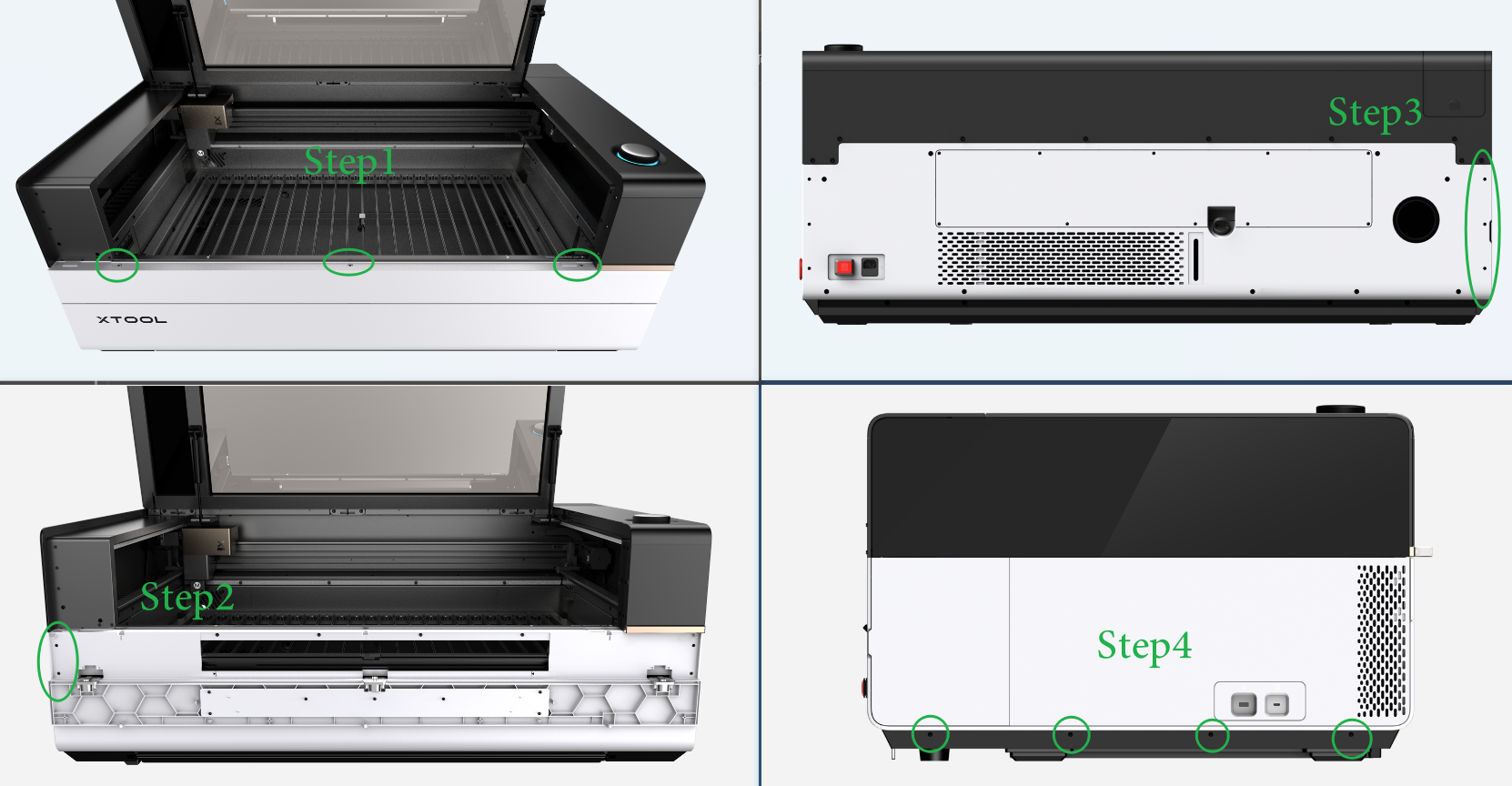
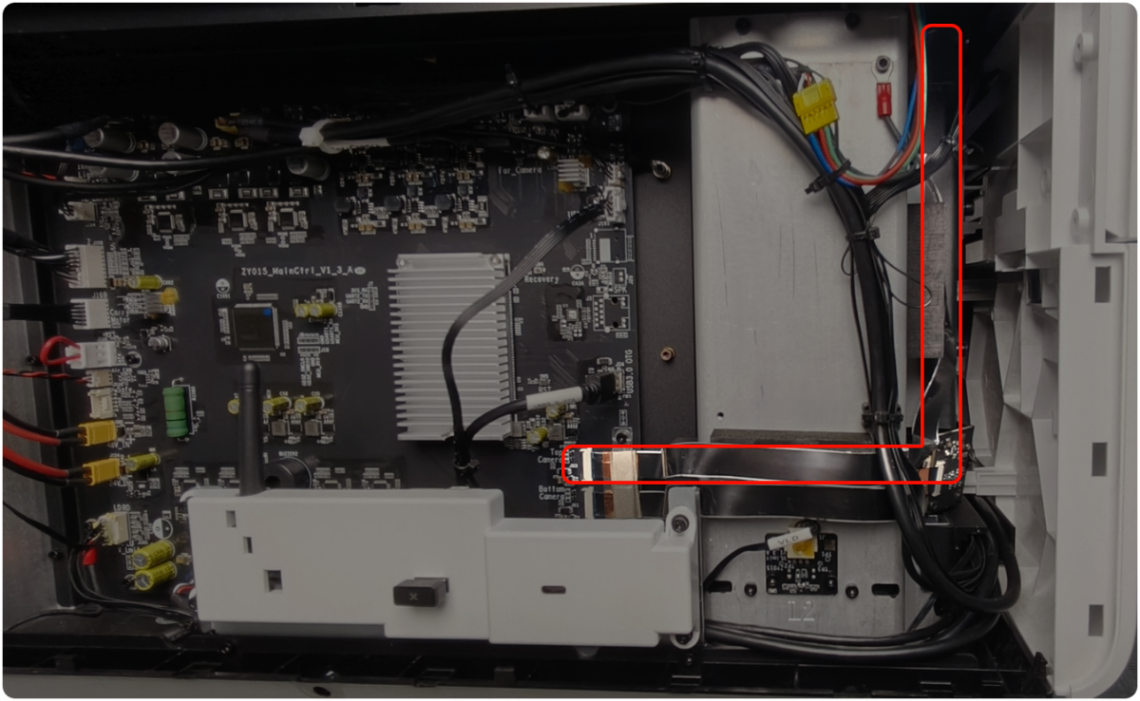
(3) Check the connection cable for any visible damage.
- If the connection cable is damaged, replace it.
- If the connection cable is not damaged, check for other issues.
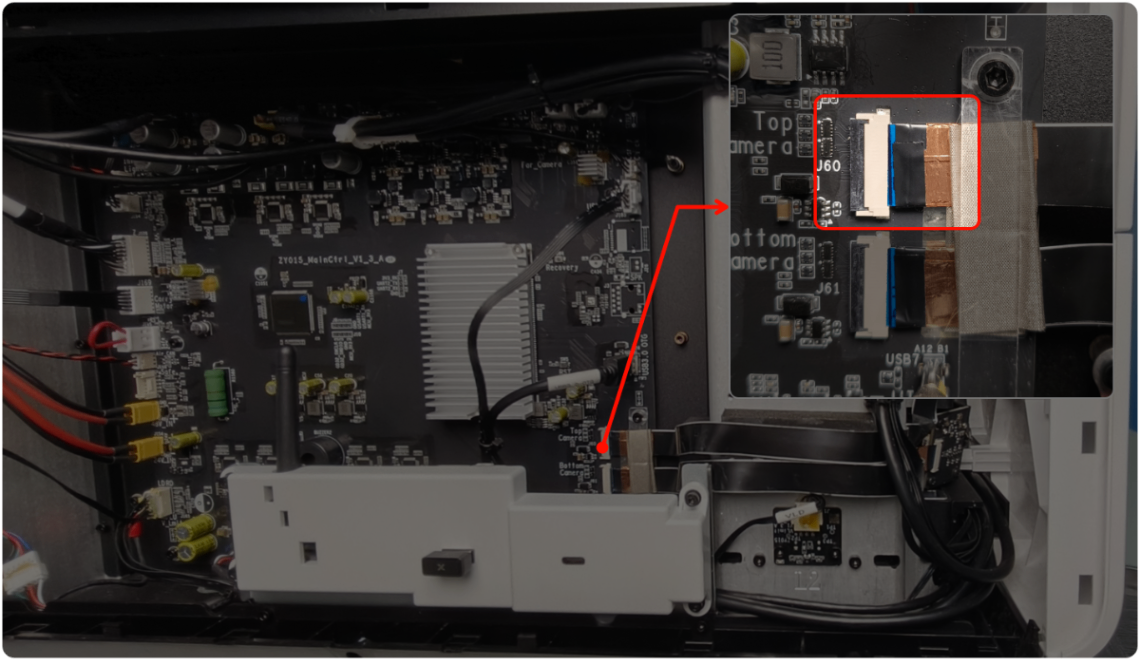
4. Check the connector of the main control board
Check whether the connector of the main control board on the upper side camera.
- If it is loose, secure it.
- If it is not loose, check for other issues.
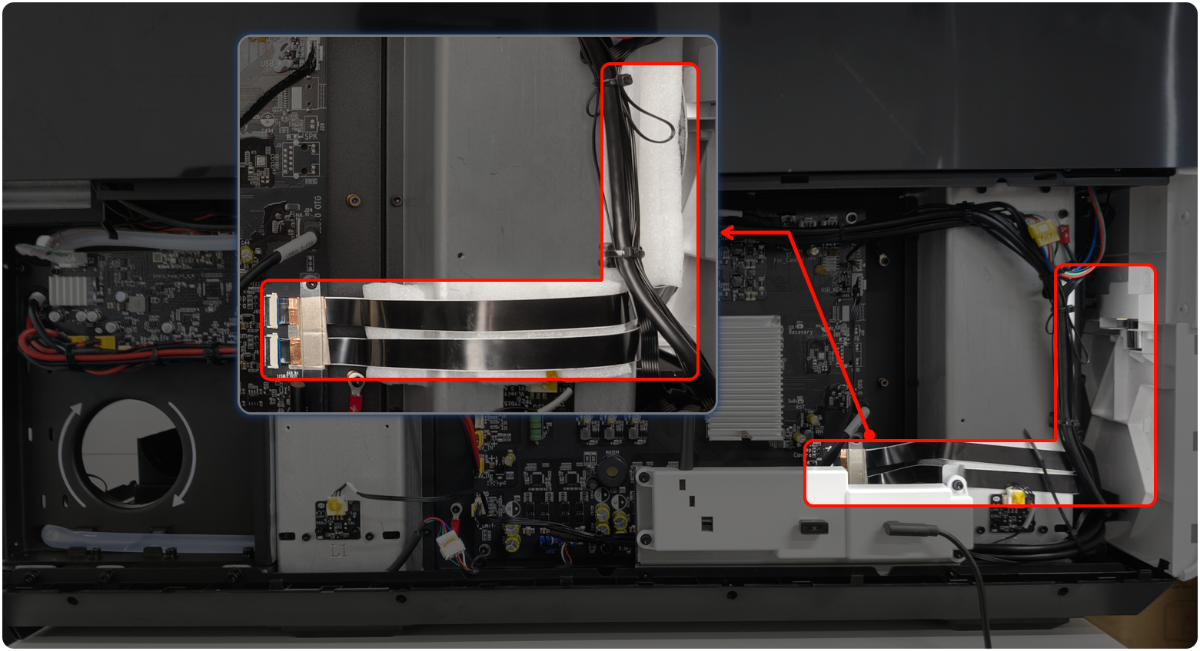
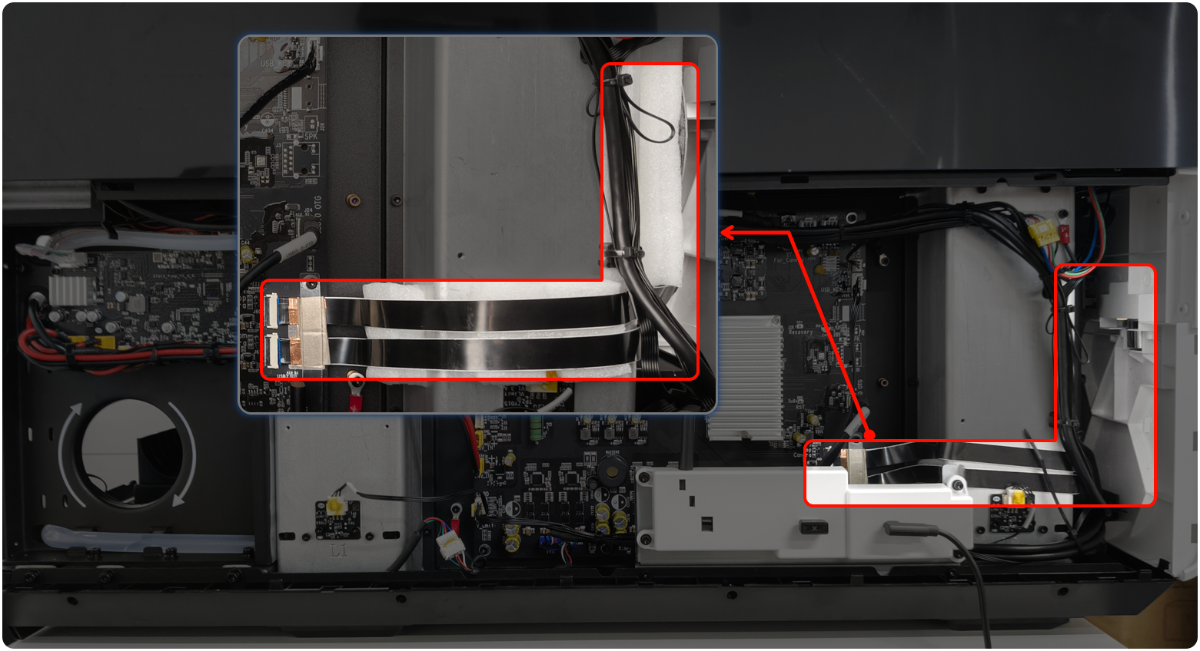
5. Adjust the flex cables of the camera
Follow the video tutorial to lift the flex cables.
Troubleshooting procedures for the lower side camera disconnection
1. Check the connector of the camera
(1) Power off the device and disconnect it from a power supply.
(2) Follow the video tutorial Assemble & Disassemble the Casing of xTool P3 to remove the left plate.
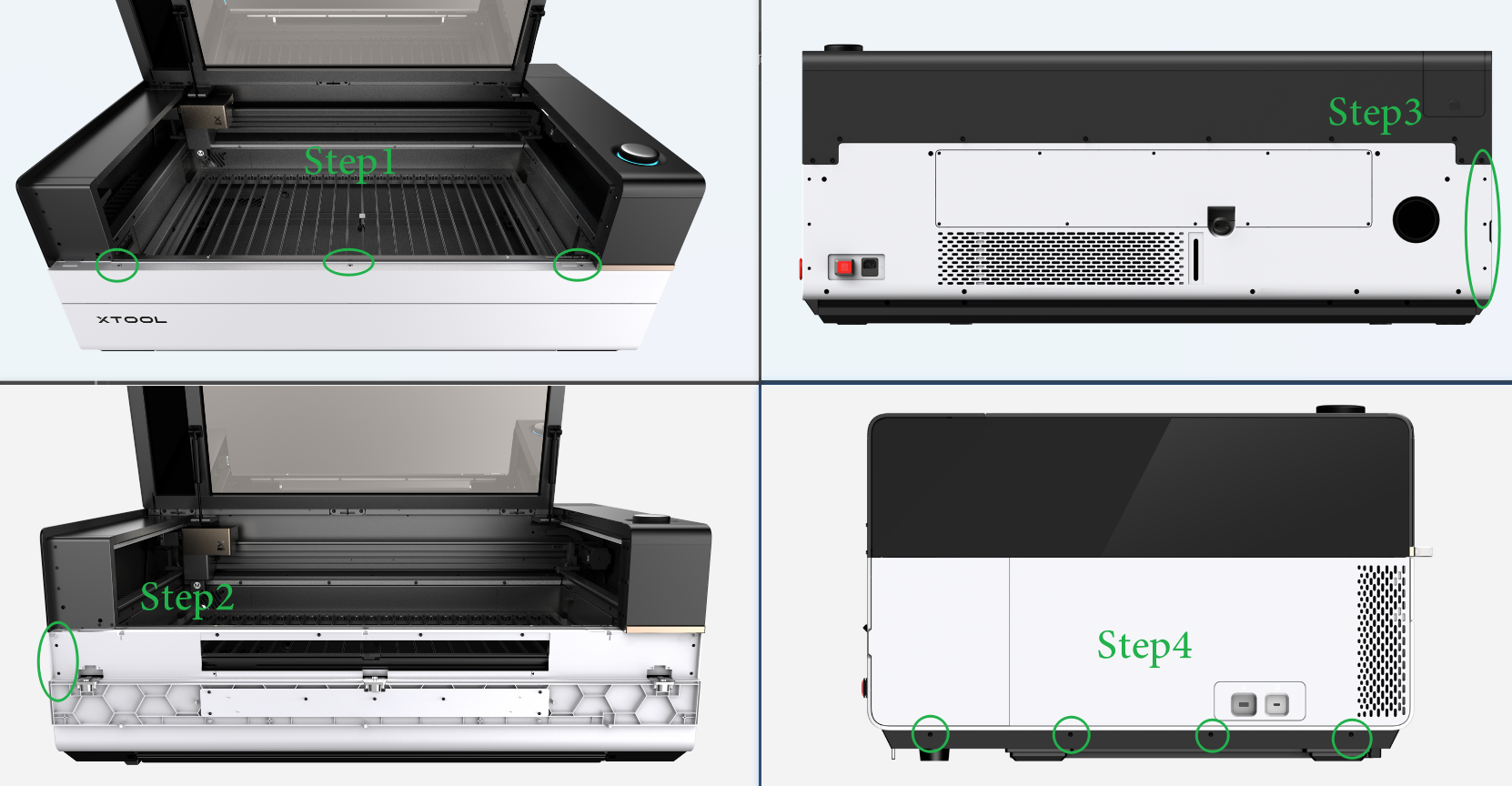
(3) Check whether the connector of the connection cable on the lower side camera is loose.
- If it is loose, secure it.
- If it is not loose, check for other issues.
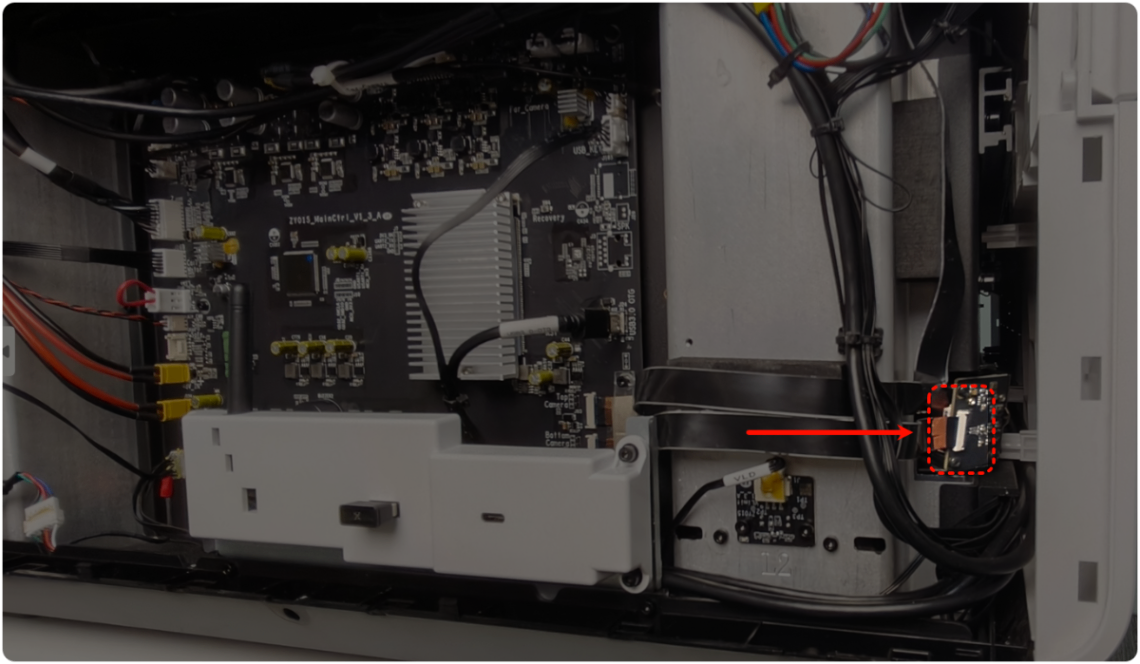
2. Check the connection cable of the camera
Based on the previous steps, check the connection cable for any visible damage.
- If the connection cable is damaged, replace it.
- If the connection cable is not damaged, check for other issues.
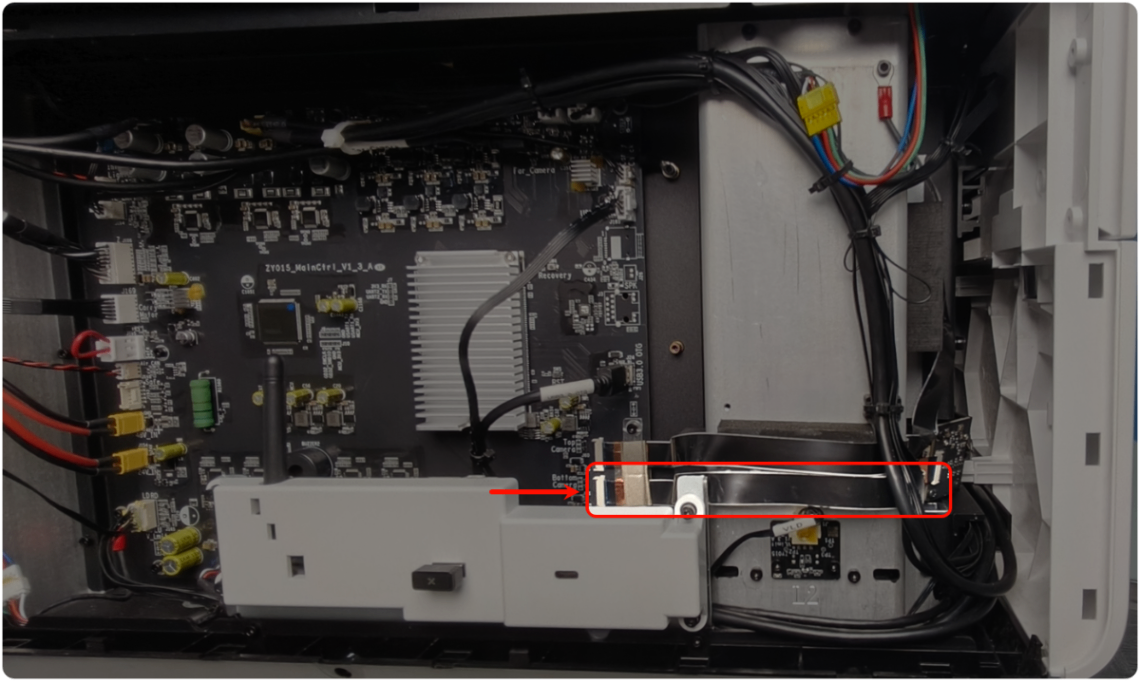
3. Check the connector of the main control board
Check whether the connector of the main control board on the lower side camera.
- If it is loose, secure it.
- If it is not loose, check for other issues.
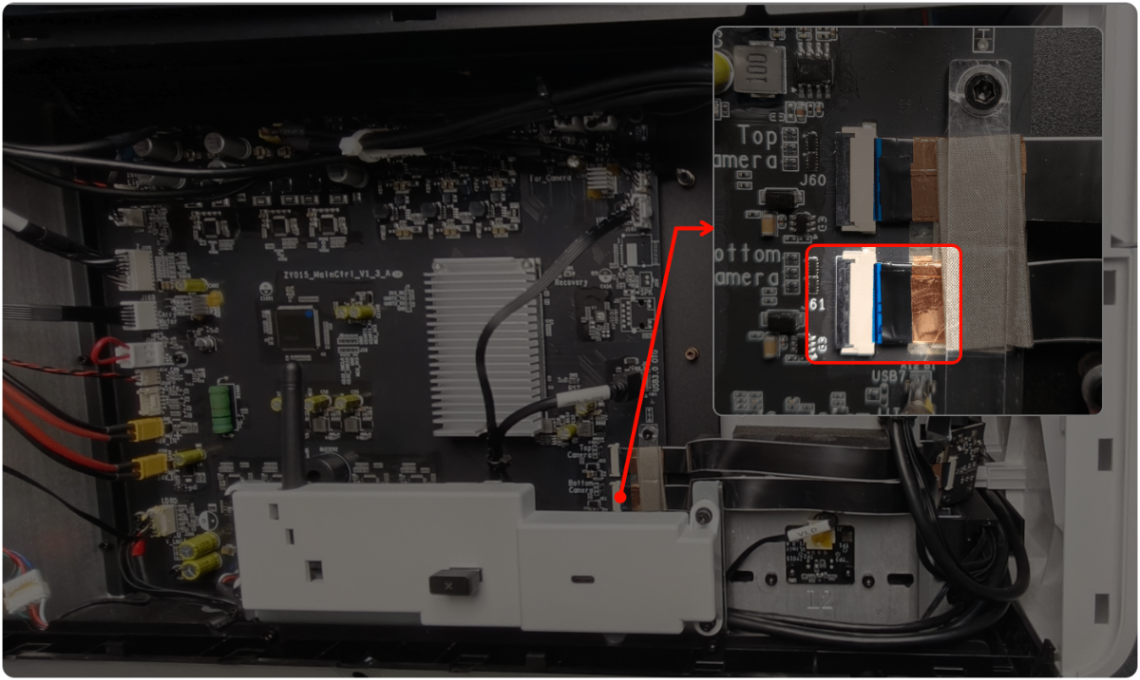
4. Adjust the flex cables of the camera
Follow the video tutorial to lift the flex cables.
Still experiencing issues?
Should the issue persist after completing the preceding steps, submit a ticket via the "Submit a Ticket" button in the "Help Ticket" section below. The standard response time for xTool Customer Service is one business day.
For a prompt resolution, please include the following details:
- Issue description: A detailed explanation of the observed problem.
- Video evidence: Attach a video demonstrating the issue, where applicable.
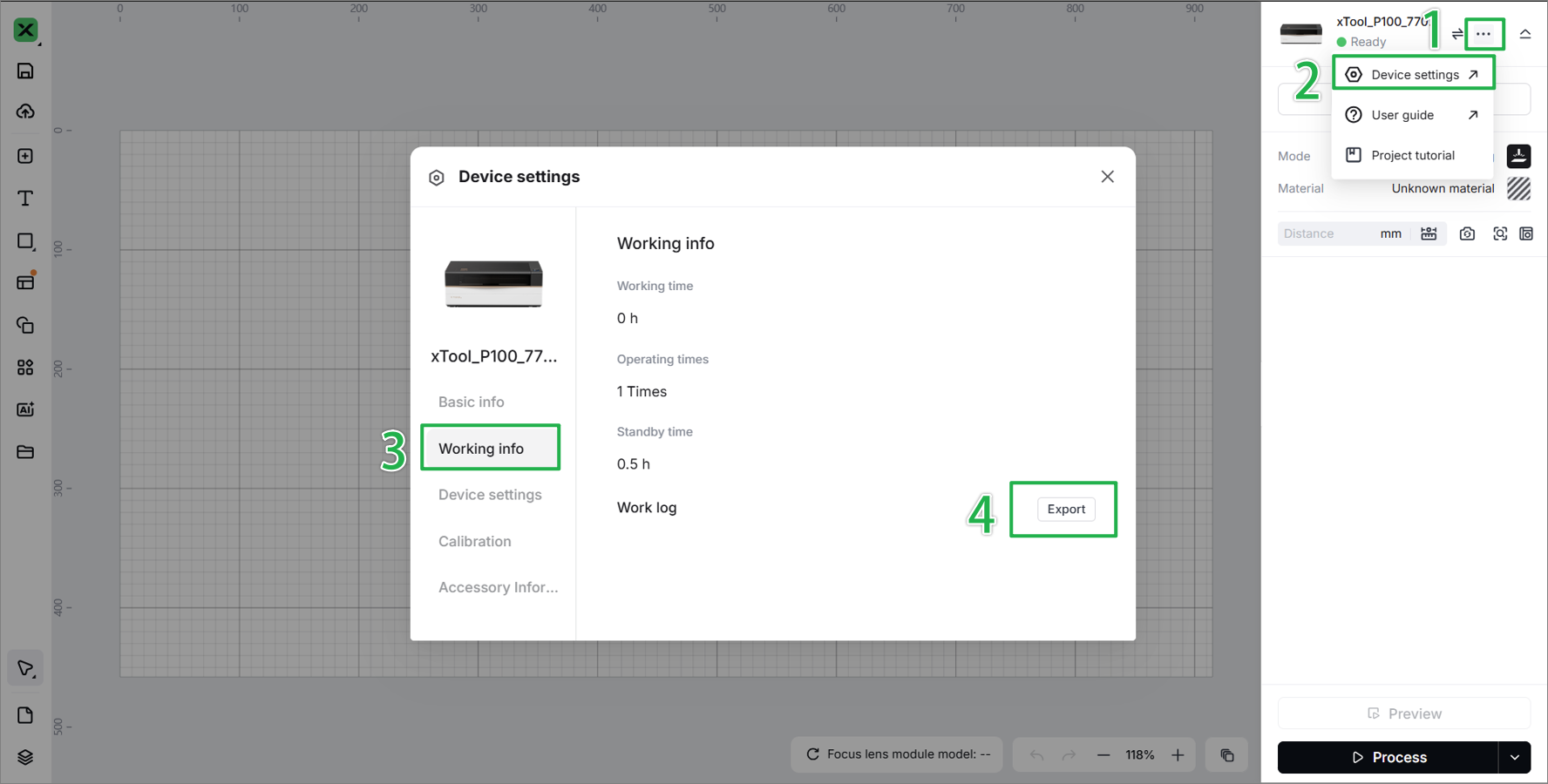
- Device information: Follow the steps to find the SN and export the work log.
- Troubleshooting performed: Any troubleshooting steps you have already attempted, along with their results.
This information is crucial for xTool technical support engineers to provide timely assistance.
Documentation feedback
Help improve this content by providing feedback. If this content did not meet your requirements, select "No" in the "Was this page helpful?" section below. Include specific details about what was unclear or missing in the pop-up suggestion box. Feedback submissions are reviewed by xTool technical writers to enhance future documentation.

