
xTool Store
Upgrade Firmware for xTool P2/P2S in xTool Studio
Updated Feb 11,2026
Updated Feb 11,2026
How to upgrade firmware for P2/P2S in xTool Studio
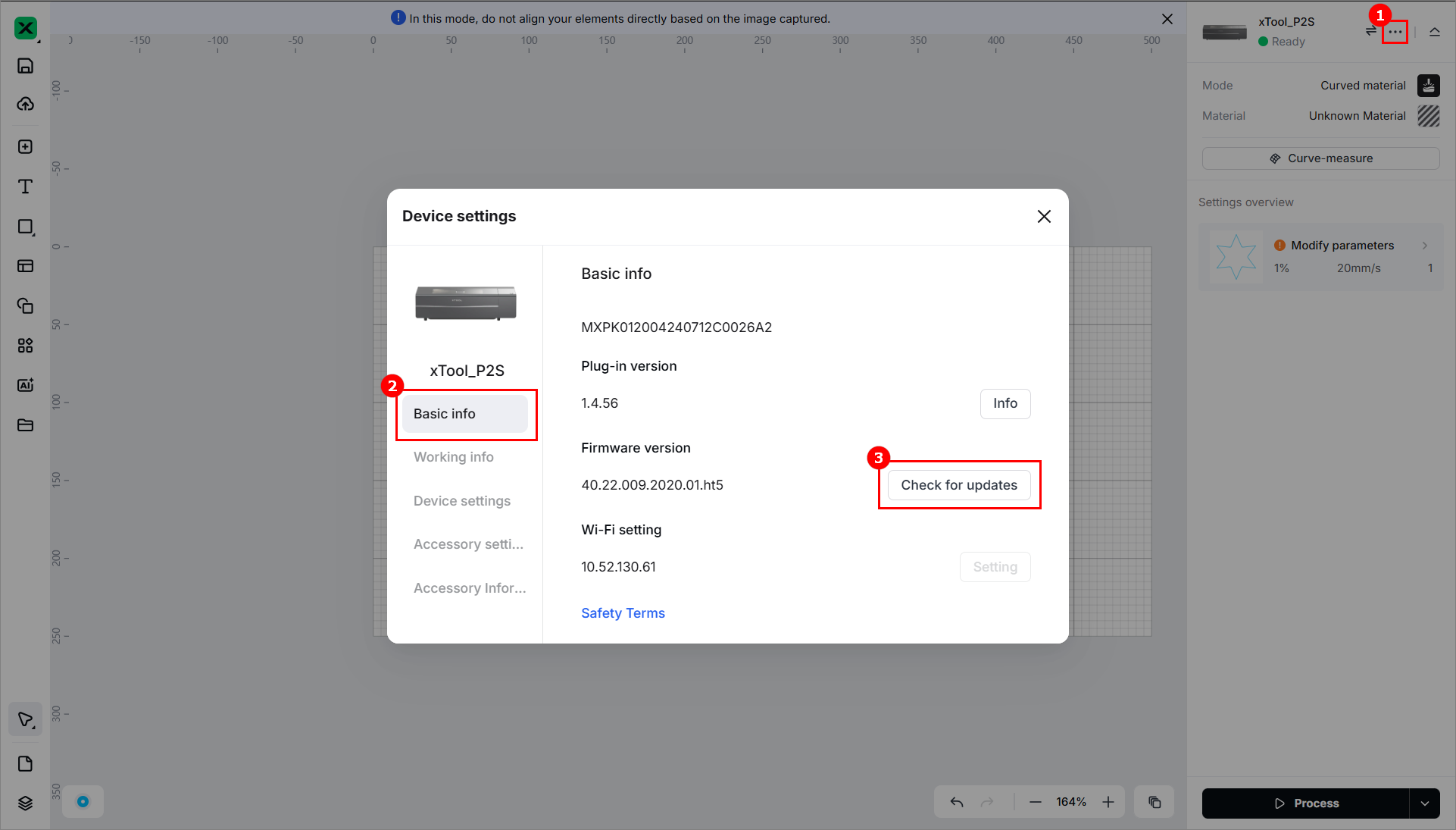
Click the  icon > Device settings in the upper right corner. In the dialog box that is displayed, click Check for updates for Firmware version.
Firmware upgrade notes for P2/P2S
- Please keep the network smooth.
- Please keep the P2/P2S connection stable, and do not let the computer go into an abnormal state such as hibernation or shutdown.
- During the firmware upgrade process, please do not turn off the P2/P2S.
- After the firmware installation package is downloaded, it will automatically enter the installation program. During the installation process, the P2/P2S will be disconnected for a short time, which is normal. After the firmware is installed, the P2/P2S can be reconnected.
How to deal with firmware upgrade failure
- Check whether the network connection is abnormal. If the network is abnormal, you can wait for the network to recover before upgrading the firmware.
- Check whether the device connection is normal, it is recommended to use the USB cable to connect and then re-upgrade the firmware.
- If the firmware is updated but the error on the xTool Studio shows that the update failed, restart the software, enter the firmware settings, and check whether the version is updated. If update is shown, the firmware update is successful.
- The firmware upgrade fails due to abnormal conditions such as computer hibernation or shutdown, sudden power failure of P2/P2S, etc. Restart P2/P2S and the computer, then perform the firmware upgrade again.
Contact Us
If the above information does not help, please contact the xTool after-sales team: support@info.xtool.com.
Preview
Was this page helpful?
1 out of 1 found this helpful
Help Ticket
Use this help ticket to submit your issue. We will respond within 1 business day
Submit a Ticket Tags
Help Ticket
Use this help ticket to submit your issue. We will respond within 1 business day
Submit a Ticket 
Services & Help
Learn & Education

Copyright © 2025 xTool All Rights Reserved.