
Minimum and recommended PC requirements
Item | Minimum configuration | Recommended configuration |
|---|---|---|
Processor | Intel Core i5-6200U | Intel Core i5-11600 |
Operating system | Win 10 (64-bit) macOS 10.14 or later | |
RAM | 8 GB | 16 GB |
Display resolution | 1280 × 720 (pixels) | 1920 × 1080 (pixels) or higher |
Hard drive | 8 GB | 12 GB |
- With the minimum configurations, all the functions of xTool Studio can be used properly. When you import a complex image, such as an image larger than 50,000,000 pixels or an SVG image larger than 1 MB, xTool Studio may fail to run smoothly.
- With the recommended configurations, xTool Studio can run more smoothly when you import and edit a complex image, the software delay may be shorter, and the performance is better.
Download and install xTool Studio
(1) Download xTool Studio from xtool.com/pages/software.
(2) Double-click the software you've downloaded to install it.
(3) Open xTool Studio. In the top-right corner, click the icon > Settings, and set the language on the General tab page.
Connect xTool P2/P2S to xTool Studio
USB connection
(1) Use the USB cable to connect xTool P2/P2S to your computer.
(2) Open xTool Studio on your computer. In the upper-right corner, click + New project.
(3) On the right side of the page, click + Select device.
Note: If you have connected an xTool device before, click the icon next to the device.

(4) On the pop-up window, click Connect Device. Then, click the name of your device.
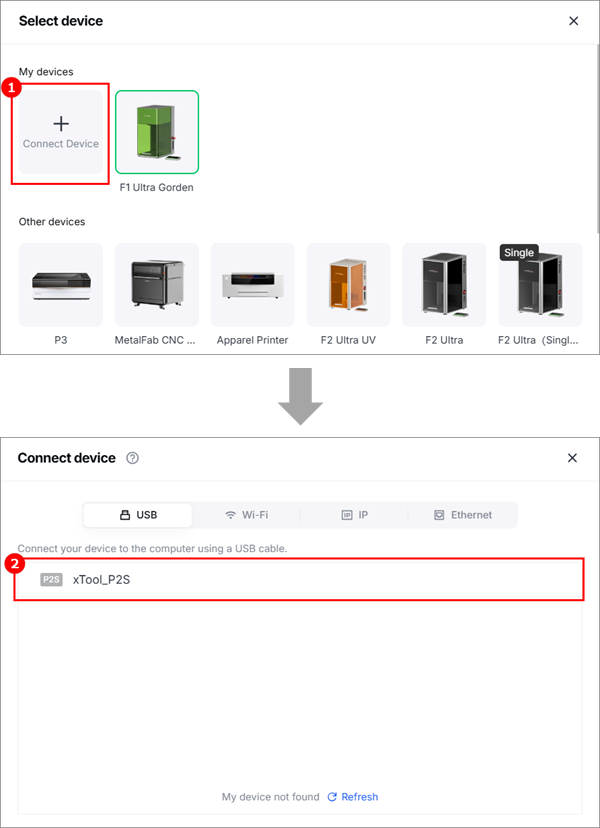
Note: After the device is connected, you can configure Wi-Fi for it so that you can connect it to xTool Studio through Wi-Fi next time.
Wi-Fi connection
(1) In the top-right corner of the software, click > Device settings to enter the device settings page.
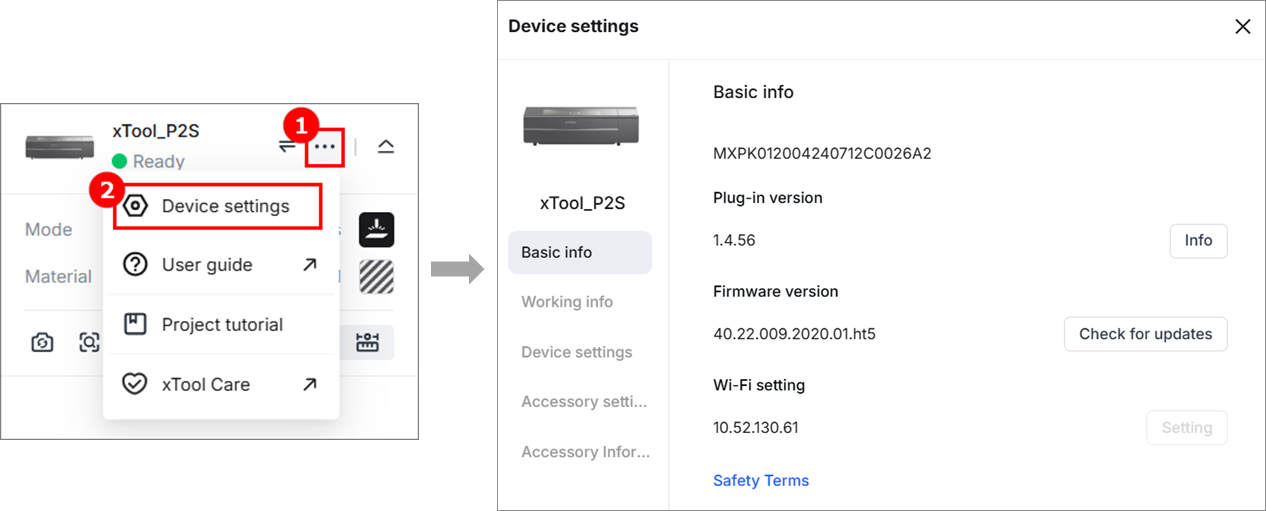
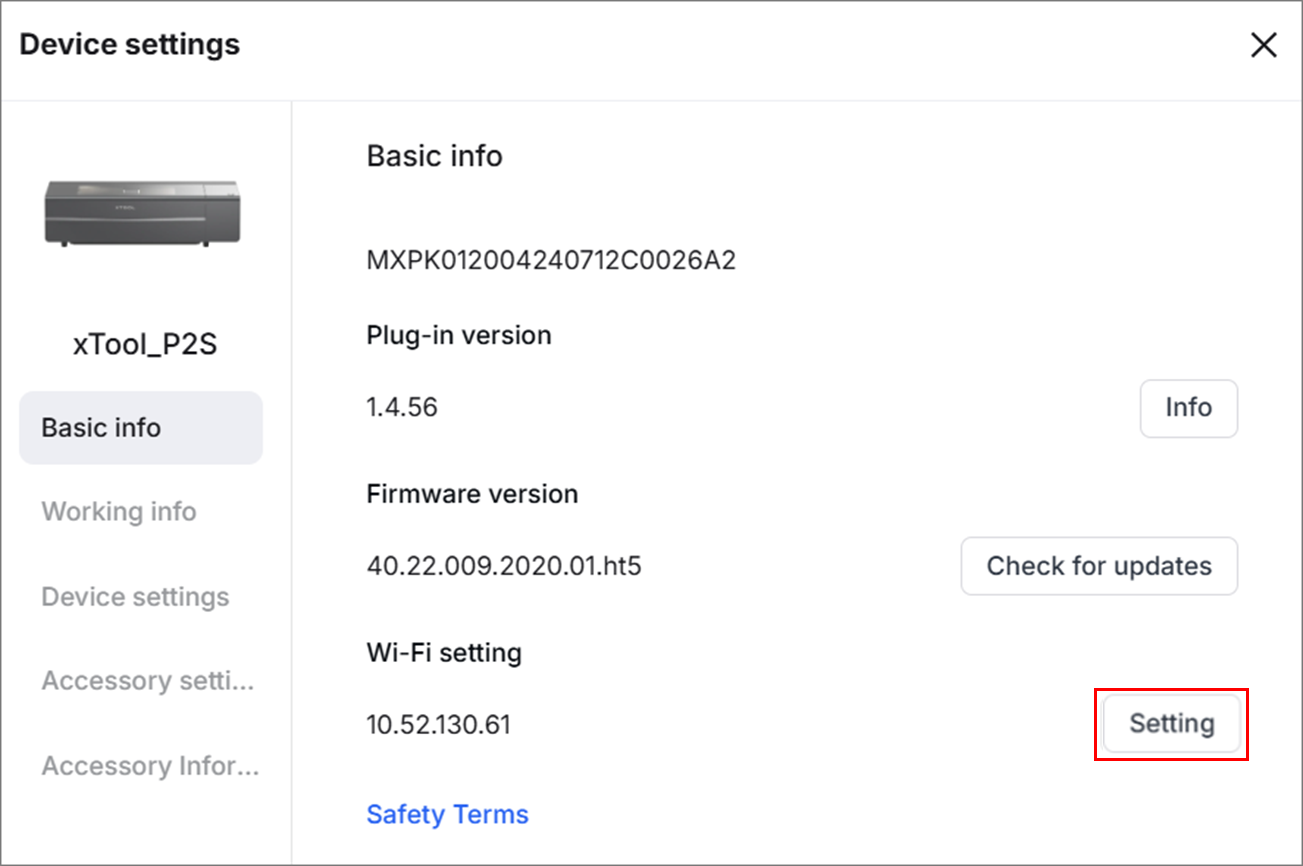
(2) On the Basic info tab page, click Setting for Wi-Fi setting.
(3) In the Wi-Fi setting dialog box, select a Wi-Fi, enter the password, and click Next.
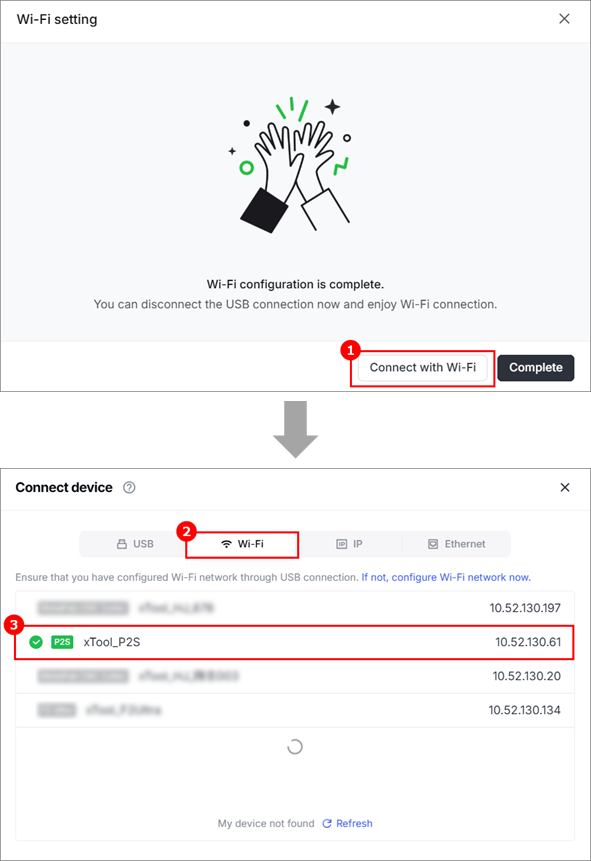
(4) Click Connect with Wi-Fi. In the Connect device dialog box, click Wi-Fi and select the device name to connect it. If you do not want to connect through Wi-Fi now, click Complete to close the dialog box.
Note: Ensure that your computer and xTool P2/P2S are connected to the same network.
IP address connection
After completing the Wi-Fi settings for xTool P2/P2S, an IP address is displayed under Wi-Fi setting on the device settings page. You can use the IP address to connect xTool P2/P2S to the computer.
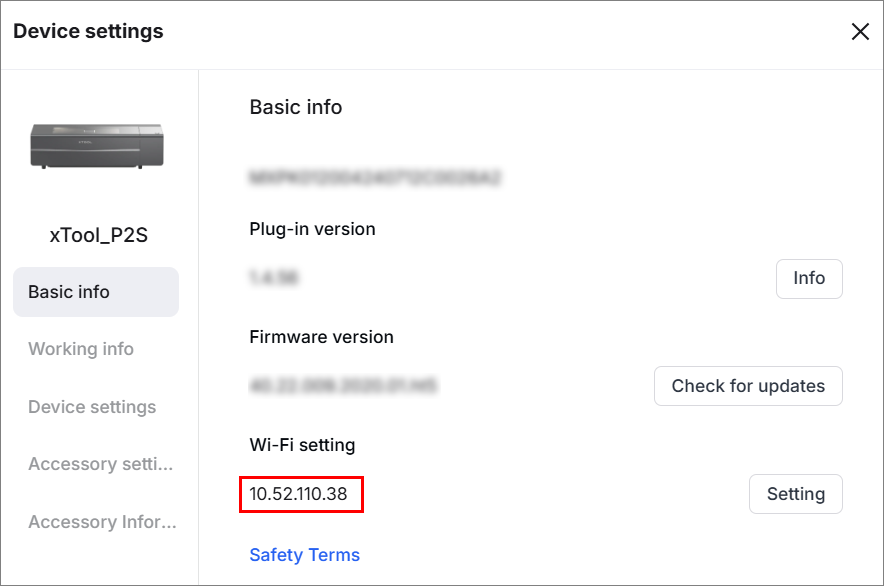
(1) In the top-right corner of the software, click > Device settings to enter the device settings page.
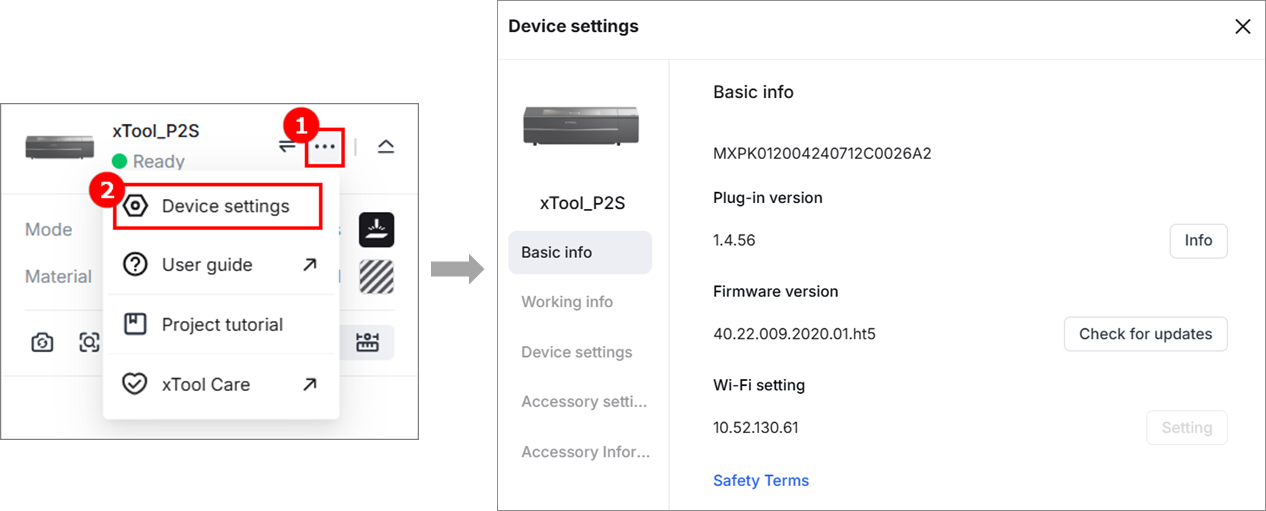
(2) Note down the IP address and return to the canvas page.
(3) On the canvas page, click > Connect Device.
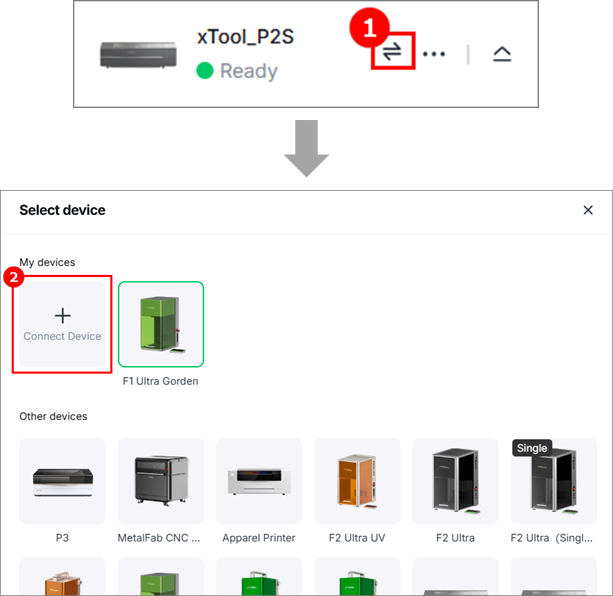
(4) In the Connect device dialog box, click IP, enter the IP address noted down in step (2), and click Connect.
Set up xTool P2/P2S in xTool Studio
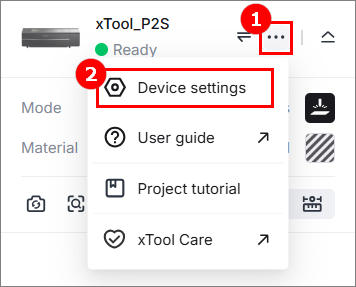
(1) In the top-right corner of the software, click the  icon > Device settings to enter the device settings page.
(2) On the Basic info tab page, you can view the basic information of xTool P2/P2S and modify some information.
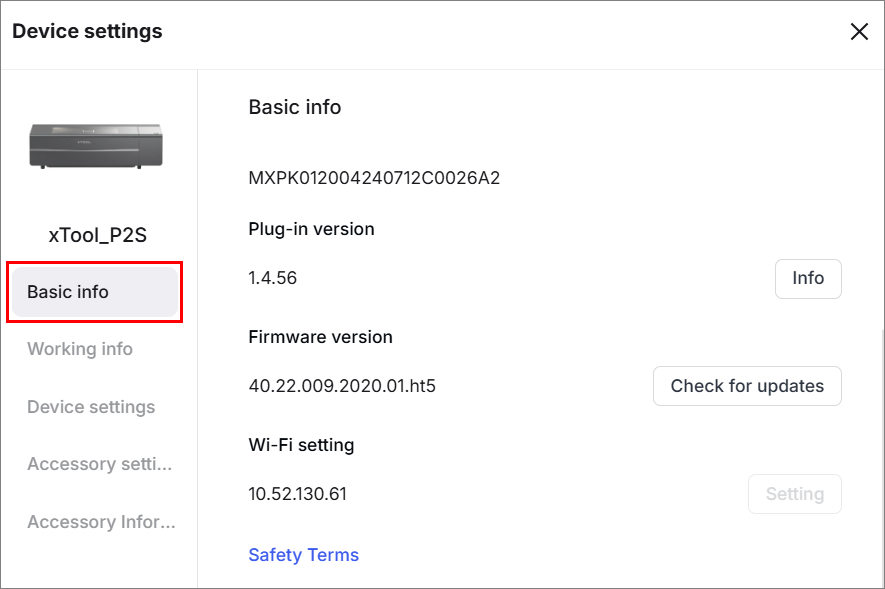
- Device name: Set the name of your device.
- Serial number: Displays the serial number of your device.
- Plug-in version: Displays the plug-in version of your device. You can click Info to view details about it.
- Firmware version: Displays the firmware version of the device. You can click Check for updates to check for later versions and update the firmware.
- Wi-Fi setting: Displays the IP address of your device. You can click Setting to enter the Wi-Fi name and password to set a Wi-Fi connection.
- Safety Terms: Click to view the safety terms.
(3) On the Working info tab page, you can set up the device and export files as needed.
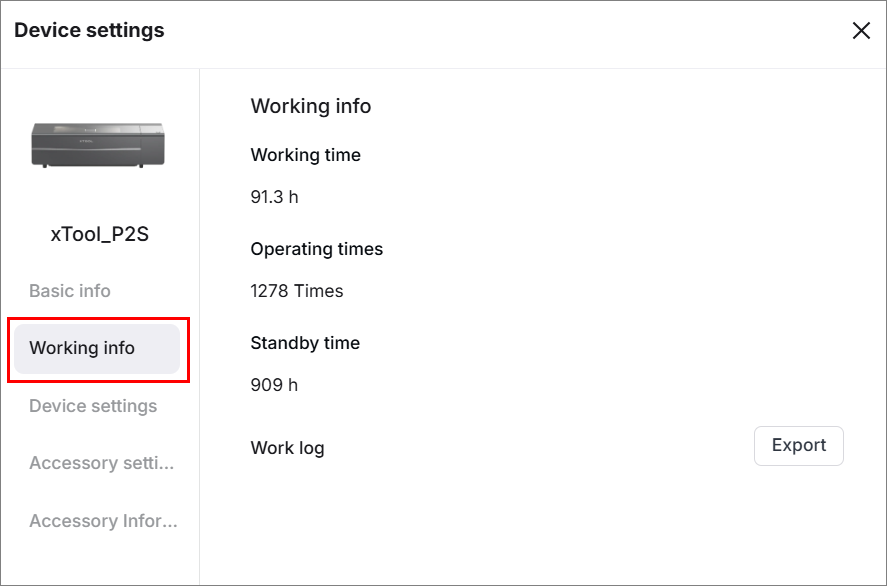
- Working time: Displays the total working time of the device.
- Operating times: Displays the total operating times of the device.
- Standby time: Displays the total standby time of the device.
- Work log: You can click Export to export the work log of the device.
(4) On the Device Settings tab page, you can set the information of the device.
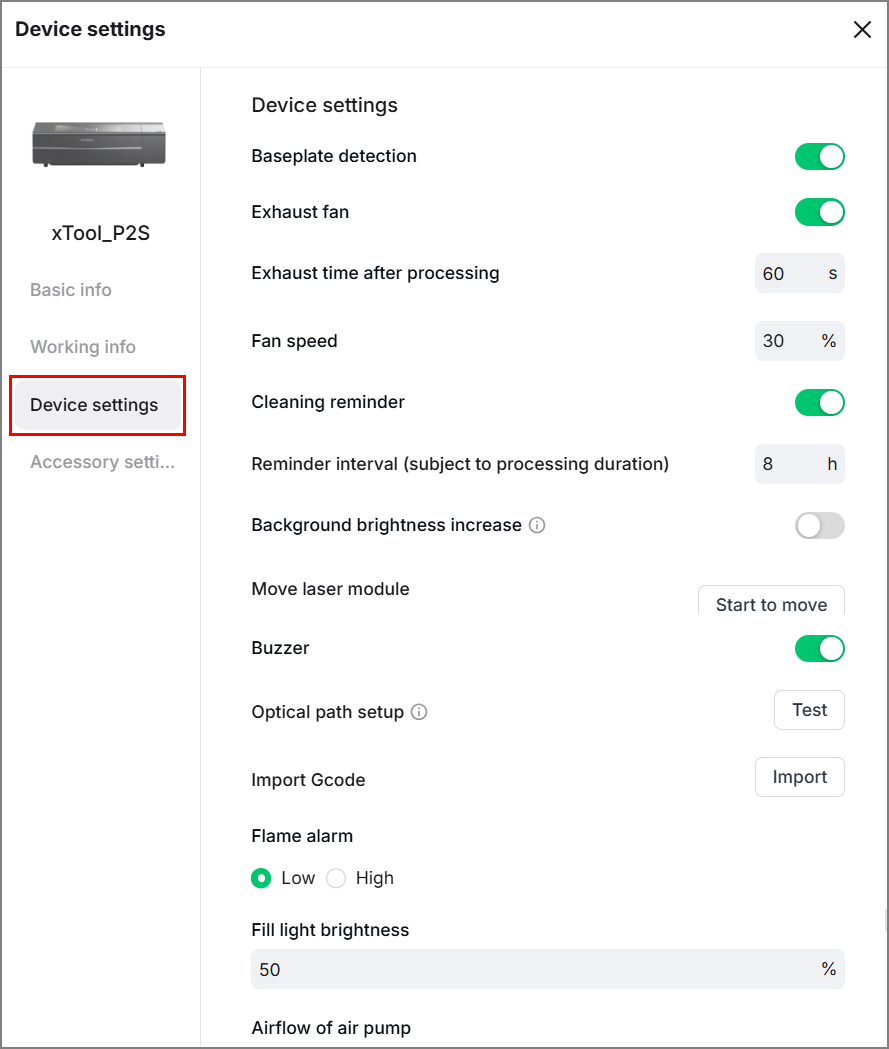
- Baseplate detection: Enables or disables baseplate detection in processing preview. It is enabled by default. When it is disabled, no baseplate detection is performed in all the processing modes.
- Exhaust fan: Enables or disables the built-in exhaust fan of your device.
- Exhaust time after processing: Set the time the exhaust fan continues to work after the processing is complete.
- Cleaning reminder: Reminds the user to clean the device at the specified interval.
- Reminder interval (subject to processing duration): Set the cleaning reminder interval.
- Background brightness increase: Increases the brightness of the background. When you are to process a dark-color or black material, you can enable this function to help you see the material more clearly. When you use a light-color or highly-reflective material, disable this function, or the background may be over-exposed.
- Move laser module: You can click Start to move to move the laser module.
- Buzzer: Enables or disables the buzzer of the machine. After being disabled, the buzzer no longer works as an indicator.
- Optical path setup: Allows you to test and modify the optical path. You can click Test to start testing the optical path. You can also click to view the detailed operation guide.
- Import Gcode: Allows you to import a GCode file from the local disk. GCode files applicable to your device, exported on LightBurn, can be imported on xTool Studio.
- Flame alarm: Set the sensitivity of the fire safety set, either low or high.
- Fill light brightness: Set the brightness of the fill light when the lid is opened.
- Setting range: 1–100
- The setting of a negative value does not take effect.
- Airflow of air pump:
- Engrave: Set the airflow for engraving. A lower airflow is recommended.
- Cut: Set the airflow for cutting. A higher airflow is recommended.
- Lowest output power: Set the lowest power input of the machine to ensure the optical output of the laser module. Theoretically, when the laser module produces laser beams properly, the output power is the same as the power input. As time goes by, however, the output power may be slightly lower than the power input. If your machine works properly, you don't need to set this parameter.
- Engrave: Set the lowest output power for engraving.
- Cut: Set the lowest output power for cutting.
- Export elements on the canvas as GCode: Export all the elements on the canvas to a GCode file
(5) On the Accessory settings tab page, you can set the information of accessories.
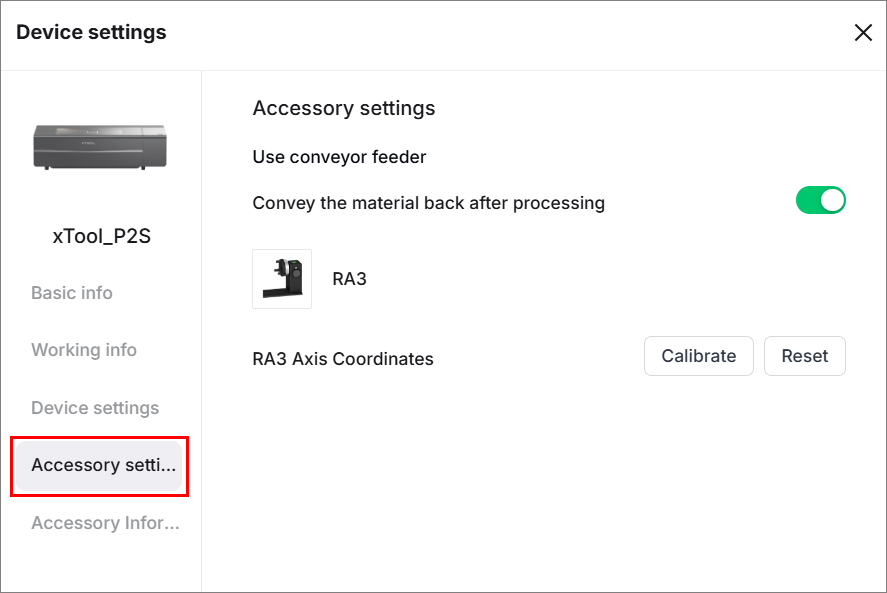
- Convey the material back after processing: Set whether to convey the material back to its start position after processing it. This function is enabled by default, and you can click to disable it.
(6) On the Accessory Information tab page, you can see the information of accessories connected to xTool P2/P2S.
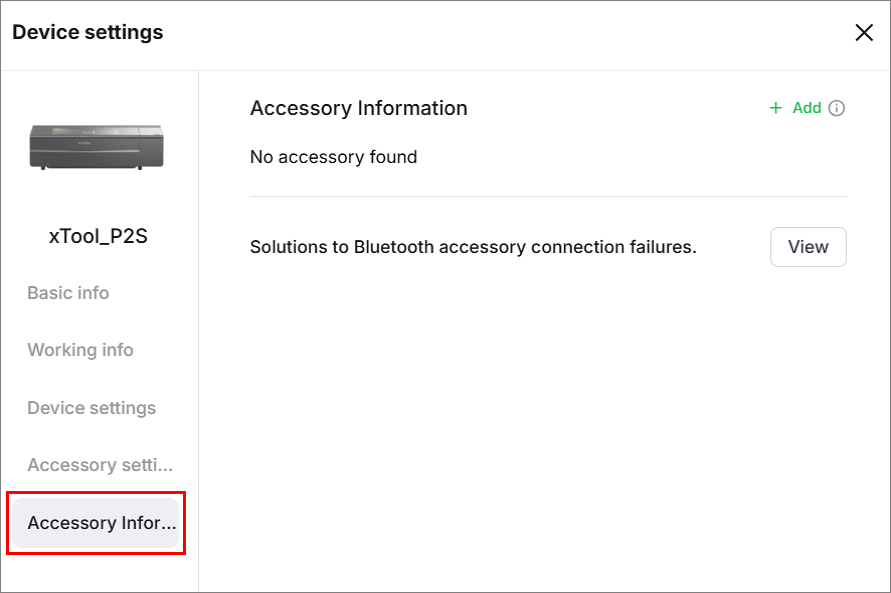
- Accessory information: Displays the accessory that connects to xTool P2S.
- Solutions to Bluetooth accessory connection failures: Click View to see the connection solutions.
Processing modes
xTool P2/P2S supports 11 processing modes. You can select the desired mode for processing.
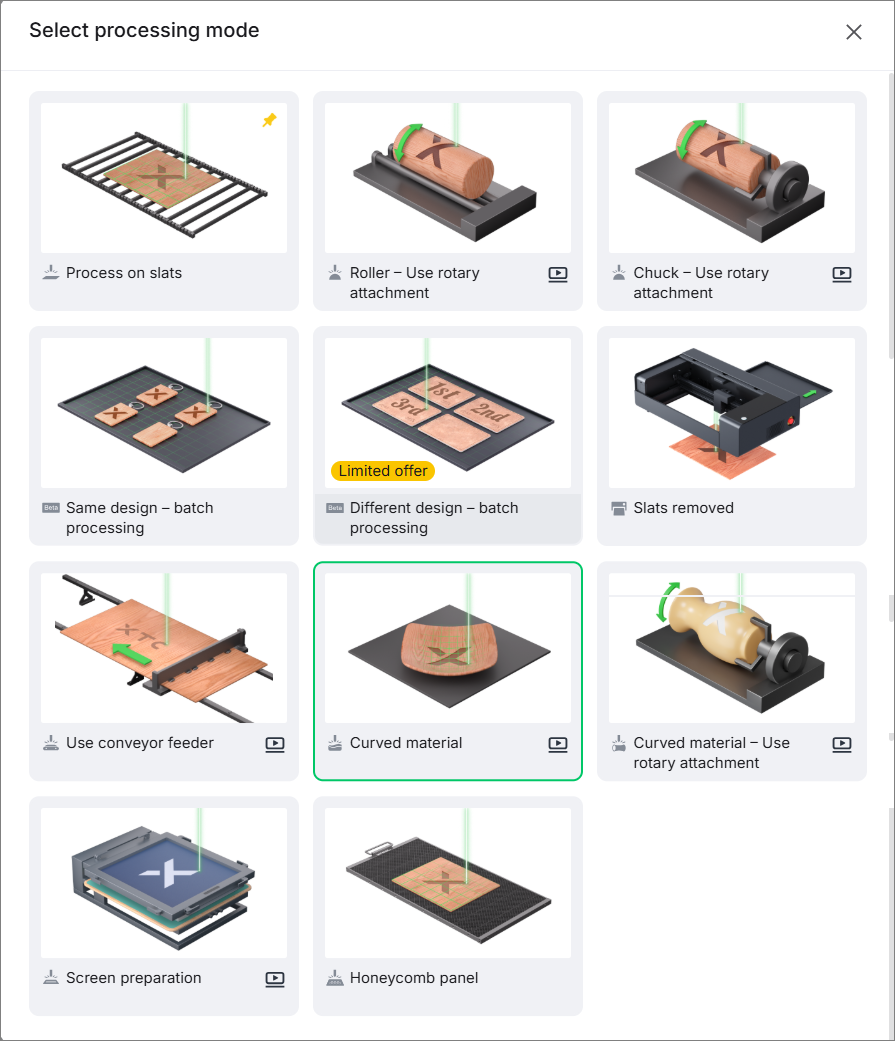
- Process on slats: Process flat materials with the slats in place.
- Roller - Use rotary attachment: Use xTool P2/P2S with the rotary attachment to process irregular cylindrical materials.
- Chuck - Use rotary attachment: Use xTool P2/P2S with the rotary attachment to process cylindrical materials with rounded or non-rounded bases.
- Same design – batch processing: Process multiple materials using the same design.
In this mode, the same design is applied repeatedly to multiple materials for batch processing. - Different design – batch processing: Process multiple materials using different designs.
In this mode, different designs are assigned to multiple materials for batch processing. - Baseplate removed: Process thick materials.
In this mode, xTool Studio allows you to place the material surface to be processed below the reference plane, that is, the plane formed by the upper sides of the slats.
- Use conveyor feeder: Process long flat materials.
In this mode, you need to use xTool Conveyor Feeder. For details about how to use xTool P2/P2S with Conveyor Feeder, see "User Guide for xTool P2 Series Conveyor Feeder."
- Curved material: Process materials with curved surfaces.
In this mode, you need to remove all the slats and can measure a curved area on a material and map objects onto the area before processing the material. For details, see “Process Materials with Curved Surfaces Using xTool P2 Series.”
- Curved material - use rotary attachment: Process items with curved surfaces.
- Screen preparation: Developed for xTool Screen Printer and used to engrave screens for printing. For details about how to use xTool Screen Printer and prepare the screens, see xTool Screen Printer.
- Honeycomb panel: Process material with the honeycomb.

