
1. Place the material
Please ensure that the removable baseplate is installed on the base, and place the material on the baseplate.
Note: If the material to be processed is very small or lightweight, secure it with tape or similar tools. Otherwise, the airflow from the exhaust fan may cause the material to shift during processing.
To cut the material, place the slatted panel on the baseplate, then place the material on top of the panel.
💡 Important:
The slatted panel helps reduce burn marks during material processing and protects the baseplate. For optimal results, install the slatted panel correctly:
- Correct Installation: Position the gaps between the slats perpendicular to the exhaust outlet to allow proper airflow. Refer to the images above.
- Incorrect Installation: Horizontal installation may block airflow and compromise performance.
2. Connect xTool F1/F1 Lite to xTool Studio
Refer to Connect and Set Up xTool F1/F1 Lite with xTool Studio for instructions on connecting xTool F1/F1 Lite to xTool Studio.
3. Select the processing mode and material
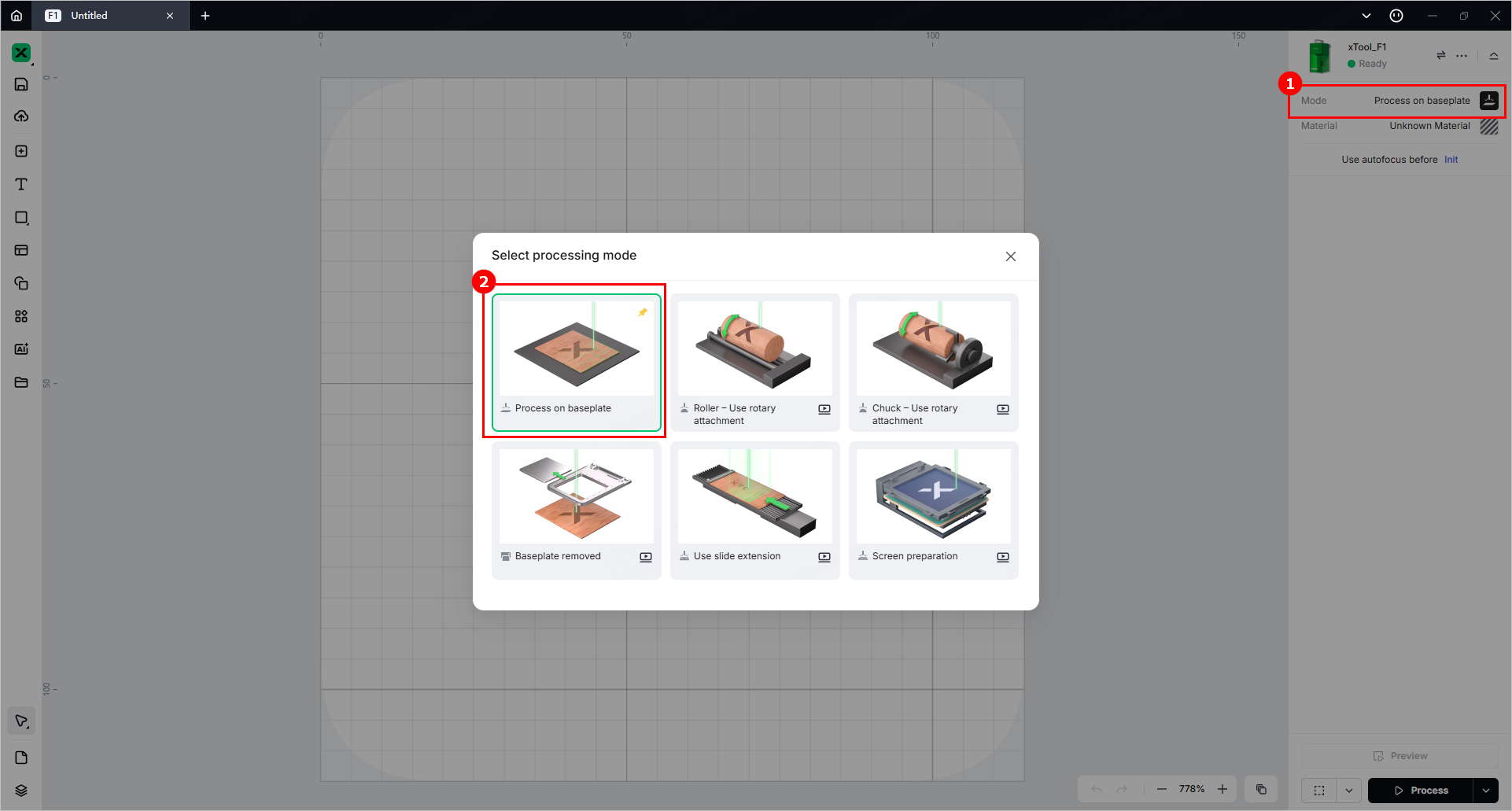
(1) In the right panel of the page, click the current processing mode, and then select Process on baseplate.
(2) Click Unknown Material, select the desired material, and click Apply.
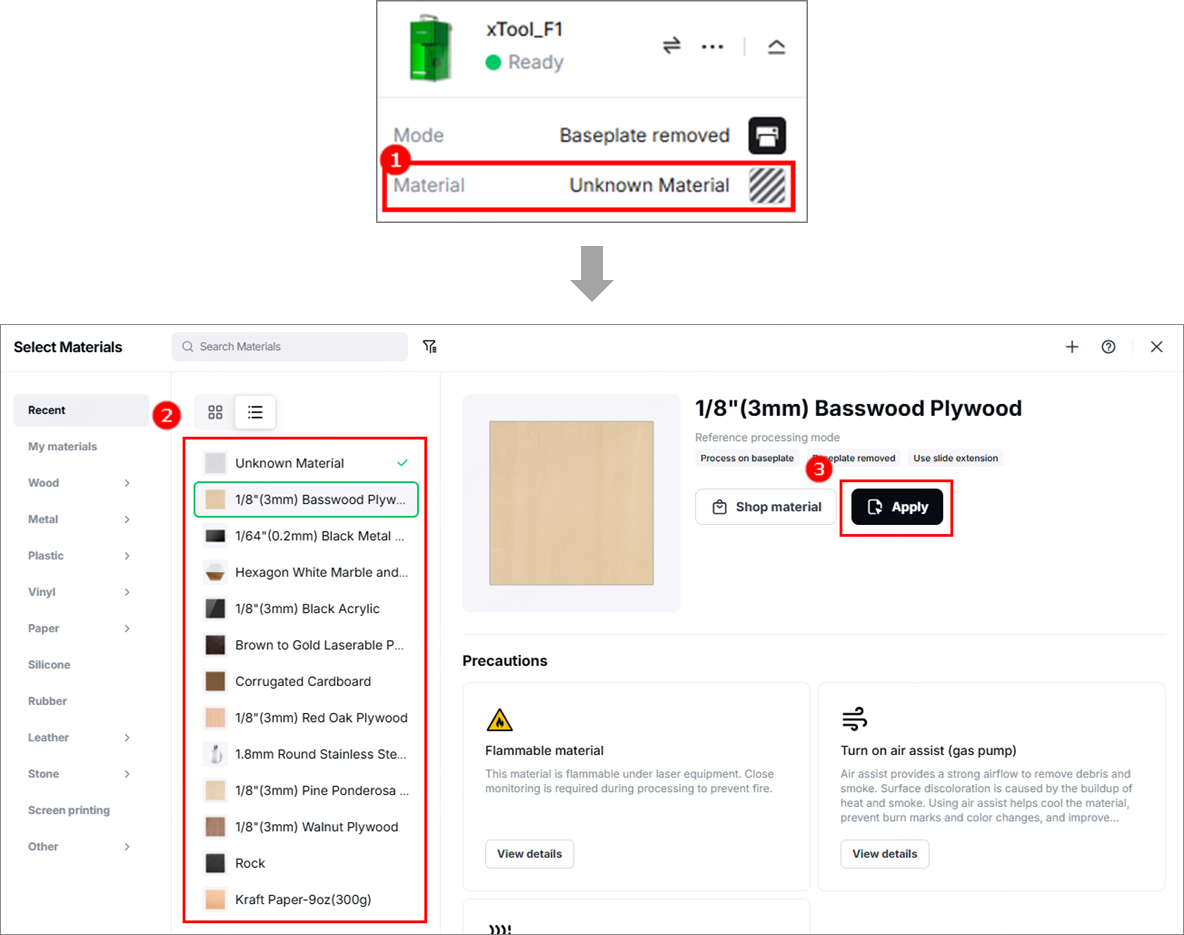
Note: The recommended parameter settings can achieve the best results only when using xTool materials. For third-party materials, it is recommended that you conduct a material test array on your own first to obtain the desired effects and parameters. Meanwhile, make sure that the materials are free from moisture or contamination, as these factors can significantly affect processing quality.
4. Set the laser focus
xTool F1/F1 Lite supports manual focusing and autofocusing. Choose either method based on your preference.
💡 For optimal cutting results, set the focus point at the midpoint of the material’s thickness.
- Example: To cut 6 mm basswood in a single pass, set the focus point 3 mm below the surface.
- Procedure: First, focus on a 3 mm thick material. Without changing the focus setting, replace it with the 6 mm basswood to be cut.
Manual focus setting
Turn the knob to move the laser module up and down. When the red and blue light spots coincide, the focus is successfully set.
Note:
- If you turn the knob clockwise, the laser module will move up, and the red light spot will move toward the left.
- If you turn the knob counterclockwise, the laser module will move down, and the red light spot will move toward the right.
Note: When the bottom of the laser module reaches the highest point, stop turning the knob up.
Auto focus setting
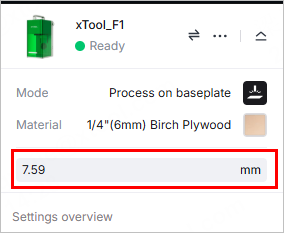
(1) Measure the material thickness manually with a measuring tool.
(2) Enter your measurement result in the top-right corner of xTool Studio to allow the device to automatically adjust the focus.
Note:
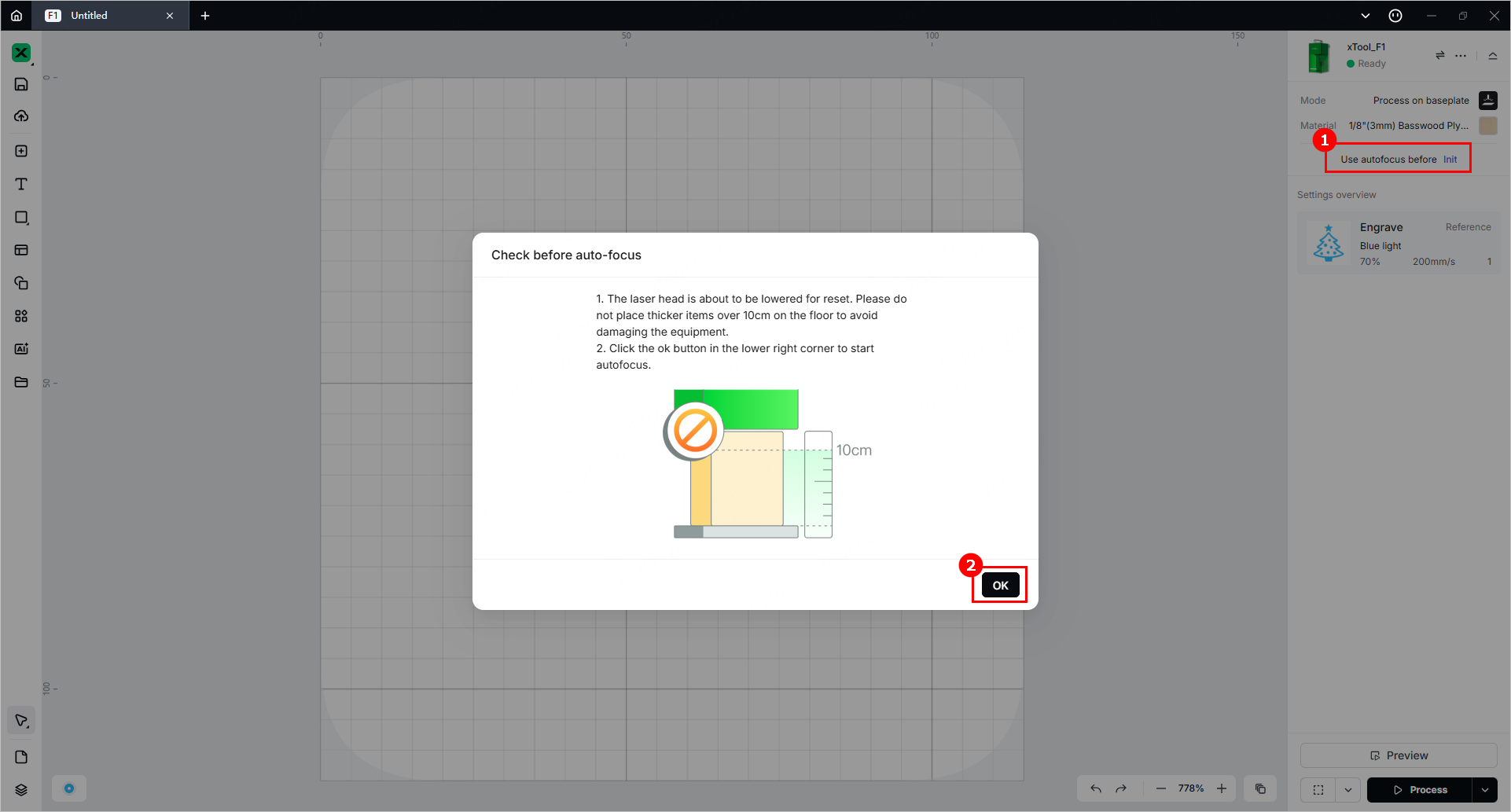
- When using Auto Focus for the first time after powering on xTool F1 / F1 Lite, you must initialize the device to return the laser module to its original position.
- To do this, click Init in the top‑right corner of xTool Studio. The laser module will move back to its default position automatically.
5. Design objects for processing
(1) Use the tools on the left side of the canvas to create objects. You can import images, insert shapes, enter text, or draw vector graphics.
Note: xTool Studio supports importing the following image formats: SVG, DXF, JPG, JPEG, PNG, BMP, etc.
(2) After selecting the objects, use the toolbar above the canvas for further editing.
6. Set parameters for processing
Select objects on the canvas and set their parameters in the right panel.
Note:
- You need to set parameters for every object. A missed object may fail to be processed.
- Parameter options differ between bitmap objects and vector objects. You can select multiple objects of the same type and set parameters for them at once.
Note:
- For xTool F1 Lite, laser type selection is not available, as it has only a blue-light laser.
- For more information on parameter settings, see atomm.com/easyset.
7. Preview the processing area and set the processing path
You can preview the processing area on the material by framing. Framing means laser dots walk along the border of the processing objects on the material. Take the following steps to start framing.
(1) Click in the bottom-right corner of the software and set framing parameters.
Note: xTool F1/F1 Lite supports two preview modes: Rect and Outline.
- If you select Rect, you can preview the rectangular border of the processing area.
- If you select Outline, you can preview the outline of the processing objects.
(2) Close the protective enclosure of xTool F1/F1 Lite, click the framing button in the software, or press the framing button on xTool F1/F1 Lite to start framing. The laser spot will move along the boundary of the processing pattern on the material, allowing you to preview the processing area.
By default, xTool F1/F1 Lite performs framing for all the elements to be processed. To preview the boundary of one or more particular elements, you can select the elements on the canvas of xTool Studio during framing. The laser spot will move along the boundary of the selected elements, as illustrated by the following pictures.
- Default framing:
- Selected elements framing:
⚠️ Safety reminder: During framing, keep the protective enclosure closed or wear goggles that can shield laser beams of 455 nm and 1064 nm wavelengths.
💡 Note: To stop framing, press the framing button on xTool F1/F1 Lite.
(3) Click in the bottom-right corner and set the processing path for processing.
8. Start processing
💡 In low‑temperature environments, enable the infrared ray preheat function to achieve optimal processing results. If preheat is not enabled, the normal processing sequence may produce unsatisfactory bitmap engraving output due to temperature limitations.
- xTool F1 Lite does not support infrared ray preheat
(1) In the bottom-right corner of the software, click Process.
(2) Click View path preview and to preview the processing path.
(3) In the bottom-right corner of the software, click Start.
(4) Close the protective enclosure. Then, press the knob on xTool F1/F1 Lite to start processing.
⚠️ Safety reminder: During laser processing, keep the protective enclosure closed or wear goggles that can shield laser beams of 455 nm and 1064 nm wavelengths.

