
Issue description
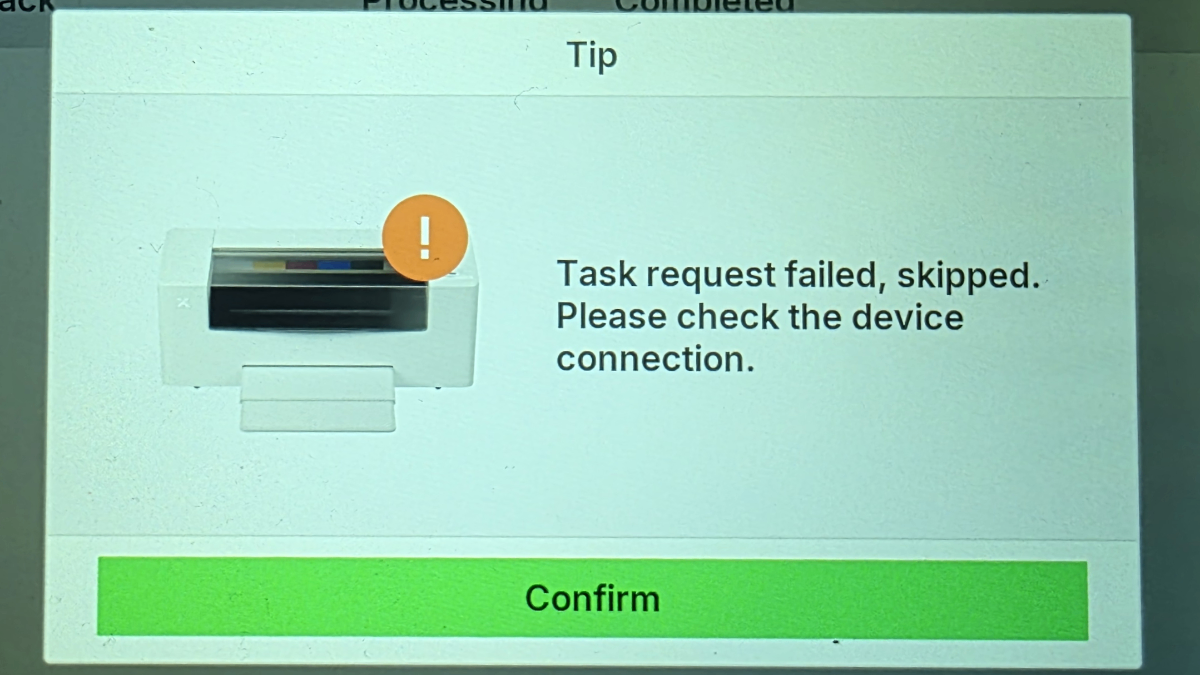
During the task upload process, a pop-up window appears on the software (xTool Creative Space or xTool Studio) or the printer's LCD screen displaying the following error message: "Task request failed, skipped. Please check the device connection."
Potential causes
- The Wi-Fi signal quality is poor or unstable (High probability).
- The USB connection is loose, or the cable fails.
- Software data has been deleted.
Diagnostic logic
In most cases, this error is caused by Wi-Fi network issues. The recommended diagnostic approach is to:
- Test your network quality using a ping test.
- Switch to USB connection for comparison testing.
- If the problem persists with both connection methods, provide log files and the xTool Creative Space/Studio project file to xTool Customer Service for further diagnosis.
Troubleshooting
Step 1: Check network quality (Ping test)
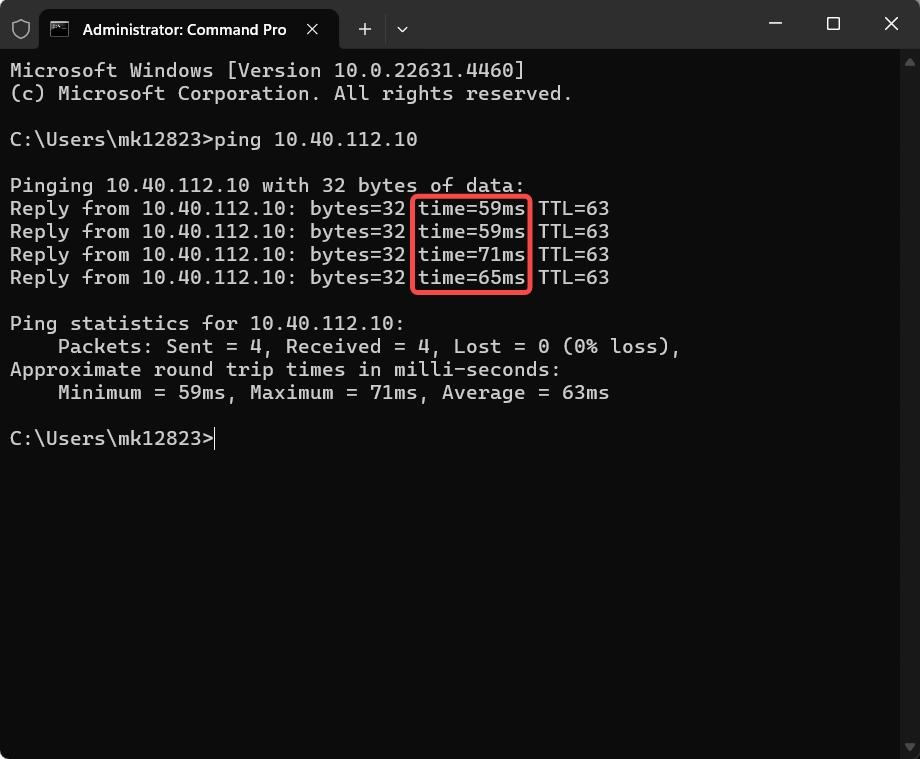
A weak network signal can cause connection failures or data transfer interruptions. You can test your network quality using the "ping" command.
Obtain your printer's IP address
Locate your printer's IP address from one of the following sources:
- The printer's LCD screen
- xTool Creative Space (XCS) or xTool Studio software (in device settings)
Run the ping command
- For Windows:
- Open the Command Prompt.
- Type
ping [IP address](e.g.,ping 192.168.1.100) and press Enter. - Poor Connection Indicator: Response time > 150 milliseconds.
- For macOS:
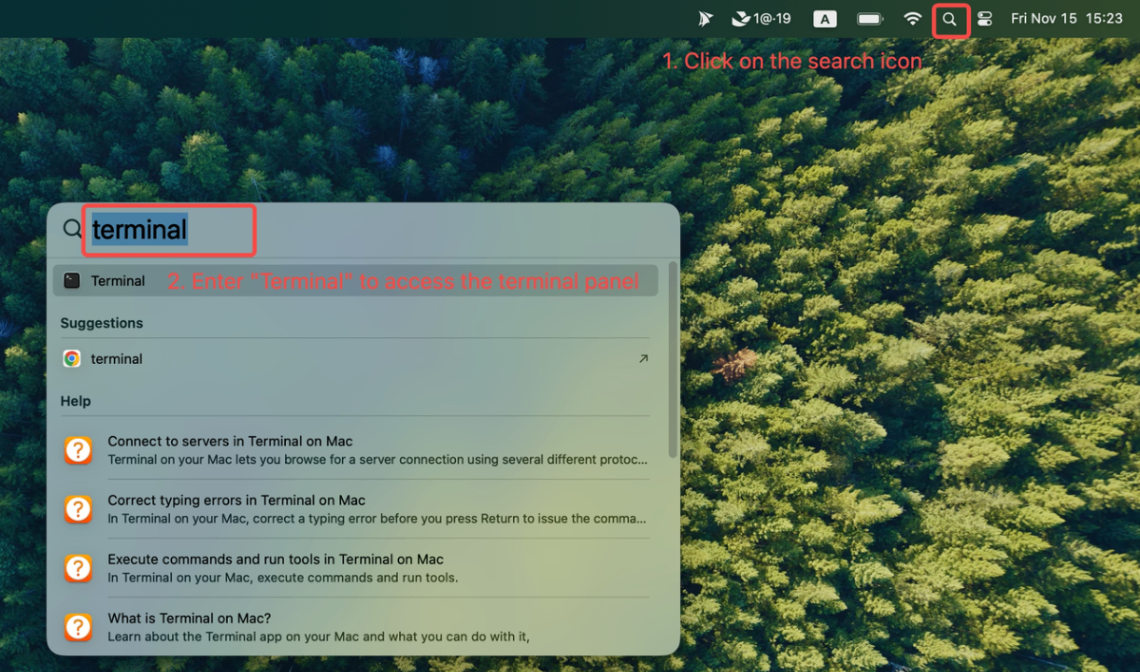
- Open the Terminal application.
- Type
ping [IP address](e.g.,ping 192.168.1.100) and press Enter. - Poor Connection Indicator: Response time > 150 milliseconds.
Results & actions
- Poor Connection: Response time is > 150 milliseconds or requests assume "Timed Out".
- Try switching to a stronger Wi-Fi network or moving the printer closer to the router.
- Good Connection: Response time is consistently low (e.g., < 50ms).
- If the network quality is acceptable but the error persists, proceed to Step 2.
Step 2: Cross-test USB connection
To rule out Wi-Fi issues entirely, switch to a wired USB connection.
- Connect the printer to your computer using the USB cable.
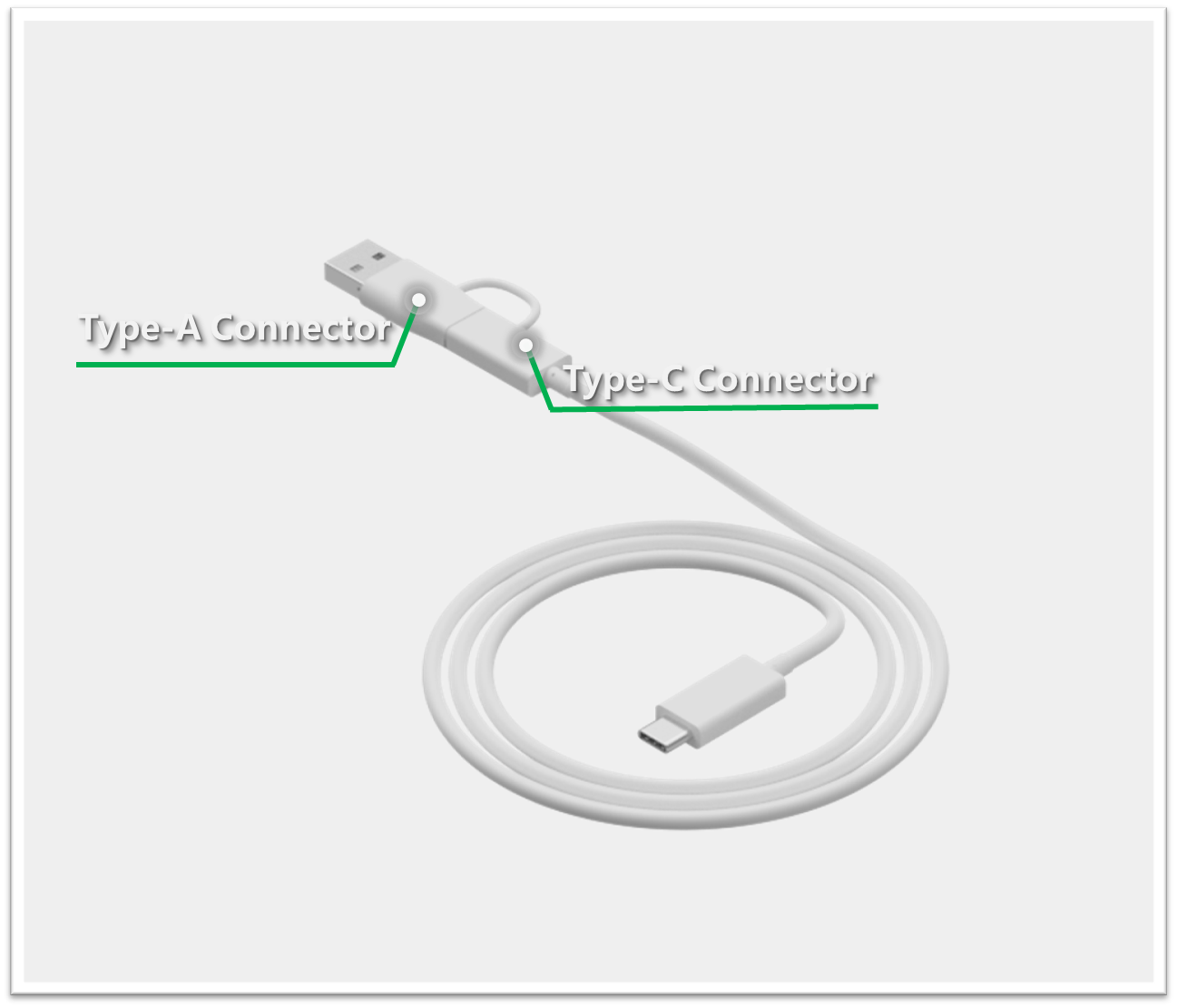
Cable Tip: The included USB cable features a 2-in-1 connector (USB-A and USB-C). Please try both interfaces on your computer to ensure a secure fit. - Re-upload the project file to check if the error recurs.
- If the issue persists with the original cable, try using a different high-quality third-party USB cable.
If the error is resolved with USB:
- The issue is confirmed to be Wi-Fi network related.
- Consider using USB connection for improved reliability, or improve your Wi-Fi network quality.
If the error persists with USB:
- Proceed to Step 3.
Step 3: Delete specific files
- Follow the video instructions below to locate the "IndexedDB" folder and delete it: Delete File Instruction
- Restart the software and try processing again.
Note: This operation will result in the loss of local data, such as connection history (which simply requires reconnecting to the device), historical tasks, and other local information. However, if the previous solutions fail or show no abnormalities, this is most likely the cause; please try this solution.
If the problem persists
Should the issue persist after completing the preceding steps, submit a ticket via the "Submit a Ticket" button in the "Help Ticket" section below. The standard response time for xTool Customer Service is one business day.
Include the following details to help better diagnose the problem:
- Work log files
Please export the logs based on the software you are using.
Method A: Via xTool Creative Space (XCS)
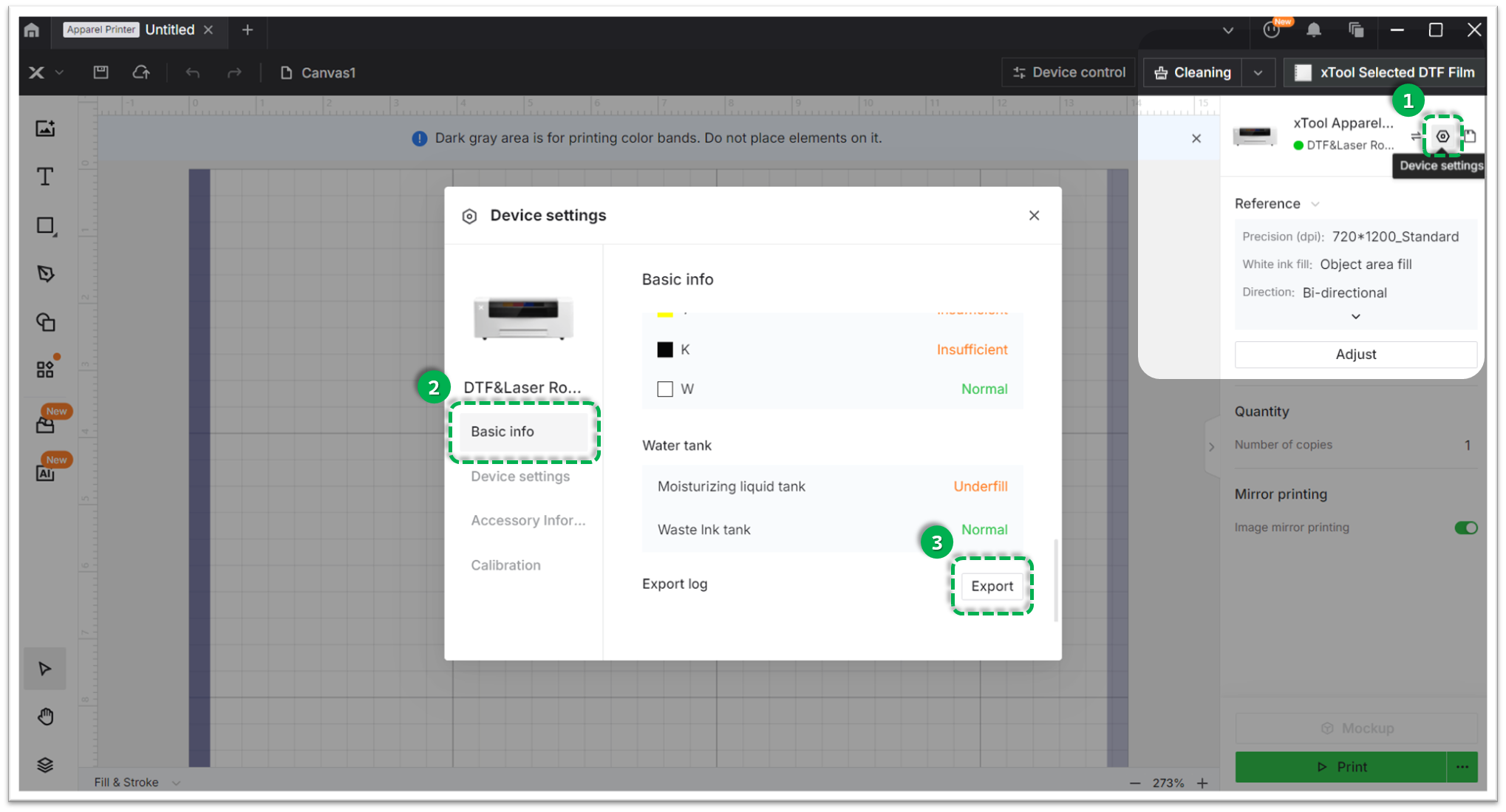
- Click the Device Settings icon (gear symbol) in the top-right corner.
- Select the Basic info tab.
- Scroll down to Export log and click Export.
- A folder will be generated. Compress (Zip) this entire folder into a single file and attach it to your ticket.
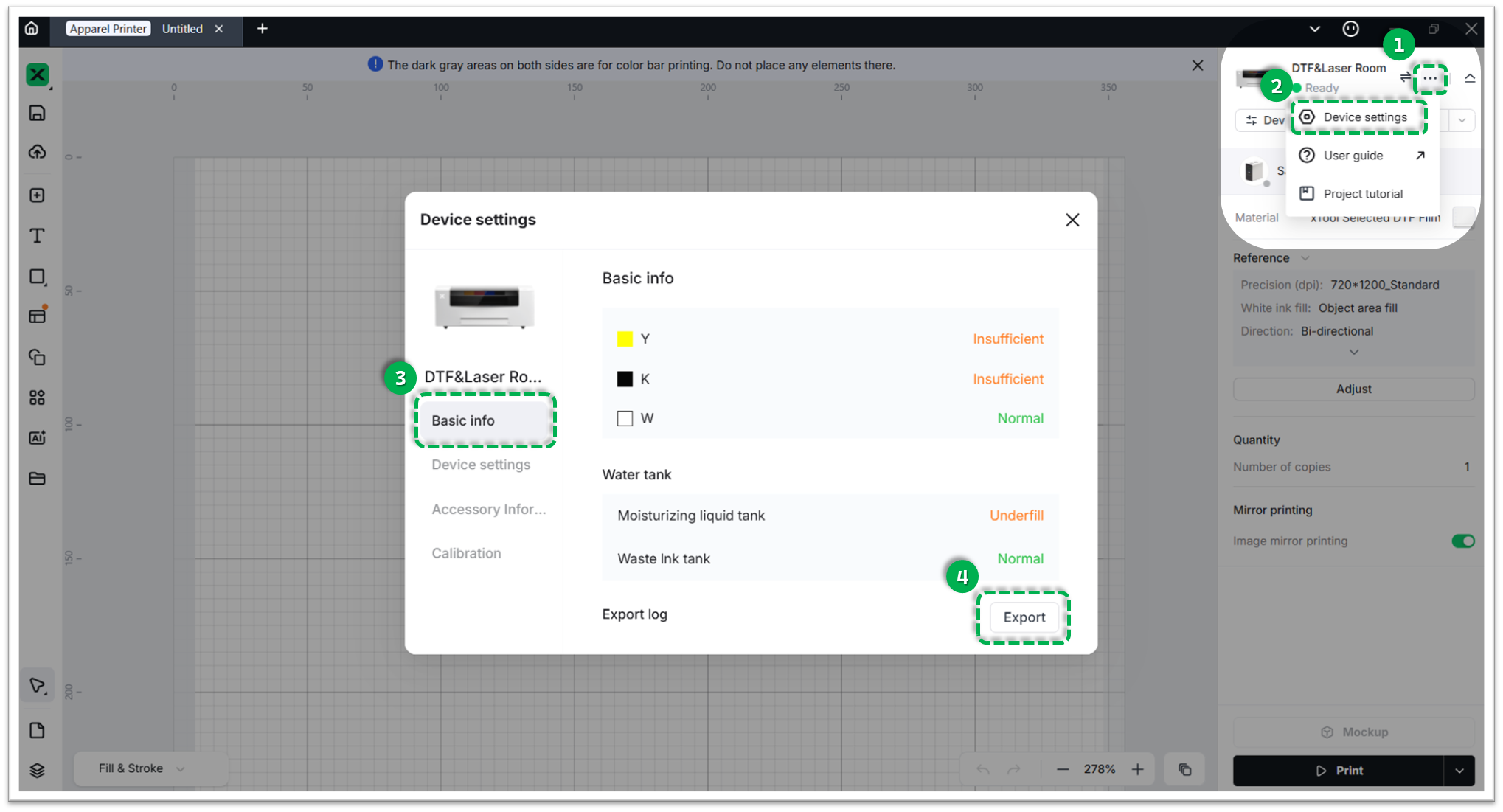
Method B: Via xTool Studio
- Click the three dots icon next to the device image.
- Select Device Settings (gear icon).
- Select the Basic info tab on the left.
- Scroll down to Export log and click Export.
- A folder will be generated. Compress (Zip) this entire folder into a single file and attach it to your ticket.
- Project file
Please also attach the project file used when the error occurred:
XCS project file, or
- In XCS, click the X icon in the top-left corner.
- Select File → Save as…
- Choose your destination folder.
- Enter a file name and click Save.
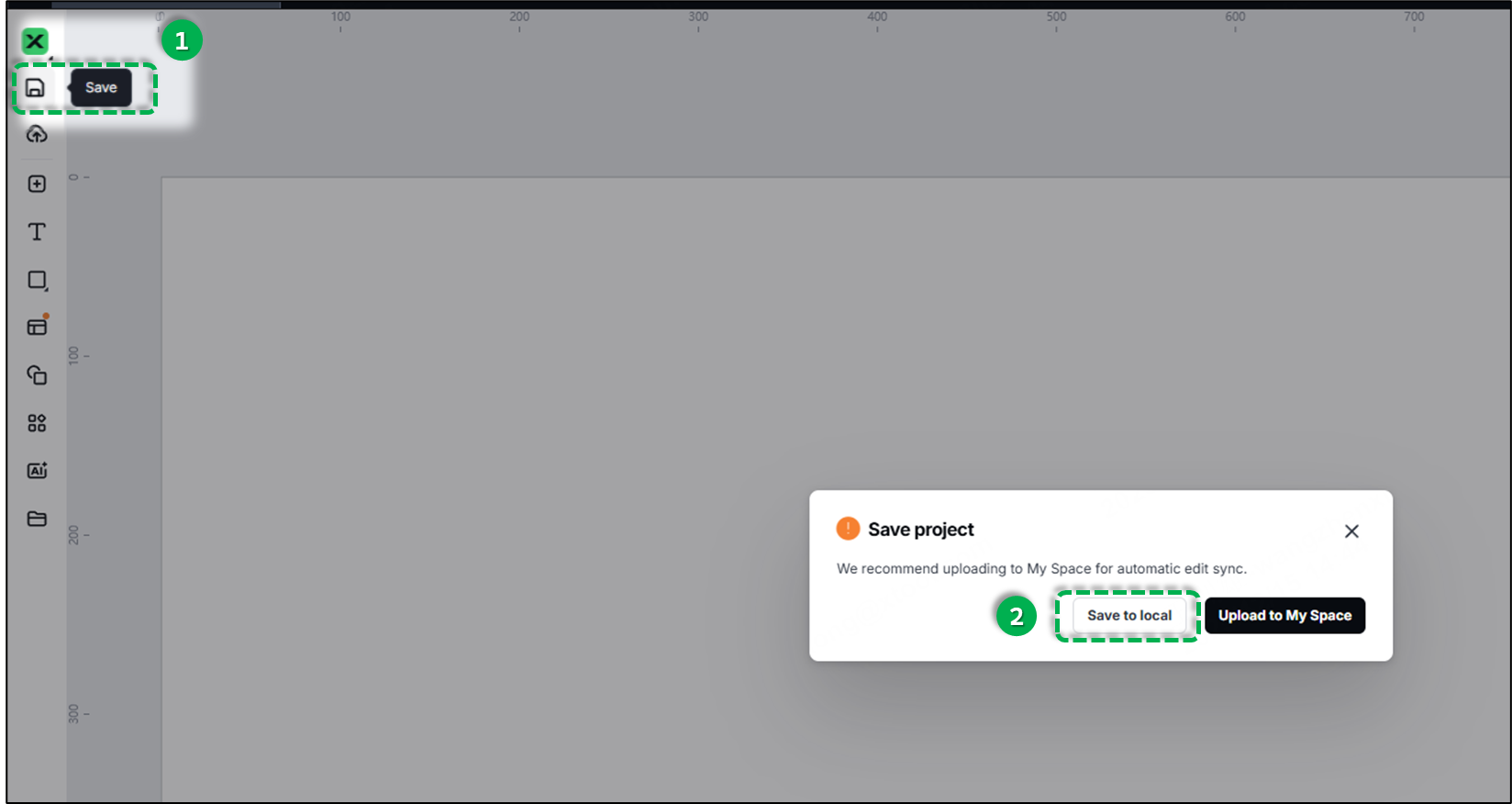
xTool Studio project file
- In xTool Studio, click the Save icon in the top-left corner.
- Click Save to local.
- Choose your destination folder.
- Enter a file name and click Save.
- Ping test
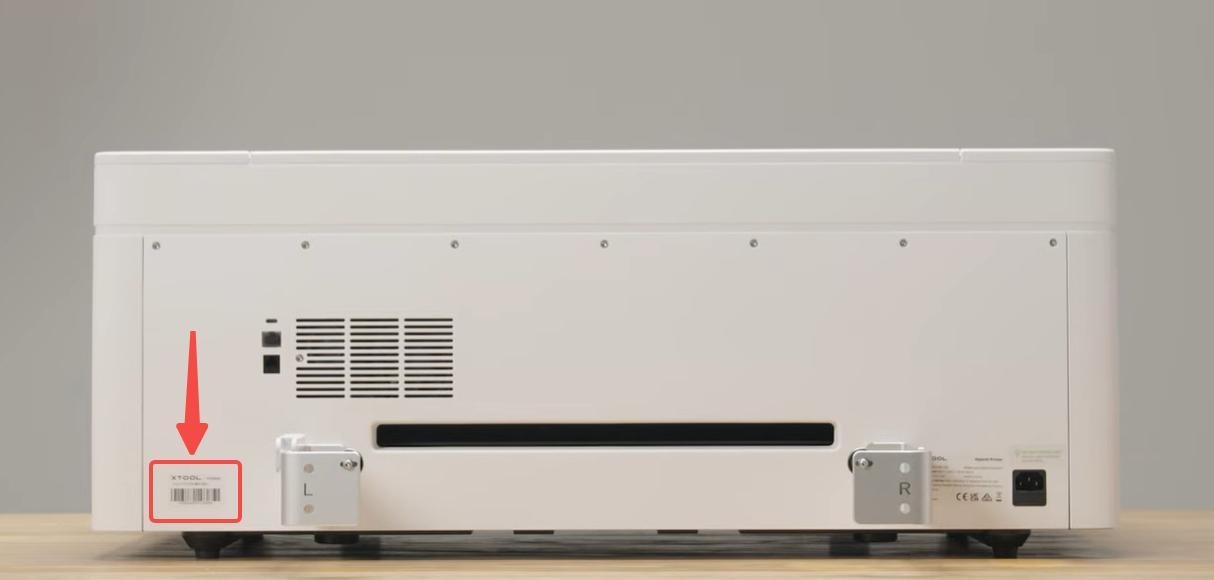
- Serial number
Documentation feedback
Help improve this content by providing feedback. If this content did not meet your requirements, select "No" in the "Was this page helpful?" section below. Include specific details about what was unclear or missing in the pop-up suggestion box. Feedback submissions are reviewed by xTool technical writers to enhance future documentation.

