
This guide provides step-by-step instructions for upgrading the firmware for xTool F1/F1 Lite. Follow these steps if you need to perform the upgrade or encounter issues during the process.
Important things to know beforehand
- Use the original USB cable included with the product to connect your device to the computer.
- During the upgrade, ensure that the power supply, Internet, and USB connection are stable and secure.
- Keep your computer in an active state during the upgrade. Do not let it go into sleep, hibernate, or shutdown state.
- During the upgrade, do not turn off xTool F1/F1 Lite or its accessories.
Upgrade the firmware
(1) Ensure that your computer is connected to the Internet. Open xTool Studio on your computer and connect xTool F1/F1 Lite to xTool Studio via a USB cable.
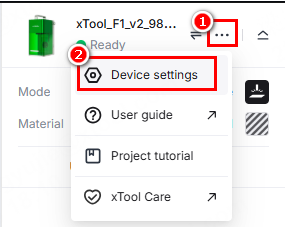
(2) In the top-right corner of the software, click > Device settings to enter the device settings page.
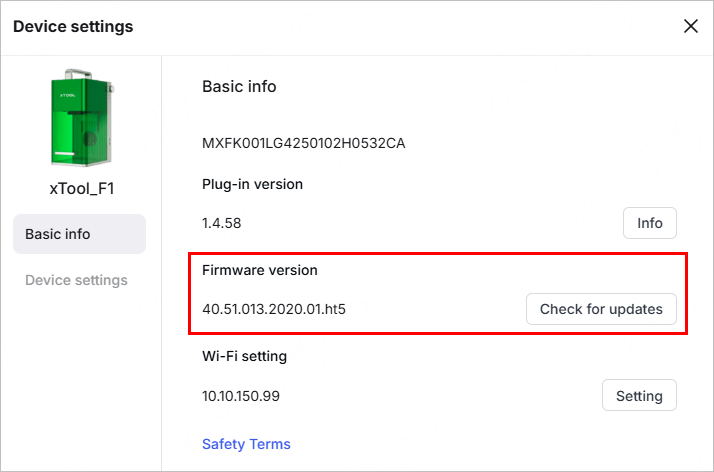
(3) On the Basic info tab page, click Check for updates under Firmware version. If a new version is available, follow the prompts to update the firmware.
How to deal with firmware upgrade failure
- Check the firmware version: The software may prompt you that the firmware update fails, even though the update actually succeeds. To check if an update succeeds, view the firmware version on xTool Studio to know if it is the latest version. To view the firmware version, go to Device settings > Basic info > Firmware version.
- Check the network: If there is a network exception, repair the network and try updating the firmware again.
- Check the device connection: Ensure that the device is stably connected to xTool Studio by using the USB cable. If the device is disconnected from xTool Studio, reconnect the device by using USB connection and try updating the firmware again.
- Check the status of the computer and xTool F1/xTool F1 Lite: If the computer goes into sleep or hibernation mode or is turned off during firmware update, or if xTool F1/F1 Lite is cut off from the power supply, the firmware update may fail. Check your computer settings and the power supply. Ensure that the computer stays active and the power supply is stable. Then, try updating the firmware again.
Note: Using the USB cable provides a more stable connection. If you are using Wi-Fi connection, the firmware update may be interrupted due to an unstable network.

