
Issue description
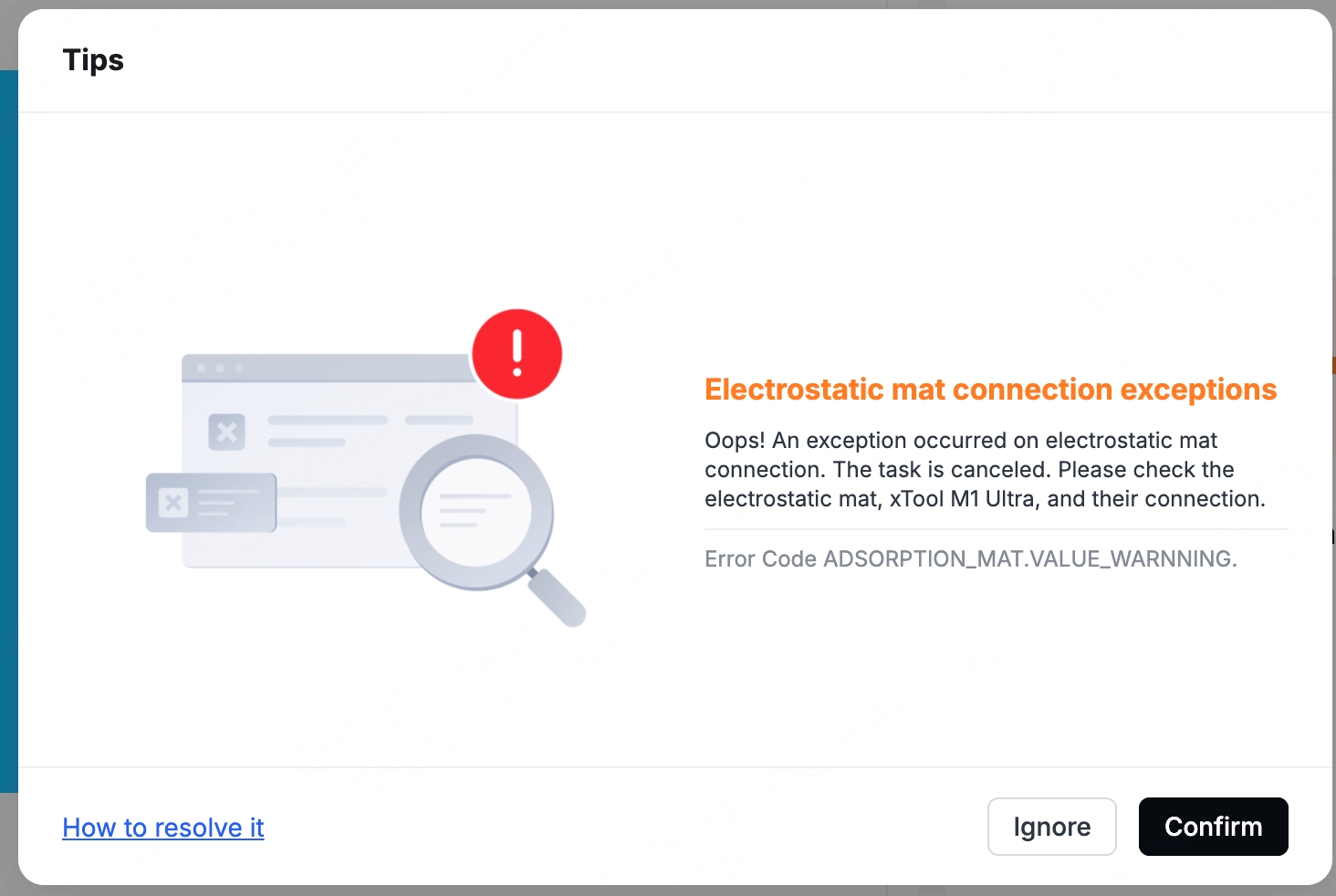
If the XCS software or xTool Studio cannot detect the electrostatic mat when the electrostatic mat is connected to xTool M1 ultra, and the error code "electrostatic mat connection exceptions" appears, follow this article for troubleshooting.
Troubleshooting procedures
1. Check the connections
- Ensure the electrostatic mat connection cable is fully inserted into xTool M1 Ultra's rotary attachment port, with no loose or partially inserted connections.
- Ensure that the bottom connection cable of the electrostatic mat is completely seated in the cable slot, with no protrusion or obstruction.
- Ensure no residues on the baseplate when installing the electrostatic mat, and that no other processing modules are present on the multi-function holder.
- The device should be powered on to check the status of the indicators.
- Solid yellow: Powered on but no device connected
- Solid white: Powered on and connected to a device
- Solid green: Powered on, and the electrostatic mat is activated
2. Calibrate the electrostatic mat
If the above checks are correct but the electrostatic mat still cannot be detected, you can calibrate the electrostatic mat in the software.
Calibration path: Device settings > Calibration > Electrostatic mat calibration
3. Check the connection port
- Do not hot plug the electrostatic mat. That is, do not plug or unplug the electrostatic mat cable while the device is powered on.
- After powering off the device, connect the electrostatic mat to the extension port on the back of the device. Then turn the device on and check whether the software still reports an error.
- If the electrostatic mat can be detected at this point, but remains undetected when connected to the device's rotary attachment port. It indicates the rotary attachment port is faulty.
- If detection still fails, it may indicate a malfunction in the electrostatic mat.
Still experiencing issues?
Should the issue persist after completing the preceding steps, submit a ticket via the "Submit a Ticket" button in the "Help Ticket" section below. The standard response time for xTool Customer Service is one business day.
For a prompt resolution, please include the following details:
- Issue description: A detailed explanation of the observed problem.
- Video evidence: Attach a video demonstrating the issue, where applicable.
- Troubleshooting performed: Any troubleshooting steps you have already attempted, along with their results.
This information is crucial for xTool technical support engineers to provide timely assistance.
Documentation feedback
Help improve this content by providing feedback. If this content did not meet your requirements, select "No" in the "Was this page helpful?" section below. Include specific details about what was unclear or missing in the pop-up suggestion box. Feedback submissions are reviewed by xTool technical writers to enhance future documentation.

Services & Help
Learn & Education

Copyright © 2025 xTool All Rights Reserved.