
Issue description
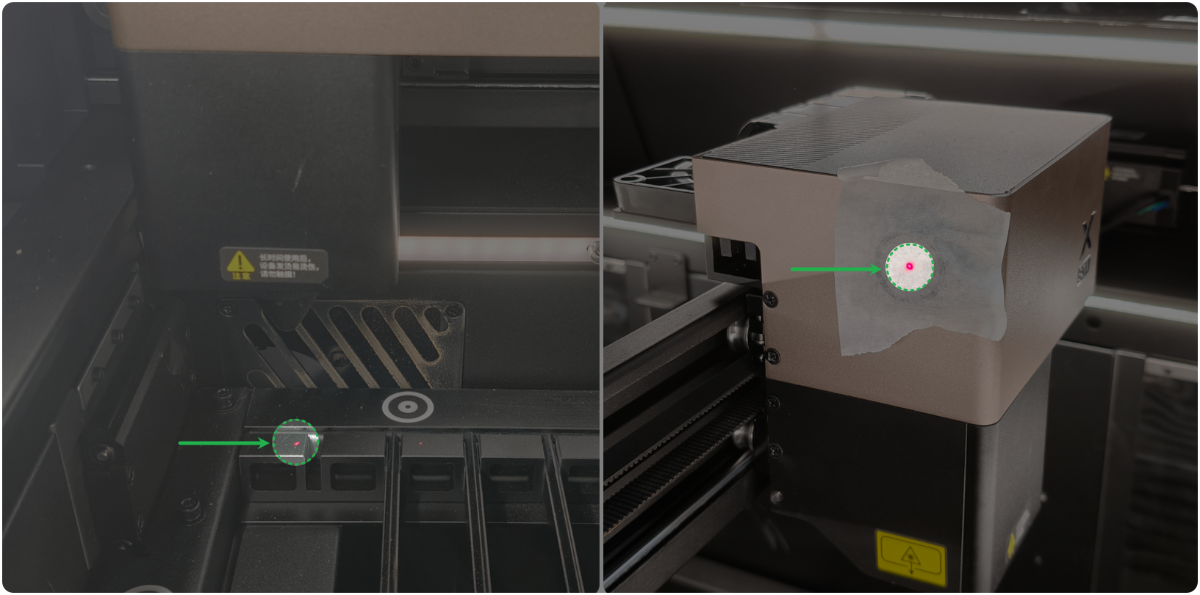
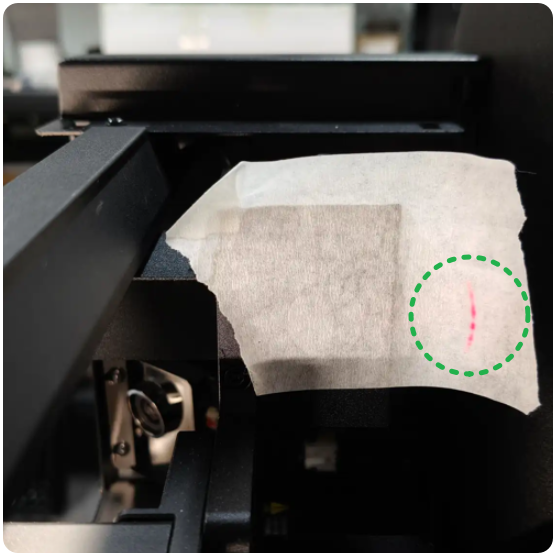
When you process materials or calibrate the optical path, the coaxial red light dot does not appear, or the red light dot is abnormal.
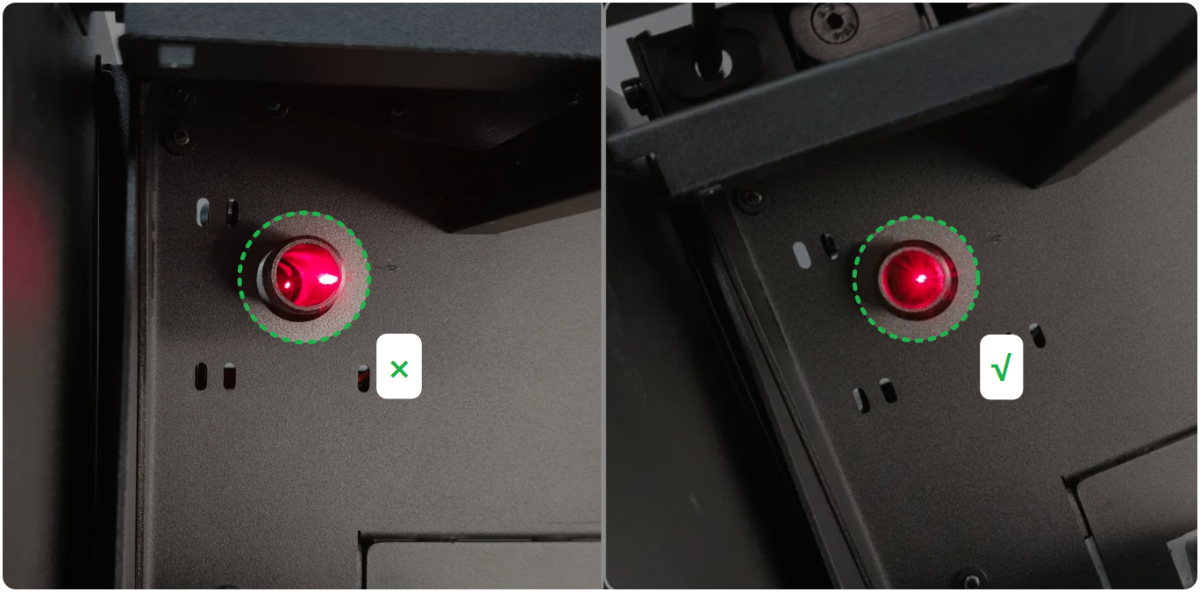
- Normal coaxial red light dot:
- Abnormal coaxial red light dot:
Possible causes
- The optical path is tilted.
- The connector of the connection cable is loose.
- The main control board is faulty.
- The coaxial red light module is faulty.
Troubleshooting procedure for red light not lighting
1. Check whether the coaxial red light produces light
The coaxial red light activates upon power-on. Upon powering on the device, observe whether the red light is visible inside the primary mirror sleeve (dimming ambient lighting facilitates observation).
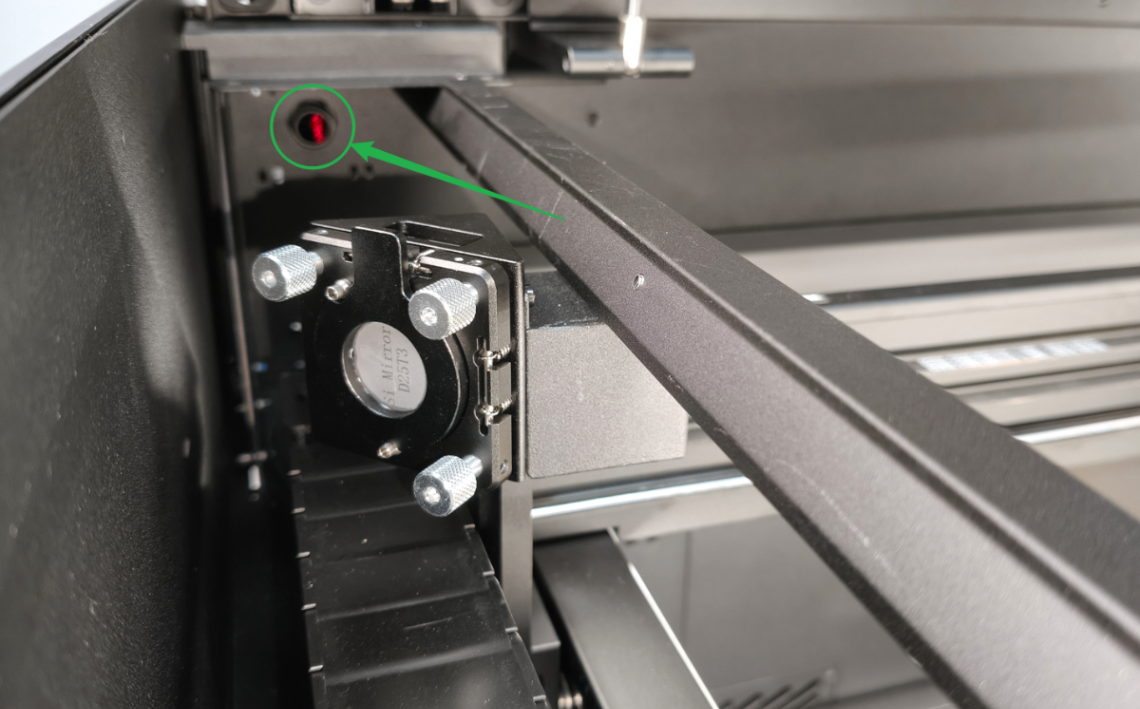
- If the coaxial red light produces light, it means the optical path is tilted. Follow the tutorial to adjust the coaxial red light path.
- If no light is produced, troubleshoot by the following.
2. Unplug and plug the connector
(1) Refer to the tutorial below or the video to remove the left plate.
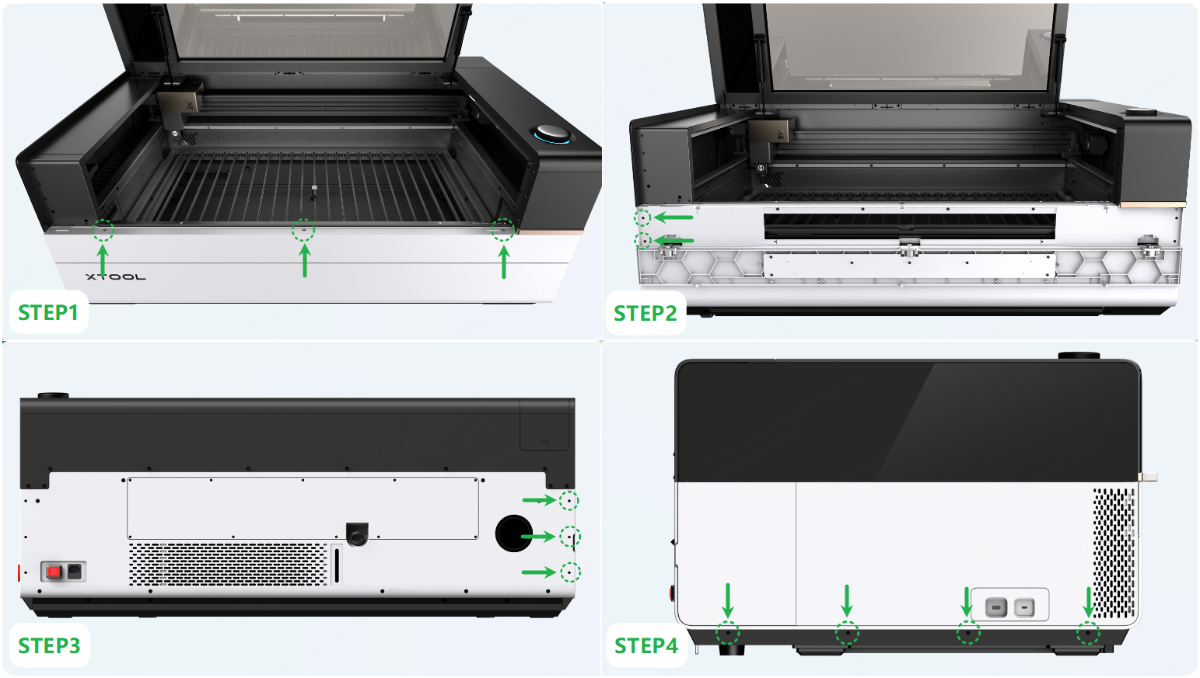
(2) Unplug and plug the connector of the coaxial red light (Do not plug it in reverse).
If the red light is still not produced, go to the next step.
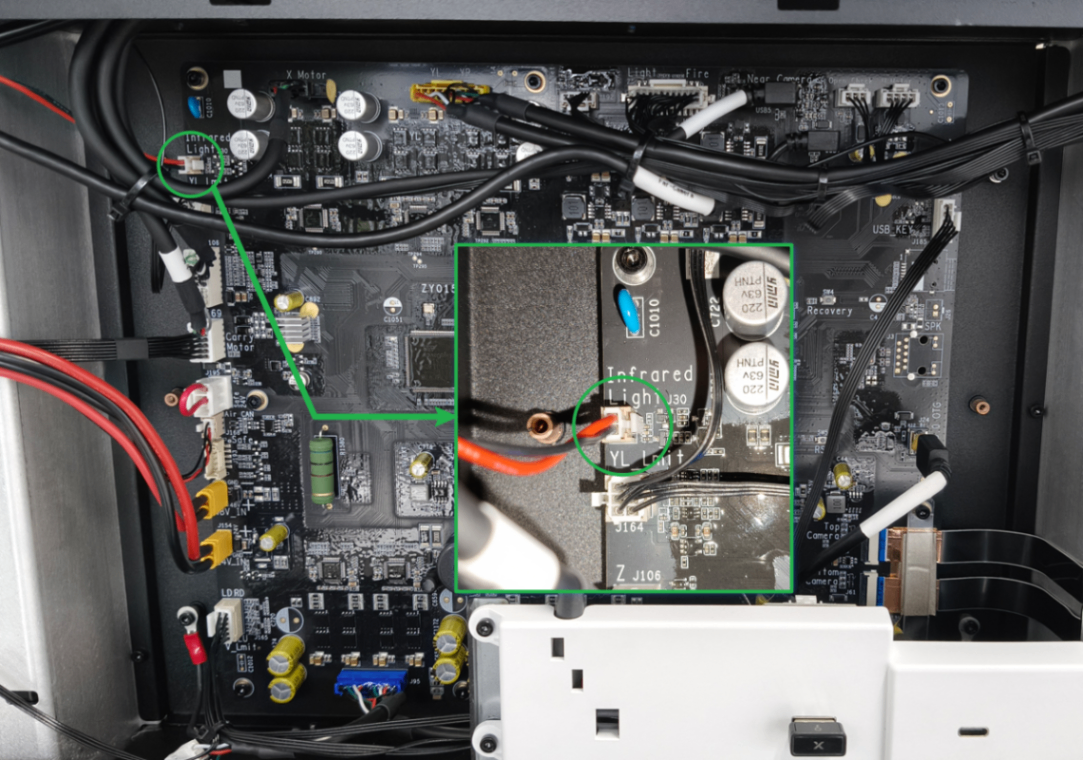
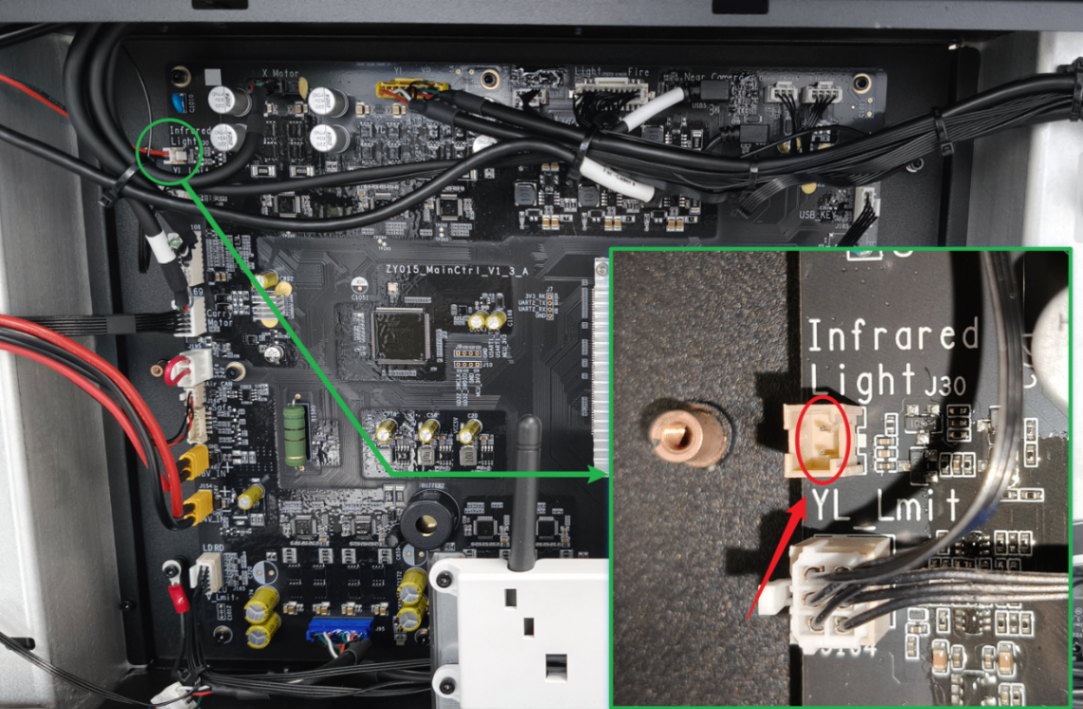
3. Check the connector in the main control board end
(1) Disconnect the power supply of the device, and unplug the connector of the coaxial red light.
(2) Observe whether the pin header in the main control board end is distorted.
- If the pin header is distorted, adjust it before plugging in the connector and powering on for testing.
- If the pin header is broken or cannot be repaired, replace it with a new main control board.
- If the pin header is not deformed, or the red light is still not bright when connected after adjustment, please go to the next step.
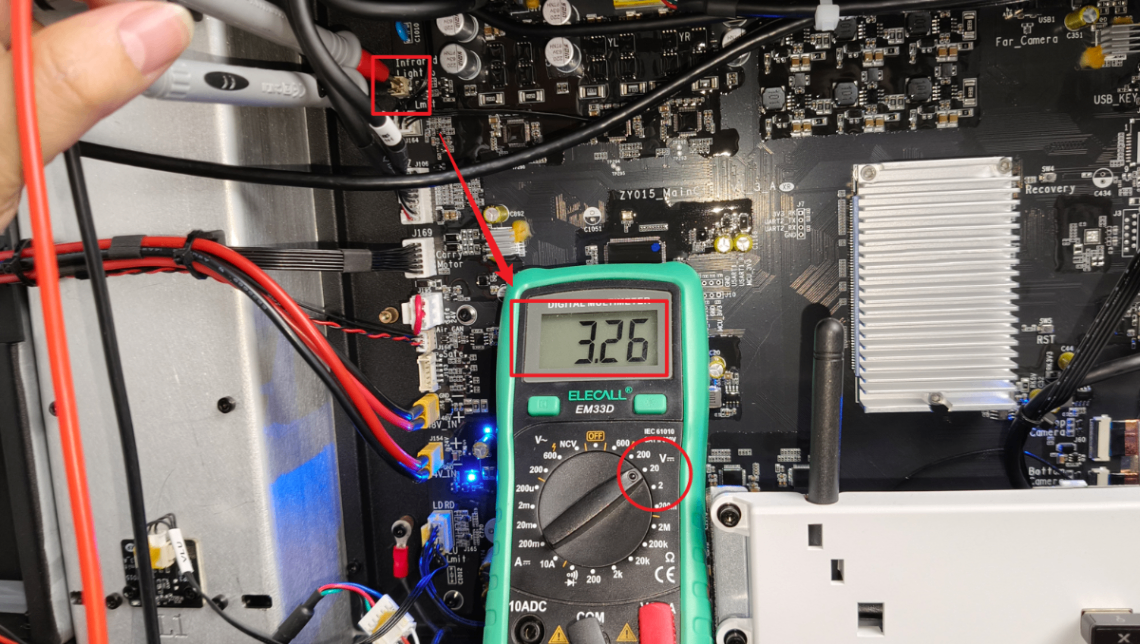
4. Test the voltage at the coaxial red light socket
(1) Power on the device.
(2) Set the multimeter to the 20V DC voltage range and measure the voltage at the coaxial red light socket on the main control board.
- If the voltage stabilizes around 3.3V, replace the coaxial red light module.
- If the voltage is significantly below 3.3V, replace the main control board.
Troubleshooting procedure for an abnormal red light dot
1. Check the red light position
Observe whether the red light projects the sleeve at an angle, causing astigmatism that results in abnormal light spots.
- If not, check for other issues.
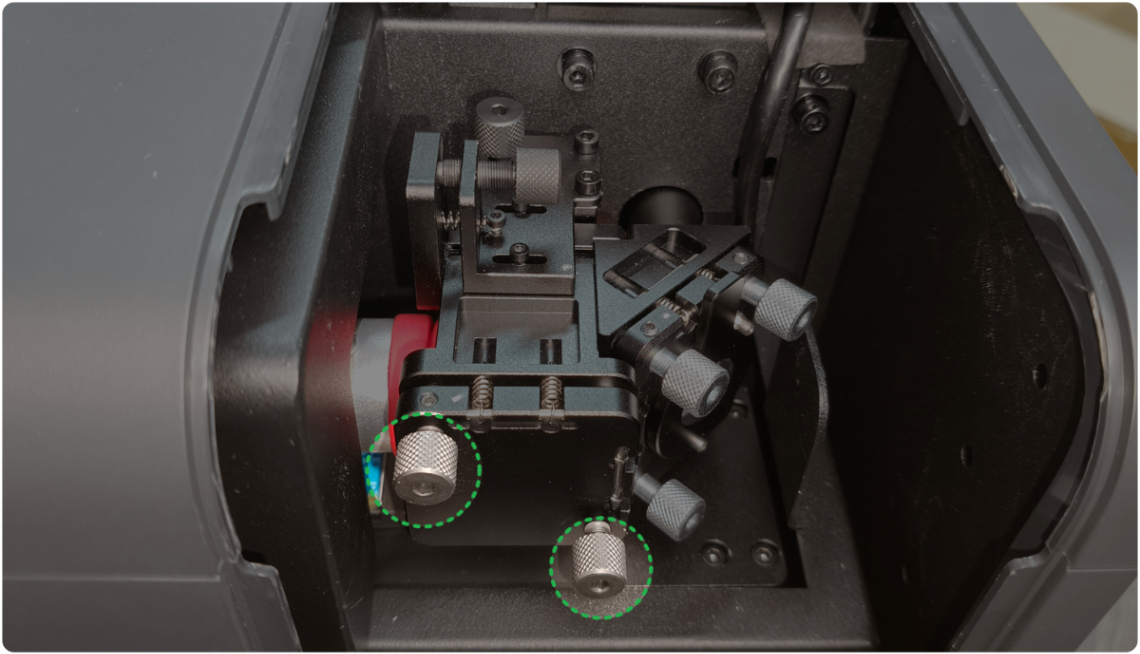
- If yes, it means the red light optical path tilts. Adjust the optical path angle of the red light by turning the screws as shown to the center position and recalibrate the optical path.
2. Check the original light dot
(1) Follow the tutorial to remove the laser mirror and beam combiner mirror.
(2) Observe whether the original red light dot is normal. (The highlighted red light dot is the normal status.)
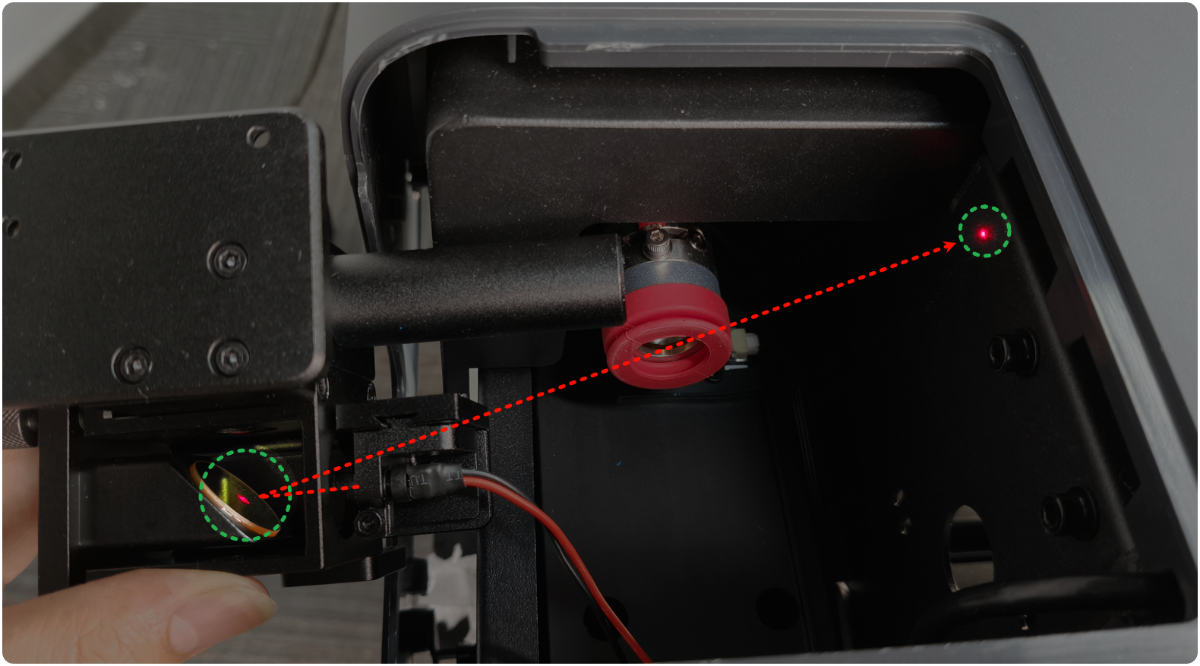
- If the dot is normal, reinstall this module and recalibrate the optical path. Then check for other issues.
- If the dot is abnormal, replace the coaxial red light module.
3. Check every mirror
(1) Use masking tape to capture the red light spot sequentially at each mirror (laser mirror, laser window, focus lens) along the optical path.
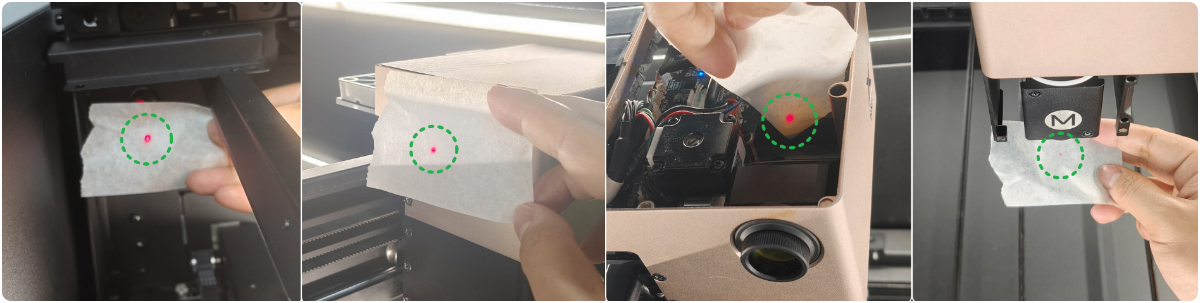
(2) If an abnormal light spot appears when red light passes through or is reflected by a particular mirror, replace that mirror.
Still experiencing issues?
Should the issue persist after completing the preceding steps, submit a ticket via the "Submit a Ticket" button in the "Help Ticket" section below. The standard response time for xTool Customer Service is one business day.
For a prompt resolution, please include the following details:
- Issue description: A detailed explanation of the observed problem.
- Video evidence: Attach a video demonstrating the issue, where applicable.
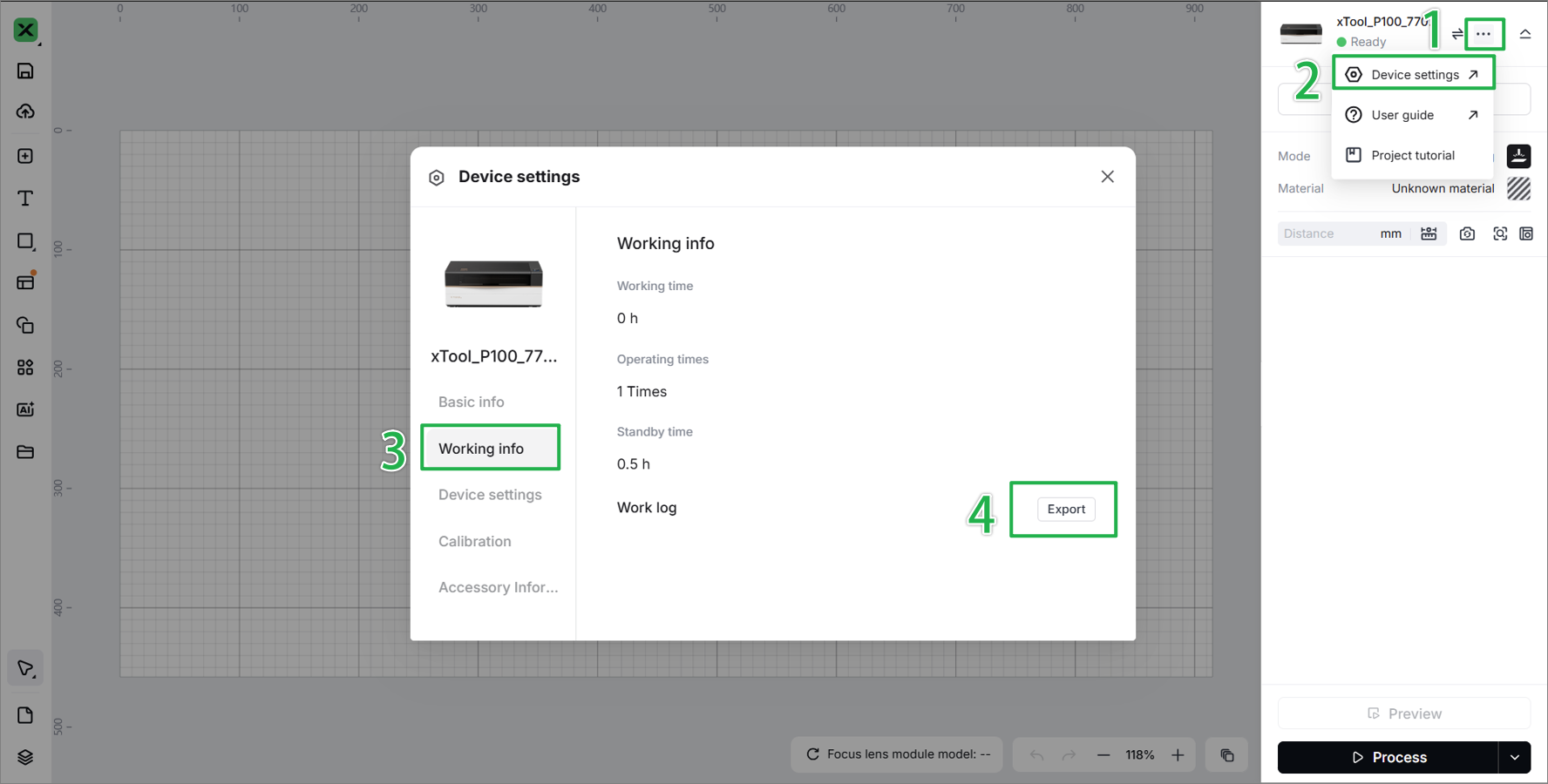
- Device information: Follow the steps to find the SN and export the work log.
- Troubleshooting performed: Any troubleshooting steps you have already attempted, along with their results.
This information is crucial for xTool technical support engineers to provide timely assistance.
Documentation feedback
Help improve this content by providing feedback. If this content did not meet your requirements, select "No" in the "Was this page helpful?" section below. Include specific details about what was unclear or missing in the pop-up suggestion box. Feedback submissions are reviewed by xTool technical writers to enhance future documentation.

