
Issue description
If you encounter any of the following issues, please follow this troubleshooting guide to resolve it.
- Abnormal carriage position
- During processing, the carriage starting position deviates from the pattern placement shown in xTool softwre by more than 5 cm.
- Under stationary state, the carriage position is not the same as the red cross position shown in xTool software.
| |
Red cross position (far right side of the x-axis guide rail) | Carriage position (center of the x-axis guide rail) |
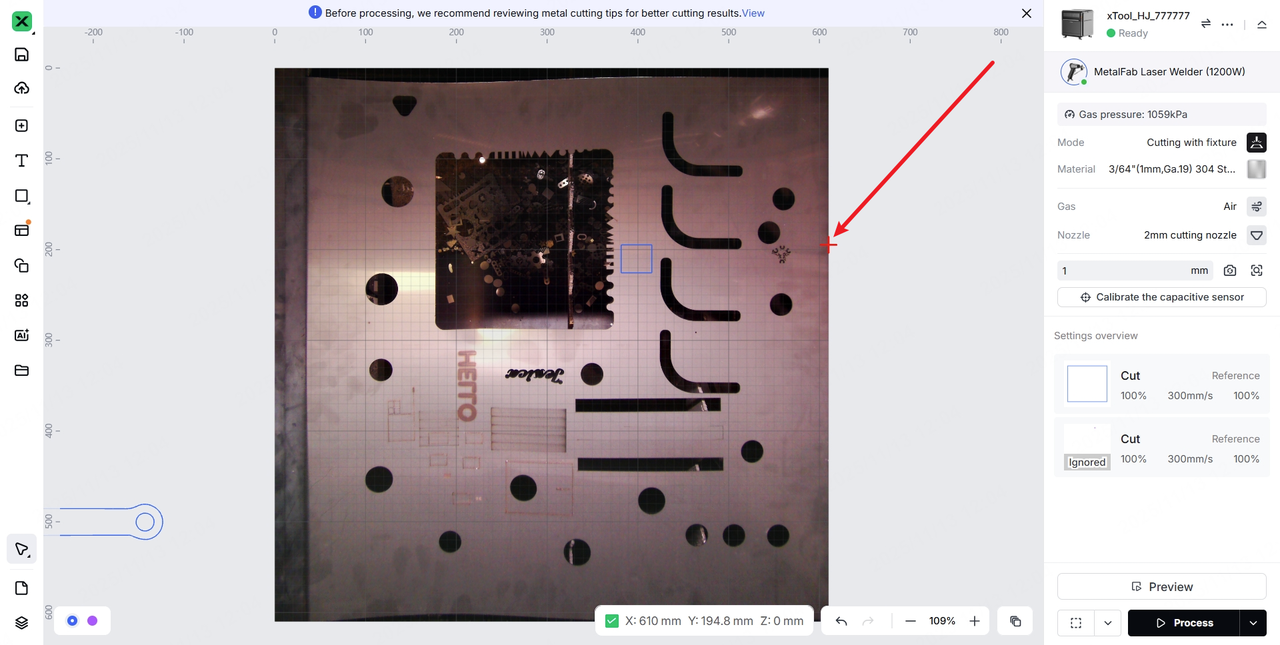
- During camera calibration, the carriage moves outside the range of the camera calibration board.
Possible causes
The motor encoders malfunction, or their cables or connectors are loose or damaged.
Detailed procedure
Step 1: Unplug and then replug the motor encoder cables
Note: If adhesive is on the connectors, use tweezers to remove it from the connector surface before unplugging the cable to prevent damage to the main control board connector.
- Power off xTool MetalFab CNC Cutter.
- Remove the rear plate.
|
|
|
(1) Remove six screws. | (2) Gently open the rear plate and disconnect the two connectors. | (3) Remove the rear plate |
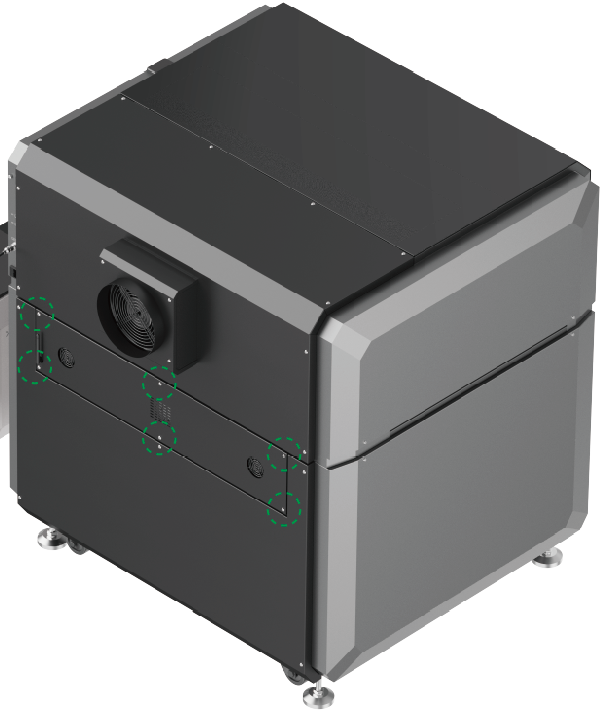
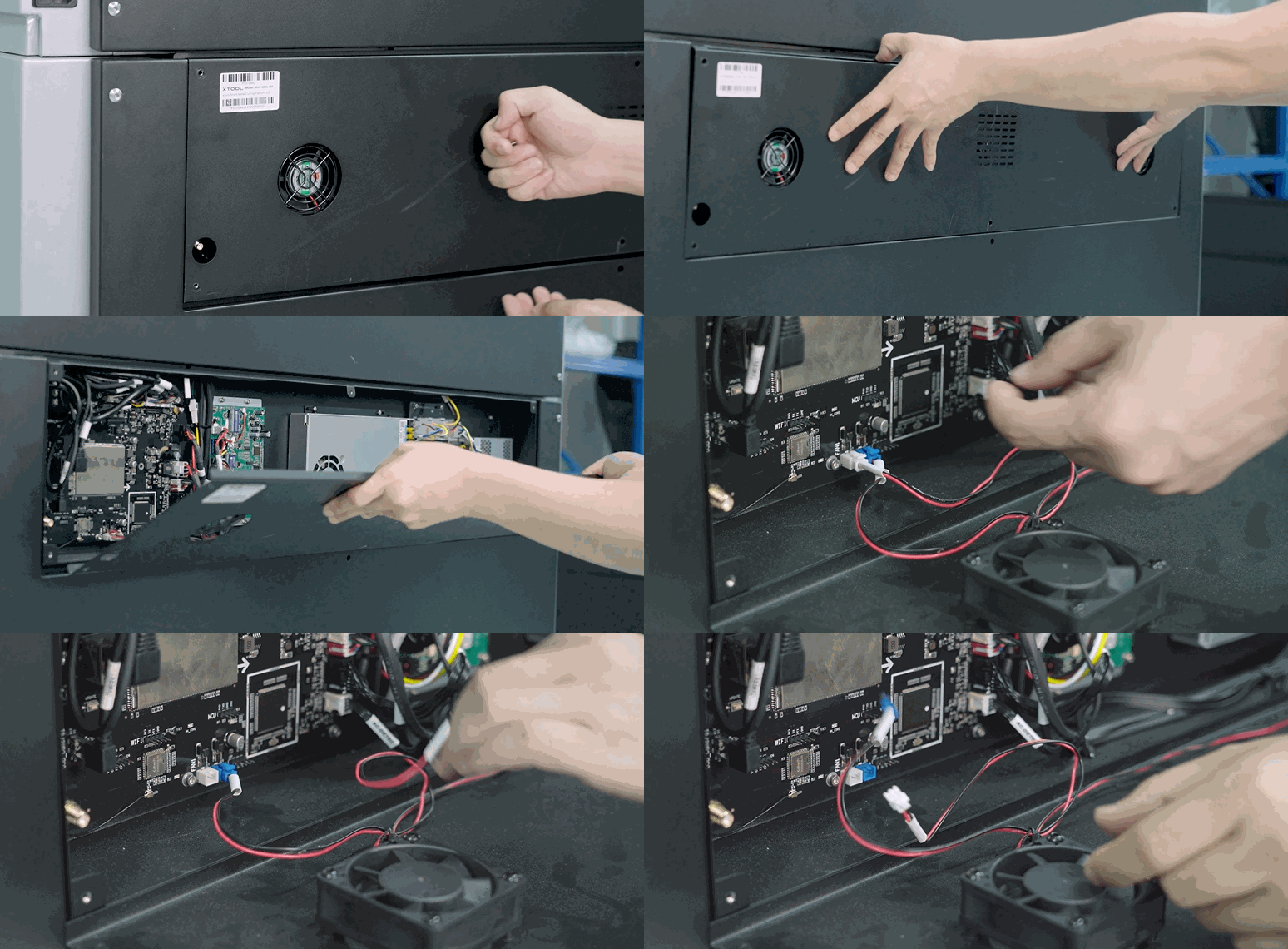
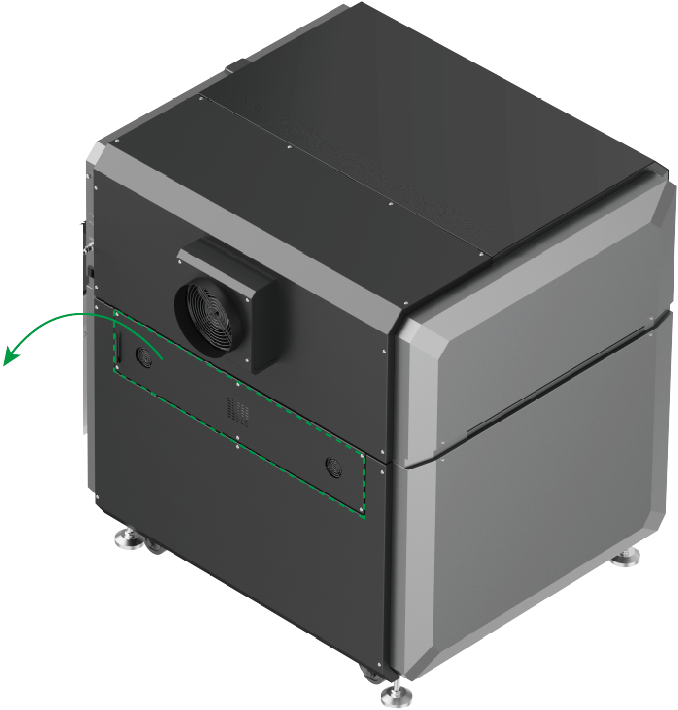
- Check the corresponding cables based on different scenarios.
If there is a large discrepancy between the carriage and the red cross shown in xTool software along the ... | |
|---|---|
Y-axis | X-axis |
(1) Unplug and replug the connector as shown below and check if the cables are damaged.
| (1) Unplug and replug the connector as shown below and check if the cables are damaged.
|
(2) Refer to Replace the Motor of the X-axis Guide Rail for xTool MetalFab CNC Cutter to locate the corresponding cable connected with x-axis motor. Then, unplug and replug the cable and check if it is damaged.
| |
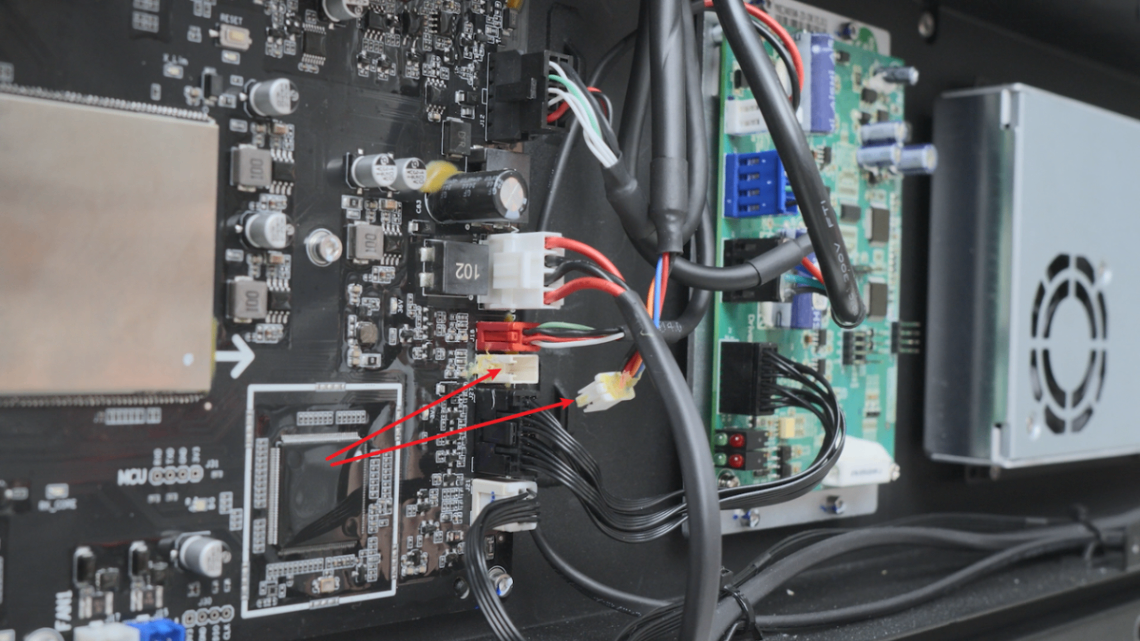
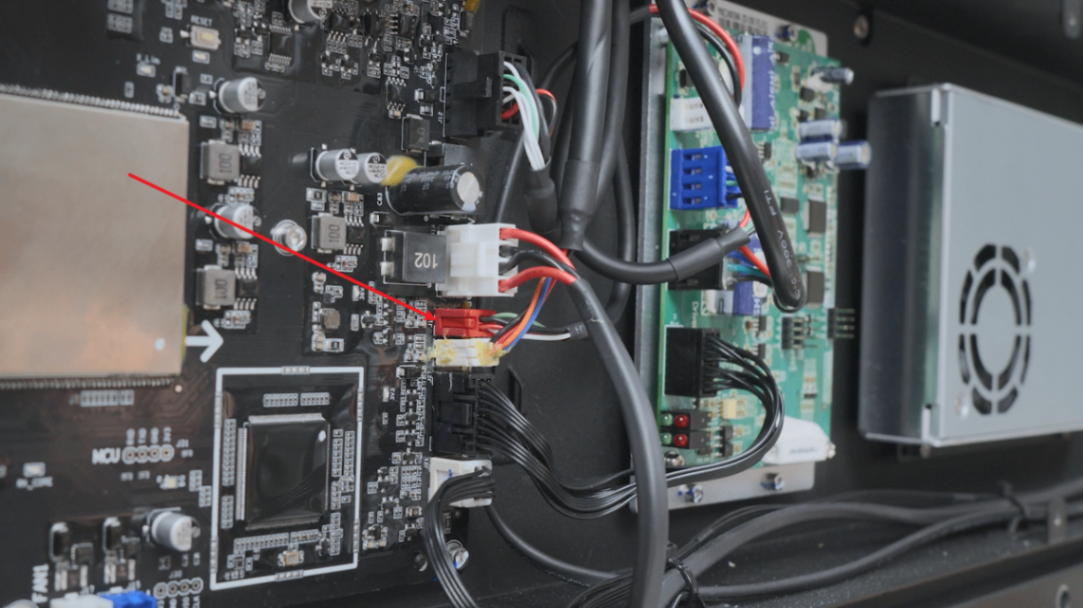
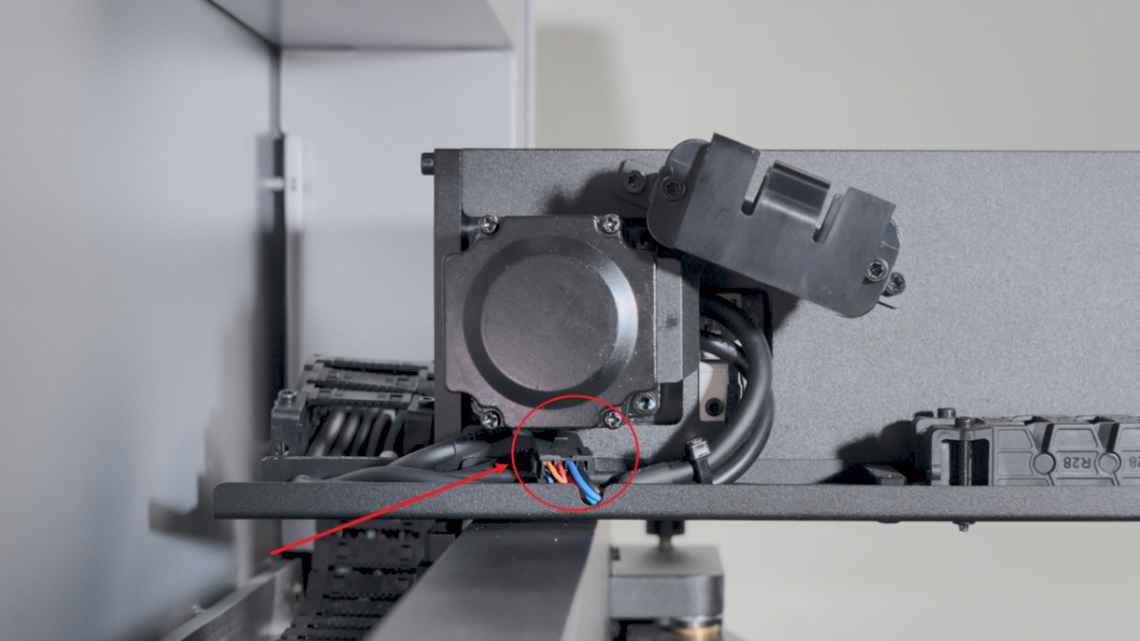
- If the issue persists, please proceed to the next step.
Step 2: Test the working status of x- and y-axis motor encoders
- Power on xTool MetalFab CNC Cutter.
- Wait until the carriage is fully reset to the upper-right corner of the work area, connect the device to xTool software, and enable the carriage position display.
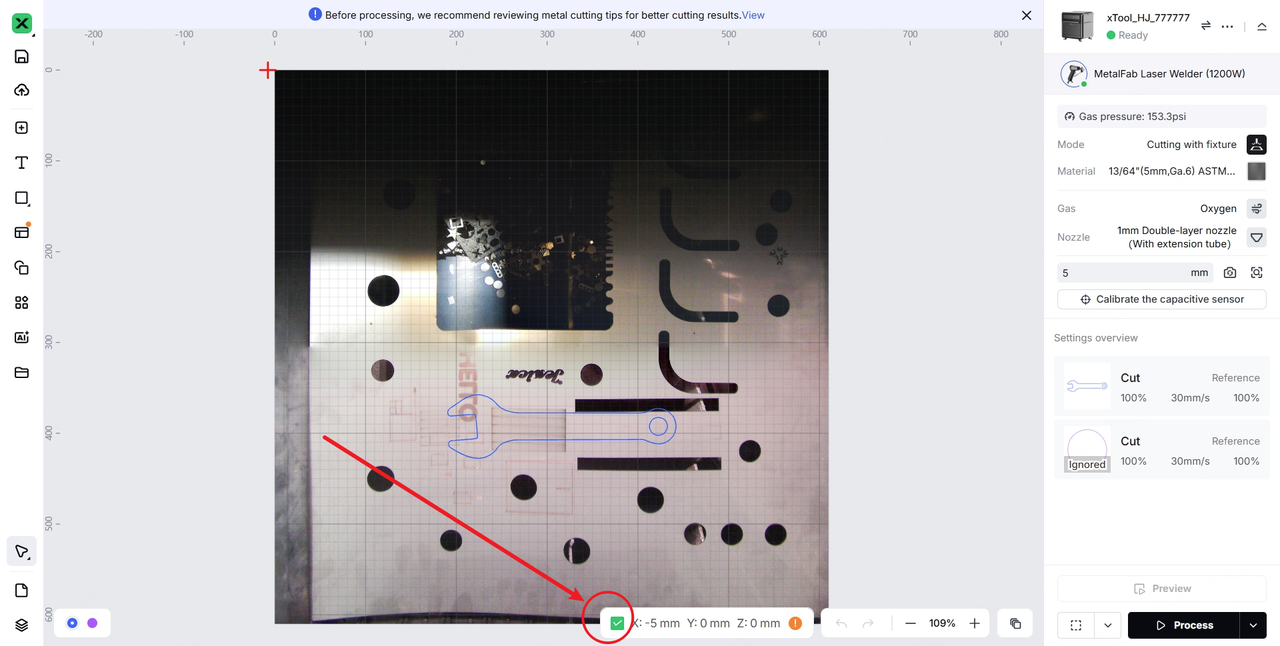
- Refer to this video and manually move the carriage to the upper left corner. Film the whole process and carriage position information in the software.
|
|
Carriage position (upper left corner) | Carriage position displayed in the software during normal operation X: -5 mm Y: 0 mm Z: 0 mm |
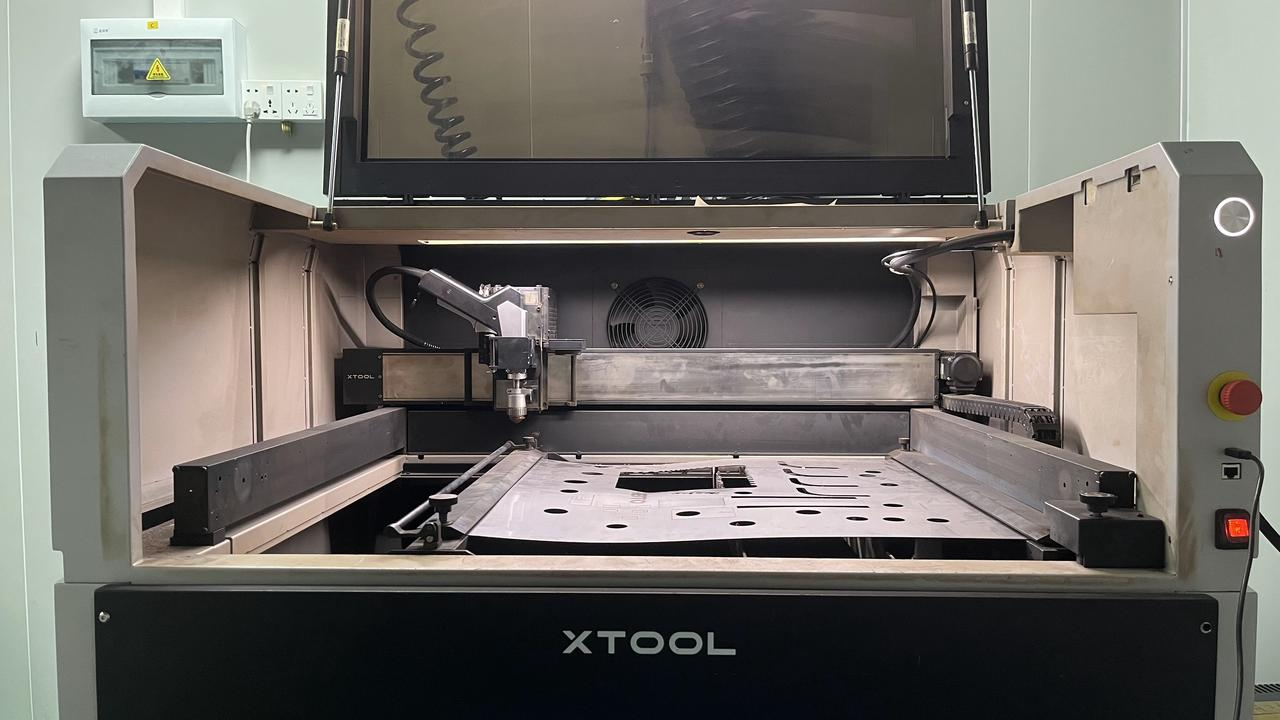
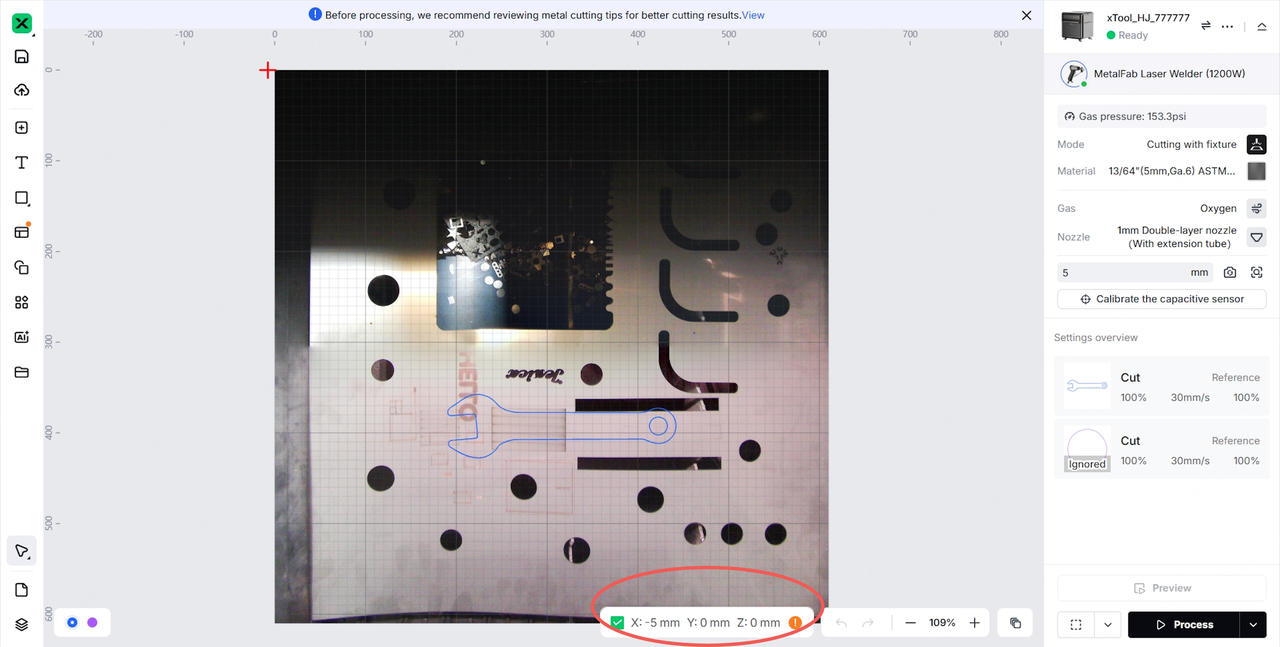
- Refer to this video and manually move the carriage to the bottom right corner. Film the whole process and carriage position information in the software.
|
|
Carriage position (bottom right corner) | Carriage position displayed in the software during normal operation X: 609.1 mm Y: 615 mm Z: 0 mm |
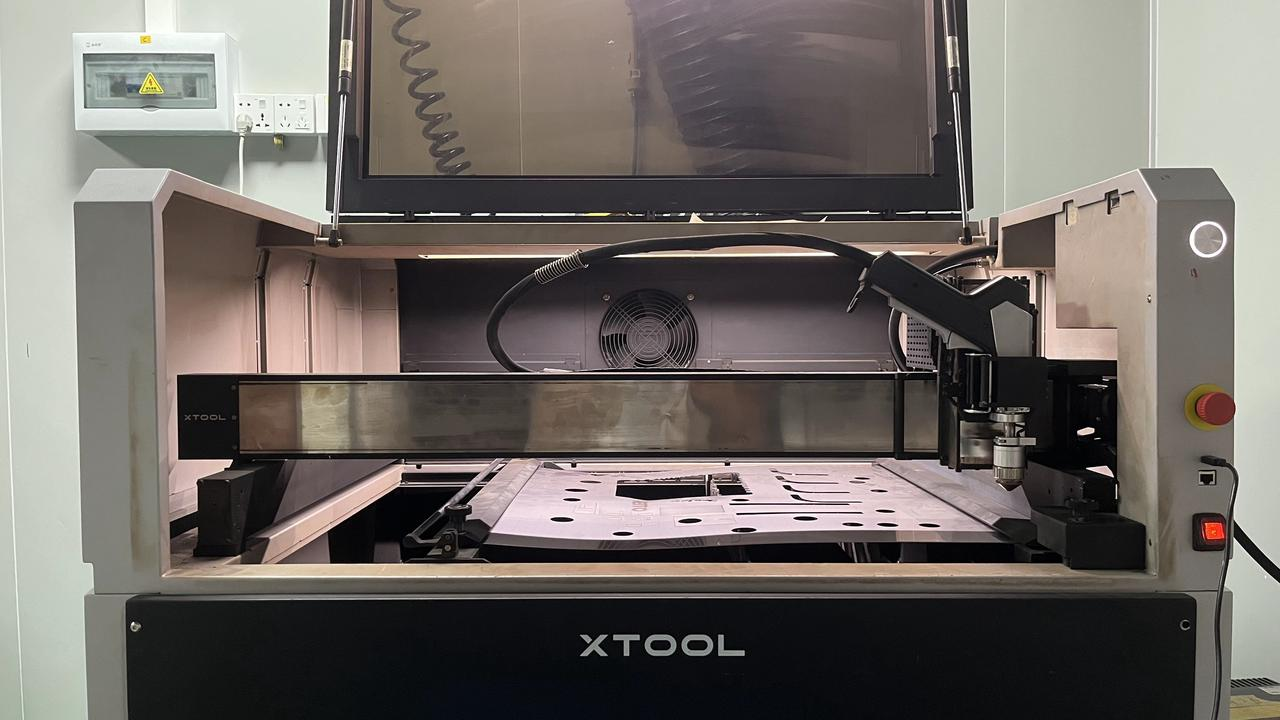
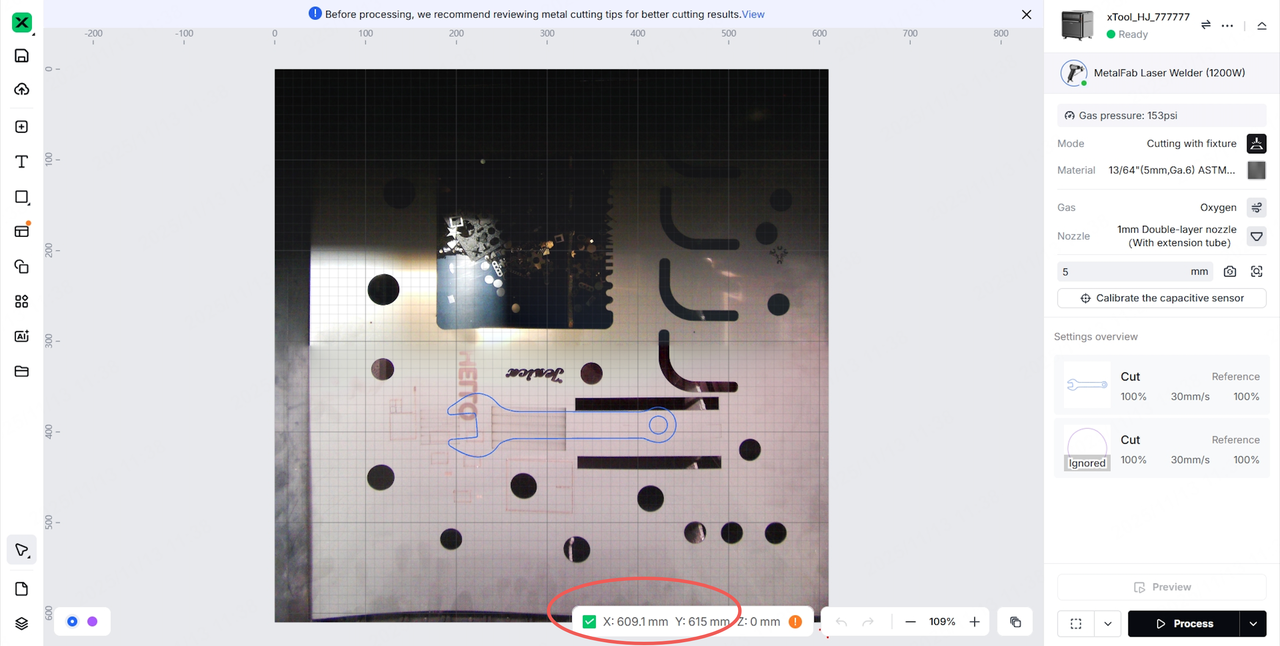
Step 3: Swap x- and y-axis motor encoder wiring
- Power off xTool MetalFab CNC Cutter.
- Unplug the x-axis and the y-axis motor encoder cables from the main control board (marked in red in the illustration below), then plug them into each other's connectors.
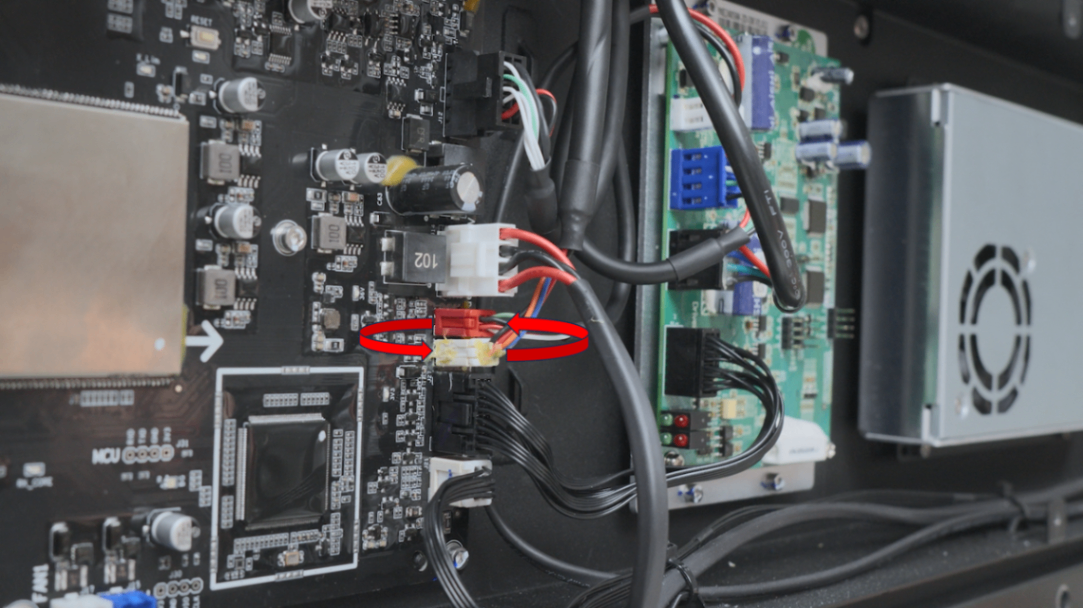
- Repeat the operations in Step 2 (manually move the carriage, then read the its position in the software), and film the carriage position information in the software respectively when the carriage is at the upper left corner or the bottom right corner of the processing area.
|
|
Carriage position information in the software during normal operation (carriage at the upper left corner) | Carriage position information in the software during normal operation (carriage at the bottom right corner) |
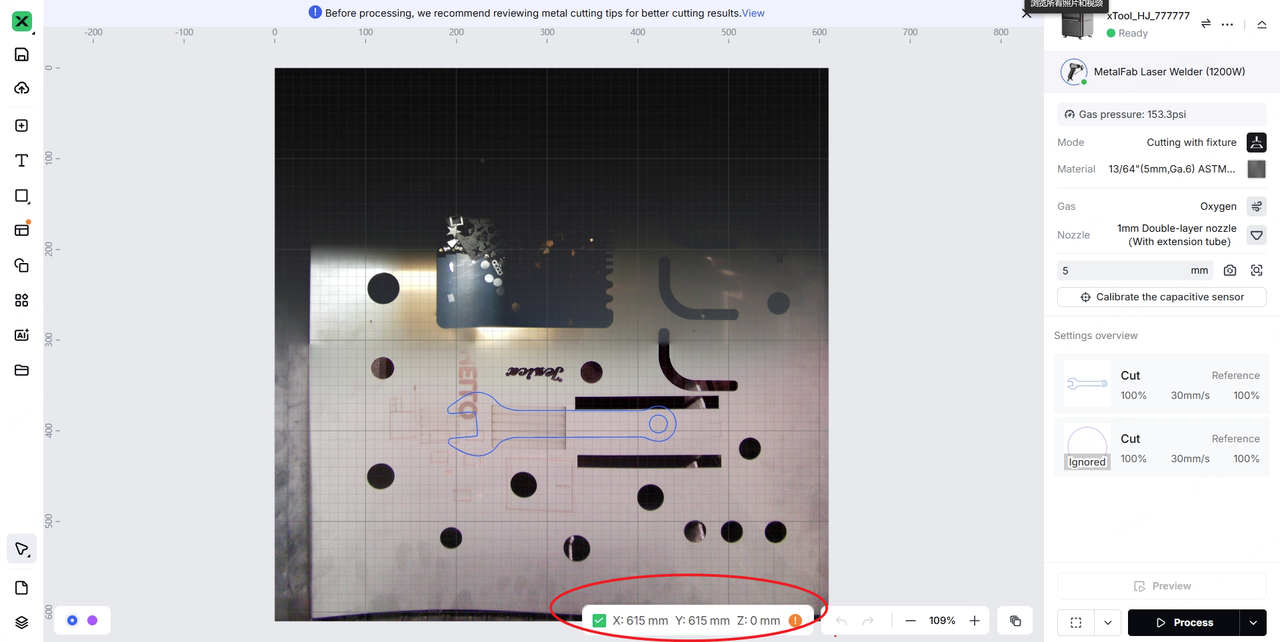
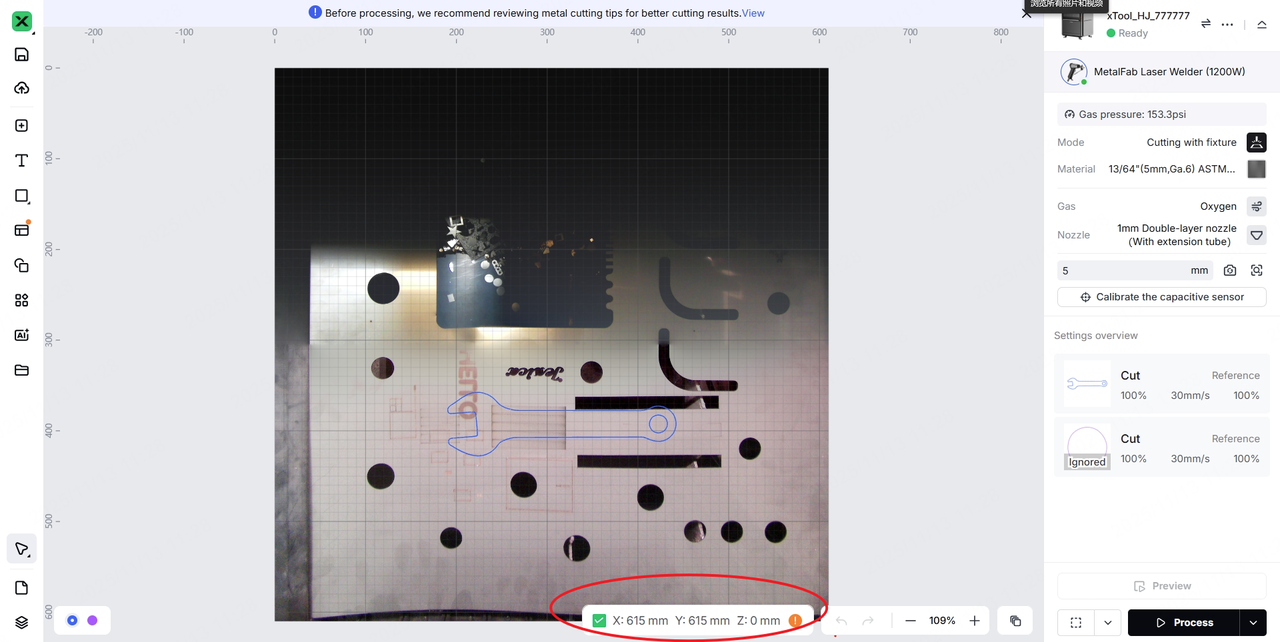
- If the issue persists, please prepare the following materials and send them to xTool Customer Service for further assistance:
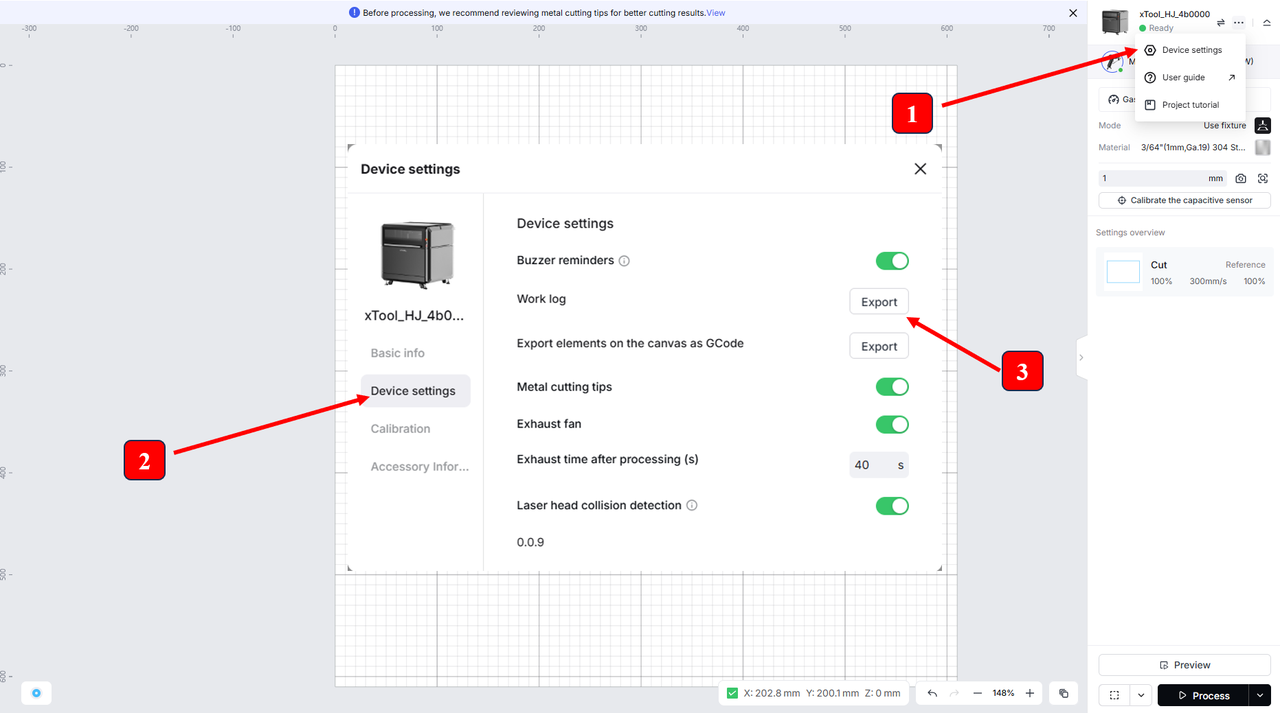
Note: After completing all the steps, please reconnect the x-axis and the y-axis motor encoder connectors to their original positions on the main control board.
Help us improve
If this article or video doesn't effectively assist you in resolving the issue, please let us know by clicking the “No” button in the “Was this page helpful?” section below, and leave your feedback in the pop-up suggestion box. Our knowledge base team will review it and consider it for future updates.
Still need help?
If you need any human assistance, please create a ticket by clicking the “Submit a Ticket” button in the “Help Ticket” section below. Our service team will get back to you in 1 business day via E-mail.

Services & Help
Learn & Education

Copyright © 2025 xTool All Rights Reserved.