
Issue description
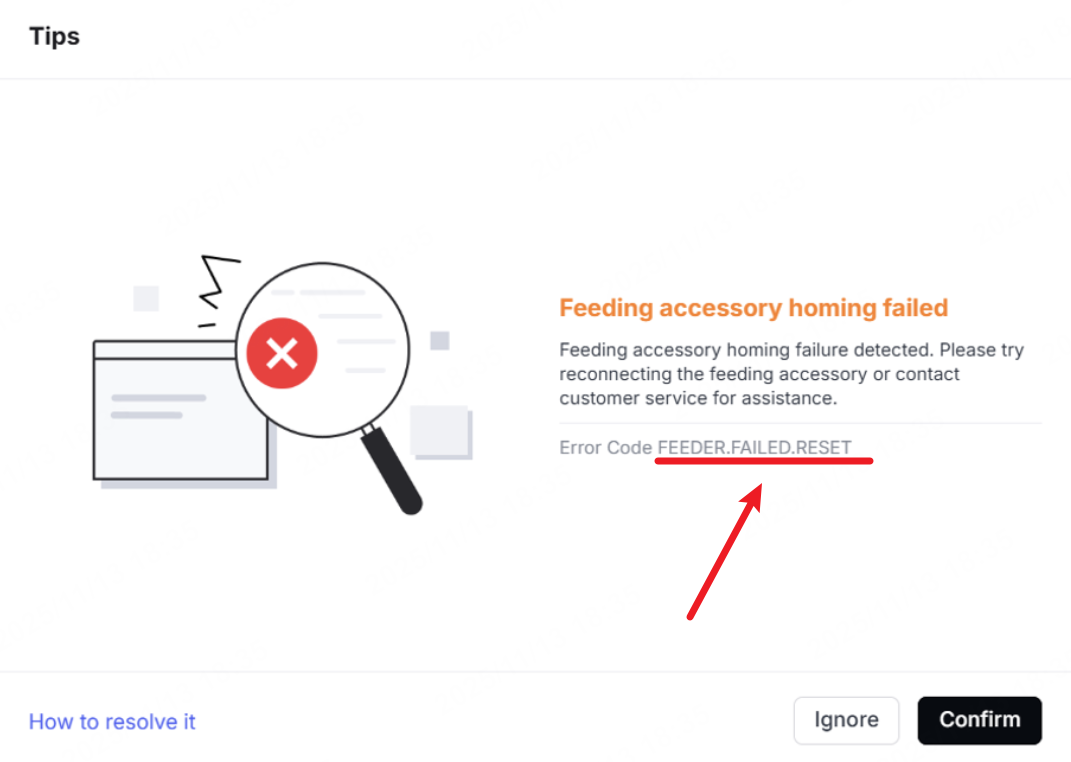
After xTool P3 is connected to xTool software, an error message is diaplayed: Feeding accessory homing failed (Error Code FEEDER.FAILED.RESET).
Possible causes
- The software and firmware versions are outdated.
- The connection cable of the automatic conveyor feeder is loose or damaged.
- The limit switches of the automatic conveyor feeder are dirty.
- The connection cables of the limit switches are loose.
- The motor of the automatic conveyor feeder is malfunctioning.
- The main control board of the automatic conveyor feeder is malfunctioning.
Troubleshooting
Before troubleshooting
Note: xTool P3 automatic conveyor feeder does not support hot swapping. Before inserting or removing the connection cable of the automatic conveyor feeder, please power off xTool P3 first.
Each end of the automatic conveyor feeder is equipped with a motor. Only the two motors work simultaneously can the clamping module properly rise, descend, and reset. If one motor malfunctions, the clamping module may tilt, causing the motor to jam (as shown below). Generally, the end of the clamping module that fails to reset is lower. It is recommended that you prioritize checking that side.
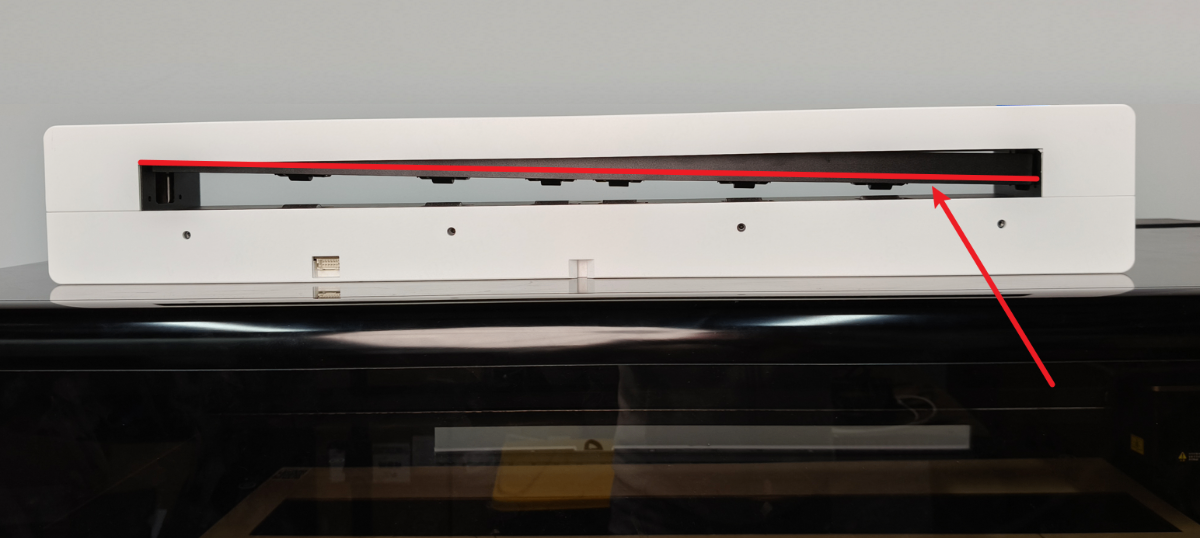
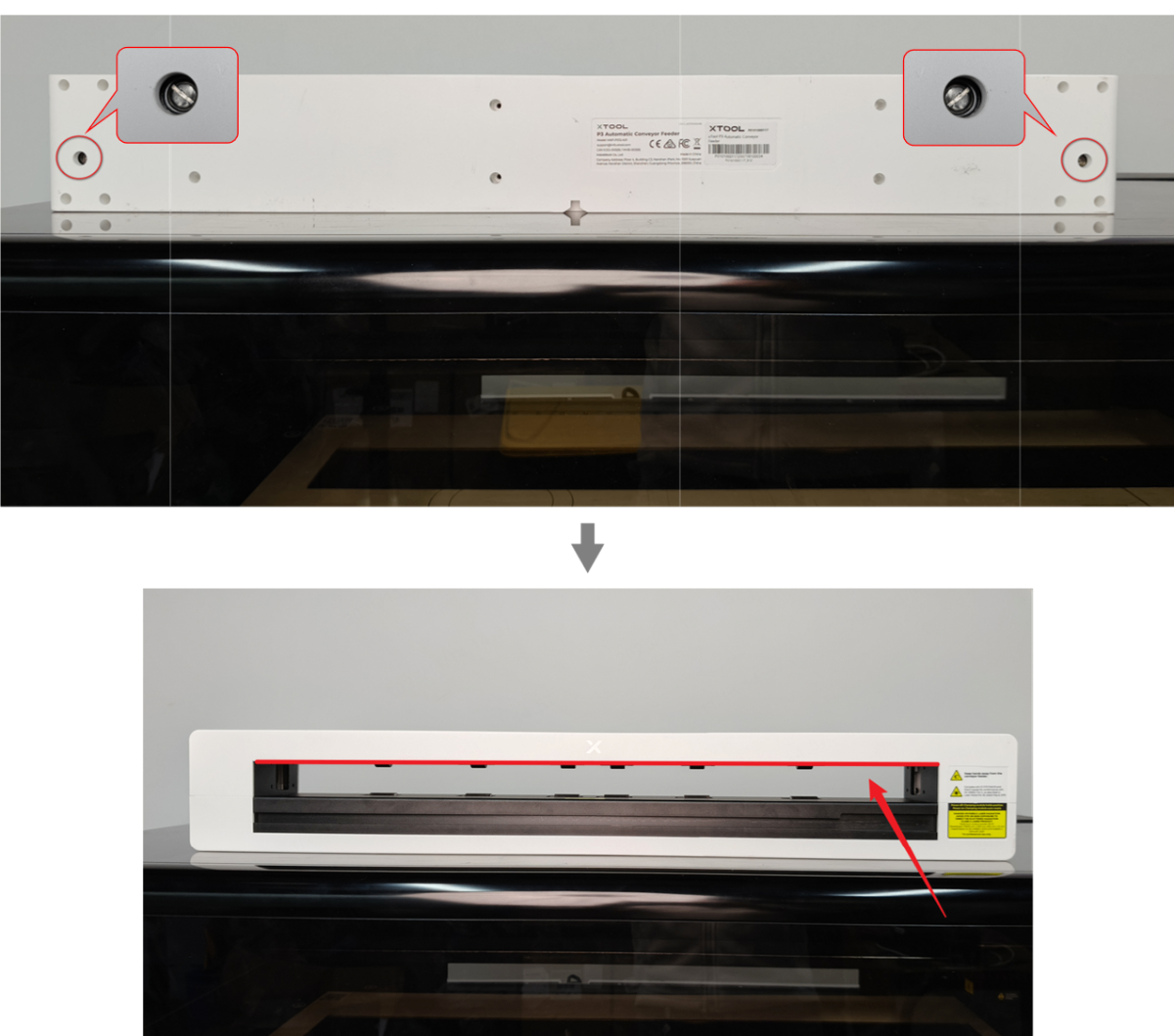
Please note that if the clamping module is not leveled, the motor remains jammed even if the root cause of the reset failure is resolved. Therefore, before proceeding with troubleshooting, level the clamping module by referring to the following steps first.
- Power off xTool P3.
- Use a flathead screwdriver to rotate the main motor shaft until both ends of the clamping module are horizontal. This is the normal reset state for the automatic conveyor feeder.
- When you rotate the main motor shaft clockwise, the clamping module descends.
- When you rotate the main motor shaft counterclockwise, the clamping module rises.
Troubleshooting procedures
1. Check xTool software and firmware versions
Check whether the xTool software and firmware versions are the latest. If not, upgrade them and restart xTool P3.
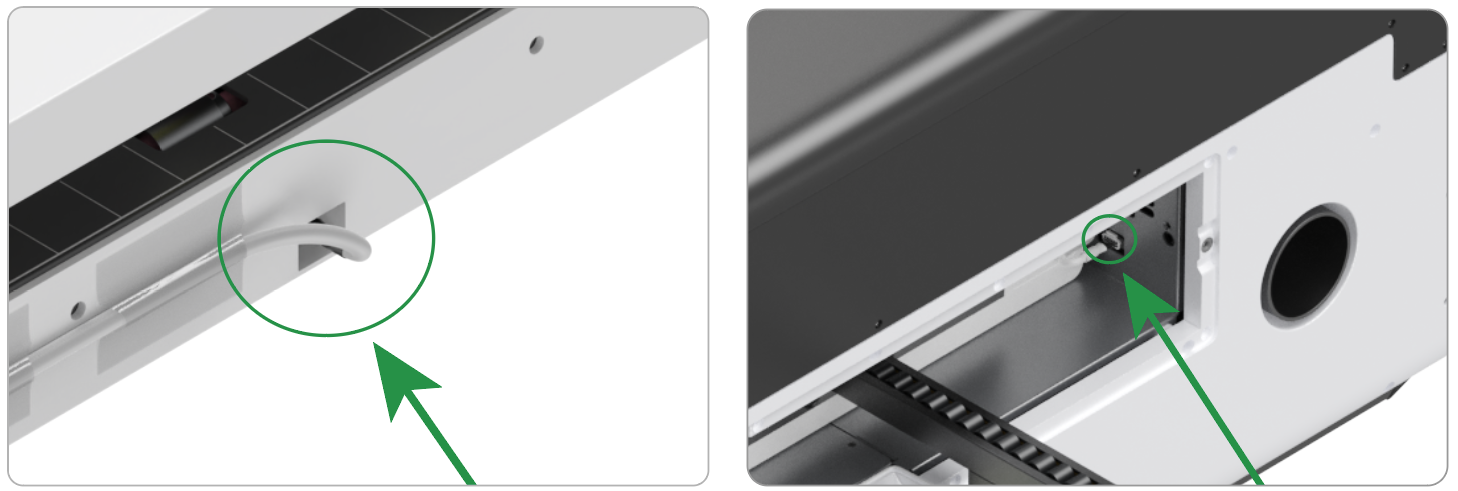
2. Check the connection cable of the automatic conveyor feeder
- If the connection cable is loose, power off xTool P3, remove the connection cable and then re-insert it.
- If the connection cable is damaged, replace it with a new one. To get a new connection cable, please contact xTool Customer Service.
3. Clean the limit switches of the automatic conveyor feeder
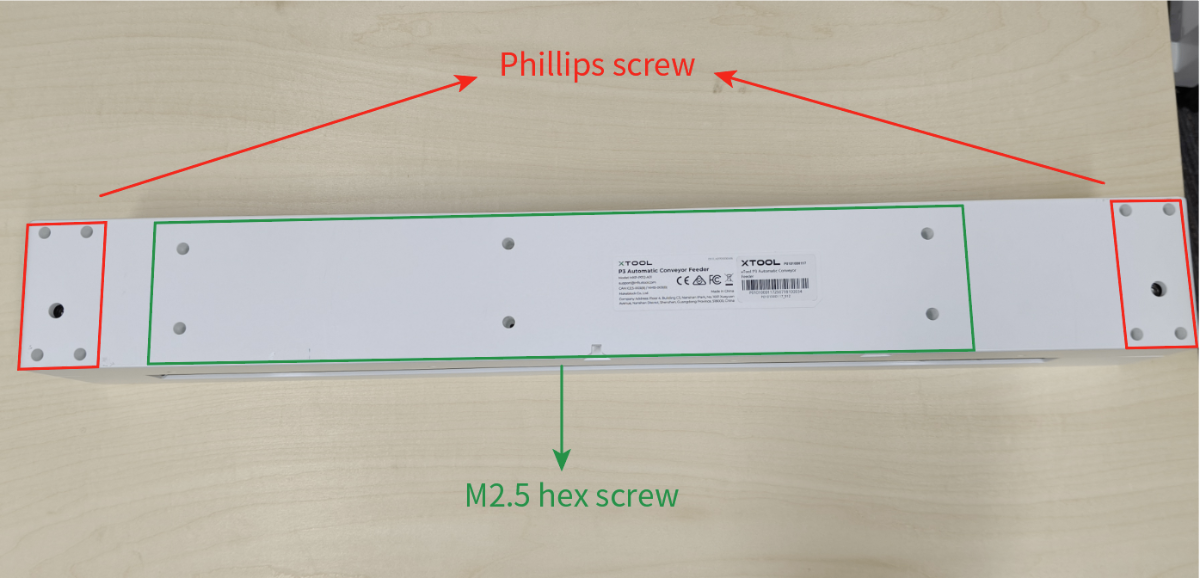
(1) Use screwdrivers to disassemble and remove the casing of the automatic conveyor feeder.
(2) Check whether the limit switches are dirty.
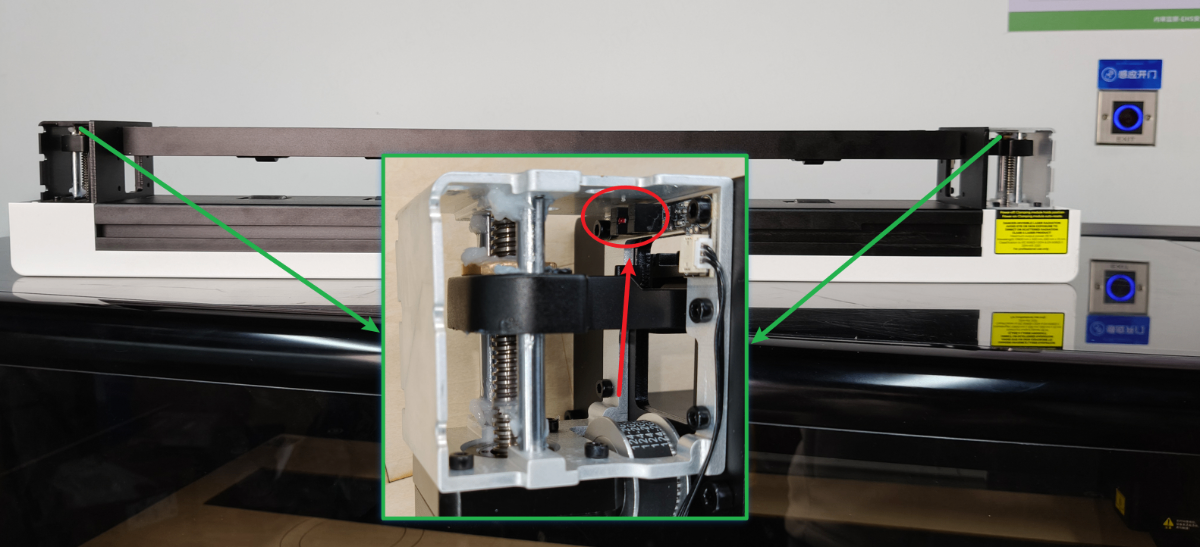
- If it is dirty, use a brush or cotton swab to clean it.
- If not, proceed to the next step.
4. Check the connection cable of the automatic conveyor feeder's limit switches
- If the connection cable is loose, power off xTool P3, and remove the connection cable and then re-insert it.
- If the connection cable is damaged, replace it with a new one. To get a new connection cable, please contact xTool Customer Service.
5. Test the limit switches of the automatic conveyor feeder
(1) Power on xTool P3.
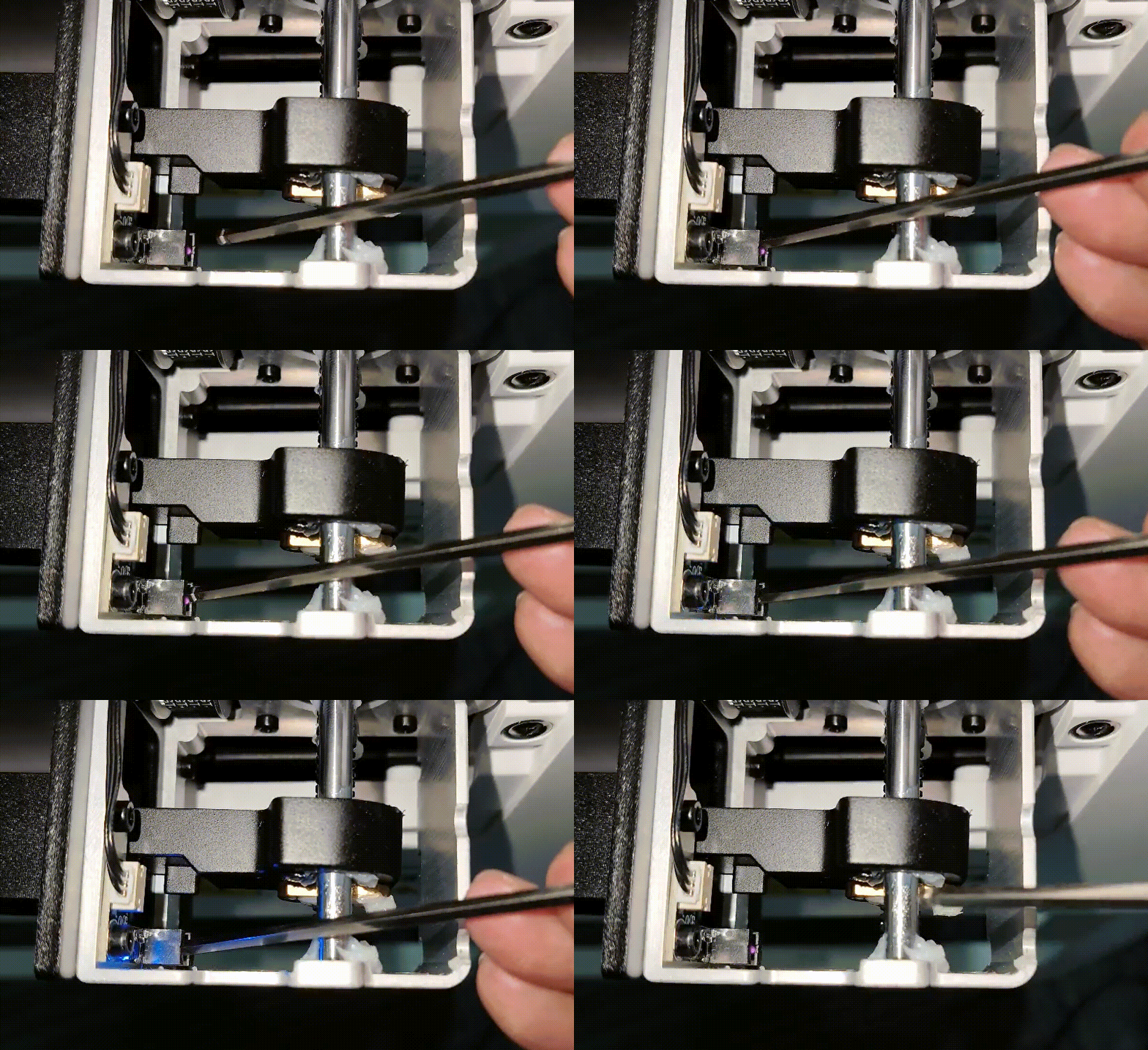
(2) Place an opaque object into the middle of the limit switch probe and observe the signal indicator light near the probe.
- If the signal indicator light does not change, replace the limit switch.
- If the signal indicator light changes, proceed to the next step.
6. Check the motor connection cable
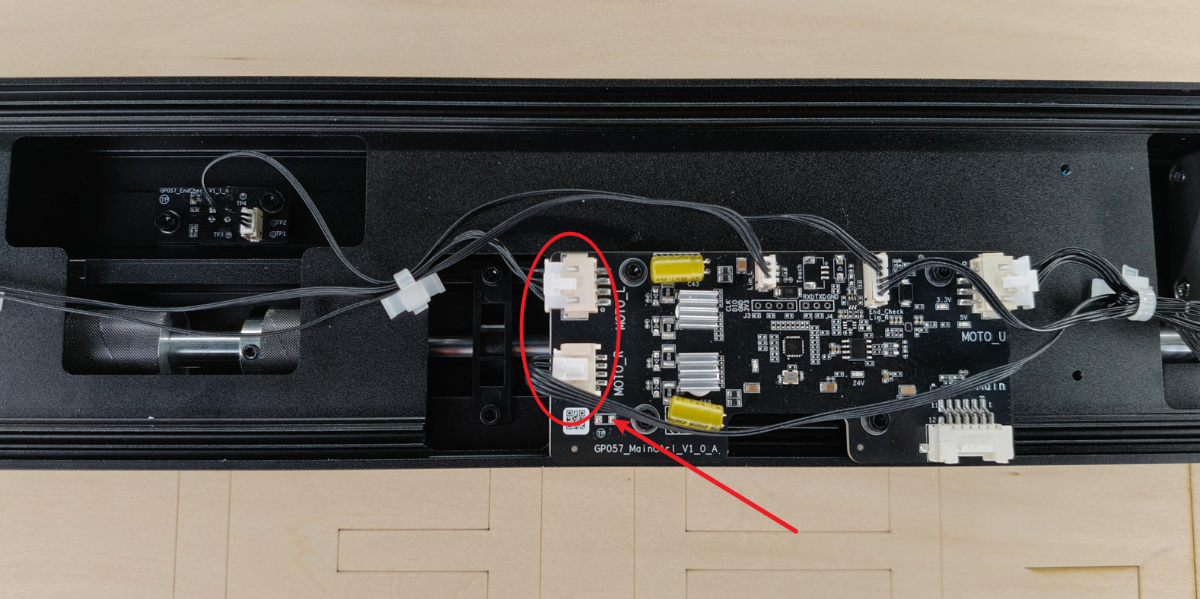
- If the connection cable is loose, power off xTool P3, remove the connection cable and then re-insert it.
- If the connection cable is damaged, replace it with a new one. To get a new connection cable, please contact xTool Customer Service.
7. Check the motor
If the motor is malfunctioning, replace it with a new one. To get a new motor, please contact xTool Customer Service.
8. Check the main control board
If the main control board is malfunctioning, replace it with a new one. To get a new main control board, please contact xTool Customer Service.
Still experiencing issues?
Should the issue persist after completing the preceding steps, submit a ticket via the "Submit a Ticket" button in the "Help Ticket" section below. The standard response time for xTool Customer Service is one business day.
For a prompt resolution, please include the following details:
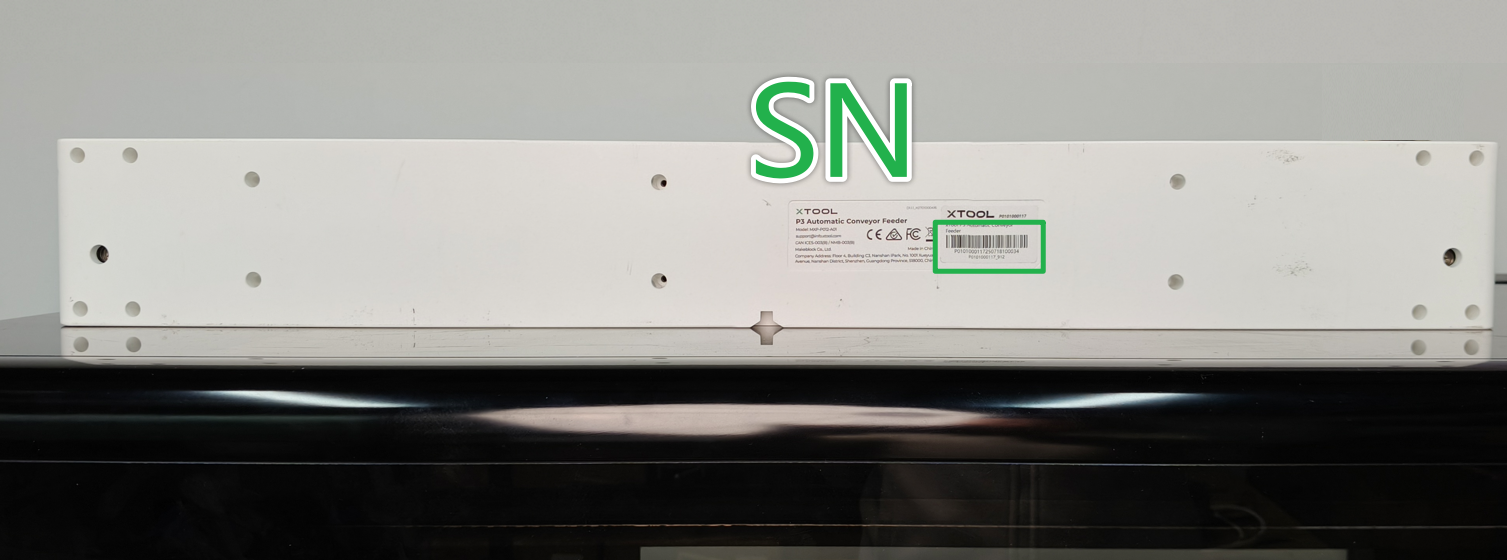
- Serial number (SN)
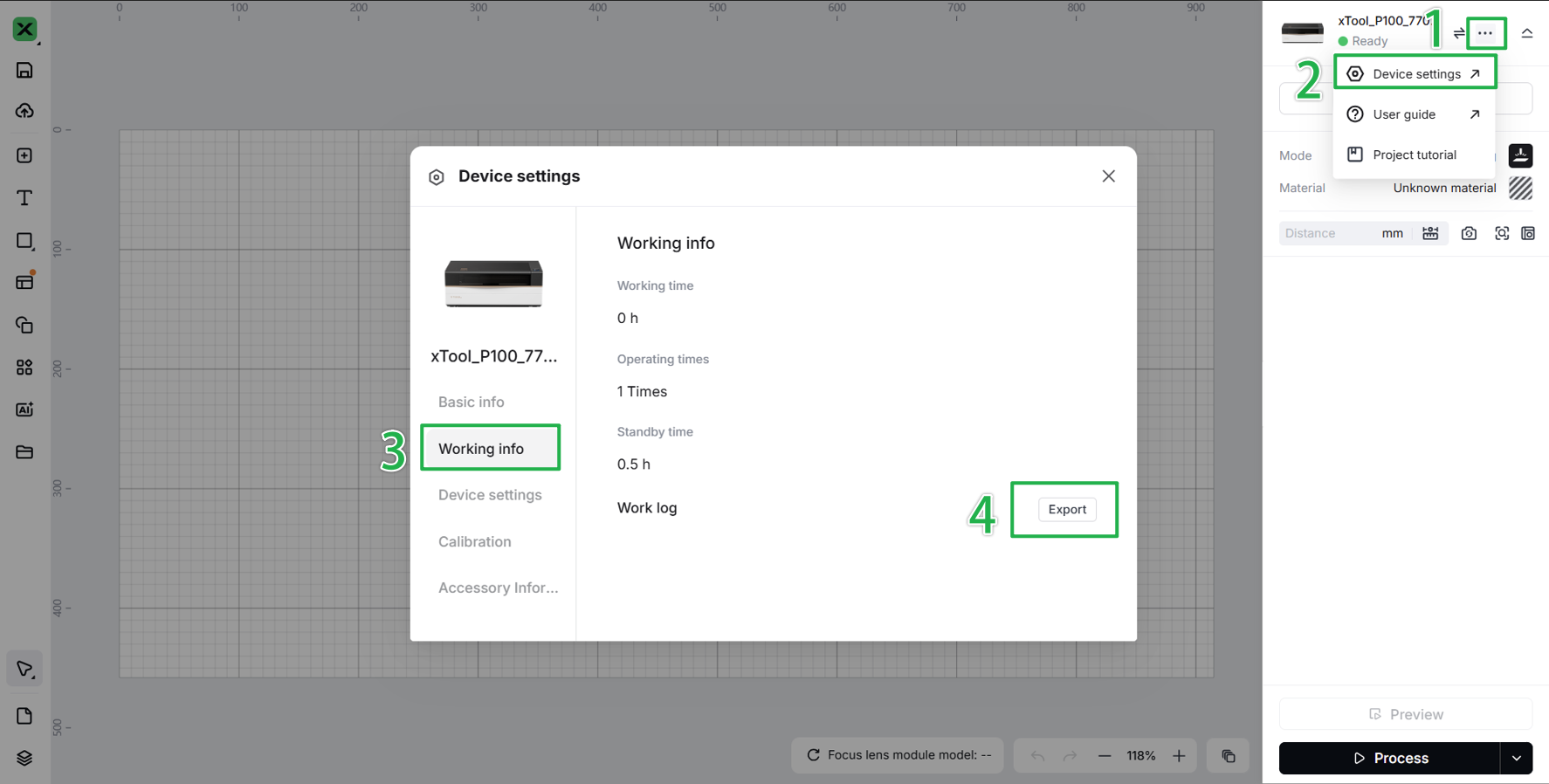
- Work log of the device
- Issue description: A detailed explanation of the observed problem.
- Video evidence: Attach a video demonstrating the issue, where applicable.
- Troubleshooting performed: Any troubleshooting steps you have already attempted, along with their results.
This information is crucial for xTool technical support engineers to provide timely assistance.
Documentation feedback
Help improve this content by providing feedback. If this content did not meet your requirements, select "No" in the "Was this page helpful?" section below. Include specific details about what was unclear or missing in the pop-up suggestion box. Feedback submissions are reviewed by xTool technical writers to enhance future documentation.

