
Issue description
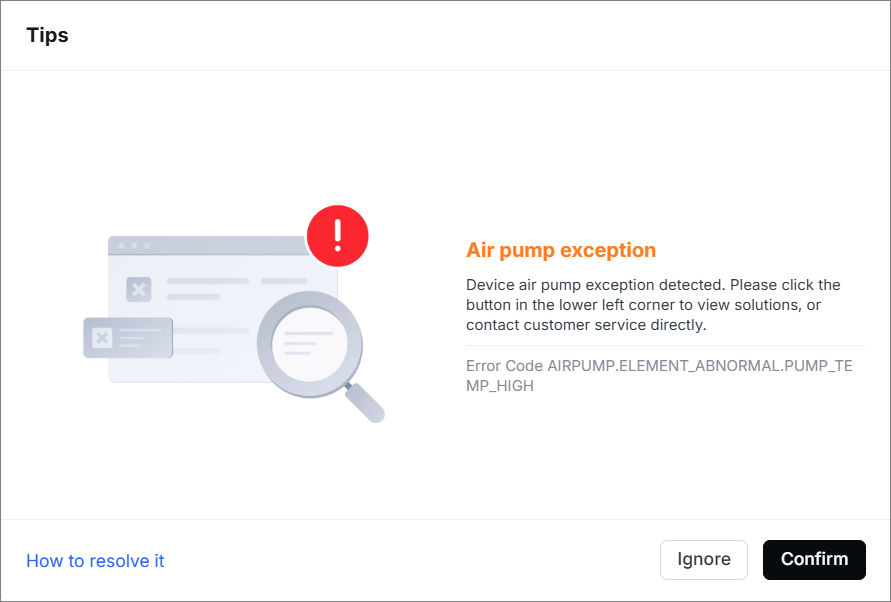
The device stops during processing, and the software prompts "Air pump exception" with the error code AIRPUMP.ELEMENT_ABNORMAL.PUMP_TEMP_HIGH.
Possible causes
- The firmware and software are not the latest version.
- Device operating for extended periods
- Exhaust fan of the air pump is faulty.
- The air pump is faulty.
Troubleshooting procedures
1. Check the firmware and software
Update the firmware and software to the latest version. And then restart the device.
2. Check the filter screen
(1) Remove the cover on the left plate.
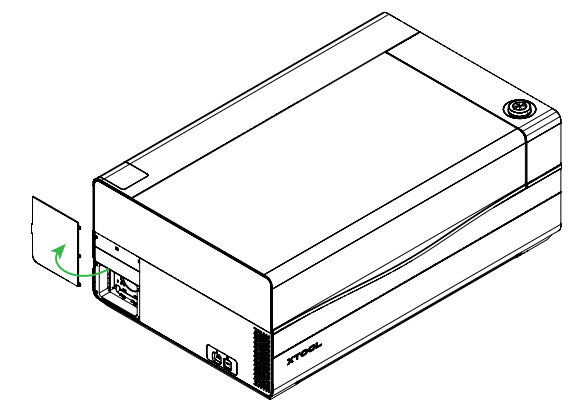
(2) Pull down the air pump filter screen (as shown) and check whether it is dirty.
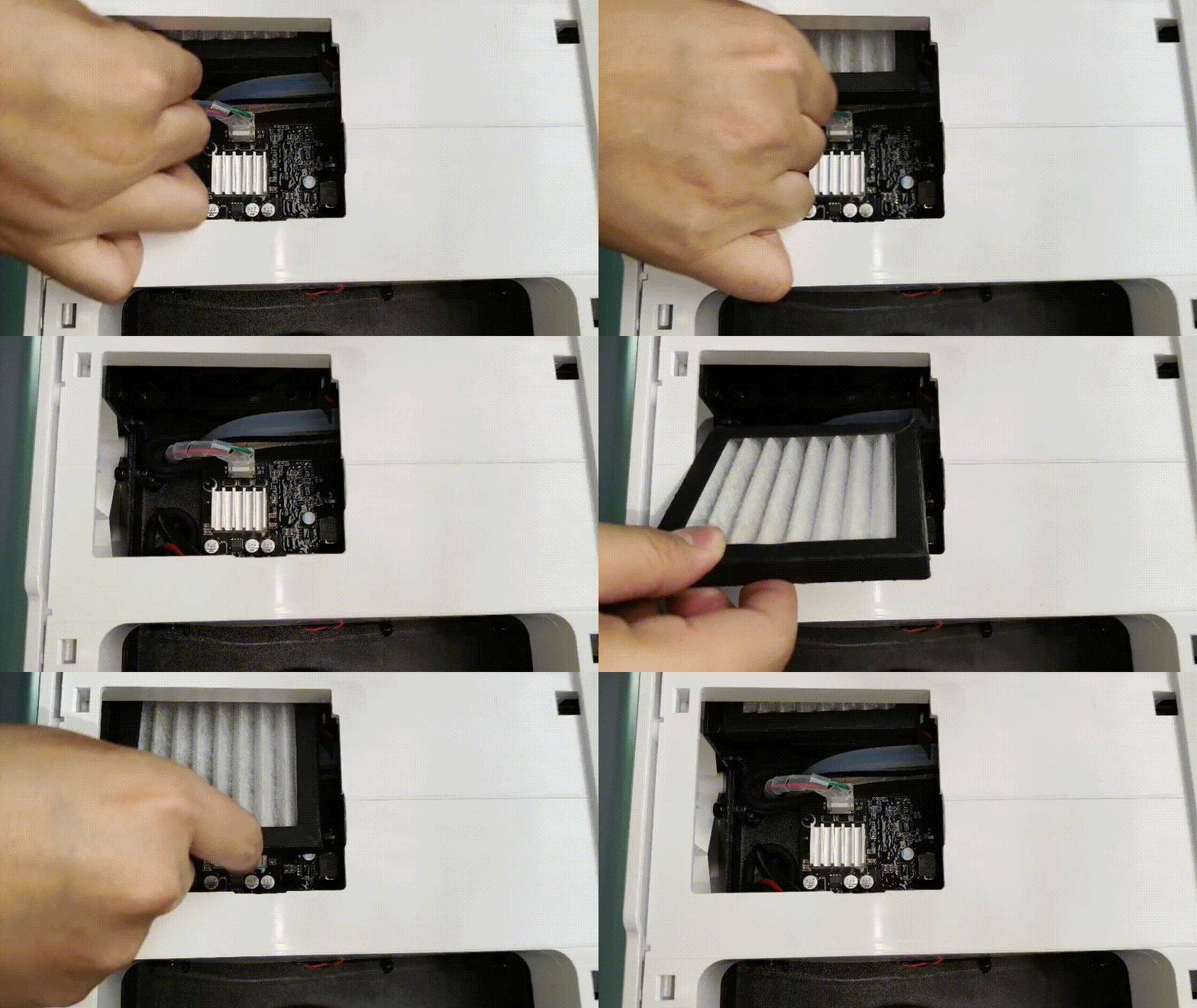
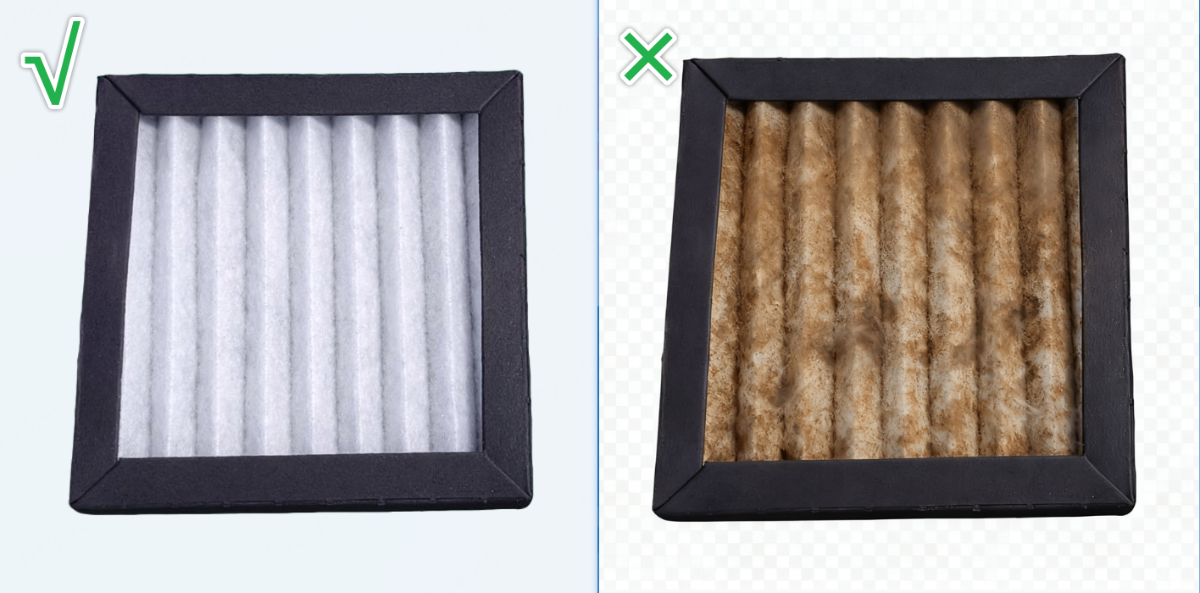
- If the filter screen is severely dirty, clean the screen or replace a new one before processing again.
You can clean the filter screen by gently tapping it or lightly brushing it with a brush. Alternatively, contact our customer service team to get a new filter screen for replacement
- If the filter screen is not dirty, check for other issues.
3. Pause processing to cool down
After a long period of cutting, the air pump may overheat (≥75°C), triggering this pop-up window (it is normal).
In such cases, pause processing and wait for the air pump to cool down before processing again.
4. Check the exhaust fan of the air pump
The air pump fan operates synchronously with the air pump and only activates during laser (CO2 laser) processing.
(1) Remove the cover on the left plate.
(2) Remove the air pump filter screen (as shown).
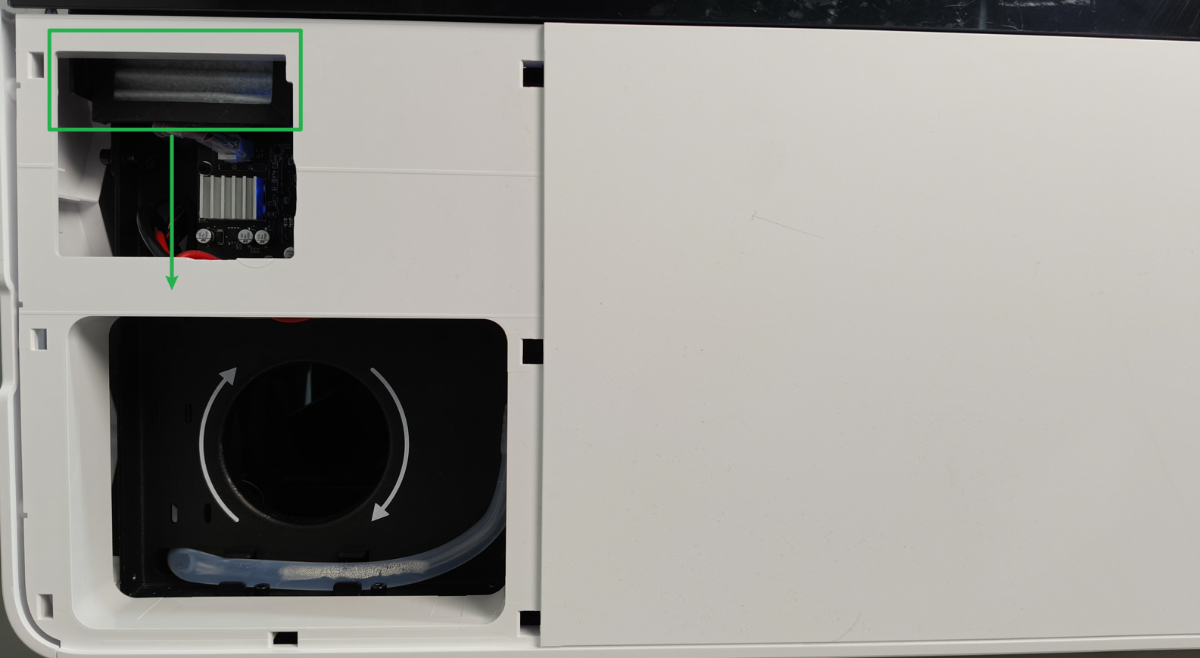
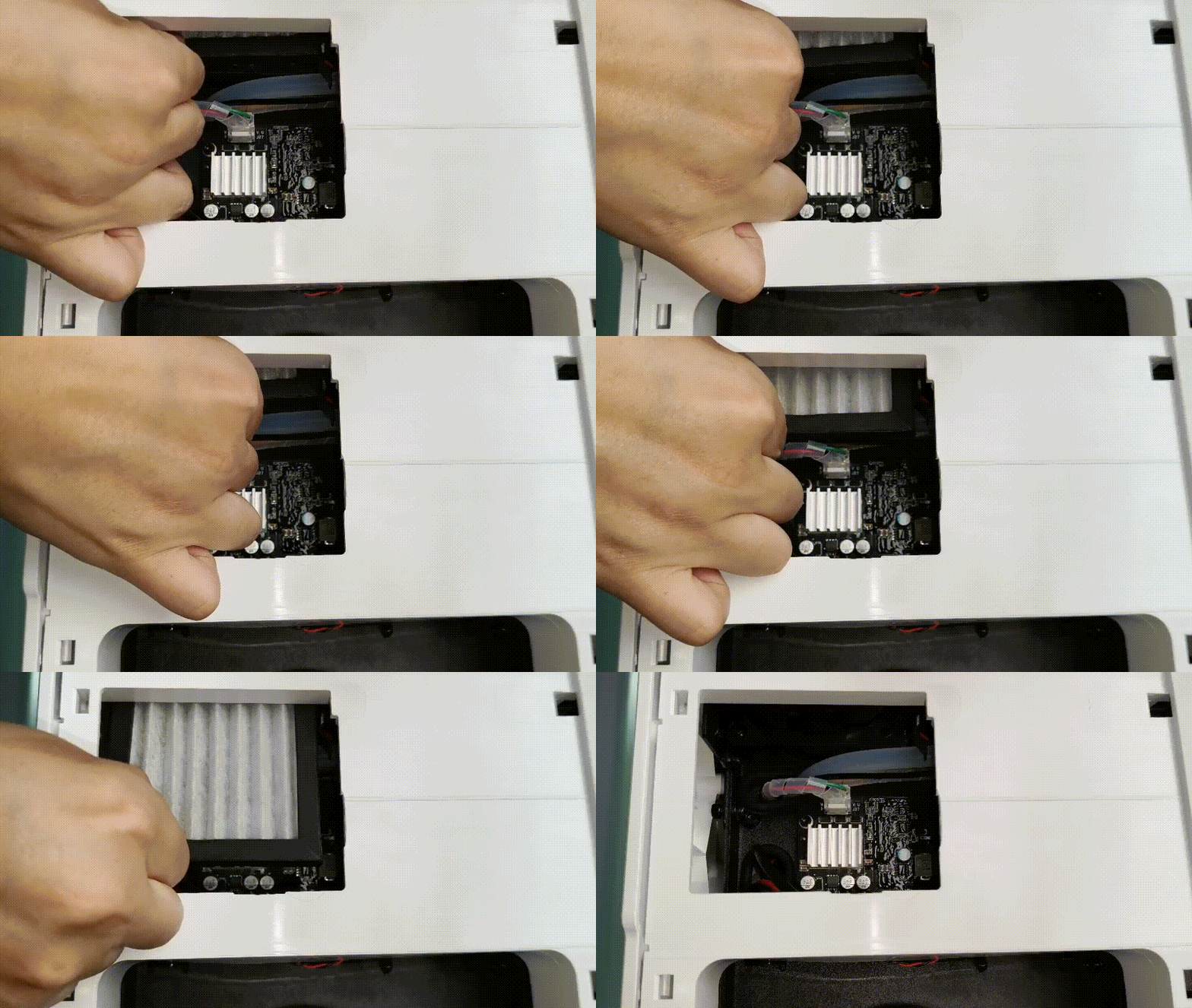
(3) Observe whether the fan works normally during laser processing.
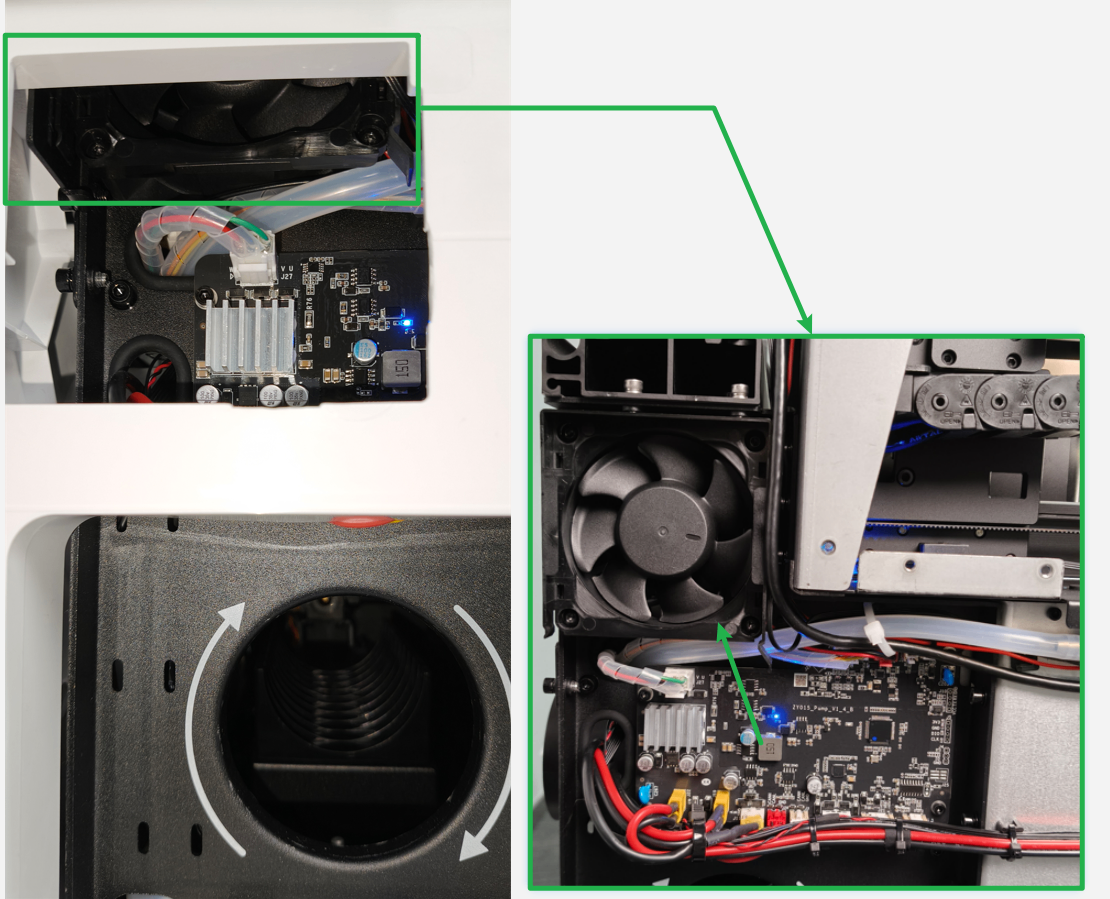
- If the fan works normally with processing, check for other issues.
- If the fan does not work normally with processing, follow the steps to check the connection cables of the fan.
(1) Disconnect xTool P3 from a power supply.
(2) Remove the left plate as shown. And you can see the video tutorial Assemble & Disassemble the Casing of xTool P3.
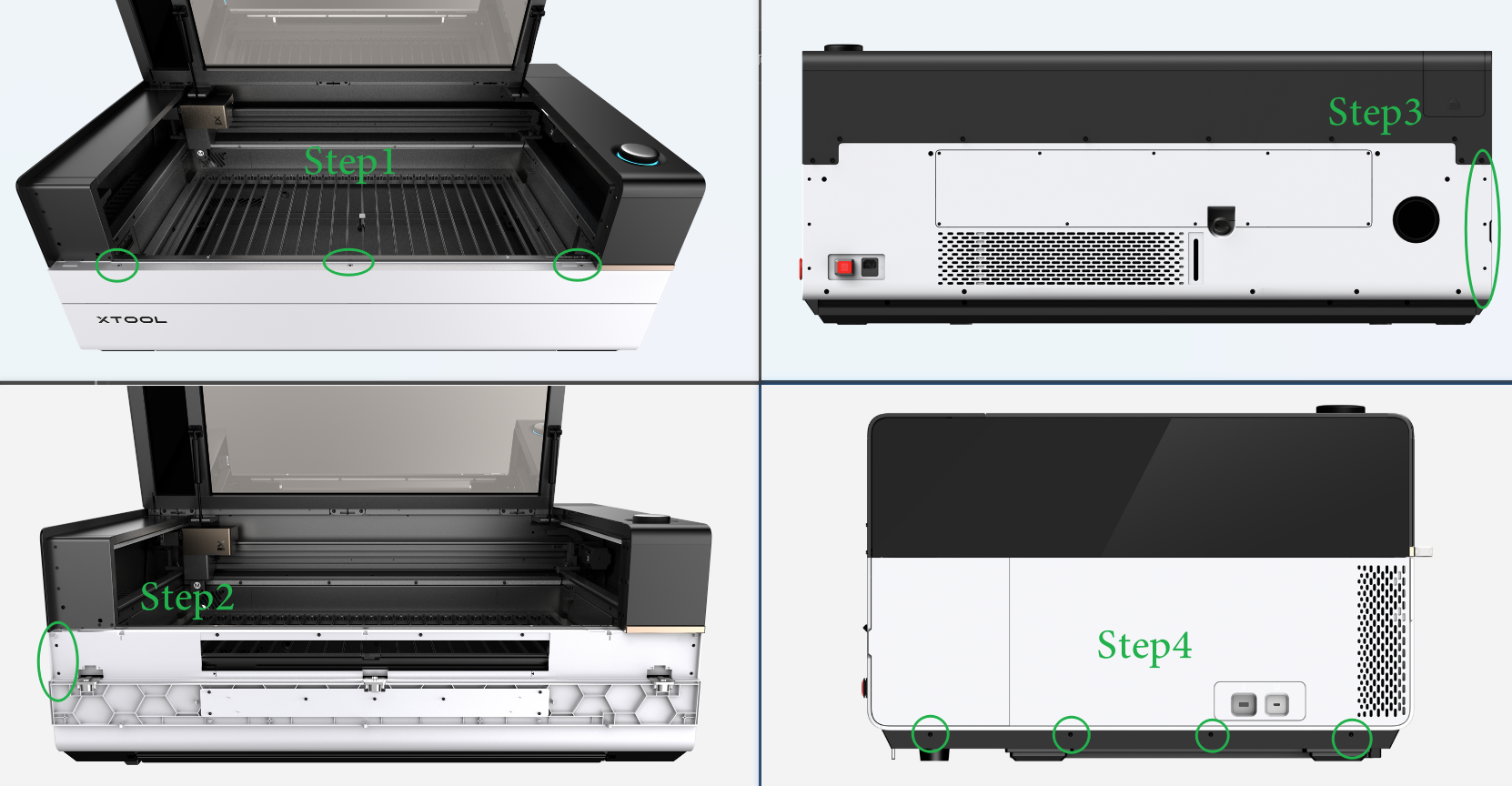
(3) Check whether the connection cables of the fan are loose or broken.
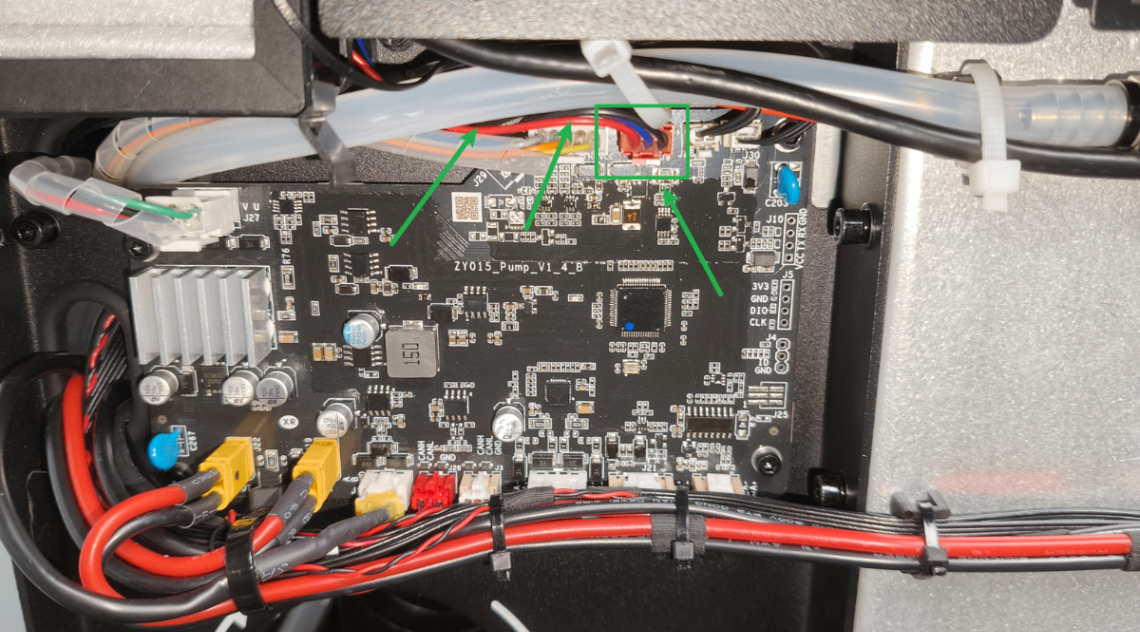
- If the connection cables of the fan are broken, replace them with the new fan.
- If the connection cables of the fan are in good condition, unplug and plug the connection cables before powering on the device again.
5. Check the temperature of the air pump
(1) Disconnect xTool P3 from a power supply.
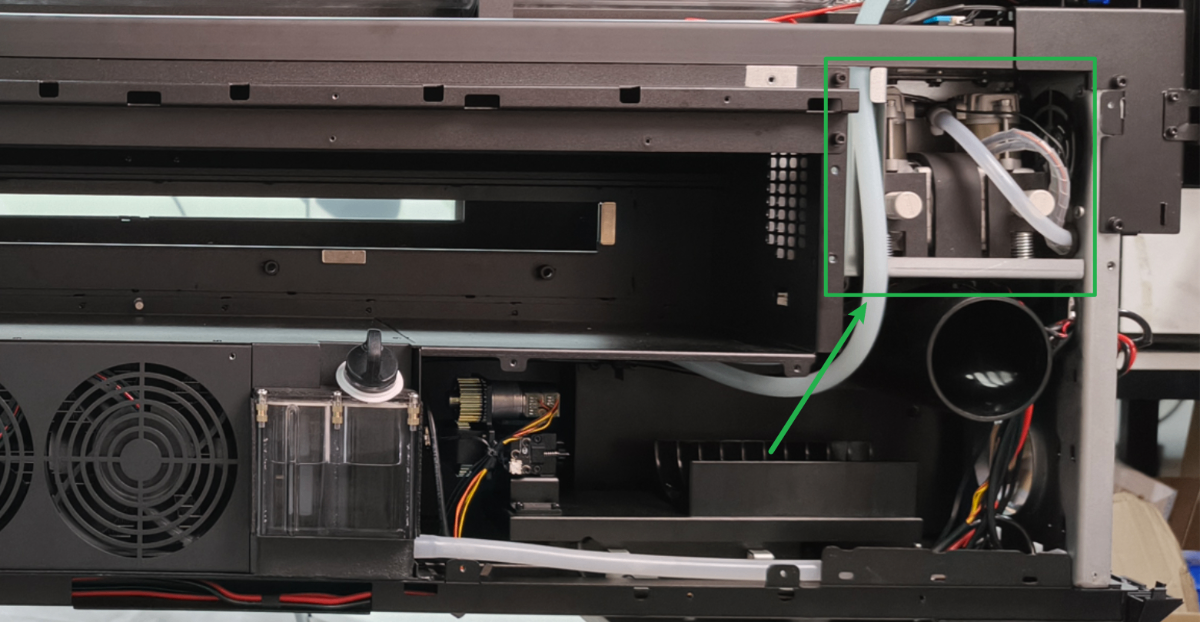
(2) Follow the video tutorial to remove the rear plate.
(3) Use a thermodetector to measure the real-time temperature of the air pump.
Attention: Do not touch the air pump directly with your hand.
- If the temperature is significantly lower than the pop-up error temperature (75°C), but the software still reports an error, replace the air pump components.
- If the temperature is higher than the pop-up error temperature (75°C), check for other issues.
6. Check the air pump board
If the air pump board is faulty, replace it with a new one.
Still experiencing issues?
Should the issue persist after completing the preceding steps, submit a ticket via the "Submit a Ticket" button in the "Help Ticket" section below. The standard response time for xTool Customer Service is one business day.
For a prompt resolution, please include the following details:
- Issue description: A detailed explanation of the observed problem.
- Video evidence: Attach a video demonstrating the issue, where applicable.
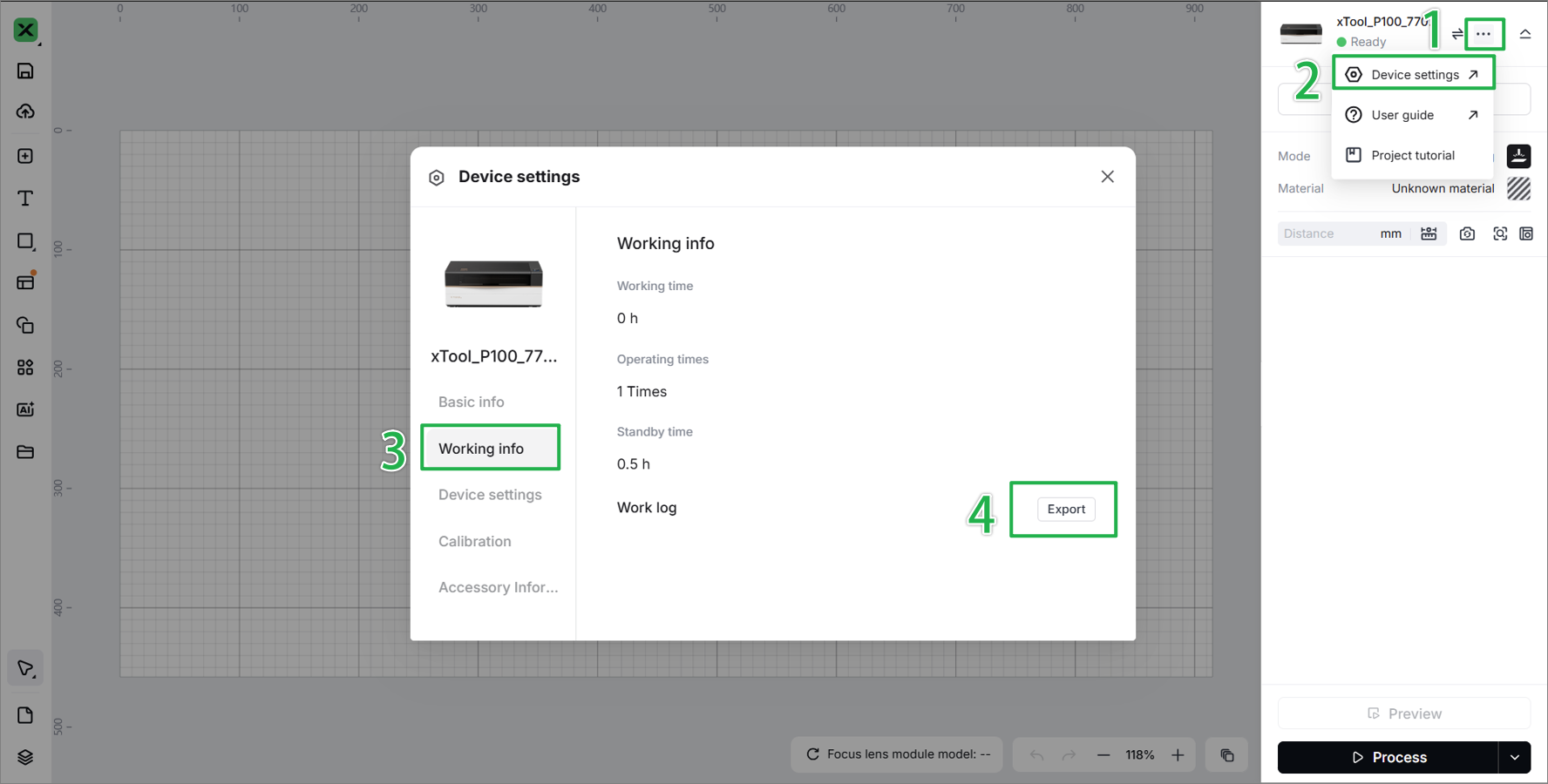
- Device information: Follow the steps to find the SN and export the work log.
- Troubleshooting performed: Any troubleshooting steps you have already attempted, along with their results.
This information is crucial for xTool technical support engineers to provide timely assistance.
Documentation feedback
Help improve this content by providing feedback. If this content did not meet your requirements, select "No" in the "Was this page helpful?" section below. Include specific details about what was unclear or missing in the pop-up suggestion box. Feedback submissions are reviewed by xTool technical writers to enhance future documentation.

