
This document summarizes information that you may want to know about xTool F2. The FAQs are categorized into five parts:
About xTool F2
1. What laser wavelengths and power does xTool F2 use?
xTool F2 comes in two working laser types, among them:
- Blue-light laser: 445 nm (±15 nm) wavelength, 15 W output power
Suitable for cutting or engraving non-metal materials such as wood, acrylic, leather, rubber, and paper.
- Infrared laser: 1064 nm (±5 nm) wavelength, 5 W output power
Ideal for marking metals (stainless steel, copper, aluminum, precious metals), anodized aluminum, and some plastics.
2. What is xTool F2's working area and maximum processing height?
The standard working area of xTool F2 is 115 mm × 115 mm. With the slide extension, the working area can be expanded to 115 × 400 mm (suitable for batch production or long materials).
Its maximum processing height is 120 mm. When you use xTool F2 with a rotary attachment, the available height decreases accordingly.
3. Why is xTool F2 classified as a Class 4 laser?
Even though xTool F2 has a protective enclosure, it remains a Class 4 laser device because you can operate it with its protective enclosure open.
According to laser safety standards, if the beam can be exposed under any condition, the device must be classified as Class 4. Always keep the protective enclosure closed and wear protective goggles during operation.
4. What safety precautions should be followed?
- Always wear laser goggles rated for 445 nm and 1064 nm laser.
- Keep the protective enclosure closed during operation and avoid direct eye contact.
- Use an air purifier or exhaust system for proper ventilation.
- Press the emergency stop button immediately if you see flames, smoke, or hear abnormal sounds.
- Keep the device away from children and remove the key after use.
- When operating with the protective enclosure open, stay ≥ 0.5 m away and wear goggles and a mask.
5. xTool F2 has an orange protective enclosure instead of F1’s color. Does it affect safety?
No. The orange enclosure meets all required optical safety standards.
6. Does xTool F2 include safety goggles?
No. Goggles are not included and must be purchased separately (available in the xTool Store).
7. Can I use both blue-light and infrared lasers in the same project?
Yes. You can assign the blue-light and infrared lasers to different layers within the same design.
8. Does xTool F2 camera provide real-time preview?
No. When you move the material, you need to click the camera button again to refresh the preview.
9. Why does the blue-light laser spot disappear and only the red spot remains, when the xTool F2 protective enclosure is lowered?
The protective enclosure effectively blocks blue-light laser. Therefore, when the enclosure is lowered, the blue-light laser becomes invisible — this is normal.
10. Can I use the touchscreen controller of xTool F1 Ultra or F2 Ultra series with xTool F2?
Yes, you can.
11. Are the 5W infrared laser and 15W blue laser of the xTool F2 specified as peak power or average power?
Both are specified as average power.
About processing features
1. What file formats does xTool F2 support?
xTool F2 supports common vector and bitmap formats:
SVG, DXF, AI (converted to SVG), JPG, JPEG, PNG, BMP
Bitmap files are automatically converted into laser power or dot-matrix patterns.
2. Does xTool F2 support embossment? How?
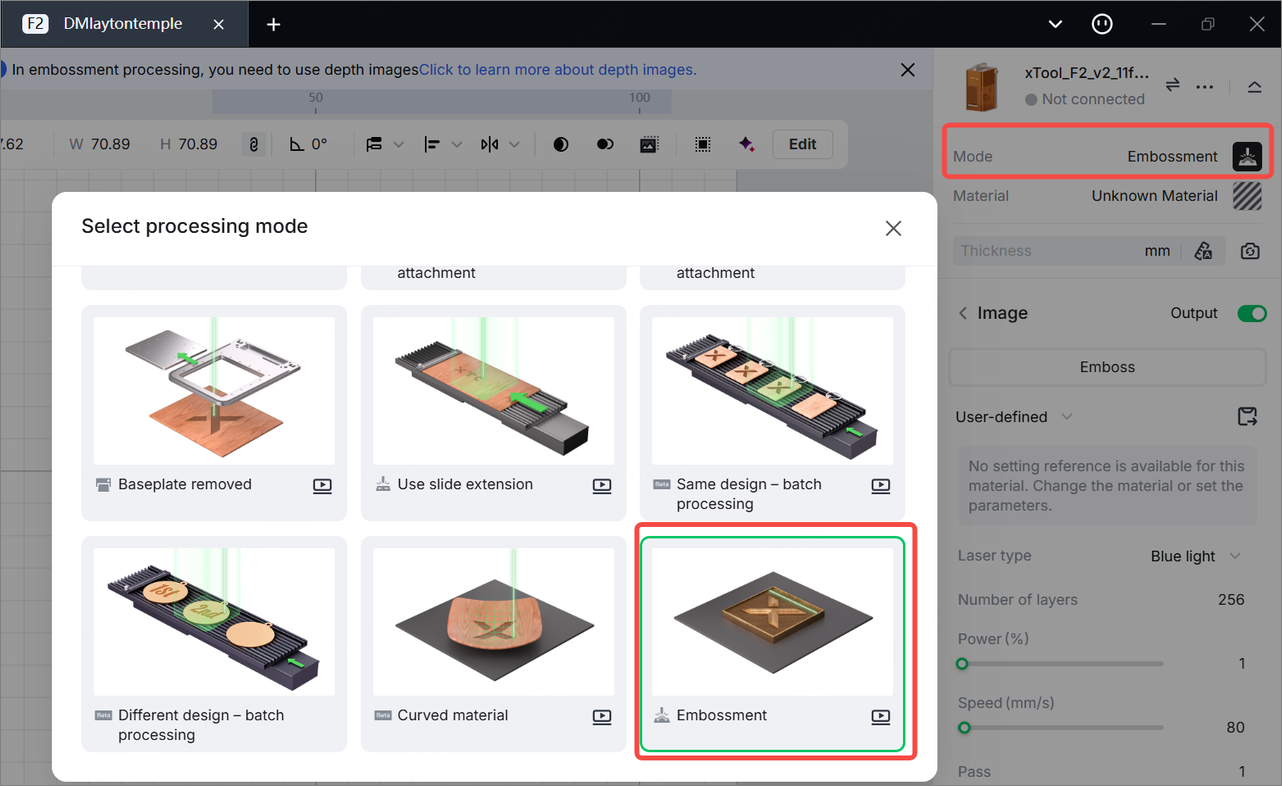
Yes. Embossment uses grayscale depth maps to control laser power. xTool F2 supports embossment on wood, black acrylic, and metals. To perform embossment on xTool F2, follow these steps:
- Convert your image into a depth map.
- Import the map into xTool Studio and select Embossment.
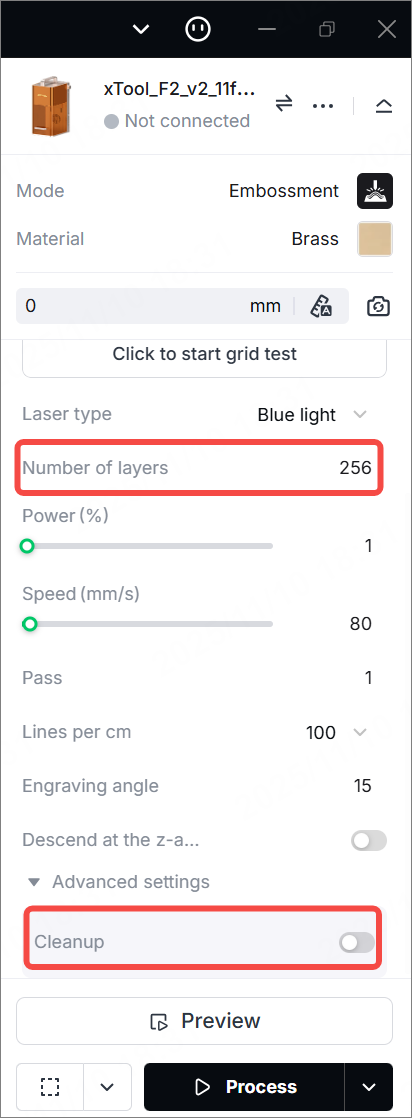
- Adjust the value of Number of layers and Cleanup.
- Test engrave to fine-tune the power and speed before real processing.
3. Why does embossment take longer, especially on metals?
This is because:
- Embossment removes material layer by layer, which takes a long time.
- The infrared laser power is 5 W, and metal embossment takes significantly longer.
4. Does xTool F2 support color engraving? If yes, on what materials?
Yes. With the infrared laser, xTool F2 can achieve color marking on stainless steel, titanium, and copper.
You can also experiment with other metals using the Material test array function.
5. Why does color engraving take a long time?
Color engraving requires low power and high-density scanning, resulting in longer processing time.
6. Why is the Baseplate removed mode no longer available on the xTool F2?
To comply with EU and UK regulations, the Baseplate removed mode has been removed for users in these regions and integrated into the Process on baseplate mode. Functionality remains unchanged.
About processing materials
1. What non-metals can xTool F2 process?
Its blue-light laser can engrave or cut most non-metal materials, including:
- Wood
- Bamboo
- MDF
- Leather
- PU
- Synthetic leather
- ABS
- PVC
- Acrylic (clear, frosted, colored, mirrored, etc.)
- Rubber
- Paperboard
- Kraft paper
- Felt
- Fabric
- Denim
- Silicone sheets
- Some stone (porcelain, slate)
- Ceramics
- Glass (with black tape or coating)
Different colors and transparencies absorb light differently; test on a sample first.
2. What metals can xTool F2 process?
Its infrared laser can mark or engrave most metals, including:
- Stainless steel
- Aluminum
- Copper
- Brass
- Titanium alloy
- Coated metal
- Anodized aluminum
xTool F2 can also engrave precious metals like gold or silver. However, it is recommended that you use low power and fewer passes to prevent melting.
Note: With 5 W infrared power, xTool F2 can engrave but not cut metal.
3. How thick can xTool F2 cut wood or acrylic?
- Wood
By performing multiple high-speed passes, xTool F2 can cut up to 15 mm basswood. Focus midway through the wood for optimal quality.
- Acrylic:
By performing multiple passes, xTool F2 can cut up to 12 mm acrylic.
4. Can xTool F2 engrave food, leather, and fabric?
Yes. Its blue-light laser can engrave design patterns on food (cakes, bread, or jerky), and engrave or cut materials like leather, PU, or fabric to make custom accessories, such as keychains, handbags, and scarves.
It is recommended that you use low power and fewer passes on food to prevent burning.
5. Can xTool F2 engrave glass?
Yes. Apply a black coating or anti-reflection layer first; otherwise, the laser cannot focus effectively.
6. What materials should not be processed with xTool F2?
Avoid processing the following materials with xTool F2:
- PVC and other chlorinated polymers (as they release toxic chlorine gas)
- Carbon fiber and fiberglass (as they emit harmful fumes)
- Polyethylene film or foam (as they melt easily and deliver poor quality)
- Bare glass or crystal (as they may easily crack; use black tape if necessary)
- Highly reflective or fluffy materials, such as cotton (as they may cause focus errors)
7. How to judge whether a material is suitable for batch processing?
Batch processing relies on AI camera recognition. Materials suitable for batch processing should:
- Have a clear, non-reflective outline
- Contrast well with the background
- Maintain consistent size between items
- Have a flat surface
Reflective metals, transparent materials, and black acrylic are not recommended for batch processing.
About software
1. What software does xTool F2 use? Is it mobile-compatible?
xTool F2 uses the software xTool Studio. It supports Windows and macOS, and is compatible with mobile devices.
2. Is xTool F2 compatible with LightBurn?
No. xTool F2 does NOT support LightBurn.
Previous open-protocol connections were replaced to ensure data transmission security.
3. What software improvements does xTool F2 have compared with xTool F1?
xTool F2 introduces:
- Curved-surface engraving
- Embossment
- Color marking
- Batch processing with AI recognition
- Auto-focus
About accessories
1. What accessories are available for xTool F2?
- Slide Extension: Expands the working area to 115 × 400 mm
- Rotary Attachment (RA2 Pro / RA3): Engrave cylindrical or ring objects (≤ 120 mm diameter)
- Desktop Air Purifier / Exhaust System: Removes fumes and odors
- Touchscreen Controller: Enables offline operation and file storage
- Pedal Switch: Hands-free batch processing
2. What should I pay attention to when installing the slide extension?
When using the slide extension with xTool F2, pay attention to the following:
- Power off xTool F2 first and release its emergency stop button.
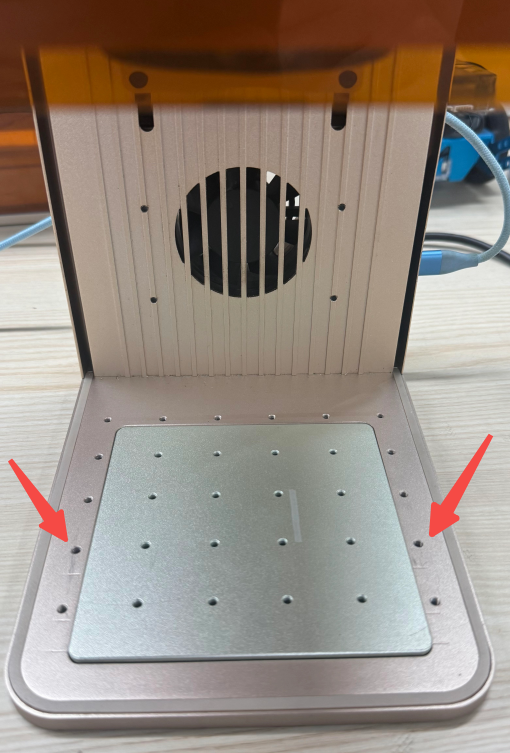
- Remove the baseplate and make sure the screws of the slide extension are secured into the second row of mounting holes on the baseplate, and that all screws are fully tightened.
- Re-run auto-focus to correct the height of the Z-axis.
- In xTool Studio, enable Use slide extension and capture a panoramic photo.
- Ensure all components are parallel and level.
3. What are the functions of the touchscreen controller and pedal switch?
- Touchscreen Controller: You can operate xTool F2 without a computer, including selecting files, focusing, and starting jobs.
- Foot switch / Desktop switch: You can start, pause, or repeat the last job hands-free, which is suitable for batch processing.

