
Issue description
Processing pauses suddenly, and the software displays a pop-up window related to abnormal temperature. The code type is as follows:
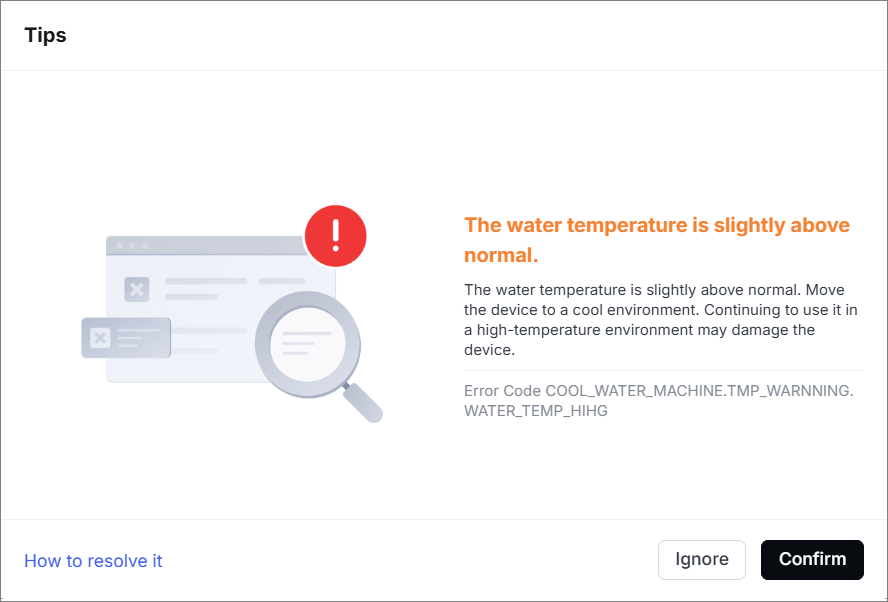
- Water temperature is slightly high: 35°C ≤ antifreeze temperature < 40°C. If the device is processing at this time, it will automatically pause, but you can click to resume processing. Error code: Error Code COOL_WATER_MACHINE.TMP_WARNNIING.WATER_TEMP_HIHG
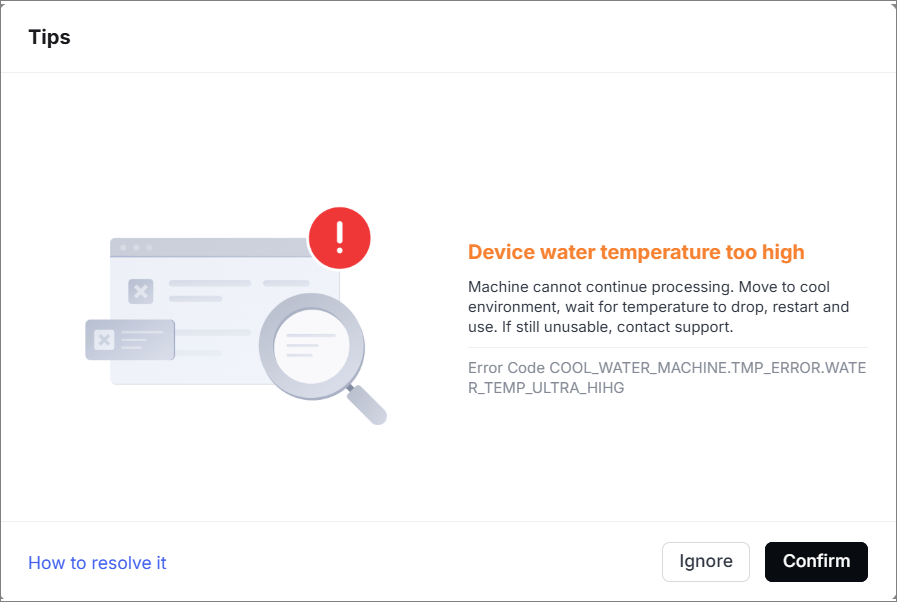
- Water temperature is too high: antifreeze temperature ≥ 40°C. The device cannot be processed at this time.
Error code: COOL_WATER_MACHINE.TMP_ERROR.WATER_TEMP_ULTRA_HIHG
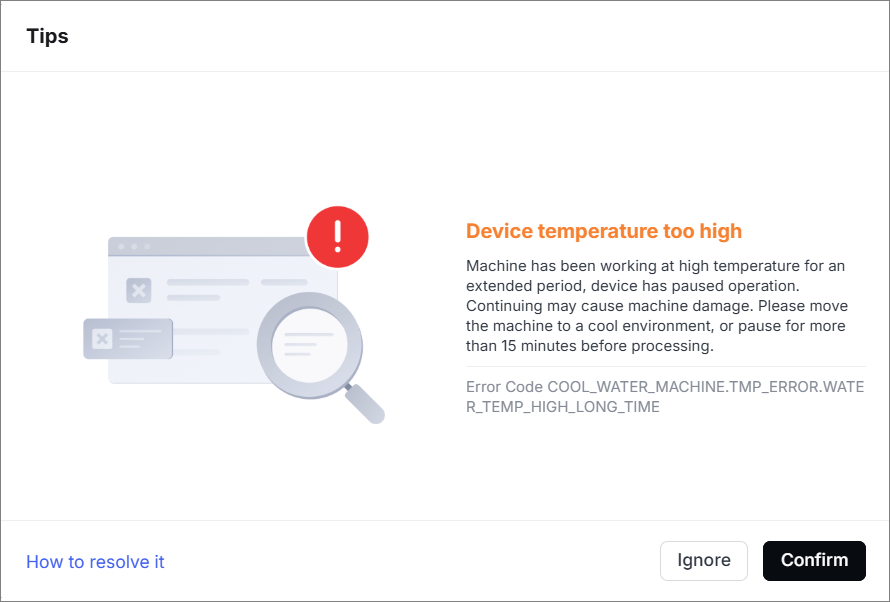
- Device temperature is too high: If the water temperature is high for more than 1 hour, this pop-up window will be triggered, and the machine will not be able to start processing at this time.
Error code: COOL_WATER_MACHINE.TMP_ERRORWATER_TEMP_HIGH_LONG_TIME
Important notes
Water temperature alerts serve as a protective mechanism for the device. When the device operates under extreme conditions such as prolonged high-power processing or high-temperature environments, triggering a water temperature alert does not indicate a malfunction. Typically, it can be solved by waiting for the water temperature to cool or by reducing the ambient temperature.
Troubleshooting procedures
1. Check the firmware and software
Update the firmware and software to the latest version. And then restart the device.
2. Check the heat dissipation of the device
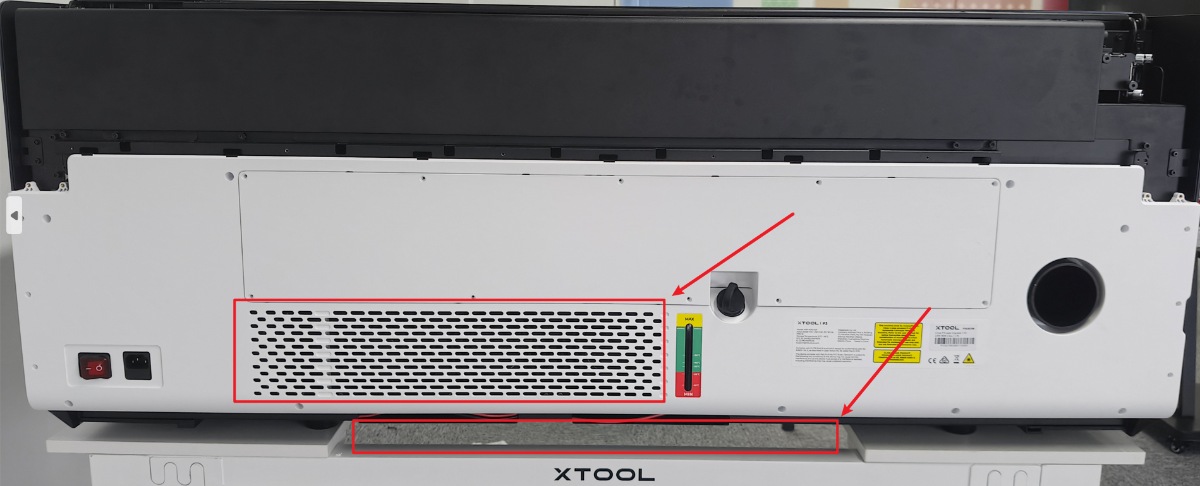
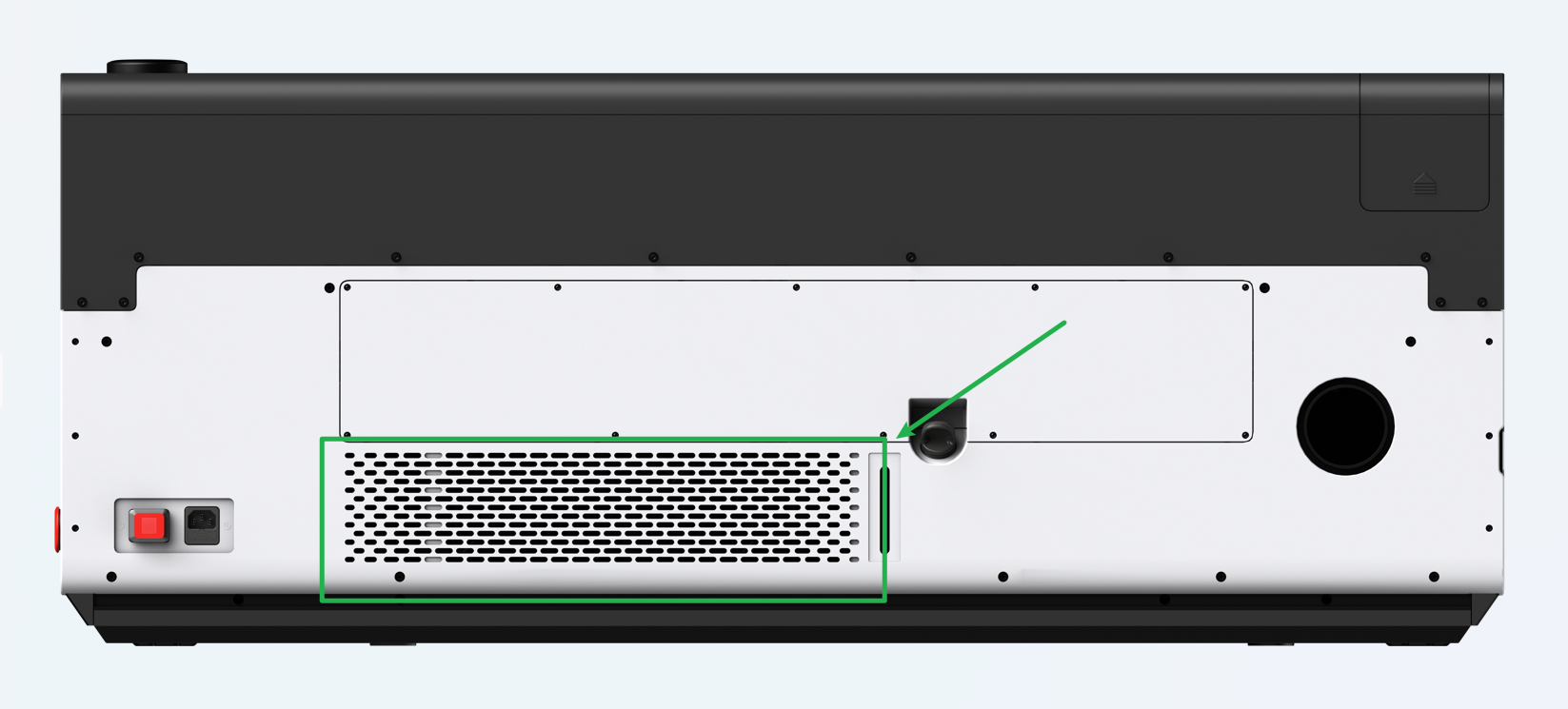
The bottom of the device is the air inlet of the water-cooling system, and the back is its exhaust port. Ensure they are not covered, or it may affect heat dissipation. (The air outlet should be at least 20cm away from the wall.)
3. Check the ambient temperature
If the ambient temperature is high, such as exceeding 30°C. Please allow the device to stand by and cool down. It is recommended to use the device after equipping it with cooling devices such as electric fans or air conditioners.
4. Put the device in standby mode
When the device is processed at high power for a long time, the antifreeze temperature may rise significantly and trigger an alert. At this time, please pause the processing, keep the device in standby mode, and wait for the water temperature to cool before processing.
5. Check the water-cooling system fan
When the device indicates the water temperature error codes, check whether the water-cooling system fan on the rear of the device works.
- If three fans work normally, check for other issues.
- If there is a fan that can't work, replace a new water-cooling system.
6. Check the exhaust air temperature of the water-cooling fan
The water-cooling system contains a compressor that converts heat and expels it via a fan. Therefore, when the compressor is operating normally, the air temperature blown out is higher than the ambient temperature. The higher the water temperature, the more obvious it is.
When the device indicates the water temperature error codes, check the water-cooling system fan air temperature on the rear of the device.
- If the air temperature of the fan is similar to the ambient temperature, replace a new water-cooling system.
- If the air temperature of the fan is significantly higher than the ambient temperature, check for other issues.
7. Check the water-cooling system
You can use a thermometer to directly measure the temperature of the antifreeze.
If the temperature of the antifreeze in the tank is significantly lower than the temperature indicated by the pop-up window, but the error is still reported, replace the water-cooling system.
Still experiencing issues?
Should the issue persist after completing the preceding steps, submit a ticket via the "Submit a Ticket" button in the "Help Ticket" section below. The standard response time for xTool Customer Service is one business day.
For a prompt resolution, please include the following details:
- Issue description: A detailed explanation of the observed problem.
- Video evidence: Attach a video demonstrating the issue, where applicable.
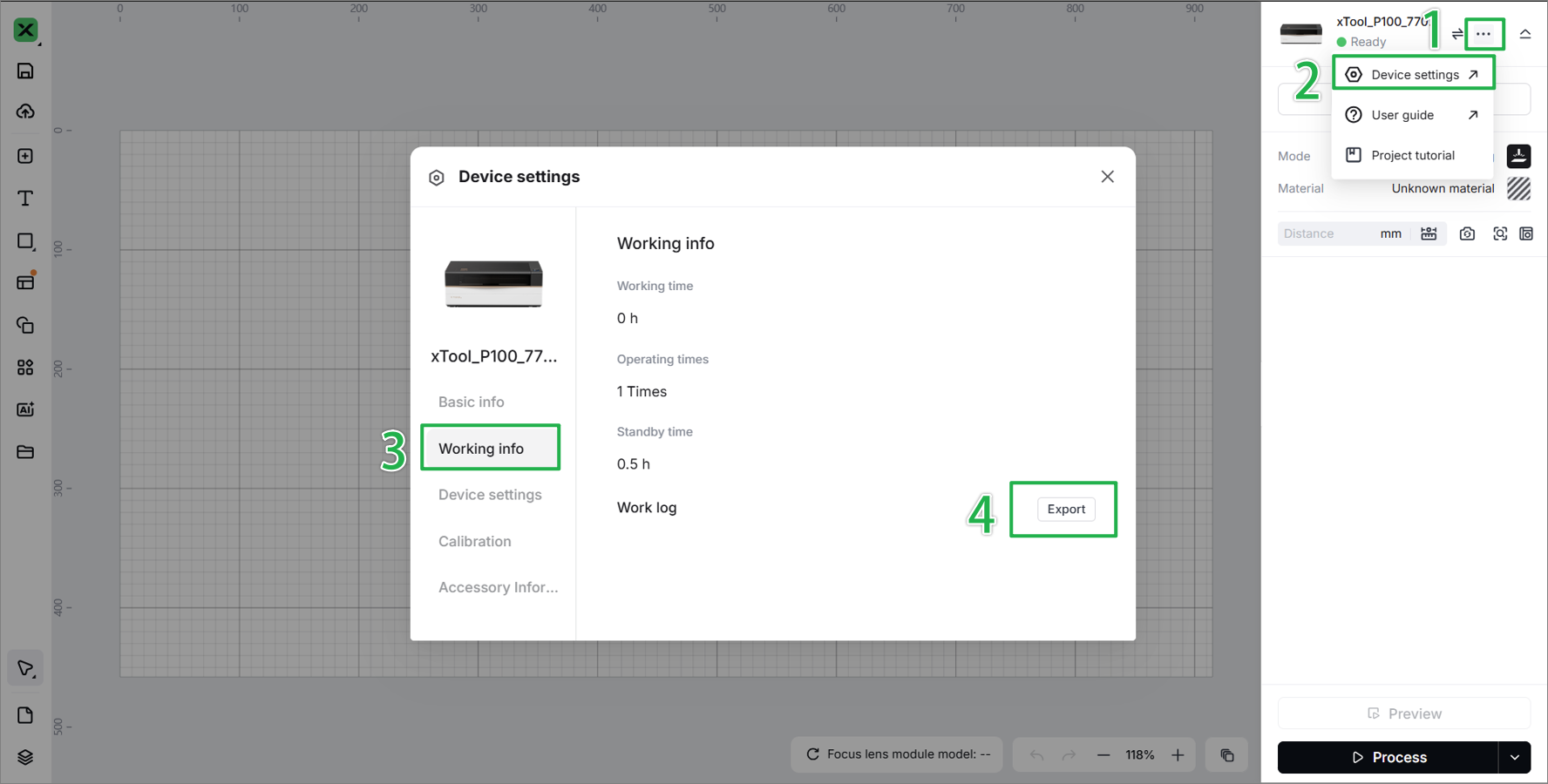
- Device information: Follow the steps to find the SN and export the work log.
- Troubleshooting performed: Any troubleshooting steps you have already attempted, along with their results.
This information is crucial for xTool technical support engineers to provide timely assistance.
Documentation feedback
Help improve this content by providing feedback. If this content did not meet your requirements, select "No" in the "Was this page helpful?" section below. Include specific details about what was unclear or missing in the pop-up suggestion box. Feedback submissions are reviewed by xTool technical writers to enhance future documentation.

