
To help you navigate the image-importing process, we've compiled some frequently asked questions and their solutions.
What file formats can be imported into xTool Studio?
xTool Studio supports the following file formats for import:
- Project files: XCS, PSD, PDF, AI
- Vector files: DXF, SVG
- Image files: PNG, JPG, JPEG, BMP, WEBP, TIF, TIFF, GIF, HEIC
- 3D model files (available when using F2 Ultra UV with the 'Inner Engraving' processing mode): STL, OBJ, AMF, 3MF, GLB, PLY
Other file formats are not supported at this time. Once a file is imported to the Studio canvas, you can resize the file by scaling it up or down to meet your specific needs.
Important: About the new .xs project format
- Starting with Studio v1.7, newly saved projects use the new
.xsformat. - Existing
.xcsfiles can still be opened and edited in v1.7 and later, but.xsfiles are only supported in v1.7 and above. - If you try to open an
.xsfile in a version earlier than v1.7, you may see “The file can’t be opened.” - If you still need compatibility with older versions, you can export the project as a legacy
.xcsfile. Please note that some newer content or effects may not be fully preserved in the legacy format.
What should I do if I experience file import failures in Studio?
Please try the following troubleshooting steps:
Restart Studio:
- Close and reopen the software. In many cases, a simple restart will resolve the import issue.
Contact Support:
- If restarting does not resolve the issue, please proceed to the “Still experiencing issues?” section below to submit a support request. Have the original file (or files) in one of the supported formats available, along with the version number of Studio you are using, to assist in troubleshooting.
These steps are designed to help you quickly resolve file import issues and ensure the smooth operation of xTool Studio.
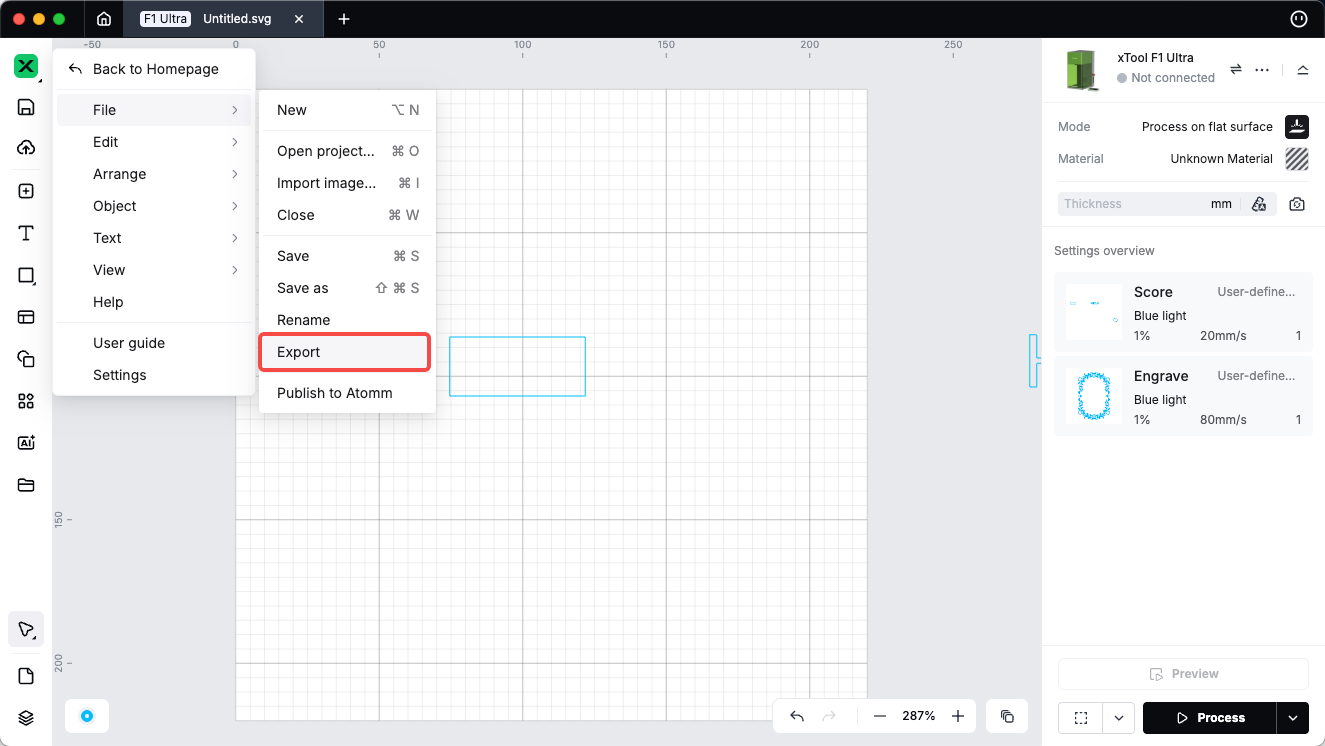
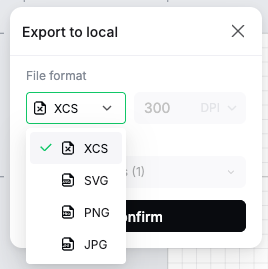
What file formats can I export from xTool Studio?
You can export your projects in the following formats:
- XCS, SVG, PNG, JPG
The exported SVG files can be further edited or resized in other software designed to work with SVG formats.
|
|
Is there a size limit for image files in xTool Studio?
There is no strict limit on the size of image files in xTool Studio. The capacity to handle larger or more complex images depends on your computer's performance. Higher-specification computers can process larger and more detailed images.
What should I know about the complexity of SVG images?
The complexity of an SVG image is determined by the number of curves it contains rather than its file size alone. This means that even if an SVG file is not large in size, having too many curves may prevent it from opening properly in the software.
Can files from other applications or design software be imported directly into xTool Studio (Studio)?
Except for PSD files, files generated by other third-party applications or design software cannot be directly imported into Studio. You’ll need to convert them into a supported format before importing. To work with files from third-party sources in Studio, simply export your design to one of the supported formats listed above. After exporting, you can import the converted file into Studio for further editing and processing.
How to fix ‘The file can’t be opened’ error in Studio?

First, please make sure you update to the latest Studio version and the file format is supported by Studio.
Then, try importing the image to Inkscape and exporting it in the original format.
If the issue persists, contact our after-sales services at support@xtool.com for assistance.
What should be done about the lengthy parsing time and operation lag after importing images?
- Please make sure you update to the latest Studio version.
- Compress the bitmap image using some tools like Google’s online open source compression tool
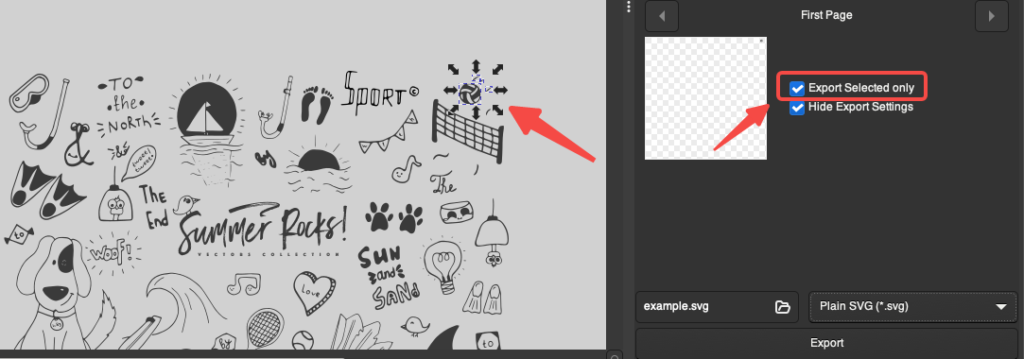
- For SVG/DXF images with multiple elements, import them to Inkscape, select the part to be processed, and choose "Export Selected."
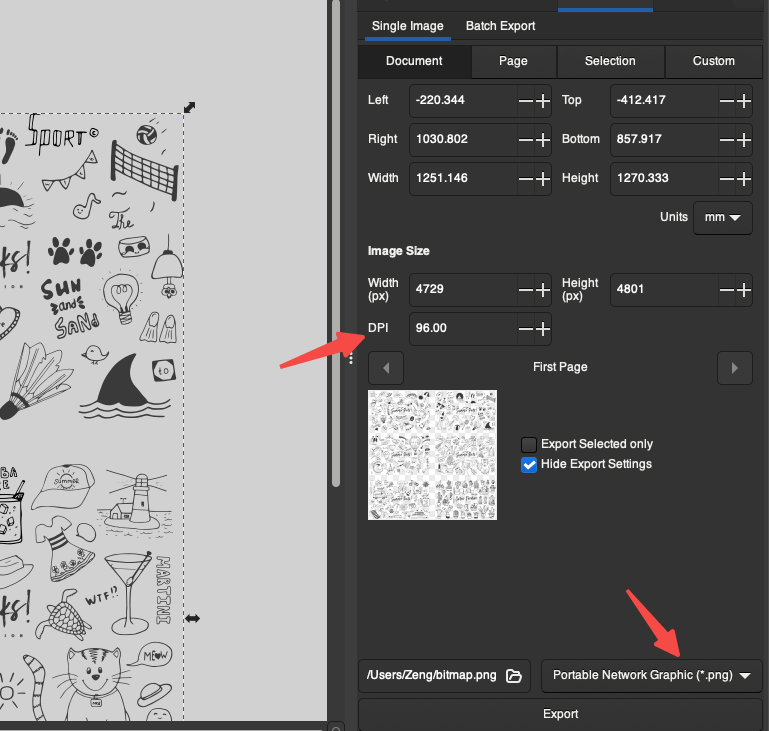
- For engraving, convert SVG to PNG in Inkscape and adjust the resolution if needed. The default resolution is 96 DPI. If the image is not sharp enough, you can increase the value to 150 or 150+ DPI.
Reminder: When you export the image as PNG file and import PNG to Studio, Studio will process it as a bitmap. Therefore, the only option is engraving.
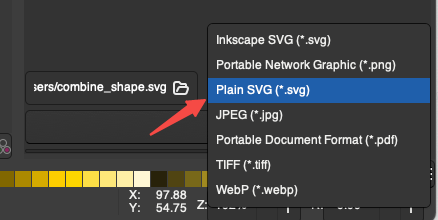
How to reduce the file size of SVGs from drawing websites?
Import the SVG to Inkscape and export it in Plain SVG format to remove unnecessary data.
How to improve your computer's performance for handling complex images?
- Close memory-intensive software.
- Ensure your laptop is plugged in and power-saving mode is disabled.
- Consider upgrading your hardware to meet these recommended specifications:
- System: 64-bit Windows 10 or macOS Mojave12
- Processor: Intel Core i5-6600K or AMD Ryzen 5 1600
- RAM: 16 GB
- Graphics card: NVIDIA GeForce GTX 1060 3GB or AMD Radeon RX 580 4GB
- Available storage space: 10 GB
How to handle text in SVG?
Studio is not able to process text in SVG, so the text in SVG will not be displayed in this case, while other graphics will be displayed as usual.
- Open the SVG in Inkscape, select the text, and convert it to paths.
- Export the file as a Plain SVG and import it into Studio.
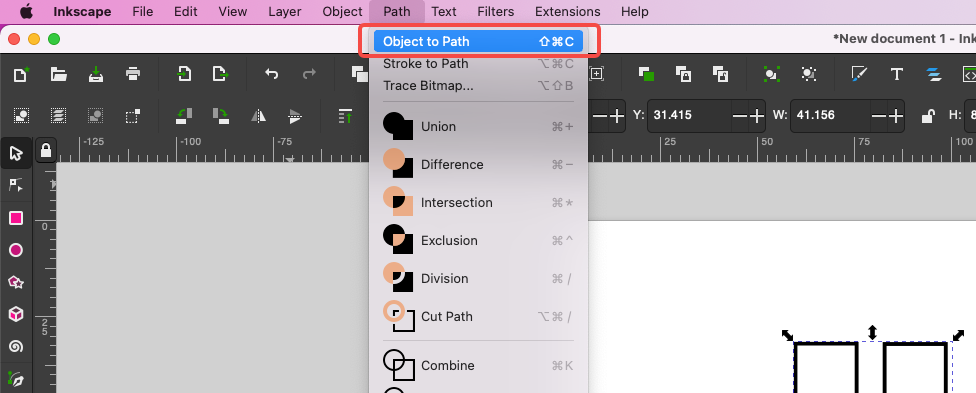
Reminders: After converting text to paths, you will no longer be able to edit the text, you can only edit it as an image.
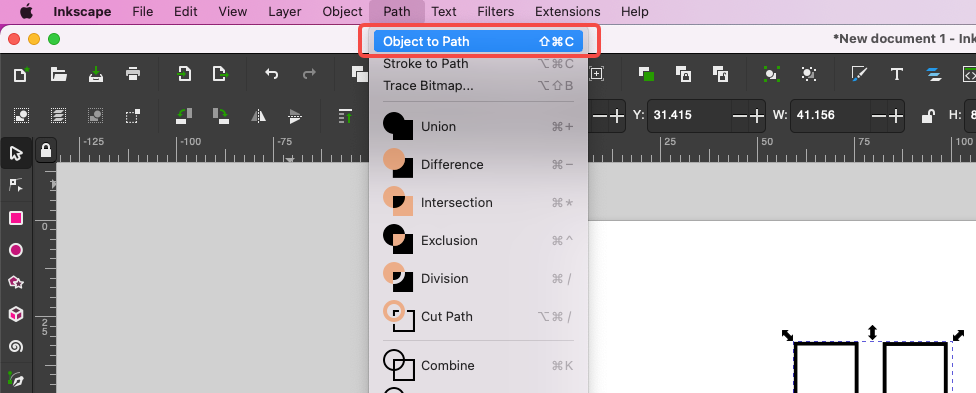
How to address SVG parsing errors?
- Open the SVG in Inkscape, select all graphics, and convert them to paths.
- Export the file as Plain SVG for use in Studio.
How to deal with 'G-code is too large' prompts after importing images?
- Compress the image or reduce its dimensions (width and height).
- Adjust the engraving lines per cm.
- Process the job in multiple passes.
Still experiencing issues?
Should the issue persist after completing the preceding steps, submit a ticket via the "Submit a Ticket" button in the "Help Ticket" section below. The standard response time for xTool Customer Service is one business day.
For a prompt resolution, please include the following details:
- Issue Description: A detailed explanation of the observed problem.
- Video Evidence: Attach a video demonstrating the issue, where applicable.
- Troubleshooting Performed: Any troubleshooting steps you have already attempted, along with their results.
This information is crucial for xTool technical support engineers to provide timely assistance.
Documentation feedback
Help improve this content by providing feedback. If this content did not meet your requirements, select "No" in the "Was this page helpful?" section below. Include specific details about what was unclear or missing in the pop-up suggestion box. Feedback submissions are reviewed by xTool technical writers to enhance future documentation.

