
The xTool MetalFab CNC Cutter comes with a range of essential accessories. In addition to those detailed in the user guide, the key accessories covered in this article are listed below.
Category | Specific accessory |
|---|---|
Nozzles and related items |
|
Calibration-related items |
|
Smoke exhaust items |
|
Other items |
|
Note: The double-layer nozzle and the extension tube are not included in the package, and thus need to be purchased separately. Buy them in xtool.com as required.
Nozzles
Note: To ensure optimal cutting results and operation safety, recalibrate the focus position after you replace a nozzle with a larger-diameter one.
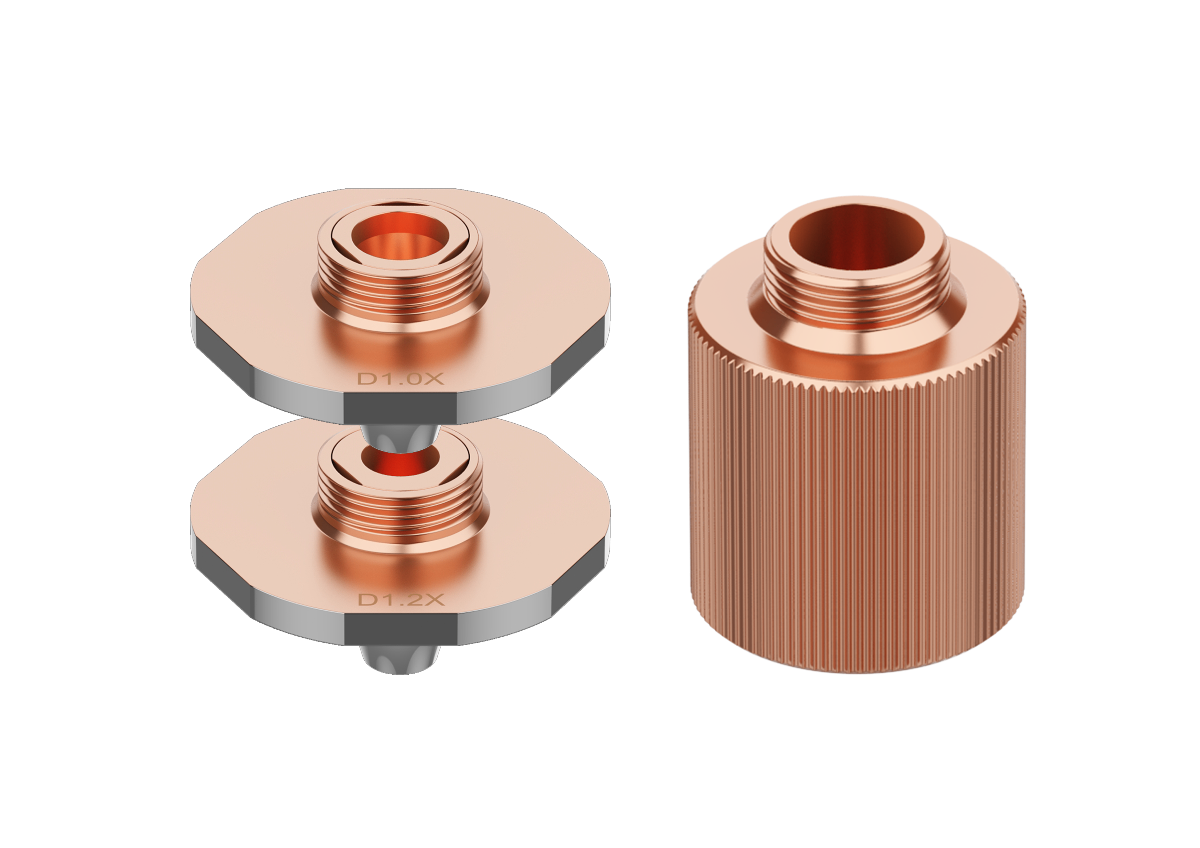
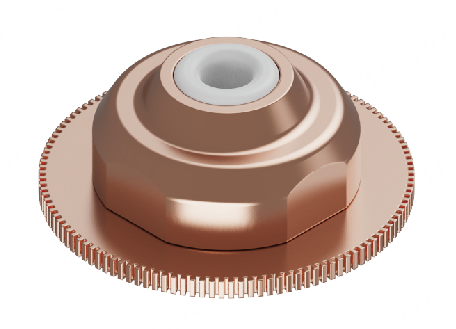
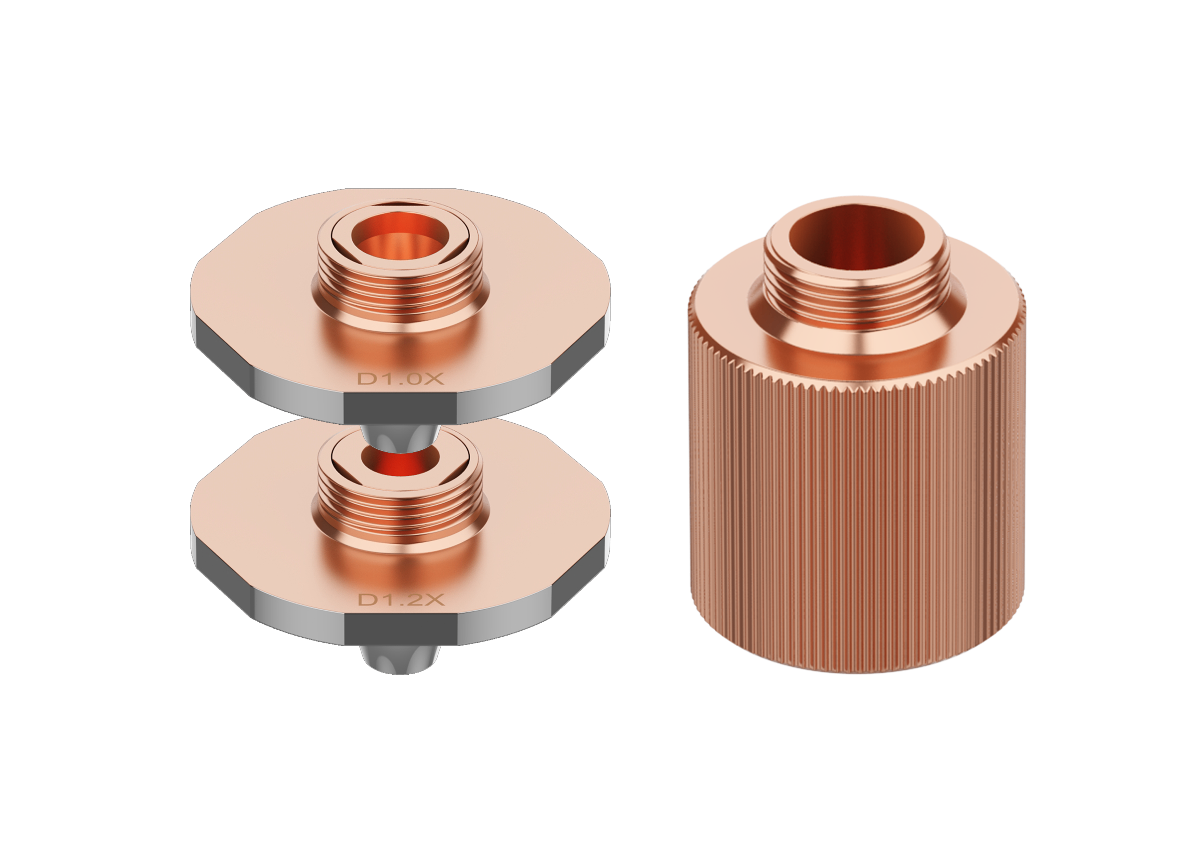
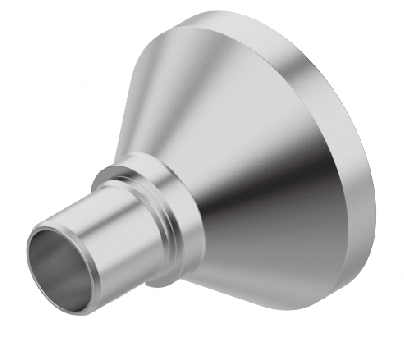
- Diameter size: Double-layer nozzle < Ordinary nozzle < Telescopic cutting nozzle < CNC cleaning nozzle
Nozzle types
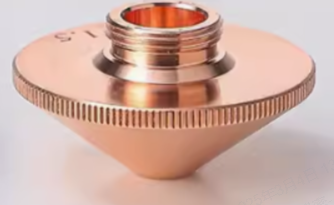
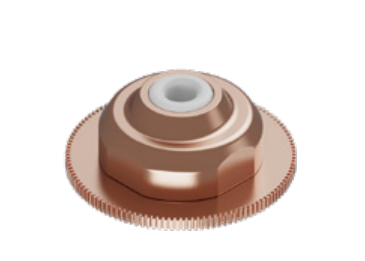
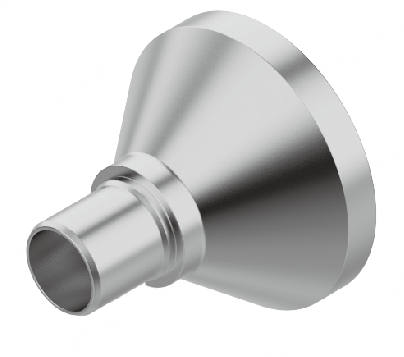
Nozzle | Image | Required gas pressure | Usage scenario | Notes |
|---|---|---|---|---|
Double-layer nozzle |
| 0.06 MPa |
|
|
Ordinary nozzle |
| > 1.2 MPa |
| Higher gas pressure for thicker material: Ordinary nozzle requires higher gas pressure (typically 1 MPa / 1.2 MPa) to cut through steel plates thicker than 2 mm |
SaveGas™ nozzle |
| > 0.6 MPa |
|
|
CNC cleaning nozzle |
| 0.5– 0.6 MPa |
|
|
Nozzle installation
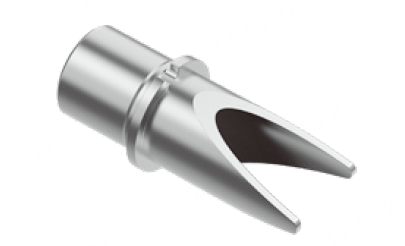
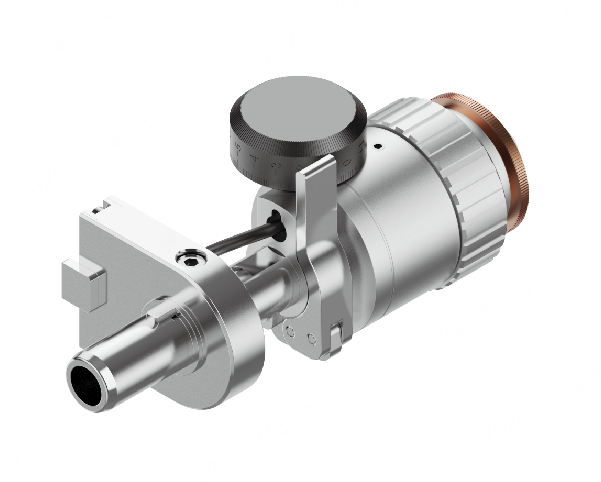
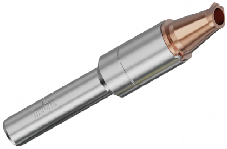
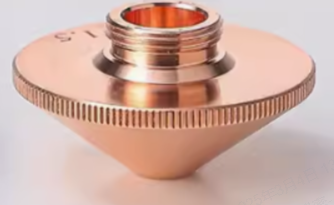
There are two tips for the welding head: welding tip and cutting tip (for CNC use). The CNC cleaning nozzle can only be installed onto the welding tip, while other nozzles included in the package of xTool MetalFab CNC Cutter are compatible with the cutting tip.
Cutting tip (for CNC use) | Welding tip | ||
|---|---|---|---|
|
| ||
Ordinary nozzle | SaveGas™ nozzle | Double-layer nozzle | CNC cleaning nozzle |
|
|
|
|
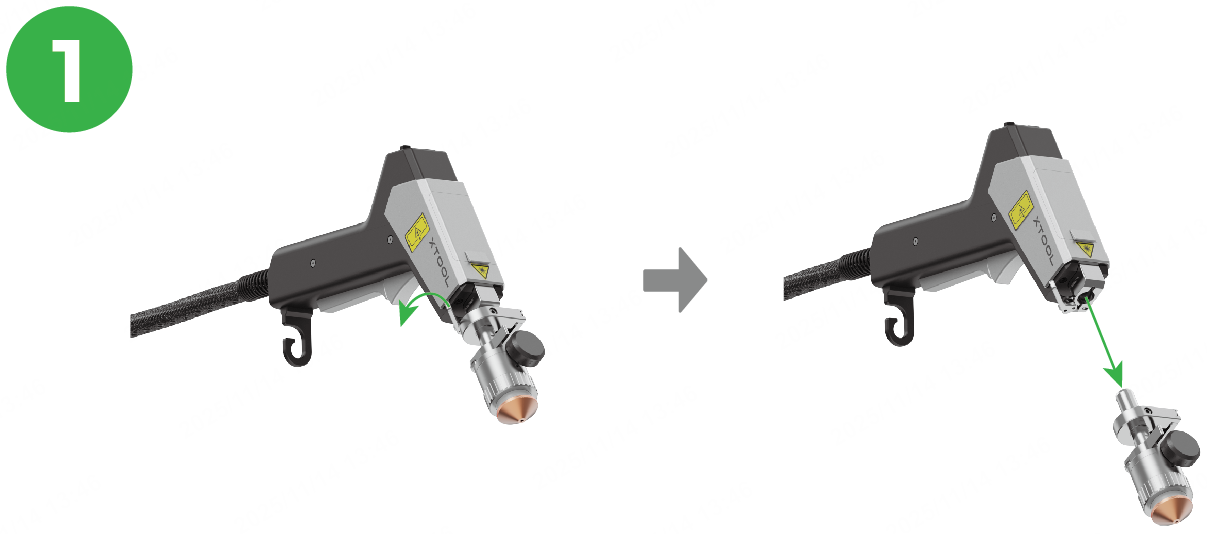
How to install a new nozzle (except for CNC cleaning nozzle)
The following takes the double-layer nozzle as an example to show how to install a new nozzle on the cutting tip. You may click here to watch the tutorial video.
Installation steps | |
|---|---|
|
|
|
|
|
|
|
|
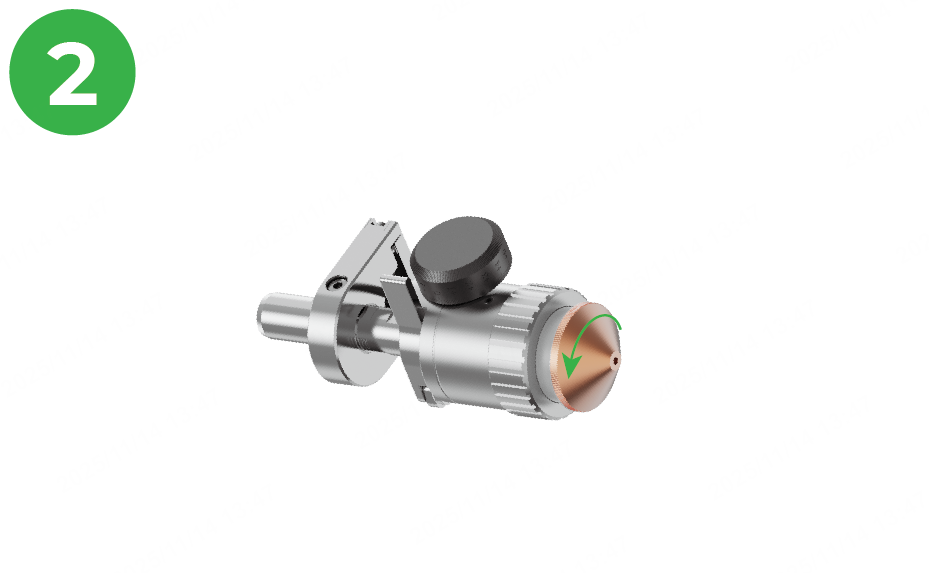
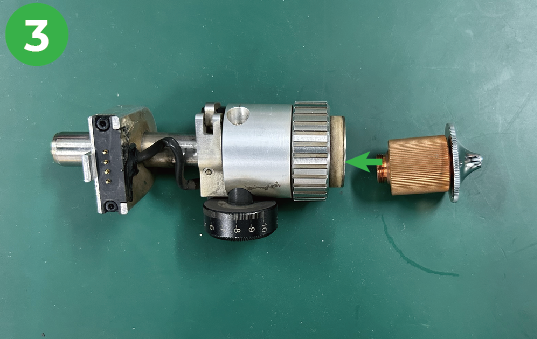
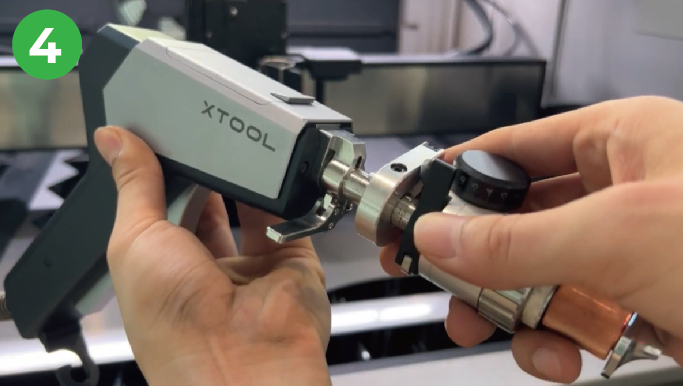
How to install a new CNC cleaning nozzle
- Ensure that both xTool MetalFab CNC Cutter and xTool MetalFab Laser Welder are powered off.
- Use the CNC cleaning nozzle instead of the handheld cleaning nozzle.
Installation steps | |
|---|---|
|
|
|
|
|
|
|
|
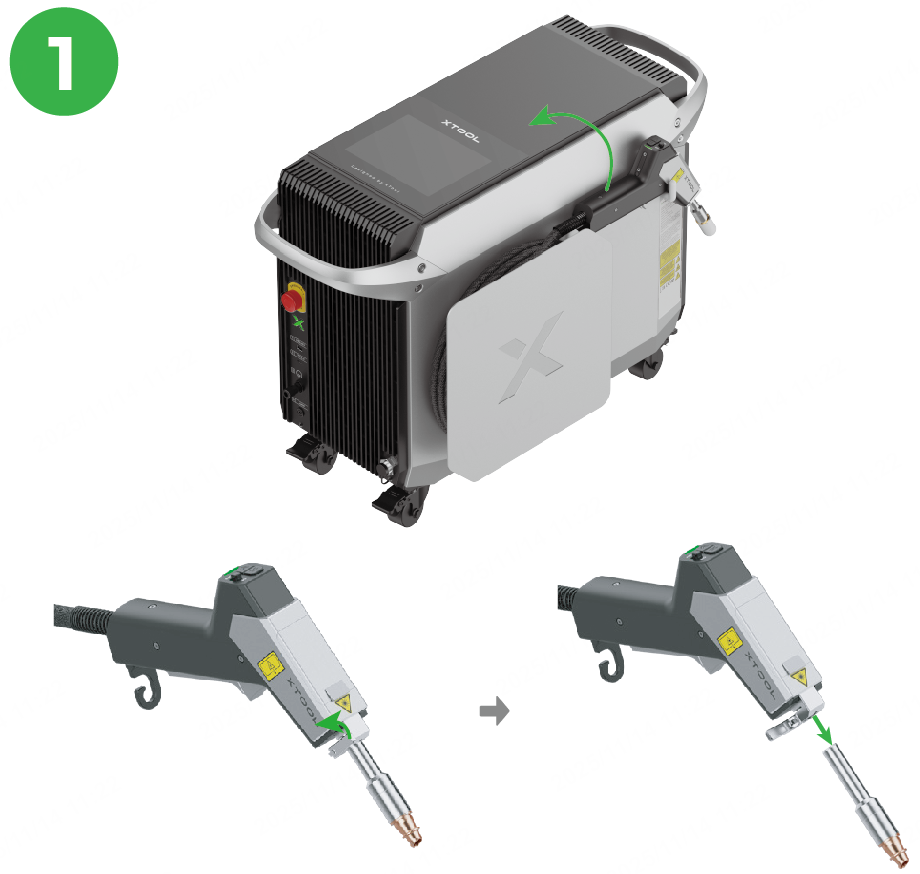
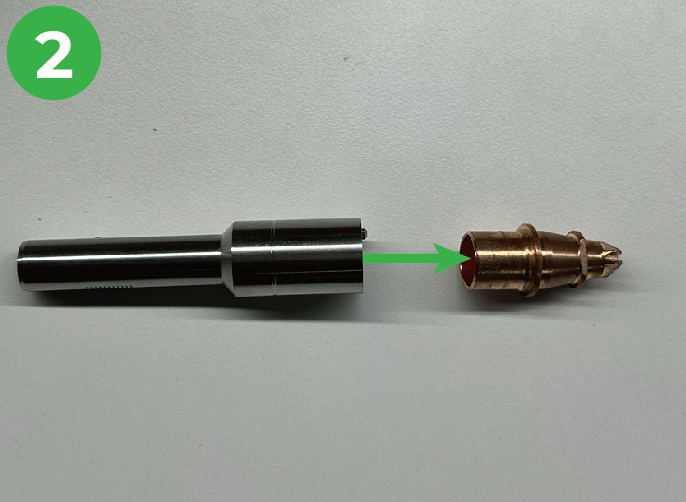
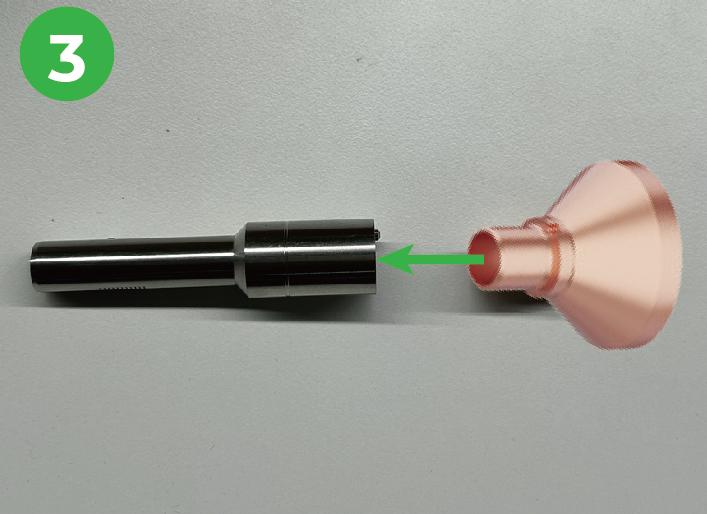
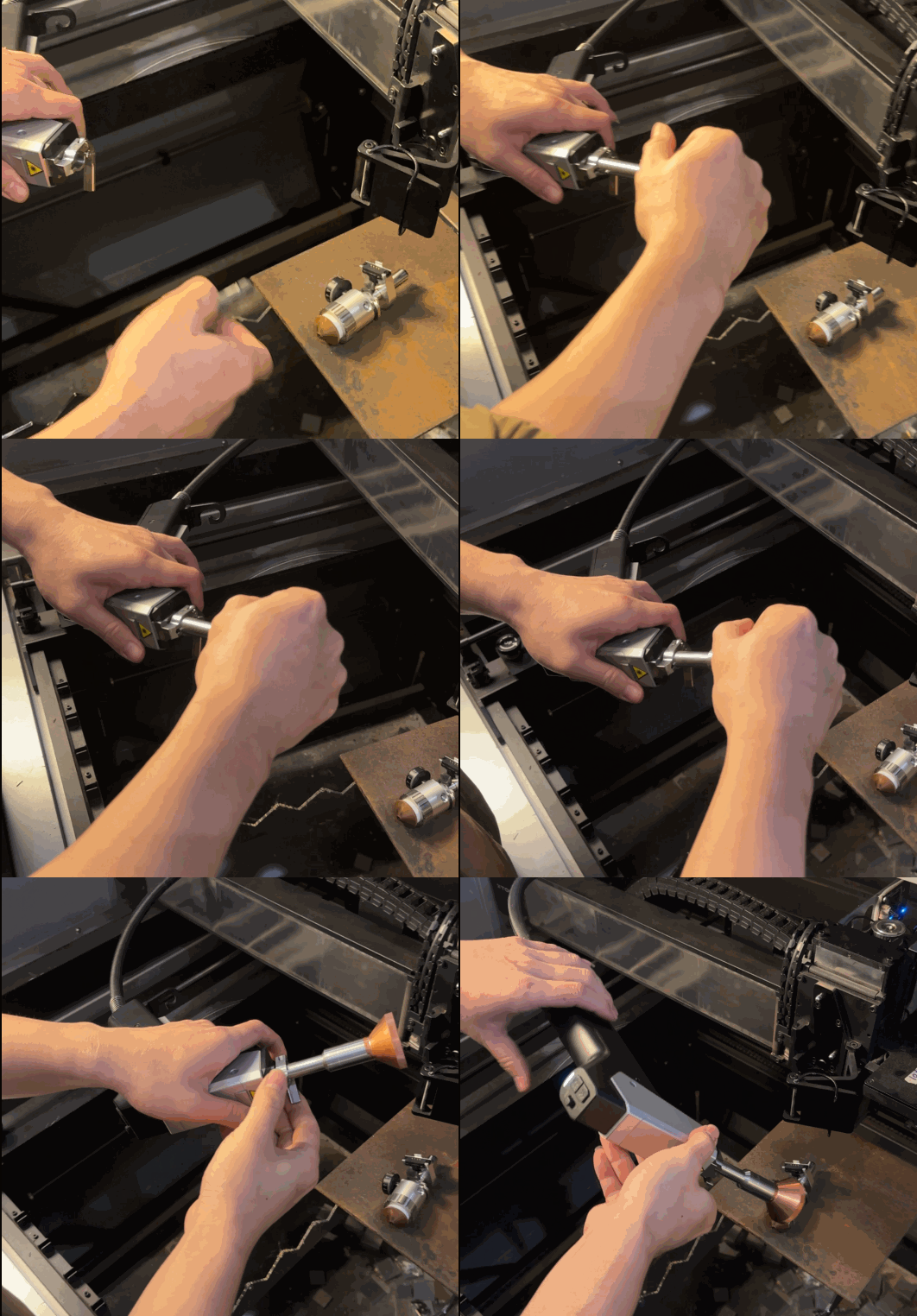
For more details about how to use the CNC cleaning nozzle, visit Start Metal Cleaning with xTool MetalFab CNC Cutter.
Ceramic ring
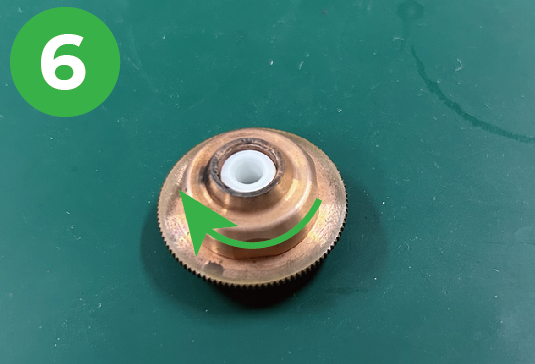
A ceramic ring is pre-installed in the SaveGas™ nozzle.
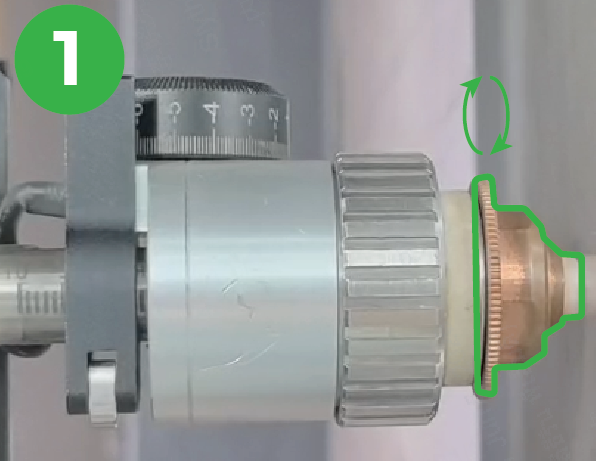
As the nozzle has been used for a long time, the ceramic ring may get damaged. To get optimal processing results, follow the instructions below to replace the damaged ceramic ring with a new one.
Installation steps | ||
|---|---|---|
|
|
|
|
|
|
|
|
|
|
|
|
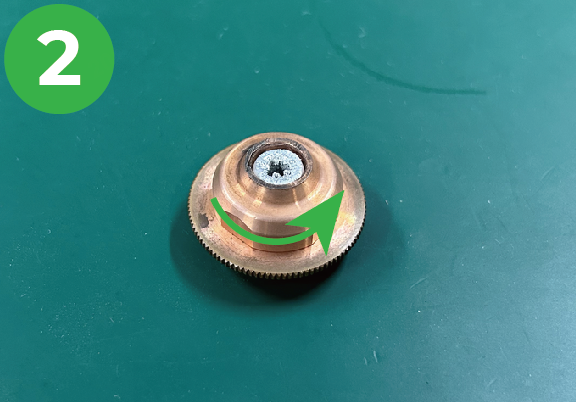
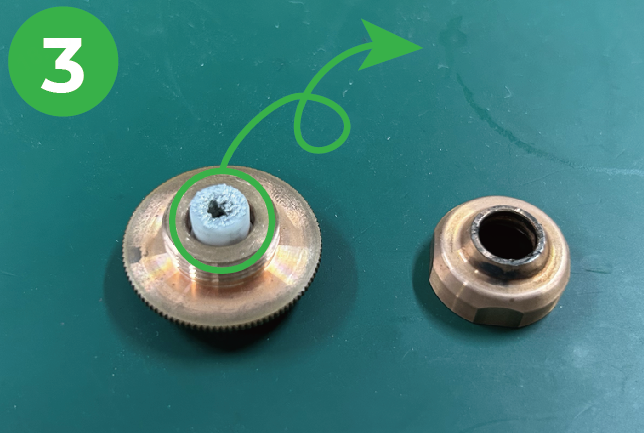
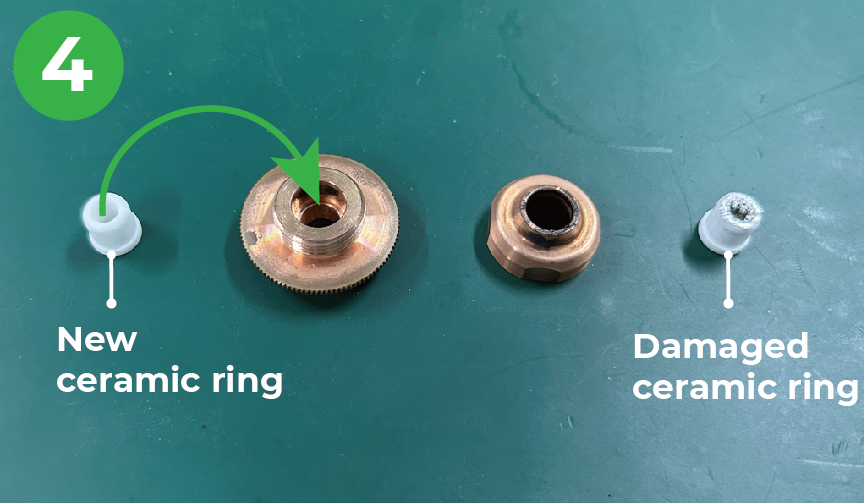
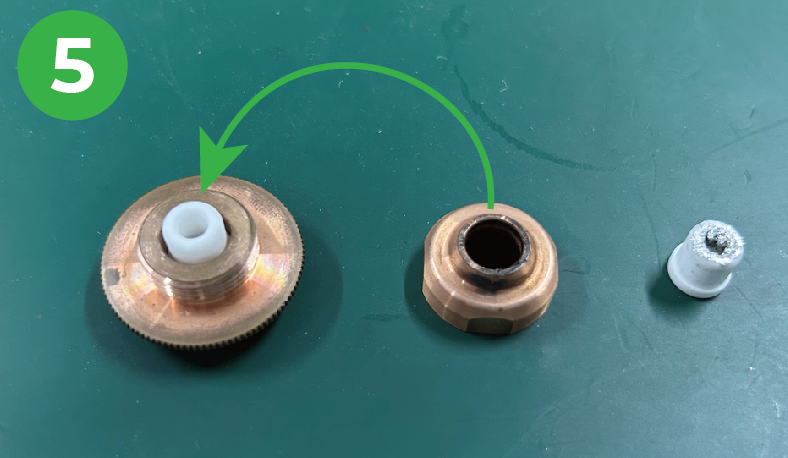
Laser alignment card and red stamp pad
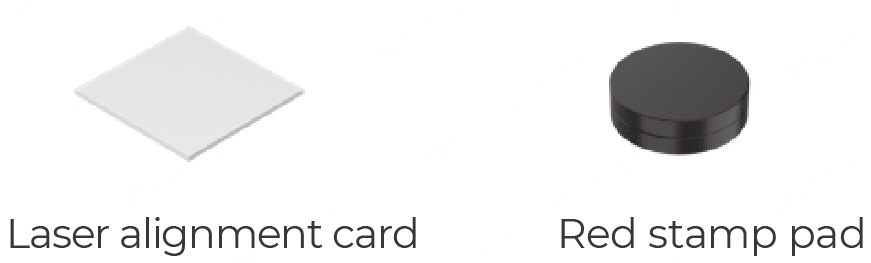
The laser alignment card and the red stamp pad are used for welding head (welding gun) light calibration.
For more details, visit How to Calibrate the Welding Gun Light Position of xTool MetalFab on CNC Cutter.
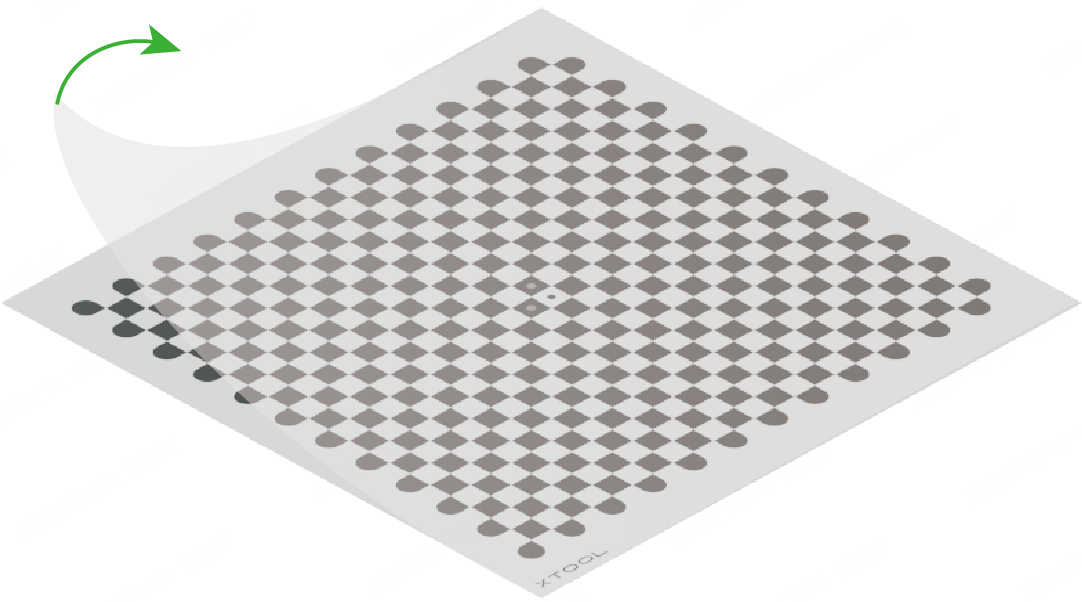
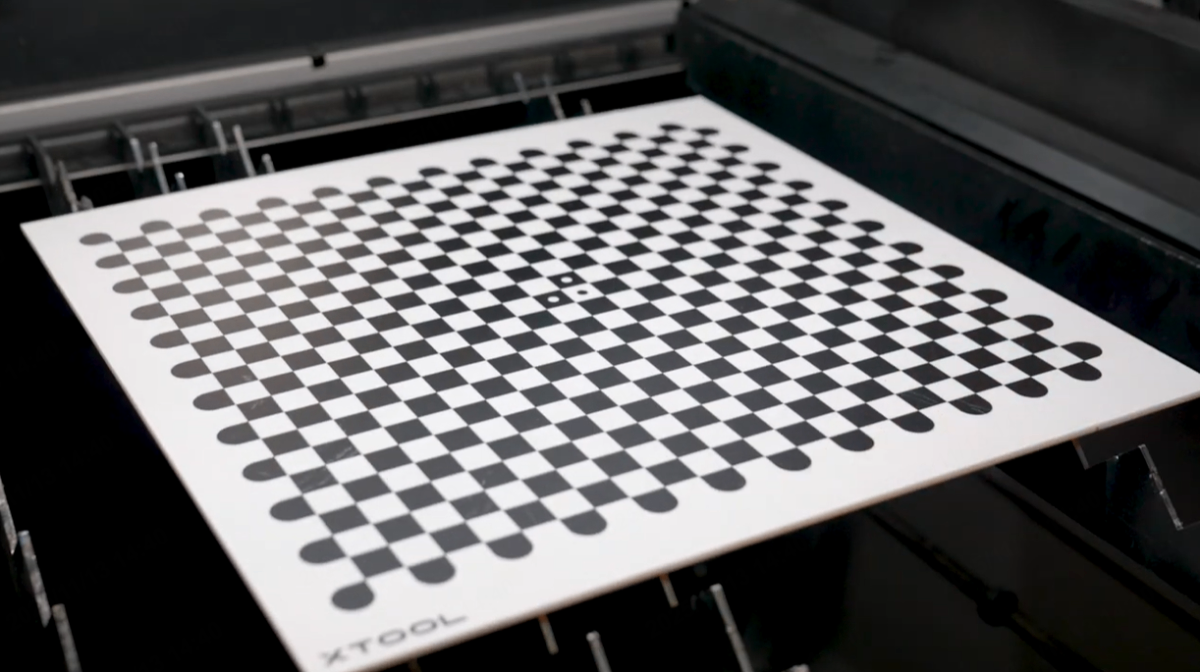
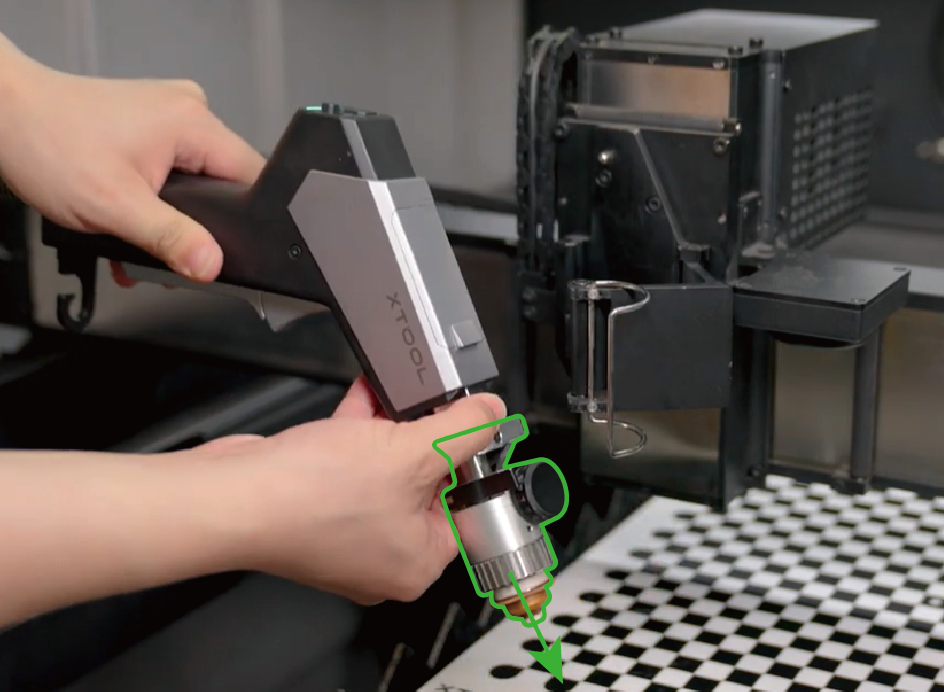
Camera calibration board
Installation steps | |||
|---|---|---|---|
|
|
|
|
|
|
| |
Smoke exhaust fan
- Attach the connector of the exhaust fan to that of the main unit.
Note: Ensure that the side with arrows is facing up. Do not install it upside down.
- Align the four grooves of the exhaust fan with four fixing pins of the main unit and install the fan.
- Before snapping the exhaust fan into place, tuck the excess connecting wire into the hole of the exhaust fan.
- Then, gently press the fan down to make it fully seated.
Pipe clamp and smoke exhaust pipe
Note: Install the smoke exhaust fan before installing the pipe clamp and the smoke exhaust pipe.
- Loosen the pipe clamp.
- Stretch the exhaust pipe.
- Install the exhaust pipe to the exhaust fan.
- Fasten the pipe clamp.
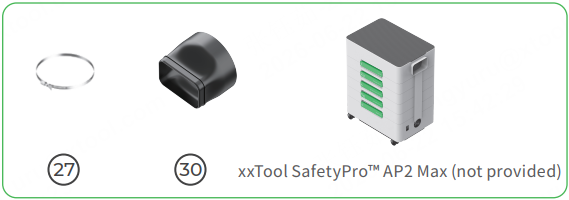
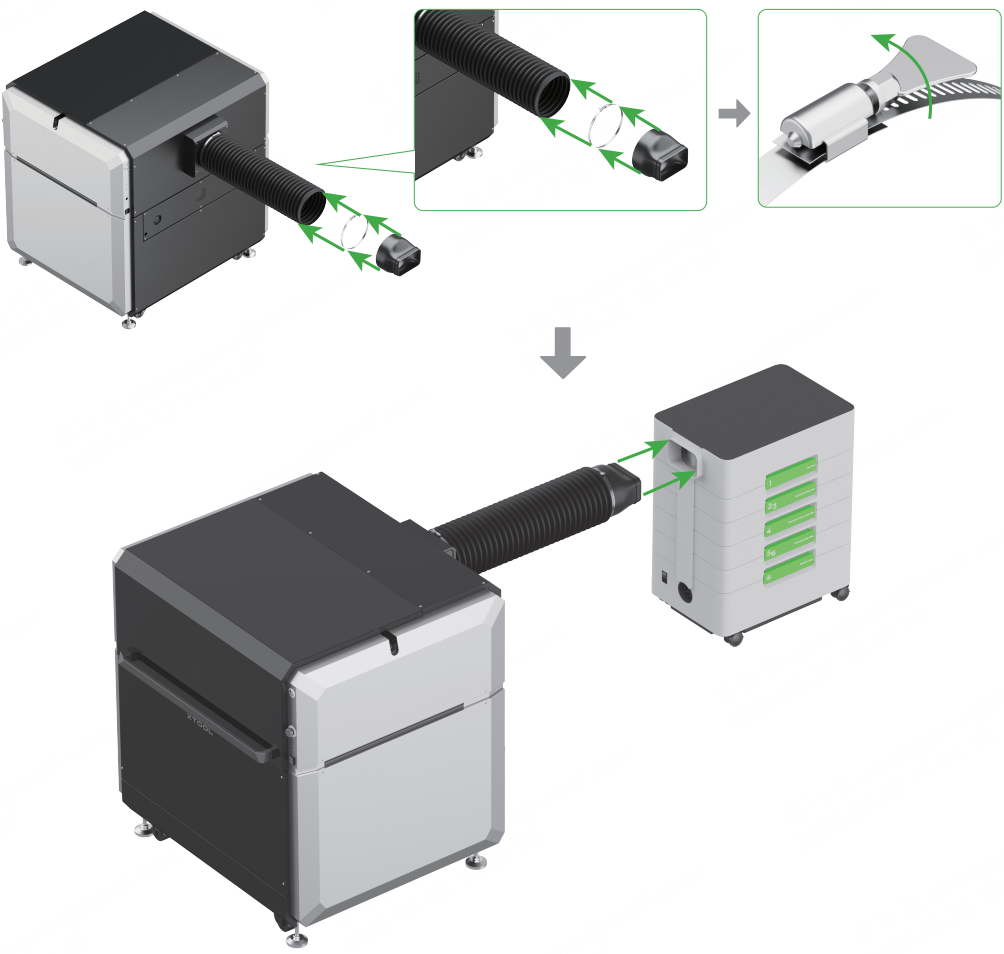
Pipe connector (for xTool SafetyPro™ AP2 Max connection)
1. If you've bought xTool SafetyPro™M AP2 Max, connect it with xTool MetalFab CNC Cutter following the steps below.
2. Before connecting the two devices, install the smoke exhaust fan and assemble xTool SafetyPro™M AP2 Max first.
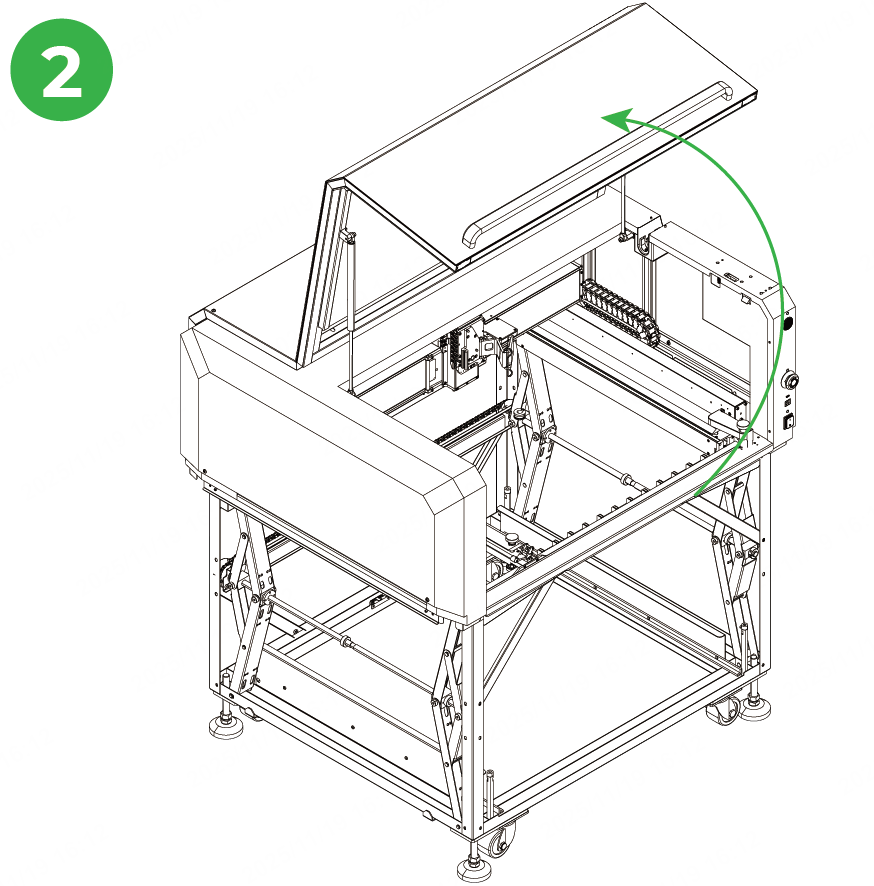
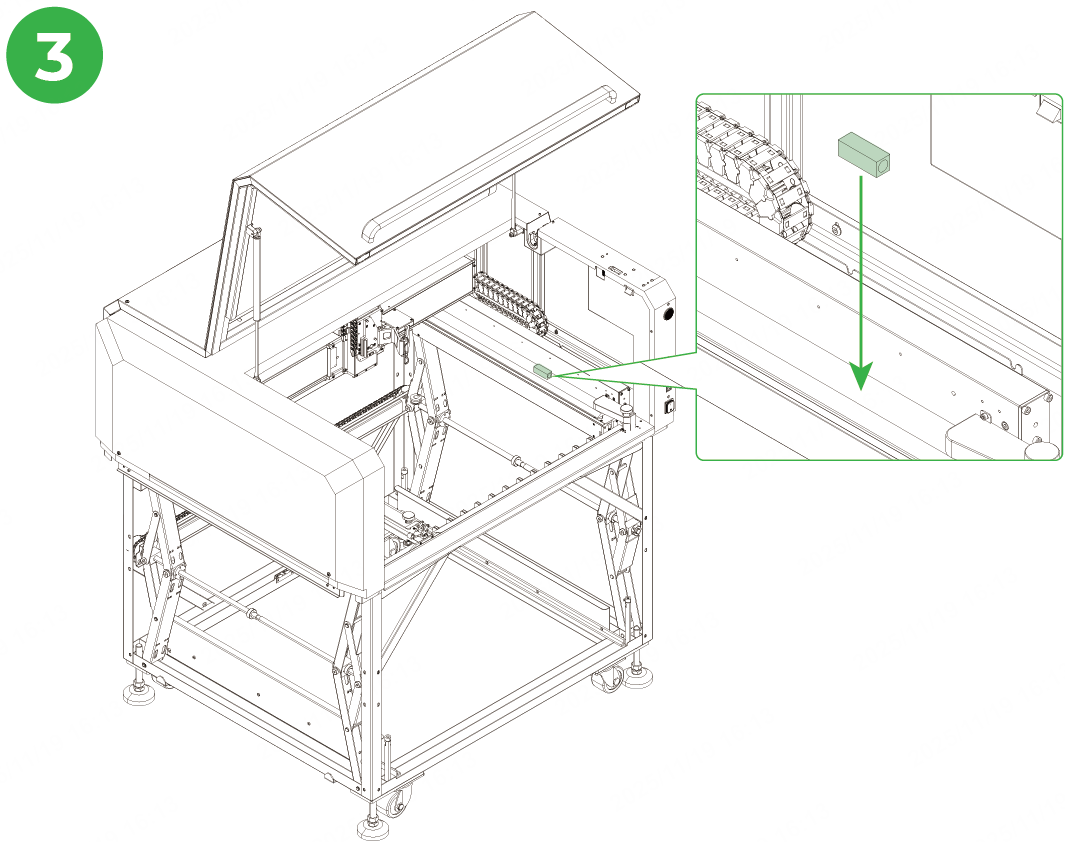
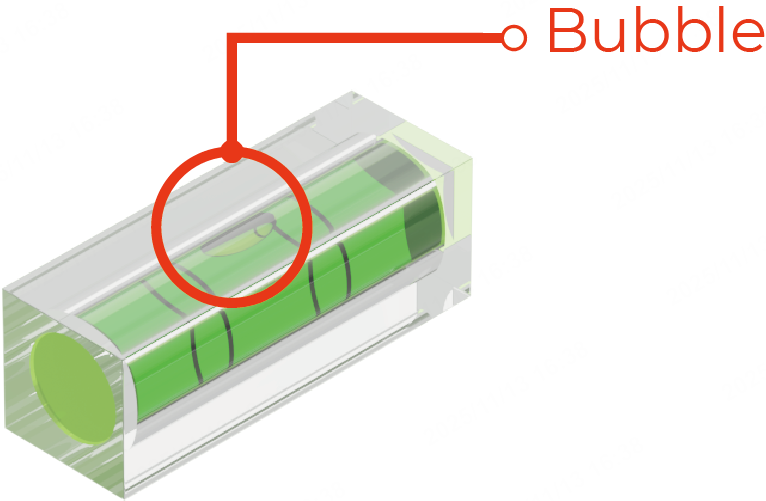
Level
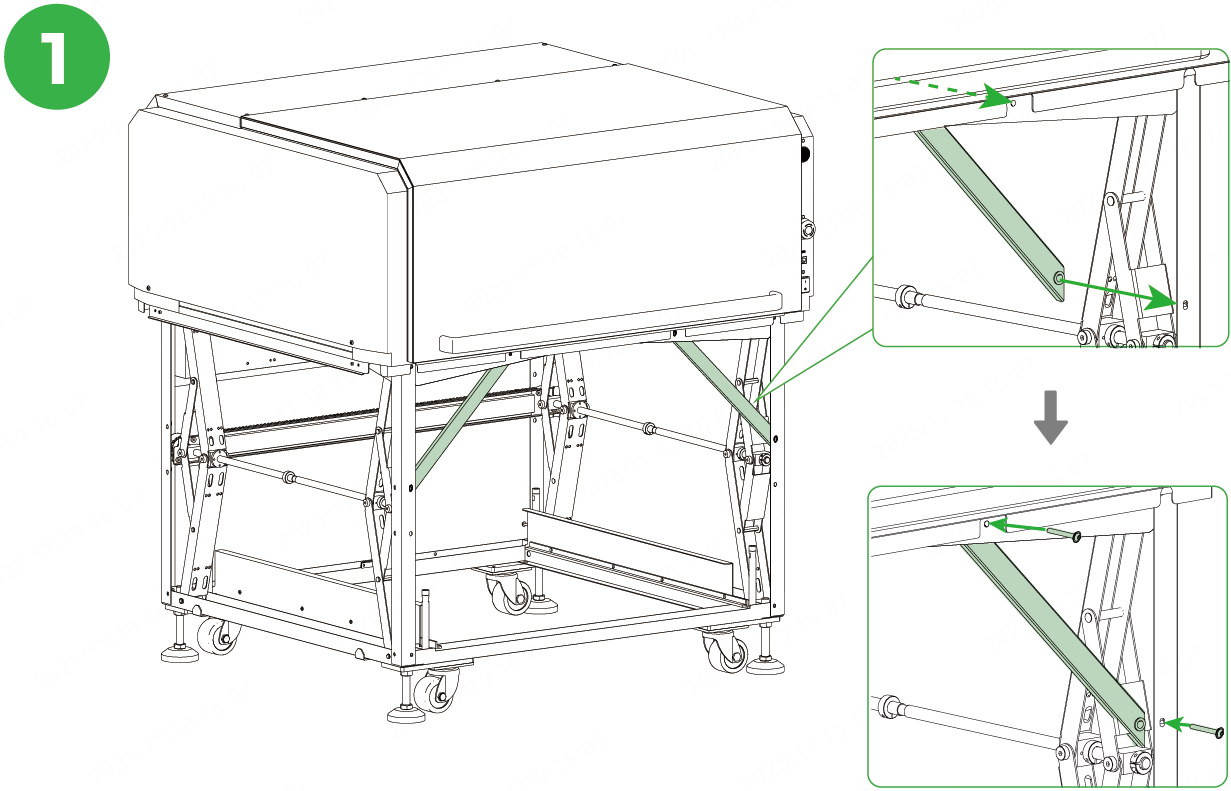
The level is used to make sure the assembled xTool MetalFab CNC Cutter is stable and flat. You can follow xTool MetalFab CNC Cutter User Guide to assemble the device.
To use the level, follow the instructions below.
Installation steps | |
|---|---|
|
|
|
|
|
|
|
For details about how to adjust the leveling feet, click here. |
Slat
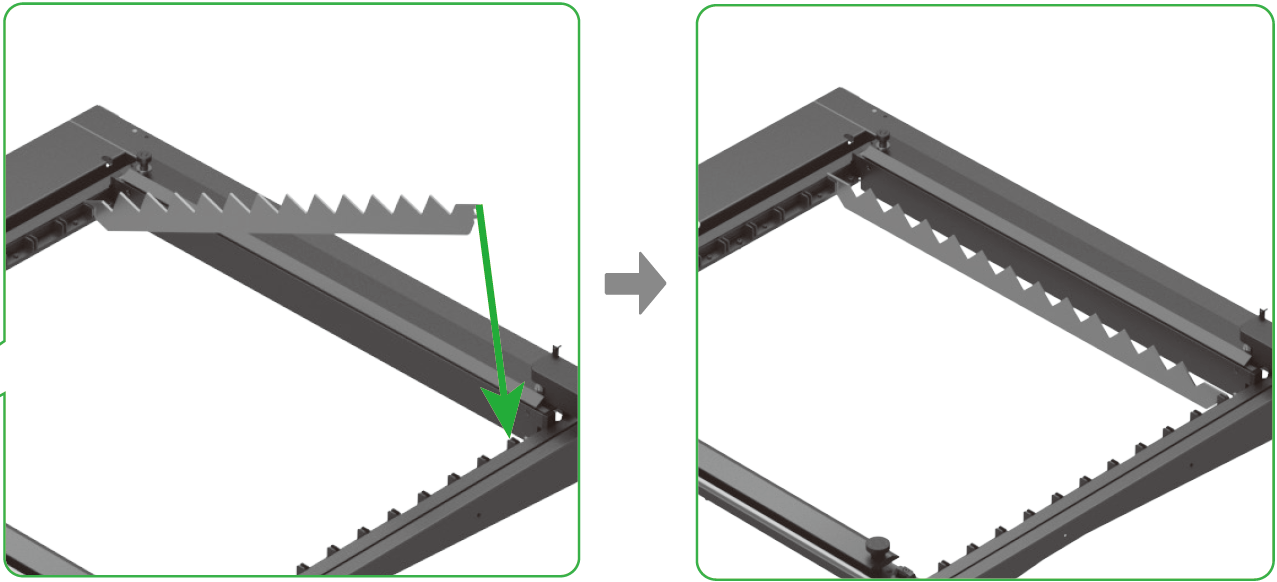
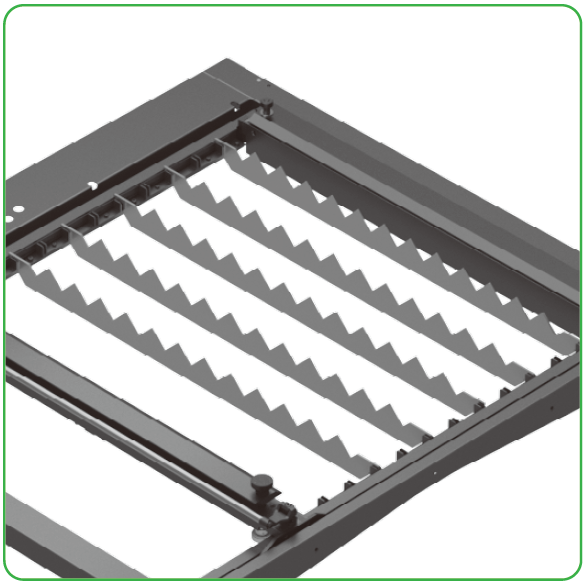
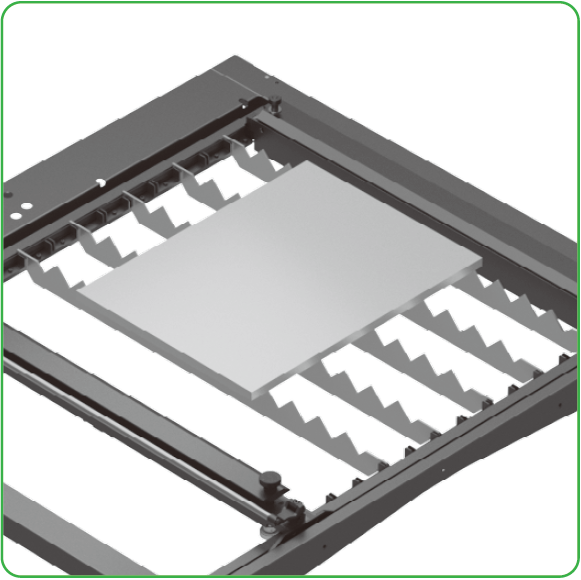
Slats are used for supporting materials to reduce unexpected movement during processing and enhancing cutting precision. You are advised to arrange slats as densely as possible.
Follow the instructions below to install the slats.
Installation steps | |
|---|---|
| |
| |
|
|
|
|
Related links
User guide
Installation
Calibration

