
Issue description
There are two scenarios of lifting platform leveling, and the reasons for the failure of leveling in the two scenarios are different. Please choose the corresponding troubleshooting plan according to the actual scenario:
- Leveling after power-on: After each power-on, the lifting platform will be reset and leveled automatically. At this time, the leveling failure of the lifting platform may occur within a short period of time after power-on.
- Manual selection eveling: Go to the Device settings > Calibration > Base leveling, and start the leveling.
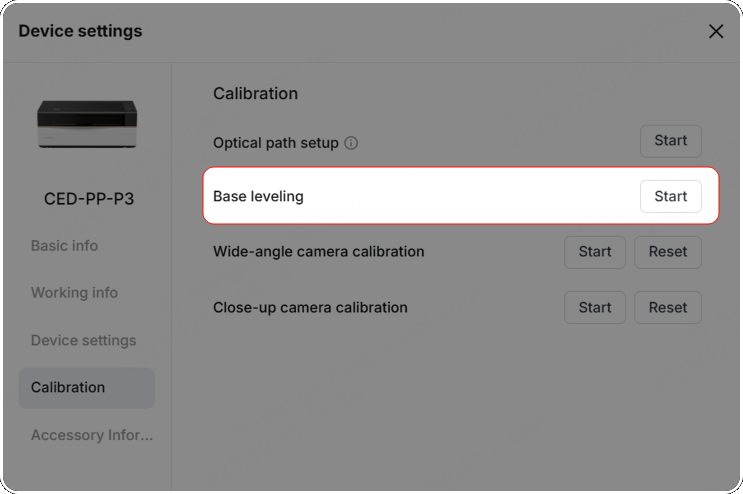
When you adjust the lifting platform to level, the leveling fails, and a pop-up window also prompts an error code "BOTTOM_BED_LIMIT_LEVELING.TIMEOUT".
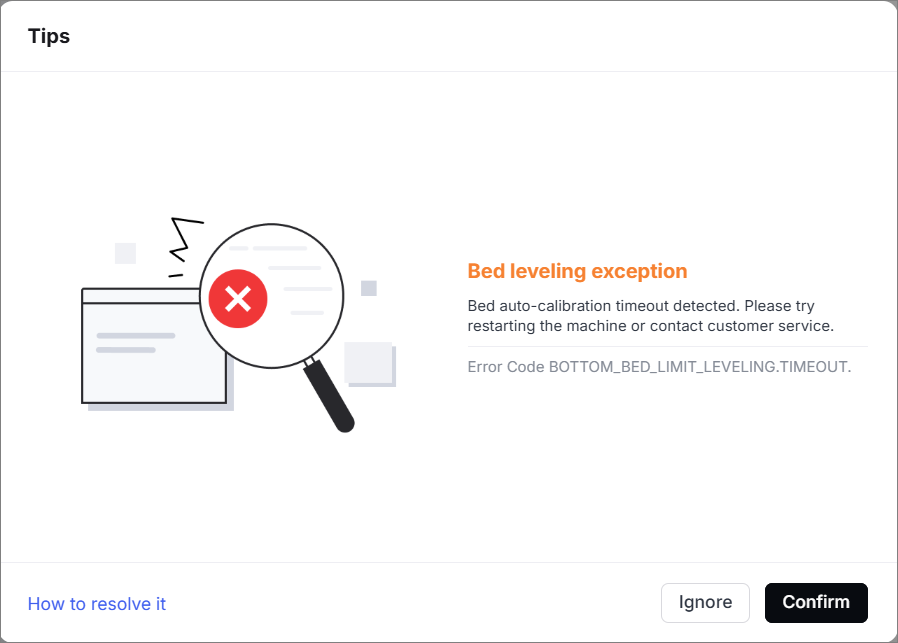
Possible causes
- Foreign objects are under the lifting platform.
- The limit switch of the lifting platform is faulty.
- Foreign objects cover the concentric circles.
- The motor of the lifting platform is faulty.
- Strong light interferes.
- Auto mode cannot work.
Troubleshooting procedures (for leveling after power-on)
1. Check under the lifting platform
(1) Disconnect xTool P3 from a power supply.
(2) Follow the tutorial to lift the lifting platform manually.
(3) Check whether there are foreign objects under the lifting platform, causing the platform to get stuck. If yes, remove the foreign objects.
2. Check the motor of the lifting platform
(1) Follow the tutorial to adjust the lifting platform manually to the middle height position.
(2) Power on the device.
(3) Observe whether the lifting platform has an abnormal top angle.
- If the lifting platform lifts or lowers normally, check for other issues.
- If the lifting platform has an abnormal top angle (not lifting or not lowering):
- Determine which side of the top angle to locate, and remove the corresponding side's plate. See the tutorial.
- Unplug and plug the motor cable and main control board motor connection terminal that corresponds to the top angle.
Terminal 1 and 4 are left motor connection cables.
Terminal 5 and 6 are right motor connection cables.
Terminal 2 and 3 are main control board motor connection terminals.
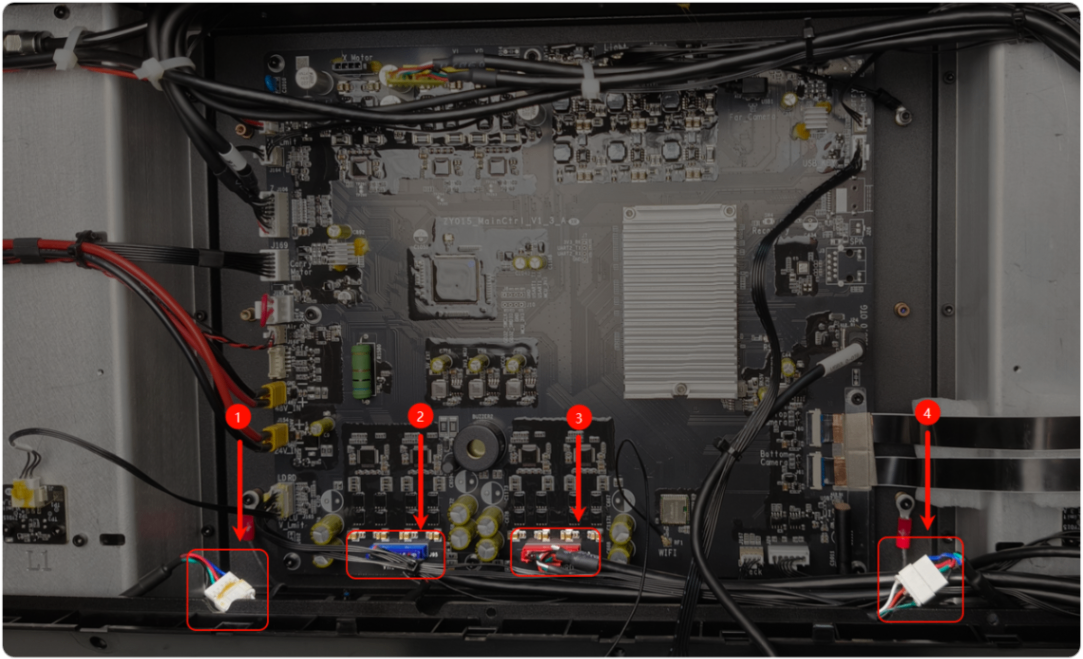
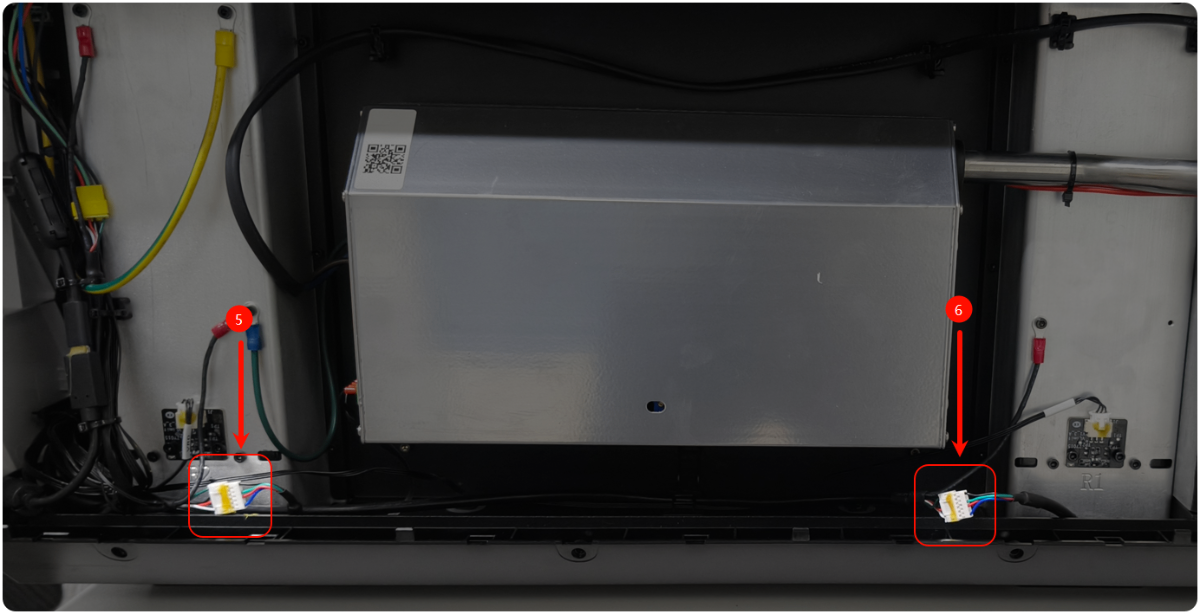
(4) If the lifting platform is still not repaired, replace it with a V-axis motor that corresponds to the top angle.
3. Unplug the connector of the limit switch
(1) Disconnect xTool P3 from a power supply.
(2) Remove the left and right plates as shown. Follow the video tutorial Assemble & Disassemble the Casing of xTool P3.
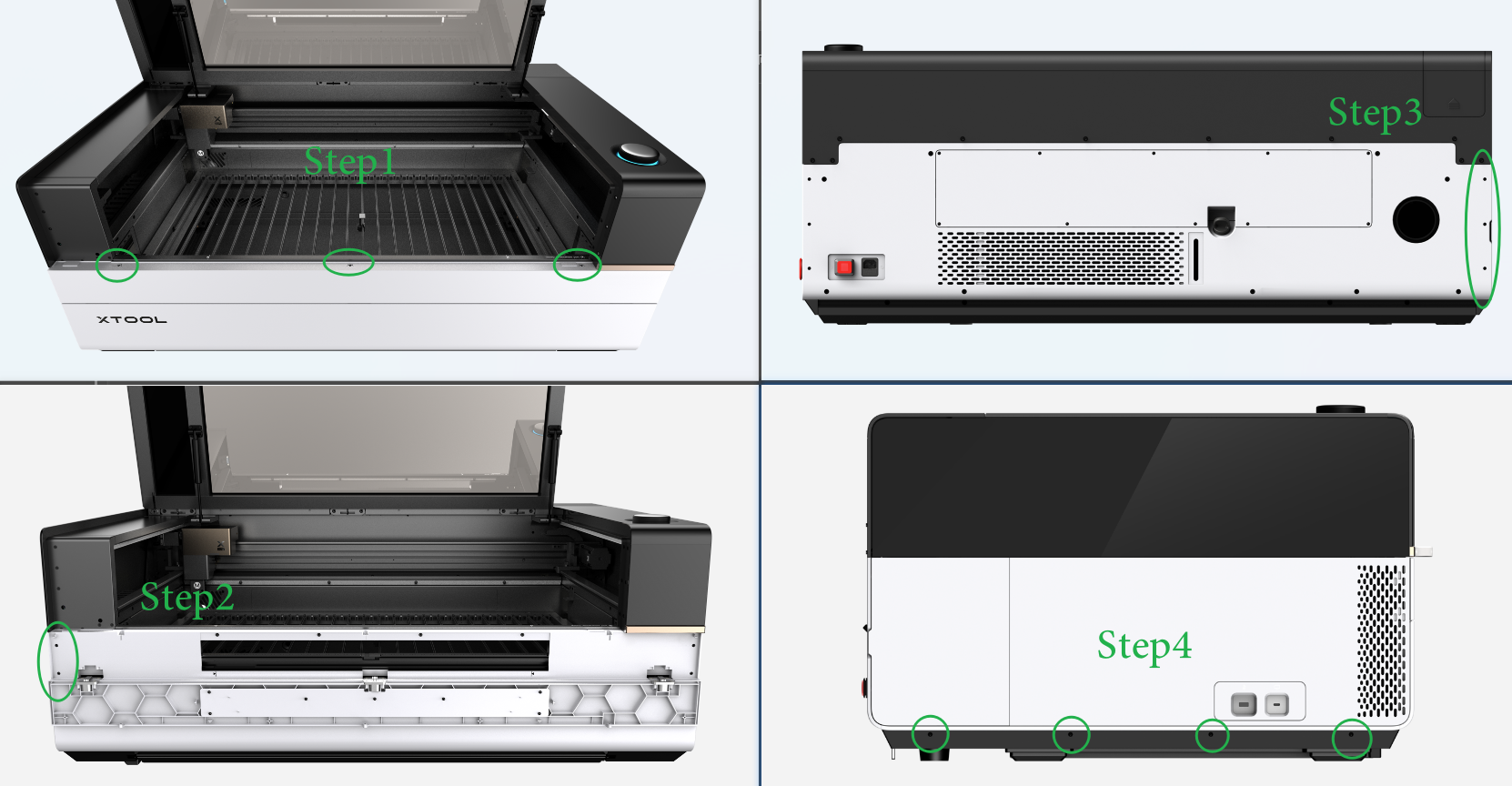
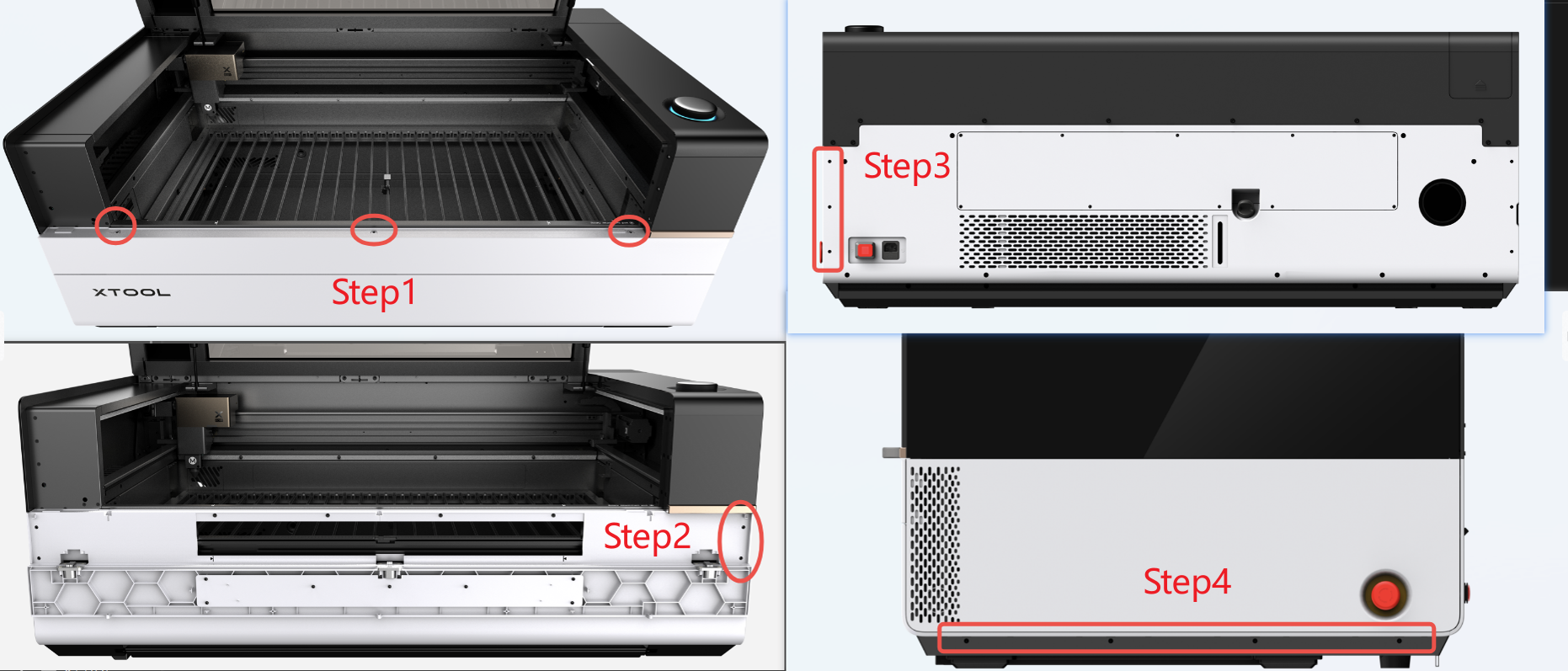
(3) Unplug one of the connectors of the limit switch. Then restart xTool P3 to check whether the leveling is normal.
The yellow substance on the plug is soft rubber. If the plug is too tight, you can gently peel it off before unplugging.
- If the lifting platform levels successfully after unplugging a specific connector, you may continue using the device as is or proceed to Step 4 to inspect the limit switch.
- If the lifting platform has not been leveled successfully, reinsert this connector, unplug the next one, restart the device, and repeat Step 3.
- If the issue cannot be resolved after testing all four limit switches according to Step 3, please check for other issues.
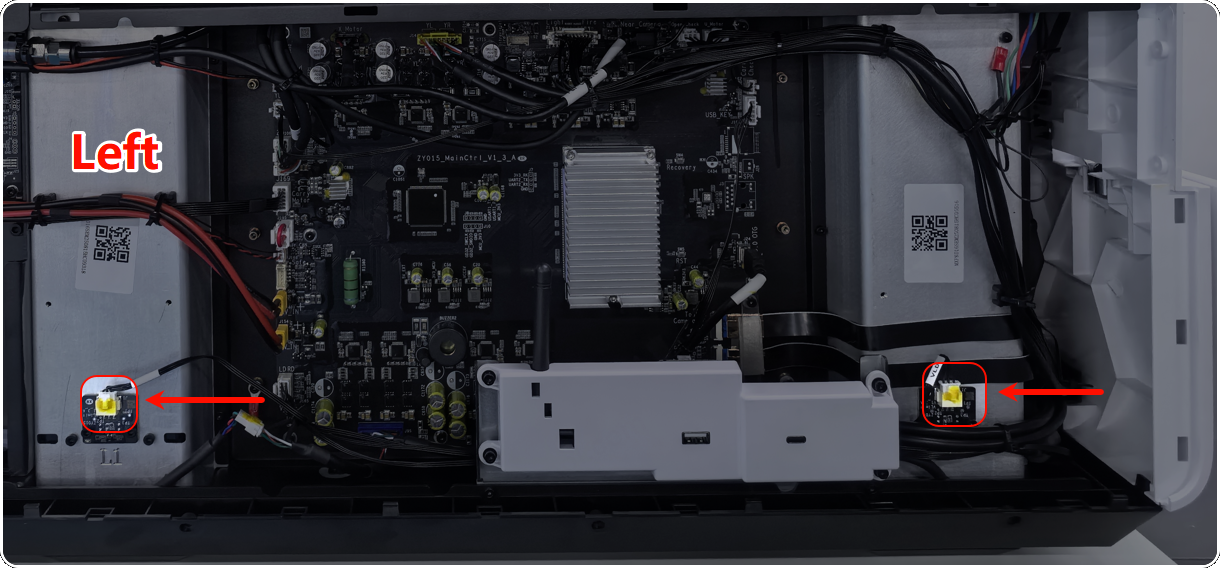
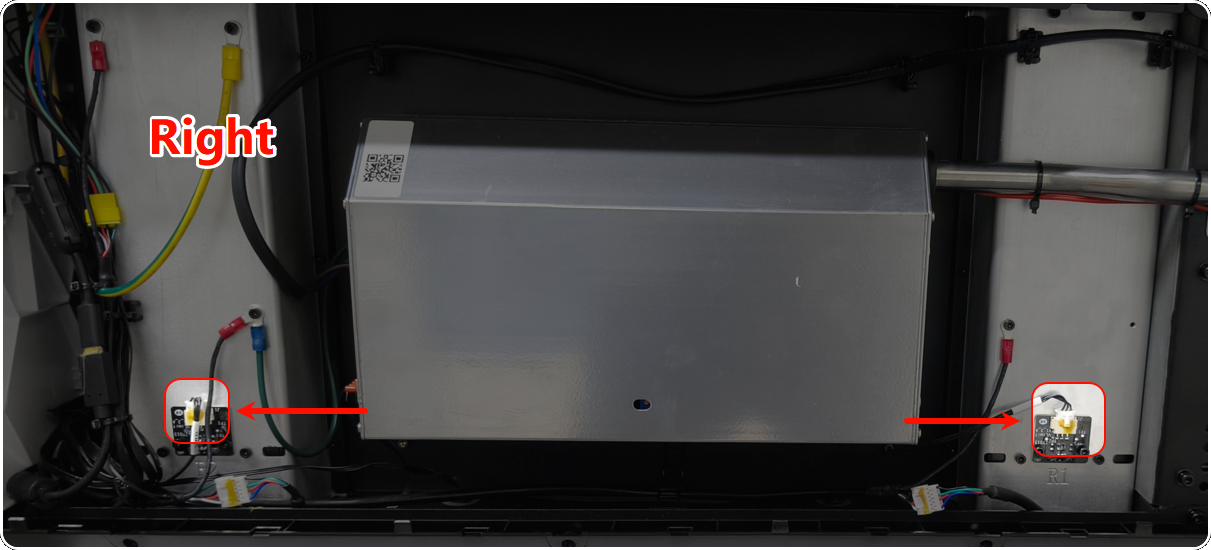
4. Check the limit switch
(1) Follow the step above to remove the left or right plate.
(2) There are 4 limit switches in total. Select one of the limit switches. Use a 2.5mm hex key to remove the screws on it. Then take out the limit switch.
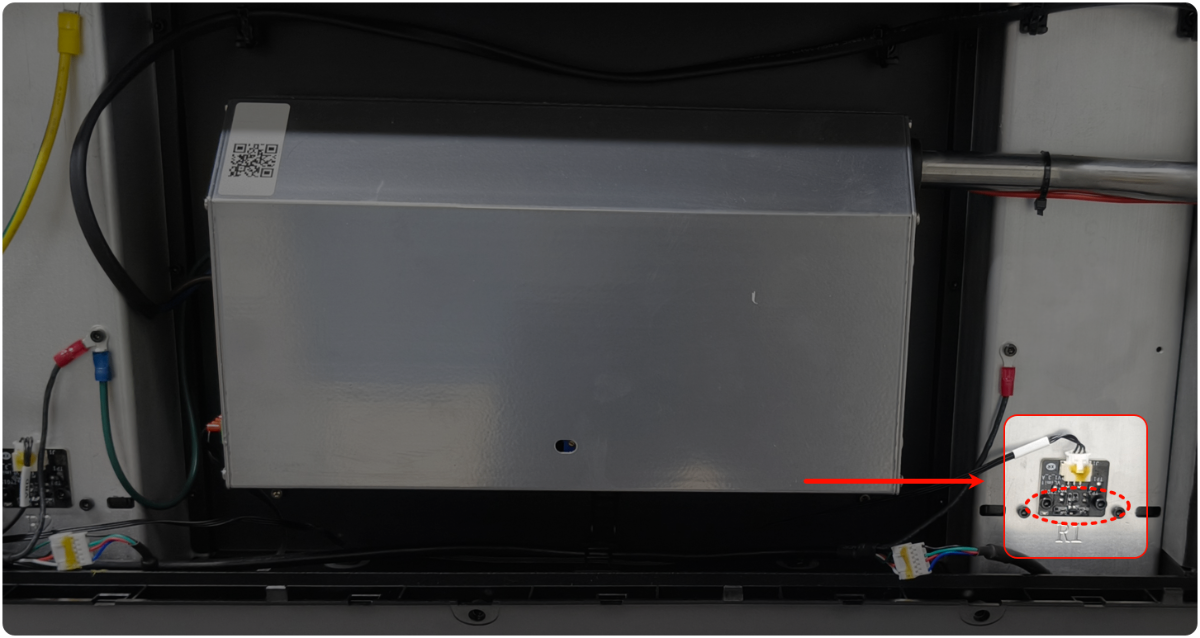
(3) Power on xTool P3.
(4) Insert an opaque object into the center of the probe and observe whether the indicator changes.
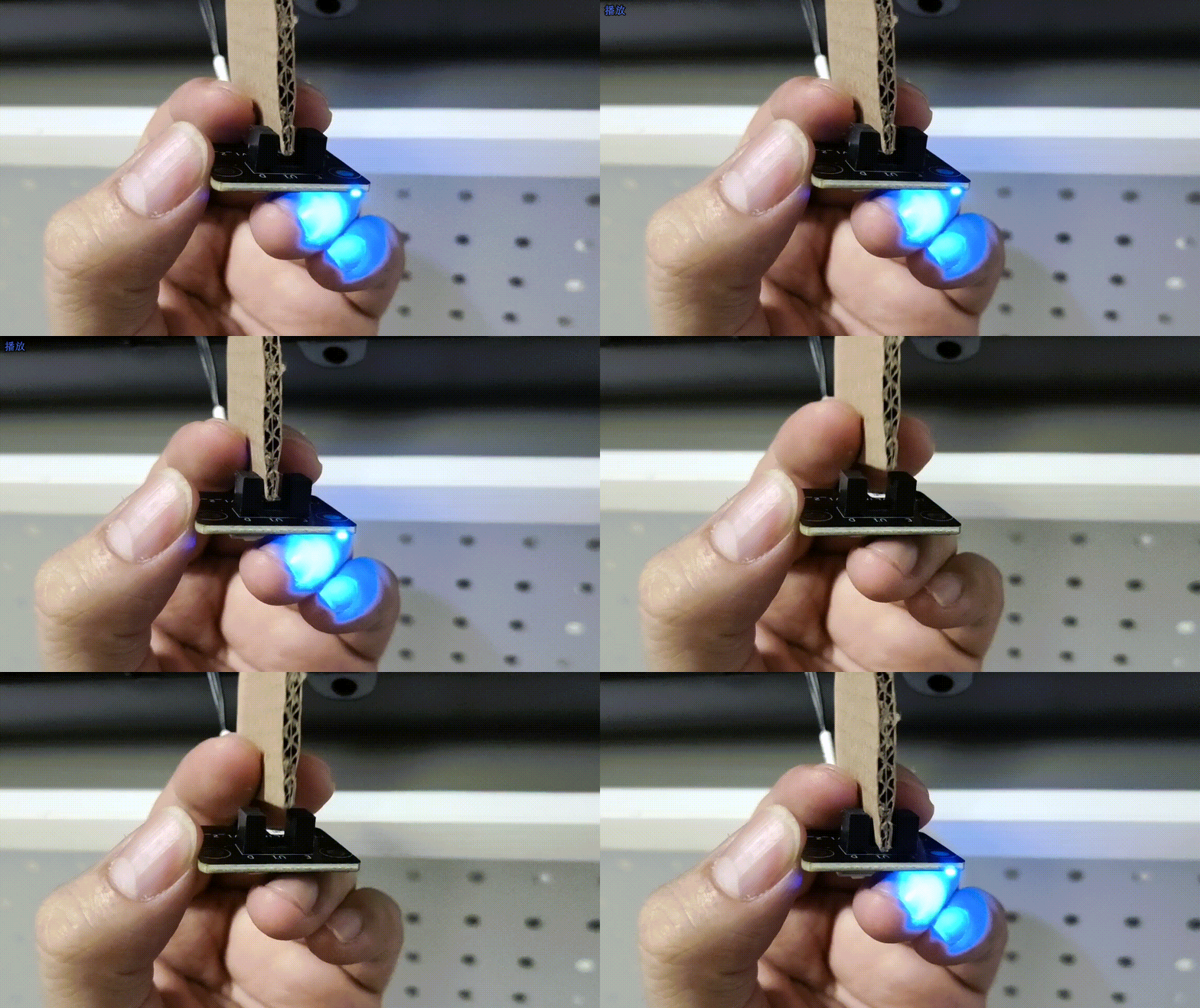
- If the indicator does not change, replace it with a new limit switch.
- If the indicator changes, reinstall the limit switch (It should be installed as high as possible). Test the other 3 limit switches by inserting an opaque object into the center of the probe as above.
Troubleshooting procedures (for the manual selection leveling)
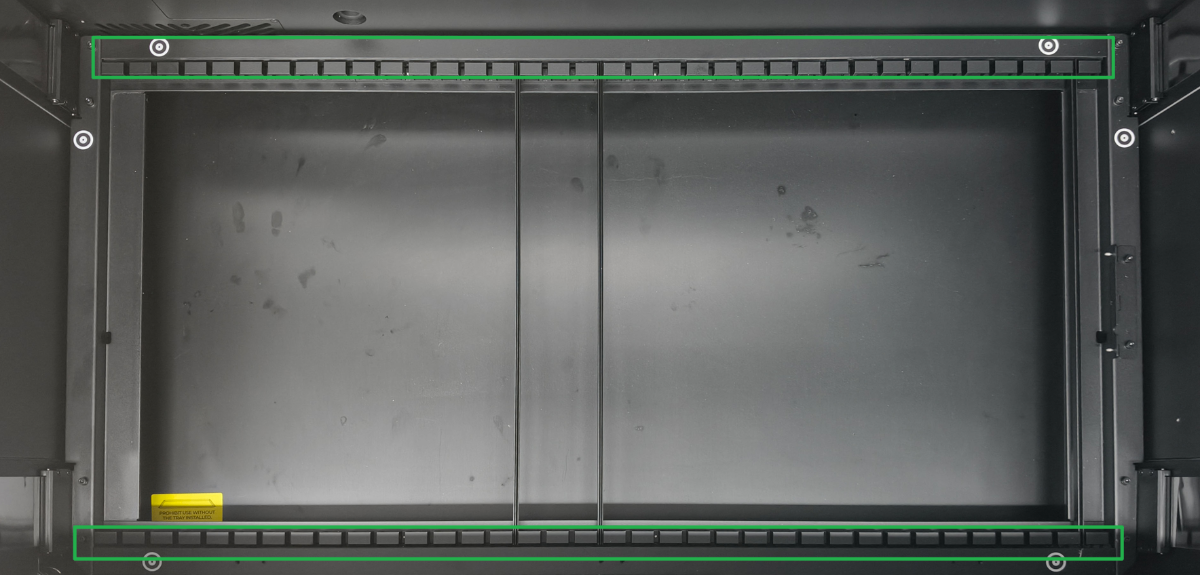
Manual selection leveling (secondary leveling) of the lifting platform is performed by using the distance sensor on the laser module to precisely measure the slat slots at the four corners of the lifting platform and calibrating the platform based on the measurement results. Therefore, during manual selection leveling (secondary leveling), ensure that the distance sensor is functioning properly and that the red measurement spot is positioned on the slat slots, as shown in Step 6 below. If the measurement error is too large or the sensor is unable to obtain a valid distance reading, the leveling process may fail.
1. Check the lifting platform
Calibration is used to measure the distance on the slat slots on the upper and lower sides of the lifting platform.
Please check whether the lifting platform is clean. If not, clean the residues.
2. Check the ambient light
If strong light illuminates the processing area, it may interfere with distance measurement. Please avoid strong light before performing calibration.
3. Check the Precise measure mode
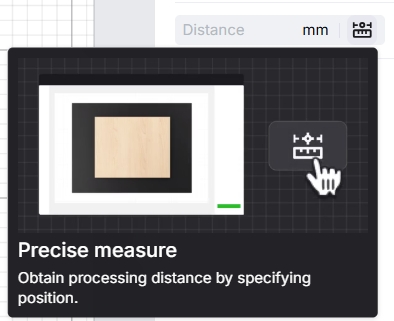
The second leveling of the lifting platform depends on the Precise measure mode. Please test whether the mode works normally.
If the mode fails to work, click the link to read the article Solutions for Auto-Measure Failure to troubleshoot the issue.
4. Check the lifting platform
Check whether the lifting platform is level. If excessive ranging errors are caused by an uneven lifting platform, power off the device, refer to the tutorial, manually level the lifting platform, and then perform secondary leveling.

5. Test the motor of the lifting platform
After manually leveling the lifting platform, use the screen and knob to control the lifting platform through a wide range of repeated upward and downward movements. Observe whether there is any position where the lifting platform becomes uneven during movement.
- If so, replace the lifting platform motor corresponding to that position.
- If not, check for other issues.
6. Check the position of the red spot for distance measurement
Observe whether the red spot is positioned on the slat slots each time when the laser module pauses at the four corners of the lifting platform for distance measurement (pay attention to distinguish it from the red light of the laser).
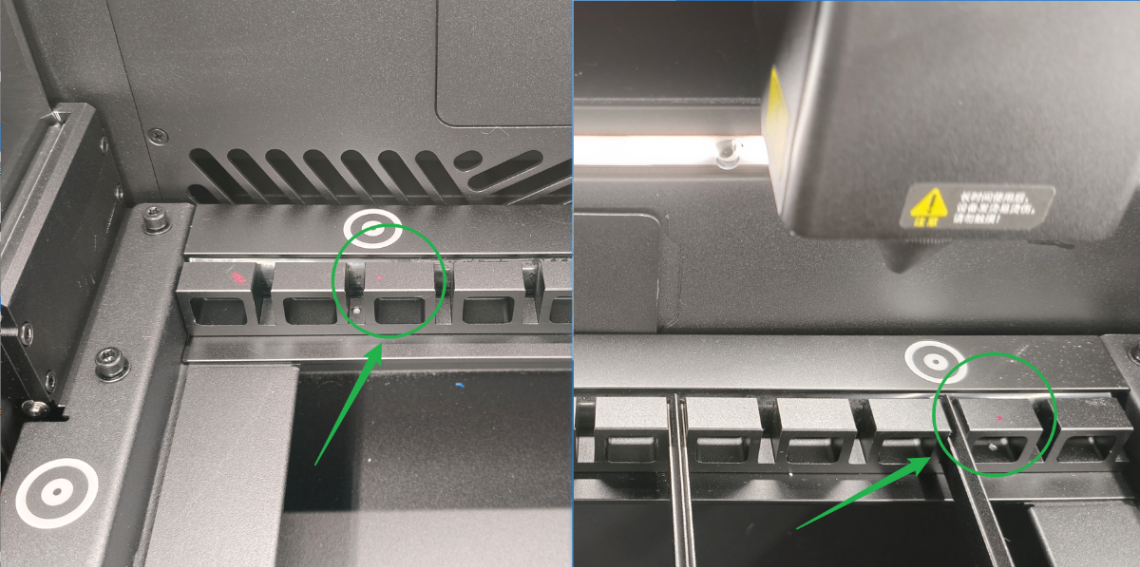
- If the red spot is positioned on the slat slots, check for other issues.
- If not, take a video and send it to xTool after-sales service.
Still experiencing issues?
Should the issue persist after completing the preceding steps, submit a ticket via the "Submit a Ticket" button in the "Help Ticket" section below. The standard response time for xTool Customer Service is one business day.
For a prompt resolution, please include the following details:
- Issue description: A detailed explanation of the observed problem.
- Video evidence: Attach a video demonstrating the issue, where applicable.
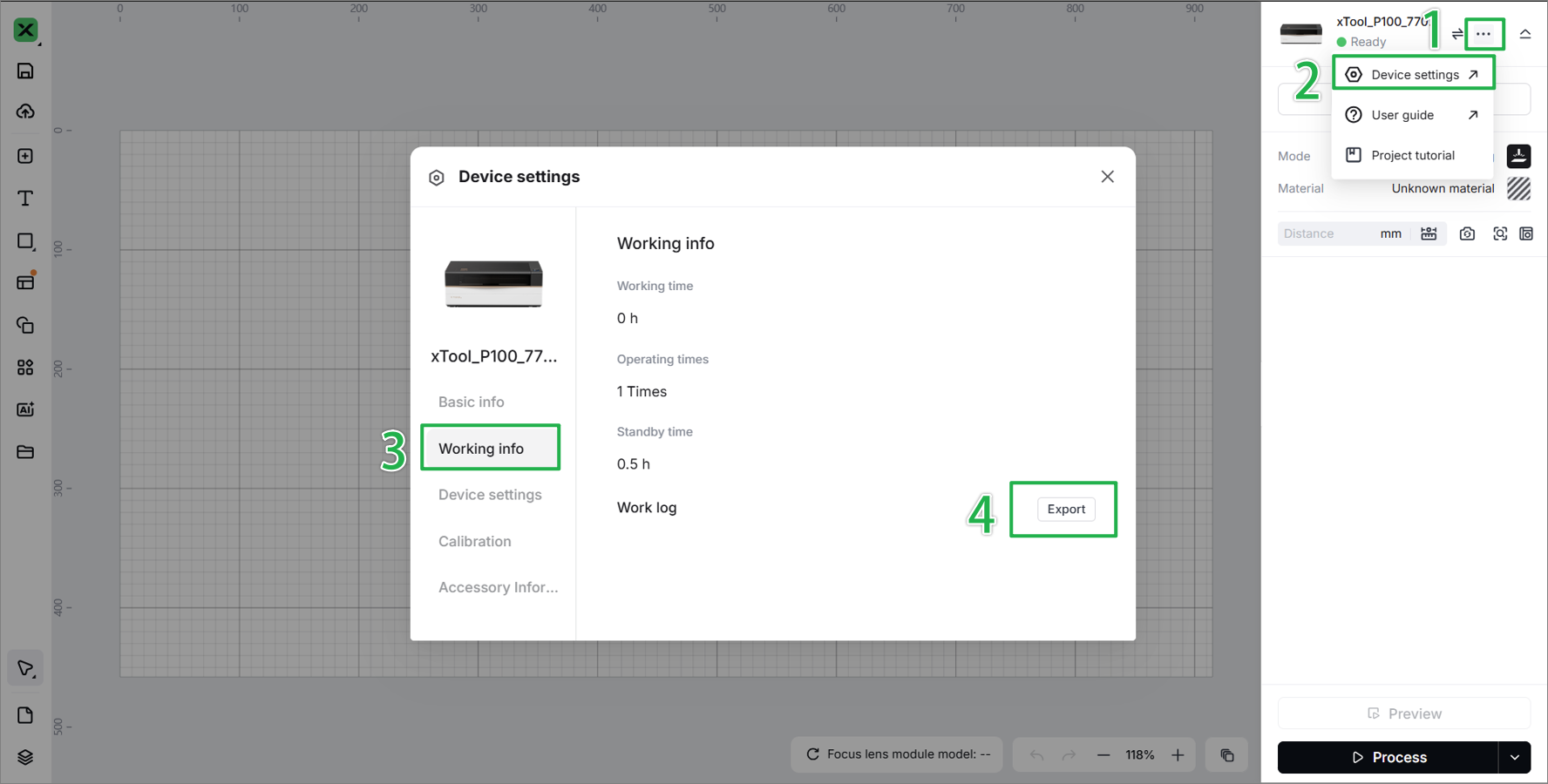
- Device information: Follow the steps to find the SN and export the work log.
- Troubleshooting performed: Any troubleshooting steps you have already attempted, along with their results.
This information is crucial for xTool technical support engineers to provide timely assistance.
Documentation feedback
Help improve this content by providing feedback. If this content did not meet your requirements, select "No" in the "Was this page helpful?" section below. Include specific details about what was unclear or missing in the pop-up suggestion box. Feedback submissions are reviewed by xTool technical writers to enhance future documentation.

