
Issue description
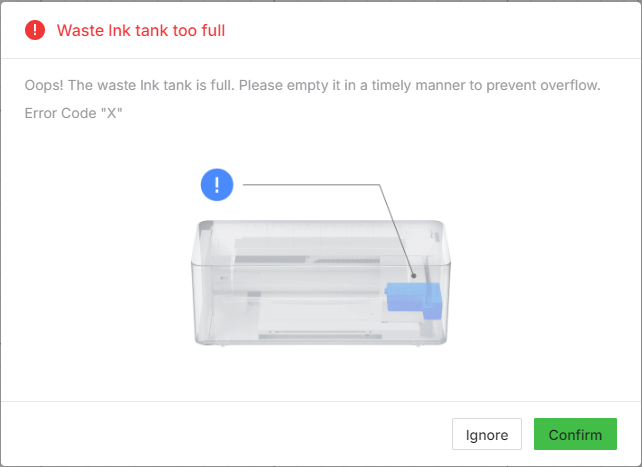
When using xTool Apparel Printer with xTool Creative Space or via the control panel, you receive an error message stating: "Waste ink tank too full" (Error Code: X).
- This guide provides step-by-step troubleshooting to resolve the issue.
Potential causes
- Waste ink at maximum level: The waste ink tank has reached its maximum capacity.
- Stuck float indicator: The float indicator is jammed and cannot move freely.
- Sensor connection issue: Poor contact or damage to the waste ink tank detection sensor cable.
- Sensor failure: The waste ink tank detection sensor has malfunctioned.
- CAN board failure: The lower Controller Area Network (CAN) board failed.
Troubleshooting steps
Follow these steps sequentially to resolve the issue.
Step 1: Check the waste ink tank
💡 Note: Regularly empty the waste ink tank to prevent overflow and ensure proper printer function.
Action:
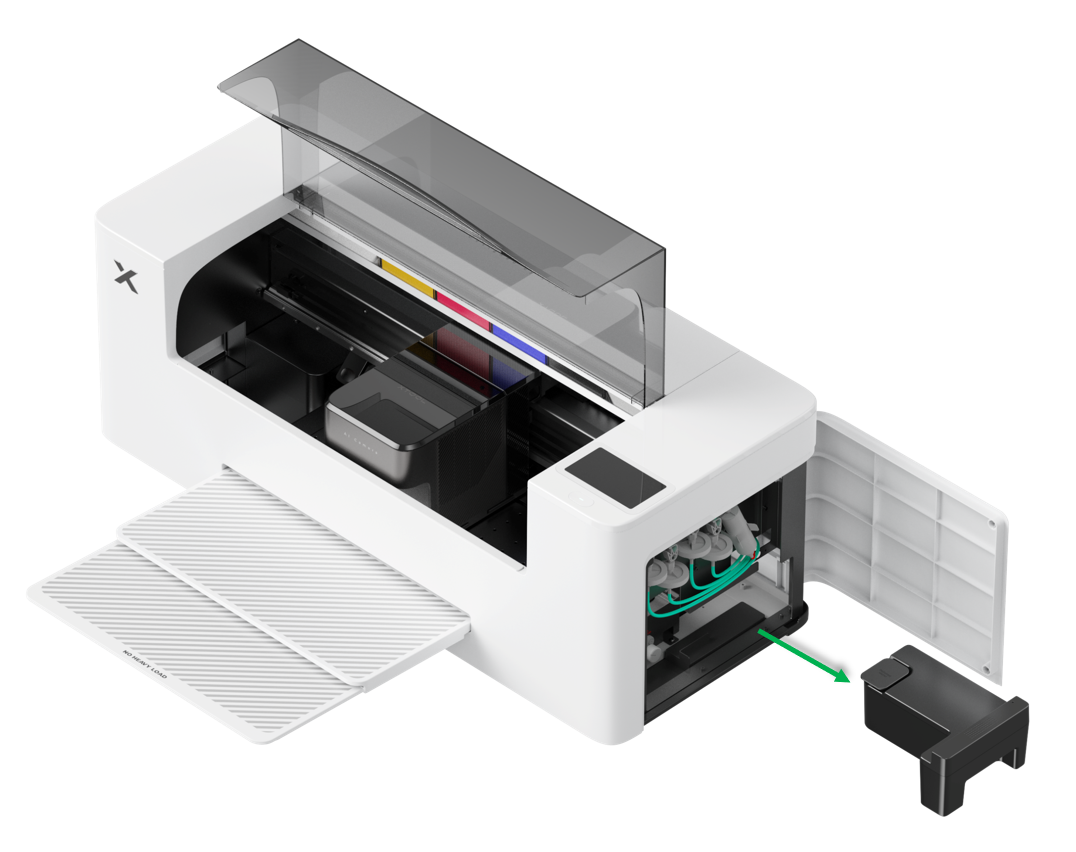
- Detach the right-side panel and check if the waste ink tank is already full.
- If the tank is full or nearly full, carefully empty the waste ink into an appropriate disposal container according to your local regulations.
- Reinstall the empty waste ink tank securely. The error should be clear now.
- If the tank was not full or if the error persists after emptying, proceed to Step 2.
Step 2: Check the float indicator
Understanding the float indicator: The waste ink tank uses a float indicator mechanism to monitor the waste ink level in real time. This float rises with the ink level and triggers the sensor when the tank approaches capacity.
Instructions:
- Remove the waste ink tank from the printer.
- Locate the waste ink float indicator shown in the reference image.
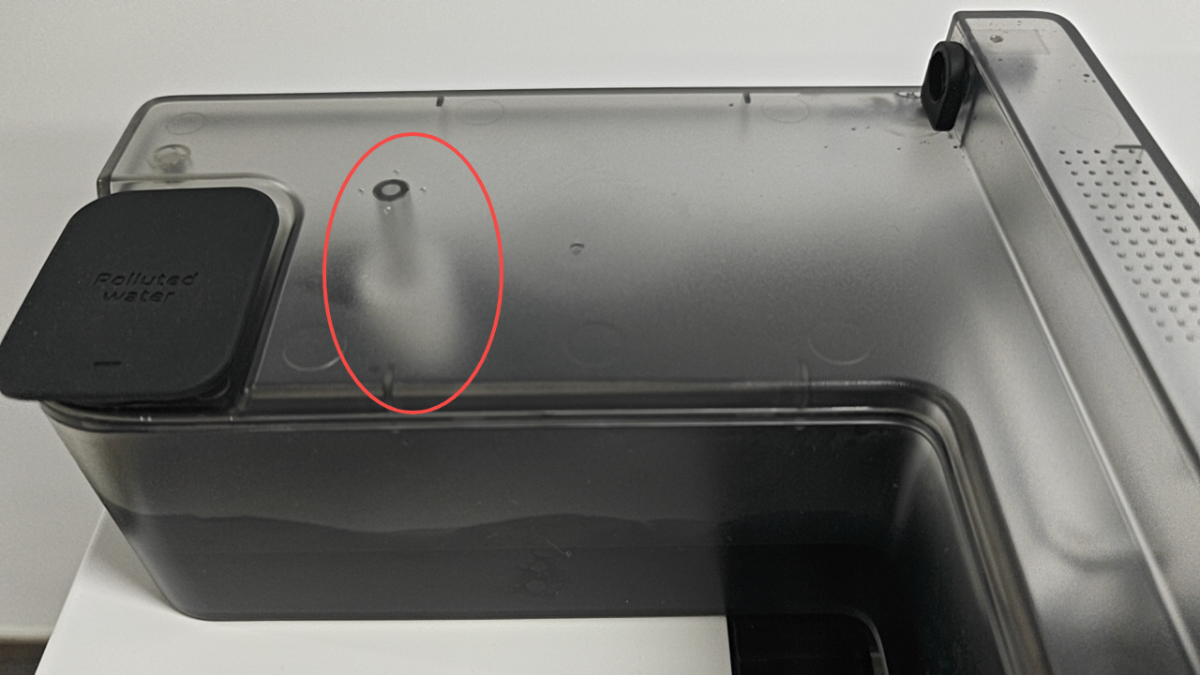
- Gently shake the tank or use a thin, non-sharp tool (like a clean cotton swab) to nudge the float indicator carefully. Check if it moves freely up and down.
- If the float was stuck: Once freed, reinstall the tank. The error should be clear now.
- If the float moves freely, or if freeing it does not resolve the error, proceed to Step 3.
Step 3: Inspect the sensor connection cable & sensor
Cable reconnection procedure:
- Open the right-side panel and remove the waste ink tank.
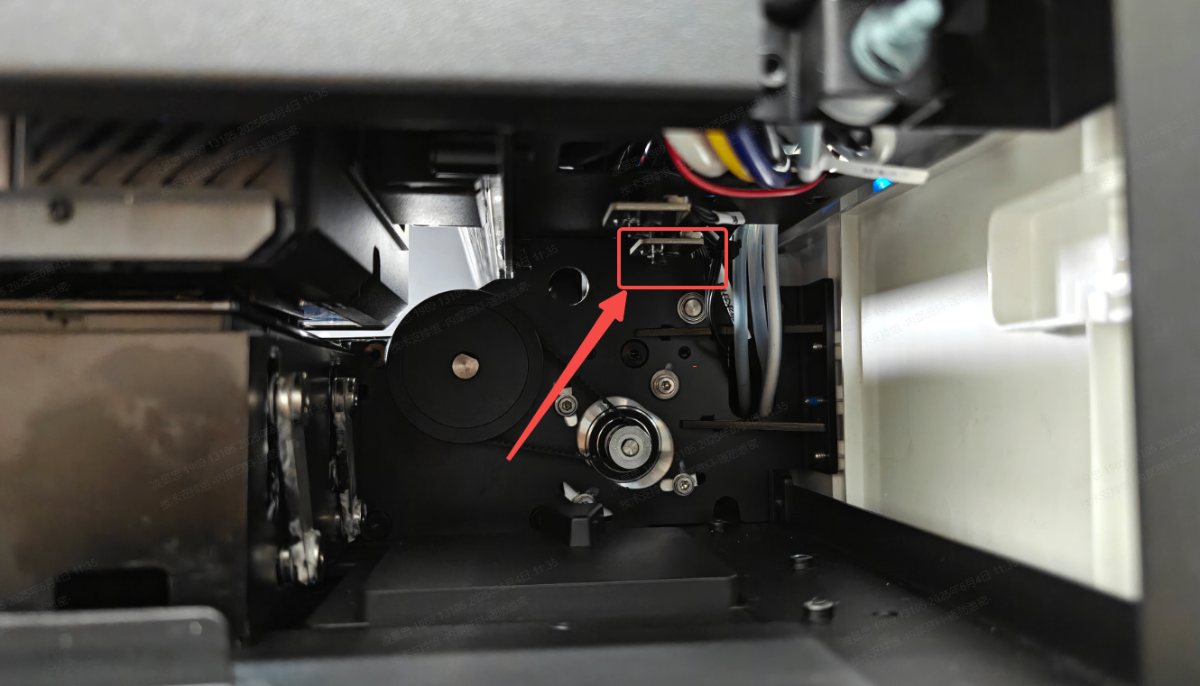
- Using tweezers, carefully disconnect and reconnect the connection cable of the waste ink tank detection sensor. See the reference image below.
- Reinstall the waste ink tank and test.
If the error persists, check the bottom connections:
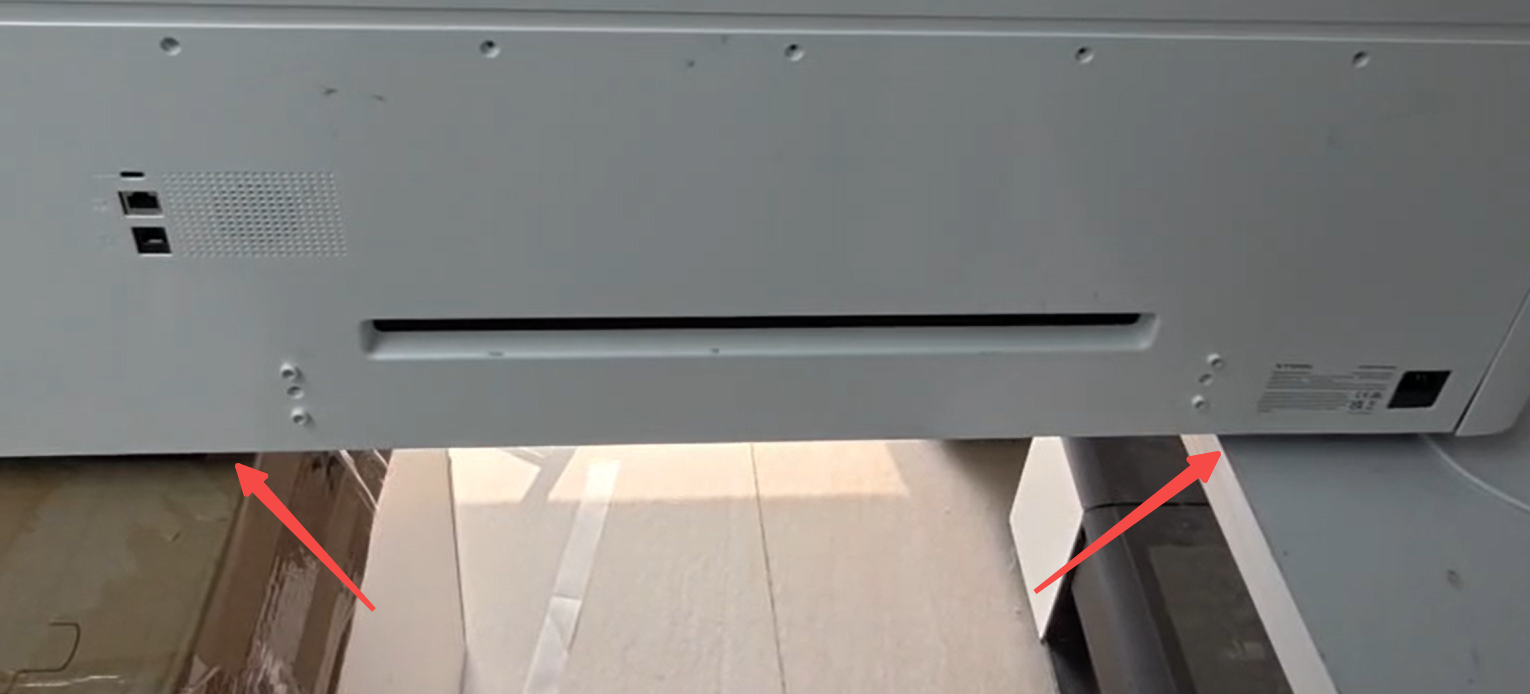
Safety first: Place the printer across two tables of the same height to access the bottom panel.
Tools required: Hex screwdriver (included in your package)
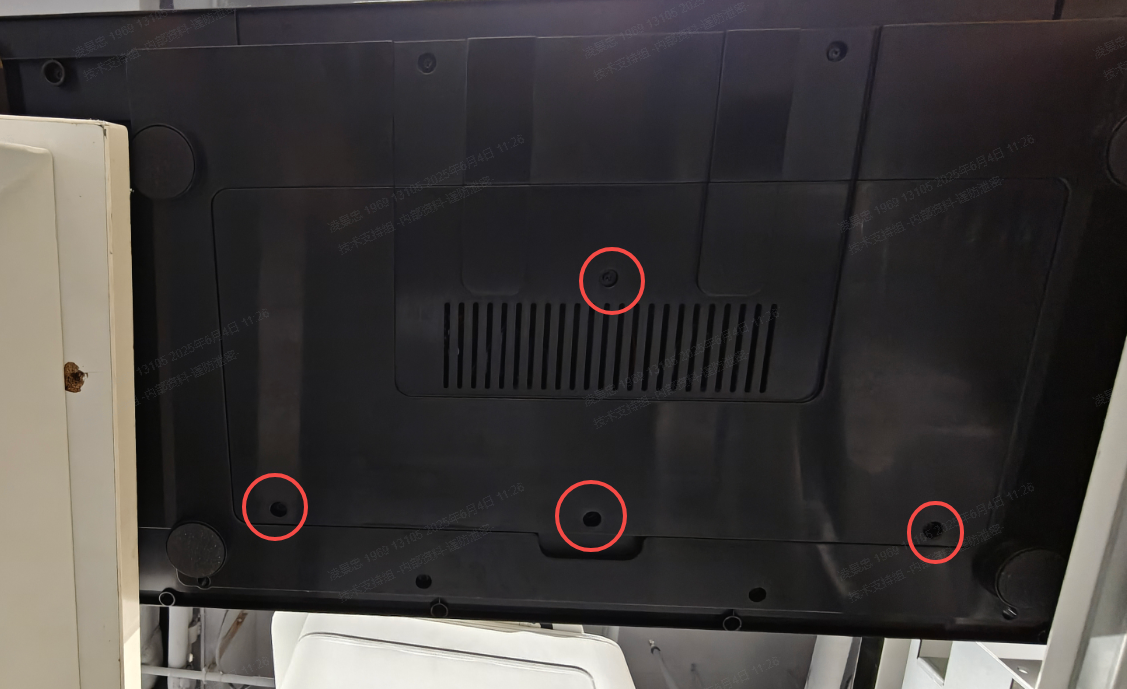
- Remove the 4 hex screws from the bottom protective cover.
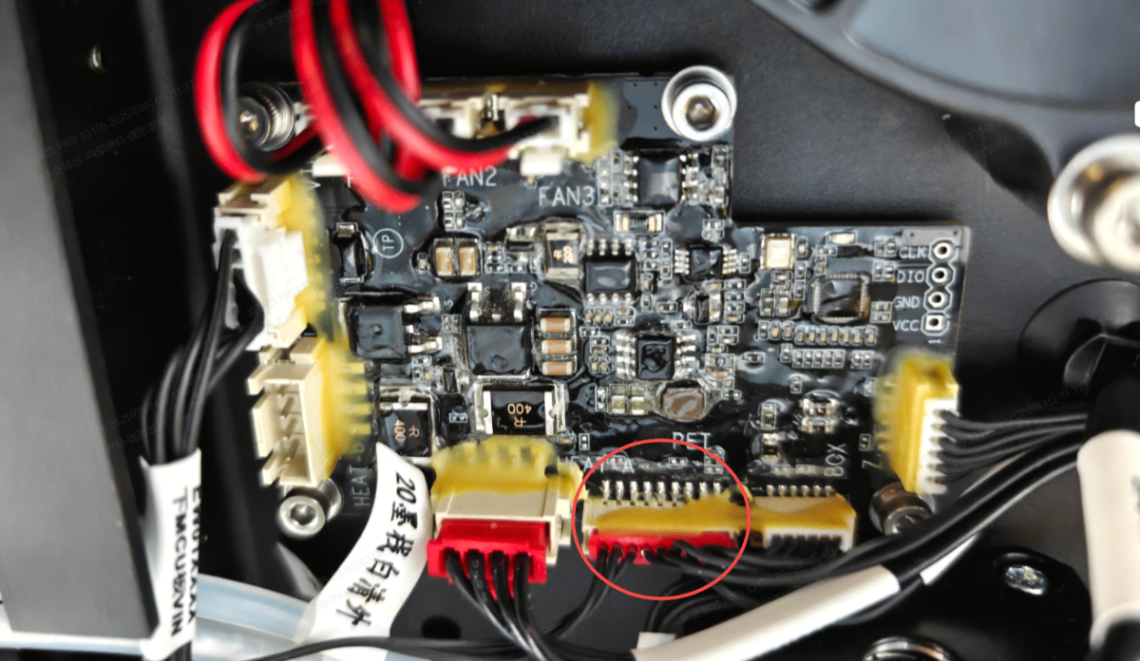
- Locate the connection cable of the waste ink tank detection sensor on the Controller Area Network (CAN) board.
- Disconnect and reconnect the cable firmly.
- Remove any yellow adhesive residue around the connection if present.
- Reassemble the bottom cover.
- If the error continues: Proceed to Step 4.
Step 4: Replace component(s)
If the error continues after the previous steps, it is likely that the waste ink tank detection sensor or its Controller Area Network (CAN) board has a hardware failure.
Advanced intervention:
- This step requires advanced technical intervention. Please proceed to the "Still experiencing issues?" section to contact xTool Customer Service for further diagnosis.
- If it is deemed necessary by xTool technical experts, certain component(s) may need to be replaced.
Still experiencing issues?
Should the issue persist after completing the preceding steps, submit a ticket via the "Submit a Ticket" button in the "Help Ticket" section below. The standard response time for xTool Customer Service is one business day.
For a prompt resolution, please include the following details:
- Issue description: A detailed explanation of the observed problem.
- Video evidence: Attach a video demonstrating the issue, where applicable.
- Troubleshooting performed: Any troubleshooting steps you have already attempted, along with their results.
This information is crucial for xTool technical support engineers to provide timely assistance.
Documentation feedback
Help improve this content by providing feedback. If this content did not meet your requirements, select "No" in the "Was this page helpful?" section below. Include specific details about what was unclear or missing in the pop-up suggestion box. Feedback submissions are reviewed by xTool technical writers to enhance future documentation.

Services & Help
Learn & Education

Copyright © 2025 xTool All Rights Reserved.