
How to Adjust the Flex Cables of the Side Camera
Updated Nov 20,2025
Updated Nov 20,2025
Applicable scenarios
Related issues caused by the side camera not functioning properly due to motor interference, including:
- Side top camera displays a flickering image.
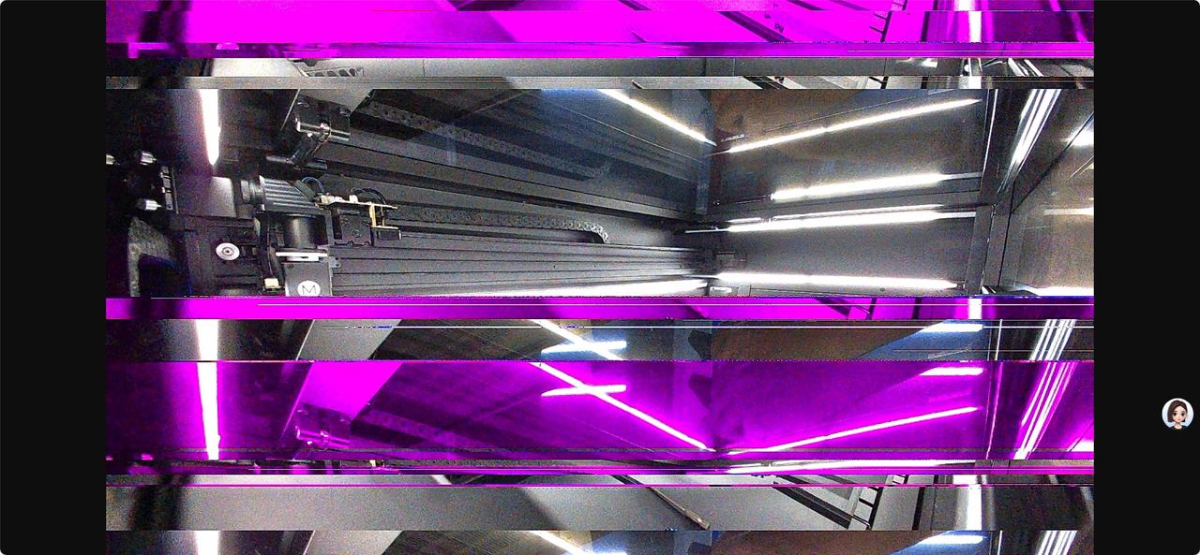
- The USB connection is failed.
- The USB connection is disconnected for no reason.
- Other scenarios where xTool technical support determines that flex cable adjustment is necessary.
Tools required
- A hex key 2.5 mm
- A Philips screwdriver
- Several pieces of insulating material, approximately 10 – 15 mm thick and 60 × 30 mm in size (approximate dimensions are acceptable).
Important notes
- This issue may only occur in a limited number of scenarios. If your device is not experiencing this issue, no action is required.
- If you are not sure whether to adjust the cables, please export the work log and contact xTool after-sales service.
- Do not forcefully pull the flex cables to avoid damage.
- If the camera flex cables are already raised, but the issue still can't be solved. Check for other issues.
- The adjusted flex cable requirements are as follows:
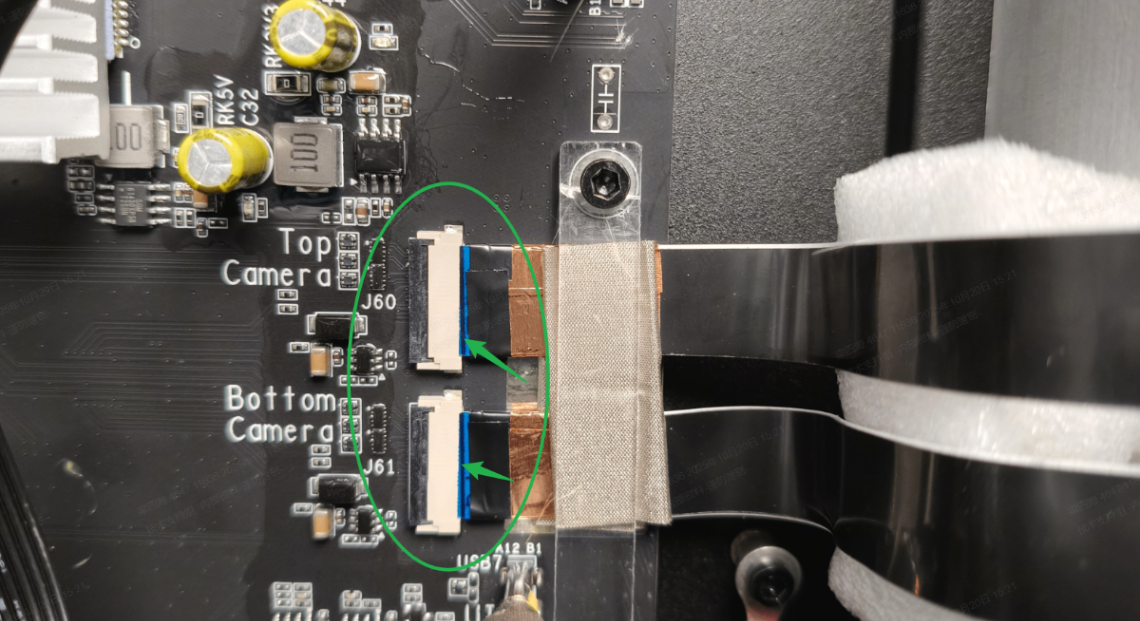
- The flex cable connector must not be loose or skewed. The fine black lines on the ribbon cable (as shown) must be parallel to the connector and be flush against the white connector.
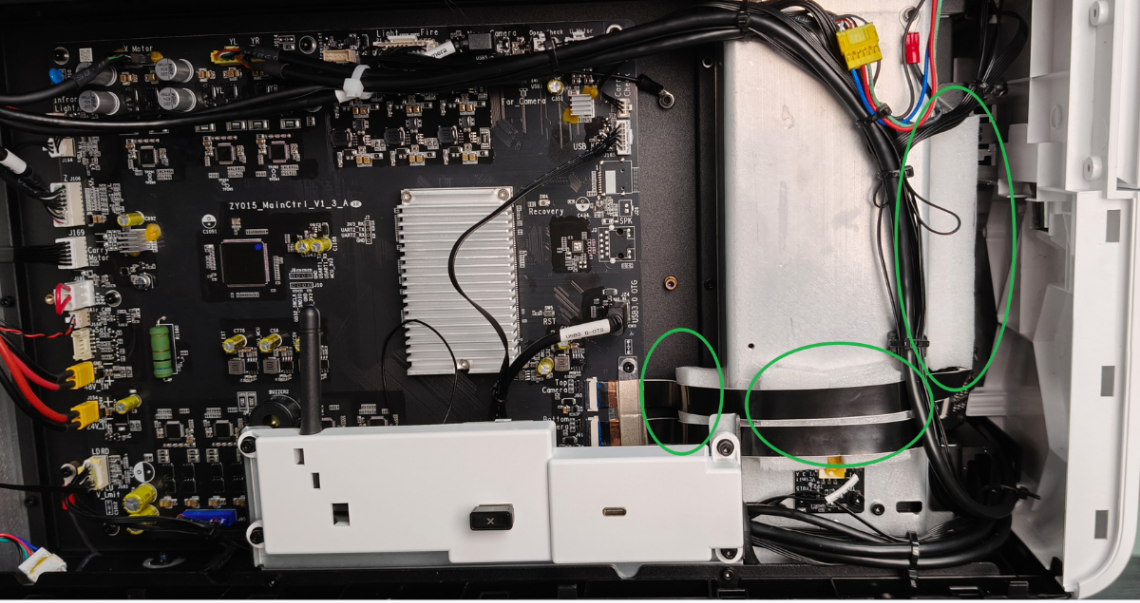
- The flex cables at these three locations (as shown) are raised by foam pads.
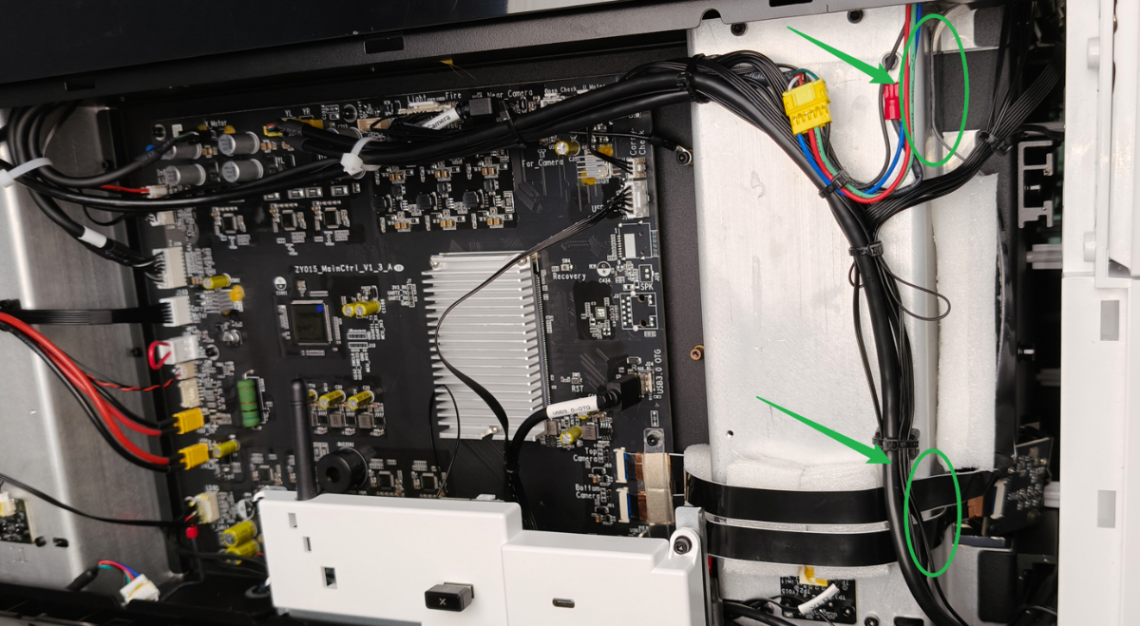
- The top and bottom edges of the flex cable remain secured to the metal pillars via the adhesive backing, aiming to minimize flex cable movement.
Video tutorial
Still experiencing issues?
Should the issue persist after completing the preceding steps, submit a ticket via the "Submit a Ticket" button in the "Help Ticket" section below. The standard response time for xTool Customer Service is one business day.
For a prompt resolution, please include the following details:
- Issue description: A detailed explanation of the observed problem.
- Video evidence: Attach a video demonstrating the issue, where applicable.
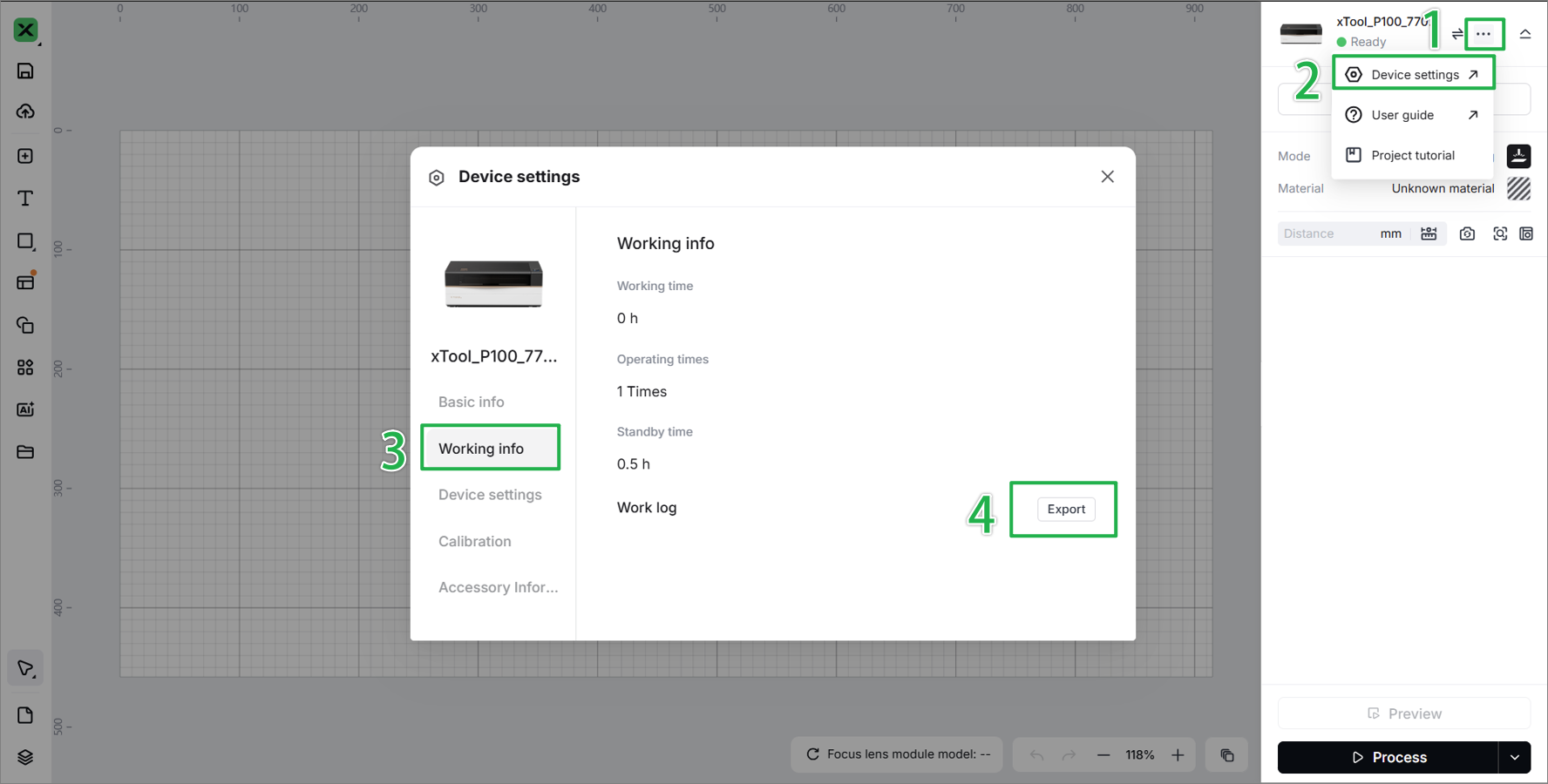
- Device information: Follow the steps to find the SN and export the work log.
- Troubleshooting performed: Any troubleshooting steps you have already attempted, along with their results.
This information is crucial for xTool technical support engineers to provide timely assistance.
Documentation feedback
Help improve this content by providing feedback. If this content did not meet your requirements, select "No" in the "Was this page helpful?" section below. Include specific details about what was unclear or missing in the pop-up suggestion box. Feedback submissions are reviewed by xTool technical writers to enhance future documentation.
Preview
Was this page helpful?
12 out of 12 found this helpful
Help Ticket
Use this help ticket to submit your issue. We will respond within 1 business day
Submit a Ticket 
