
Issue description
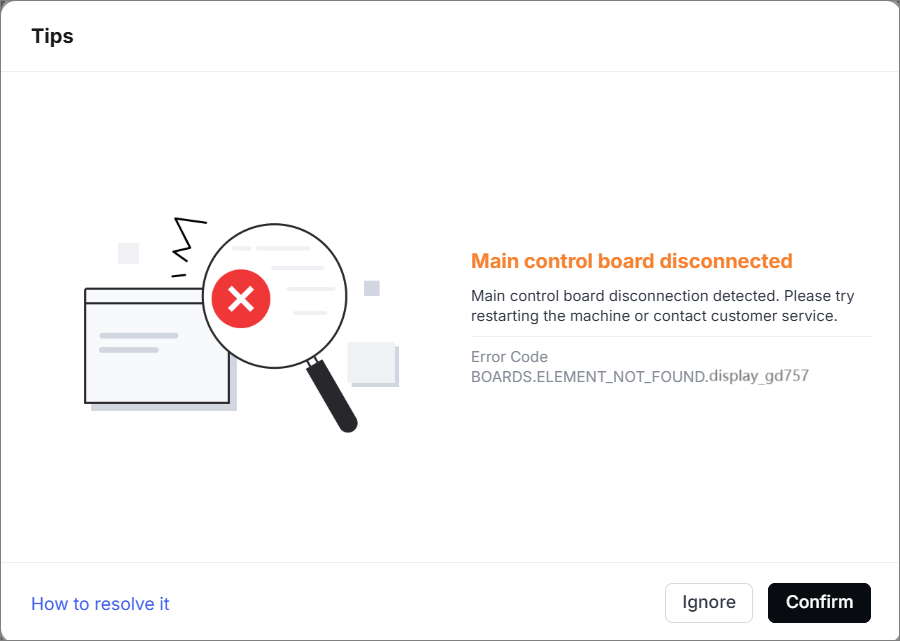
The software prompts "Main control board disconnected" and the error code indicates "BOARDS_ELEMENT_NOT_FOUND.display_gd757".
It means the UI board is disconnected. Generally, the knob screen may occur exceptions such as a black screen, frozen screen, and so on.
Possible causes
- The software occurs an exception.
- The connection cable of the UI board is disconnected.
- Motor interference
- The UI module is faulty.
Troubleshooting procedures
1. Check the firmware and software
Update the firmware and software to the latest version.
- If the device remains stuck during the firmware upgrade process, try restarting the device and attempting the upgrade again. Then wait 30 minutes and repeat the process 2-3 times.
- If the issue persists, please follow the troubleshooting steps below.
2. Check the connector on the main control board
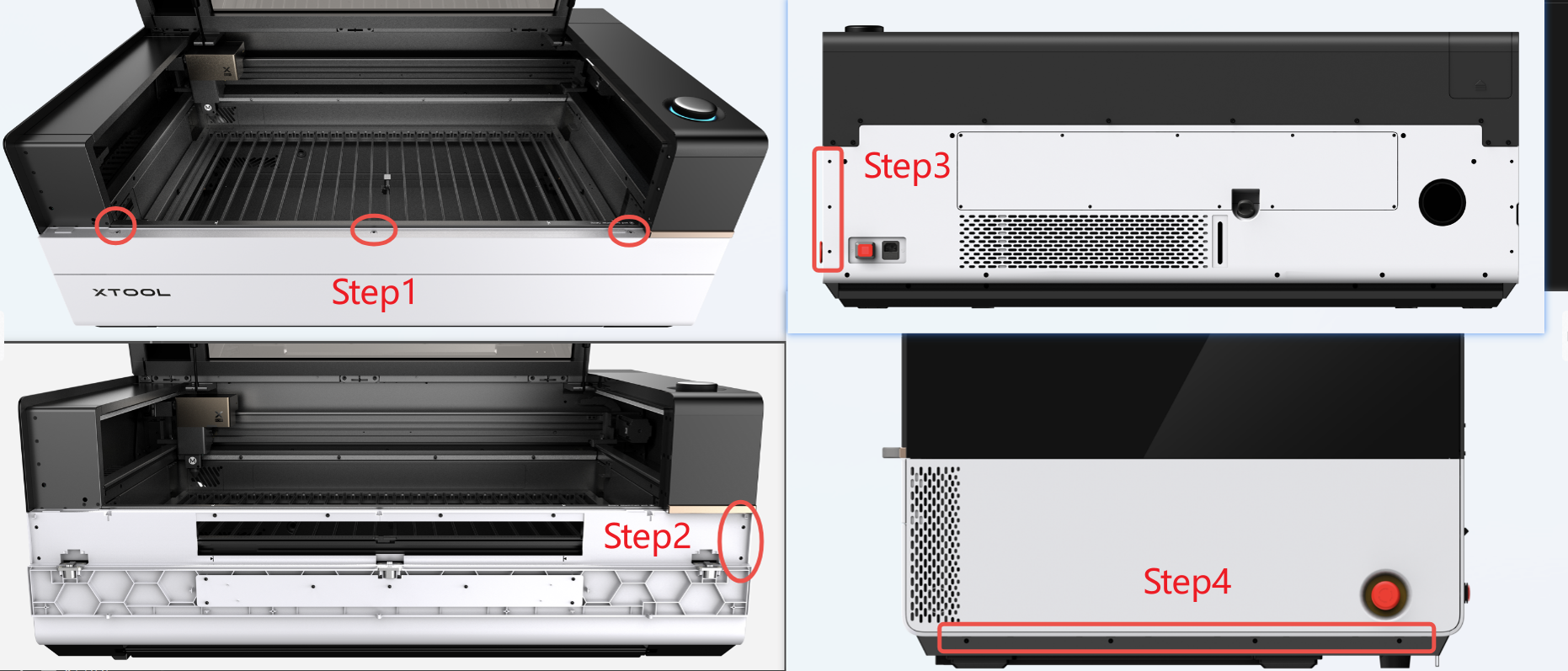
(1) Power off the device and disconnect it from a power supply. Follow the video tutorial Assemble & Disassemble the Casing of xTool P3 to remove the left plate.
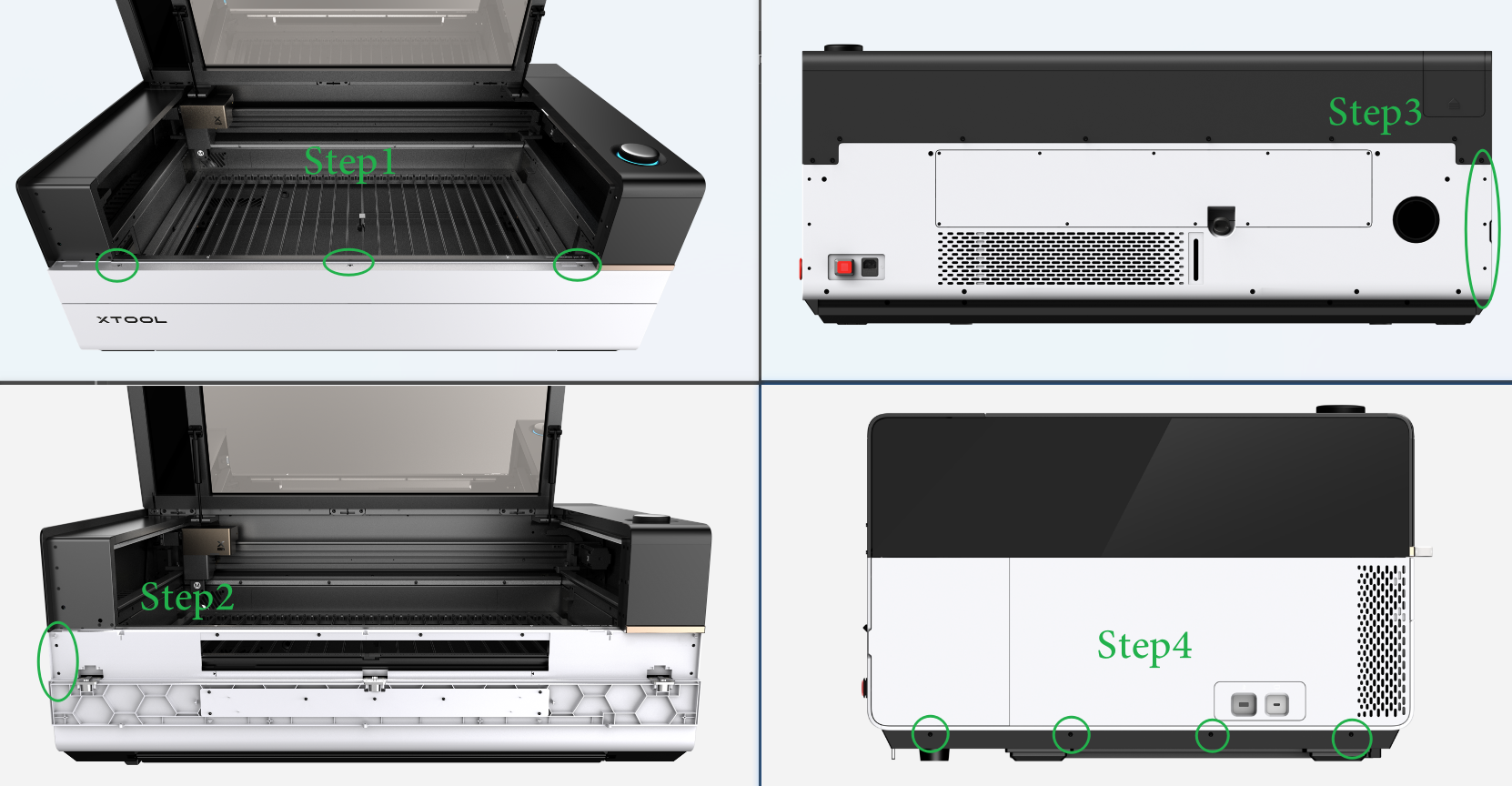
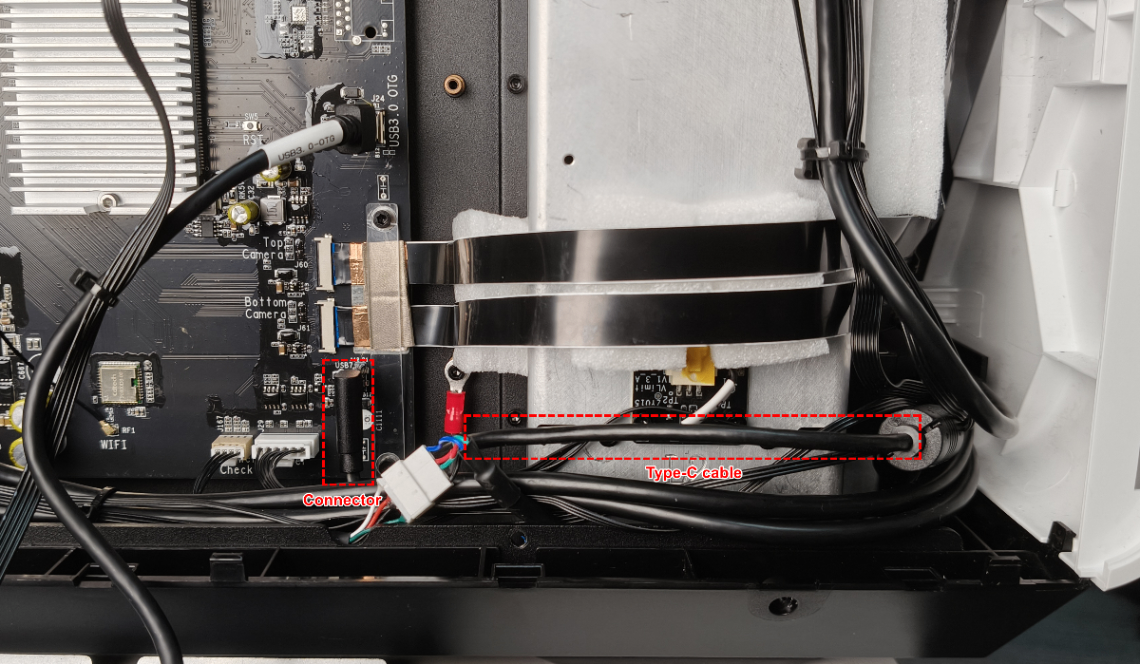
(2) Find the main control board. Check whether the connector (as shown) is loose.
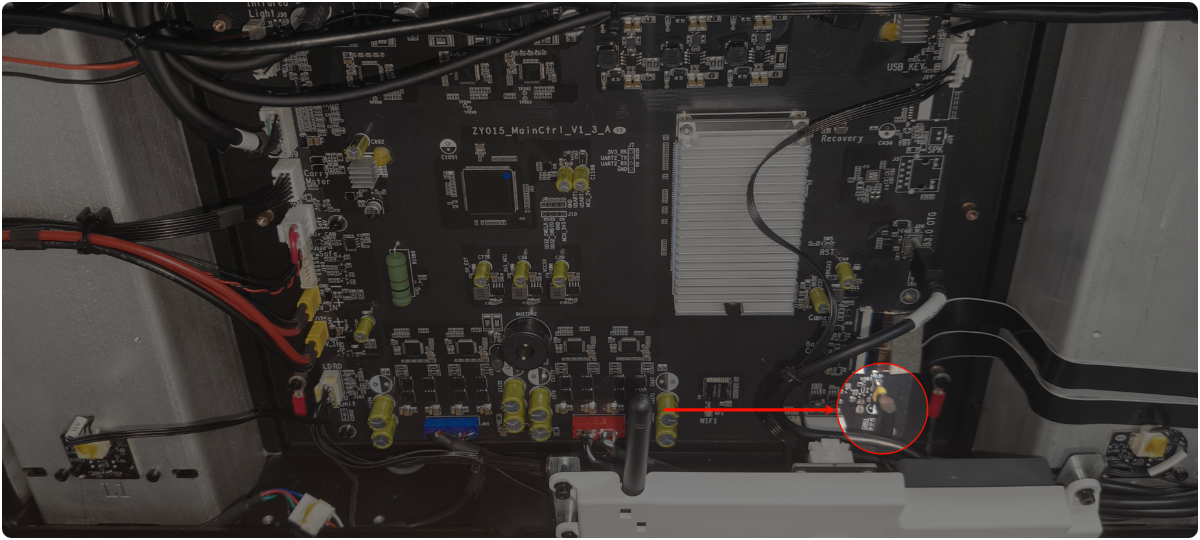
- If the connector is loose, unplug and plug it snugly.
- If the connector is not loose, check for other issues.
3. Adjust the Type-C connector
This measure can reduce motor interference.
(1) Power off the device and disconnect it from a power supply. Follow the video tutorial Assemble & Disassemble the Casing of xTool P3 to remove the left plate.
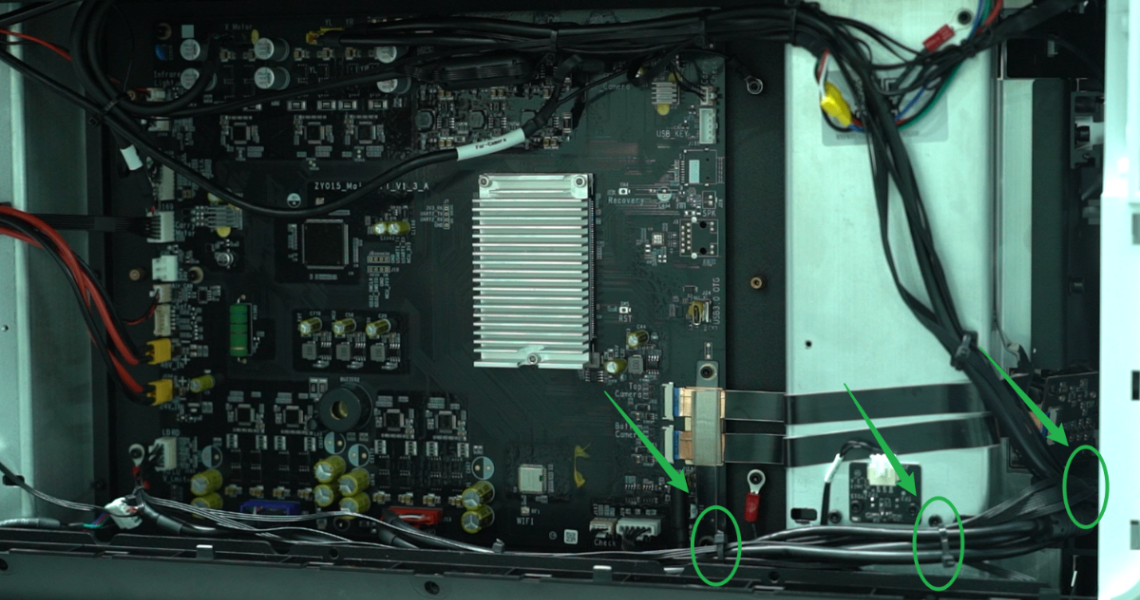
(2) Find the main control board. Use a 2.5 mm hex key to remove the screws as shown.
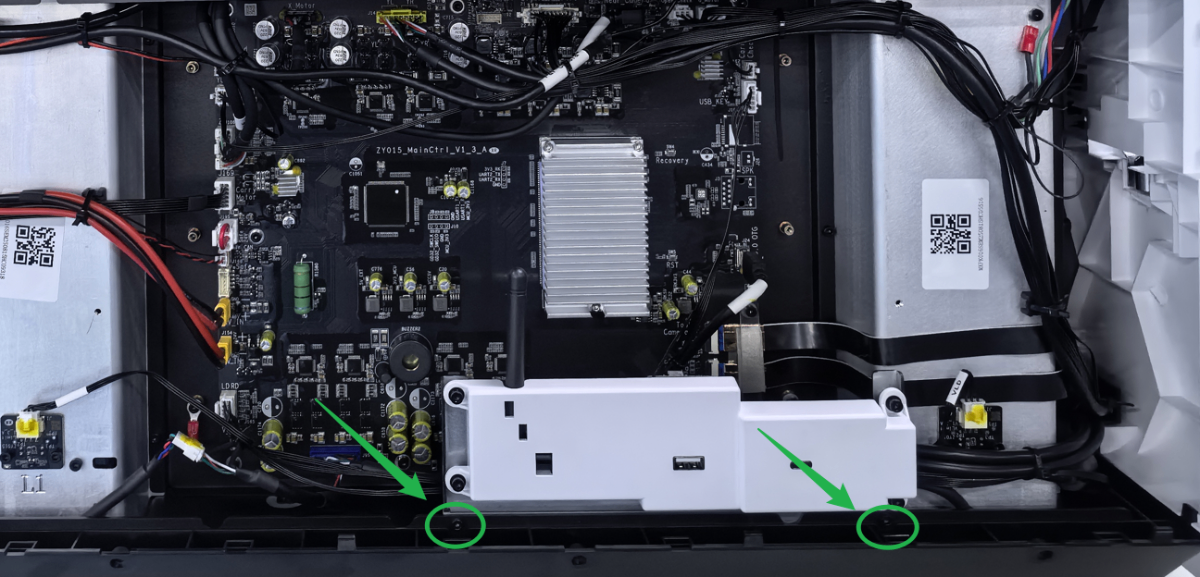
(3) Cut the three cable ties as shown.
(4) Find a Type-C cable. Flip over its connector to 180° and plug it into the socket.
Elevate the cable and restart the device.
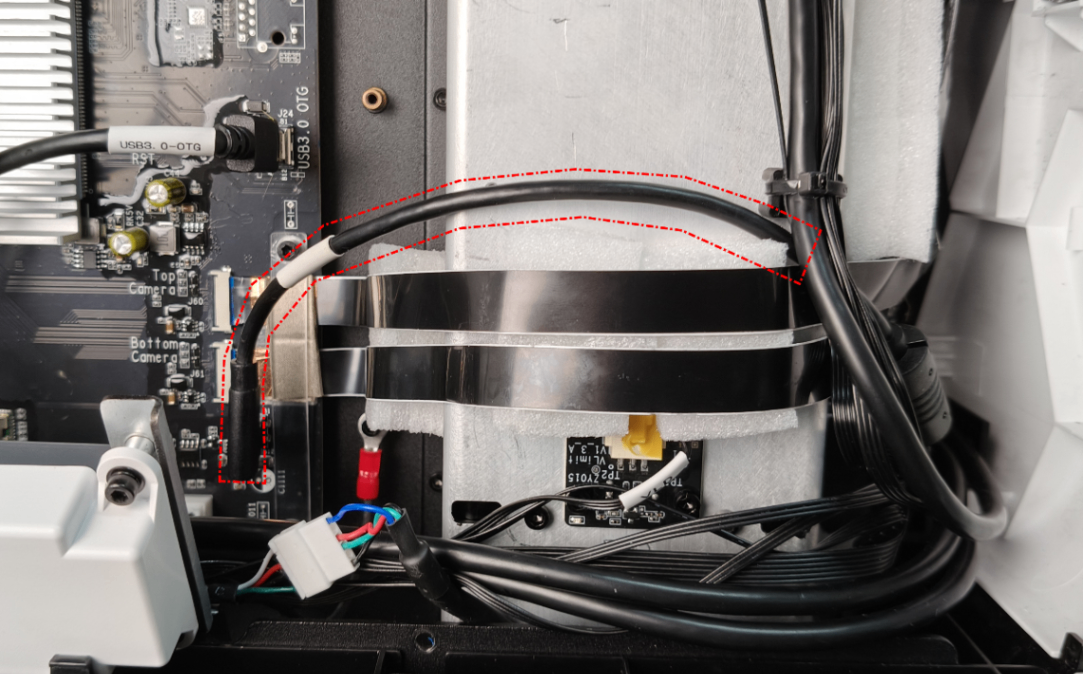
There may be some yellow rubber on the connector of the Type-C cable. If the connector is plugged too tightly, you can scrape the rubber before unplugging the connector.
- If the device resumes working, fix the cable with the masking tape in this way.
- If the device does not resume working, check for other issues.
4. Adjust the flex cables of the camera
(1) Disconnect the device from the power supply.
(2) Follow the article to adjust the flex cables of the camera.
(3) Restart the device.
5. Check the connector on the UI board
(1) Power off the device and disconnect it from a power supply. Follow the video tutorial Assemble & Disassemble the Casing of xTool P3 to remove the right plate.
(2) Check if the connectors of the UI board and the ground wire are loose or disconnected.
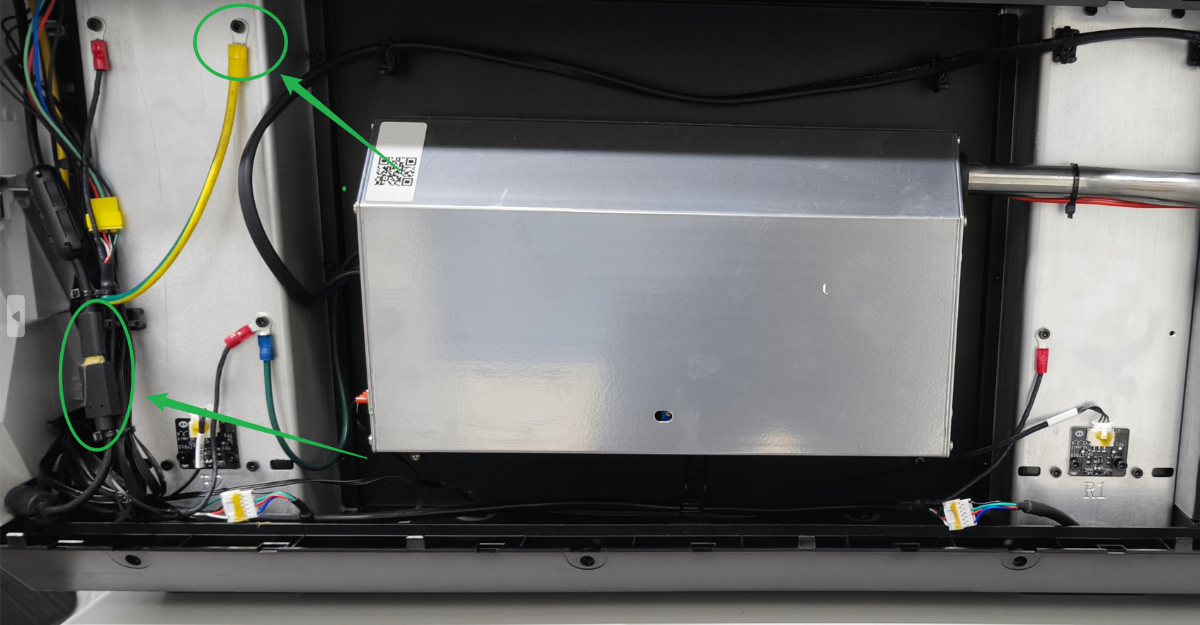
- If they are loose, please unplug and plug them snugly.
- If they are not loose, check for other issues.
6. Adjust the connection cable of the UI module
(1) Power off the device and disconnect it from a power supply. Follow the video tutorial Assemble & Disassemble the Casing of xTool P3 to remove the front plate.
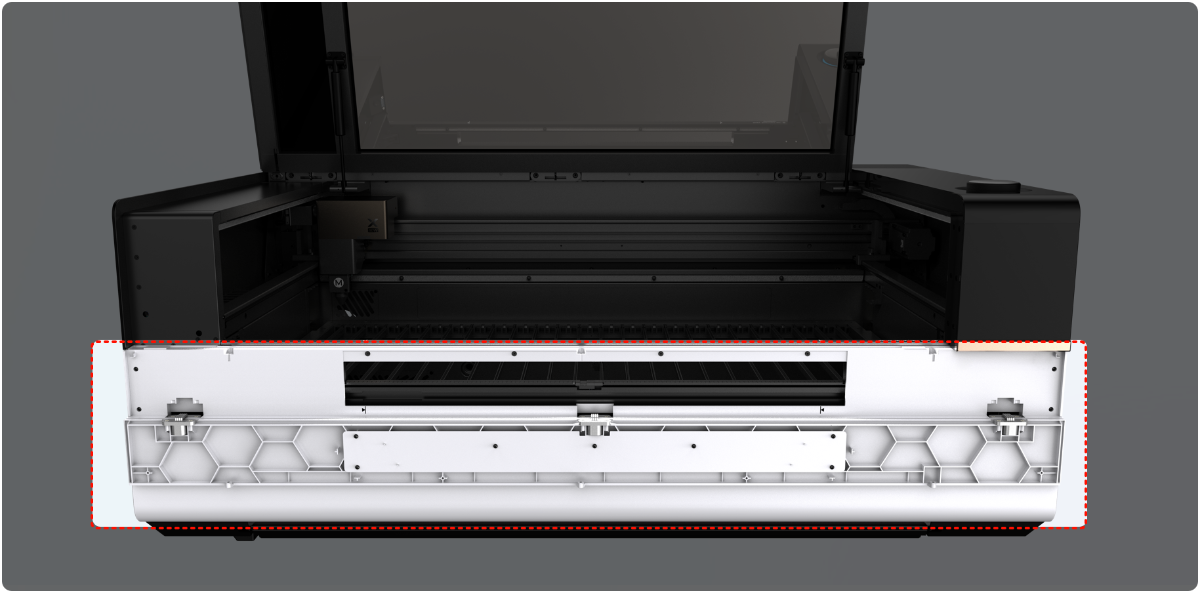
(2) Find the connection cable of the UI module.
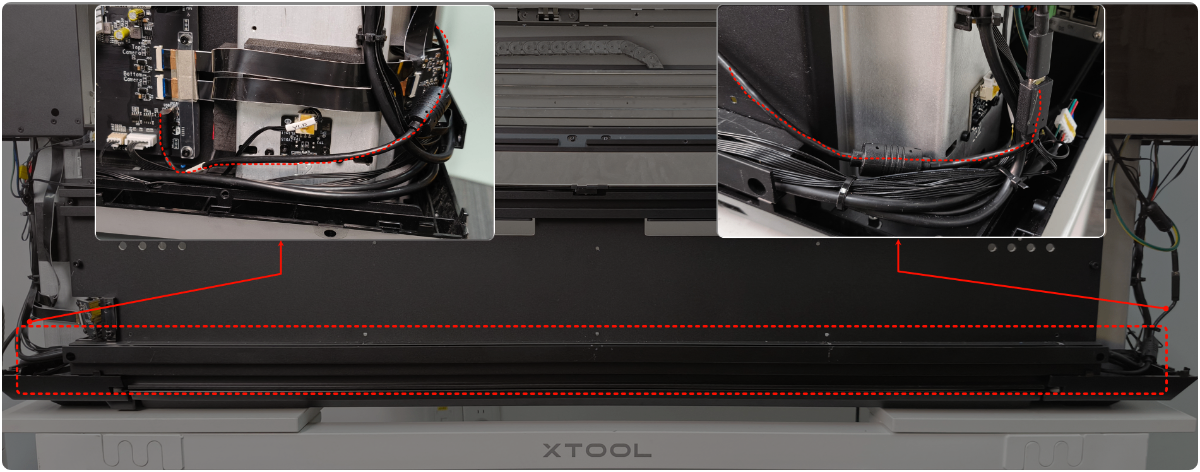
(3) Move the connection cable slowly from the slot. And use the tape to secure the cable on the inner metal plate (avoid the screw holes).
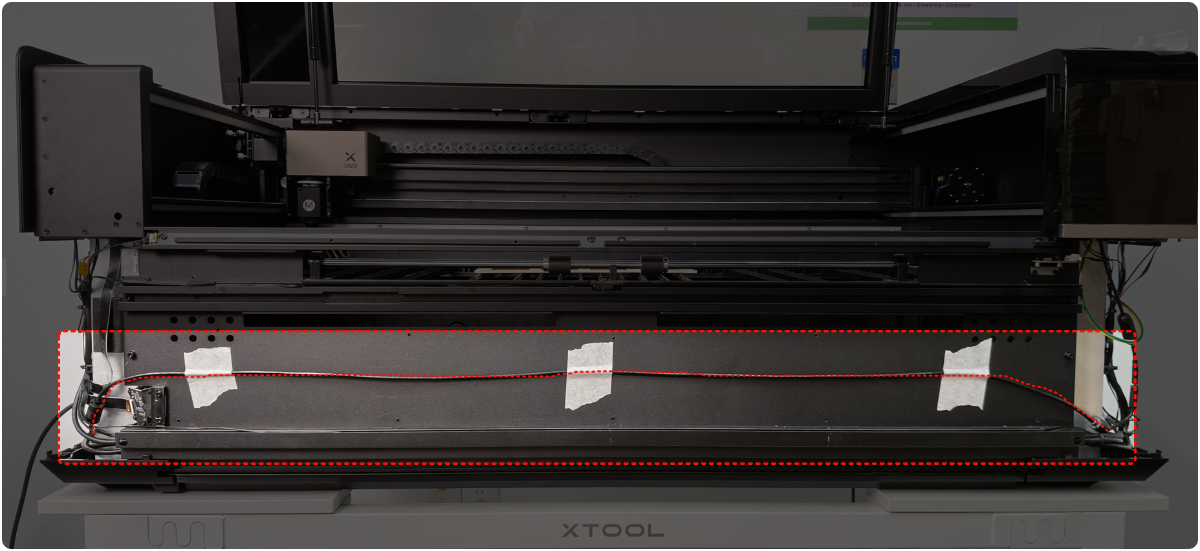
(4) Restart the device.
- If the device remains normal, power off the device. Then install the front plate.
- If the device remains faulty, troubleshoot other issues.
7. The UI module is faulty
Replace a new UI module.
Still experiencing issues?
Should the issue persist after completing the preceding steps, submit a ticket via the "Submit a Ticket" button in the "Help Ticket" section below. The standard response time for xTool Customer Service is one business day.
For a prompt resolution, please include the following details:
- Issue description: A detailed explanation of the observed problem.
- Video evidence: Attach a video demonstrating the issue, where applicable.
- Device information: Follow the steps to find the SN and export the work log.
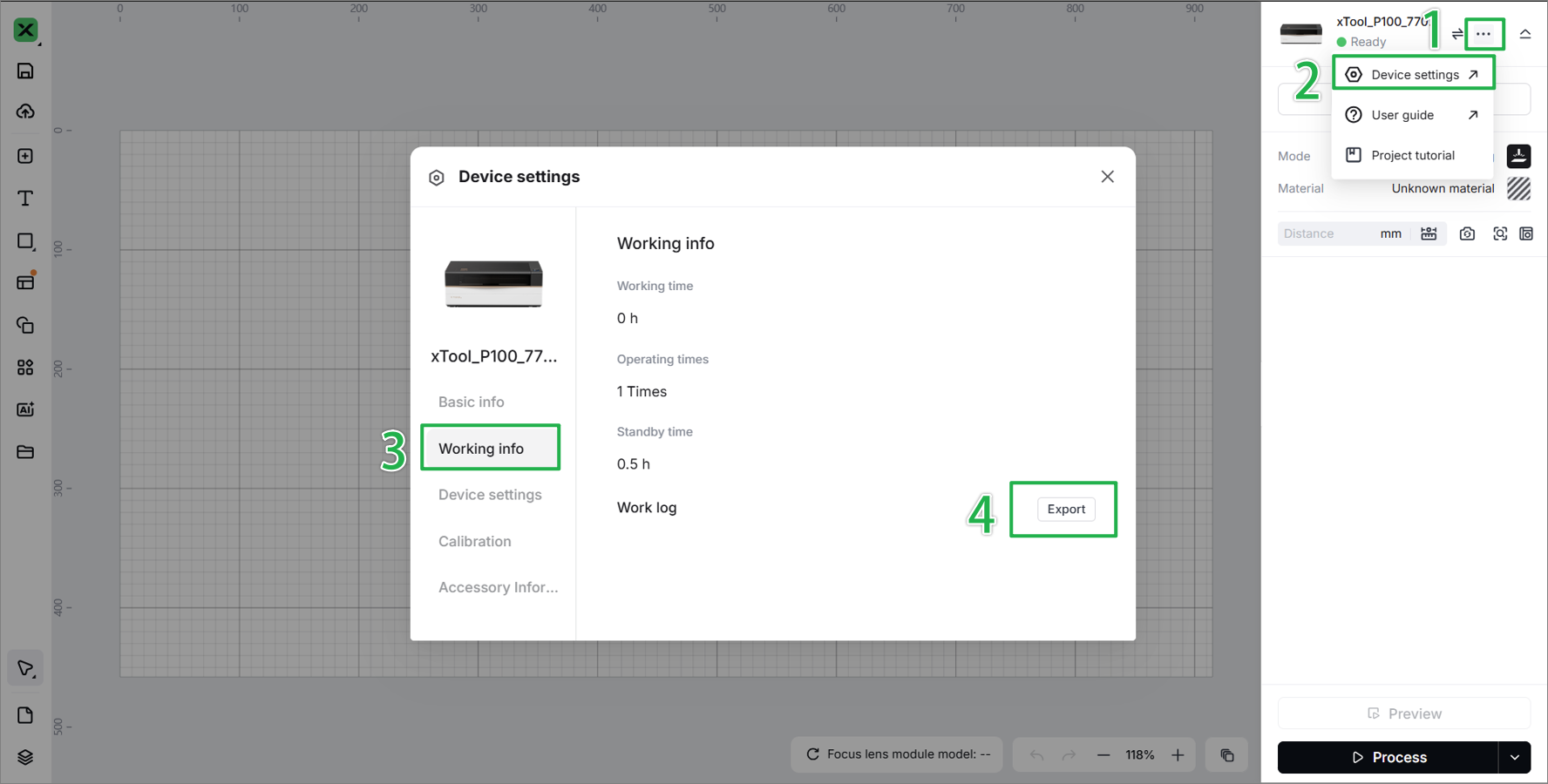
- Troubleshooting performed: Any troubleshooting steps you have already attempted, along with their results.
This information is crucial for xTool technical support engineers to provide timely assistance.
Documentation feedback
Help improve this content by providing feedback. If this content did not meet your requirements, select "No" in the "Was this page helpful?" section below. Include specific details about what was unclear or missing in the pop-up suggestion box. Feedback submissions are reviewed by xTool technical writers to enhance future documentation.

