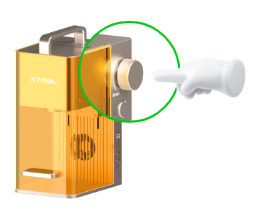
Set up and connect the slide extension to xTool F2
Refer to the first part of the Unboxing xTool F1 Slide Extension Accessory video.
Start processing with xTool Studio on your computer
1. Select the processing mode and material name
(1) On the top-right corner, select Use slide extension mode.
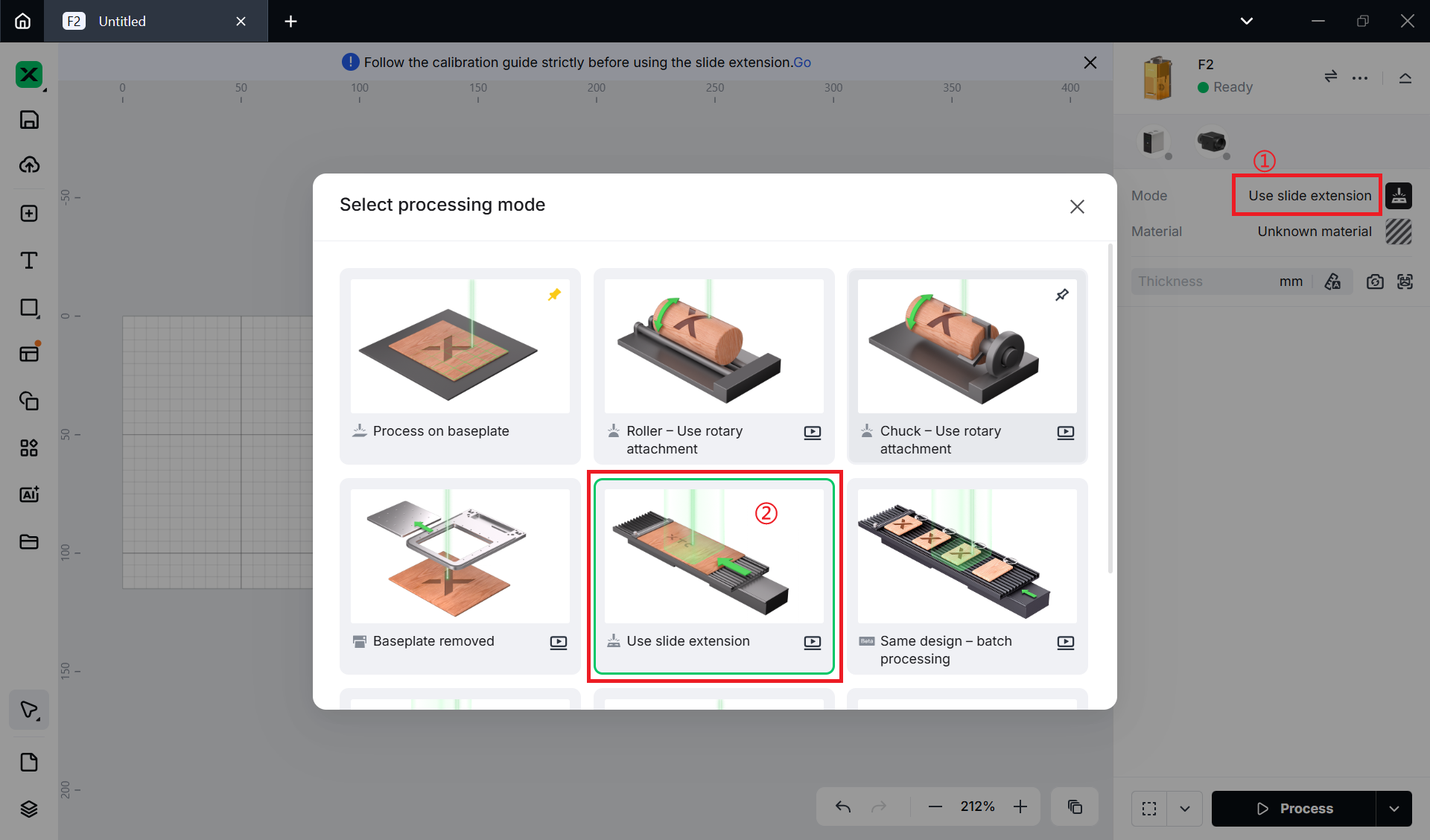
(2) Click Unknown material, select the name of your material, and click Apply.
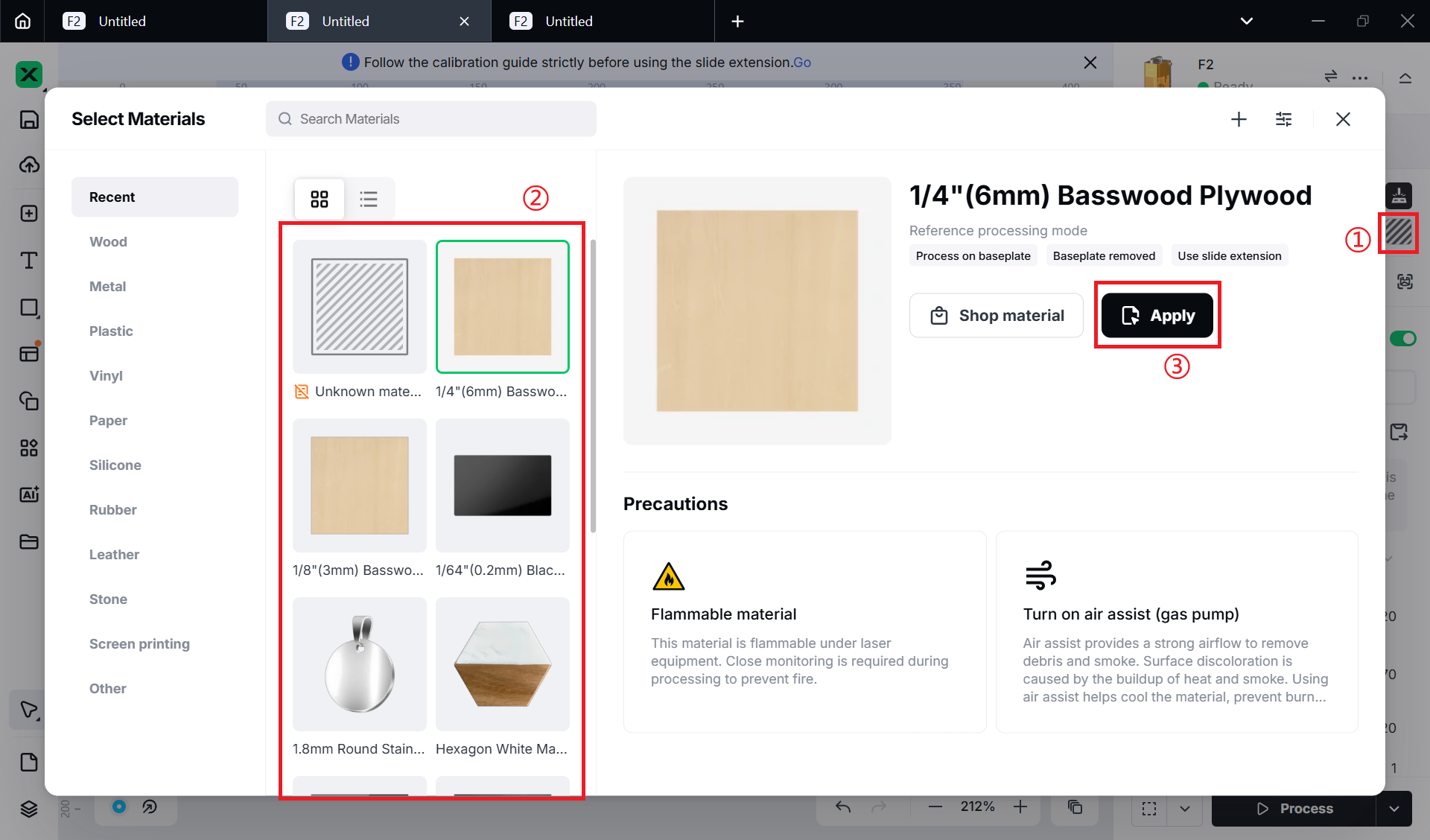
Note: After you select a material from the material list, the software will automatically set parameters for laser processing. The default settings apply to xTool materials. You can adjust the settings based on your needs.
Note: The recommended parameter settings can achieve the best results only when using xTool's materials. If you are using materials from third parties, it is recommended that you conduct a material test array on your own first to obtain the desired effects and parameters. Meanwhile, make sure that the materials are free from moisture or contamination, which may greatly affect the results.
2. Laser calibration
You need to follow the calibration guide strictly before using the slide extension. Click Go to start the calibration.
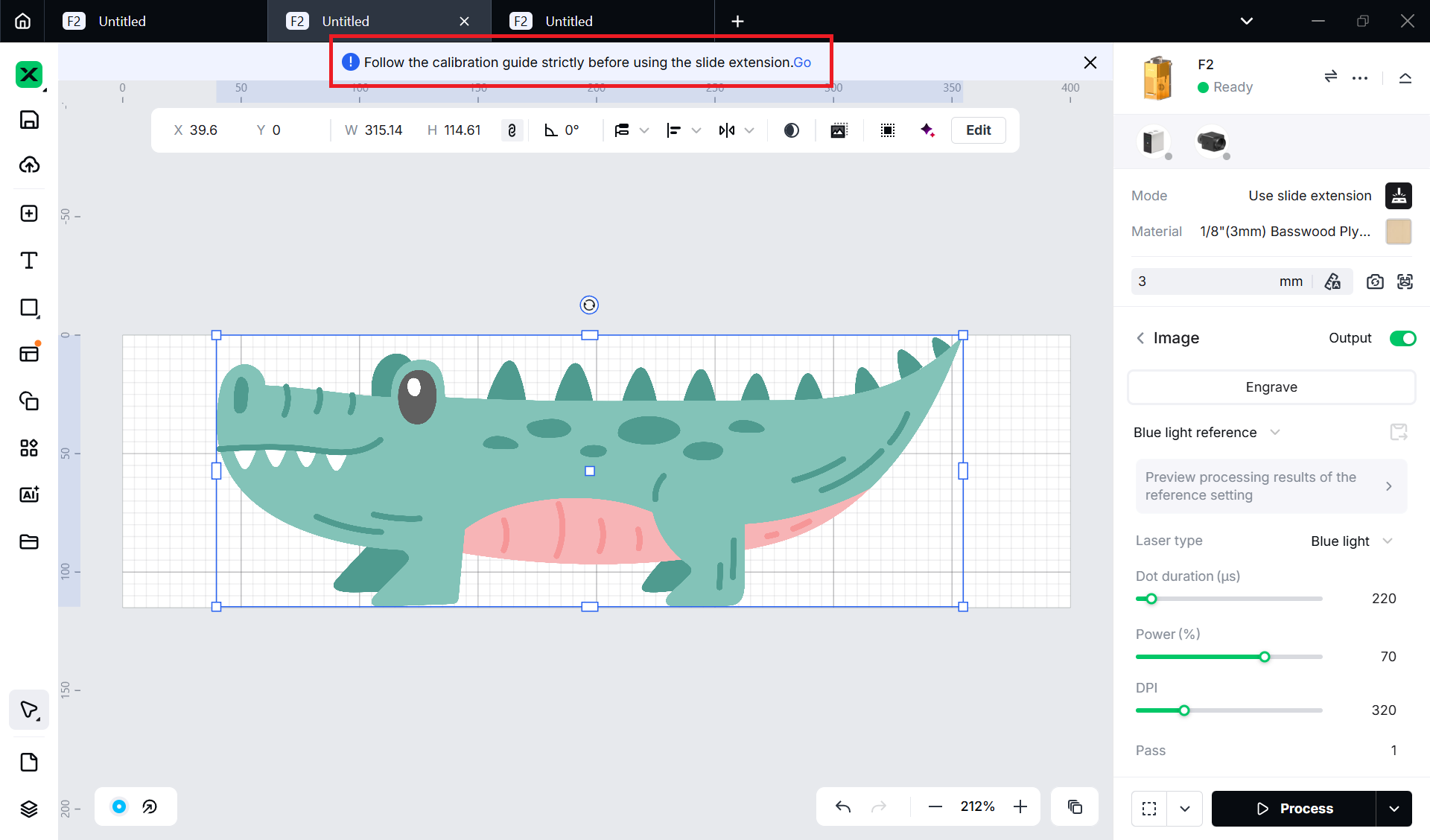
Follow the guide to align and calibrate:
(1) Align the right edge of the movable ruler with scale 0 of the slide extension. Tighten the screw.
(2) Position the slide extension horizontally (xTool logo forward) into the device and fasten it to the second screw row on the baseplate of xTool F2.
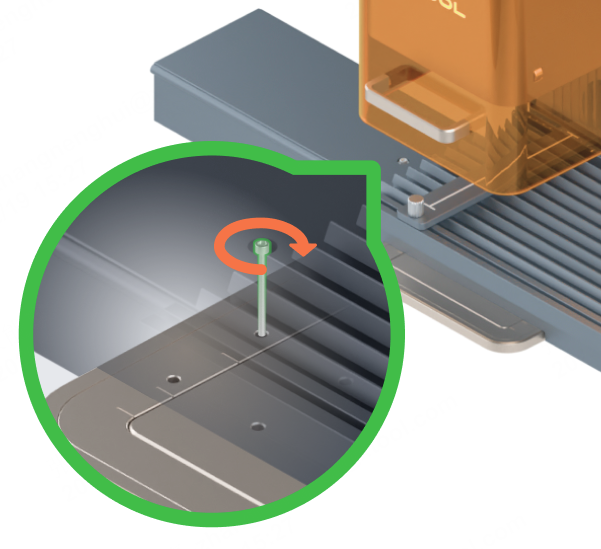
(3) Start laser calibration.
Move the slide extension to the left or right slightly to align the laser with the middle of the movable ruler. Turn the knob to set the laser focus.
(4) Pre-lock
Tighten the screws on the left and right sides, but do not tighten them fully.
(5) Move the slide extension to the left or right, slightly align the laser with the middle of the movable ruler.
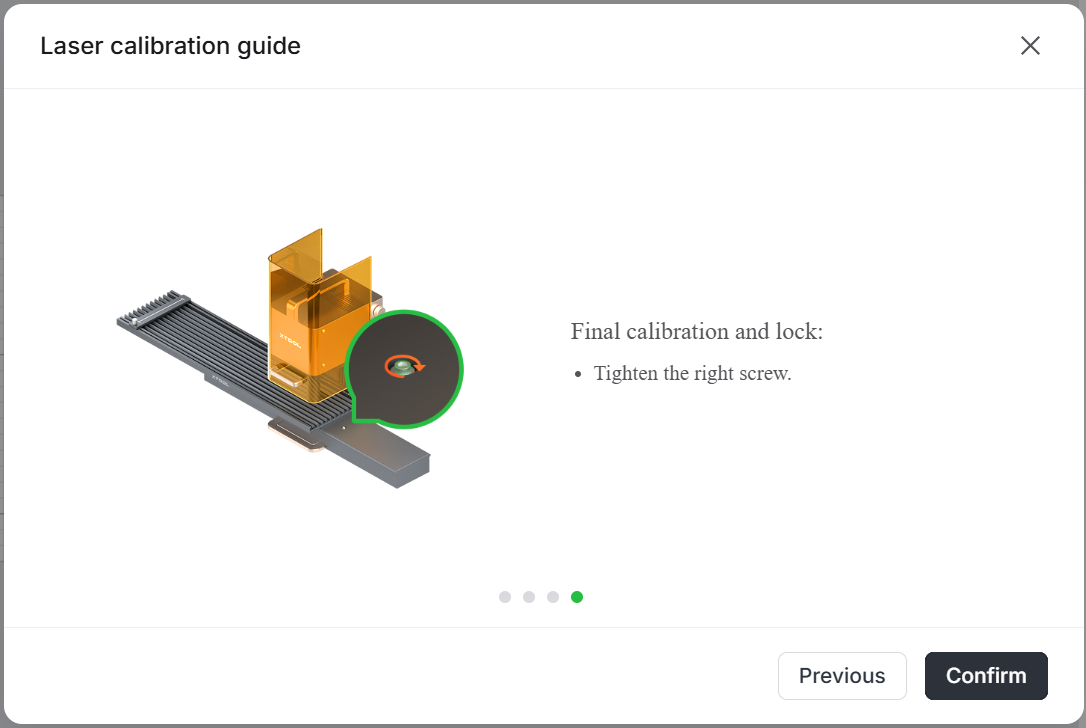
(6) Tighten the left screw, click Next, and the extension will move to the left automatically. Tighten the right screw.
(7) Click Confirm when you finish calibration.
3. Place the material
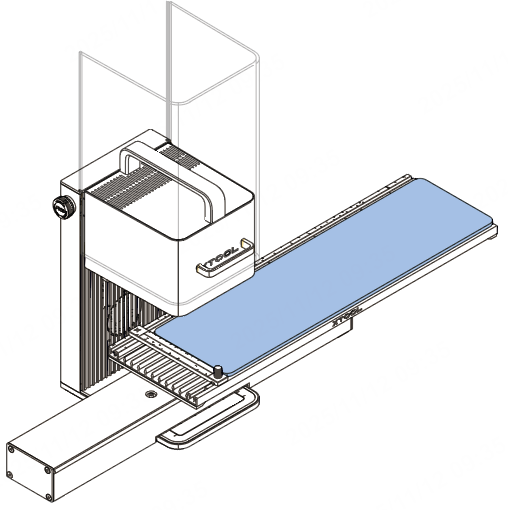
(1) Place the material on the slide extension. You can place a large material, or evenly place multiple materials on the extension.
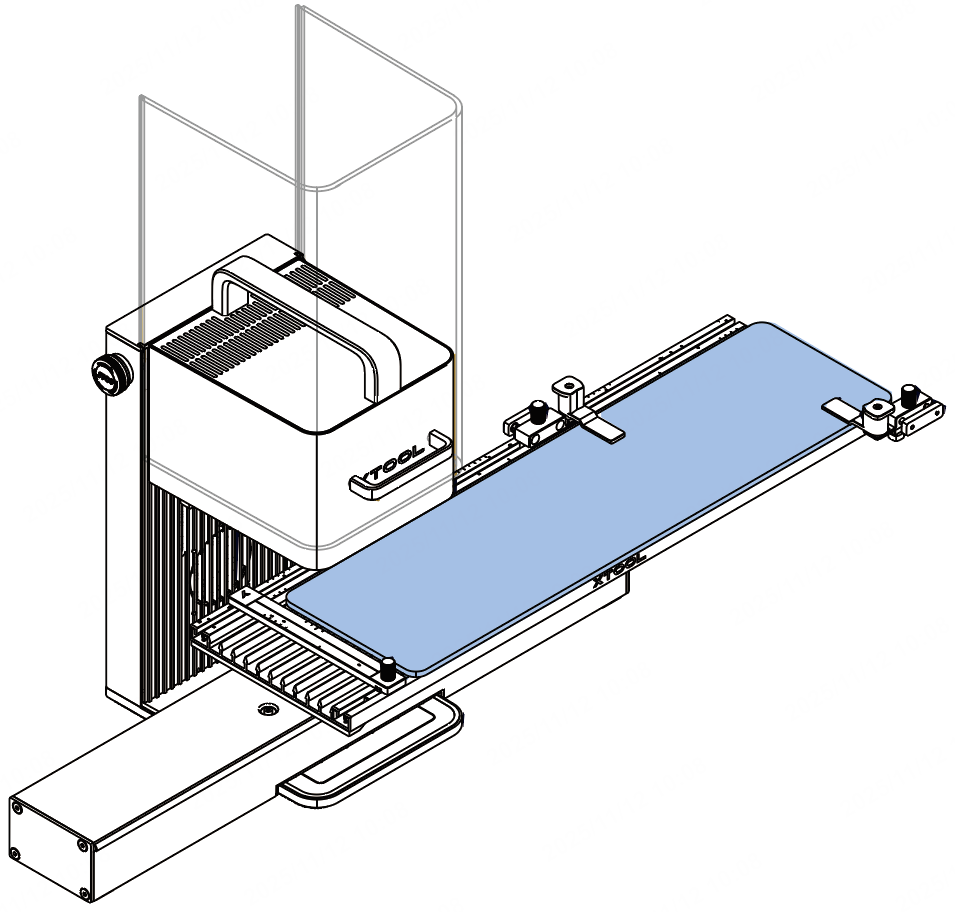
(2) Use the material clamp to fix the material.
4. Set the laser focus
xTool F2 supports manual focusing and autofocusing. You can choose the focus way you like.
Manual focus setting
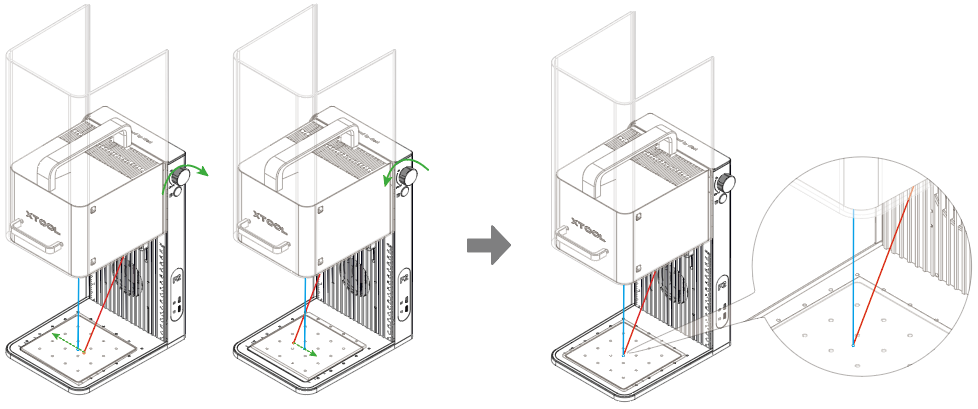
Turn the knob to move the laser module up and down. When the red and blue light spots coincide, the focus is successfully set.
Auto focus setting
(1) Measure the material thickness.
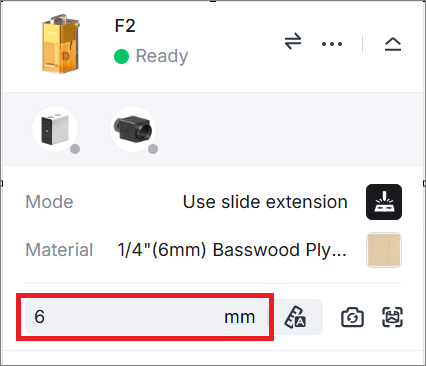
(2) On the right side of the home screen of xTool Studio, enter your measurement in the top-right corner. And then, the device will automatically focus.
5. Design objects for processing
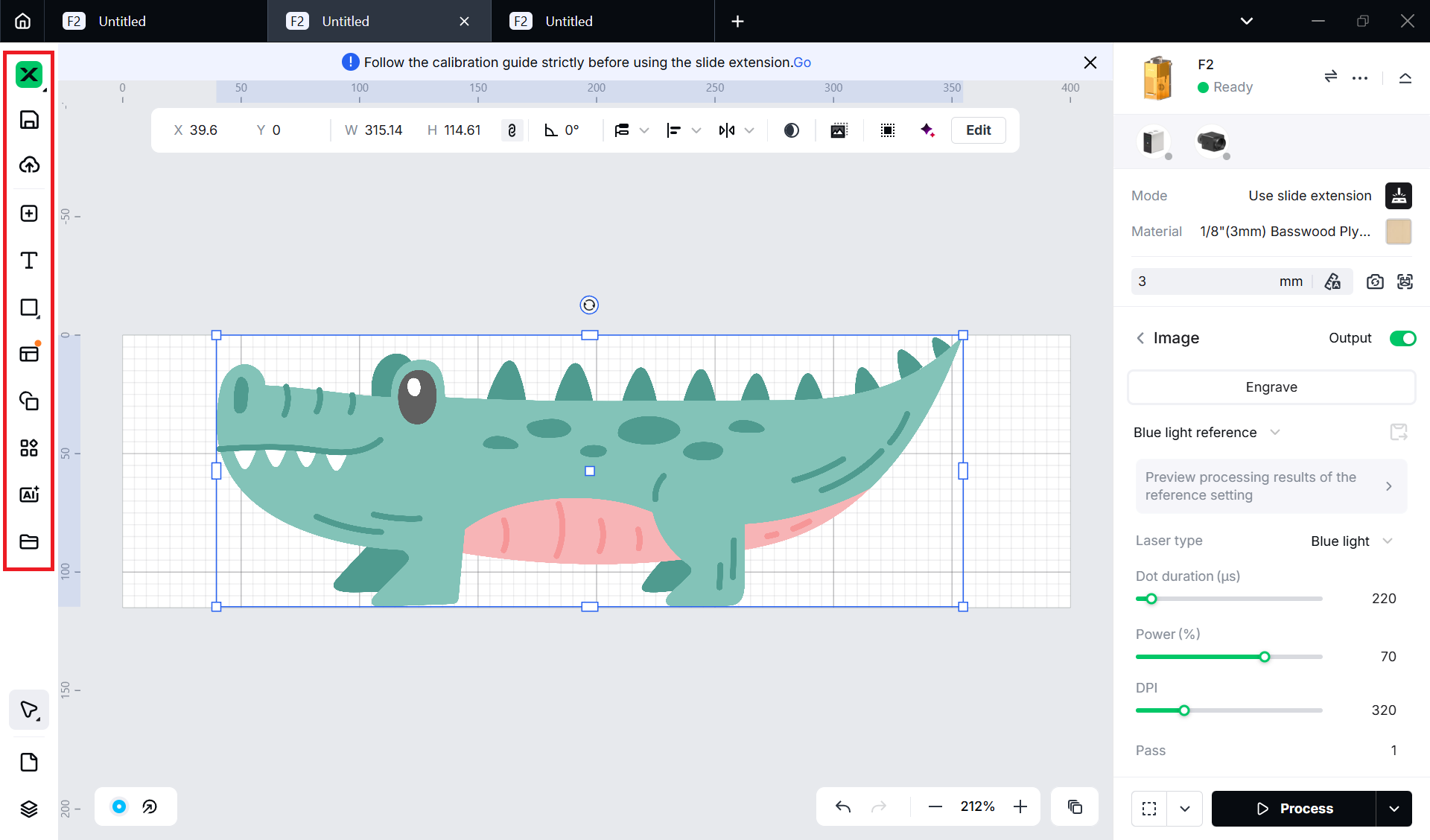
(1) Use tools on the left sidebar to create objects. You can import images, insert shapes, enter text, or draw vectors.
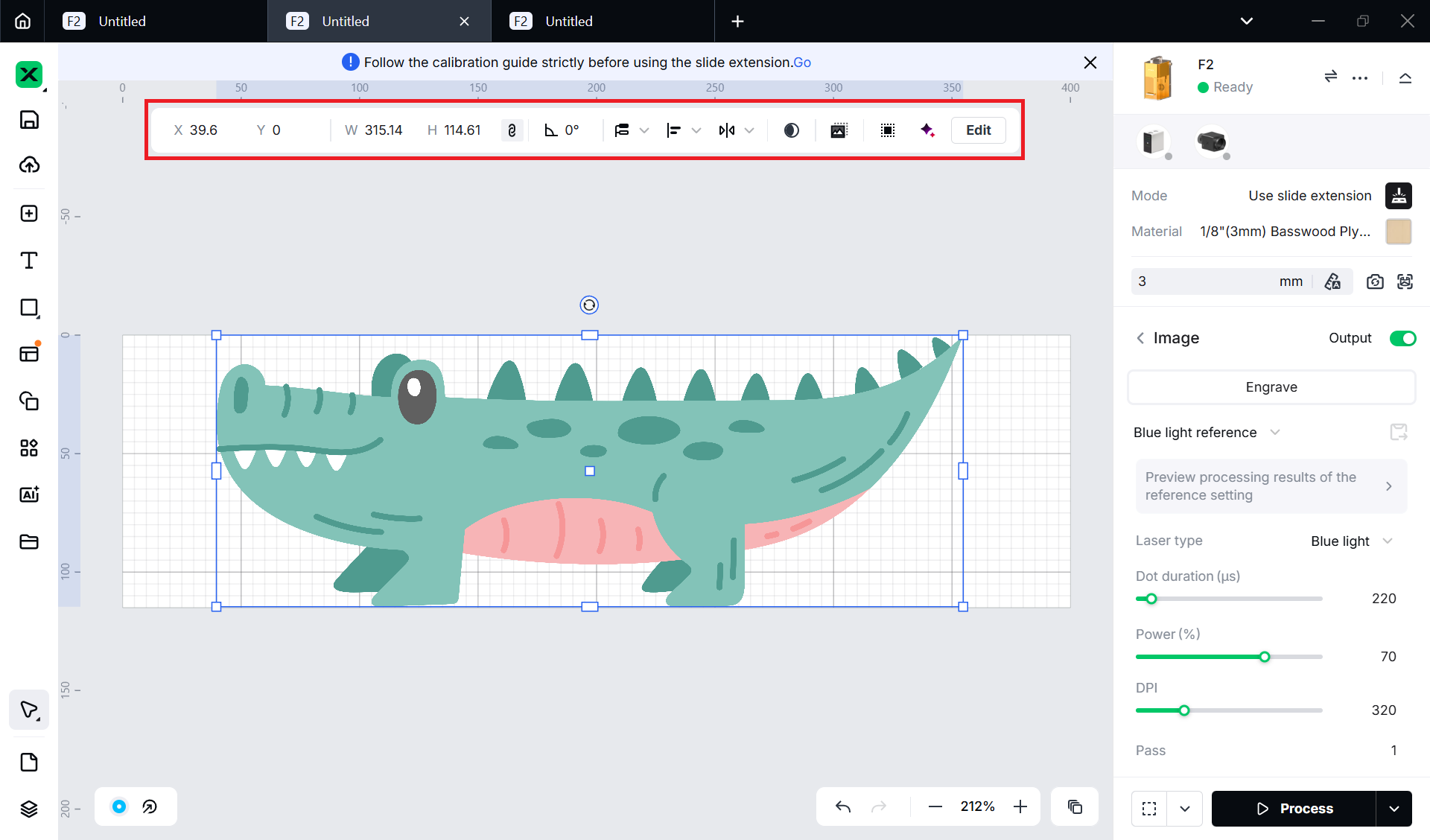
(2) Select the objects to further edit them using the features above the canvas.
6. Set parameters for processing
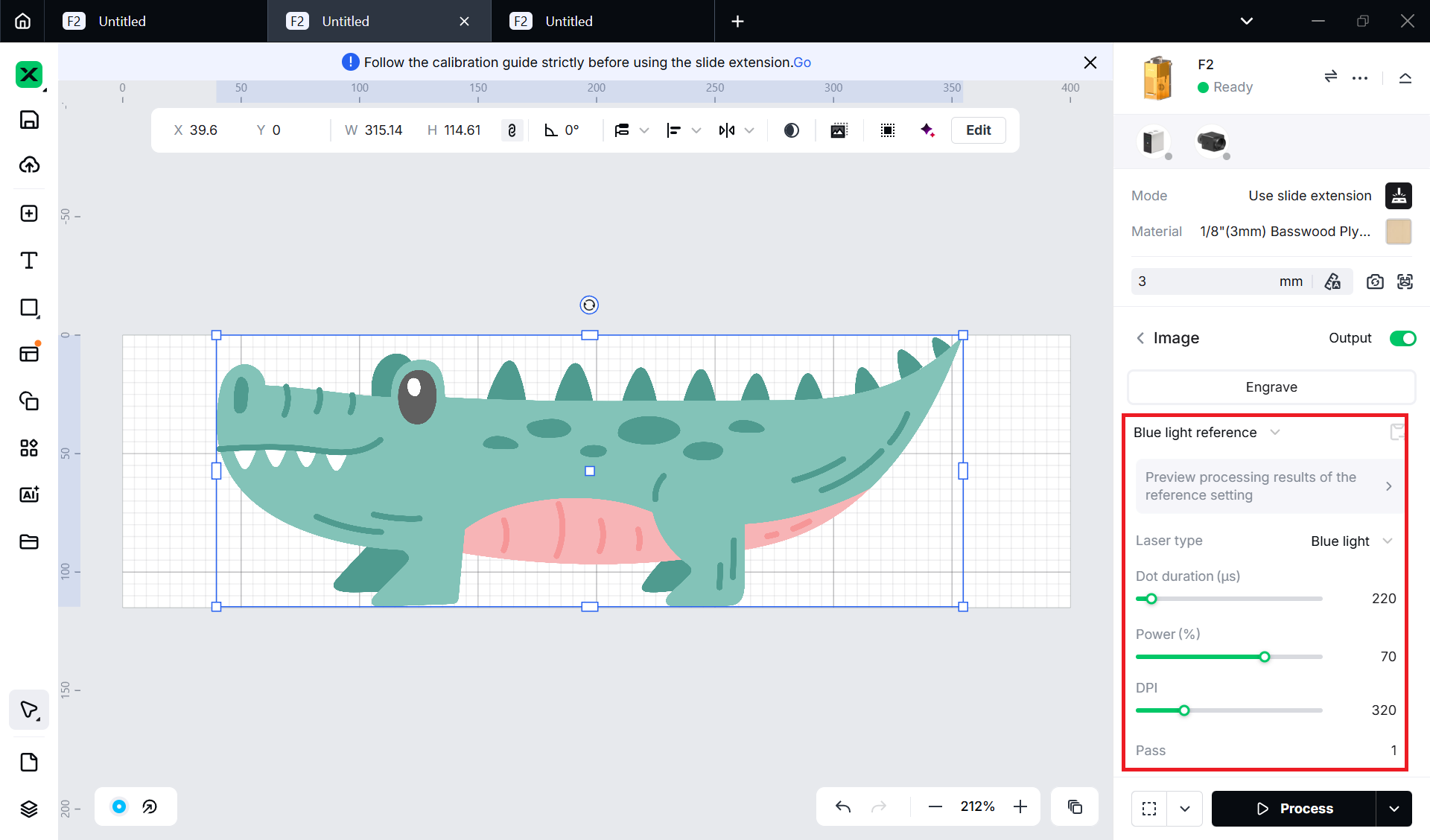
Select objects on the canvas and set parameters for the selected objects on the right panel.
7. Preview the processing area
Framing means laser dots walk along the border of the processing objects on the material. You can preview the processing area on the material by framing. Take the following steps to start framing:
(1) At the bottom right corner of the software, click the  icon next to
  to set the parameters for framing.
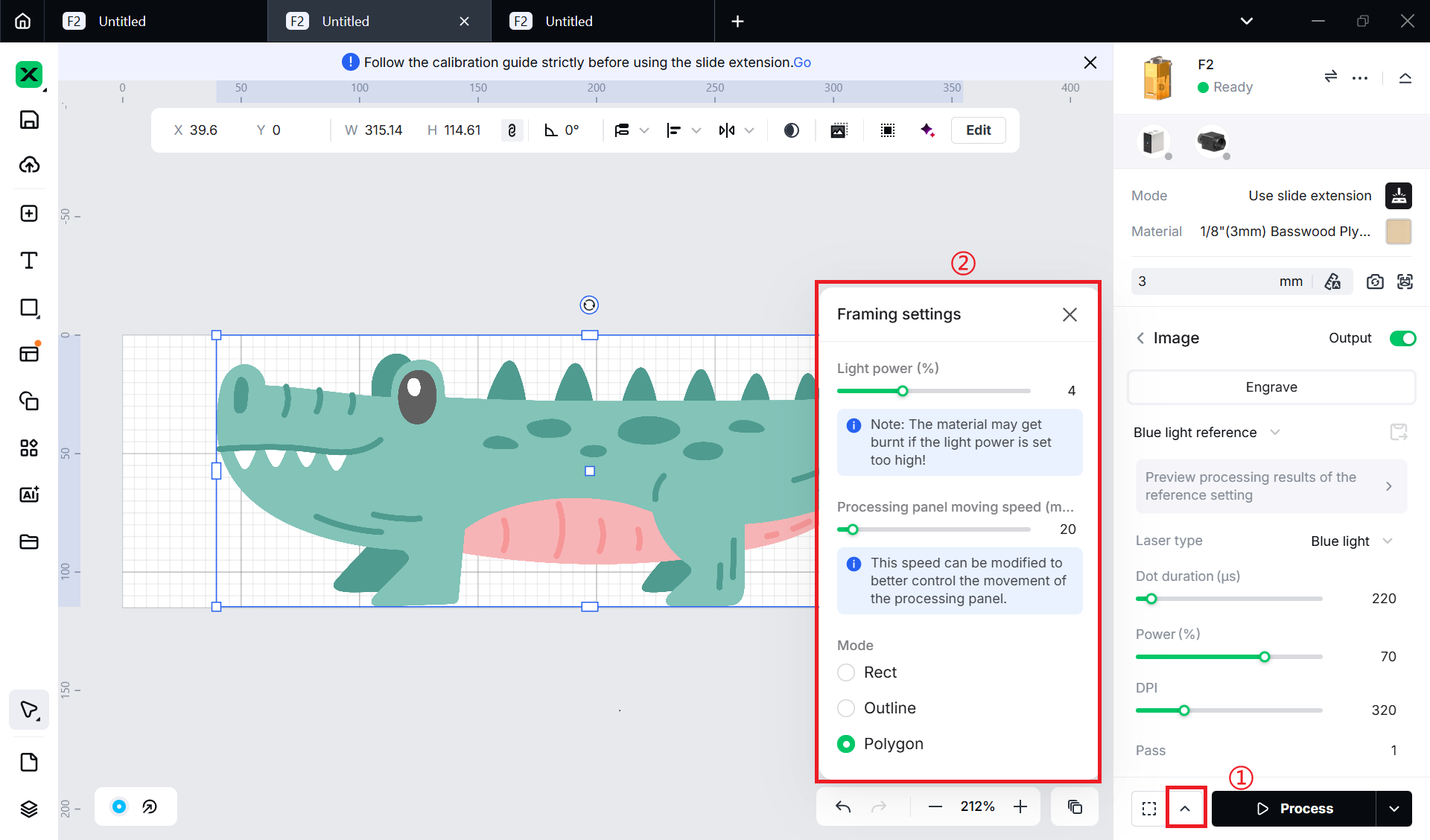
- Light power: Sets the laser power for framing.
- Mode: In the Rect mode, laser dots walk along the rectangle border of the processing objects. In the Outline mode, laser dots walk along the outline of the processing objects. In the Polygon mode, laser dots walk along the polygonal border of the processing objects.
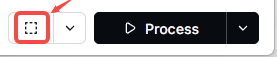
(2) Click in the software or press the framing button on xTool F2 to start framing. The laser spot will move along the boundary of the processing pattern on the material so that you can preview the processing area.
 or
or 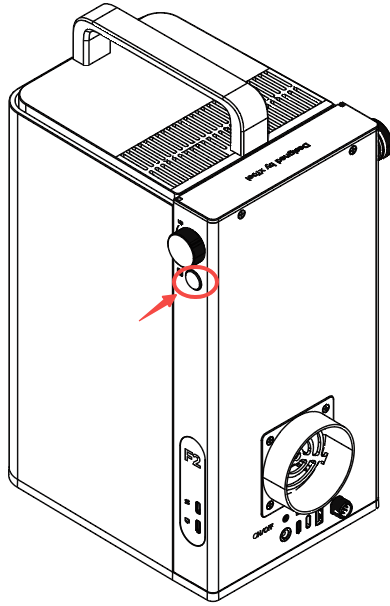
By default, xTool F2 performs framing for all the elements to be processed. To preview the boundary of one or more particular elements, you can select the elements on the canvas of xTool Studio during framing. The laser spot will move along the boundary of the selected elements, as illustrated by the following pictures.
Default framing:
Selected elements framing:
If the area is not ideal, you can adjust the element positions in xTool Studio during framing. xTool F2 will adjust the framing area accordingly, allowing you to preview the processing area in real time.
Note: Before framing, pull down the protective enclosure and wear goggles that can shield laser beams of 455 nm and 1064 nm wavelengths.
Note: To stop framing, click in the software or press the framing button on xTool F2.
8. Start processing
Note:
- When xTool F2 is used with a slide extension, its protective enclosure cannot be fully closed. For your safety, it is recommended that you wear goggles during processing.
- Safety goggles are not included with xTool F2 or the slide extension. Please purchase them separately.
Note: Using the infrared laser for bitmap engraving at a low temperature may lead to unsatisfying engraving results. To ensure better engraving results, you are advised to turn on the infrared ray preheat in Device settings, so that the laser module preheats before processing.
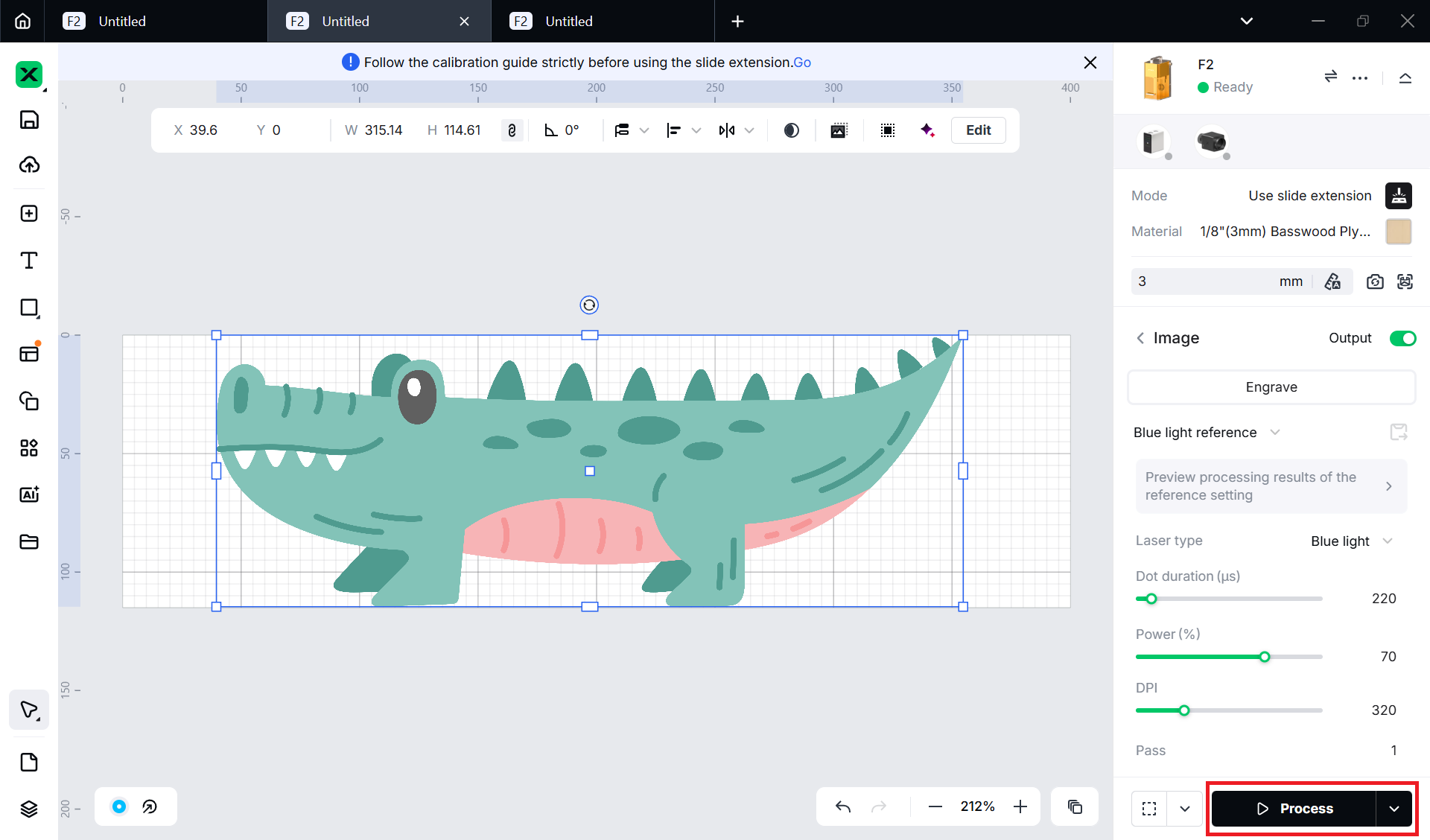
(1) On the bottom right corner of the software, click Process.
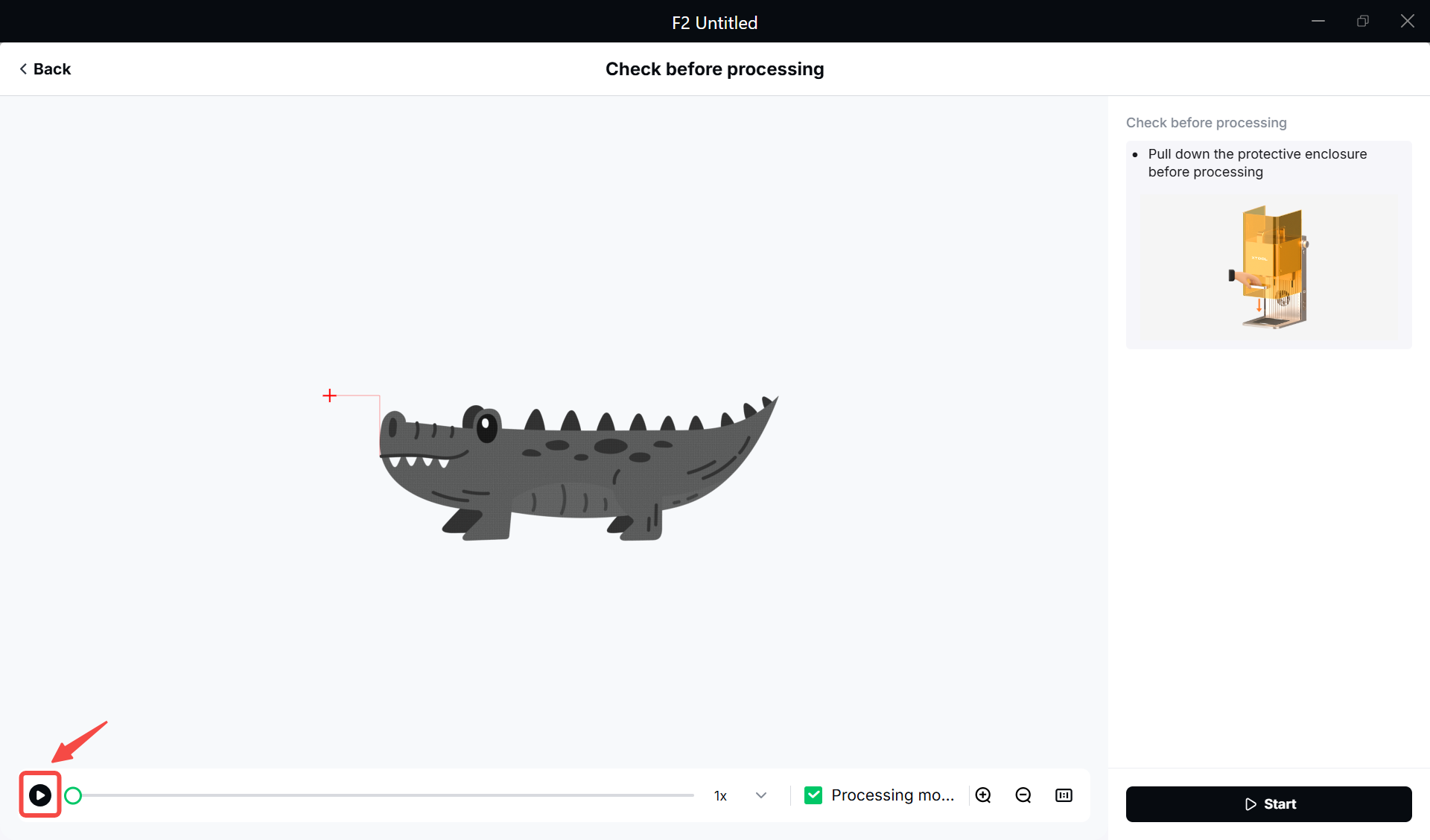
(2) Preview the processing pattern and path.
On the bottom, click View path preview and then click the 
button, and xTool Studio will show you the processing path.
(3) In the bottom right corner of the software, click Start.
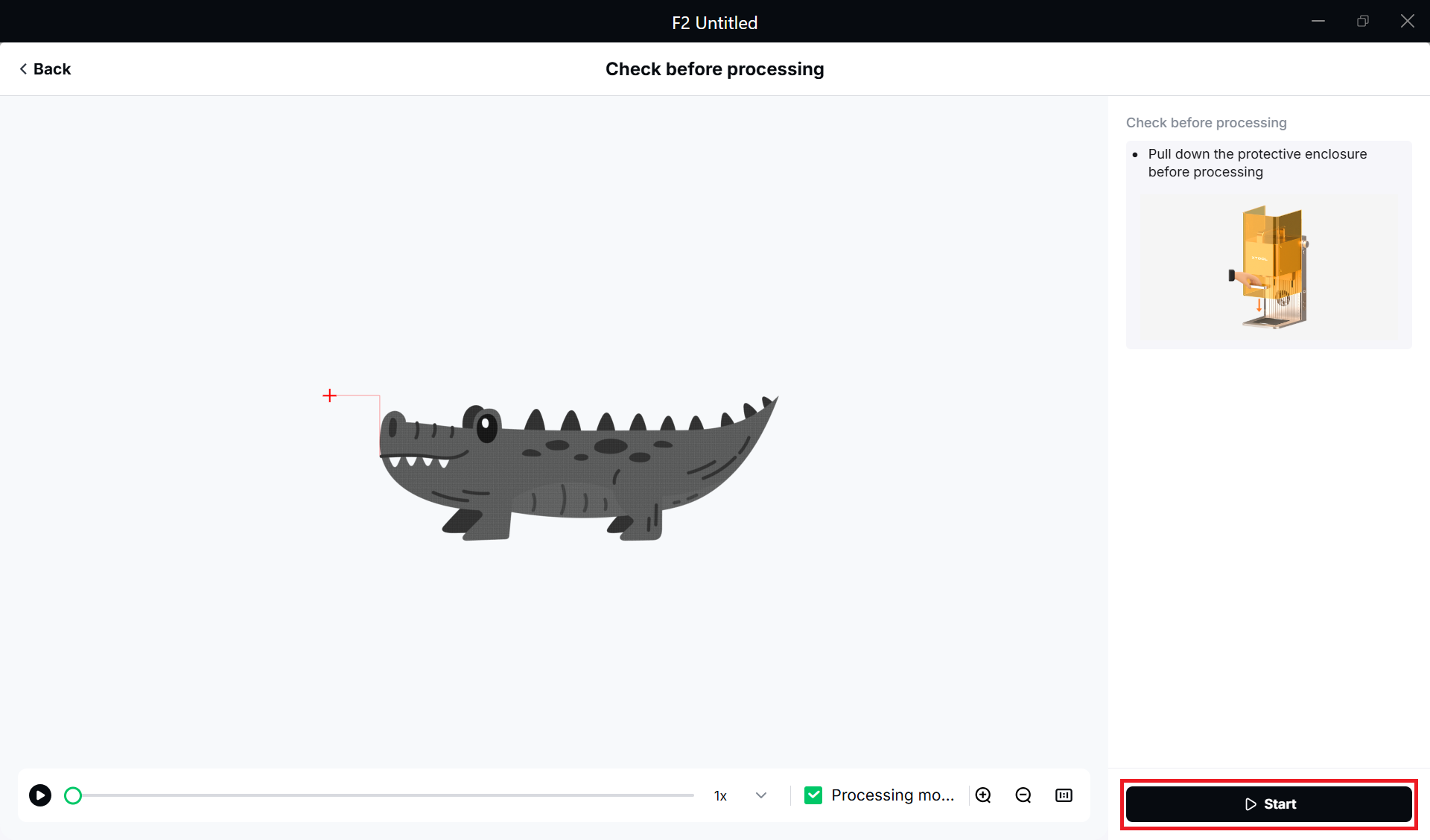
(4) Pull down the protective enclosure. Then, press the knob on xTool F2 to start processing.