
Issue description
When using your xTool OS1 Automatic Shaker Oven Machine, you receive an "Exhaust fan exceptions (Error code: X)" error message displayed on either the xTool Creative Space (XCS) software or the oven's touchscreen control panel.
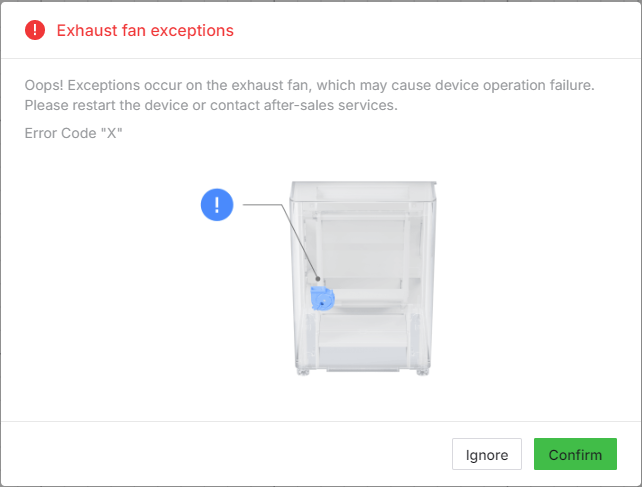
Potential causes
- Poor exhaust fan cable connection: Loose or disconnected wiring between the exhaust fan and the main control board;
- Exhaust fan failure: Hardware malfunction of the exhaust fan motor or components;
- Main control board issue: Abnormal voltage output from the oven's main control board;
Troubleshooting
Step 1: Reconnect the exhaust fan cable
Tools Required:
- M2.5mm Hex screwdriver (included with your xTool package)
⚠️ Important Safety & Preparation Notes:
- Printer Removal: Before starting the inspection, remove your xTool Apparel Printer from the top of the OS1 oven by unscrewing the two installation screws.
- Power Safety: TURN OFF the oven's main power switch and UNPLUG the power cord from the wall outlet.
- Printer Power: Once the printer is uninstalled, reconnect its power supply to ensure it remains powered on for its auto-maintenance function.
Procedure:
- Use an M2.5mm Hex screwdriver to remove the screws securing the left-side panel of the oven. Carefully set the panel aside.
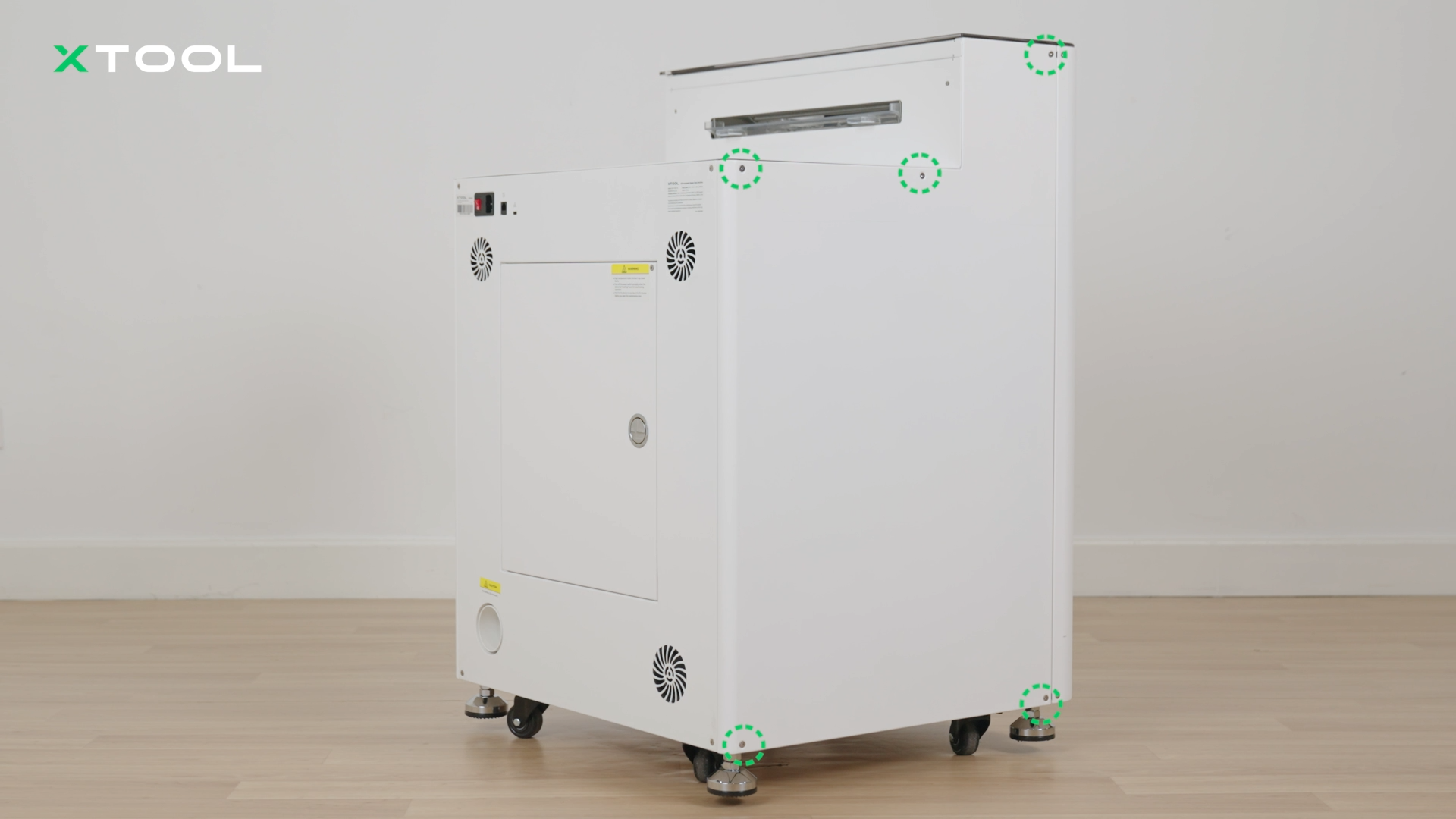
- Locate the main control board inside the oven.
- Unplug and then firmly re-plug the connector for the exhaust fan on the main control board. Refer to the image below for the connection point.
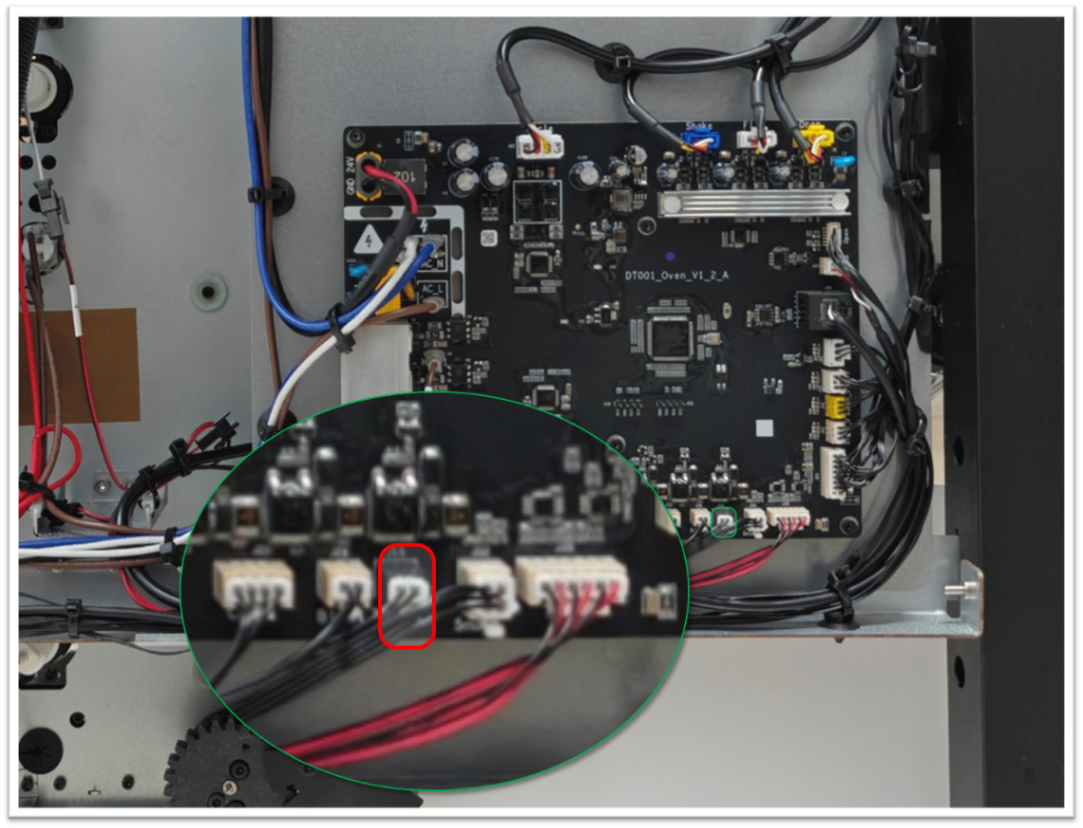
- Plug the power cord back in and turn on the oven's power switch to test the oven.
If the issue persists, proceed to Step 2.
Step 2: Replace component(s)
If previous steps have not resolved the issue, the problem likely stems from:
- exhaust fan hardware failure; or
- main control board hardware failure (possibly voltage fault);
Advanced Intervention:
- This step requires advanced technical intervention. Please proceed to the "Still experiencing issues?" section to contact xTool Customer Service for further diagnosis.
- If deemed necessary by xTool technical experts, certain component(s) may need to be replaced.
- Refer to the following tutorials for detailed replacement procedures:
Still experiencing issues?
Should the issue persist after completing the preceding steps, submit a ticket via the "Submit a Ticket" button in the "Help Ticket" section below. The standard response time for xTool Customer Service is one business day.
For a prompt resolution, please include the following details:
- Issue description: A detailed explanation of the observed problem.
- Video evidence: Attach a video demonstrating the issue, where applicable.
- Troubleshooting performed: Any troubleshooting steps you have already attempted, along with their results.
This information is crucial for xTool technical support engineers to provide timely assistance.
Documentation feedback
Help improve this content by providing feedback. If this content did not meet your requirements, select "No" in the "Was this page helpful?" section below. Include specific details about what was unclear or missing in the pop-up suggestion box. Feedback submissions are reviewed by xTool technical writers to enhance future documentation.

Services & Help
Learn & Education

Copyright © 2025 xTool All Rights Reserved.