
Issue description
When using your xTool Apparel Printer and OS1 Oven, you receive a "Film collection error" message displayed on either the xTool Creative Space (XCS) software or the LCD control panel.
- Error Code: "film full"
Potential causes
- Delivery slot full: The film delivery slot is full of cured PET film that has not been removed. (Most likely)
- Dirty film output detection sensor: The film output detection sensor is dirty and obstructed by adhesive powder. (Most likely)
- Malfunctioning film output detection sensor: The film output detection sensor is experiencing failure.
- Failed sensor connection cable: The sensor's connection cable is loose or glitching.
- Misaligned sensor: The film output detection sensor is tilted or out of position.
Troubleshooting
Step 1: Check the delivery slot
Check for Film Accumulation: The delivery slot may have excessive PET film buildup causing the sensor to trigger.
Action Required:
- Check the film delivery slot at the front of the OS1 oven.
- If a large pile of cured PET film has accumulated, please remove or organize it to clear space.
- Once the area is clear, the error should be resolved.
- Test the system to see if the error is resolved
If the error persists: Proceed to Step 2.
Step 2: Clean the film output detection sensor
💡 Adhesive powder can build up on the sensors and block them, causing a false "full" reading.
xTool OS1 applies two film output detection sensors, located near the film output slot, to detect whether the film has been properly delivered after curing and whether it has been retrieved by the user.
Preparation:
- Remove the waste powder bin to improve visibility and access to the sensor area.
Inspect Sensor:
- Look inside the delivery slot for the internal sensor
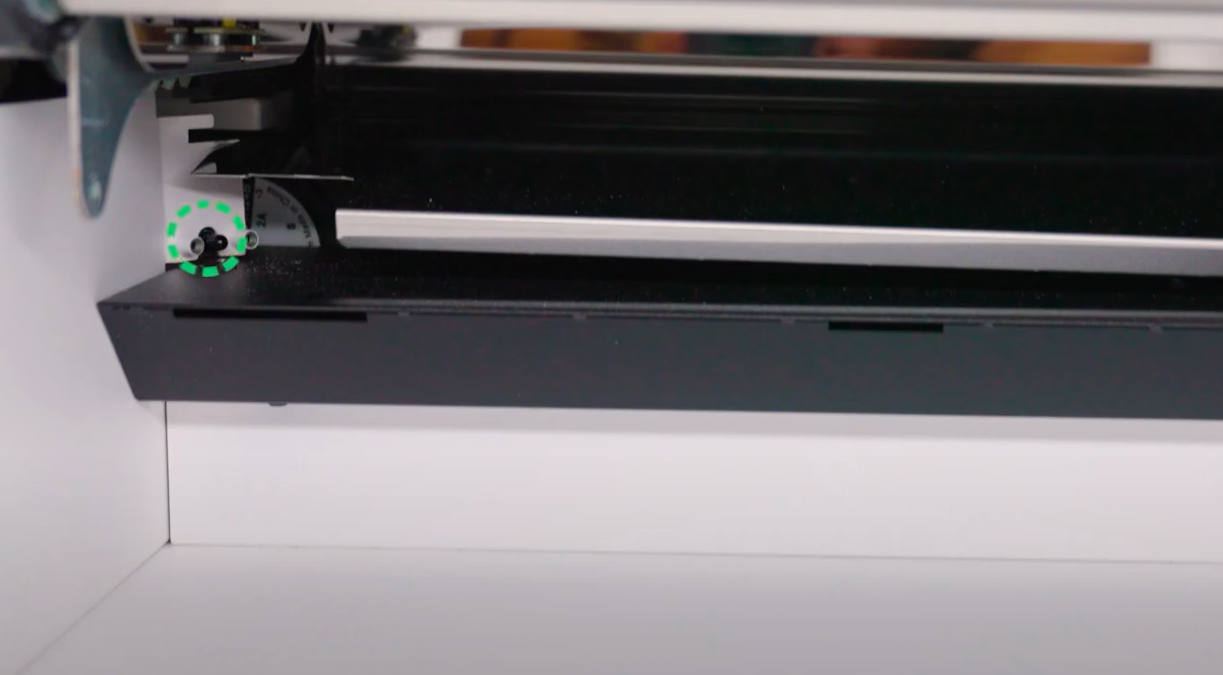
- Check if the sensor is illuminated blue
- If the sensor shows a blue light, it is functioning.
- If there is no blue light, the sensor requires cleaning.
Clean Both Sensor Locations:
If no blue light is visible, clean the following two sensor locations:
Sensor Location 1: Internal sensor inside the delivery slot area
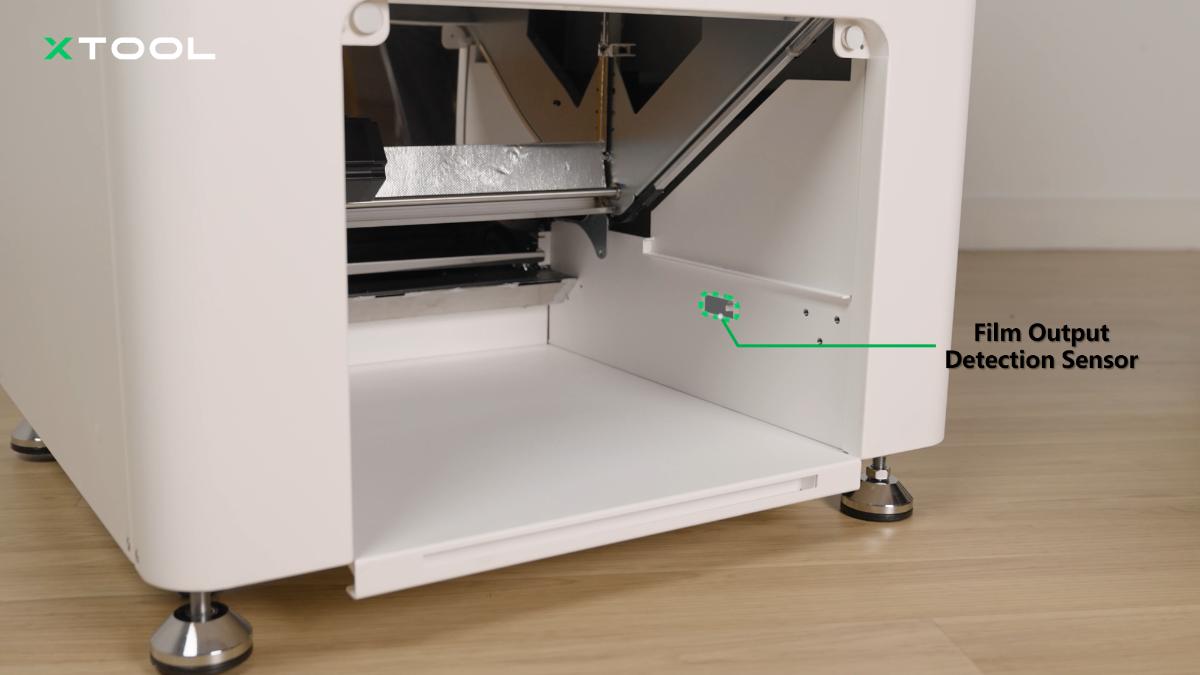
Sensor Location 2: External sensor near the delivery slot opening
Cleaning Procedure:
- Use a lint-free cloth or cleaning brush (included in your package);
- Gently wipe away any powder, dust, or debris from both sensor surfaces;
- Ensure complete removal of any adhesive powder residue;
Verify Cleaning:
- After cleaning, check if the internal sensor now illuminates blue.
- Reinstall the waste powder bin.
- Test the system.
If the error persists: Proceed to Step 3.
Step 3: Check film output detection sensor alignment
⚠️ Safety Warning: The oven must remain powered on for this step. DO NOT reach your hands into the oven's internal hot areas to prevent burns. Only access the delivery slot area from the front opening.
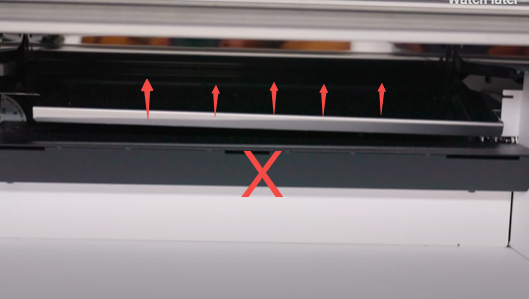
Manual Sensor Test:
- Locate the external sensor near the delivery slot opening.
- Gently press or wiggle the external sensor.
- Observe the internal sensor to see if it illuminates blue.
- Continue adjusting until the internal sensor's blue light activates.
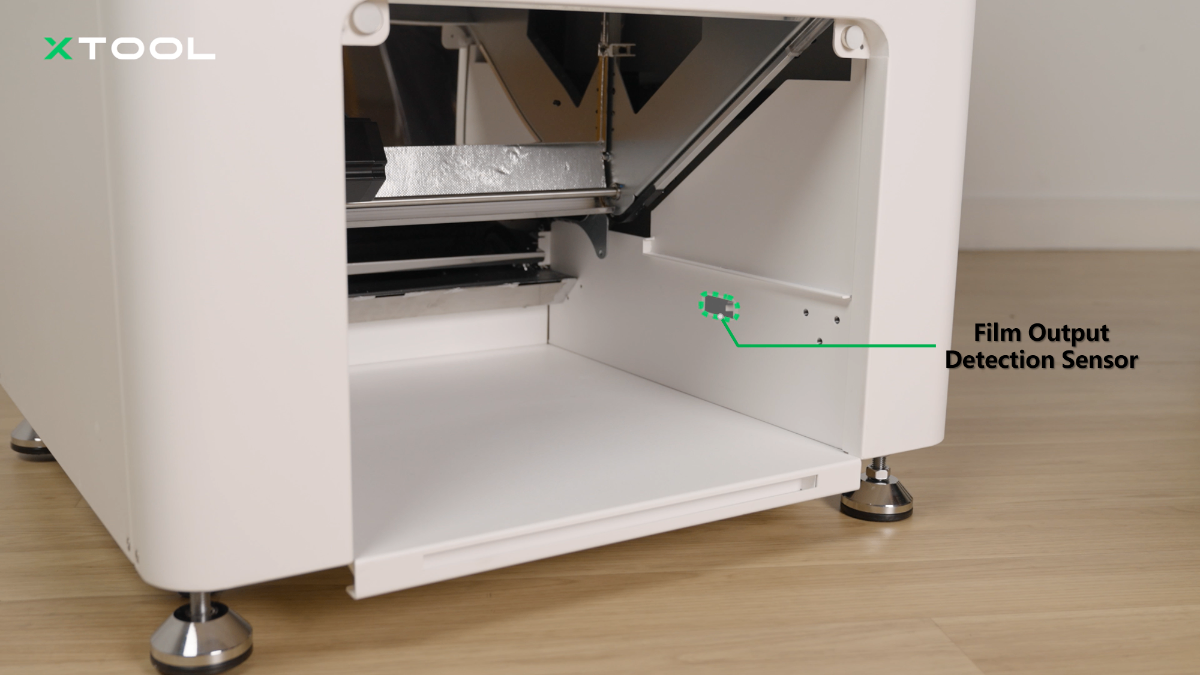
Understand the Issue:
- The external sensor may be misaligned or tilted.
- Physical adjustment can help restore proper sensor positioning.
- The blue light indicates proper sensor communication.
Verification:
- Once the blue light appears, test normal operation.
If the error persists: Proceed to Step 4.
Step 4: Replace component(s)
If previous steps have not resolved the issue, the problem likely stems from:
- Internal sensor hardware failure; and/or
- Damaged or disconnected sensor cable;
Advanced Intervention:
- This step requires advanced technical intervention. Please proceed to the "Still experiencing issuees" section to contact xTool Customer Service for further diagnosis.
- If deemed necessary by xTool technical experts, certain component(s) may need to be replaced.
Still experiencing issues?
Should the issue persist after completing the preceding steps, submit a ticket via the "Submit a Ticket" button in the "Help Ticket" section below. The standard response time for xTool Customer Service is one business day.
For a prompt resolution, please include the following details:
- Issue description: A detailed explanation of the observed problem.
- Video evidence: Attach a video demonstrating the issue, where applicable.
- Troubleshooting performed: Any troubleshooting steps you have already attempted, along with their results.
This information is crucial for xTool technical support engineers to provide timely assistance.
Documentation feedback
Help improve this content by providing feedback. If this content did not meet your requirements, select "No" in the "Was this page helpful?" section below. Include specific details about what was unclear or missing in the pop-up suggestion box. Feedback submissions are reviewed by xTool technical writers to enhance future documentation.

Services & Help
Learn & Education

Copyright © 2025 xTool All Rights Reserved.