
Hereinafter, xTool P3 is referred to as P3 and xTool SafetyPro™ IF2 2.0 as IF2 2.0.
Issue description
After power-on, P3 cannot connect to IF2 2.0.
Possible causes
- The xTool Studio software or P3 firmware version is not the latest.
- P3 is not paired with IF2 2.0.
- IF2 2.0 is connected to another machine.
- The Bluetooth module cables inside P3 are not securely connected.
- P3's Bluetooth module is faulty.
- IF2 2.0 is faulty.
Troubleshooting procedure
Step 1: Check and upgrade software and firmware version
Upgrade xTool Studio and P3 firmware to the latest version and try again.
Step 2: Pair P3 with IF2 2.0 again
P3 has a built-in Bluetooth chipset. Therefore, you do not need to insert the Bluetooth dongle.
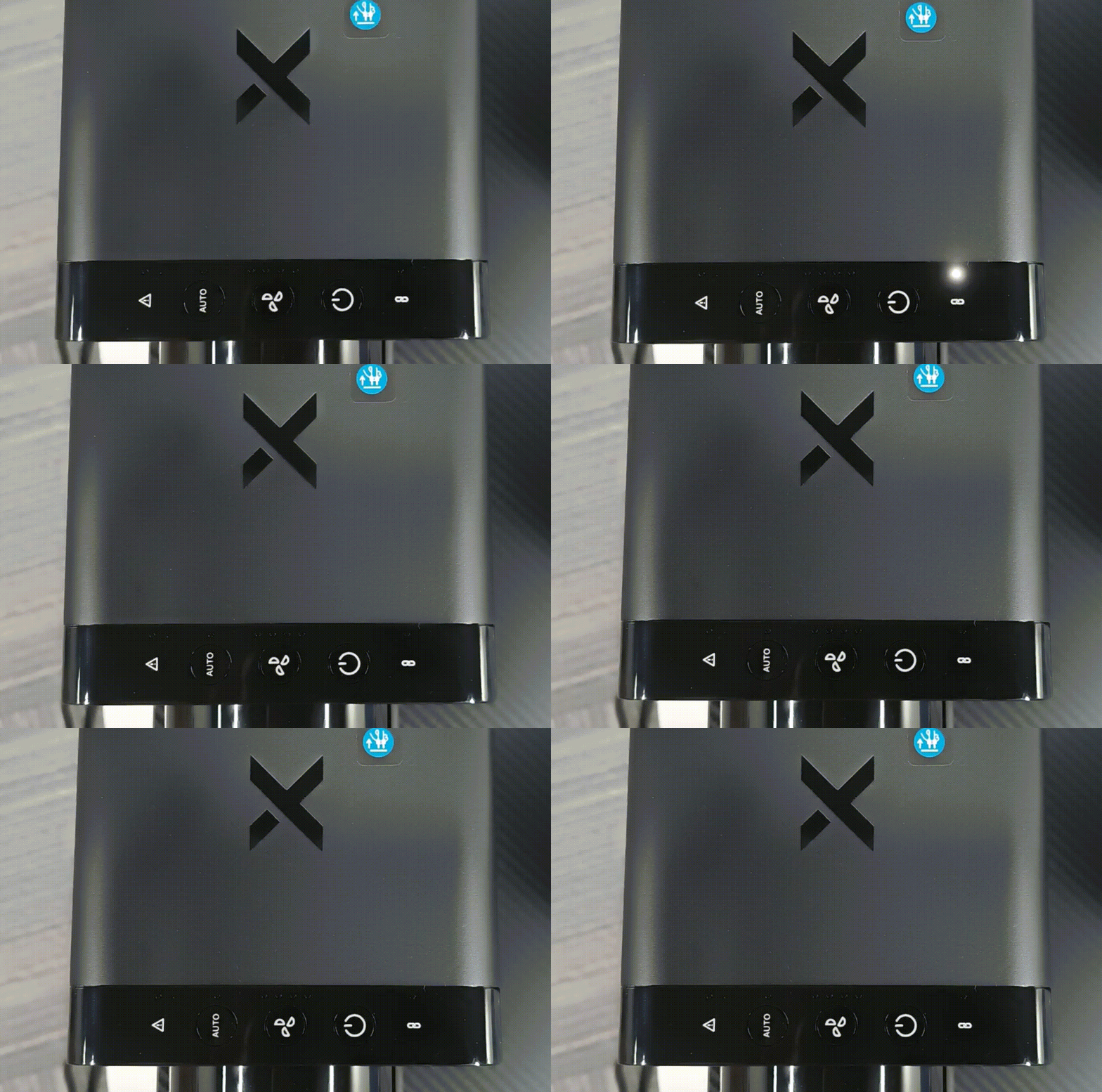
1. Press and hold IF2 2.0's power button for 5 seconds. Its Bluetooth status indicator will then blink white, indicating that IF2 2.0 enters pairing mode.
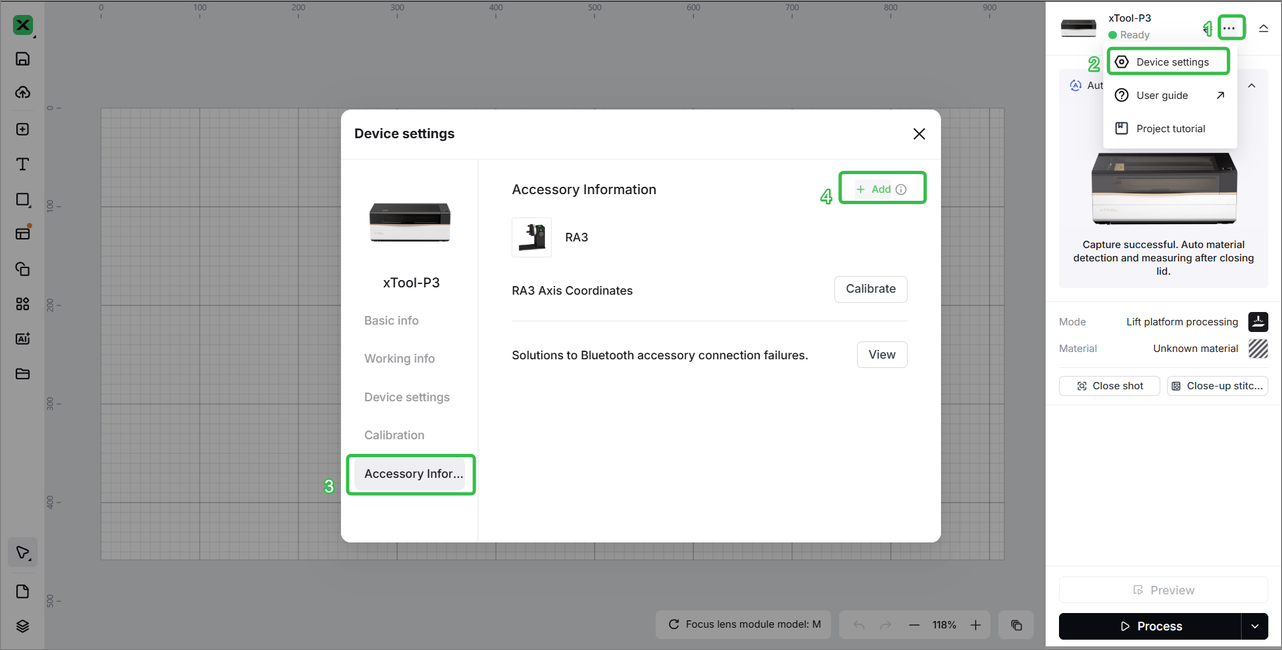
2. In xTool software, choose Device settings > Accessory Information. Then click Add to add a new accessory.
3. On the Accessories available page, click Connect to complete pairing.
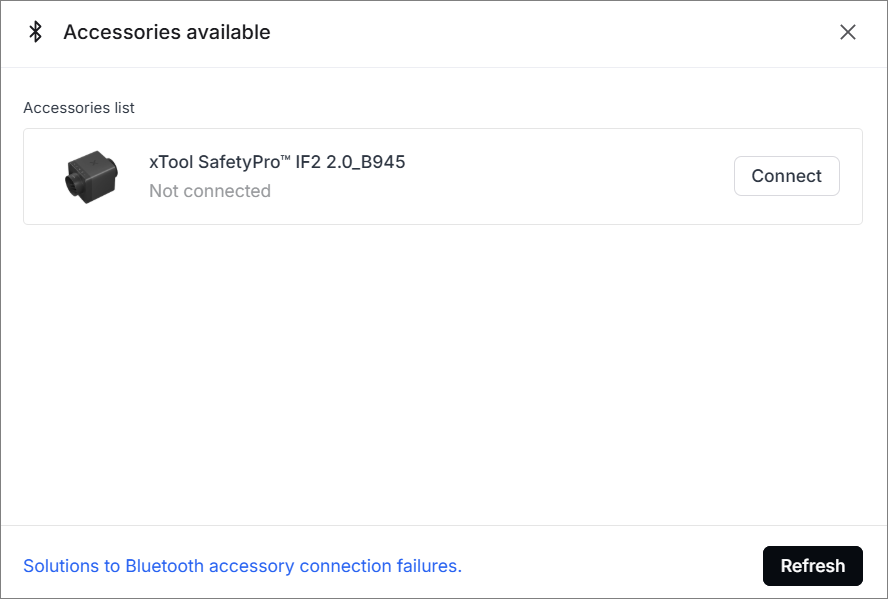
If pairing fails, restart IF2 2.0 for multiple times and try again.
Step 3: Remove abnormal binding and bind again
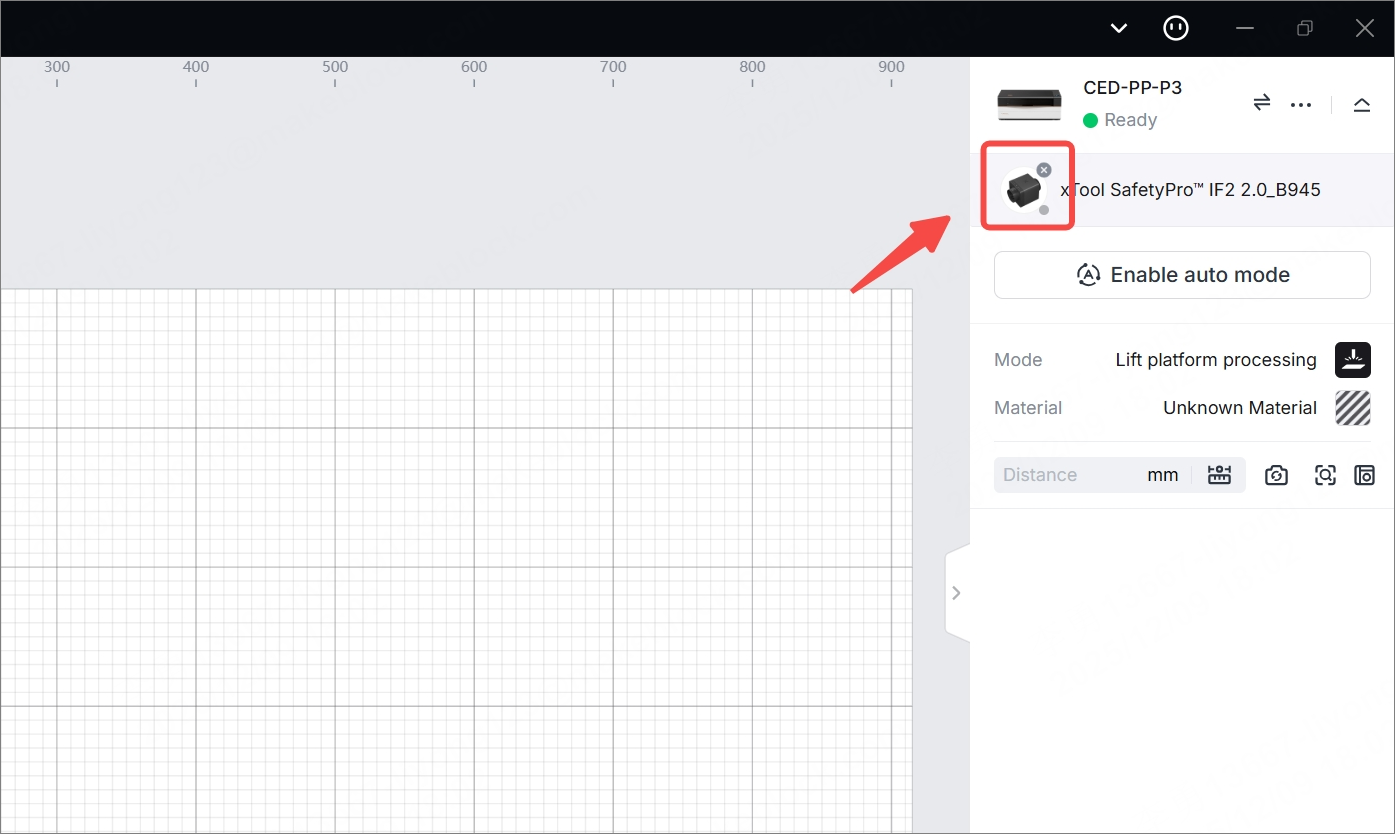
If IF2 2.0 is not connected but is displayed in the software, as shown in the following figure, click the close icon on it to unbind IF2 2.0. Then pair it with P3 again.
Step 4: Check whether IF2 2.0 is connected to another device
Verify whether IF2 2.0 is currently paired with another device. If yes, disconnect IF2 2.0 from that device and connect to P3 by referring to Step 2.
Step 5: Check the cabling of P3's Bluetooth module
1. Power off P3 and disconnect its power cable.
2. Remove the left cover.
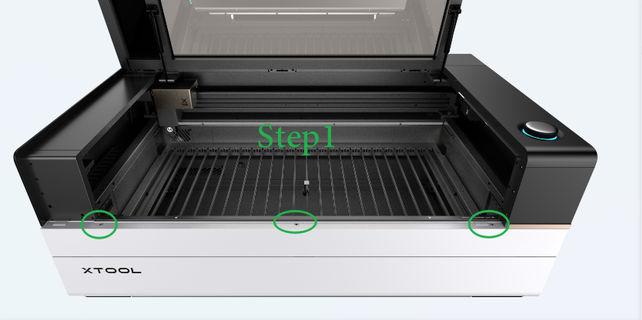
Step 1: At the front side of P3, remove the three screws from the front magnetic panel and open the panel.
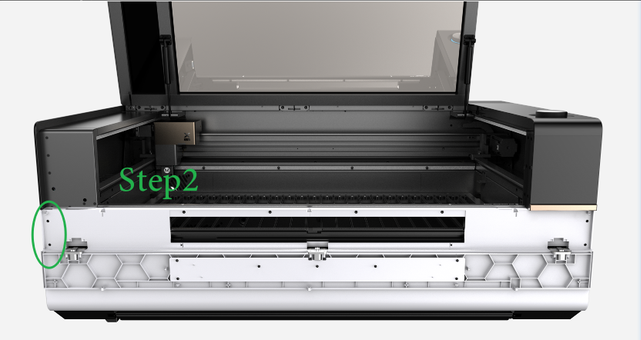
Step 2: Remove the two screws on the left.
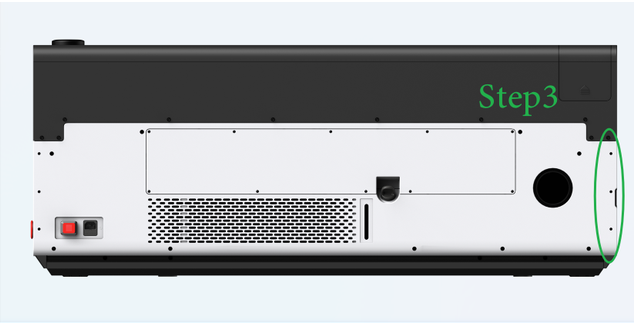
Step 3: At the rear side of P3, remove the three screws on the right side.
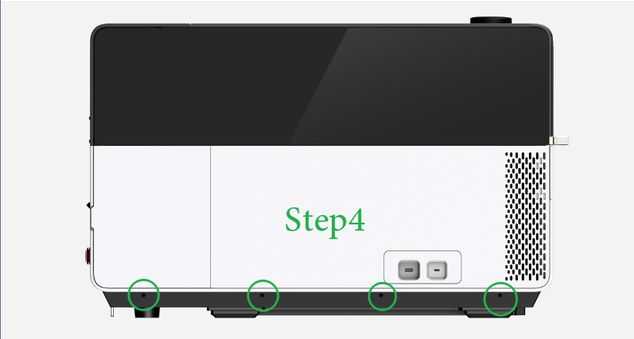
Step 4: At the left side of P3, remove the four screws as illustrated.
3. Inspect the Bluetooth module cables marked in the figure below to see if they are loose. If they are loose, reconnect them firmly.
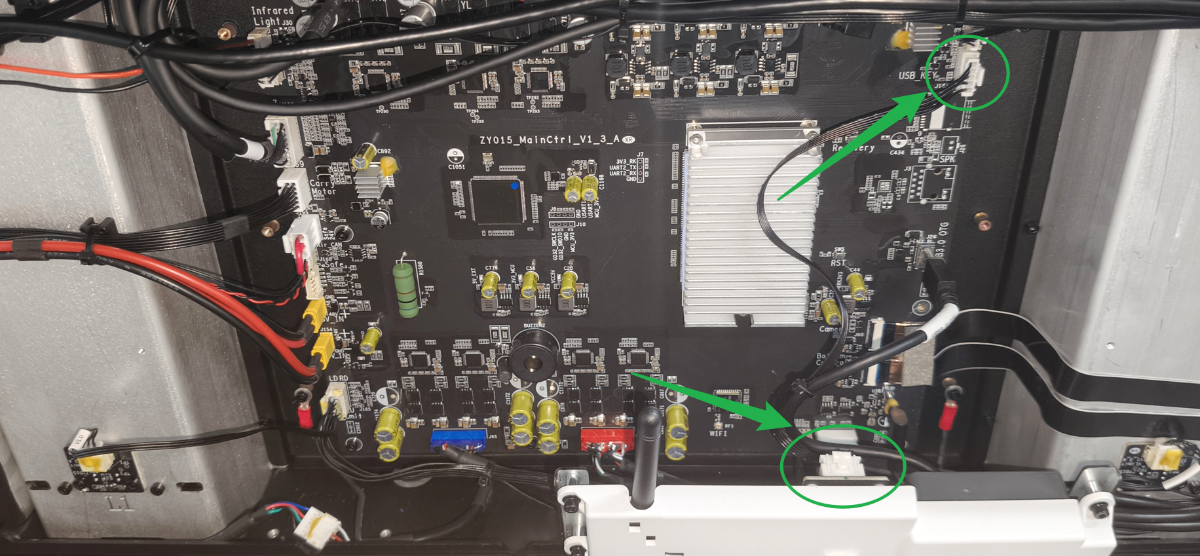
4. Restart P3 and try again.
If the problem persists, contact our customer serice. If IF2 2.0 or the Bluetooth module is confirmed faulty, we will replace it for you.
Still experiencing issues?
Should the issue persist after completing the preceding steps, submit a ticket via the "Submit a Ticket" button in the "Help Ticket" section below. The standard response time for xTool Customer Service is one business day.
For a prompt resolution, please include the following details:
- Issue description: A detailed explanation of the observed problem.
- Video evidence: Attach a video demonstrating the issue, where applicable.
- Troubleshooting performed: Any troubleshooting steps you have already attempted, along with their results.
This information is crucial for xTool technical support engineers to provide timely assistance.
Documentation feedback
Help improve this content by providing feedback. If this content did not meet your requirements, select "No" in the "Was this page helpful?" section below. Include specific details about what was unclear or missing in the pop-up suggestion box. Feedback submissions are reviewed by xTool technical writers to enhance future documentation.

Services & Help
Learn & Community

Copyright © 2025 xTool All Rights Reserved.