
Issue description
- In auto mode, open the lid to capture the processing area;
- In manual mode, click the refresh button;
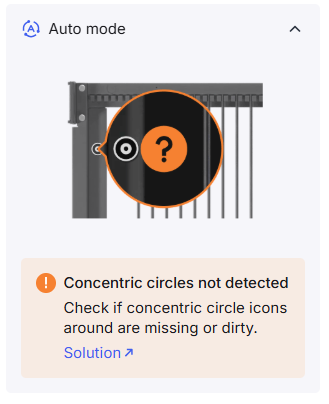
One of the actions indicates "Concentric circles not detected" in the software.
Possible causes
- Concentric circle icons are dirty or covered.
- The camera lens is dirty.
- Close or open the lid improperly.
- The camera is faulty.
Important notes
- When capturing images in auto mode, the camera will refresh at regular intervals, including when you place materials or open/close the lid. Therefore, you may occasionally encounter a prompt that concentric circles cannot be detected because your arm was captured in the photo, or the camera angle is incorrect. This is normal. Open the lid as usual, and the device will resume capturing images normally.
- If you encounter the prompt "Camera cannot capture images" in the software, such as refreshing failed, lid not opened, and so on, go to Distant-View Camera of xTool P3 Fails to Take Photos for details.
Troubleshooting procedures
1. Check the software and firmware
Update the latest software and firmware.
2. Check the circle stickers
Check whether the circles on the four corners are covered or dirty. Ensure they are clean and visible to the distant-view camera.
3. Check the position of the material
The material is placed too close to the concentric circles. Please move the material to the centered area.
If you process with a thick material and place it near the circles, the circles may not be detected after the background is refreshed successfully. Because the viewing angle changes due to the lifting platform up and down.
If you use the auto mode, check whether the slat slots are covered.
4. Increase the speed of closing the lid
Please increase the speed of closing the lid appropriately.
If the lid closes too slowly, especially the lid hovering, it may cause the camera to trigger automatic capturing again, failing to recognize the concentric circle.
5. Avoid forcefully opening or closing the lid
Do not forcefully open or close the lid, as strong vibrations may interfere with the gyroscope's recognition of the lid's angle.
6. Check the camera
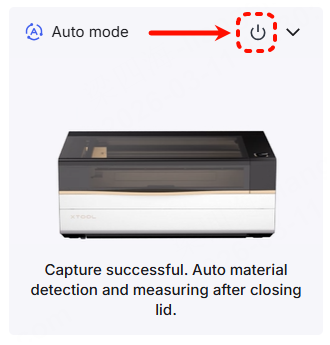
(1) Click to turn off Auto mode before one processing.
(2) Open the processing monitor at the front view. Observe whether the camera can capture normally.
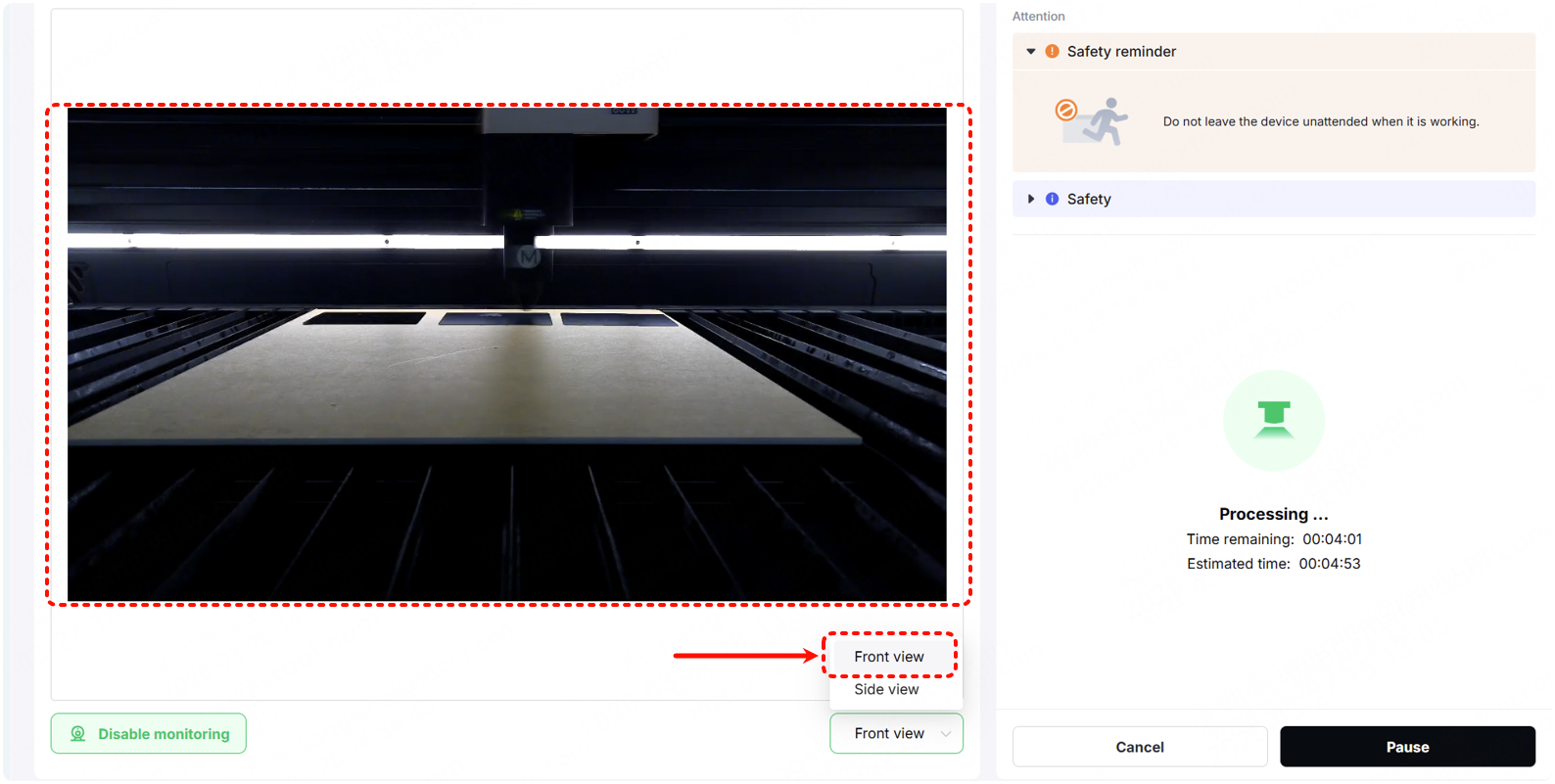
- If the image is blurry, clean the camera lens and try again.
- If the image is clear and normal, check for other issues.
Still experiencing issues?
Should the issue persist after completing the preceding steps, submit a ticket via the "Submit a Ticket" button in the "Help Ticket" section below. The standard response time for xTool Customer Service is one business day.
For a prompt resolution, please include the following details:
- Issue description: A detailed explanation of the observed problem.
- Video evidence: Attach a video demonstrating the issue, where applicable.
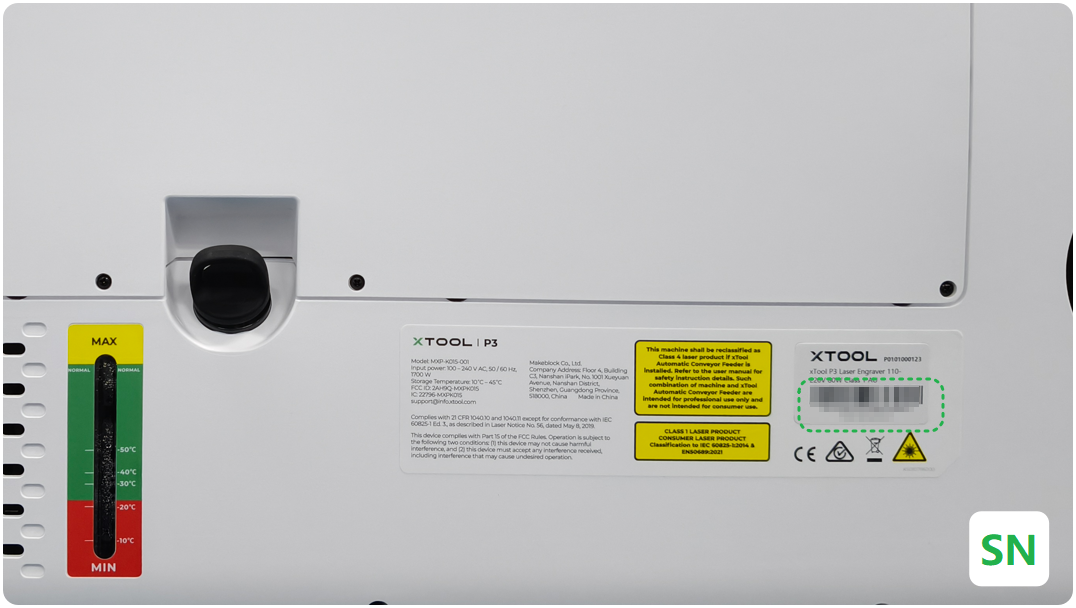
- Device information: Follow the steps to find the SN and export the work log.
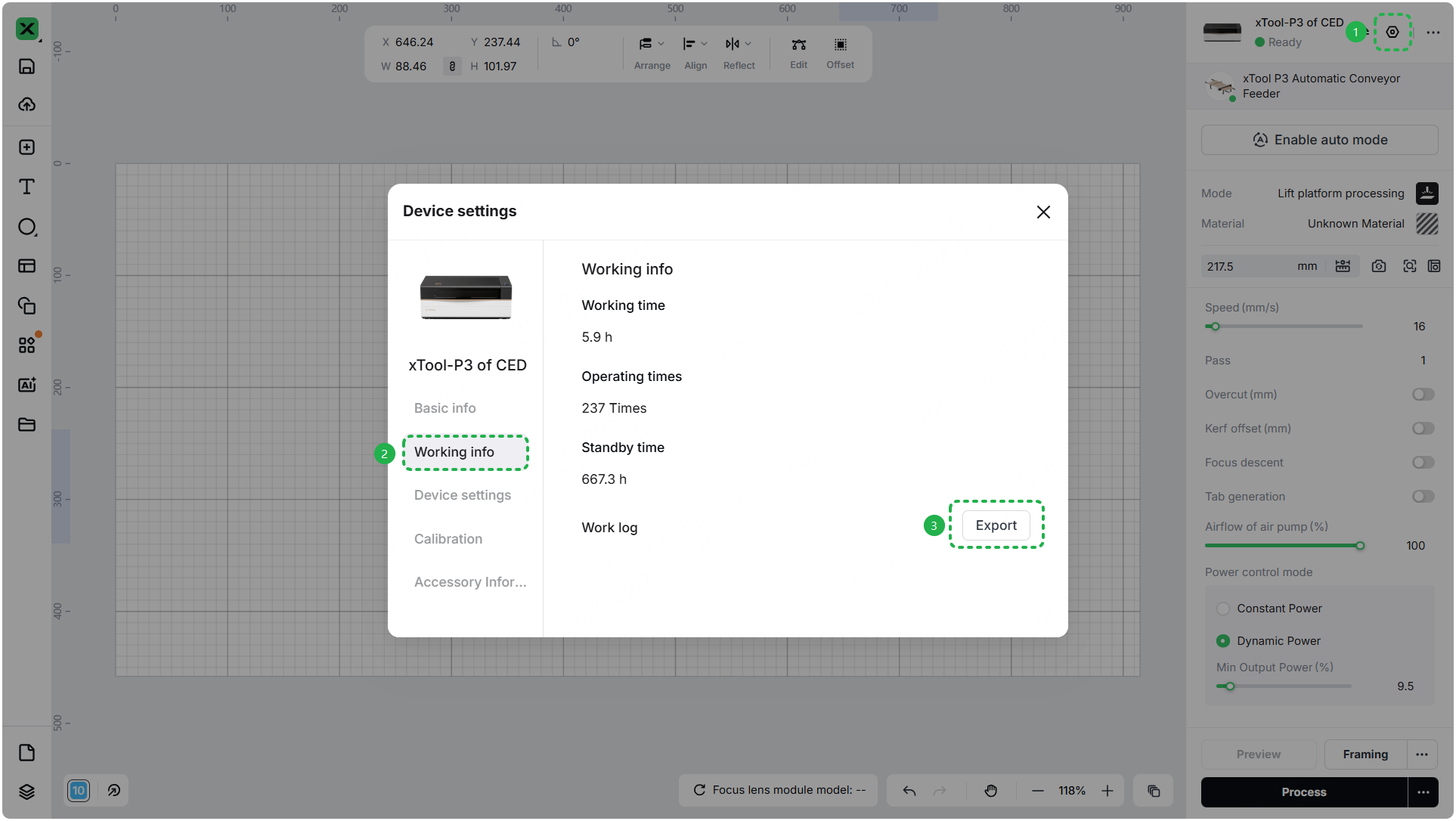
- Troubleshooting performed: Any troubleshooting steps you have already attempted, along with their results.
This information is crucial for xTool technical support engineers to provide timely assistance.
Documentation feedback
Help improve this content by providing feedback. If this content did not meet your requirements, select "No" in the "Was this page helpful?" section below. Include specific details about what was unclear or missing in the pop-up suggestion box. Feedback submissions are reviewed by xTool technical writers to enhance future documentation.

